


Adding HubSpot forms to WordPress can be a little frustrating. Sometimes your form just won’t show up where you want it, or you get stuck in plugin settings that don’t make much sense.
If you’re worried about missing out on new leads because of this, we’re here to help.
Over the years, we’ve found some simple, reliable ways to connect HubSpot forms to WordPress. The best part? There’s no need to touch any code or wrestle with tricky setup steps.
In this guide, we’ll show you two easy ways to get your HubSpot forms working on your site. This way, you can capture leads straight into your CRM and get back to focusing on your business. 💼

Why Use HubSpot to Create Forms?
HubSpot makes it easy to build and manage forms that capture leads and send them straight to your HubSpot’s CRM app. When someone fills out your form, their details are automatically added to your HubSpot database, so you can follow up with personalized messages.
What’s more, the HubSpot Form Builder is simple to use, even if you don’t have technical experience. Like most form builders, it lets you quickly build custom forms by dragging and dropping fields.
Plus, HubSpot is a very popular software.
Chances are, you can connect it to just about any small business tool, like email marketing services, marketing automation software, and other systems.
Also, keep in mind that HubSpot can also easily integrate with some other top contact form plugins like WPForms, Formidable Forms, and more.
Before we start, we’ll cover two methods in this guide. Here’s what you need to know:
- Method 1 (HubSpot): Best if you want a straightforward, direct link to HubSpot and don’t need a lot of custom form features.
- Method 2 (WPForms with the HubSpot addon): Best if you want flexible, customizable forms for all parts of your website (not only for sending contacts to HubSpot) and need more design or advanced features.
With that being said, let’s see how you can create a HubSpot form in WordPress:
Method 1: Creating a HubSpot Form Using the HubSpot Plugin
You can easily create a HubSpot form for your WordPress website using the HubSpot plugin.
First, you need to install and activate the HubSpot plugin. Form your WordPress dashboard, you can navigate to Plugins » Add New Plugin.

On the next screen, you can use the search bar to quickly find the HubSpot plugin.
Then, simply click ‘Install Now’ and the ‘Activate’ button, when it appears. For more details, see our guide on how to install a WordPress plugin.

Upon activation, the plugin will add a new menu item in the WordPress admin sidebar. Just click on HubSpot to be taken to the setup wizard, where you can create a HubSpot account if you don’t already have one.
If you have an account, you need to click on the ‘Sign in here’ link at the top.
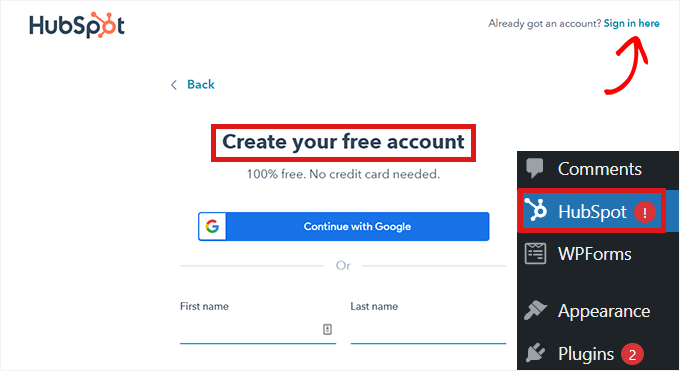
This will open up a ‘HubSpot Login’ popup.
Simply type your username and password and then click the ‘Login’ button.
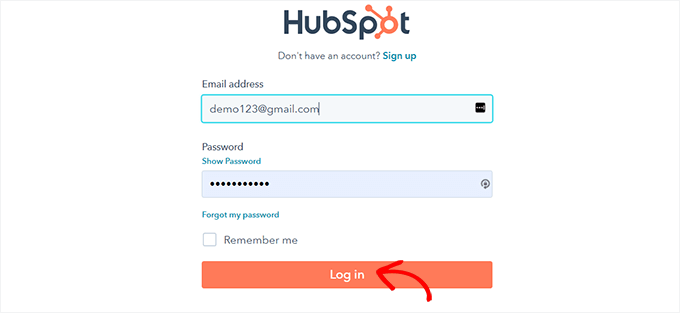
After you’ve logged in, HubSpot will ask if you want to continue with the account you’ve just logged in with.
Simply click the ‘Continue With This Account’ button.

Then, you’ll be asked to connect your HubSpot account with your WordPress website.
Just click on the ‘Connect Website’ button.

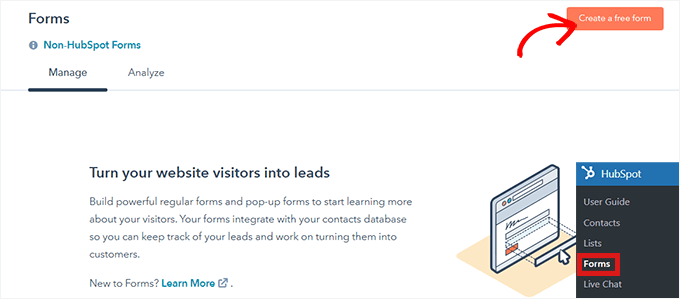
Once you’ve connected the WordPress website with your HubSpot account, head over to HubSpot » Forms from the WordPress admin dashboard.
This will take you to the ‘Forms’ page, where you can simply click on the ‘Create a Free Form’ button at the top right corner to get started.
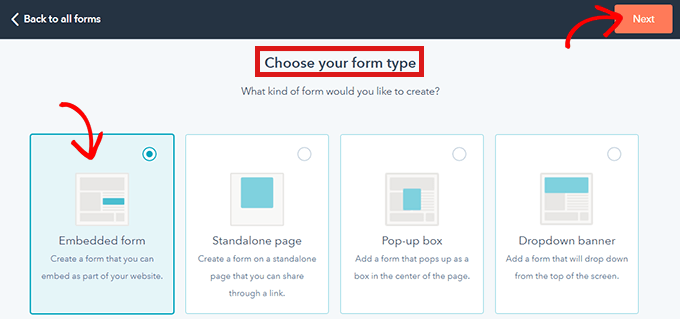
Next, you must select your form type and click the ‘Next’ button at the top.
For this tutorial, we will be creating an ‘Embedded form.’
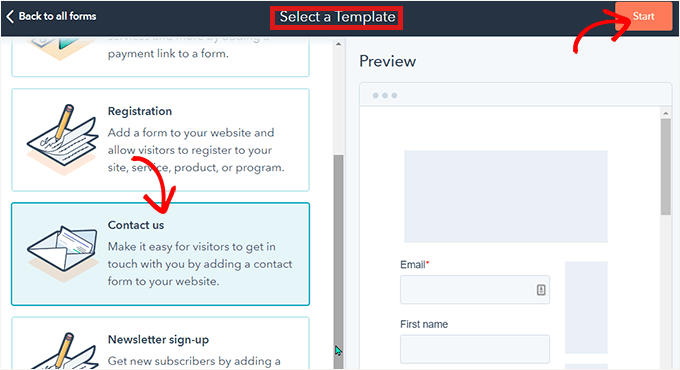
After that, you’ll be taken to the HubSpot template library.
Simply choose your preferred template, such as ‘Registration’ or ‘Contact us’. Then, just click the ‘Start’ button at the top.
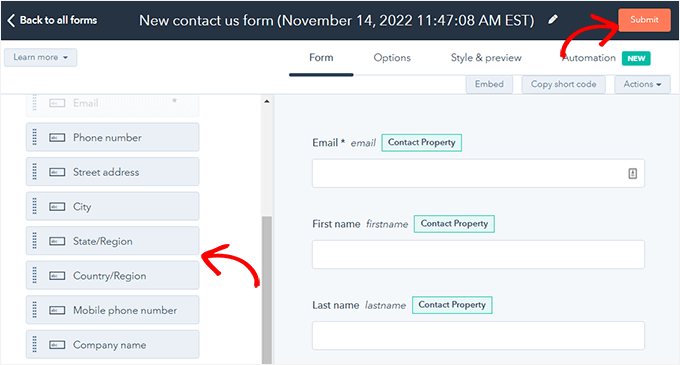
Now that you are in the Form Editor, you can edit the pre-made form template by dragging and dropping fields from the left into the preview on the right.
When you are done customizing, just click the ‘Submit’ button at the top.
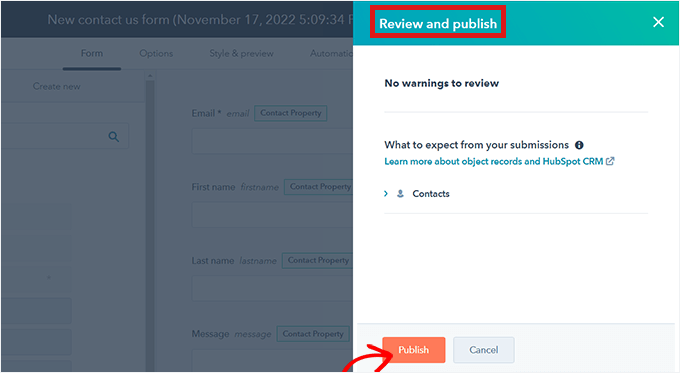
This will open up a ‘Review and Publish’ popup.
Simply scroll down and click the ‘Publish’ button.
After that, a popup will appear on your screen. As this is an embedded form, a shortcode will be provided.
Now, just click the ‘Copy’ button next to the shortcode.
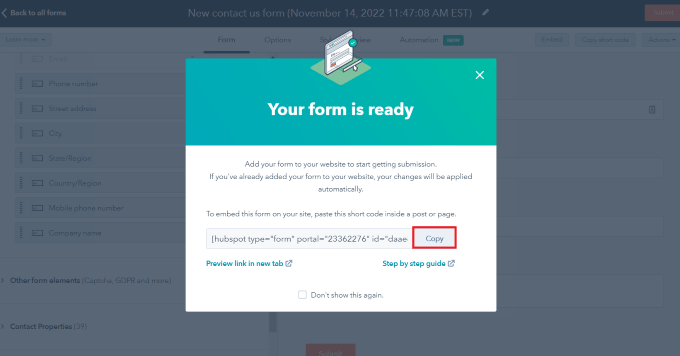
You can embed this code on any page where you want to add your HubSpot form. For more information, check out our guide on how to add shortcodes in WordPress.
Method 2: Creating a HubSpot Form Using WPForms
You can also create a HubSpot form using WPForms, which comes with a HubSpot integration addon. WPForms is the best drag-and-drop WordPress contact form builder, with over 6 million active installs.
We actually use WPForms for our contact form, site migration request form, and annual WPBeginner’s reader surveys; that’s why we highly recommend it.
To learn more about the plugin, check our complete WPForms review.
Note: You’ll need at least an Elite plan to access the HubSpot addon.
The first thing you need to do is get your WPForms account.
On the WPForms website, let’s click the ‘Get WPForms Now’ button, pick a plan, and complete the signup process.

Once registered, you’ll get your own WPForms dashboard. Here, you can find your WPForms zip file and license key.
Now, you can go back to your WordPress admin area to install and activate the WPForms plugin.
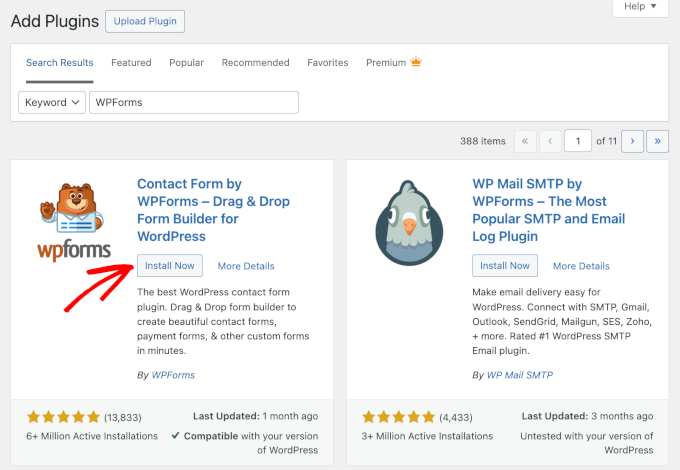
Next up, just use the search feature to quickly find the WPForms plugin.
In the search result, just click the ‘Install Now’ button and then ‘Activate’ to complete the process. Check out our detailed guide on how to install a WordPress plugin if you need help.
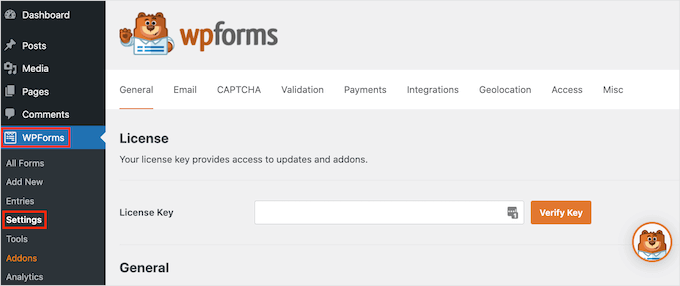
Upon activation, you’ll need to add your license key to activate the premium features.
Go to WPForms » Settings, enter your key, and hit the ‘Verify Key’ button.
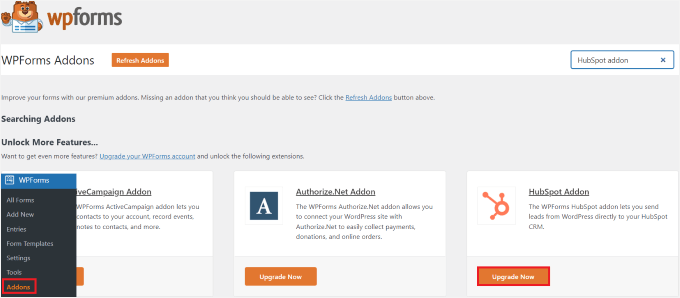
Next, let’s head over to WPForms » Addons to enable the HubSpot addon.
Simply locate the HubSpot addon and click the ‘Upgrade Now’ button (you’ll need an Elite plan to access this feature).
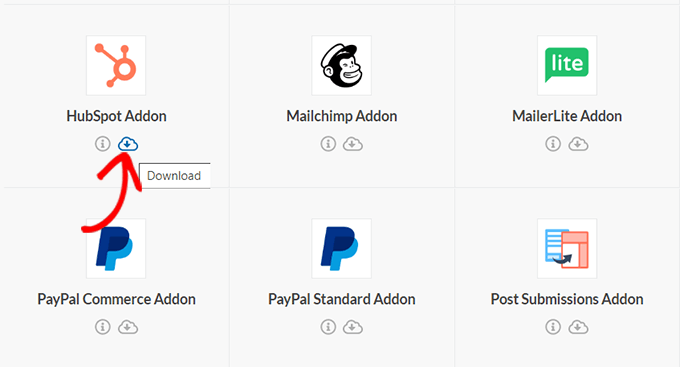
This will take you to your ‘WPForms Account’ page.
Here, simply scroll down to the ‘HubSpot Addon’ and click the download button.
After that, you can install and activate the HubSpot addon the same way you installed and activated the plugin.
Next, go to WPForms » Settings from the WordPress dashboard.
Then, head over to the ‘Integrations’ tab.
Here, you will find HubSpot in the list of integrations. Just click the arrow icon to expand the section, and then you can click the ‘Add New Account’ button.
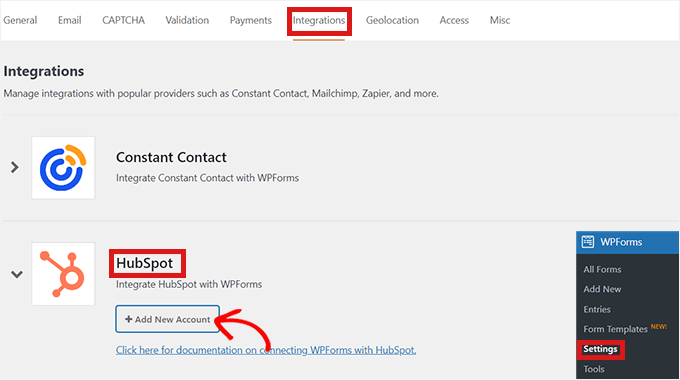
A prompt will open up, asking you to connect with your HubSpot account. Simply type your HubSpot account login credentials.
If you don’t already have an account, then you can create one here.
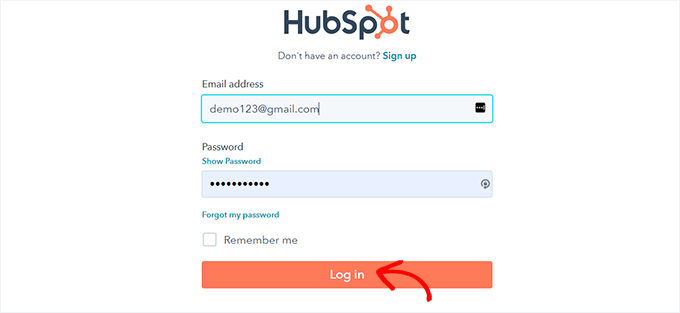
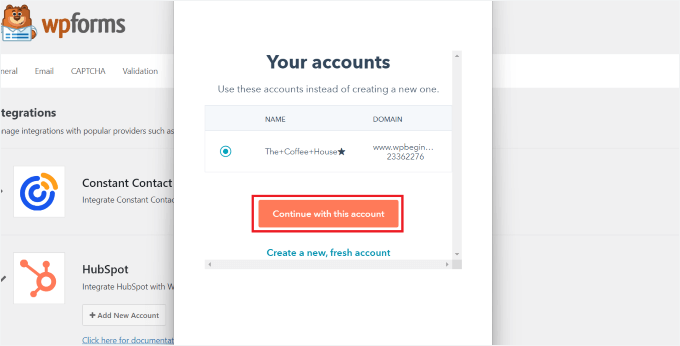
Next, you’ll be asked if you want to continue with this account.
Simply click the ‘Continue With This Account’ button.
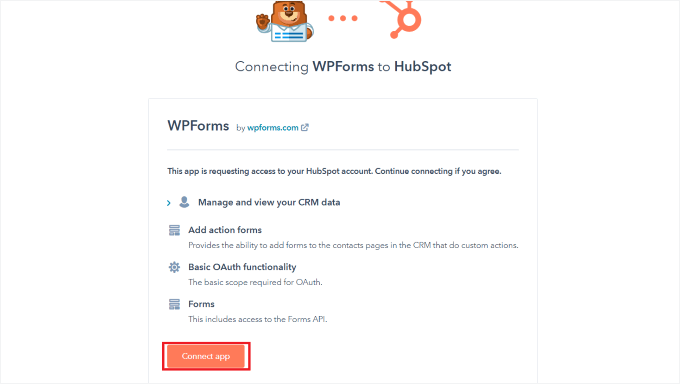
After that, you’ll be shown a popup asking you to connect WPForms with Hubspot.
Click on the ‘Connect App’ button at the bottom of the page.
On your WordPress dashboard, return to the ‘Integrations’ screen.
You should now see ‘Connected’ beside the HubSpot section.
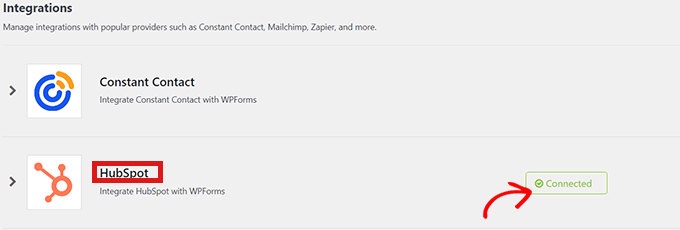
Now. it’s time to create your HubSpot form.
To start, go to WPForms » Add New from the WordPress admin area.
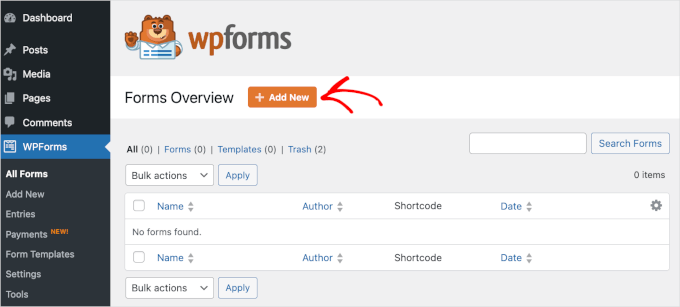
On the ‘Setup’ screen, you can go ahead and name your new form.
With that done, you’ll choose how you’ll build your form. WPForms allows you to start from scratch, use an AI-powered form builder, and select a form template from the WPForms template library.
If you want to use WPForms AI, all you have to do is to enter a simple prompt. The AI form builder will generate the form for you in an instant.

For this tutorial, we’ll use a pre-made template.
You can hover over the one your want to use and click the ‘Use Template’ button.

After that, you will be taken to the WPForms interface, where you can edit the form template. For a full walkthrough, you can see our guide on how to create a contact form.
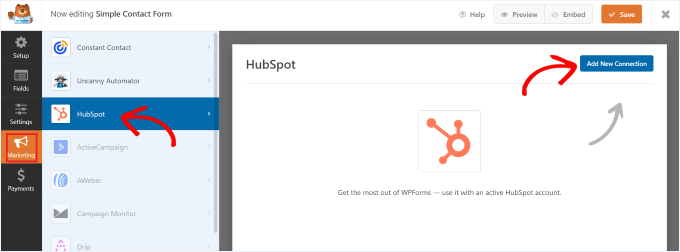
Now, click on the ‘Marketing’ option on the menu bar to the left. Simply select ‘HubSpot’ from the list of integrations.
A HubSpot popup will then appear on the screen. Simply click the ‘Add New Connection’ button at the top.
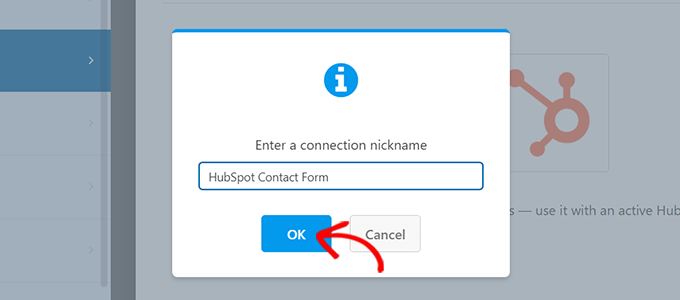
WPForms will now prompt you to enter a nickname for a connection.
You’re free to choose any name you like, as no one will see this but you. Just click the ‘OK’ button when you are done.
WPForms will then ask you to select your HubSpot account and choose an action to perform. Simply choose your account from the ‘Select Account’ Field.
Then, choose the ‘Create/Update Contact’ option from the ‘Action to Perform’ field.
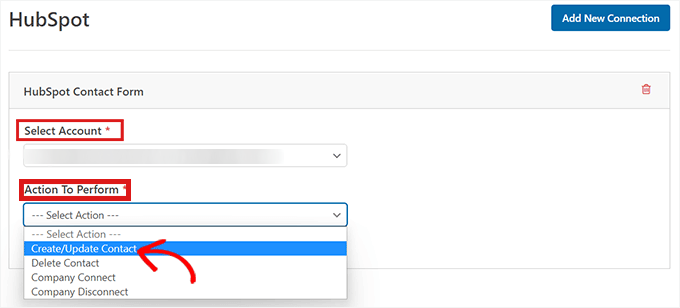
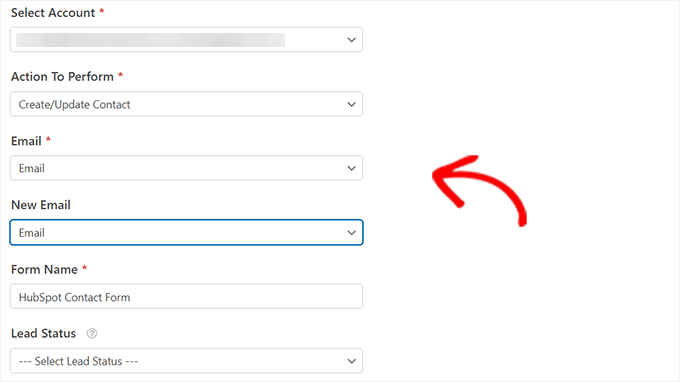
After selecting this option, various new settings will appear within the form.
Fill in those fields accordingly. Since we want to send contacts from your lead generation form to HubSpot, we’ll select the ‘Create/Update Contact’ option.
All of these fields, such as the prospects’ names, emails, and lead status, will be updated in the HubSpot database.
Next, you are ready to customize your form in the form builder.
Simply create drag-and-drop fields from the left-hand side into the live preview on the right.
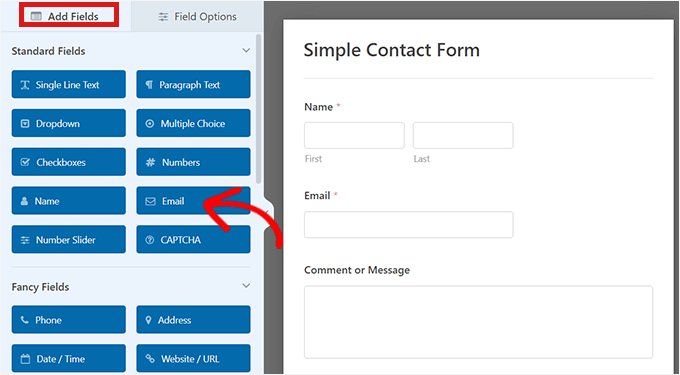
You can add any information that you want to collect and organize in your HubSpot account.
Once satisfied, click the ‘Embed’ button present at the top of the form builder to add the form to your WordPress site.

This will open the ‘Embed in a Page’ prompt.
If you want to embed your HubSpot form on a new page, click the ‘Create New Page’ option.
To embed a form on an existing page, click the ‘Select Existing Page’ option.
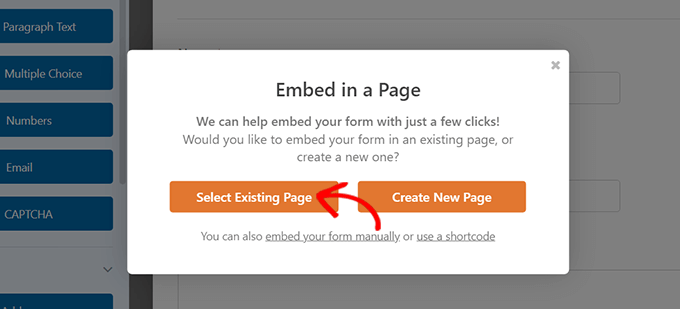
After that, simply choose the right page from the dropdown that appears.
Now click the ‘Let’s Go’ button.
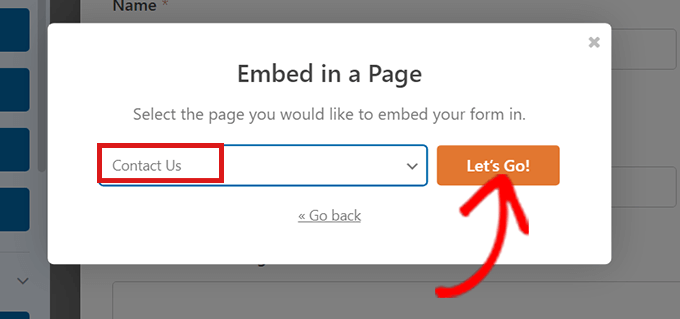
You will automatically be directed to the page that you selected from the dropdown menu. The HubSpot form will already be embedded there.
Simply click the ‘Publish’ button at the top of the content editor to push your new form live.
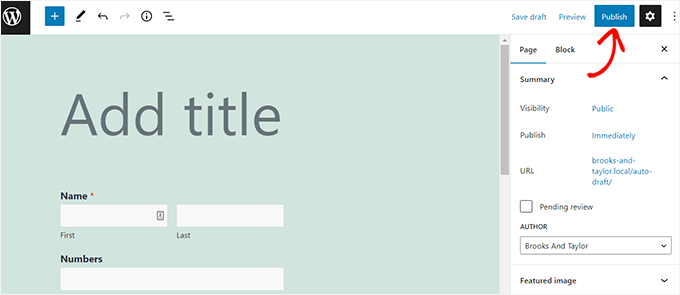
For details, check out our guide on how to embed forms in WordPress.
Bonus Tip: Set Up HubSpot Analytics to Track Your HubSpot Forms
Creating a form is just the first step — if you want to grow your WordPress blog or website, it’s important to understand how your forms are performing.
With HubSpot’s built-in analytics, you can track form submissions. This helps you see which forms are working well and which ones need improvement.
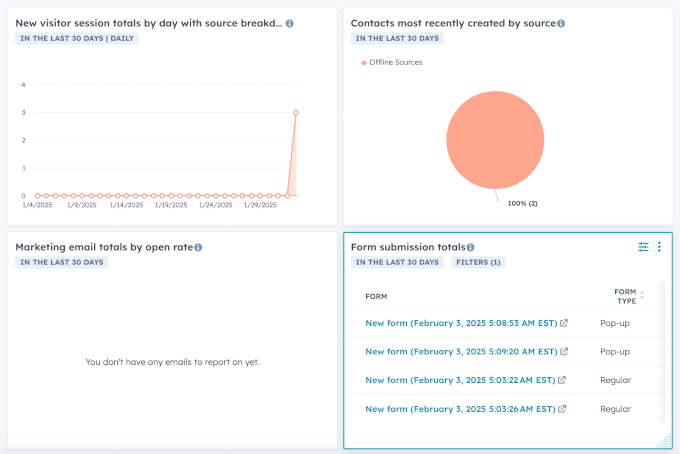
Tracking form performance also makes it easier to spot drop-off points and reduce form abandonment.
For details, you can see our guide on how to set up HubSpot Analytics in WordPress.
More Guides to Using Forms in WordPress
That’s it! We hope you learned how to create a HubSpot form in WordPress. You may also want to check out our guides on:
- How to Create Conversational Forms in WordPress
- Tips to Create More Interactive Forms in WordPress
- Best Practices for Contact Form Page Design (With Examples)
- Ultimate Guide to Using WordPress Forms (All You Need to Know)
- Best Online Form Builders (Expert Picks)
If you liked this article, then please subscribe to our YouTube Channel for WordPress video tutorials. You can also find us on Twitter and Facebook.


Have a question or suggestion? Please leave a comment to start the discussion.