


Figma is a cloud-based design tool for creating an attractive user interface for your website. It allows you to quickly test ideas through prototyping and supports real-time collaboration.
Converting these designs to WordPress can make your website more visually appealing to users. However, keep in mind that this process can be a bit challenging.
At WPBeginner, our design team uses Figma for all kinds of website graphics, including entire pages and websites. Along the way, we have learned the strengths and weaknesses of using this approach to design a WordPress website.
In this article, we will show you how to easily convert Figma to WordPress, step by step.
💡Quick Answer: 3 Ways to Convert Figma to WordPress
If you are looking to turn your Figma designs into a working website, here are the three most common methods:
- Use a Conversion Plugin (Best for DIY): You can use a free tool like the Figma to WordPress Block plugin to copy and paste designs directly into the block editor.
- Hire a Professional Service (Best for Quality): For pixel-perfect, SEO-friendly code, we recommend using Seahawk Media Services to handle the conversion for you.
- Use a WordPress Page Builder (Easiest): If you find Figma too technical, you can skip it entirely and design directly in WordPress using SeedProd, a visual drag-and-drop builder.
Why Convert Figma to WordPress?
The primary reason to use Figma is that it allows you to design your exact website layout visually before writing a single line of code. This helps you catch design errors early and ensures your final WordPress site looks exactly how you envisioned it.
Here are the specific benefits of starting with Figma:
- Total Design Freedom: You are not limited by your WordPress theme’s settings. You can place elements exactly where you want them on the canvas.
- Faster Development: Figma’s “Dev Mode” provides CSS code snippets, making it much faster for developers to build the site.
- Interactive Prototyping: You can create clickable prototypes to test user flow and navigation before building the actual pages.
- Better Collaboration: It is easier to share a Figma link with clients or team members for feedback than it is to set up a staging site.
However, keep in mind that Figma does not integrate with WordPress by default, so you will need to use a conversion tool. Now, let’s see how to easily create a Figma design and convert it to WordPress, step by step:
Step 1: Create a Figma Account
To design a page with Figma, you will first need to create an account on the website.
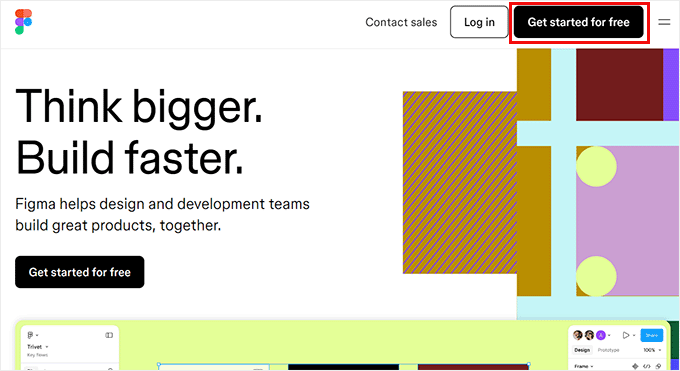
To do that, visit the Figma website and click the ‘Get started for free’ button in the top right corner of the screen.
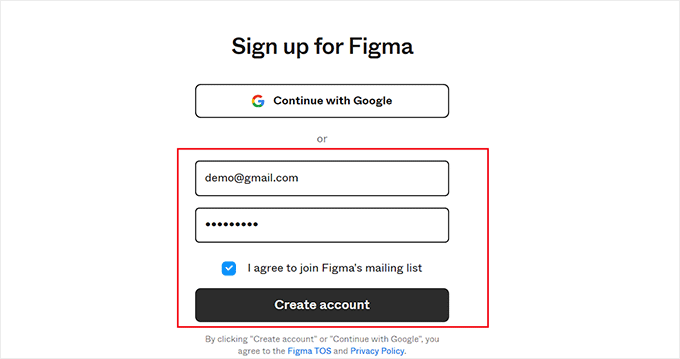
This will open a new tab in your window, where you must provide your email address and password.
After that, click the ‘Create Account’ button.
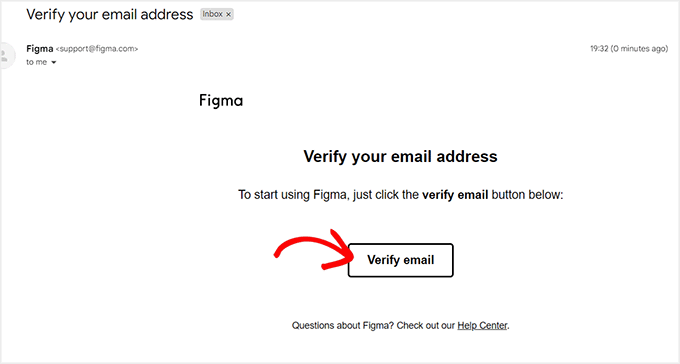
Once you do that, you will be sent a verification email.
Simply open this email from your inbox and click the ‘Verify email’ button.
You will now be taken to the Figma website, where you will be asked for your name.
After that, you must provide some details on how you plan to use the tool and then click the ‘Continue’ button at the bottom.
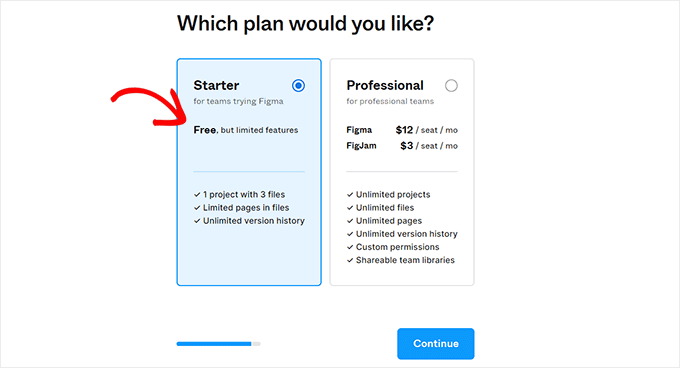
You will then be asked to choose a pricing plan. You can select the ‘Starter’ plan, which is free, and click the ‘Continue’ button.
Step 2: Design a Page on Figma
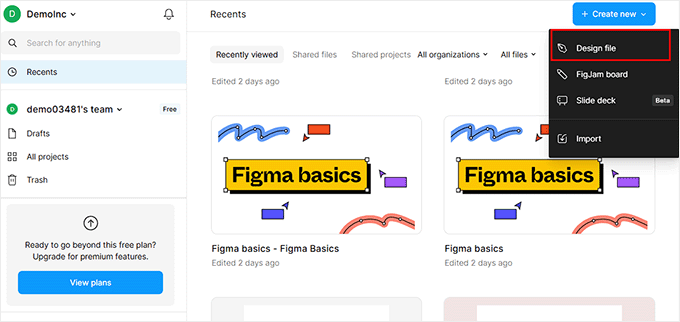
You will now be directed to your Figma dashboard
Once you are there, go ahead and open the ‘+ Create New’ dropdown menu at the top right corner. Then, select the ‘Design File’ button to create a Figma page.
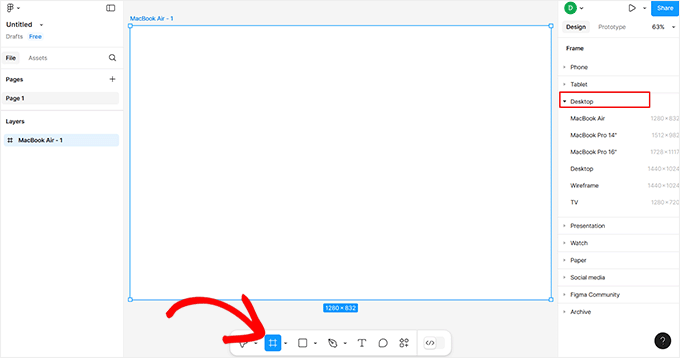
The Figma builder will now open up on your screen. Here, you have to select the ‘Frame’ option from the toolbar at the bottom.
This will open a list of design frames in the right column, where you must choose the ‘Desktop’ option. You can also choose another frame if that is more suitable for you.
💡Pro Tip: We recommend using the ‘Auto Layout’ feature for your frames. This helps ensure your design converts correctly for mobile devices later on.
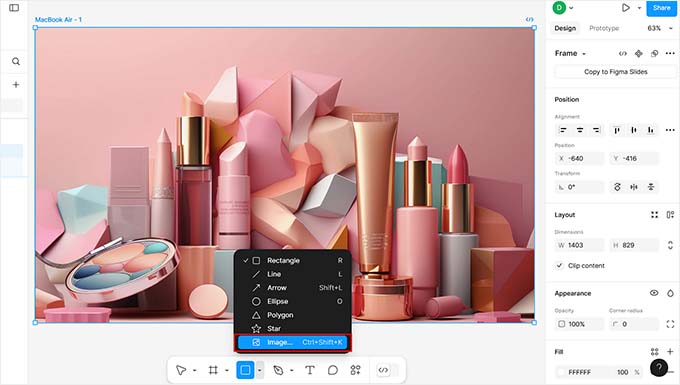
Next, you can add images to the canvas by clicking on the square icon at the bottom and choosing the ‘Place image/video’ option.
This will open your computer folder, where you can upload an image or video of your choice. It is a good idea to rename your image layers (e.g., ‘Hero Image’) to keep your design organized.
You can also add text to your page by clicking on the ‘T’ icon from the toolbar.
Once you do that, you can adjust the text size, alignment, font, and spacing from the settings in the right column.

You can use free style tools like ‘Pen’ and ‘Pencil’ from the bottom, add feedback questions, create more layers and pages, change the background color, and much more.
If you are a developer and want to add CSS code to the page, then you can also do that by switching to ‘Dev Mode’ using the toggle at the bottom. This requires a paid plan, but don’t worry, you do not need it for this tutorial.

Step 3: Convert Figma Page to WordPress
Once you are satisfied with your Figma page’s customization, it is time to add it to WordPress. For this, you will be using the Figma to WordPress Block plugin.
Keep in mind that this is a built-in Figma plugin, so you don’t need to add it to your WordPress site.
That said, to start your Figma conversion, click on the page you have just created to select the frame. If you don’t do this, the plugin won’t be able to convert it into a WordPress page.
Next, click the ‘Actions’ button in the toolbar to open a prompt where you must switch to the ‘Plugins & Widgets’ section. Once there, find and click the ‘Figma to WordPress Block‘ plugin.
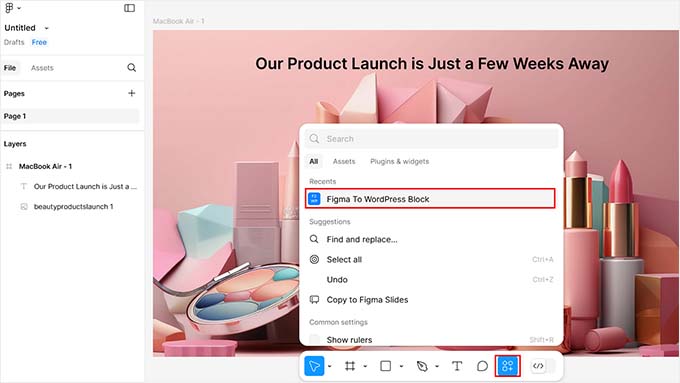
This will open a new popup on your screen.
Here, you can click the ‘Convert to WordPress’ button to start the process.
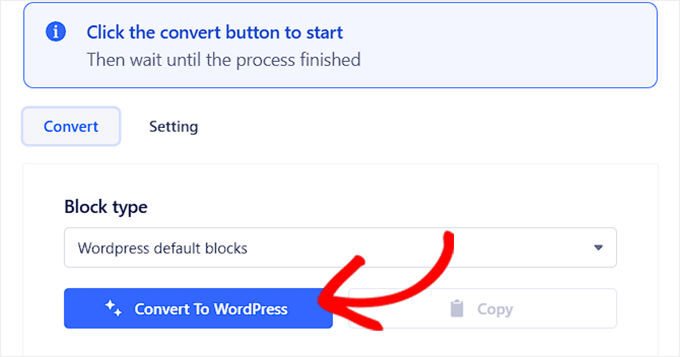
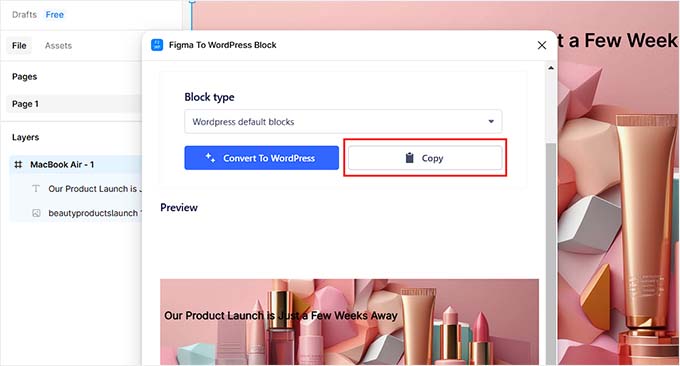
Once the plugin’s work is complete, you will see your Figma page’s preview in the prompt.
If you are satisfied, simply click the ‘Copy’ button to copy the converted page.
Now, head over to your WordPress dashboard and open the page or post where you want to display the Figma page.
Once there, just click the ‘Paste’ option to add the Figma page in your block editor.
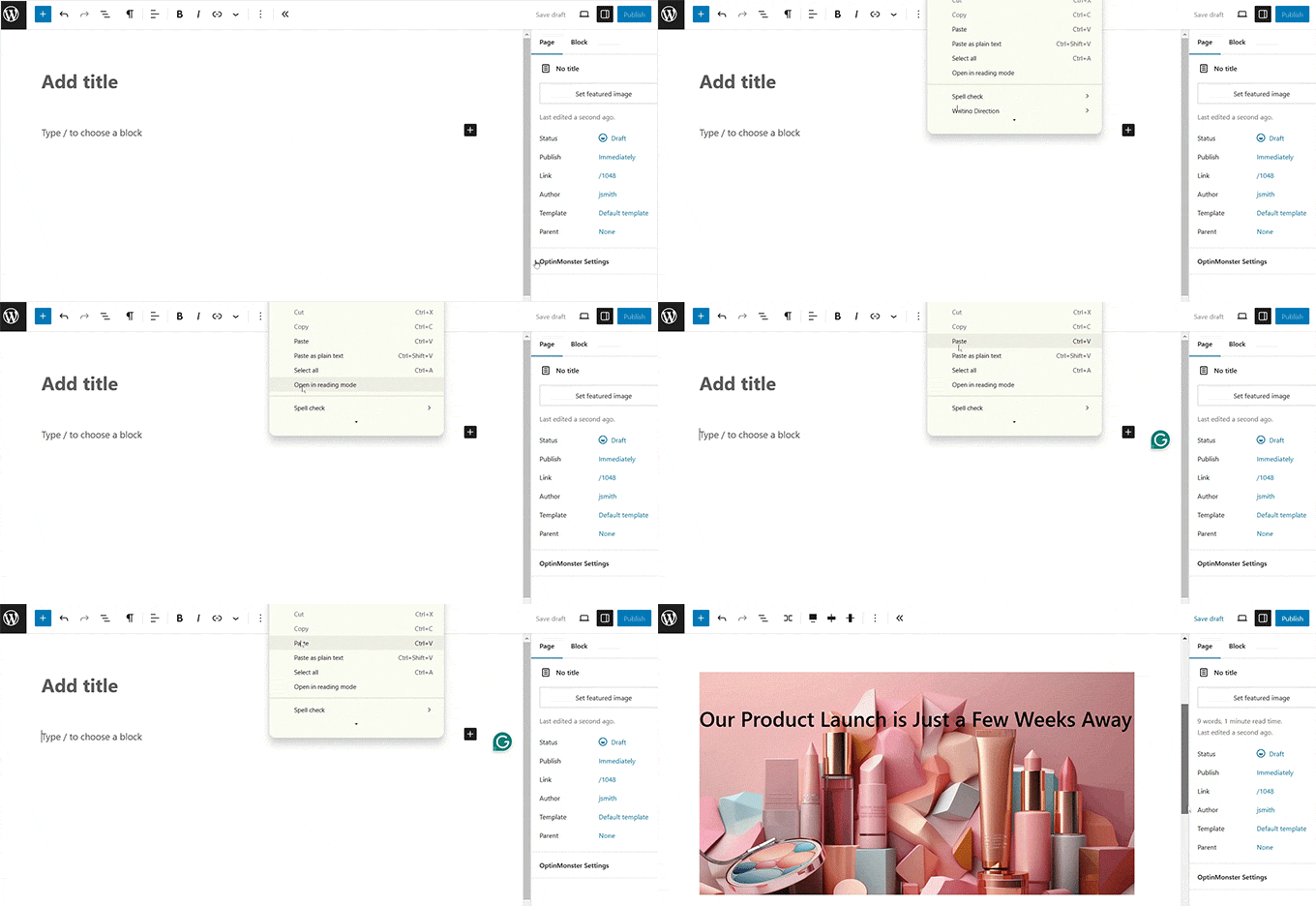
Finally, click the ‘Update’ or ‘Publish’ button at the top to store your settings.
You can now visit your WordPress page to see the Figma design in action.

Alternative: Use Seahawk Media Services to Convert Figma to WordPress
If you have created your entire website in Figma, the above method will not be suitable because it would be very time-consuming.
Plus, the plugin may struggle to transfer complex designs accurately because Figma focuses solely on design, while WordPress requires coding for dynamic content and functionality. This means some of the elements you added in Figma may not work in WordPress.
That’s why we recommend using Seahawk Media Services to convert Figma to WordPress because they consider all these factors during the conversion.
They are trusted by over 1,000 businesses and will perform a fully responsive, cleanly coded, SEO-ready, and pixel-perfect Figma-to-WordPress conversion for you.
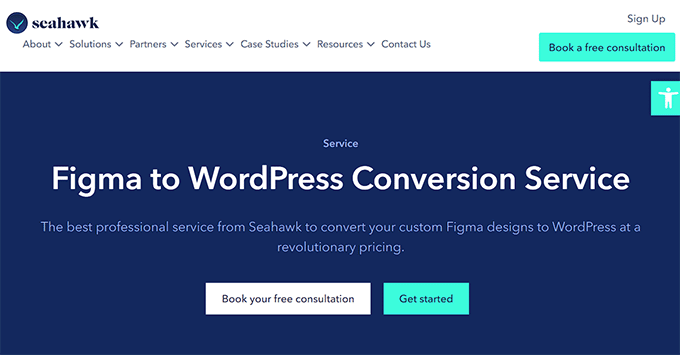
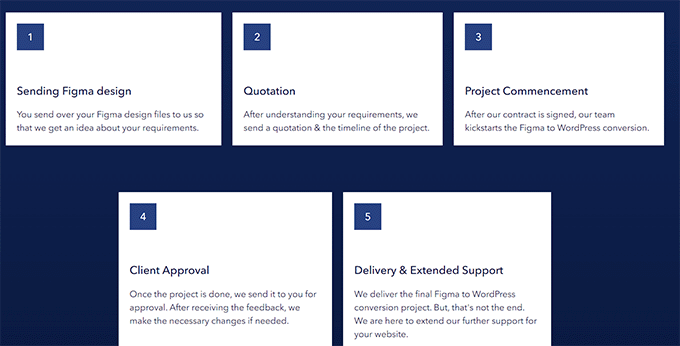
All you will have to do is send your Figma files to the business.
After understanding your requirements, Seahawk will set an approximate timeline and convert your Figma files to a WordPress site in just a few days.
Bonus: Use SeedProd to Build a Visually Appealing Website
If you feel like it’s too much work to build pages with Figma and then convert them to WordPress, then you can use SeedProd instead.
It is the best WordPress theme builder and page builder on the market. It lets you easily build custom themes and landing pages with simple drag-and-drop technology.
Plus, it has an AI website builder that can generate an entire website in less than 60 seconds. Simply describe your business, choose a color scheme, and SeedProd AI will do the rest.
For details, see our guide on how to create a website with AI.

Additionally, SeedProd comes with a user-friendly drag-and-drop builder, 300+ premade templates, advanced WooCommerce blocks, and integrations with email marketing services.
You can easily drag and drop images, headings, videos, CTA, optin forms, giveaways, or paragraph blocks from the left column in the builder to create an attractive page.
Once you’ve done that, simply click on the block you added to open its settings in the left column. From here, you can insert dynamic text and change the font size, alignment, color, and more.
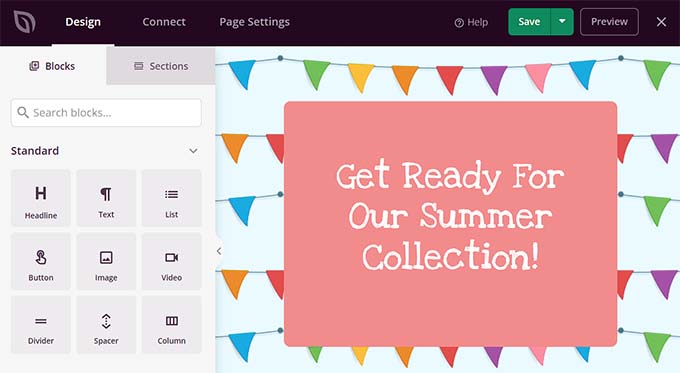
Finally, click the ‘Save’ and ‘Publish’ buttons at the top to store your settings and make your changes live. For detailed instructions, you can see our tutorial on how to create a landing page in WordPress.
For more information about the plugin in general, see our SeedProd review.
Frequently Asked Questions About Converting Figma to WordPress
Here are some questions frequently asked by our readers about Figma and WordPress.
Do Figma and WordPress work together?
No, not natively. By default, Figma and WordPress cannot directly integrate.
However, you can use Figma plugins and tools like pxCode, UiChemy, or the Figma to WordPress Block to convert a Figma design to WordPress.
If this method is too complex for you, then you can simply hire a developer or a dedicated company like Seahawk Media for this conversion.
Do I need to know coding to convert Figma to WordPress?
You don’t need to know coding to create and convert Figma designs to WordPress because you can easily do it with a plugin or hire a developer.
However, if you want to do it yourself without a plugin, then you must know HTML, CSS, and possibly PHP to hand-code your website. This is because some of the Figma design elements will need to be coded to provide functionality in WordPress.
For more details, see our guide on how to code a website.
Does converting from Figma to WordPress hurt SEO (Search Engine Optimization)?
Converting a Figma design to WordPress generally won’t hurt your content or backlinks. However, automated conversion tools can sometimes generate extra code, known as “bloat.”
This heavy code can slow down your page speed compared to a hand-coded theme. For this reason, we recommend running a speed test after converting your design.
If speed is a major concern, we recommend using Seahawk Media Services. They ensure your website is fully responsive, cleanly coded, and SEO-ready.
We hope this article helped you learn how to convert Figma to WordPress. You may also want to see our beginner’s guide on how to outsource WordPress development and our top picks for the best places to get a custom logo for your website.
If you liked this article, then please subscribe to our YouTube Channel for WordPress video tutorials. You can also find us on Twitter and Facebook.



Moinuddin Waheed
People like me who doesn’t have a figma expertise find seedprod as the best alternative.
it saves them time and energy in both ways.
designing and developing the complete website becomes simultaneously possible.
No additional tasks of converting the aesthetically appealing design into wordpress website.
Seedprod is the rescue option for making visually appealing websites.
Prajwal Shewatkar
This saved me a tonne of manual work. Thanks for the amazing post WPbeginner. But I belive this is not an official plugin by figma, is it?
WPBeginner Support
Correct, the plugin is not handled by Figma at the moment but not all plugins need to be ran by the original tool.
Admin
Arafath Ahmed
Thanks for providing the alternative option that is Seahawk, I was looking to find a way to convert some designs/ideas I made on Figma onto WordPress. I thought it would’ve been a lot of hassle to deal with this otherwise!
Once again,
Many Thanks