


If you’re running a WordPress site, you’ve probably noticed that emails don’t always reach the inbox. WordPress isn’t great at sending emails on its own, which often leads to missing contact form alerts, order confirmations, or user notifications.
This can confuse your visitors and even hurt your domain reputation.
A simple way to fix this is by connecting your site to Microsoft Outlook. It authenticates your emails and ensures they are delivered securely and reliably.
In this step-by-step guide, we’ll show you how to connect Microsoft Outlook to WordPress so your emails actually reach your users. 📩
Why Use Microsoft Outlook to Send WordPress Emails?
Microsoft Outlook is a great choice for sending WordPress emails because it gives you better deliverability, higher sending limits, and a trusted business email setup.
If you already use Office 365, it’s even easier. You can connect your existing Outlook account to your WordPress website and use it to send all your site emails, like contact form messages, order updates, and login details.
One of the biggest perks is reliability. Microsoft’s API ensures your emails are sent securely, which is much better than relying on standard WordPress hosting email servers.
Outlook helps you avoid WordPress’s default PHP mail() function, which often leads to emails going missing or landing in spam. Many WordPress hosting services don’t configure it properly, so email services like Gmail can’t verify who the message is really from.
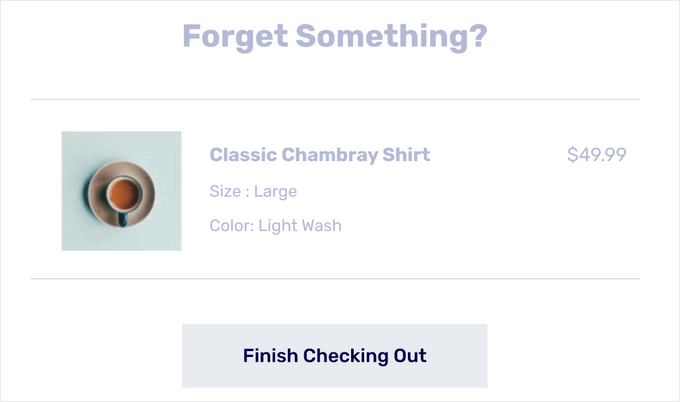
This is super helpful if you run an online store and need to ensure receipts, shipping info, abandoned cart reminders, and order confirmations are delivered instantly.
By sending your emails using an SMTP service provider through Outlook’s SMTP service, your messages are authenticated and far more likely to show up in the inbox where they belong.
✏️ What Is SMTP? SMTP (Simple Mail Transfer Protocol) is the standard way of sending emails that actually reach the inbox. It adds proper authentication, which helps keep your messages out of the spam folder.
You can use SMTP with services like SendLayer, SMTP.com, Brevo, Office 365/Outlook, Gmail, Amazon SES, and many others.
Now, we’ll show you how to connect your Microsoft Outlook account to WordPress. Here are all the things we’ll cover in the following sections:
Ready? Let’s get started!
How to Connect Outlook to Your WordPress Site
The easiest way to add Microsoft Outlook to WordPress is by using WP Mail SMTP, which is the best and most popular SMTP plugin for WordPress.
The plugin helps fix email delivery issues by routing your messages through a proper mail server. Plus, it lets you securely use the Microsoft API to authenticate your site’s emails.
At WPBeginner, we use WP Mail SMTP to make sure our emails reach our users’ inboxes, not the spam folders. To learn more about the plugin, check out our complete WP Mail SMTP review.
There is a free version of WP Mail SMTP with multiple integrations, including Office 365 / Outlook.
However, for this tutorial, we will use WP Mail SMTP Pro so we can also show you how to track email logs and verify your emails are being delivered.
Set Up WP Mail SMTP
First, let’s get a WP Mail SMTP account.
On the WP Mail SMTP website, you can just go ahead and click the ‘Get WP Mail SMTP Now’ button. Then, choose a plan and complete the checkout process.
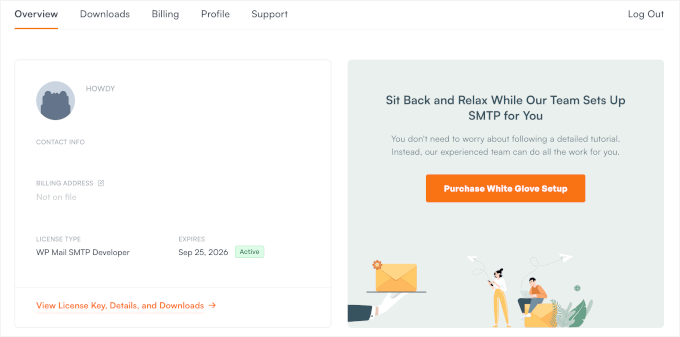
Upon signup, you’ll get your own WP Mail SMTP dashboard. Here, you’ll find your WP Mail SMTP Pro license key.
With that done, you will need to install and activate the WP Mail SMTP plugin on your WordPress website.
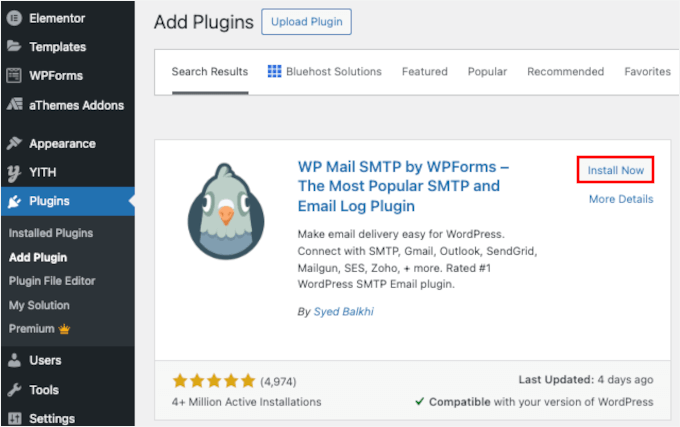
In your WordPress dashboard, go to Plugins » Add New Plugin.

Next, you can look up the plugin using the search feature.
In the search result, hit the ‘Install Now’ button and then ‘Activate’ when it appears. You can refer to our step-by-step guide on how to install a WordPress plugin.
✋ Important: Remember that the Outlook mailer will only work if you have an SSL certificate on your website. You can check out our guide on how to set up SSL on a WordPress site.
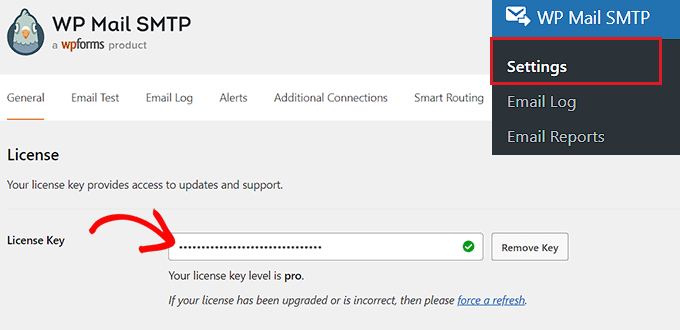
Upon activation, you can go to WP Mail SMTP » Settings and enter your license key.
This will upgrade your free WP Mail SMTP to Pro, unlocking features like built-in email tracking and smart email routing.
From here, let’s scroll down the page to connect your Outlook account.
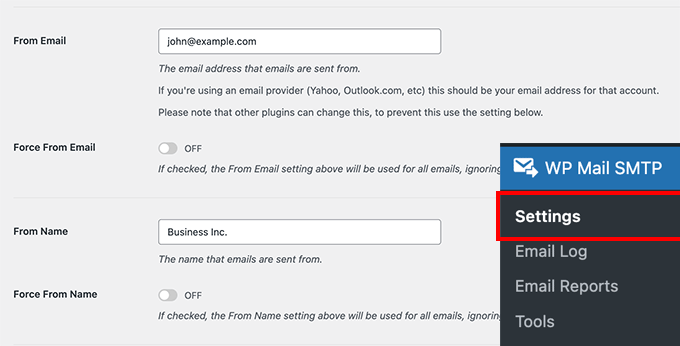
You can leave the ‘From Email’ field as it is. Outlook always sends emails from the Microsoft account you connect to. So even if you enter something different here, it will automatically use your Outlook email instead.
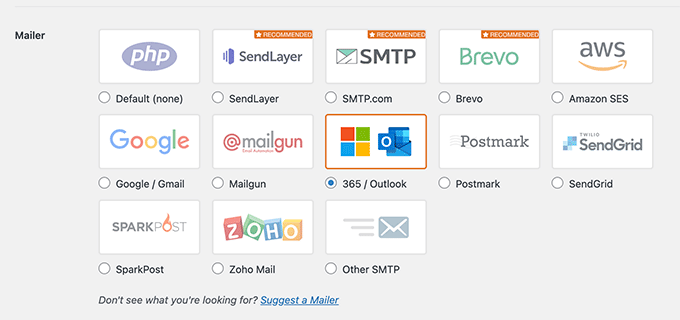
Below that, you will see different options next to the Mailer settings.
Go ahead and select ‘365 / Outlook’ as your Mailer option.
Next, WP Mail SMTP will show a new section with settings for your Outlook account.
It will look like this:
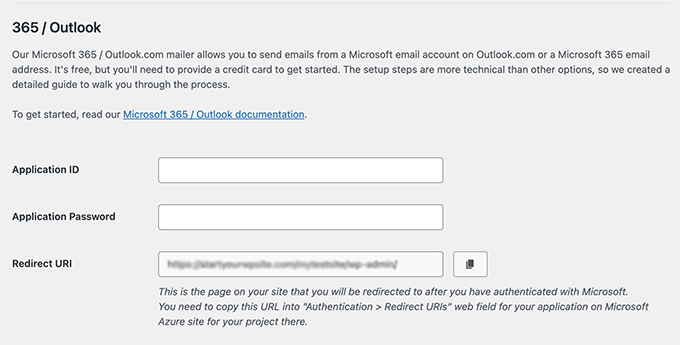
To find the Application ID, Application Password, and Redirect URI, you must create a web application within a Microsoft Azure account. Don’t worry; we will walk you through this step by step.
We recommend keeping the WP Mail SMTP Outlook settings open in a separate tab or window, as you will need to return to this page to enter the information.
You can use your existing Microsoft email account (Outlook.com, Live, Hotmail, Office 365, etc.) to log in to Microsoft Azure. Keep in mind that if you do so, all your WordPress emails will be sent from that email address.
If you don’t have a Microsoft Outlook or Microsoft 365 account, or you prefer to send messages from a different email address, you can go to the Microsoft Azure website and create a new account.
Just make sure the account you create uses an email address with permission to send mail.
The account is free to create. Microsoft will ask you to enter your credit card information to verify your identity and reduce spam, but you will not be charged for creating this app.
After that, you can log in to the Microsoft Azure Portal using the email address you want to use.
Create an Application ID
Once you have opened the Azure Portal, the easiest way to find the right setting is to use the search bar at the top of the page.
Simply type in “App registrations.”
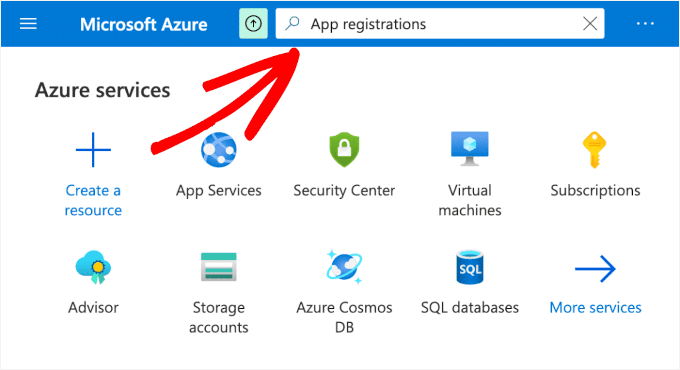
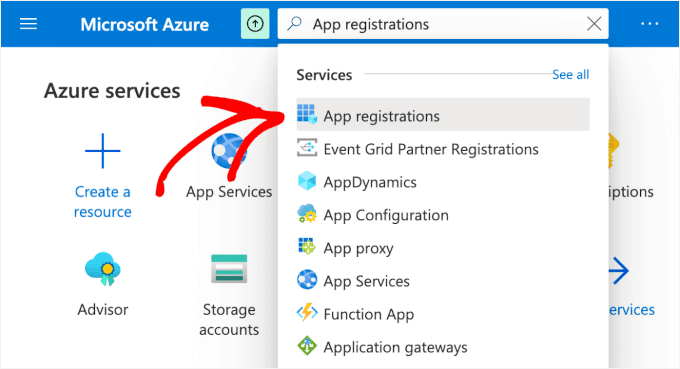
Then, you’ll see a bunch of options in the ‘Services’ list.
Go ahead and select the App registrations option.
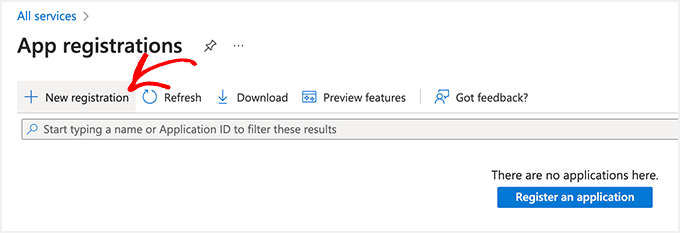
After that, you will need to click the ‘+ New Registration’ button.
This will create your application.
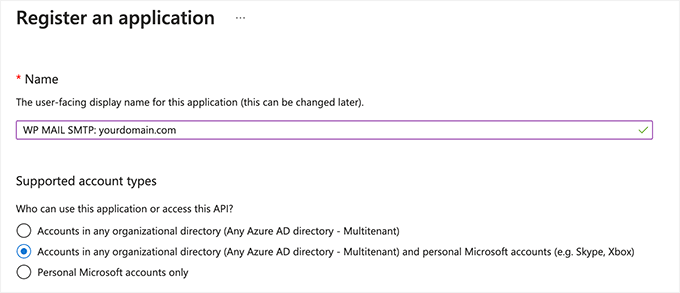
Now you can fill out the form:
- Name: Name: This is for your internal use only. You can name it something descriptive like “WP Mail SMTP: yourdomain.com”.
- Supported account types: Select ‘Accounts in any organizational directory and personal Microsoft accounts.’ If you don’t see this option, you can choose ‘Accounts in any organizational directory (Any Azure AD – Multitenant)’ instead.
Here’s what it might look like on your screen:
After that, scroll down to the Redirect URI settings.
You can leave the dropdown settings to ‘Web’ for the first field in the form.
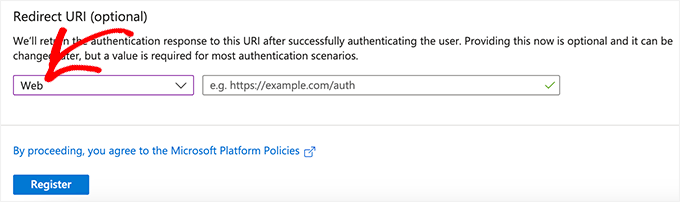
For the second field, you’ll need the Redirect URI from your WP Mail SMTP settings.
To find the Redirect URI, simply return to your WordPress tab, look under the Outlook / 365 section, and copy the value labeled ‘Redirect URI.’
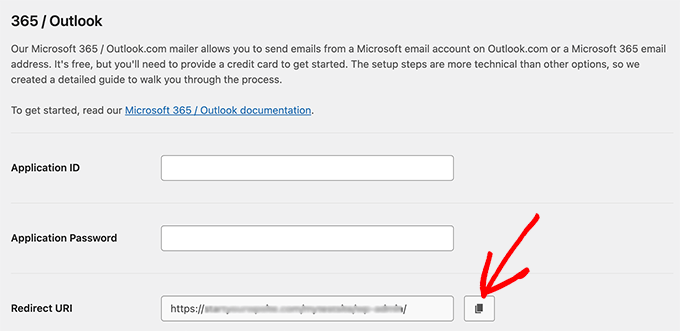
Now, you can paste this exact URL into the Redirect URI field in your Azure form.
From here, you’ll want to keep both tabs open because you’ll continue switching between them.
When everything looks correct, click ‘Register.’
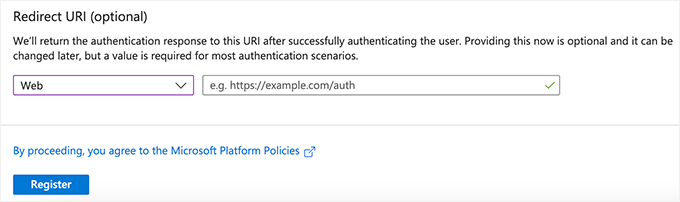
After registration, Azure will take you to the app’s Overview page. Here, you’ll see your Application (client) ID.
Simply click the copy icon to copy it.
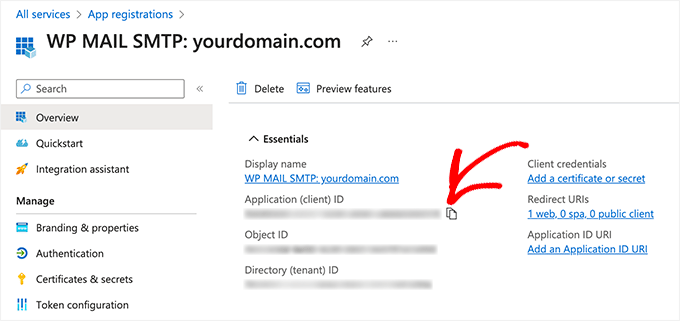
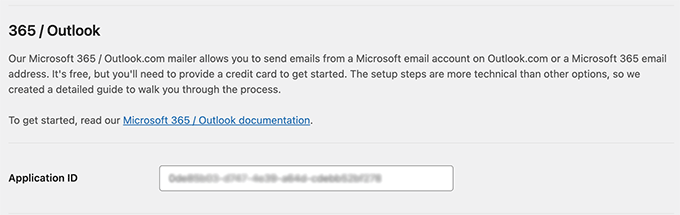
Then, you can paste this value into the Application ID field in your WP Mail SMTP settings.
To do that, let’s head over to your WP Mail SMTP settings window and paste the value into the ‘Application ID’ field.
Create an Application Password
Once you have entered the application ID, you need to create an application password (also called a client secret).
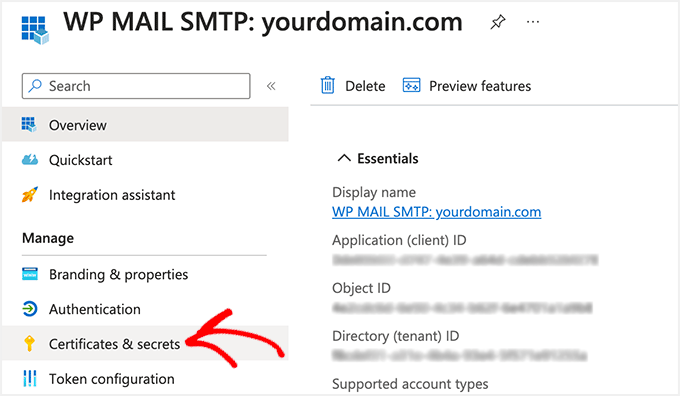
You can start by clicking the ‘Certificates & secrets’ option in your Azure app’s left-hand sidebar.
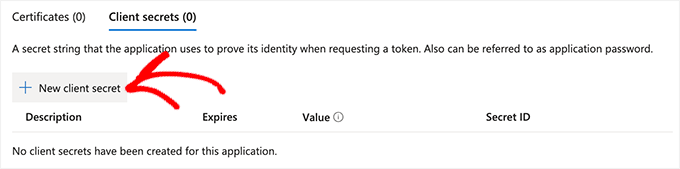
On the next screen, you can skip the ‘Certificates’ section and scroll down to the ‘Client Secrets’ section.
Then, click the ‘+ New client secret’ option to add a client secret.
You will now see a new overlay window slide in from the right. Here’s what to fill in:
- Description: You can use something simple like
your_app_password. - Expires: Microsoft Azure lets you select a preset expiry time (3 months, 6 months (recommended), 12 months, 18 months, and so on), or you can set a custom timeframe.
We recommend selecting the longest available timeframe (e.g., 24 months) or a custom range.
Also, your WordPress emails will stop working when this password expires. So it’s good to set a calendar reminder to renew it before the expiration date.
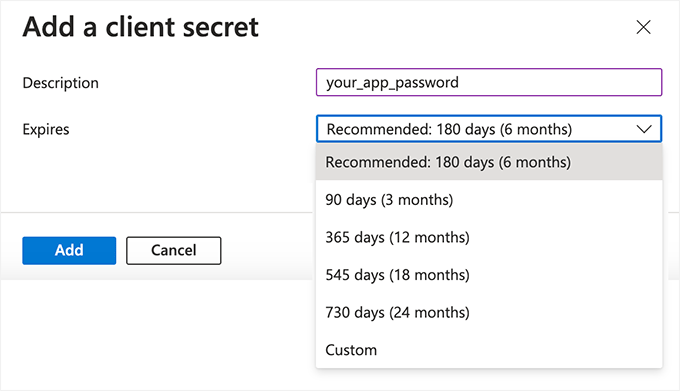
When you are happy with the settings, just click the ‘Add’ button.
Azure will now show your client secret under the Value column. You can click the ‘Copy to clipboard’ trigger to copy the password.
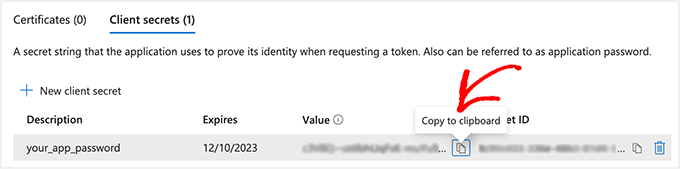
📌 Important: You won’t be able to view this value again after leaving the page, so store it somewhere safe.
Next, enter this password in your WP Mail SMTP settings.
Return to the WP Mail SMTP settings and then paste the password into the ‘Application Password’ field.
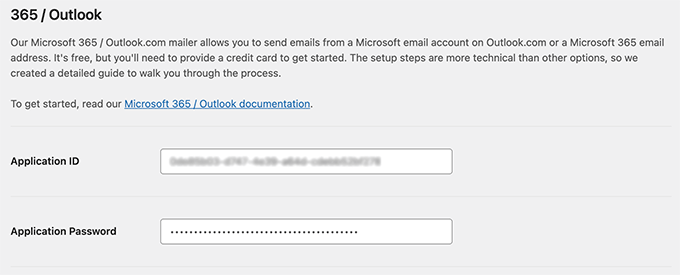
You should have both fields filled in now.
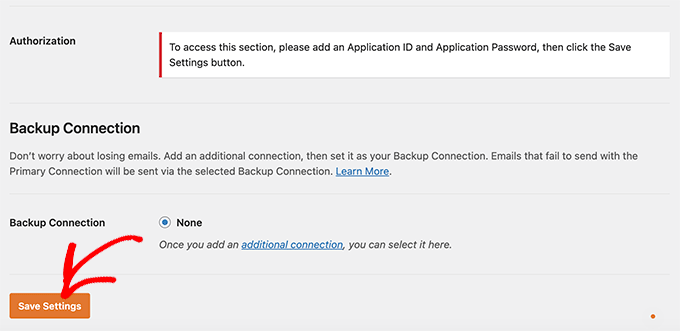
With that done, scroll down and click ‘Save Settings’ to store your configuration.
Authorize WP Mail SMTP
After saving, you can now access ‘Authorization.’
You can start authorization by clicking the ‘Allow plugin to send emails using your Microsoft account’ button.
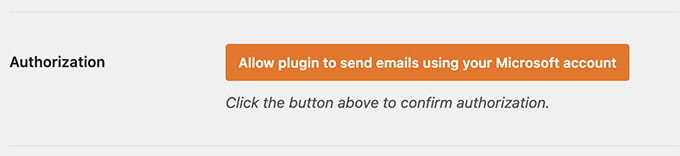
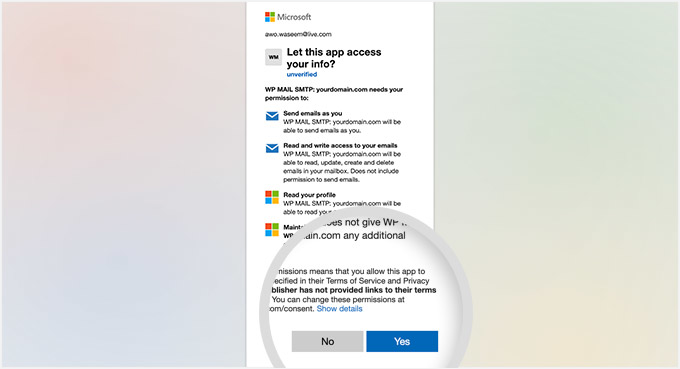
As soon as you click on the button, you will be redirected to the Microsoft permissions form.
All you have to do is click the ‘Yes’ button at the bottom. This will allow WP Mail SMTP to connect to your Microsoft account.
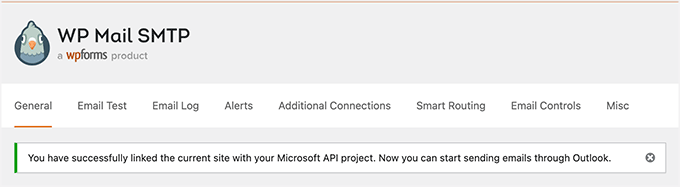
When authorization is complete, you’ll land back on your WP Mail SMTP settings page.
At the top, you should see a confirmation message that your Microsoft account has been successfully connected.
You can now send a test email to confirm that everything works properly.
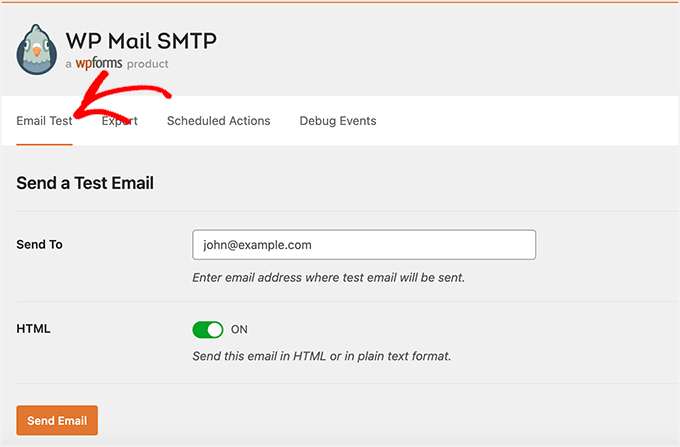
To send a test email, simply go to WP Mail SMTP » Settings and then click on the ‘Email Test’ tab at the top.
When you are happy with the settings, just click the ‘Send Email’ button at the bottom.
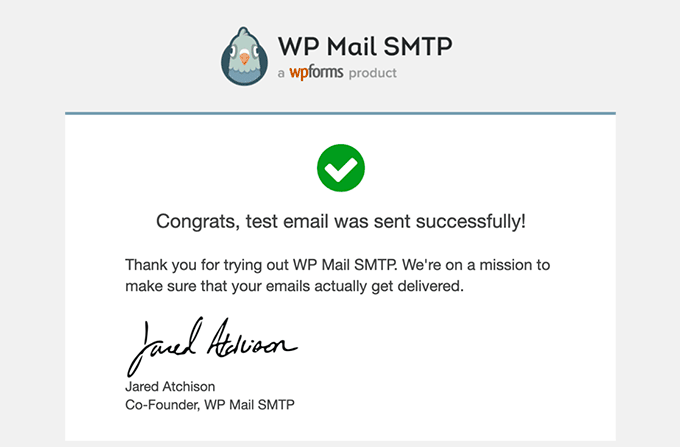
After sending the email, you must go to your inbox.
Here, you can check whether you received the test email.
Bonus Tip 🌟: View Email Logs With WP Mail SMTP
Once you have connected Microsoft Outlook with WP Mail SMTP, you can easily view all your email logs right from the WordPress dashboard.
This will help you ensure your emails are sent successfully and keep track of email activity.
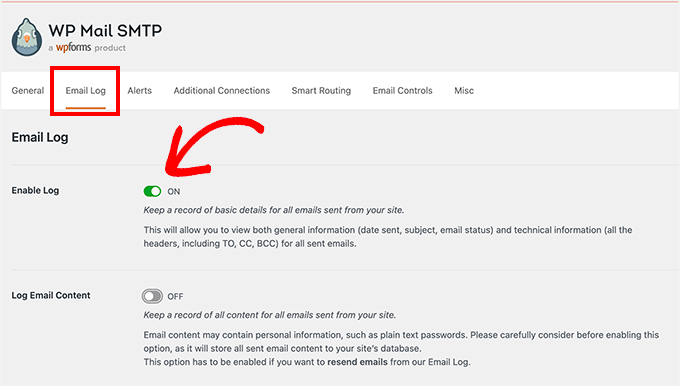
To enable this feature, visit the WP Mail SMTP » Settings page and switch to the ‘Email Log’ tab. Next, toggle the ‘Enable Log’ switch and click the ‘Save Settings’ button.
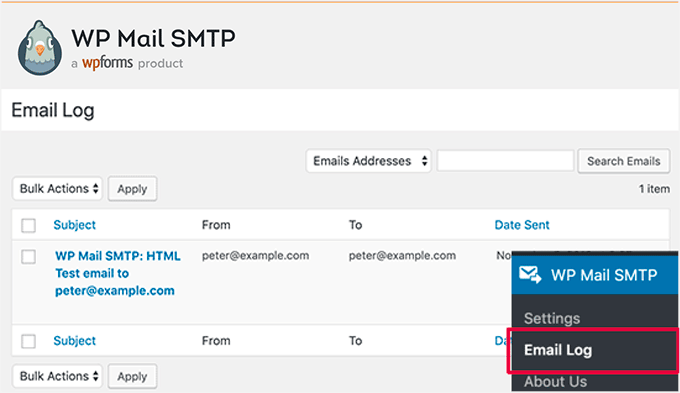
Now, head over to the WP Mail SMTP » Email Log page from the WordPress admin area.
Here, you will be able to view a list of all the emails that you have sent since enabling the feature.
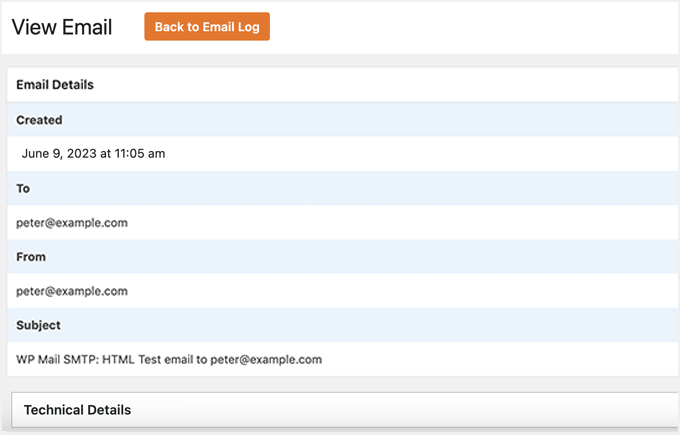
You can also view details for each individual entry by hovering your mouse over it and clicking the ‘Edit’ link.
This will direct you to a new screen where you can view the user’s email address, as well as the email’s subject and body.
For details, see our tutorial on how to set up WordPress email logs.
FAQs About Connecting Outlook to WordPress
Here are some frequently asked questions we hear from our users about connecting Outlook to WordPress.
How do I link an Outlook email to WordPress?
To link an Outlook email to WordPress, you need to use an SMTP plugin like WP Mail SMTP. This plugin connects your WordPress site to your Outlook account using the Microsoft Azure API. This ensures your emails are authenticated and delivered securely.
How to embed a website into an Outlook email?
For security reasons, Microsoft Outlook does not allow you to embed a functional website (using iframes or scripts) inside an email. If you try, the code will likely be blocked.
Instead, we recommend inserting a screenshot of your website and linking it to the actual page. Alternatively, you can simply add a text hyperlink that directs your readers to your site.
Is the WP Mail SMTP plugin free?
There is a free version called WP Mail SMTP Lite. It includes the Microsoft Outlook / Office 365 integration, so you can connect your account without paying anything. However, the Pro version unlocks advanced features like email logs, open tracking, and click tracking.
Video Tutorial: Connect Outlook to WordPress
Prefer a video tutorial? You can watch our step-by-step guide on how to connect Microsoft Outlook to WordPress below:
Bonus Resources 🔗: More WordPress Email Guides
We hope this article helped you learn how to connect Microsoft Outlook to WordPress.
Next, you may also want to check out our other WordPress guides that can help with your email marketing campaigns:
- Best Email Marketing Services for Small Business
- Beginner’s Guide to WordPress Email Marketing Automation
- How to Create an Email Newsletter the RIGHT WAY (Step by Step)
- What Is An Email Blast? How To Do An Email Blast “The RIGHT Way”
- How to Set Up WordPress Email Tracking (Opens, Clicks, and More)
If you liked this article, then please subscribe to our YouTube Channel for WordPress video tutorials. You can also find us on Twitter and Facebook.




Jiří Vaněk
One wouldn’t think how sometimes connecting SMTP can be difficult and other times easy. I’ve always been used to using SMTP on my own domains, where it was very straightforward. The biggest problem I encountered with SMTP was the first time I tried it with Gmail. Every time I have to connect someone’s SMTP to these services, I pray that someone has a similarly well-documented guide. At least now I know where to look for SMTP settings for Microsoft services when I need them.
WPBeginner Support
For Gmail SMTP we would recommend taking a look at our article below but we’re glad you found our guide helpful
https://www.wpbeginner.com/plugins/how-to-send-email-in-wordpress-using-the-gmail-smtp-server/
Admin
Jiří Vaněk
Thanks for the link. Sometimes Gmail settings are really troublesome for me. So I’d love to learn how you do it.