


Getting people to comment on your WordPress content can be tricky.
You publish great posts and ask thoughtful questions, but the comment section stays quiet. This often isn’t because visitors don’t have opinions, but because they hesitate to use their real names, especially on sensitive topics.
In fact, requiring a name and email for comments can accidentally silence your most honest voices.
On the other hand, allowing anonymous comments can encourage honest feedback and real conversations. All while still keeping spam under control.
In this guide, we’ll show you exactly how to enable anonymous commenting on your WordPress site. We’ll cover multiple approaches, so you can pick what fits your audience and start building the engaged community you’ve been hoping for. 🙌
💡 Quick Summary: How to Allow Anonymous Comments
- Make Fields Optional: In your WordPress settings, you can make the name and email fields optional. You will then need a small code snippet to add an “(Optional)” label to the form so users know they can skip them.
- Remove Fields Entirely: For a more direct approach, you can use a different code snippet to completely remove the name and email fields from your comment form.
Why Allow Users to Post Anonymous Comments in WordPress?
Enabling anonymous comments is a powerful way to boost engagement on your WordPress website. By removing the requirement for visitors to enter their name and email, you lower the barrier to participation.
Here are more reasons why you might need to allow users to post anonymous comments in WordPress:
- Get More Feedback: Visitors are more likely to share their honest thoughts and suggestions when they don’t have to provide personal information.
- Understand Your Audience: Tracking which posts get the most comments helps you see what content resonates with your readers so you can create more of it.
- Build a Community: An active comments section allows visitors to engage with you and each other, creating a sense of community around your site.
- Increase Page Views: Some people will return to a post just to read new comments and follow the discussion, which means more traffic for your site.
On the flip side, allowing anonymous comments can make your site more vulnerable to spam.
That’s why we strongly recommend using tools to combat comment spam and learning how to properly moderate comments to keep your discussions healthy.
With that in mind, let’s look at the two best ways to enable anonymous commenting:
- Method 1: Allow Users to Post Anonymously With Optional Name and Email Fields
- Method 2: Remove the Name and Email Fields From the WordPress Comment Form
- Bonus Ways to Improve Your Comments Section
- FAQs: Allow Users to Post Anonymous Comments in WordPress
- Additional Resources to Improve Your WordPress Comments
Method 1: Allow Users to Post Anonymously With Optional Name and Email Fields
This method keeps the name and email address fields but makes them optional. Users who want to identify themselves can still do so, while others can comment anonymously.
To do this, you can go to Settings » Discussion in your WordPress dashboard.
Here, simply uncheck the box next to ‘Comment author must fill out name and email.’
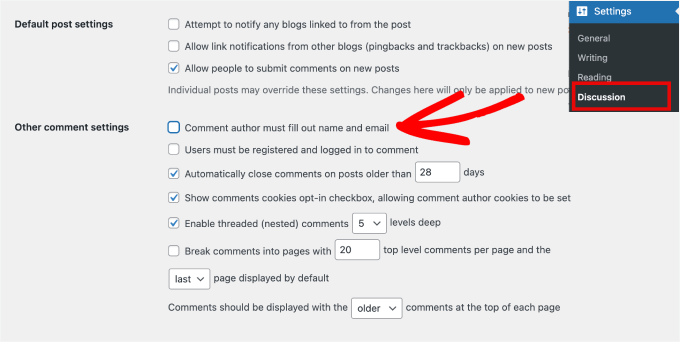
Once you’ve done that, just scroll to the bottom of the page and click on ‘Save Changes.’
Add a Code Snippet to Update the Form Labels
Visitors can now comment without typing in their name and email address.
However, your comment form doesn’t tell them that the fields are optional. Without a clear label, many visitors will see the ‘Name’ and ‘Email’ fields and simply assume they are required, causing them to leave without commenting.
To avoid confusion and encourage more engagement, you should add an ‘(Optional)’ label to the form.
While you’re making this change, we also suggest removing the website URL field from the WordPress comment form.
Many spammers and bots post comments with the goal of placing a link on your website. By removing the website URL field from your WordPress comment form, you can discourage people from posting spam comments.
By adding a custom code snippet to your website, you can add the ‘Optional’ labels and hide the website URL field. You can add this code to your functions.php file. However, we don’t recommend this method as it can break your site.
Using a code snippets plugin is a much better, more beginner-friendly way to do this.
WPCode is the best code snippets plugin to easily add custom HTML, PHP, and more to your site without editing theme files. It helps you avoid breaking your website with bad code.
Some of our partner websites use WPCode to manage custom code snippets. It’s proved to be a great tool for inserting tracking scripts, tweaking functionality, or customizing features.
Check out our complete WPCode review for more insights into this plugin.

So, let’s install and activate the WPCode Free Plugin. For more details, you can check out our tutorial on how to install a WordPress plugin.
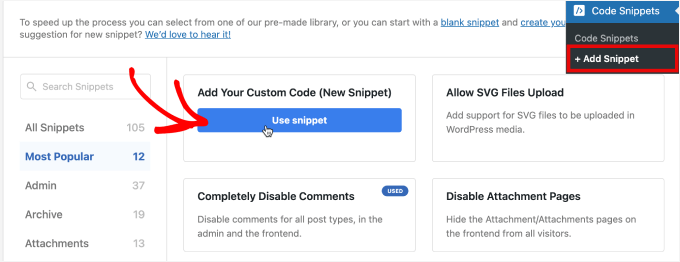
Upon activation, you can start by going to Code Snippets » + Add Snippet. From here, you’ll see a library of ready-made code snippets.
Under ‘Add Your Custom Code (New Snippet),’ you can click on ‘Use Snippet.’
📝 Note: You can use the free version of WPCode to use a custom code snippet.
But if you want more features, such as access to over 100 expert-approved code snippets, user access control, social media pixel tracking, and a complete revision history, then you’ll need to upgrade to WPCode Pro.
Next, you can select ‘PHP Snippet’ as your code type.
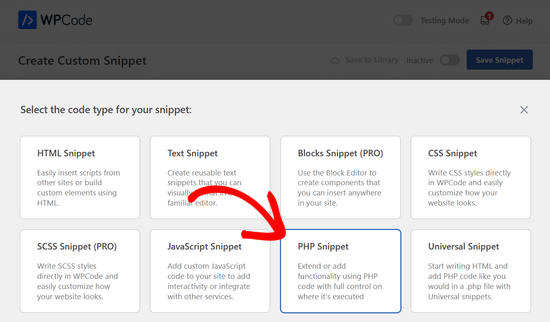
This will open the WPCode editor.
From here, you can give your code snippet a name. This is for your reference only, but we recommend using a clear name to help you identify it later.
After that, go ahead and paste the code below into the ‘Code Preview’ text box:
function wpb_optional_comment_fields( $fields ) {
    // Get the current commenter's data if they've commented before
    $commenter = wp_get_current_commenter();

    // Redefine the author field with an "(Optional)" label
    $fields['author'] = '<p class="comment-form-author">' .
                        '<label for="author">' . __( 'Name' ) . ' <span class="optional">(Optional)</span></label> ' .
                        '<input id="author" name="author" type="text" value="' . esc_attr( $commenter['comment_author'] ) . '" size="30" /></p>';

    // Redefine the email field with an "(Optional)" label
    $fields['email'] =  '<p class="comment-form-email">' .
                        '<label for="email">' . __( 'Email' ) . ' <span class="optional">(Optional)</span></label> ' .
                        '<input id="email" name="email" type="text" value="' . esc_attr(  $commenter['comment_author_email'] ) . '" size="30" /></p>';

    // Remove the website URL field entirely
    $fields['url'] = '';

    return $fields;
}
add_filter( 'comment_form_default_fields', 'wpb_optional_comment_fields' );
Here’s what it might look like on your screen:

You can now toggle on the ‘Active’ button.
With that done, go ahead and click ‘Save Snippet’ so that the changes take effect.

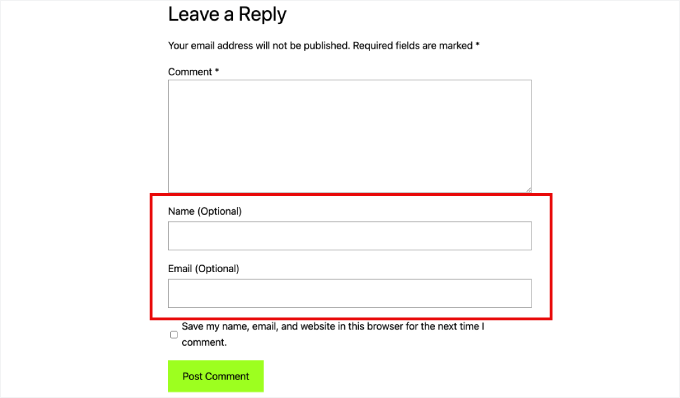
If you visit your site, you’ll now see that the ‘Name’ and ‘Email’ fields are marked as ‘Optional.’
You’ve also removed the website URL field from the WordPress comment form.
Method 2: Remove the Name and Email Fields From the WordPress Comment Form
This method removes the Name and Email fields completely, making it clear that visitors can comment anonymously. This may attract more spam, so ensure spam protection is active.
To do this, you’ll add another custom code snippet using WPCode. Simply follow the same process as in Method 1: navigate to Code Snippets » + Add Snippet and choose to add a new custom code snippet.
On the next screen, you’ll name the custom code snippet and choose ‘PHP Snippet’ as the code type.
Then, simply paste the following code to completely remove the ‘Name’ and ‘Email’ fields:
function wpb_alter_comment_form_fields($fields) {
    unset($fields['author']);
    unset($fields['email']);
    unset($fields['url']);
    return $fields;
}
add_filter('comment_form_default_fields', 'wpb_alter_comment_form_fields');
Don’t forget to toggle the custom snippet to ‘Active.’
Then, you can click the ‘Save Snippet’ button at the top of the screen.
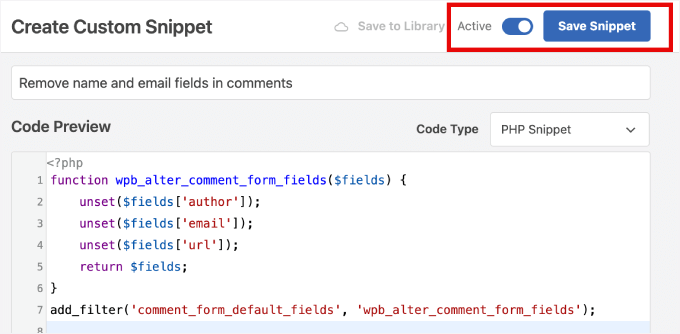
Once done, you can preview the changes in a blog post to see the difference.
You should now see that visitors can no longer type in their email address or name.
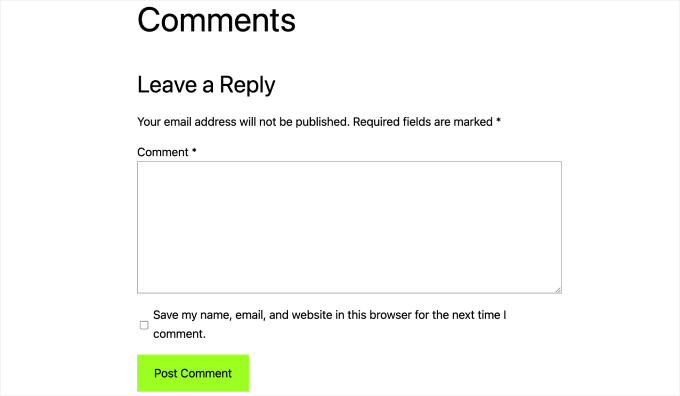
As you can see in the image above, the WordPress comment form also has a checkbox that says, ‘Save my name, email, and website in this browser for the next time I comment.’
This checkbox is an important part of making your site GDPR-compliant. It asks for the user’s consent to store their details in a browser cookie for convenience.
Since this form no longer collects a name, email, or website, this cookie has no personal information to save. For this reason, many WordPress website owners might choose to hide it.
However, GDPR is a complicated topic, so we recommend reading through our ultimate guide to WordPress and GDPR compliance carefully before making a decision.
Bonus Ways to Improve Your Comments Section
Allowing users to comment anonymously is just one way to improve comment engagement on your WordPress website.
Since comments are important, you should try to get more of them.
One way to do this is by using a comment redirect. When someone leaves their first comment, you might want to send them to a ‘Thank You’ page to show appreciation and encourage more interaction.

For detailed instructions, you can check out our guide on how to redirect your user’s attention with comment redirects.
Then, adding a simple ranking system can encourage people to leave useful and well-written comments. For instance, you can highlight comments at the top or give badges to the best ones.
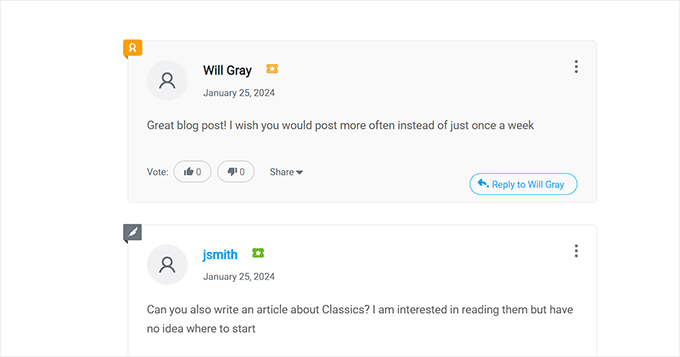
For more on this topic, you can read our guide on how to add a simple user ranking system for WordPress comments.
Similarly, using an upvote/downvote system lets users decide which comments are popular and pushes spam to the bottom. This helps create a sense of community and makes moderating comments easier.
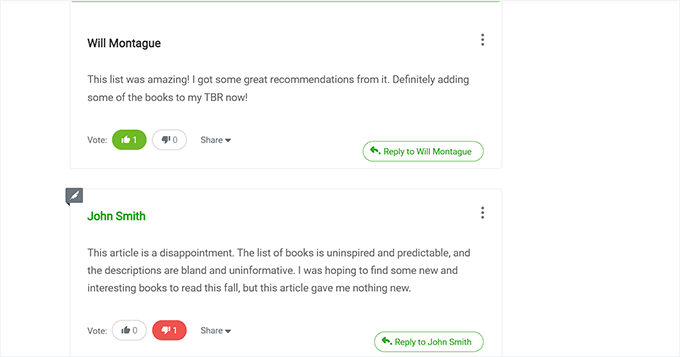
You can see the detailed step-by-step instructions in our guide on how to allow users to like or dislike comments in WordPress.
Now, as your blog grows, managing a large community can get tricky. You might want to reward users who contribute valuable comments and discourage unhelpful ones.
For example, someone might leave a self-promotional comment with a link to their blog, or multiple comments could appear that don’t add much to the discussion.
To improve comment quality, you can highlight valuable comments at the top and push irrelevant ones to the bottom.
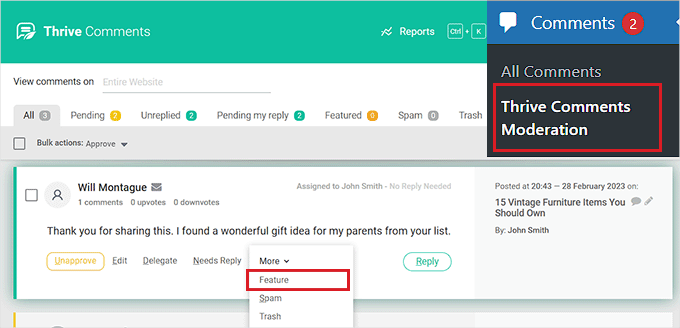
To do this, you can refer to our detailed guide on how to feature or bury comments in WordPress.
FAQs: Allow Users to Post Anonymous Comments in WordPress
Is it safe to allow anonymous comments in WordPress?
Yes, it’s safe as long as you use spam protection and moderation. We recommend plugins like Akismet to keep unwanted spam out.
Can I still moderate anonymous comments?
Yes. Anonymous comments appear in your moderation queue just like regular comments, so you can stay in control.
Does removing comment fields affect GDPR compliance?
Usually, yes – it can make compliance easier because you’re collecting less personal data. For detailed guidance, check out our complete GDPR guide.
Additional Resources to Improve Your WordPress Comments
We hope this article helped you learn how to allow users to post anonymous comments in WordPress.
If you found this helpful, you can also go through our guides on:
- How to Limit Comment Length in WordPress
- How to Delete All Pending Comments in WordPress
- How to Make Blog Post Comments Searchable in WordPress
- How to Paginate Comments in WordPress (Step by Step)
- Best WordPress Plugins to Improve Comments
If you liked this article, then please subscribe to our YouTube Channel for WordPress video tutorials. You can also find us on Twitter and Facebook.





alvina adolf
Thanks for sharing your blog.
WPBeginner Support
You’re welcome!
Admin
chinmay
Thanks for the guidance. This helped me a lot.
WPBeginner Support
Glad our guide was helpful
Admin
Kenneth
Thank you for this article post. It’s really helpful.
WPBeginner Support
Glad our guide was helpful
Admin
Rajesh Kumar
Will it not lead to a lot of spam comments?
WPBeginner Support
There is a chance but this is for users looking to offer this option.
Admin
Heather
so helpful, thank you
WPBeginner Support
You’re welcome
Admin
reem
thanks,for helps
WPBeginner Support
Glad our article could be helpful
Admin
Bahati walker
Thanks a lot for your guide
Juan Pablo
I can’t disable Users must be registered and logged in to comment – dunno why. Any tricks to do it with php function?
Chris
So the first option to label the Name and EMail text area as “Optional” did not work. Instead, the Text areas for both Name and EMail are still there but there are no labels next to them, they are blank.
Hina
How to Comments in WordPress plugins. Please Help
Ahmad
So does links from Twitter activity now count for search
engine optimisation? I heard they help after the Penguin Google
algorithm refresh
Do you participate in any forums?
Usana
I don´t know if it was a concidence but about a month ago I did turn off all comments off and my Alexa Ranking went down (same amount of organic visitors)… what do you think? By the way this is my blog url: (Yes… I do post in Spanish).
Have a great day!
WPBeginner Support
We don’t think Alexa Rankings are important, relevant, or an accurate tool. What you need to measure, is how your users react to change. Check how it affects your bounce rate, user engagement, conversions, and other metrics.
Admin
ajinkya pawar
How to Comments in WordPress plugins
Someone
HEy im anon!… And my IP address?
C.K. Matthews
I’ve created a custom post type that members can use to post questions to forum. In the single-custom-post-type.php I simply omitted the author id tag so the author’s name is anonymous.
What I want to achieve now is that if the post author wants to ask a question to the commented he or she can do so anonymously. Is there a way to edit or create a custom comment form to do something like if(!author() ) show comment author name?
I’m very new to this and I have a custom-comments.php but evidentally what I need is in the comment_form () which at this time I am using Jetpack comments.
Please advise.
Coupontray
Its better to use Disqus to handle Anonymous comments in any platform.