


Navigating a website should feel effortless, but short menu labels sometimes leave visitors guessing where a link leads. This uncertainty can frustrate users and make them hesitate to click on important content.
At WPBeginner, we have found that adding title attributes is a quick fix for this issue. It allows you to provide helpful context via a tooltip without cluttering your design, making it easier for visitors to find what they need.
In this article, we will show you how to add the title attribute in WordPress navigation menus.
Why Add Title Attributes to Navigation Menu Items?
In WordPress, you can add a title attribute to better describe any HTML element. This is often used with links and images to provide extra information that appears as a tooltip when the user hovers their mouse over the element.
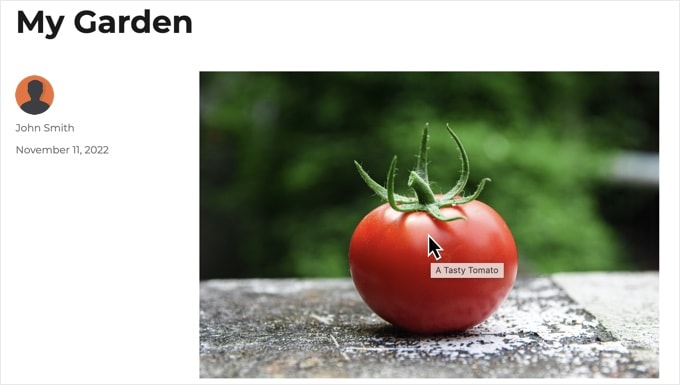
Here’s an example of an image title attribute displayed in a tooltip. The user can learn more information about the image by moving their mouse over it.
You can learn more in our guide on the difference between image alt text vs. title.
We also recommend you use the title attribute when adding links to your post. This allows users to see where the link will take them before they click it.
It is important to note that you should not use the title attribute just to repeat the link text. This is redundant and doesn’t offer any value to your visitors. Instead, use it to provide extra details or context.
With that being said, let’s take a look at how to add the title attribute in WordPress navigation menus. You can use the links below to jump to the method that works with your theme:
Adding a Title Attribute to Classic Theme Menu Items
If you are using a classic WordPress theme, then you can customize your navigation menu by visiting Appearance » Menus in your dashboard.
However, you are not able to add a title attribute to menu entries by default.
To add this capability, you will need to click the ‘Screen Options‘ tab in the top right corner of the screen. This will bring down a menu, where you need to click on the check box next to the ‘Title Attribute’ option.
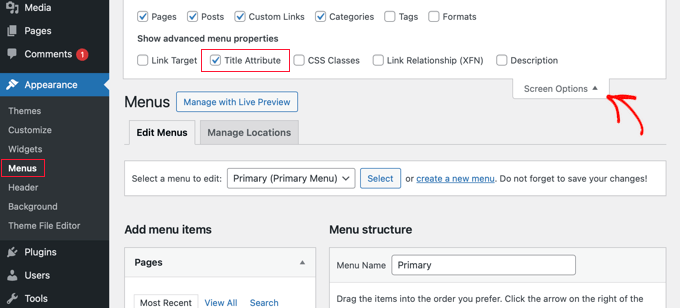
This will add a title attribute field for when you create or edit a menu entry.
Now, you can scroll down and click on any menu item in your existing menu to expand it. You will see the title attribute field.
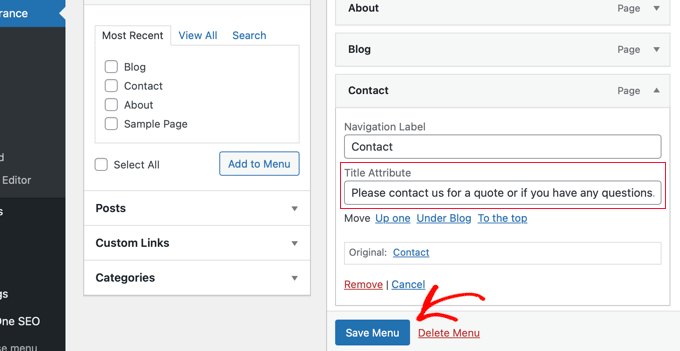
You can now add the text you want to use as a title. You can also expand other menu items and add title attributes to them.
Don’t forget to click on the ‘Save Menu’ button at the bottom of the page to store your changes.
You can now visit your WordPress website and take your mouse over a link in the navigation menu. You will see the title attribute displayed as a tooltip.
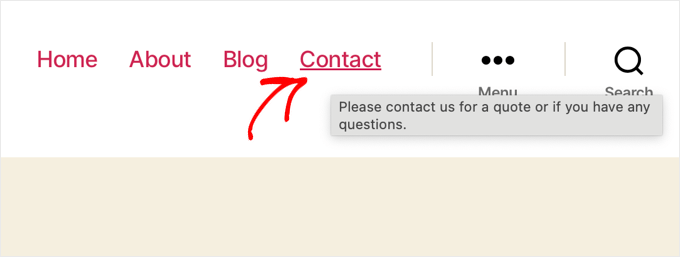
Adding a Title Attribute to Block Theme Menu Items
If you are using a block theme, then you can customize your navigation menu using the Full Site Editor. This editor allows you to add title attributes to your menu entries by default.
First, you need to navigate to Appearance » Editor in your WordPress admin area and then click on the ‘Navigation’ option to find your menus.
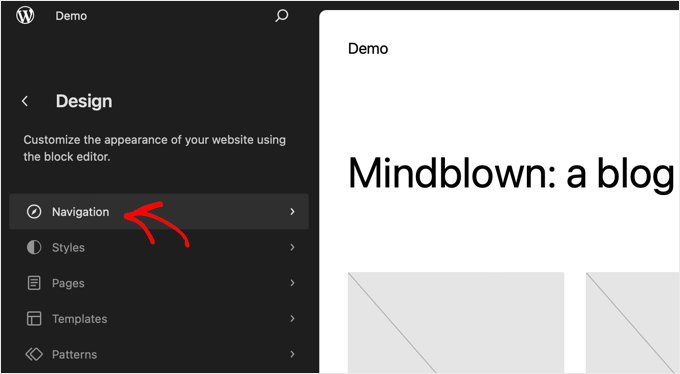
You will need to select the menu you wish to edit from the list.
Now, you can click the preview pane on the right to open the editor full screen. Make sure you can see the settings pane on the left. If not, then you can display it by clicking the ‘Settings’ button at the top of the screen.
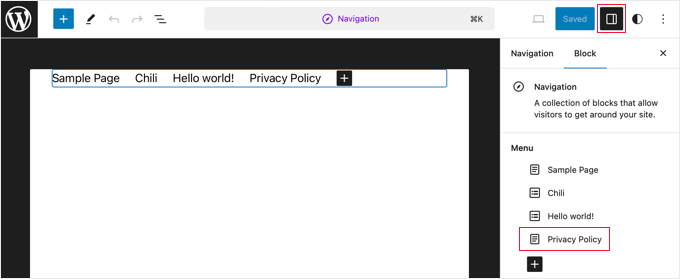
Next, click on the specific link within the menu that you want to customize. Then, look at the Block settings panel in the right sidebar.
Next, click the menu item in the settings pane that you wish to edit. This will display the options for that entry, including the title attribute.
In the Block settings sidebar, you need to scroll down and click to expand the Advanced section.
Here, you will find the ‘Title Attribute’ field. Simply type the text you want to use as the tooltip.
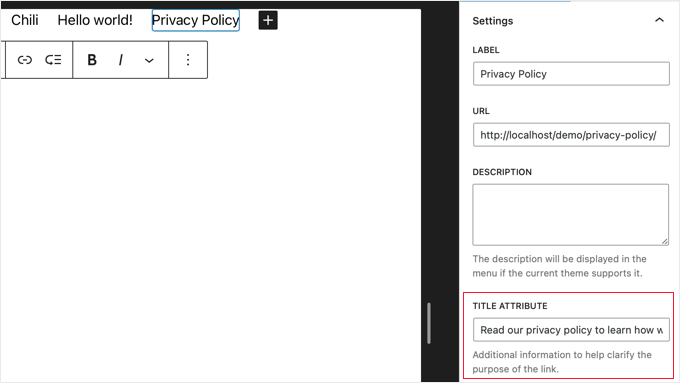
Make sure you click the ‘Save’ button at the top of the screen to store the new settings. You will need to click a second ‘Save’ button to confirm.
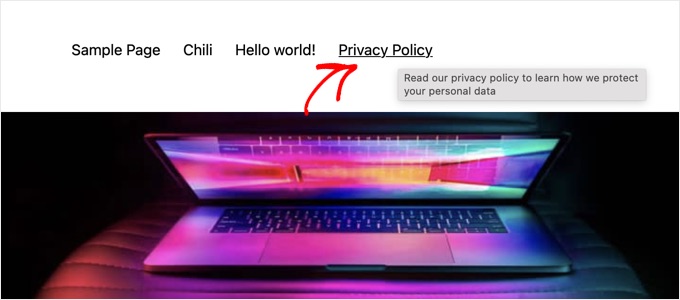
Now, you can visit your website to see the menu title attribute in action.
Frequently Asked Questions
We understand you might have a few more questions about menu title attributes. Below, we have answered some of the most common ones to help you out.
1. What is a menu title attribute in WordPress?
A title attribute adds extra, descriptive text to a menu item. When a visitor hovers their mouse over the menu link, this text appears in a small tooltip, providing more context about where the link will take them.
2. Are menu title attributes good for SEO?
Not directly. Search engines like Google generally do not use the title attribute as a ranking factor. However, title attributes can improve the user experience (UX) by helping visitors understand your navigation. A better user experience is always good for your website’s overall performance.
3. How do I enable the title attribute for menus in WordPress?
If you’re using a classic theme, the title attribute field is hidden by default. You can enable it by going to Appearance » Menus and clicking the ‘Screen Options’ tab at the top right. Then, simply check the box next to ‘Title Attribute’. For block themes, this field is visible by default in the Full Site Editor.
4. What is the difference between the Navigation Label and the Title Attribute?
The Navigation Label is the visible text of the menu item that users click on (e.g., ‘Blog’, ‘About Us’). The Title Attribute is the extra text that appears in a tooltip on hover and is not visible otherwise. It should provide additional information, not just repeat the label.
5. Should I add a title attribute to every menu item?
It’s not strictly necessary for every single item, especially if the navigation label is already very clear. You should add a title attribute when it can provide useful additional context that the label alone doesn’t convey. For example, for a ‘Contact’ label, the title attribute could be ‘Get in touch or find our address.’
Note: Keep in mind that title attributes appear on hover. This means they will not be visible to users browsing your site on mobile devices or tablets with touchscreens.
Additional Resources on Customizing WordPress Navigation Menus
We hope this tutorial helped you learn how to add a title attribute in WordPress navigation menus. You may also want to see some other articles related to customizing the WordPress navigation menu:
- How to Add a Navigation Menu in WordPress (Beginner’s Guide)
- How to Add Custom Navigation Menus in WordPress Themes
- How to Add Titles in WordPress Menu Without Linking to a Page
- How to Add Specific Posts to WordPress Navigation Menu
- How to Add Topics in WordPress Navigation Menus
- How to Style WordPress Navigation Menus
- How to Add a Mega Menu on Your WordPress Site (Step by Step)
- How to Create a Mobile-Ready Responsive WordPress Menu
If you liked this article, then please subscribe to our YouTube Channel for WordPress video tutorials. You can also find us on Twitter and Facebook.




Hajjalah
Hello, thanks for this practical guide . It has enabled me add title attribute in my header menu for the most useful pages on my website which eased user navigation to required pages. But I still have some questions about this.
Should adding title attributes in navigation menus be considered an SEO measure or factor that should be taken to increase search engine optimization or it’s just for internal navigation purpose?
WPBeginner Support
Some people believe it can be for SEO but the main goal is for user experience for your visitors using a screen reader and if you make the content easier for users to navigate it is more likely your site will look good for SEO.
Admin
Jiří Vaněk
Generally, it is said, and it’s true, that you do this for users and their comfort when using devices like readers. On the other hand, if you let a tool like Google Pagespeed Insight scan your website without these descriptions, it will alert you to these issues and deduct points from your SEO rating. In my opinion, this indicates that besides the above, it will likely have some impact on SEO and Google’s evaluation. Therefore, I think it’s good to follow this practice for SEO reasons, not just for users and their comfort.
WPBeginner Support
Glad to hear our guide was helpful!
Admin
Moinuddin Waheed
I find it interesting to know that seo is more human than we are and it has more consideration for all than we do.
I mean when we do seo taking care of title and alt tags and we try to make sure it optimizes on seo parameters, it in turn lets screen readers to view and read clearly.
I didn’t know that menu options also does have option for title attribute. thanks for this addition.
Ralph Miller
This was incredibly helpful. I didn’t know there was a menu for screen options. My title attribute had disappeared and this absolutely helped me find it. Thank you!
WPBeginner Support
You’re welcome, glad our guide was helpful
Admin
Otto
My God!

Thanks a lot, you are amazing people!
WPBeginner Support
You’re welcome, glad our article was helpful
Admin
Fifa
I don’t know why all the praises here but I’ve tried to follow a few of instructions from this site and NOTHING WORKS.
WPBeginner Support
At least a few of our articles should work for every site, are you using WordPress.com with our WordPress.org tutorials? https://www.wpbeginner.com/beginners-guide/self-hosted-wordpress-org-vs-free-wordpress-com-infograph/
Admin
Jim
Wow, thank you! I’ve been tearing my hair out all day trying to inject the title attribute with the nav_menu_link_attributes, Nothing would work. This was so easy and worked great. I had no idea all that stuff was hidden in Screen Options. Thanks again!
Amauri
Thanks, you saved me. A crystal clear tutorial.
Linda Paul
This did not work at all for me. In the example screen shots you say to scroll down and click any menu item and expand it. The screen shot clearly shows URL, Navigation Lable, Title Attribute. But when I expand the menu item I want to edit, there IS NO URL associated with it. I am trying to make this one category read in ascending order (oldest to newest.)
Hüsna Hüner
Thank you very much for menu title attirube. I am turkish not speak english bro
WPBeginner Support
Hi Hüsna,
You are welcome
Admin
Kalanda
i need to own-org website
WPBeginner Support
Hi Kalanda,
Check out our step by step guide on how to start a WordPress blog.
Admin
Minhazul Islam
nice tutorial
Mike Maxson
Thanks for this, did not even know this feature existed. You learn something new everyday.