


Many WooCommerce store owners want to let shoppers customize their products, but they’re not always sure where to start. It can be hard to know which tools you actually need and which ones will overcomplicate the process.
After testing different product builders across a variety of online stores, we’ve learned that the best results come from choosing a simple approach that fits your specific use case. Most stores don’t need anything overly technical to give customers a smooth, user-friendly customization experience.
In this guide, we’ll show you the easiest ways to add a custom product builder to your WooCommerce store so you can offer personalized products without the hassle.
💡What You’ll Need to Get Started
Here’s what you’ll need before you start this tutorial:
- A functional WooCommerce store: Your website should already be set up with WooCommerce installed and configured.
- A product to customize: This could be a t-shirt, mug, phone case, or any other item you want customers to personalize.
- High-quality product images: You will need clear photos of your product to use as the base for the customizer.
What is a Custom Product Builder?
A custom product builder is a tool that you can add to your WooCommerce store. It gives shoppers an interactive interface to personalize items before they buy.
Using the tool, customers can upload images, add custom text, and choose different colors or styles.
They can then see a live preview of their unique creation right on the product page.
Why Add a Custom Product Builder in WooCommerce?
Adding a product builder can directly increase sales and customer satisfaction. It allows you to offer unique products that shoppers can’t find elsewhere.
With a custom product builder, you can:
- Sell Personalized Items: You can offer print-on-demand products where customers add their own logos, photos, or text to things like t-shirts and mugs.
- Offer Custom Options: It lets you sell your own products and let shoppers personalize them before shipping, which can boost average order value.
- Support Different Business Models: You can also run a dropshipping business where a third-party vendor handles both the customization and shipping for you.
That being said, let’s take a look at how to add a custom product builder to your WooCommerce store.
How to Add a Custom Product Builder to a WooCommerce Store
For this tutorial, we will be using Zakeke. It is a WooCommerce product customizer tool and offers a seamless product builder experience for your users.
The product designer is really easy to use for customers as well as store owners.
Step 1: Create a Zakeke Account And Install The Plugin
First, you need to visit the Zakeke website and sign up for an account. You can click the ‘Try for Free’ button to get started.
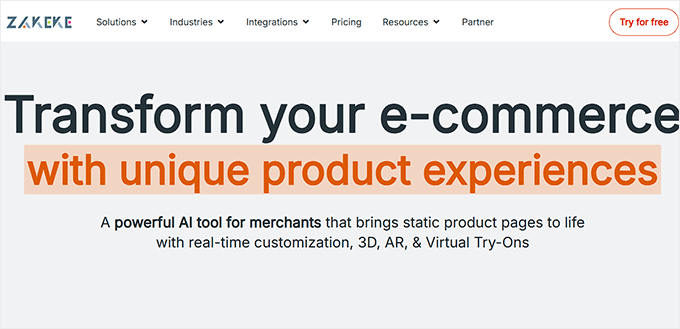
Zakeke works with the most popular eCommerce platforms, including WooCommerce.
To connect your store to Zakeke, switch back to your WordPress website admin area.
Next, you need to install and activate the free Zakeke plugin. For more details, see our step-by-step guide on how to install a WordPress plugin.
The free plugin acts as a connector between your website and the Zakeke product builder.
While the connector plugin is free, please note that the Zakeke service itself is a premium subscription that offers a free trial.
Step 2: Connect Your WooCommerce Store
Upon activation, you will be asked to connect your WooCommerce store to your Zakeke account. Simply click on the ‘Connect’ button to continue.
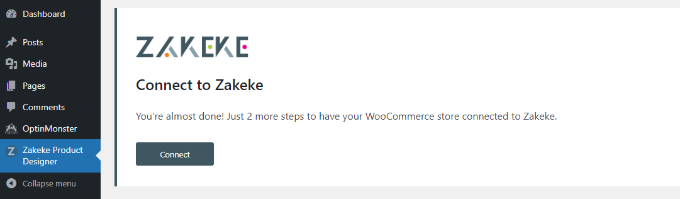
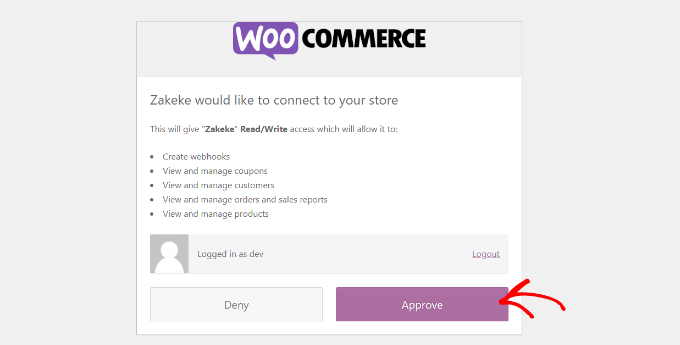
You will then be asked to allow Zakeke access to perform actions on your WooCommerce store.
Go ahead and click on the ‘Approve’ button to move forward.
Step 3: Add a New Customizable Product
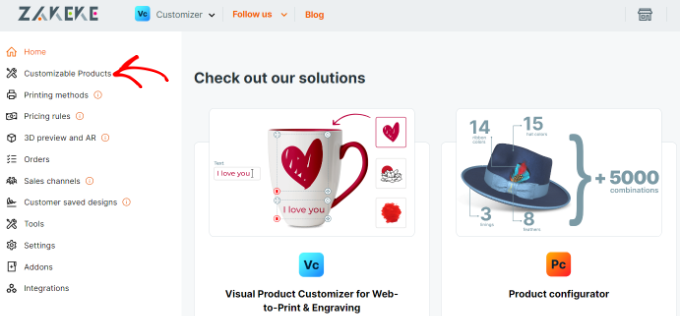
This will bring you to the Zakeke dashboard.
From here, head to the ‘Customizable Products’ option from the menu on your left.
You are now ready to add products that customers can customize.
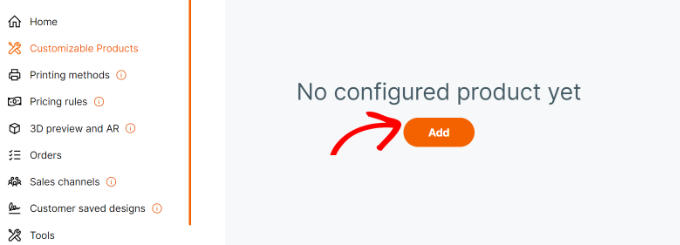
Once you are in Customizable Products, go ahead and click the ‘Add’ button.
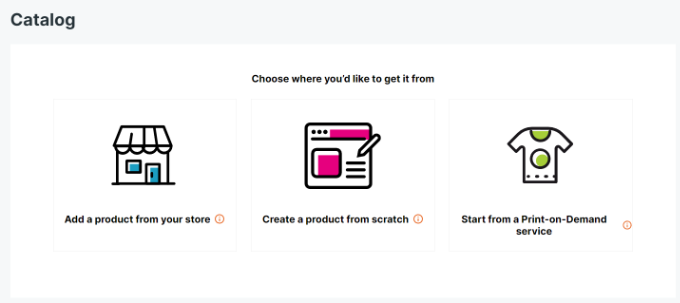
You can then choose a product from your own store, create a product from scratch, or select a print-on-demand service.
Here’s a quick look at what each option means:
- Add a product from your store: Use this if you already have a product set up in WooCommerce that you want to make customizable.
- Create a product from scratch: This option lets you build a new customizable product directly within the Zakeke interface.
- Add a print-on-demand product: Select this to use a product from a third-party print-on-demand catalog, which handles printing and shipping for you.
For this tutorial, we will choose to add a product from our own demo store.
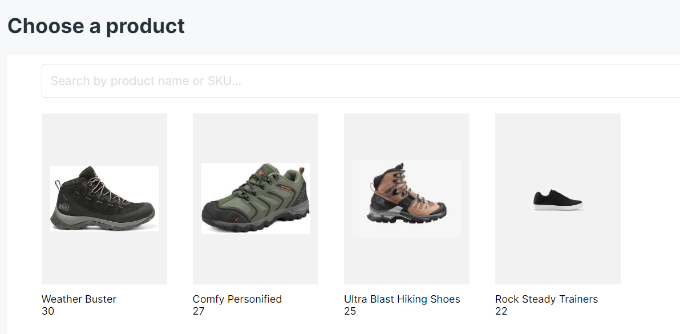
Next, Zakeke will load products from your store.
You need to choose the product that you want to configure.
Step 4: Configure the Product’s Print Area
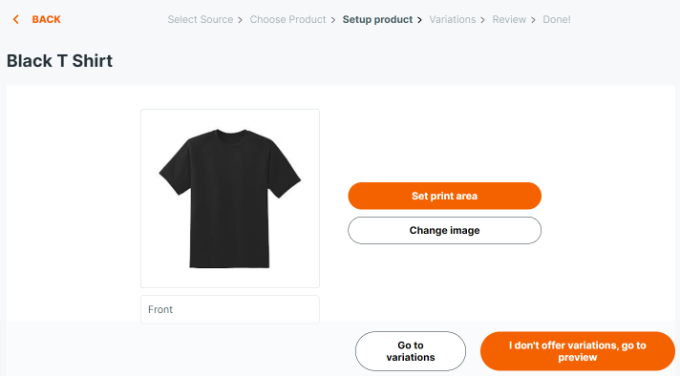
After that, Zakeke will choose your product image from your store.
You can upload a different image if you want to use it. You can also upload the back side of the product image or add variations.
Once you are satisfied with the product images, click on the ‘Set print area’ button.
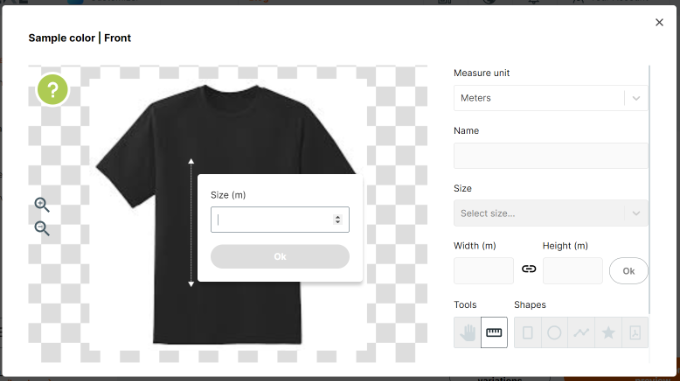
This will bring up a popup where you will calibrate the product’s real-world scale.
To do this, simply draw a line with your mouse to match a part of the product and enter its actual measurement. This important step ensures customer designs are printed at the correct size.
Next, you need to select a shape for the print area and draw it on the product image.
For this tutorial, we will use the rectangular shape.
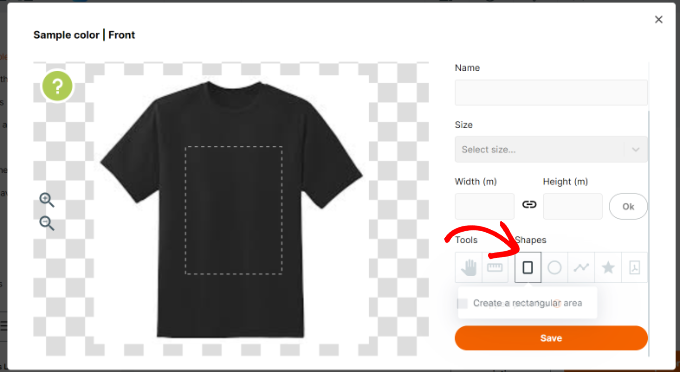
Once you are done, click the ‘Save’ button to continue.
Step 5: Preview and Publish Your Product
If your product doesn’t have variations, such as different colors or sizes, you can proceed directly to the preview.
If you do offer variations, you can configure them now before moving on.
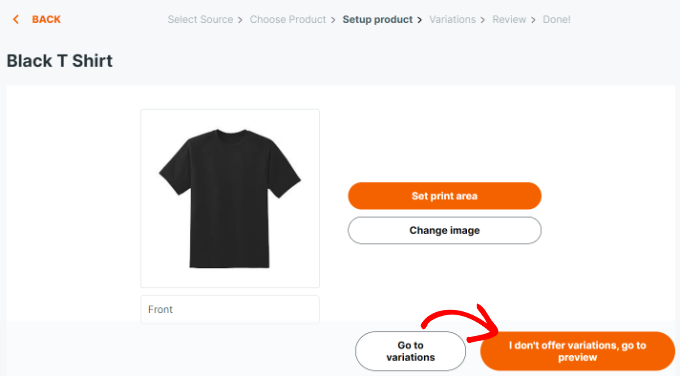
You will now see your product details.
Don’t forget to click the ‘Save’ button to store your changes.
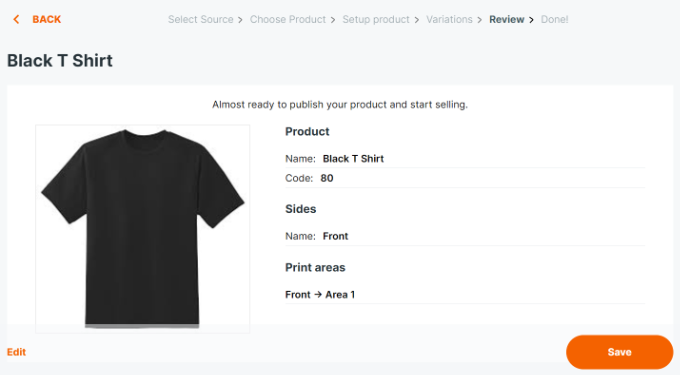
Zakeke will now show a preview of the custom product builder.
You can test to see if everything is working properly and make changes if needed. There is also an option to place a test order.
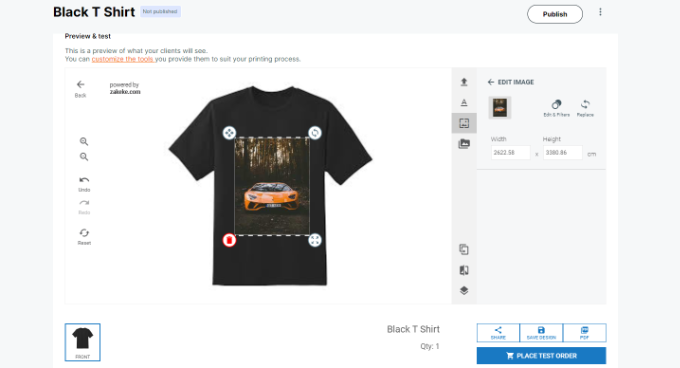
When you are happy with the changes, simply click the ‘Publish’ button at the top.
Step 6: Set Up Your Print Methods
Your product is now published and available for customers to customize on the front end of your store.
Now, you need to configure how the final design files are generated for your production team. This is where ‘print methods’ come in.
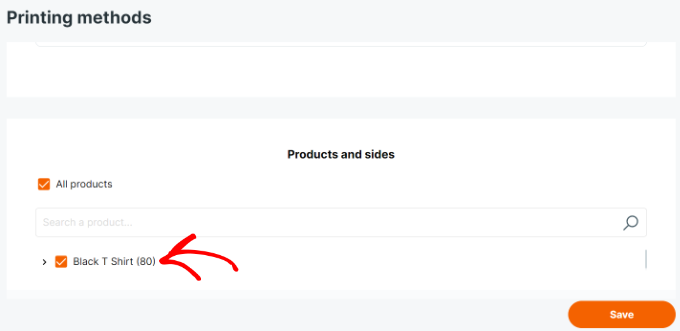
From your Zakeke account dashboard, go to ‘Printing methods’ in the left column and then click the ‘Add’ button.
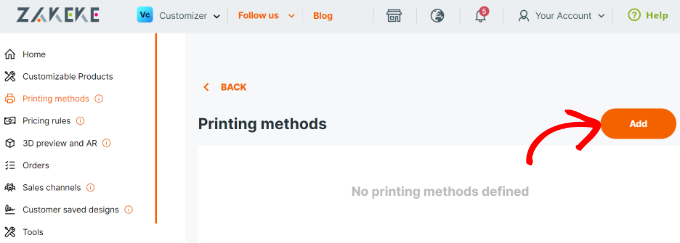
From here, you can choose what printing features you want to allow your customers to use.
You can also choose the file types, resolution, and format. If you allow users to add a text box to the product, you can control the text style, font, format, color, size, and more.
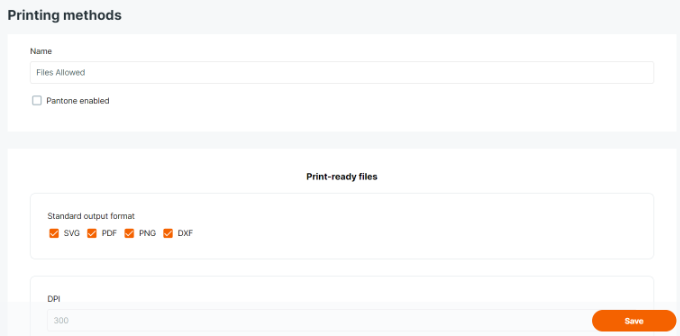
At the bottom, you can choose existing products to which this method would apply.
Don’t forget to click on the ‘Save’ button to store your changes.
Step 7: View the Product Builder on Your Store
Zakeke will add the product customization option to all the products you add using the product configurator.
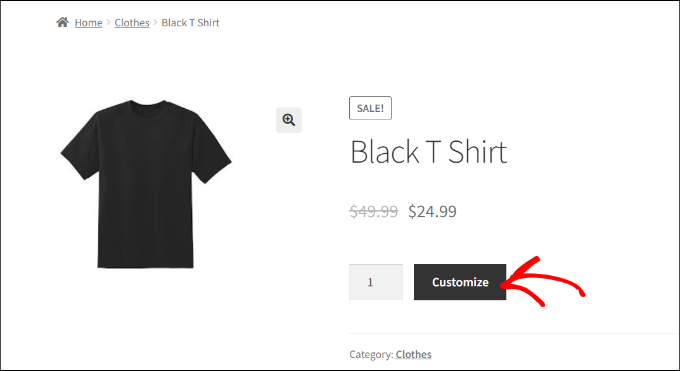
You can simply visit the product in your store, and you will see the option to Customize the product.
This will open the product designer interface, which includes a preview of the product image design tools on the right.
Users can add text or upload images from their devices or social media accounts.
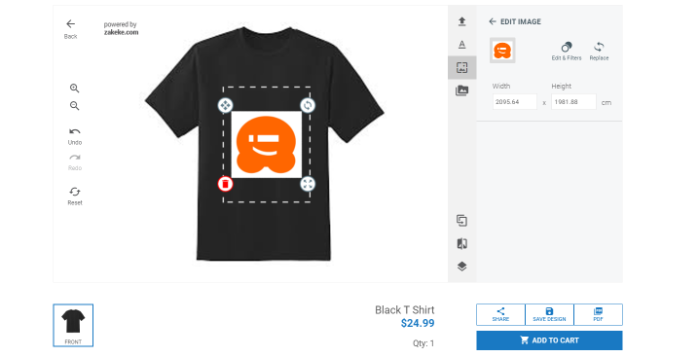
They can also adjust the image or text within the print area by simply dragging the corners. There are also options to choose different fonts, colors, and styles.
Once finished, users can download a copy of their design as a PDF, save it, or simply add it to the cart.
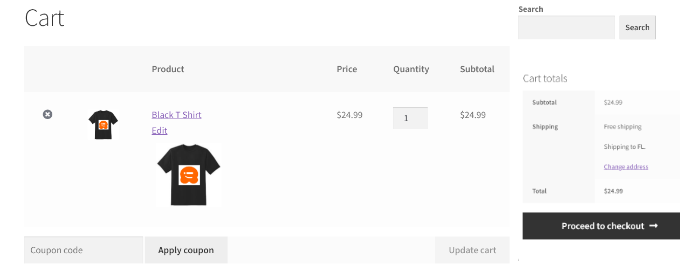
After that, customers can check out as they would normally, with a preview of their customized product in the cart.
Once an order is placed, you will see it in your WooCommerce admin area.
To get the print-ready design file, you can log into your Zakeke dashboard, find the corresponding order, and download the high-resolution files needed for fulfillment.
Bonus Tips for Selling Customizable Products in WooCommerce
Customizable products and a sleek product designer can help you make more sales. However, customers may not know that they can customize and design their products.
This is where OptinMonster comes in.
It is the best conversion optimization software on the market that allows you to easily convert WooCommerce visitors into paying customers.
With its powerful display rules, you can target customers and show them personalized campaigns.
For instance, you can offer free shipping to customers in a particular area, show a slide-in popup for customizable products, or give a limited-time coupon to recover abandoned cart sales.
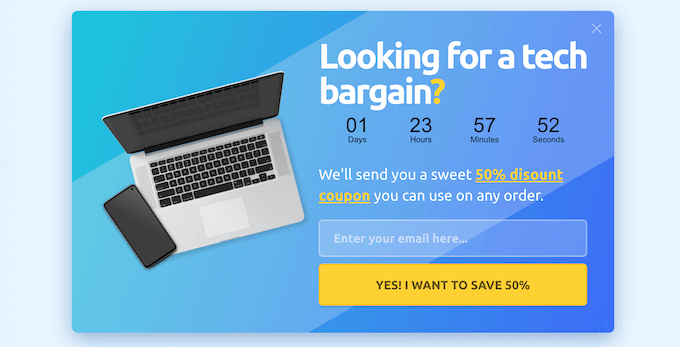
For more details, see our guide on how to increase WooCommerce sales.
Frequently Asked Questions About Adding a Custom Product Builder
Here are some questions that our readers frequently ask before adding a custom product builder to their WooCommerce store:
How much does Zakeke cost?
While the WordPress plugin that connects your store is free, the Zakeke service is a premium subscription. Pricing plans start at $34 per year.
They offer a free trial, which allows you to test the platform before you commit.
What are the best product customizer plugins for WooCommerce?
Zakeke is the best product customizer plugin. Some other popular options include Fancy Product Designer, Lumise, and the official extensions from WooCommerce.
Each tool has different strengths, so it’s worth comparing them to find the best fit for your store.
Will adding a product builder slow down my website?
Most modern product builders are designed with performance in mind. Cloud-based services like Zakeke handle the heavy lifting on their own servers, which minimizes the impact on your site’s speed.
However, using a good WooCommerce hosting provider is always important for maintaining fast loading times.
Can I use a product builder for complex items like furniture or jewelry?
Yes, many advanced product builders can handle complex products with multiple parts and conditional logic. You can set up rules where choosing one option changes the available choices for another part.
This is ideal for things like custom-built PCs, engraved jewelry, or personalized furniture.
We hope this article helped you learn how to easily add a custom product builder in WooCommerce. You may also want to see our guide on how to track conversions in WooCommerce to grow your business and our comparison of the best WooCommerce hosting providers.
If you liked this article, then please subscribe to our YouTube Channel for WordPress video tutorials. You can also find us on Twitter and Facebook.


Dennis Muthomi
From my experience: We added a quick video tutorial next to your customizer. We did this for a client’s t-shirt printing site – just a 60-second video showing how to use the customization features. It’s made a huge difference! Support tickets dropped by 40%, and more customers actually completed their customizations.
BTW, I’m really impressed with Zakeke. It’s so much easier to use than the custom-coded solutions I’ve tried before.