


There’s nothing worse than finding out your website has been compromised. The WordPress admin area is the main entry point for hackers, making it the most critical part of your site to protect.
We know it can be stressful to think about brute force attacks or data theft. Many website owners worry that they don’t have the technical skills to properly secure their dashboard.
The great news is you don’t need to be a security pro to make a huge impact. In our experience managing thousands of WordPress sites, we’ve found that a few straightforward changes are all it takes to build a strong defense.
In this guide, we’ll walk you through the most effective tips for securing your admin area. These simple steps will give you peace of mind and keep your website safe.
We will cover many tips, and you can use the quick links below to jump between them:
- 1. Use a Firewall
- 2. Password-Protect WordPress Admin Directory
- 3. Always Use Strong Passwords
- 4. Use Two-Step Verification on WordPress Login Screen
- 5. Limit Login Attempts
- 6. Limit Login Access to IP Addresses
- 7. Disable Login Hints
- 8. Require Users to Use Strong Passwords
- 9. Reset Password for All Users
- 10. Keep WordPress Updated
- 11. Create Custom Login and Registration Pages
- 12. Learn About WordPress User Roles and Permissions
- 13. Limit WordPress Dashboard Access
- 14. Log Out Idle Users
- Frequently Asked Questions About Securing the WordPress Admin
- Additional Resources for WordPress Security
1. Use a Firewall
A website application firewall (WAF) monitors your site traffic and blocks suspicious requests before they can reach your server. This is your first line of defense against hacking attempts.
While there are several WordPress firewall plugins, we recommend a DNS-level firewall like Cloudflare. DNS-level firewalls are more effective because they block threats at the network edge, so malicious traffic never even gets to your website.
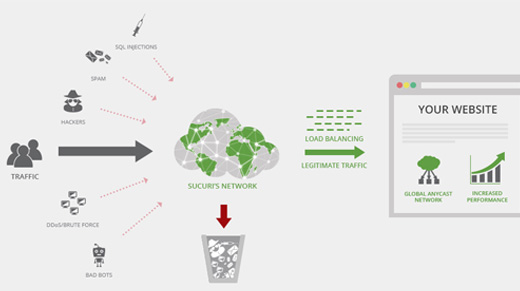
At WPBeginner, we use Cloudflare’s enterprise plan to protect our website from hacking attempts, malware, and other malicious activity. For step-by-step setup instructions, see our article on how to set up the Cloudflare free CDN for your website.
Another great option is Sucuri, which we previously used. For more details, see our article on why we switched from Sucuri to Cloudflare.
2. Password-Protect WordPress Admin Directory
Another tip that we have found to be extremely effective is adding password protection to the WordPress admin directory. This adds a second layer of defense, requiring two separate passwords to access your dashboard.
You can do this from your WordPress web hosting control panel. Here are the steps for cPanel:
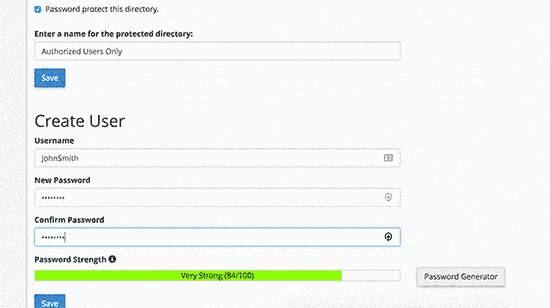
- Log in to your WordPress hosting cPanel dashboard and click on the ‘Directory Privacy’ icon.
- Select your
wp-adminfolder, which is typically located inside the/public_html/directory. - Check the box next to ‘Password protect this directory’ and provide a name for it.
- Click ‘Save’, then go back to create a user with a new username and password.
Now, anyone trying to access your admin login page will first see an authentication prompt.
This blocks most automated bot attacks.
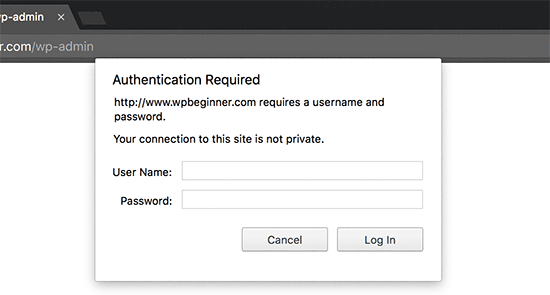
For more detailed instructions, see our guide on how to password-protect the WordPress admin (wp-admin) directory. Please note that these steps are for hosts using cPanel. If you use a different control panel, check your host’s documentation.
3. Always Use Strong Passwords
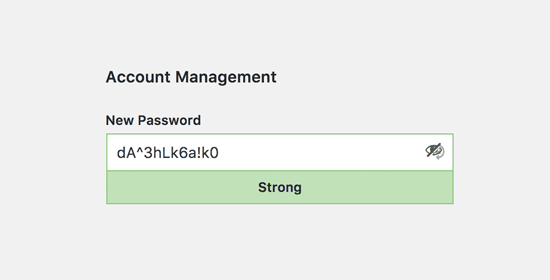
You must use strong, complex passwords for all your WordPress accounts. Weak passwords are one of the most common reasons websites get hacked.
A strong password uses a combination of uppercase and lowercase letters, numbers, and special characters (!, #, @, %, etc.). The longer it is, the more secure it will be.
It’s nearly impossible to remember dozens of complex passwords. That’s why our entire team at WPBeginner uses a password manager app like 1Password to securely generate and store unique passwords for every service.
For more information on this topic, see our guide on the best way to manage passwords for WordPress beginners.
4. Use Two-Step Verification on WordPress Login Screen
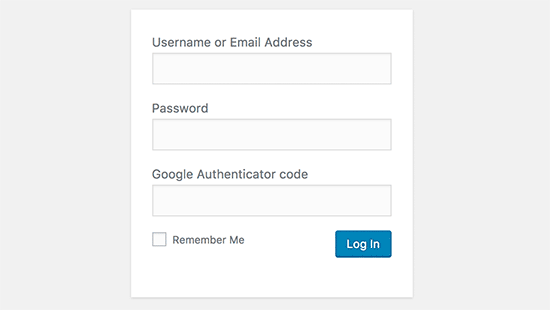
Two-step verification, also known as two-factor authentication (2FA), adds another critical security layer. We use 2FA not just on our WordPress websites but on all our online accounts where the option is available.
After entering your password, you must also provide a time-sensitive code generated by an app on your phone, like 1Password or Authenticator. Even if a hacker steals your password, they won’t be able to log in without your phone.
For detailed step-by-step instructions, see our guide on how to set up 2-step verification in WordPress using Google Authenticator.
5. Limit Login Attempts
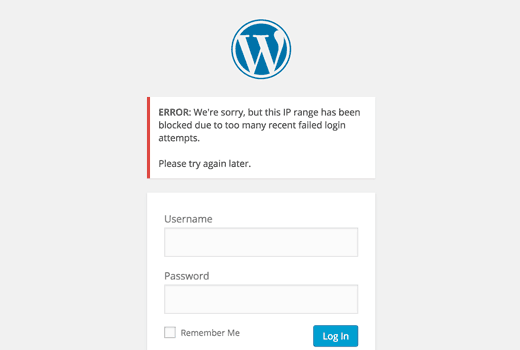
By default, WordPress lets users try to log in as many times as they want. This allows hackers to use automated scripts to try thousands of password combinations in what’s known as a “brute force attack.”
You can easily stop this by installing the Limit Login Attempts Reloaded plugin. After activation, go to Settings » Limit Login Attempts to configure how many failed attempts are allowed before an IP address is temporarily blocked.
For detailed instructions, see our guide on why you should limit login attempts in WordPress.
To learn more about the plugin, you can also check out our detailed Limit Login Attempts review.
6. Limit Login Access to IP Addresses
Warning: This is an advanced technique and should only be used if you have a static (fixed) IP address. Most home internet connections use dynamic IPs that change regularly. If you use this method with a dynamic IP, you will lock yourself out of your own website.
If you have a fixed IP, you can restrict access to your admin area to only that address. Simply add this code to your .htaccess file:
Don’t forget to replace the ‘xx’ values with your own IP address. You can easily find your current IP address by searching “what is my IP address” on Google. If you use more than one IP address, be sure to add them as well.
For detailed instructions, see our guide on how to limit access to WordPress admin using .htaccess.
7. Disable Login Hints
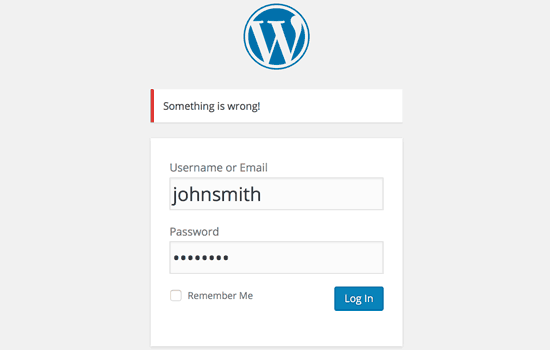
When a login fails, WordPress tells you whether the username or password was incorrect. While helpful for users, these hints also confirm a valid username to an attacker, making their job easier.
You can hide these hints by adding the following code to your theme’s functions.php file. However, we recommend using a code snippets plugin like WPCode. It’s a much safer way to manage custom code without risking site errors.
function no_wordpress_errors(){
return 'Something is wrong!';
}
add_filter( 'login_errors', 'no_wordpress_errors' );
For more details, see our guide on how to add custom code in WordPress without breaking your website.
8. Require Users to Use Strong Passwords
If you run a multi-author WordPress site, a single user with a weak password can create a vulnerability for everyone. You can enforce a strong password policy to prevent this.
To do this, you can install and activate the Solid Security plugin (formerly known as iThemes Security), made by the team at SolidWP.
Then, you can follow the steps in our complete guide on how to force strong passwords on users in WordPress.
9. Reset Password for All Users
For multi-user WordPress sites, you can improve security by forcing all users to reset their passwords. This is especially useful if you suspect a security breach or just want to enforce a new password policy.
First, install and activate the Emergency Password Reset plugin. Upon activation, go to the Users » Emergency Password Reset page and click the ‘Reset All Passwords’ button.
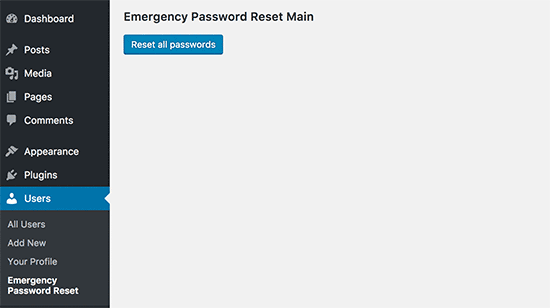
For detailed instructions, see our guide on how to reset passwords for all users in WordPress.
10. Keep WordPress Updated
WordPress frequently releases new versions to add features and fix security vulnerabilities. Running an outdated version of WordPress, your plugins, or your theme is one of the biggest security risks you can take.
Always make sure you are using the latest version of the WordPress core software, as well as all your plugins and themes. For more on this, see our guide on why you should always use the latest version of WordPress.
11. Create Custom Login and Registration Pages
For sites that require user registration, such as membership sites or online stores, you should create custom login and registration pages.
This prevents non-admin users from ever needing to see or access the default WordPress login screen. It provides a more professional user experience and allows you to completely lock down the standard wp-admin access without affecting your members or customers.
The easiest way to do this is with a plugin like WPForms, which has a powerful User Registration addon. For detailed instructions, see our guide on how to create custom login and registration pages in WordPress.
12. Learn About WordPress User Roles and Permissions
WordPress has a built-in user management system with different roles and capabilities. Assigning the wrong role can give a user far more permissions than they need, creating a potential security risk.
It is important to understand what each role can do before adding users to your site. Here are the 5 default roles:
- Administrator: Has full access to all settings and content on the site.
- Editor: Can publish and manage all posts, including those of other users.
- Author: Can publish and manage their own posts only.
- Contributor: Can write and manage their own posts, but cannot publish them.
- Subscriber: Can only log in and manage their own profile.
For a complete breakdown, see our beginner’s guide to WordPress user roles and permissions.
13. Limit WordPress Dashboard Access
On some sites, certain users may not need access to the WordPress dashboard at all. By default, any user can log in and see the admin area, even if their capabilities are limited.
To fix this, install and activate the Remove Dashboard Access plugin. After activation, go to Settings » Dashboard Access and select which user roles can access the admin area. Others can be redirected to the homepage or another URL.
For more detailed instructions, see our guide on how to limit dashboard access in WordPress.
14. Log Out Idle Users
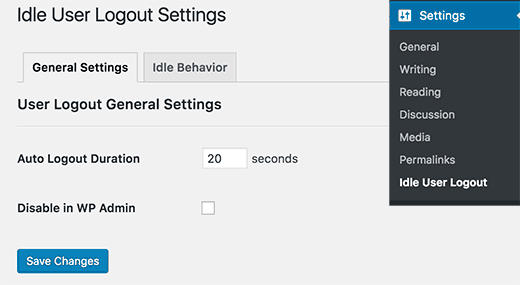
Logged-in users who walk away from their computers can pose a security risk. If their computer is public or shared, someone else could access their account.
You can solve this by installing the Inactive Logout plugin. Go to Settings » Inactive Logout and set a time limit. After that period of inactivity, users will be logged out automatically.
For more details, see our article on how to automatically log out idle users in WordPress.
Frequently Asked Questions About Securing the WordPress Admin
What is the most important step to secure my WordPress admin area?
Using a Web Application Firewall (WAF) is the most critical first step. A good firewall, like Cloudflare or Sucuri, blocks malicious traffic before it ever reaches your site, preventing a wide range of attacks.
Is password-protecting the wp-admin directory really necessary?
While not mandatory, it is highly effective. It adds a second layer of authentication that stops almost all automated bots that try to brute-force your login page. It’s a simple change that significantly boosts security.
Can I get locked out of my own site by following these tips?
Yes, if you are not careful. The tip to limit login access to specific IP addresses is for advanced users with a static IP only. If you use a normal, dynamic IP address, you will lock yourself out. Always back up your site before editing files like .htaccess.
Additional Resources for WordPress Security
We hope this article helped you learn some new tips and hacks to protect your WordPress admin area.
You may also want to see our other expert guides for keeping your site safe:
- The Ultimate WordPress Security Guide – Step by Step
- Best WordPress Security Plugins to Protect Your Site (Compared)
- How to Scan Your WordPress Site for Potentially Malicious Code
If you liked this article, then please subscribe to our YouTube Channel for WordPress video tutorials. You can also find us on Twitter and Facebook.


Olaf
Security is simply fundamental, and the admin area is the most important part of WordPress because it controls the entire site. This makes admin-targeted hacking attempts increasingly common, which is logical given that WordPress powers tens of millions of websites. Therefore, the efforts of hackers are becoming more pronounced. This is a list of truly excellent key elements. While it may not be necessary to implement all of them, even a few can significantly enhance website security. The combination of a strong password, two-factor authentication, and limiting login attempts seems so robust that the admin area would be practically unbreakable.
Dennis Muthomi
I have experienced a hacking attempt on my own WordPress site, I particularly like the emphasis on using strong passwords and two-factor authentication. I’d like to add that regularly backing up your website is also crucial in case of a security breach.
Jiří Vaněk
I have used many of your tips and, additionally, I also changed the URL of the administration to prevent potential brute force attacks. Regarding strong passwords, I would also recommend not using the default “admin” user because it is the first user a hacker will try to attack with brute force. Personally, when I install WordPress, I never use the “admin” user but always choose a custom name. It’s a small detail, but it can also contribute to security.
Mrteesurez
I don’t think there will be a way hackers would be able to enter if one is able to implement all these tips and tricks.
I have used some, limiting logging attempt and dashboard access and they worked fine, I will still try to implement others for maximum security.
Jiří Vaněk
WordPress is a complex system, and securing the administration alone is not enough. There is always a way a hacker can attack you. They might target FTP to obtain sensitive database information, attempt to exploit a poorly protected MySQL, or try to take advantage of a newly discovered vulnerability in a plugin, theme, or WordPress itself before you manage to update it. Therefore, it is always good to think comprehensively and not forget about other elements of the system such as MySQL, FTP, and WordPress components.
Moinuddin Waheed
Must have tips and tricks for protection of WordPress admin dashboard.
I have used two factor authentication for admin login and also the login limits for admin access.
dashboard protection is of utmost importance as it can have serious repurcussions if dashboard gets compromised.
I didn’t know that we can have these much steps to protect our dashboard.
Thanks for the exhaustive lists of tips for dashboard protection.
WPBeginner Support
Glad to hear you found our list helpful!
Admin
Theo
“This plugin has been closed as of November 23, 2020 and is not available for download. This closure is permanent.”
I know that this is a 3 and a half years old article!
It would be nice if someone could suggest an alternative! Thank you for your time!
WPBeginner Support
We will certainly take a look at alternatives.
Admin
Raksa Sav
If I add someone as an administrator of WordPress, can they remove from administrator or stole my WordPress site?
WPBeginner Support
Hi Raksa,
Yes, they can remove other administrators and take control of your website.
Admin
Muchsin
I want to ask
I have tried the tutorial directory privacy on this article and it runs smoothly but there is one problem that is when I try the search feature located in the navigation menu on my website as a user and always asked to fill in the username and password of that directory. Then how do I solve the problem?
I use the newspaper theme from tagdiv.
sherizon
what is the best advice in starting up an eceommerce website can i use wordpress?
WPBeginner Support
Hi Sherizon,
Yes you can. Please see our guide on how to start an online store.
Admin
Brenda Donovan
Good hints and tips here. Does is matter where in the functions.php file one puts the block hints script? Just add it to the bottom?
WPBeginner Support
Hey Brenda,
Yes, you should add it to the bottom.
Admin
Joe
Another really helpful means of protecting your WP site is to use a login that is NOT ADMIN and not your email address. Use a unique login name like WP@#% or something crazy like that.
Dragos
You should also change where you install the default folder of wp-admin.
Abhinav S Thakur
Can anyone fix this?
How shall I force SSL only for admin and rest of the site should be http.
Like wp beginner has non SSL site!
Running wordpress, cPanel
Pinkey
Hi,
I just started a content based website and unfortunately my site got hacked. Please advice us with suitable solutions (software/certificates etc) to avoid any future hacks being done.
Thanks & best Regards,
Pinkey
Lucy Barret
The tips that you added are so helpful. But for securing WordPress, you need to give more emphasis to the security of your login area. You need to pay more attention on strengthening your admin login area.
John
Any idea why deleting wp-login.php does not prevent brute force attacks? I thought it was a quick fix for a site that only requires my login, therefore only replace the file when needed?
Help please!
Craig
Great advice apart from the removal of admin messages, if you’re lessening the user experience because of security then you’re not doing it right.
Tahir
smart collection….!!
Talha
Thanks a lot. I have a website . I will set up there.
Pat Fortino
This plugin no longer exists: Stealth Login
Can you recommend an alternative?
Thanks
Lori
I’ve also been told to “remove links to the admin page from the site so that the hacking robots can’t just follow a link.” I’m not sure what this means, or how I would do it… Anyone know what this means and could point me to step-by-step directions to do so?
(I don’t see links to an admin page anywhere on my website, nor do I remember there ever being any. The only way I access the admin page is by going to the /wp-admin address.)
Emily Johns
Great information!
For non expert bloggers and coders, I suggest installing a WordPress plugin, to make things easier.
From the ones you mentioned, I found “Wordfence Security” plugin a free solution to secure blogs and make them faster.
Tested and happy with it!
Barry Richardson
I was under the impression that the original username (e.g. “admin”) of a WP site cannot be deleted, so even if we did add a new username, the original “admin” would still be available for a potential hacker to exploit.
WPBeginner Support
If you create a new user account with the administrator role, then you can safely delete admin user.
Admin
Sandeep Jinagal
Hyy WPBeginner first of All u are Doing Best OF Best???
And m want to Know m Want to Set my login Page Like urs. bcoz when m trying to open ur login page. it shows a popup for login. can u give me that tool.
WPBeginner Support
Please see our guide on how to password protect WordPress admin directory.
Admin
Kheti
Thanks for this educative material. Very helpful. Thanks for the good work and support.
ifaheem
great article but needs to be updated. There are a few great plugins which do all of the above task by one plugin install!
My site was under heavy attacks, fake google bot were always there. I noticed up to 300 Hits from a single IP. the most visited area was wp-admin
After performing above steps (update them by some research), feeling secure a little.
Don’t Install a plugin without reading Min. of 5 reviews. They tell you the truth (Go for a bad review and see what he/she says; they have suffered something bad!
Prince Jain
Thank you for such a great post.
But please update that Stealth Login Plugin do not create customize URL for Login Window, instead it add up an authorization code below username and password at login window of Wordpress.
Also can you please suggest a plugin to create custom URL for login window.
Mitchell Miller
Stealth Login was removed from WP Plugin repository.
But changing wp-login.php link is the first step to protecting a WordPress site.
laya rappaport
What happens when you give your login details to someone to work on your website and they change the login details so you can no longer access your word press account?
James Campbell
I’m not sure if there’s a way for you to retrieve your sites information necessarily, but if you’re able to, always create a new user and give other people access through that particular user. This allows you to restrict access to certain areas and you can also delete their access when it’s no longer needed. Giving up your access to your site let’s them block you out.
Lisa Wells
If someone’s changed your WordPress user information, hopefully you can still login to your database through, say phpMyAdmin. From there you should be able to create a new admin user directly in the tables:
https://www.wpbeginner.com/wp-tutorials/how-to-add-an-admin-user-to-the-wordpress-database-via-mysql/
user4574
One other helpful item not mentioned is database permissions. The Wordpress db user generally doesn’t need to be granted all permissions. In the vast majority of cases it only needs ALTER, CREATE, CREATE TEMPORARY TABLES, DELETE, DROP, INDEX, INSERT, LOCK TABLES, SELECT, UPDATE.
So if you’re doing it directly in mysql, it would be:
GRANT ALTER, CREATE, CREATE TEMPORARY TABLES, DELETE, DROP, INDEX, INSERT, LOCK TABLES, SELECT, UPDATE ON .* TO ”@’localhost’;
If doing it in cPanel or whatnot, just tick the appropriate boxes when granting permissions to the db_user.
Tanmoy Das
Awesome tips for any newbie ! I want to always change the login URL but dont know how to do it. Thanks for those tips.
Derick
@Daniel: Hackers now have a tool that enumerates/lists all your usernames including the roles of these, so doing that would not trick the hacker at all.
Thorir
Just installed the Limit Login Attempts plugin on my WP sites. On one of it I almost instantly noticed a lock out, it was also the only install that was in root. All the others are in a subdirectory and several hours later none of them have registered a lock out.
Perhaps this is a helpful factor, security wise?
Mary
Hello, I hope you are well!
This was a great article but a little complicated for me.
because I need the easy way right now, the wordpress firewall plugin looked good but
my fear is losing my login page.
I have spent a long time trying to work with FTP and have not been able to understand it.
Will this be a good plugin for a scaredy cat?? Thanks Mary
Ed van Dun
And what about Bullet Proof Security? It covers some area’s mentioned above and quite a few more.
Prodip
All of the above tips helped me to make my blog with more secured.
Dr. Sean Mullen
This is great info but Please update! Thanks
Guest
I know this article is from way back in ’09, but can you do an updated one, since a lot of these plugins are no longer “officially” compatible with the latest WordPress (3.4.x-3.5)?
Editorial Staff
Yes, it is in the works along with few other things. We are doing the best we can. Thanks for letting us know.
Admin
whoiscarrus
Just really getting into WP development and can’t say thank you enough! These are great for beggin’n folk like myself!
abhizz
amazing tips about wordpress thank you
Bigdrobek
Great turitorial, but please can you update it?
Few plug-ins is not exist, are old or are hidden by WordPress.org.
– Stealth Login
– Login Lockdown
– Admin SSL
I am interested in step 1)Create Custom Login Links – do you have tip for new plugin which do similar job?
Faizan Elahi ( BestBloggingTools)
This is a great resource. Thanks
mattjwalk
You could also add to the list, “use second factor authentication” instead of standard passwords. There is a new website authentication method https://www.shieldpass.com where you buy cheap access cards and then install the WordPress plugin. You then place your card onto the screen to see the dynamic login numbers instead of a static password. It is unique in also being able to encode transaction digits for mutual authentication which stops attackers man in the middle tactics, even one with access into your laptop or mobile.
Jermaine
The issue I have with No: 6 is dynamic ip address, you get locked out every time your ip address changes what the workaround?
Editorial Staff
You can add custom login if the IP doesn’t match.
Admin
vivek
great post and nice guide for new bloggers like me
fareed
Great post and very useful to me thank you
Daniel
Hacker will think he is successful when he logs in with admin username and finds that the role has been set to ‘subscriber’. Isn’t this another form of added security. I don’t want to delete my admin because i put messages etc in forums and the blog and like my users to know that it’s from administration. as well as i use my regular username!
Jonathan K. Cohen
This article needs to be revisited. A number of the plugins suggested have not been maintained, and may be incompatible with the latest version of WP.
These include #1, #3, and #5.
John
For #1 ckeck this plugin called WPS Hide Login
Greg
I completely agree with you. I’ve been using the Limit Login Attempts plugin for my WordPress for a while. Today this plugin is outdated. I’ve switched to WP Cerber:
Danang Sukma
Thanks for your post.
Im using password protect for my wp-admin folder in cpanel, is it enough?
mby
uh what a useful info guys, it can help surely!!
thanks for posting! ^_^