



Do you want to help visitors find what they’re looking for on your site?
Today, users expect an ‘Amazon-like’ browsing experience. They want to narrow down thousands of products or posts to find the perfect result in seconds. If they can’t easily find what they need, they’ll likely leave your site – and head straight to your competitors.
That’s where a high-quality filtering plugin comes in. It helps your visitors find exactly what they’re looking for without clicking through dozens of pages.
One popular plugin gaining attention is WPFilters. It promises to add smart, professional filtering to WordPress without requiring any coding knowledge.
But is it really the best tool for your particular WordPress site?
In this comprehensive WPFilters review, we’re putting it to the ultimate test. We’ll be looking at everything from its ‘no code’ setup to its ability to handle custom fields, so you can decide if WPFilters really is the right filtering solution for you.
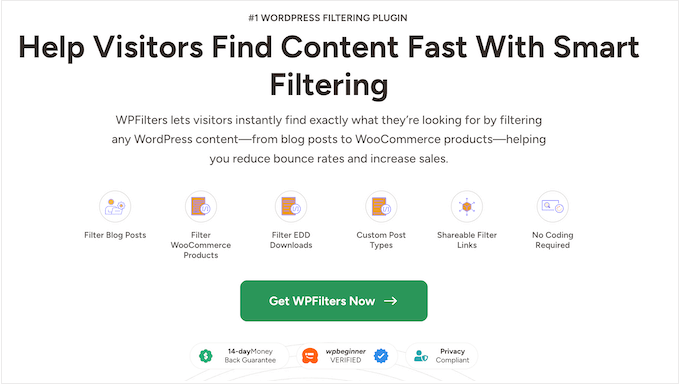
WPFilters Review: The Good, the Bad, and the Ugly
WPFilters aims to solve a problem many of us have struggled with for years: “How do I make sure visitors can find the content they want, without having to hire a developer?”
At WPBeginner, we’ve tested a lot of filtering tools over the years and most of them are difficult to use. They often force you to deal with complex custom code or create ugly sidebar widgets that are difficult to customize.
WPFilters does something completely different. It brings filtering directly into the WordPress block editor instead of forcing you to build complex queries.
When you want to add a filter to a page, post, or widget-ready area, you simply add it as a new block.
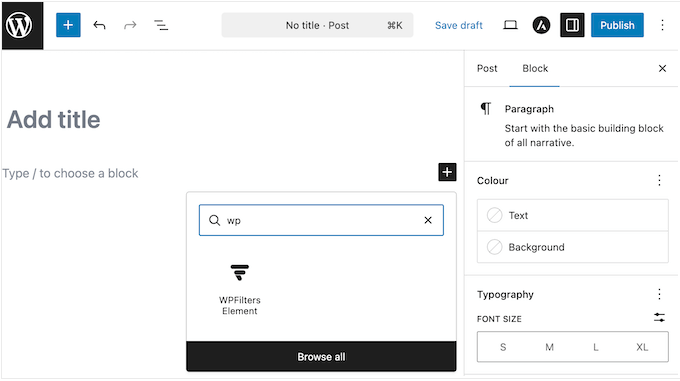
This is a game-changer because you can visually create advanced filters using the tools you already know. You don’t need to touch a single line of PHP or write custom code to get a professional result.
WPFilters also uses Ajax technology which means it shows the results straight away.
When a user clicks a filter like ‘Red’ or ‘Under $50,’ they’ll see matching results without having to reload the page. This makes your site feel incredibly fast and modern, just like the experience you get on big sites like Amazon or Airbnb.
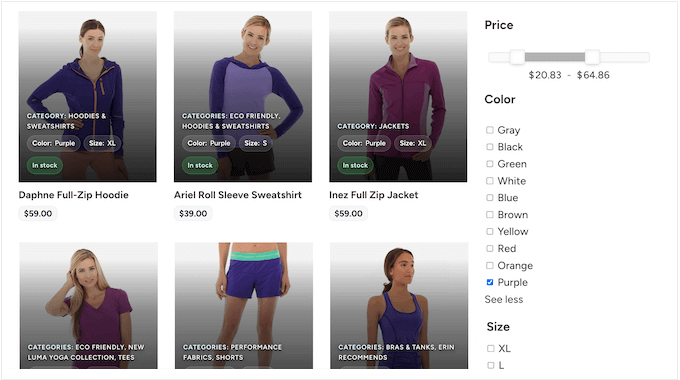
WPFilters Review: Is It the Right Filtering Plugin for Your WordPress Website?
If visitors can’t find exactly what they’re looking for within a few moments, they’ll almost certainly leave your site – and never return.
That’s why we always recommend adding content filtering, especially as your site grows.
A good filtering plugin can instantly transform a messy list of posts or products into a user-friendly catalog. It helps visitors avoid confusion and zero in on the content they actually care about. This ultimately means higher engagement and more sales.
With that in mind, we’re going to deep dive into WPFilters to see if it can help you add content filtering to your site. We’ll explore its features, pricing, and support to uncover all its strengths and weaknesses.
By the end of this hands-on WPFilters review, you’ll know whether it really is the best filtering plugin for your WordPress website.
1. Get Started in Minutes (No Tech Skills Needed)
It’s not uncommon for a plugin to promise easy setup, and then fail to deliver. Hours later, you may still be struggling with the initial configuration.
Thankfully, WPFilters is incredibly easy to set up. It comes with a built-in onboarding wizard that launches as soon as you install and activate the plugin.
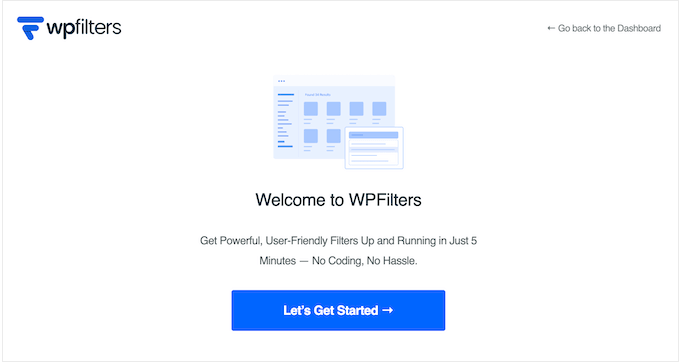
Each step is explained clearly with no technical jargon. You don’t need to know what a query loop or taxonomy is to get WPFilters working. If you can answer simple questions about your content, you can set up this plugin.
And the result? You should have your first filter live in just a few minutes.
2. Drag-and-Drop Simplicity (No Code Required)
Most advanced filtering plugins come with a steep learning curve. You may find yourself wrestling with shortcodes, trying to force widgets into incompatible theme areas, or editing PHP files just to get a filter to display correctly.
WPFilters takes a completely different approach by integrating seamlessly with the WordPress block editor.
With WPFilters, you can add filters to your pages in seconds. Simply open the standard WordPress editor, search for the WPFilters block, and drop it right into your layout.
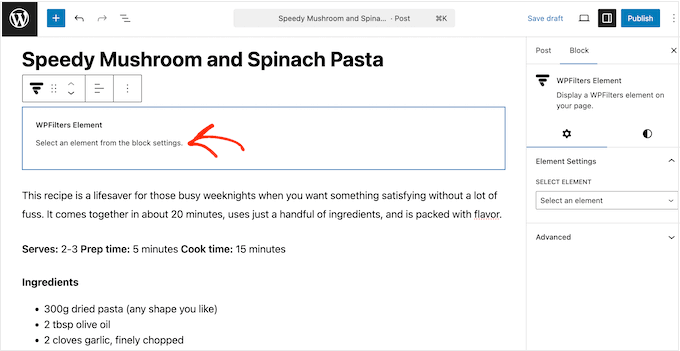
After that, you can configure everything right there in the editor. You can even preview your filters to see exactly how everything looks before clicking ‘Publish.’
Overall, WPFilters feels like a core part of WordPress, rather than a clunky or complicated add-on.
3. Filter Any Type of Content
Most filtering plugins focus on just one thing, such as WooCommerce products or blog posts. However, WPFilters promises to help visitors find exactly what they’re looking for by filtering any type of WordPress content.
We tested this claim and it turned out to be accurate. WPFilters works seamlessly with standard blog posts, WooCommerce products, digital downloads, and even custom post types.
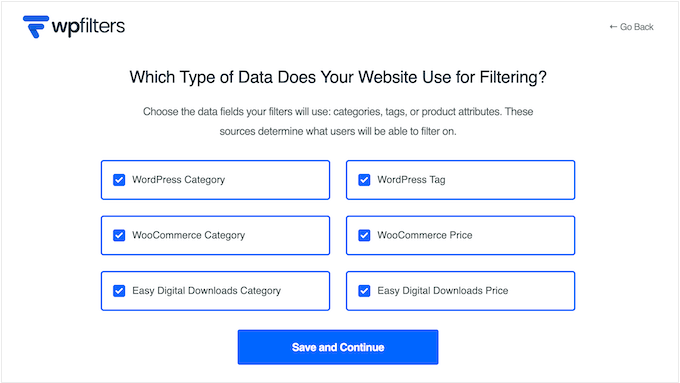
During testing, we added a filter to a blog section so visitors could browse articles by category. It was very easy to do, so we immediately added a second filter that allowed customers to sort by specific product attributes.
This flexibility is a huge advantage because you’re not restricted to a specific use case or type of content.
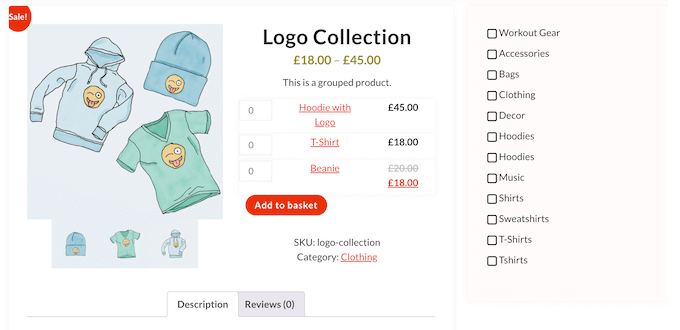
With WPFilters, you can create a wide range of filters using the exact same interface and tools. This means you don’t have to install multiple WordPress plugins or learn different workflows.
4. Multiple Interface Options
For the best results, a filtering plugin should adapt to your different layouts rather than forcing you to use the same look everywhere. After all, you might need a simple list for one page and a compact menu for another.
This isn’t an issue with WPFilters, as it supports a wide range of interface options. This includes checkboxes, radio buttons, dropdown lists, sliders, and keyword search boxes.
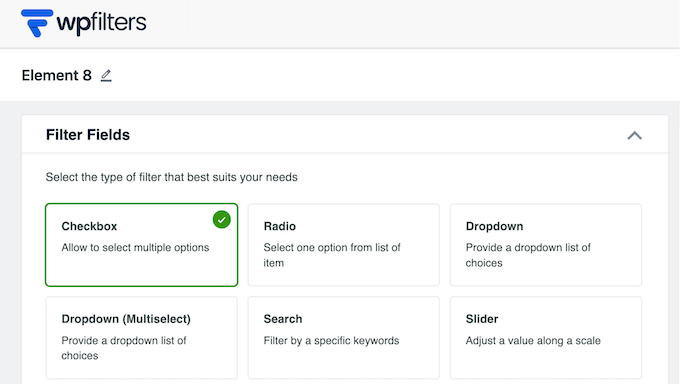
That said, WPFilters is a flexible plugin that supports a wide range of different scenarios. For example, checkboxes are great for online marketplaces where customers often want to select multiple attributes at the same time, such as size and color.
Meanwhile, dropdowns are ideal for long lists such as displaying all the categories on a large WordPress blog, without cluttering the page.
WPFilters’ dropdown layout also works well on smartphones because it keeps the interface clear and compact.
5. Create Hierarchical Filters
If you have a large site with hundreds of posts or products, chances are a simple list of checkboxes won’t help visitors find the content they want. Nothing scares away potential customers faster than seeing a long list of disorganized checkboxes.
To solve this problem, WPFilters includes hierarchical filters. This lets you display nested categories and subcategories in a logical structure.
By grouping related items together, you make your filters much easier to scan and use. It turns a cluttered sidebar into a clean and organized navigation tool.
We tested this feature on a demo blog with several layers of categories and subcategories.
Instead of showing every single option in one long list, WPFilters automatically indented the subcategories below their parent category. This visual separation makes it instantly clear how your content is organized.
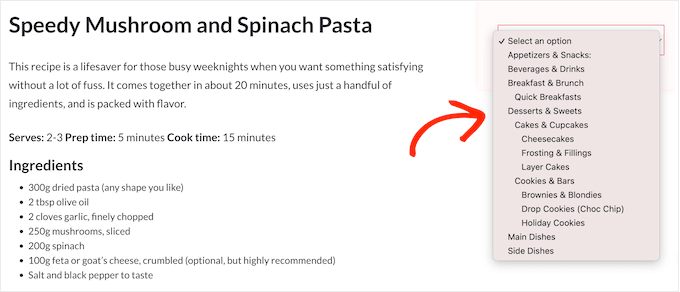
Typically, it’s a good idea to use this feature if your categories go more than two levels deep, since it improves the user experience significantly.
6. Collapsible Filter Options
Once you start adding detailed filters to your site, your filter section can quickly become bigger than your actual content. This looks messy and forces users to scroll through too many options.
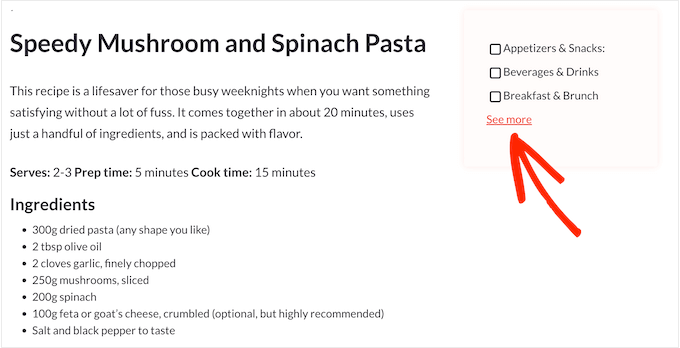
To help you manage this, WPFilters lets you make the filter section collapsible. Another option is adding a ‘See More’ link when the list of filters gets too long.
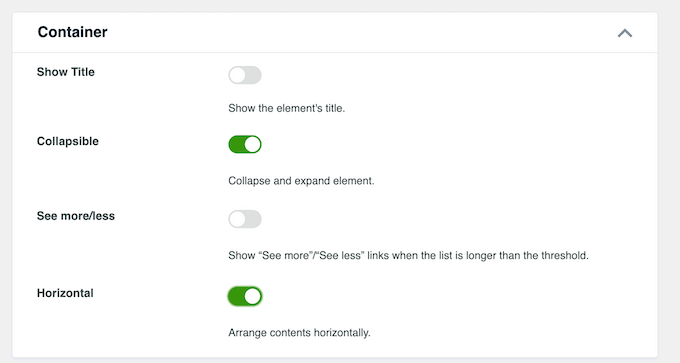
To get more information, we tested the See More feature on a blog that had many different categories and subcategories.
You simply activate a slider and then type in the maximum number of options you want to show.
With that done, WPFilters instantly hid the extra options behind a clickable link. This immediately cleaned up the layout and made the filter area look professional and compact, while keeping all the options easily accessible.
7. Fine-Tuning the Details (Item Counts & Empty States)
WPFilters lets you customize exactly how your filter results appear. You can choose to display item counts, show hierarchical relationships, or hide empty categories automatically.
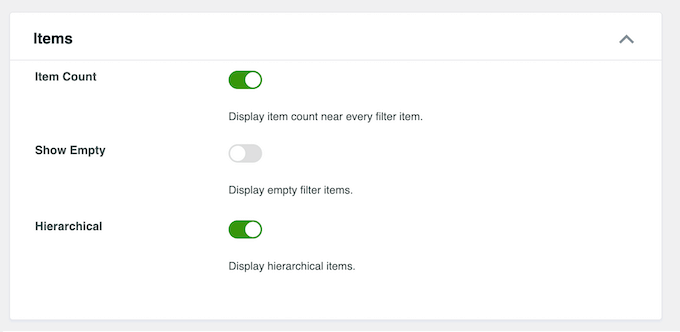
We strongly recommend enabling the item counts feature, particularly if you’re running an eCommerce site such as a digital product marketplace. Instead of just seeing a category labelled ‘Hoodies,’ shoppers will see Hoodies (12).’
This adds immediate context for your visitors. It tells them it’s worth clicking this category because there’s multiple products to see.
It’s also a good idea to hide empty categories. This helps visitors avoid a situation where they select a ‘Green’ filter only to find zero results. WPFilters helps you avoid this frustration by hiding the option completely if no items exist.
8. Flexible Layouts (That Actually Match Your Theme)
How many times have you installed a plugin only to find that it looks completely different from the rest of your WordPress website? Even worse, fixing this styling issue often requires writing custom CSS or hiring a developer.
The good news is that WPFilters is built using native WordPress blocks so it inherits your theme’s styling automatically.
To test how flexible these layouts really were, we created a traditional vertical sidebar with filters stacked on top of each other.
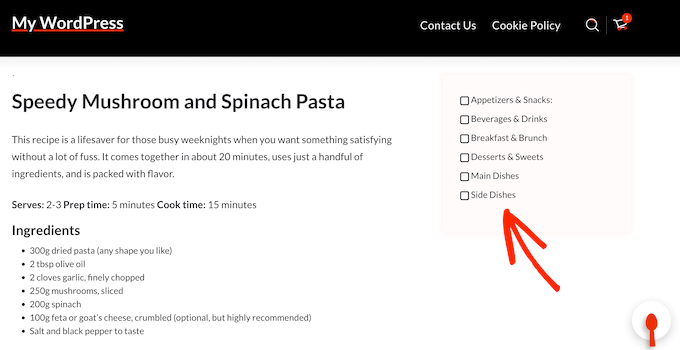
Then, we created something completely different for a landing page, and used WPFilters to arrange filters in a compact dropdown menu.
Both layouts looked clean and professional right away. Since WPFilters uses your WordPress theme’s fonts and colors, you won’t have to write a single line of code to make the filters fit your brand. It just works.
9. Deep Linking for Marketing (And Convenience!)
Many instant filtering plugins change the content on the page without updating the URL in the browser bar. This makes it impossible for users to bookmark a specific search or share it with others.
WPFilters solves this by generating a unique URL for every single filtered view.
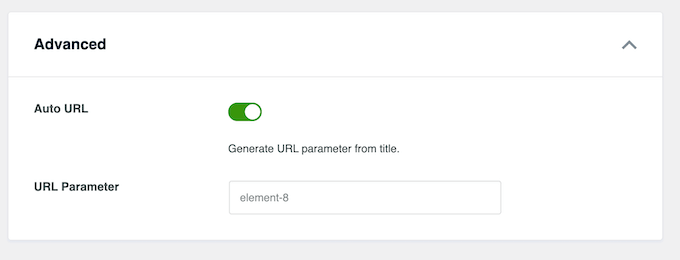
This feature is incredibly convenient, but it’s also a powerful marketing tool. For example, you could send an email newsletter with a link like ‘Check out our Summer Sale items under $20,’ and send customers directly to that pre-filtered view.
Without this feature, you’d have to send subscribers to a generic shop page and hope they figure out how to use the filters themselves.
10. Unlock the Power of Custom Fields (Dates, Prices, & More)
Sometimes your most important data is hidden inside custom fields. For example, if you’re running a real estate directory with fields such as ‘Number of Bedrooms’ and ‘Square Footage,’ then visitors will want to filter your content based on that information.
WPFilters lets you tap into this data so visitors can filter by dates, number ranges, ratings, boolean values, locations, and any other custom fields you’re using.
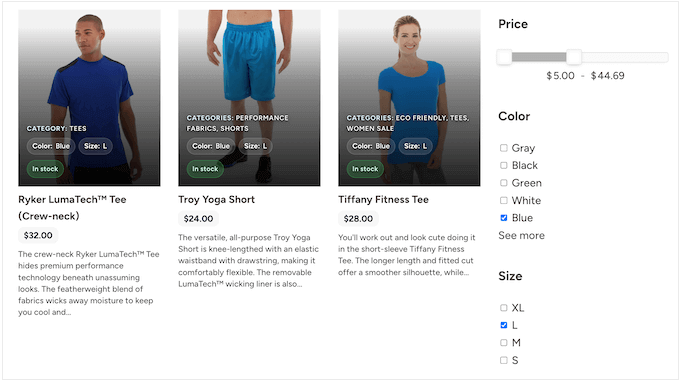
This feature is incredibly versatile. Whether you’re building a car dealership site or a food blog, being able to filter by custom metadata opens up a ton of possibilities.
11. Seamless Integration with Advanced Custom Fields (ACF)
If you’re using the Advanced Custom Fields (ACF) plugin to manage your site’s data, you’ll be happy to know that WPFilters integrates with it right out-of-the-box. You don’t need to write complex queries to make your custom data searchable.
We tested this integration on a demo online store that had specific ACF fields for technical details like Screen Size, Weight, and Battery Life.
Connecting these to WPFilters was incredibly straightforward. Shoppers were then able to filter laptops on the test site by specific technical needs like 16GB RAM or Under 2kg.
This gives you a level of control that standard WordPress searches just can’t match.
12. Supports Shortcodes and PHP
While WPFilters is designed for the WordPress block editor, the developers clearly understand that WordPress sites are built in many different ways.
That said, you can also add filters using shortcodes or PHP code.
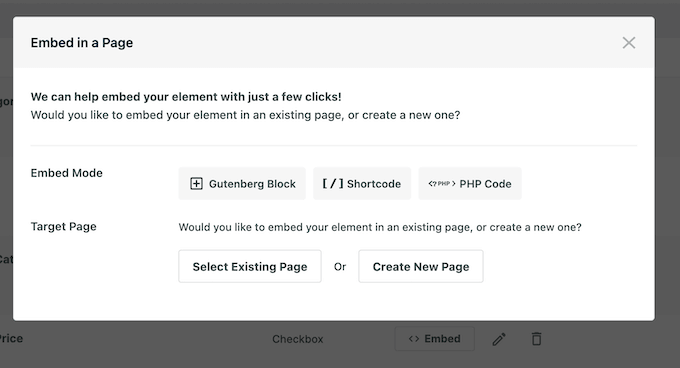
For 90% of our testing, we stuck to the block editor because it was the fastest and most visual way to create filters. However, shortcodes could be helpful if you’re using a page builder like Elementor or SeedProd.
The ability to display filters using custom code is also ideal if you develop custom theme templates.
WPFilters Review: Support and Documentation
Even user-friendly plugins can cause headaches. You might struggle to configure a specific setting or simply want to learn about the plugin’s more advanced features. That’s why it’s important to have good support available when you need it.
WPFilters is built by the same team behind SearchWP, which is the best plugin for improving WordPress search. This means you aren’t relying on a hobbyist developer who might abandon their project next month. You’re dealing with an established company with a track record of reliability.
To start, WPFilters has detailed online documentation including a clear setup guide. This shows you how to configure the plugin and use every major feature.
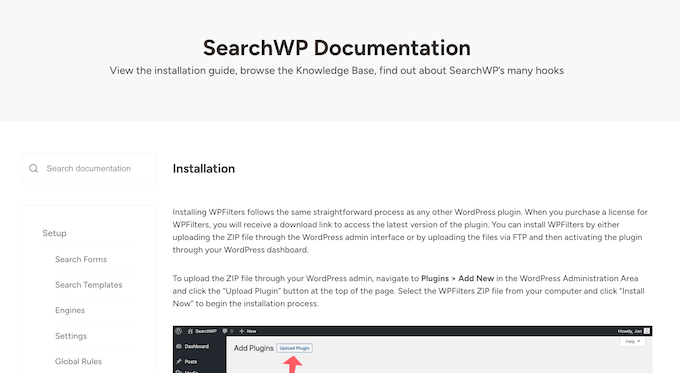
There’s also an active blog where the team posts WPFilters and SearchWP tutorials.
If you get stuck, then all the WPFilters licenses come with professional support. If you upgrade to the Pro plan, you’ll even get access to priority support.
WPFilters Review: Pricing and Plans
Often, one of the biggest problems with advanced filtering solutions is the cost.
Many enterprise-grade search and filter tools are sold as Software-as-a-Service (SaaS) platforms. This means the pricing changes based on the number of searches, or ‘queries,’ your visitors make. Your bill can skyrocket if your site gets a traffic spike.
By contrast, WPFilters follows the traditional WordPress plugin model. You pay an annual fee and get unlimited queries.
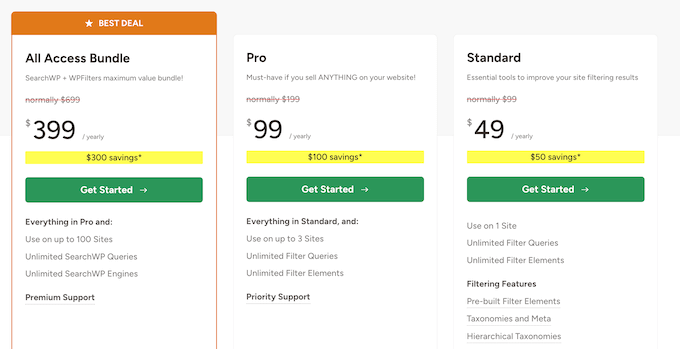
Both of the WPFilters plans include the full range of features, but there’s a few key differences you need to know about:
- Standard. For $49/year, you can use WPFilters on a single website. You’ll also get access to their standard support.
- Pro. Priced at $99/year, this plan lets you use WPFilters on up to 3 sites. It’s ideal for businesses that have multiple sites like a store, a separate blog, and an employee portal. This tier also includes priority support so your tickets get routed to the front of the queue.
Alternatively, you can purchase WPFilters and SearchWP as part of an All Access Bundle, for $349/year. This package also includes Premium Support so you’ll get your questions answered as quickly as possible.
You can use both plugins on up to 100 websites with the bundle. This makes it a great option for WordPress development agencies or anyone who manages a portfolio of sites.
Final Verdict: Is WPFilters the Right Plugin for You?
So, after exploring WPFilters’ features, performance, pricing, and support, what’s the verdict?
WPFilters is easily one of the most accessible and powerful filtering solutions we’ve tested for the WordPress block editor. The fact that it integrates seamlessly with WooCommerce, ACF, and custom post types right out-of-the-box makes it a must-have for any content heavy site.
We particularly recommend WPForms if you run an online store or a directory site where visitors need to filter by custom fields. However, due to its flexibility WPFilters is a fantastic choice for pretty much anyone who wants to help visitors find exactly what they’re looking for.
We hope this WPFilters review helped you decide whether it’s the right smart filtering plugin for your WordPress website. You can also check out our guide on how the default WordPress search works, or see our expert pick of the best search plugins.
If you liked this article, then please subscribe to our YouTube Channel for WordPress video tutorials. You can also find us on Twitter and Facebook.

WPFilters User Reviews
Please share your WPFilters review to help others in the community.