


If you’ve noticed that visitors are scrolling past your links without clicking, then you’re not alone. In my experience, plain text links are often too subtle to grab attention, which means readers miss out on the helpful resources and tools you recommend.
That’s where live link previews can help. Instead of showing just a URL, you can display a preview with an image, title, and short description—similar to how links appear on social media platforms.
In this guide, I’ll show you how to show live previews of links in WordPress, step by step.
By the end of this tutorial, you’ll be able to turn simple links into attractive previews that grab attention and encourage more clicks.
💡Quick Answer: How to Show Live Preview of Links in WordPress
You can show live link previews in WordPress by using the Linkz.ai plugin for automatic hover popups or the Visual Link Preview plugin for static cards. Both methods help you turn plain URLs into engaging previews with images and descriptions.
Why Show Live Link Previews in WordPress?
Live link previews make links more useful, more visible, and easier to click.
Instead of showing a plain URL, they give visitors helpful context before they decide to open a link.
Here’s why I recommend using live link previews on a WordPress site:
- Grab Attention: A link preview with an image and title stands out more than plain text, especially in longer blog posts.
- Help Get More Clicks: When readers can see what a link is about, they’re more likely to click it.
- Improve the Reading Experience: Visitors don’t have to guess where a link leads. The preview sets clear expectations.
- Great for Sharing Tools and Resources: Link previews work especially well when recommending products, plugins, or helpful external content.
- Make Content Look More Modern: I found that adding link previews gives your site a polished, professional feel. It makes your content look similar to what people see when sharing links on social media.
If you share links often then in tutorials, blog posts, or landing pages, then live link previews can help keep readers engaged and encourage them to explore more.
Expert Tip: Always test your link previews on a mobile device. While hover-based previews look great on desktops, they often require a ‘tap’ on smartphones, which can occasionally conflict with navigation if the preview covers the entire screen.
Now, let’s show you how to easily add live link previews in WordPress using 2 easy methods.
Which Method Should You Choose?🤔
Before I dive into the step-by-step tutorials, it helps to choose the method that fits your website and goals.
Some plugins automatically show previews when visitors hover over links, while others let you create styled preview cards for specific links.
The table below makes it easy to see which option works best for you:
| Plugin / Method | Best For | When to Use |
|---|---|---|
| Linkz.ai (Method 1) | Automatic live link previews on hover | Blogs, tutorials, resource-heavy websites, sites with many external links |
| Visual Link Preview (Method 2) | Facebook-style link preview cards | Affiliate sites, WooCommerce stores, curated link sections, pages where you want to highlight specific links |
Now that you know which method fits your needs, let’s jump into the tutorials and get your live link previews set up:
Method 1: Show Live Link Previews on Hover Using Linkz.ai
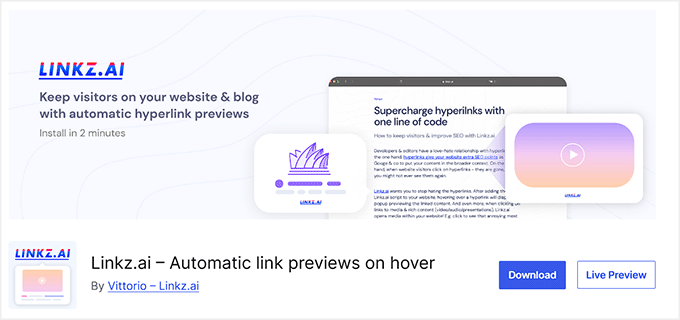
I recommend using Linkz.ai if you want live link previews to appear automatically when visitors hover over links on your website.
This method works especially well for blogs, tutorials, and resource-heavy sites where you share a lot of internal and external links.
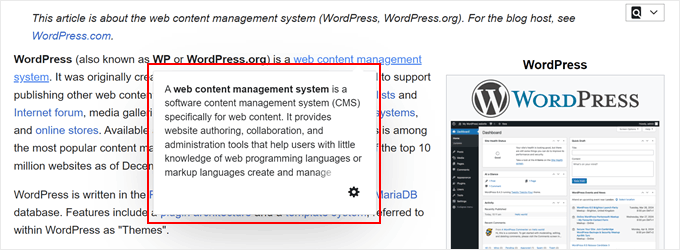
Linkz.ai automatically extracts and shows linked content, including articles, blog posts, videos, presentations, PDFs, and over 1,000 other web embeds. It uses an on-demand loading script, which means the preview only loads when a user interacts with the link to keep your initial page weight light.
When users hover over a link, a popup appears with a summary of the content, giving visitors context without leaving your site.
You will need to create a Linkz.ai account to use the plugin. The free plan allows you to add hover previews right away for both internal and external links, which is enough for most blogs and small sites.
For those needing more features like analytics, extra themes, and richer content, the premium ‘Blog’ plan starts at $60 per year ($5 per month).
Overall, I think it’s a great solution because it’s automatic, beginner-friendly, and keeps readers engaged with minimal setup.
Step 1: Install Linkz.ai and Create an Account
First, you need to install and activate the Linkz.ai plugin. If you’re not sure how to do that, don’t worry because I’ve got you covered.
Just follow our step-by-step guide on installing a WordPress plugin.
Once the plugin is activated, you’ll see a Linkz.ai menu tab in your WordPress admin panel. Click on it, and then click the ‘Sign Up’ button.
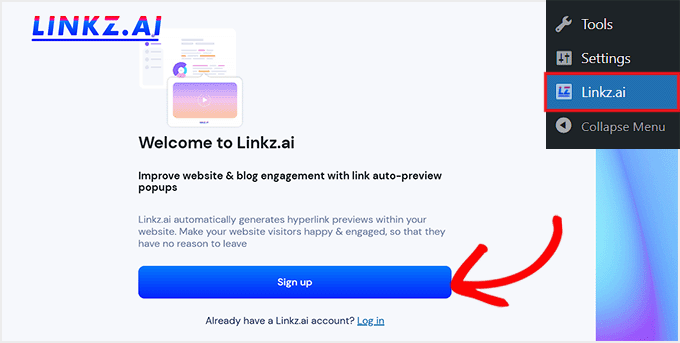
This will direct you to the Linkz.ai website, where you need to create an account by entering your email address and choosing a password.
After that, click the ‘Continue’ button.
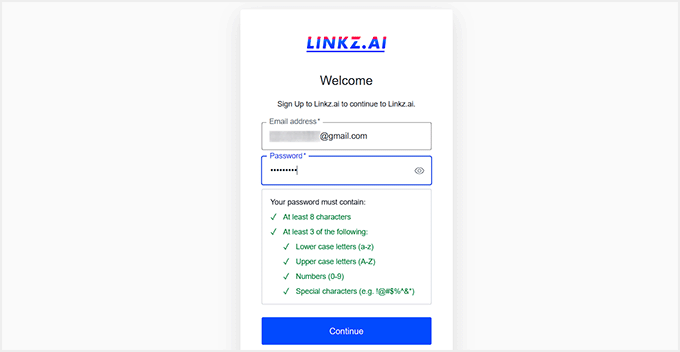
You’ve now successfully created your Linkz.ai account. By default, you’ll be on the Free plan, which lets you add up to 2,500 link previews per month on one website.
It automatically shows previews when users hover over links and can display rich previews on click, with Linkz.ai branding included.
This plan is perfect for getting started, and you can always upgrade later if you want extra features like analytics, additional themes, or more link previews per month.
Step 2: Connect Linkz.ai to Your WordPress Site
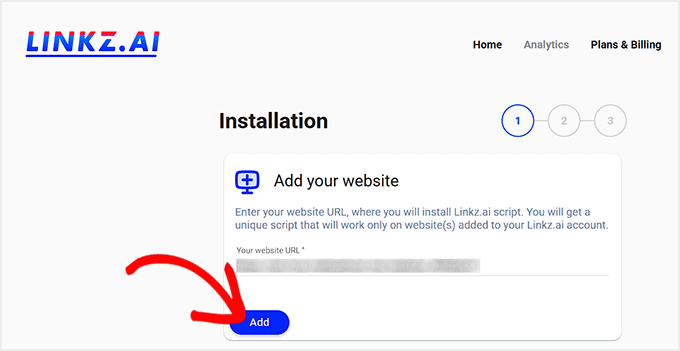
Now that you’ve created your Linkz.ai account, it’s time to connect it to your WordPress site. After signing up, Linkz.ai will automatically open an installation wizard in its dashboard.
Your website URL will already be added, so all you need to do is click the ‘Add’ button to connect your site to Linkz.ai.
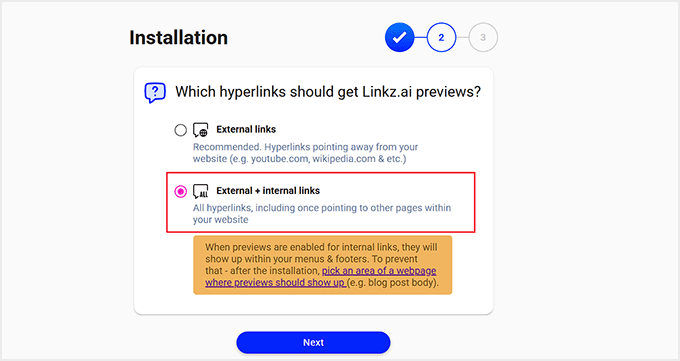
Next, the wizard will ask which hyperlinks should display link previews. If you only want previews for external links, then you can select that option.
I personally recommend choosing both external and internal links if you want all your content to feel more interactive and engaging for visitors.
Once you make your selection, click the ‘Next’ button.
After that, you have to choose a theme and style for your link preview cards.
On the free plan, you can only use the ‘Classic’ theme, which shows a large featured image along with a post excerpt. Premium users have access to additional themes and more customization options.
For the style, you’ll need to choose between light and dark mode.
I personally recommend the ‘Auto light/dark’ option because it adjusts automatically to match your visitor’s site mode, though this feature is only available with the premium plan.
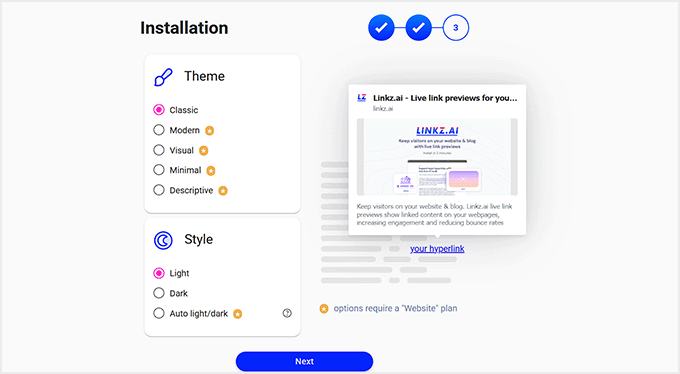
Once you’ve made your selections, click the ‘Next’ button.
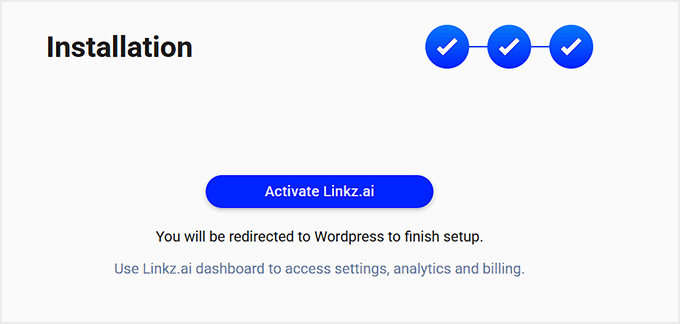
This will direct you to the last step, where you have to click the ‘Activate Linkz.ai’ button.
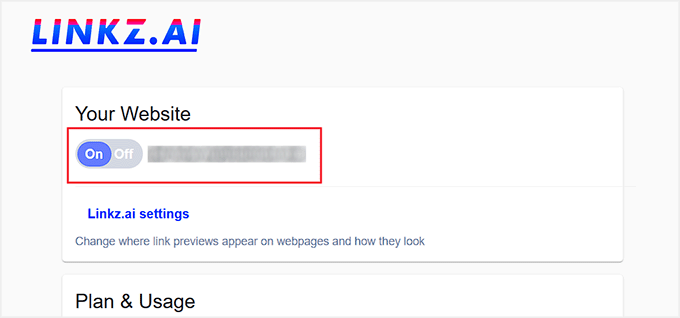
You’ll then return to your WordPress dashboard. Here, your website will be listed under the Linkz.ai settings with the toggle switched on.
This means your link preview cards are now active and will be shown by default on your site.
Step 3: Test Your First Live Link Previews
Once Linkz.ai is connected and active on your site, it’s time to see it in action. Open a post or page on your WordPress site that contains links.
Hover over a link, and you should see a small popup preview appear automatically. This preview will show a summary of the linked content, including the title, featured image, and excerpt.
Note: On mobile devices where hovering isn’t possible, users can typically tap the link to see the preview, depending on your configuration.
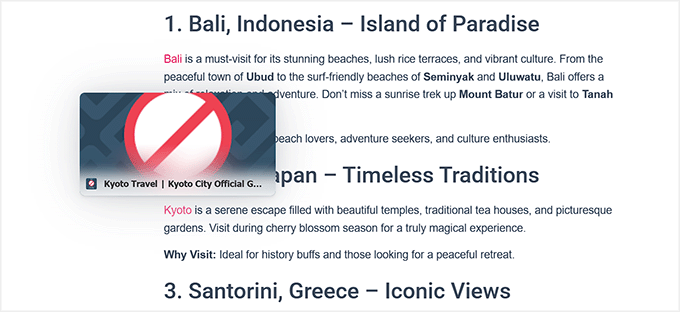
If you selected both internal and external links in Step 2, then try hovering over an internal link to see how it looks. This is a great way to make your own content more interactive and keep visitors engaged on your site.
If the preview doesn’t appear, then make sure your Linkz.ai toggle is switched on in the WordPress dashboard under Linkz.ai settings.

You may also want to clear your site cache if you’re using a caching plugin, as cached pages can sometimes prevent new features from showing immediately.
After confirming everything works, you can start publishing posts with confidence knowing your links are now more engaging.
Method 2: Create Link Preview Cards Using Visual Link Preview
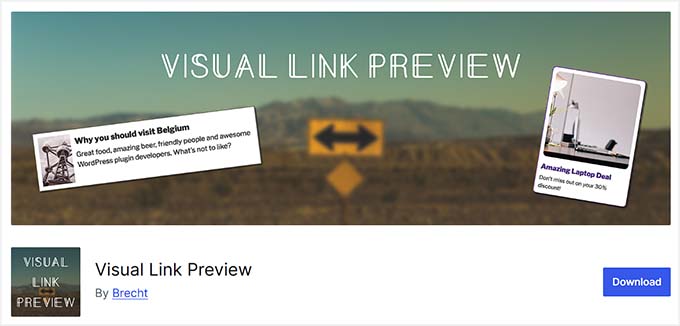
If you want more control over how your links appear, then Visual Link Preview is a great option. This plugin lets you create Facebook-style link preview cards for any link on your website, so you can choose the image, title, and description that show up.
You can even create your own custom template or style the default template to match your site’s design.
I recommend this method if you want to highlight specific links, such as affiliate promotions, WooCommerce products, related posts, or curated lists of useful websites.
Because it saves the preview data locally on your site, it doesn’t need to fetch data from the external website every time a page loads. This reduces external HTTP requests, which helps maintain your Core Web Vitals and overall site speed.
Visual Link Preview works with both the Classic Editor and Gutenberg, letting you add previews using blocks or shortcodes. This makes it flexible for any type of content, whether you’re running a blog, an online store, or a resource page.
Step 1: Install and Activate Visual Link Preview
To get started, you first need to install and activate the Visual Link Preview plugin. The best part is that it’s completely free, so you can add custom link preview cards to your site without spending anything.
To install it, go to your WordPress dashboard, navigate to Plugins » Add New, and search for ‘Visual Link Preview.’
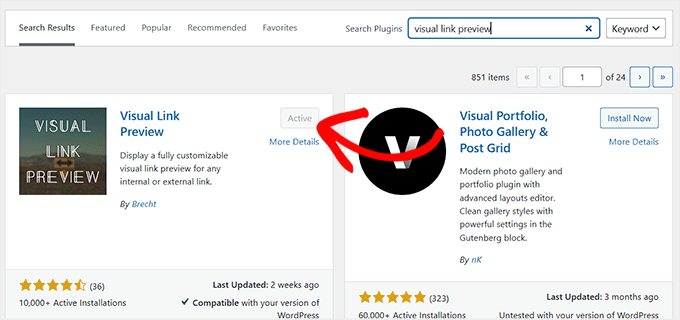
Once you find it, click ‘Install Now’ and then ‘Activate.’ For more information, you can check our guide on installing a WordPress plugin.
Step 2: Choose and Customize a Template for Your Link Preview Cards
Once the plugin is activated, go to the Settings » Visual Link Preview page from your WordPress dashboard. This is where you’ll decide how your link preview cards will look.
The plugin offers two types of templates: dynamic and static.
Dynamic templates are fully editable using the Template Editor, giving you complete control over the layout, colors, and design of your cards. Static templates are pre-coded and only allow small style changes, so they’re simpler but less flexible.
To create a dynamic template, you have to open the ‘Template Editor.’
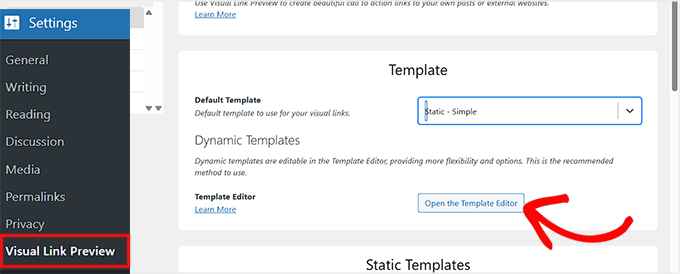
I recommend this option because it lets you customize your cards exactly how you want and see the changes in real time.
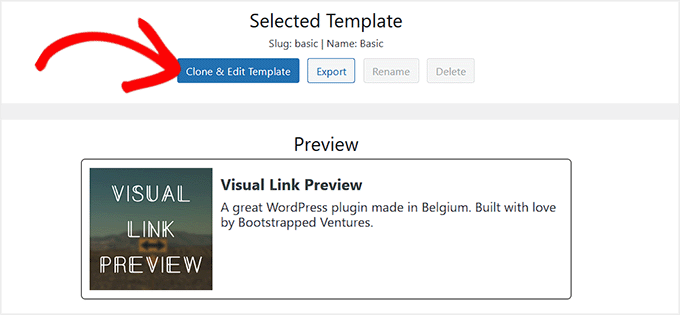
First, you choose a default template style and preview it. Then, click the ‘Clone and Edit Template’ button to start customizing.
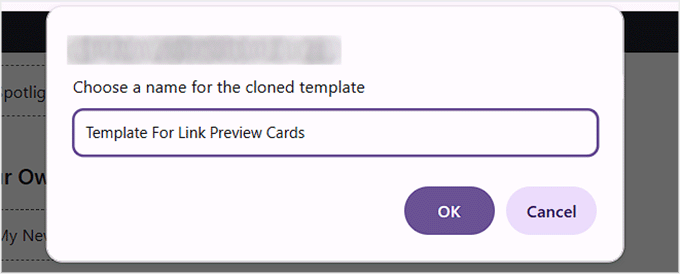
You have to give your template a name before you can save it.
I usually pick something descriptive that makes it easy to identify later.
In the editor, the left side lets you adjust template properties such as background, borders, padding, and margins. You can also edit individual elements like the title, text, and image.
On the right side, you’ll see a live preview of your link preview card as you make changes. Once you’re happy with the design, click ‘Save Changes’ at the top.
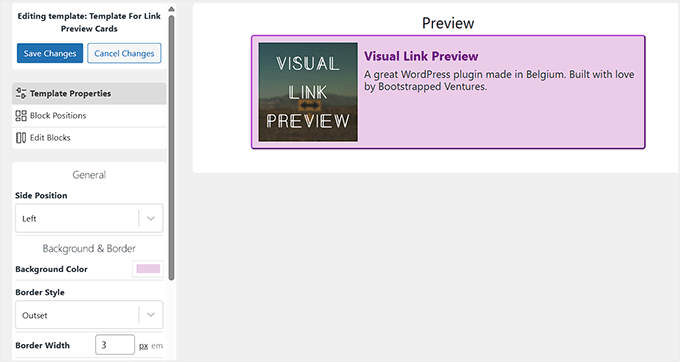
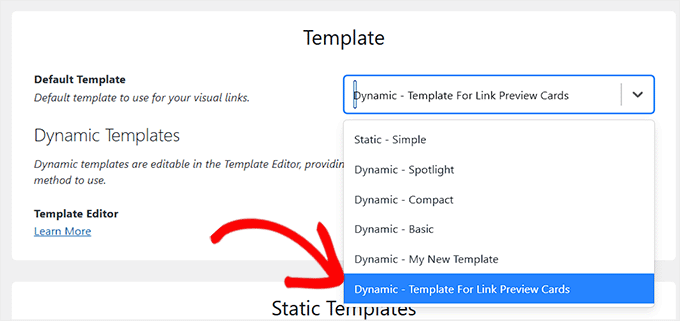
Back on the settings page, your new template will now appear in the dynamic templates dropdown menu.
From here, simply select it to start using it immediately.
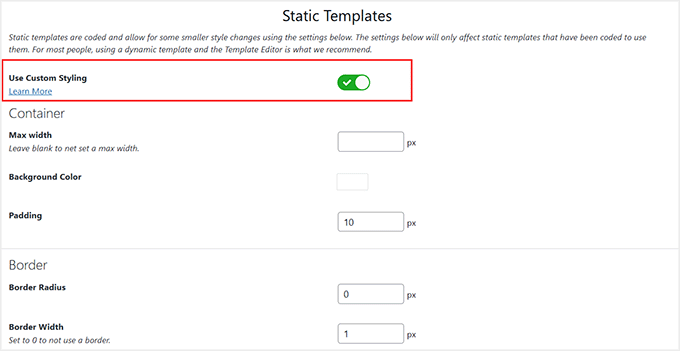
If you want a quicker setup, you can choose a static template instead by turning on the ‘Use Custom Styling’ switch.
Then, make basic adjustments like container width, background color, padding, borders, and text styles.
It’s a faster option, but I personally prefer dynamic templates because they give me more control and create a more polished, professional look for my link preview cards.
Once you are done, just click the ‘Save Changes’ button to store your settings.
Step 3: Add Your First Link Preview Card
Now it’s time to add a link preview card to one of your posts. Go to Posts » All Posts and click ‘Edit’ on the post where you want to feature the preview card.
Once the block editor opens, click the ‘Add Block’ button to open the block menu. From there, find the ‘Visual Link Preview’ block and drag it to a spot of your choosing.
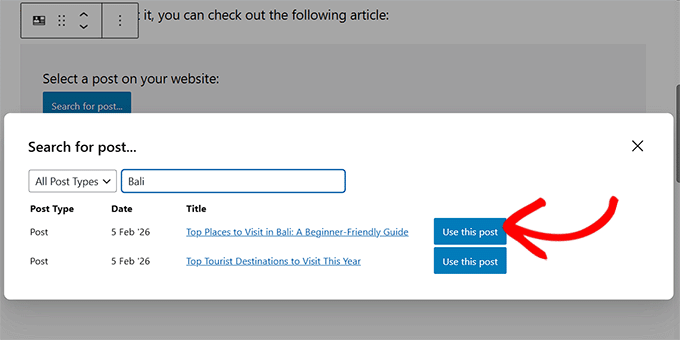
If you want to add a preview for an external link, simply paste the URL and click the ‘Use This URL’ button. If you want to add a preview for an internal post or page, click the ‘Search for Post’ button.
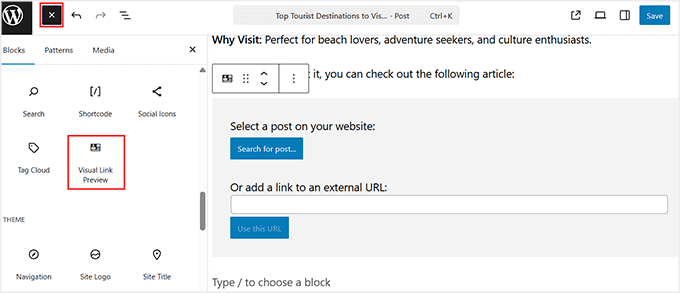
A popup will appear where you can type the title of the post you want.
Once the plugin loads the results, click ‘Use This Post’ next to the one you want to feature in the preview card.
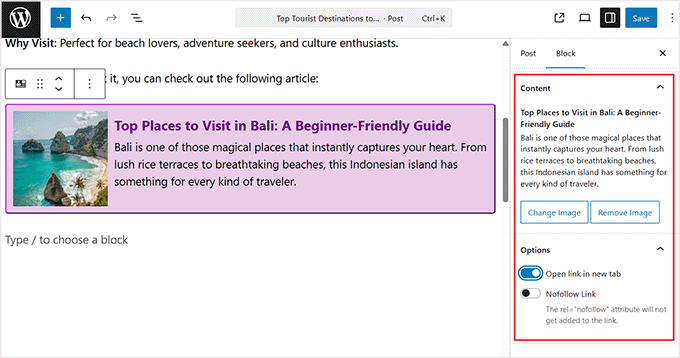
After the preview card loads, you can customize it from the block panel on the left.
You can edit the description to make it more engaging, and replace the thumbnail image if you want to use a different one.
You can also toggle options to open the link in a new tab or add a nofollow attribute.
If you are using an external link, I recommend toggling the nofollow option.
I’ve found that using nofollow for external links helps protect your own site’s SEO. It allows you to share helpful resources with your readers without passing on your own search engine authority.
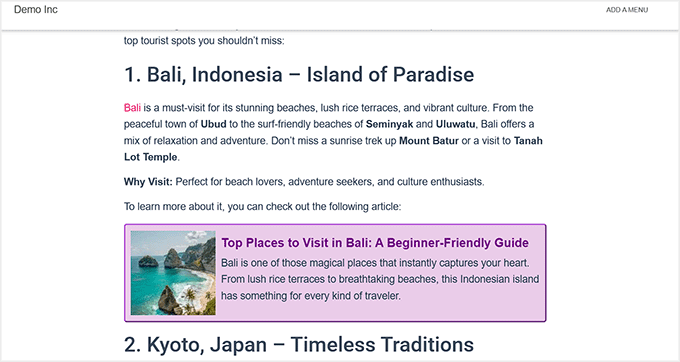
Once you’re happy with how it looks, click ‘Update’ or ‘Publish’ to save your changes.
Now your link preview card is live, giving readers a visual, interactive way to explore content without leaving the page.
Bonus: Make Your WordPress Link Previews Look Perfect
The methods above help you show link previews on your website, but you also want your links to look great when shared on social media. A proper image, title, and description create a professional-looking preview card and make people more likely to click.
If this information isn’t set up correctly, then your links can look unpolished or broken. I recommend using All in One SEO (AIOSEO), the best SEO plugin for WordPress, to easily control this metadata and make sure your links always look their best.
We use AIOSEO on WPBeginner for SEO. To read more about our experience, see our complete AIOSEO review.
With AIOSEO, you can easily set Open Graph meta tags for Facebook, LinkedIn, and other platforms, customize the title and description, and even set a default Open Graph image.
You can also add schema markup to give search engines more context about your content.
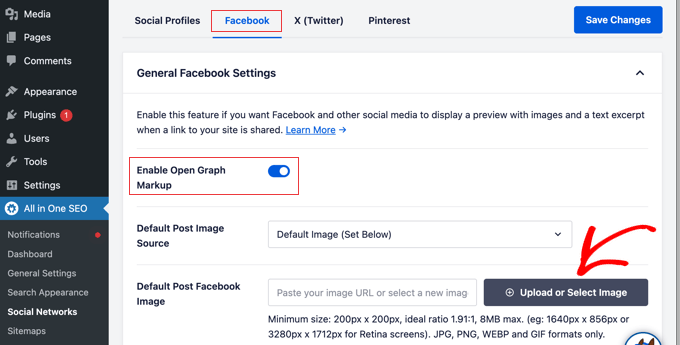
By setting up Open Graph and schema with AIOSEO, your links will look clean and clickable across the web, while also helping you improve your WordPress SEO.
👉 To learn more, check out our guides:
- How to Add Schema Markup in WordPress
- How to Properly Add SEO-Friendly ‘How to’ Schema in WordPress
- Beginner’s Guide to Adding Facebook Open Graph Meta Data in WordPress
Frequently Asked Questions About Showing Live Preview Links in WordPress
If you still have questions about adding live link previews to your WordPress site, you’re not alone. Below, I’ve answered the most common questions to help you troubleshoot issues and make your links look their best.
How do I track link clicks in WordPress?
You can track link clicks by using plugins like MonsterInsights, the best Google Analytics plugin for WordPress, or Pretty Links, the best link shortener plugin for WordPress. These tools record specific data like click-through rates (CTR) and conversion stats without needing custom code.
To get started, take a look at our guide on how to track link clicks in WordPress.
Does WordPress show link previews by default?
No, WordPress displays links as plain text by default. However, WordPress does automatically embed content for specific sites (like YouTube or Twitter) if you paste the URL on its own line. For standard text links, you need a plugin like the ones mentioned above.
What is the best free link tracker?
For a free option, Pretty Links Lite is a popular choice. It lets you shorten, track, and manage links directly from your WordPress dashboard without any cost.
How do I see all links in WordPress?
You can see all links by installing a link manager plugin like Pretty Links or using the WordPress editor to check your posts and pages. Some SEO plugins also provide a link overview in their dashboards.
Are URL shorteners good for SEO?
Yes, but with some caution. Shortened URLs can look cleaner and easier to share, but make sure they redirect properly to the final page. Plugins like Pretty Links and ThirstyAffiliates handle this safely for WordPress.
What’s the difference between a URL and a hyperlink?
A URL is the web address of a page, while a hyperlink is the clickable text or image that points to that URL. In simple terms, the URL is the destination, and the hyperlink is what users click to get there.
How do I change a URL without losing SEO?
Use a 301 redirect whenever you change a URL. This tells search engines the page has moved permanently and preserves your SEO rankings while sending visitors to the new link.
Discover More WordPress Design Features
Want to make your WordPress site design even more interesting? Check out these helpful guides:
- Use simple and elegant footnotes in your blog posts to add extra information
- Show breadcrumb navigation links to help visitors understand where they are on your site
- Create a scrolling news ticker to share important updates with your visitors
- Use a countdown timer widget to build excitement for special events
- Add a reading progress bar to your posts to keep readers engaged
- Create custom shape dividers to make your website design more interesting
I hope this article has helped you learn how to show live previews of your links in WordPress. You may also want to check out our list of the best drag-and-drop page builders in WordPress and our guide on how to edit a WordPress website.
If you liked this article, then please subscribe to our YouTube Channel for WordPress video tutorials. You can also find us on Twitter and Facebook.



Dennis Muthomi
Thank you for instructions for setting up the Bright Link Previews plugin. It seems like a great solution to improve user engagement on my blog.
I found the section on customizing the design of the tooltip preview especially helpful. It’s crucial to ensure that these previews enhance rather than detract from the user experience.
This is a fantastic resource that I’ll definitely be implementing on my site. Thanks again for sharing your expertise!
Colin
Thanks for the article, that plugin has ceased operation and is no longer downloadable, if you had a new suggestion that works I’d greatly appreciate it. The RT Media paid version isn’t up to scratch and there’s not a lot to be found via Google.
WPBeginner Support
Thank you for letting us know, we will be sure to look into updating this article
Admin
Marcus Quiroga
Hi,
Is there an update of this function nowadays? I’m trying it on external links at. Does someone could help me with that?
thank you
WPBeginner Staff
Thanks for correcting us, we have updated the article.
Tim Roberts
How do you get this to on work on specifc links.
WPBeginner Staff
Unfortunately plugin does not have a way to show preview for selective links you can only choose from all, internal, or external links.
Bruce Brown
Select the “class” option, then put the class on the links you want to display.
Per Søderlind
Hi, I’m the plugin author.
You can get this to work on specific links by adding class=”wp-live-preview” to the link, and in the settings page set ‘Live Preview Links’ to ‘class=”wp-live-preview’. See the demo links on my site.