


When you’re managing a WordPress site, whether you’re running updates or moving to a new host, the biggest risk often isn’t technical. It’s people making changes in the background while you’re still working behind the scenes.
This can cause real problems. I’ve seen businesses lose sales data, overwrite new blog posts, and even misplace customer records because changes were made during an important maintenance window.
That’s why I recommend putting your site into a temporary read-only state (also called a content freeze). This stops registered users, such as Editors and Authors, from logging in and making changes while you work.
That way, nothing gets lost, and your site stays stable for visitors.
In this article, I’ll show you how to easily put WordPress into read-only mode. It’s perfect for when you’re switching hosts, updating major plugins, or doing other important maintenance. 👷
Why Use Read-Only Mode During WordPress Maintenance?
Read-only mode helps protect your content by temporarily blocking changes during maintenance, updates, or site migrations. This prevents data loss and ensures users don’t interact with features that may be unavailable or unstable.
Without read-only mode, WordPress updates can cause certain features to break or behave unpredictably. That can frustrate visitors and lead to a poor user experience.
For example, on an eCommerce site, a customer might try to add an item to their cart or check out – only to have the process fail. This not only creates confusion but could cost you a sale.
It’s not just customers, either. Imagine one of your writers finishing a long blog post, only to have it vanish during a server migration.
That’s why activating read-only mode is one of the smartest steps you can take before performing major tasks like migrating your website or updating core plugins.
Now, let’s look at the best way to enable read-only mode in WordPress. In this guide, I’ll walk you through:
Putting Your WordPress Site in Read-Only Mode (Step by Step)
While there are plugins designed specifically for ‘read-only’ mode, many are complex or haven’t been updated recently. A simpler and effective alternative is to use the User Blocker plugin.
It lets you temporarily lock any user out of their WordPress account. And anyone who is locked out will be unable to edit or add site content, although visitors will still be able to view the website.
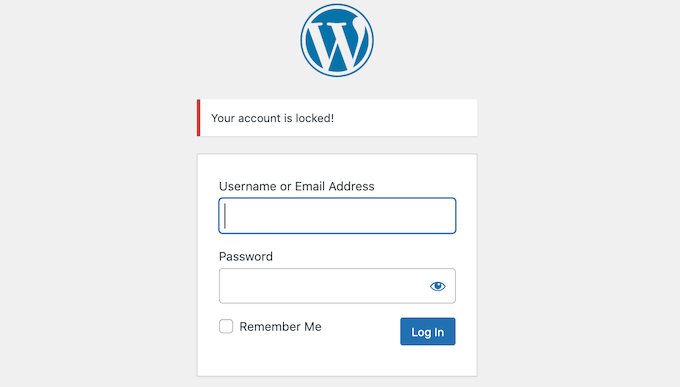
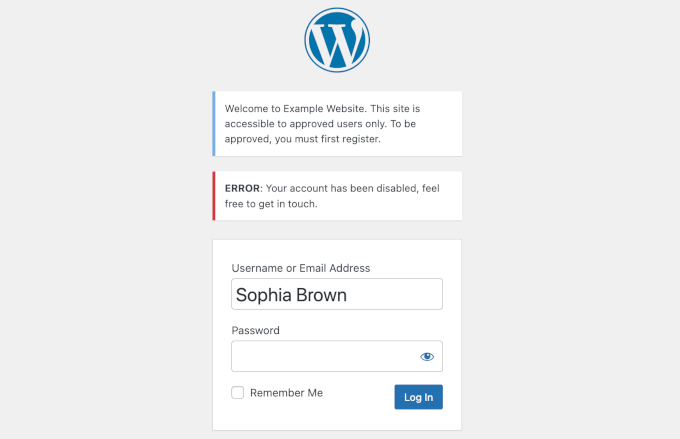
If a user tries to log into a locked account, they’ll see a message stating ‘Your account has been locked.’ You can customize this message to give your users more information.
This plugin is perfect for membership sites, online stores, or any other type of site that allows user registration.
⚠️ Important: This plugin works by blocking users from logging in. In other words, it doesn’t freeze your entire database. Visitors can still leave comments or submit forms, and that new data could be lost during maintenance.
That’s why I’ll also show you how to temporarily disable comments and forms as an important second step.
It’s also worth noting that this plugin hasn’t been tested recently. However, I tested it myself, and it worked fine in my test environment. If you’re unsure, see our guide on whether it’s safe to use an outdated plugin.
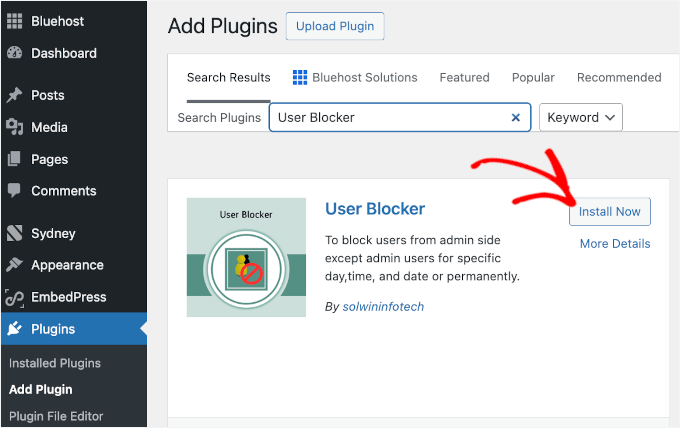
First, let’s install and activate the User Blocker plugin.
From your WordPress dashboard, head over to Plugins » Add New Plugin.

Then, simply type the plugin’s name into the search bar to quickly find it.
When it appears, click the ‘Install Now’ button and ‘Activate’. If you need help, see our beginner’s guide on how to install a WordPress plugin.
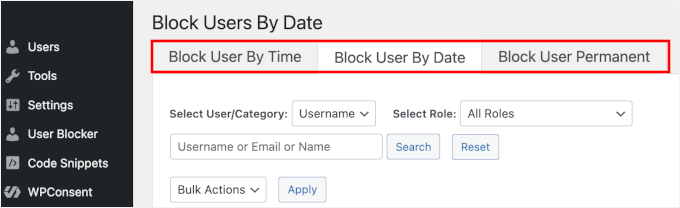
After activation, go to the User Blocker section in your WordPress admin area.
Here, you’ll see three tabs:
- Block User by Time
- Block User by Date
- Block User Permanent
Don’t worry if you’re not sure what to set up; I’ll walk you through each of them.
Block by Time
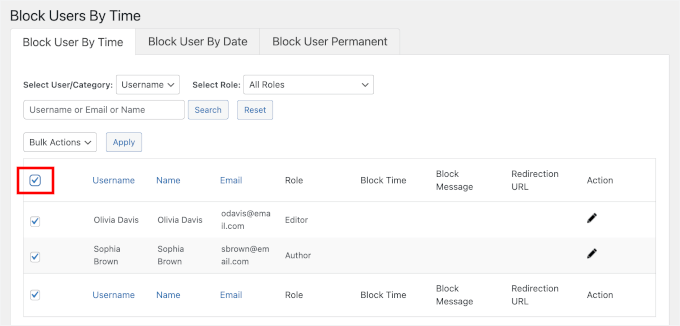
In the Block User by Time tab, you can select one or more users and input the block time.
For this tutorial, I’ll demonstrate how to block all users. To do this, you can go ahead and click the checkbox in the top left corner of the table to select all.
⚠️ Important: After clicking ‘Select All’, you must manually uncheck your own Administrator account. If you leave your account selected, you will lock yourself out of your website.
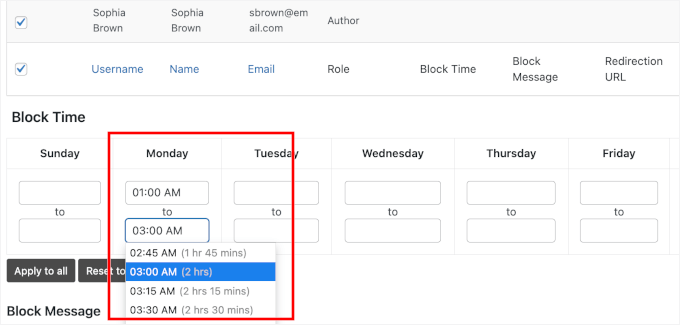
Next, you can start setting up the block time.
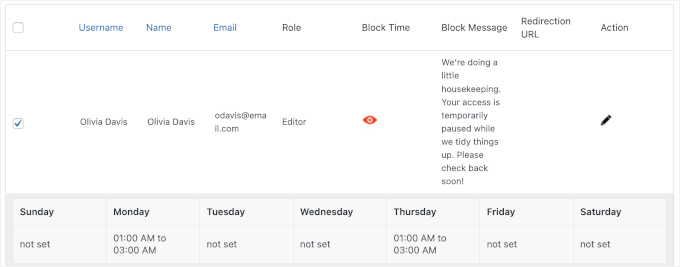
For example, I have set the block time on Monday from 01:00 to 03:00 UTC.
Not sure how long you’ll need? Feel free to see our guide on how long WordPress maintenance takes.
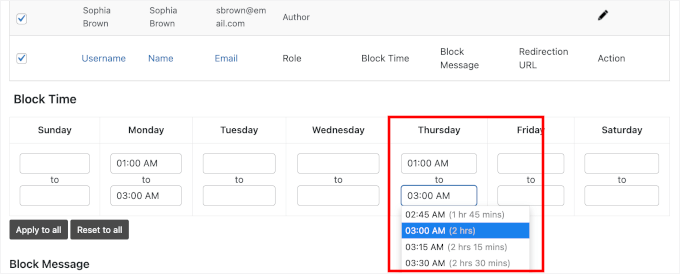
You can also schedule multiple time blocks. For example, I added another setting on Thursday at the same time.
After that, you can write a block message that users will see if they try to log in. For example, you might want to explain that you’re doing regular maintenance.
If you skip this part, users will see the default ‘You are temporary blocked’ message.
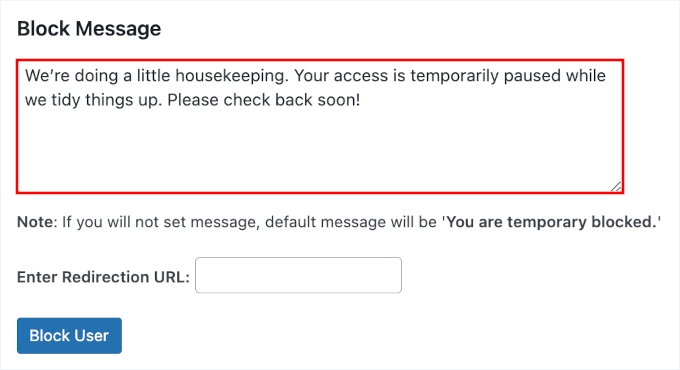
You can also enter a redirection URL to send them to a specific page.
This will send blocked users to a specific page instead of showing the default message.
🧑💻 Pro Tip: If you have a maintenance page, you can enter its URL in the ‘Redirection URL’ field to guide users there during downtime. To set one up, you can see our guide on how to redirect visitors to a maintenance page.
And if you’re permanently moving your site to a new domain, it’s a good idea to use this field to redirect users to your new site automatically.
Lastly, you can click the ‘Block User’ button to save changes.
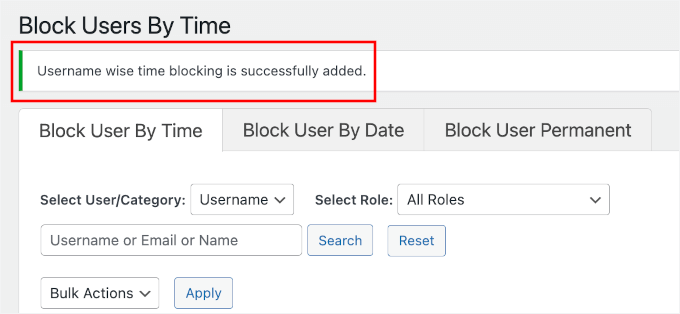
A success message will appear, and your settings will be listed in the table.
Here, you can click the eye icon in the ‘Block Time’ column to see all the block times scheduled for the user.
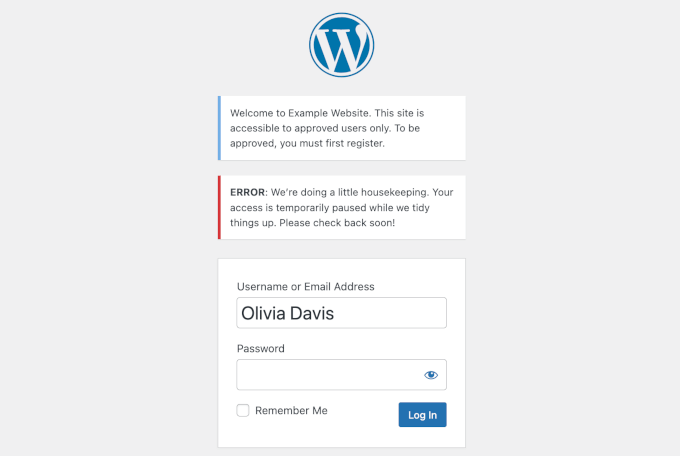
Now, when users try to log in during the scheduled block time, they will see the block message.
Here’s what it looks like on my demo site:
Block by Date
For longer maintenance, it’s better to use the ‘Block User by Date’ tab. Here, you’ll use a date picker to block a user for a day, week, or month – great for server upgrades or website redesign projects.
For this tutorial, I’m going to show you how to block a single user.
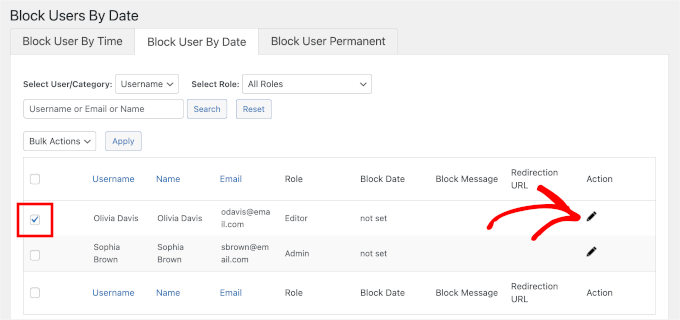
You can go ahead and check the box next to the user you want to block (make sure not to select your own admin account). After that, click the pencil icon in the ‘Action’ tab to modify settings.
📝 Note: Make sure you don’t lock your own admin account. You’ll need it to do the maintenance and unlock everyone else when you’re done.
If you do lock yourself out by mistake, you can fix it by deactivating the plugin from your hosting dashboard. You can see my guide on deactivating all plugins when you can’t access the WP-Admin for step-by-step instructions.
This will open a dedicated setting area for the user you selected.
User Blocker lets you know with a message highlighted in red, like this:
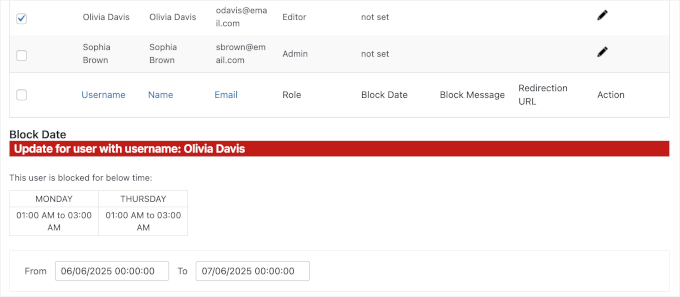
You can now add your block date in the ‘From’ and ‘To’ fields.
For example, I’m locking this user out from June 9, 2025, 01:00:00 to July 9, 2025, 00:00:00.
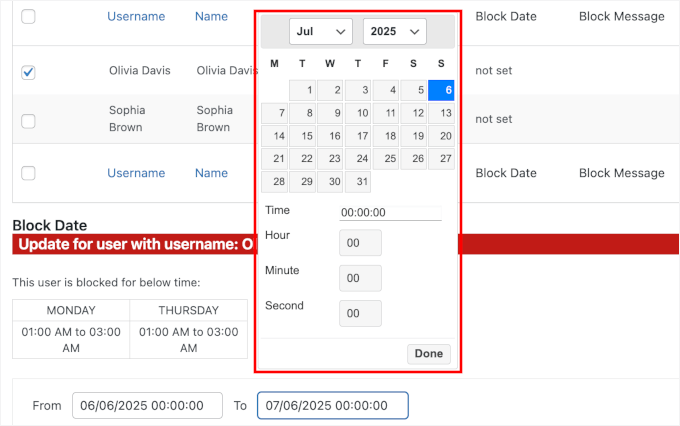
If you’re not sure how much time you’ll need, check out our guide on how long WordPress maintenance typically takes.
Towards the bottom of the screen, you’ll see the ‘Block Message’ section.
You can now simply type a new message into the field. If you skip this part, users will see the default ‘You are temporary blocked’ message.
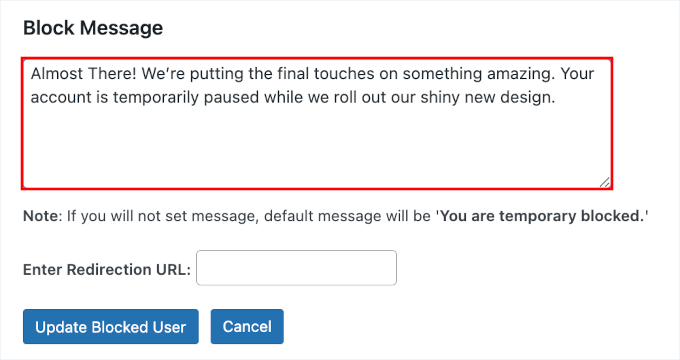
Then, you can feel free to enter the URL redirect, or not.
🧑💻 Pro Tip: Don’t forget – the Redirection URL field is a great place to add the link to your maintenance page. This gives locked-out users a helpful place to land while you work. For more details, see our guide on redirecting visitors to a maintenance page.
If you’re moving to a new domain, you can also use this field to automatically send users to your new site.
Once you’re happy with everything, just click on the ‘Block User’ button.
Now, you should be able to see the user’s block status in the table.
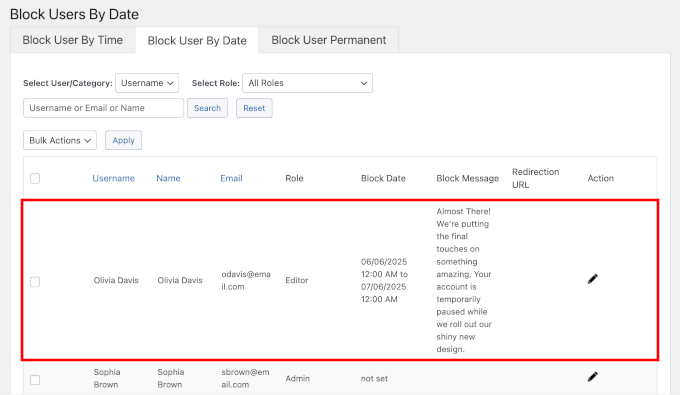
And if the user tries to log in to your WordPress website during the specified time, they’ll see your block message.
Here’s what it looks like on my demo site:
Block User Permanently
This configuration will lock out users permanently.
You can go ahead and click the checkbox next to the user you want to block.
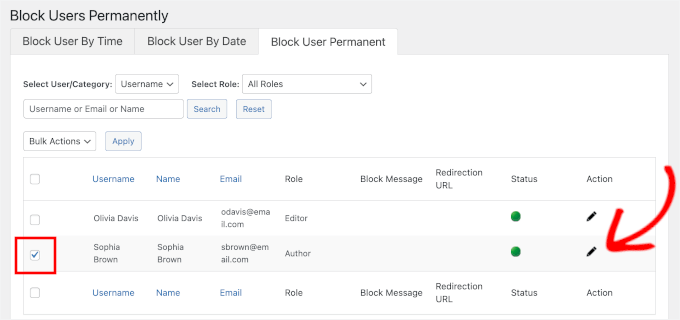
Next, you’ll see the user’s dedicated setting area.
You can go ahead and write the block message.
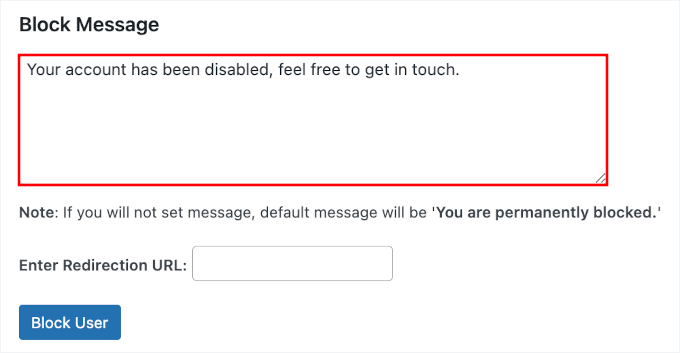
Before saving the setting, you might want to enter the URL redirect.
With that done, click the ‘Update Blocked User’ button.
Now, if you look at the table, you’ll see that the user’s status changes from green to red. This means you’ve successfully applied your new configuration.
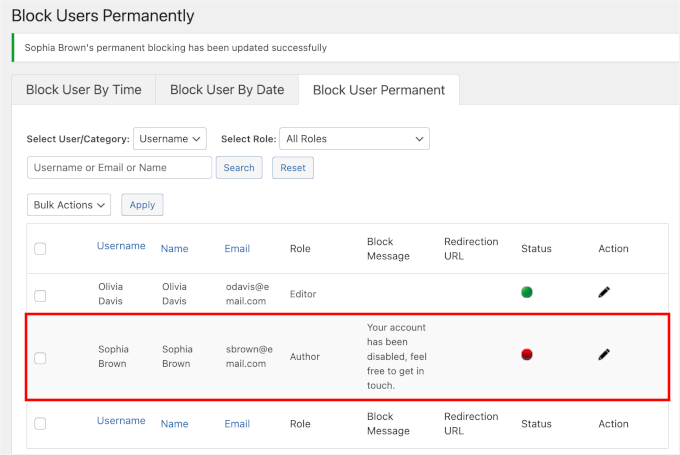
And that’s all there is to it.
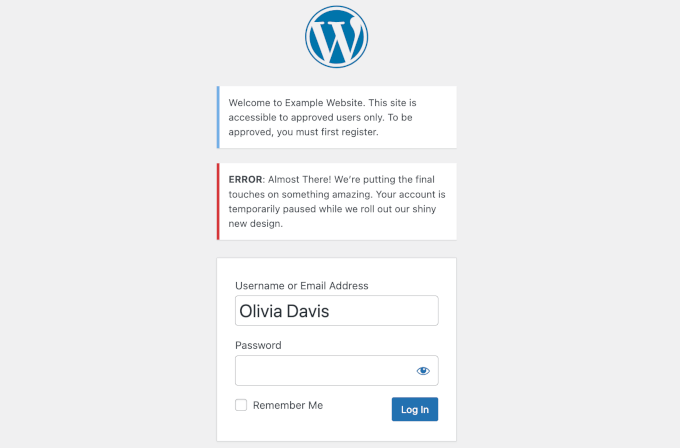
Now, if the user tries to log in to your site, the block message will appear on the WordPress login page:
Bonus Step: How to Temporarily Disable Comments and Form Entries
Before you start your site migration or other big changes, you’ll also want to temporarily disable comments and contact form entries on your site. This is because if someone submits a comment or form in the middle of your changes, that data would be lost.
To temporarily disable comments quickly and easily on your whole site, I recommend using WPCode.
It’s the best code snippets plugin available, and many of our partner brands also rely on WPCode for its safety and ease of use. It’s trusted by over 2 million websites to add custom functionality without touching core files.
To learn more, see our complete WPCode review.
📝 Note: The free WPCode snippets plugin works fine for temporarily disabling comments and form entries. However, upgrading to WPCode Pro unlocks a full library of developer-approved code snippets, scheduling options, and full revision history.
Simply install and activate the WPCode plugin on your WordPress site.
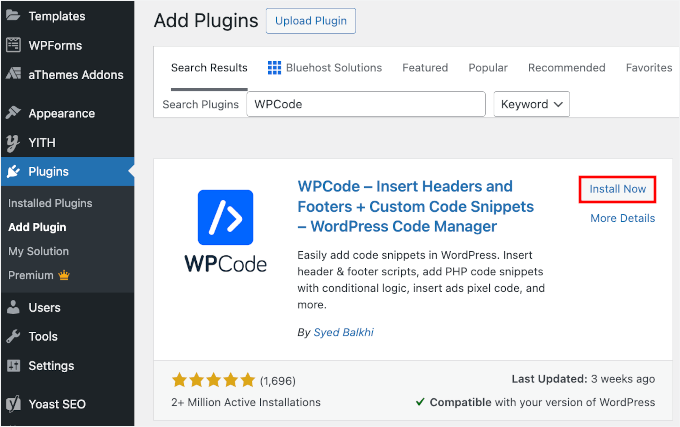
In your admin area, go to Plugins » Add New Plugins.
On the next screen, you can use the search bar to quickly locate the WPCode plugin.
Then, click ‘Install Now’ in the search result and then ‘Activate’ to complete the process.
If you need help, check out our guide on how to install a WordPress plugin.
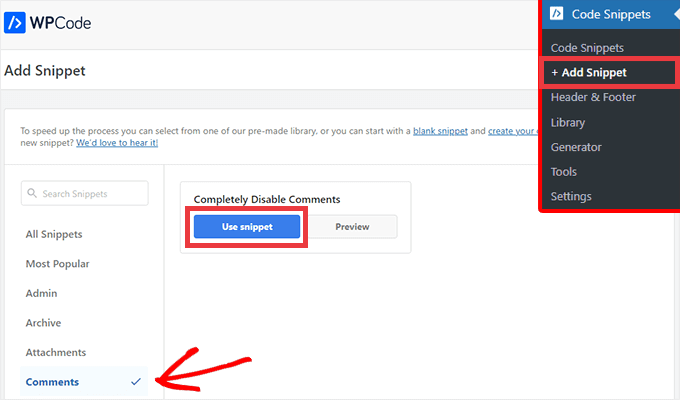
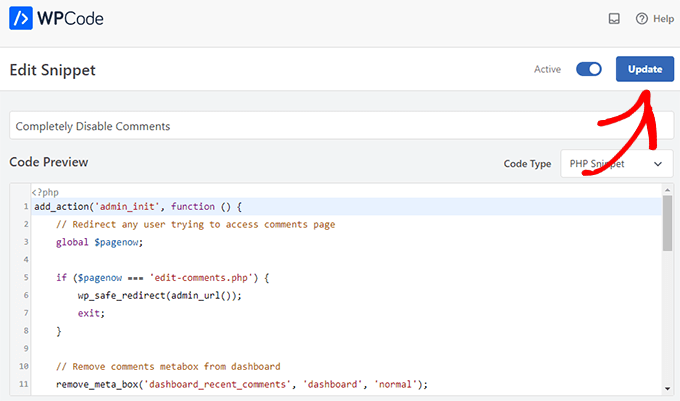
Upon activation, you can navigate to Code Snippets » + Add Snippet » Comments. Then, hover over the ‘Completely Disable Comments’ and click ‘Use snippet.’
On the next screen, simply toggle the switch from ‘Inactive’ to ‘Active.’
Then, click the ‘Update’ button, and your snippet will be live.
If you’d prefer to disable comments manually without a plugin, you can see our step-by-step guide on how to completely disable comments in WordPress.
I also recommend temporarily disabling contact forms or other forms on your website. You can replace the form block with your business email address, or simply add a text notice above the form letting visitors know that submissions are currently paused.
At this point, you are ready to migrate your site or do essential maintenance work without worrying about conflicts and errors.
Bonus Tip: How to Create Beautiful Maintenance Pages in WordPress
While read-only mode protects your content during updates, it’s also helpful to put your site into maintenance mode. This hides your regular content and displays a custom message to visitors.
A well-designed maintenance page can let visitors know your site is temporarily in read-only mode, why that’s happening, and when everything will be back to normal. It’s a simple way to keep your audience informed and maintain a professional look while you work behind the scenes.
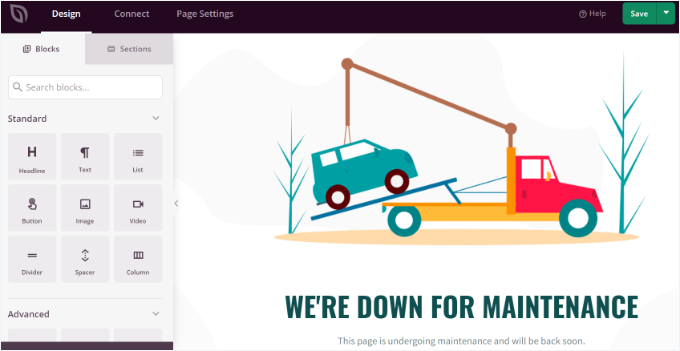
This is where SeedProd comes in. It is the best drag-and-drop WordPress page builder available, and it’s my top recommendation for creating a beautiful maintenance page quickly.
Some of our partner brands also use SeedProd because it’s so powerful yet easy to use. For more details, see our complete SeedProd review.
You can also use the free version of SeedProd to create a beautiful maintenance mode page.
For details, you can see our guide on how to put your WordPress site in maintenance mode.
FAQs: How to Put Your WordPress Site in Read-Only Mode
I get a lot of questions about site maintenance and locking content. Here are the answers to some of the most common ones.
What’s the difference between read-only mode and maintenance mode in WordPress?
The ‘User Blocking’ method creates a content freeze. It keeps your website visible to the public so they can browse as usual, but it stops your team or registered members from logging in to make changes.
On the other hand, full maintenance mode (which you can set up with a plugin like SeedProd) takes your entire site offline for visitors. It also usually displays a temporary message, like “Be Right Back!”
This is often a better option for bigger changes where you don’t want anyone accessing the site at all.
Will putting my site in read-only mode hurt my SEO?
Not at all. For short maintenance periods, using the user-locking method won’t hurt your SEO. Your site stays live and accessible to search engines like Google.
If you do use a full maintenance mode, make sure it sends the correct 503 Service Unavailable header. This tells search engines that the downtime is temporary.
How do I turn off read-only mode when I’m finished?
It’s simple. Just go back to the User Blocker plugin settings in your WordPress admin area. From there, select the users and click the ‘Unblock’ button to restore their access.
Also, don’t forget to re-enable your comments and contact forms once your maintenance is complete.
More WordPress Maintenance Guides
I hope this article helped you learn how to put your WordPress site in a read-only or content freeze mode.
If you found this helpful, you may also want to check out these related guides:
- Coming Soon vs Maintenance Mode (Compared)
- How to Fix WordPress Stuck in Maintenance Mode
- How to Fix Briefly Unavailable for Scheduled Maintenance
- Crucial WordPress Maintenance Tasks to Perform Regularly
- WordPress Maintenance Costs – How Much Should You Pay?
- WordPress Maintenance – Ultimate Guide for Beginners
If you liked this article, then please subscribe to our YouTube Channel for WordPress video tutorials. You can also find us on Twitter and Facebook.



Moinuddin Waheed
to be honest, I didn’t know that such things also exist that we can have migration without affecting the users ability to see and read the blogs and content.
I have always used under construction and coming soon landing pages. But it is good to have such ways to update and migrate for websites having subscription mode and other similar nature.
Thanks for this guide.
Jiří Vaněk
I use the ‘Under Construction’ plugin for this purpose. Does this method have any benefits other than making the website visible? And couldn’t it be counterproductive compared to the method of hiding everything behind a paragraph information in case something goes wrong?
WPBeginner Support
This would be for sites with multiple authors to prevent someone from creating a draft or making a modification while a site is being migrated, you can use a coming soon page with this if you wanted for your site visitors.
Admin
Mark Conger
Note that Code Freeze has been abandoned, it seems. But it has been forked and can found on github.
Anonymous
So how about the FILE WRITE permissions? Let’s say the WP site is under attack, then how do i lock the any WRITES to the file systems?
Kevin
Thanks for writing on this plugin. I wondered if such a thing would be generally useful and I’m glad to see that, even if its use remains rather niche, it is useful to some people.