


We’ve all opened our WordPress site and cringed at low-quality or off-brand images that should’ve been replaced long ago. If you’re seeing a blurry logo or an outdated screenshot, it’s probably time for a refresh.
But replacing media files often feels more complicated than it should.
In many cases, site owners end up clicking through folders, updating links manually, and hoping nothing breaks. It’s usually ignored until a visitor points it out or the site starts to look a little…neglected.
The truth is, keeping your images up to date helps your site look more professional and can even improve load times and SEO. That’s why we tested several ways to replace images in WordPress without breaking anything.
In this guide, we’ll show you how to easily replace images and other media files in WordPress — whether you’re updating one file or your entire media library. ↔️
Why Replace Images and Media Files in WordPress?
If you run a WordPress blog, a small business website, or an online store, regularly updating images and media files helps keep your site professional, organized, and easy to manage – especially as your content grows.
This is also important when you’re updating your branding or running seasonal promotions.
Here are a few reasons why regularly replacing images and media files in WordPress is worth the effort:
- 📑 Updated content. Fresh and relevant visuals keep your website engaging and current. They can also reflect any changes in your business.
- 👔 Consistency and branding. Keeping your images and media files aligned with your brand identity helps maintain a professional appearance.
- 🌟 Improved user experience. High-quality, up-to-date images enhance user experience. They keep visitors on your site longer and encourage them to explore more pages.
- 🌐 SEO (search engine optimization) benefits. Descriptive images can help search engines better understand your content and support overall search visibility.
- ⚡ Better performance. Replacing outdated or poorly optimized media files with newer, optimized ones can speed up your website. Plus, faster loading times improve the user experience and help search engine rankings.
- 📂 Easier media management. An organized, up-to-date media library makes it easier for you and your team to find, reuse, and manage files. This saves time and reduces stress as your library grows.
Overall, keeping images and media files updated, including featured images and thumbnails, makes your WordPress site easier to manage as it grows.
With that in mind, we will show you how to easily replace images and media files in WordPress. Here’s a quick overview of the 3 steps we will cover in this guide:
- Step 1. Install Search & Replace Everything by WPCode
- Step 2. Choose the Images or Media Files to Replace
- Step 3. Check if Your New Images or Media Files Are Live
- Bonus Tip: Use Image Lazy Loading to Speed Things Up
- FAQs: Replace Images and Media Files in WordPress
- Video Tutorial
- More WordPress Guides for Using Images Effectively
Ready? Let’s get started.
⚠️ Important Note: When you replace an image using this method, the old file is permanently deleted from your server. We recommend creating a full backup of your WordPress site before you start, just in case you need to restore the original file later.
Plugins like UpdraftPlus or Duplicator can help you create website backups.
Step 1. Install Search & Replace Everything by WPCode
The first thing you’ll need to do is install and activate the free Search & Replace Everything plugin by WPCode. This tool lets you replace media files while keeping their original URLs and attachment IDs.
Our team created the Search & Replace Everything plugin to solve a significant WordPress limitation: there is no built-in way to easily swap out media files.
Before, website owners could either manually update each page, which is time-consuming. Or they might need to hire a developer to write an SQL query, which could be expensive.
Search & Replace Everything simplifies this process by providing an easy and cost-effective solution for anyone who manages a WordPress site.
Here are some of the most useful ways you can use the plugin on a real WordPress site:
- Quickly replace outdated images site-wide with a single click.
- Bulk update any content on your website’s posts or pages in moments.
- Easily replace old URLs with new ones to fix broken links after migrating a website.
To replace individual image and media files without touching code or running SQL queries, you can use the tool’s free version. But upgrading to Search & Replace Pro adds advanced features like change history, undo options, and image replacement from the block editor.
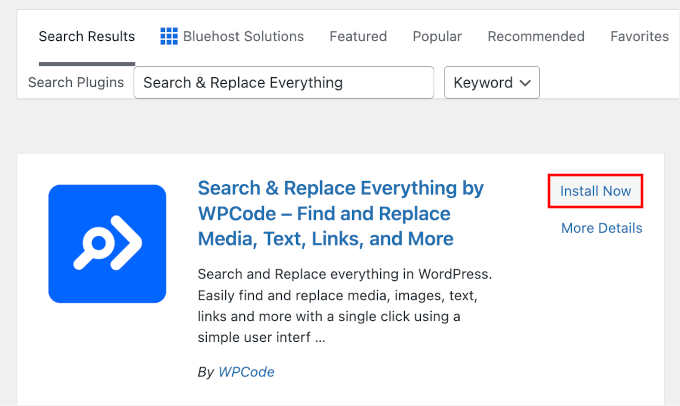
First, let’s install the Search & Replace plugin. From your admin area, head over to Plugins » Add Plugin.

On the next screen, search for “Search & Replace” to quickly find it.
Click the ‘Install Now’ button and then ‘Activate.’
If you need help installing the plugin, then you can check out our guide on how to install a WordPress plugin.
💡 Expert Tip: If you already have WPCode Pro, you can install and activate Search & Replace Everything from the WPCode dashboard within the WordPress admin area.
All you have to do is navigate to Code Snippets » Search & Replace and then click the ‘Install Search & Replace Everything’ button.
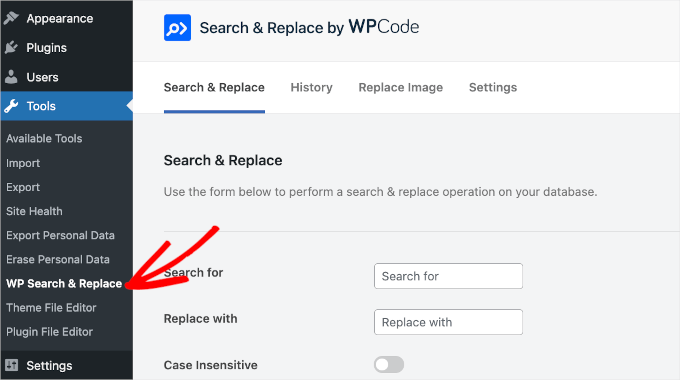
Upon activation, you can access the Search & Replace Everything dashboard by navigating to Tools » WP Search & Replace.
You don’t need to configure anything, so you can use the tool right away.
Step 2. Choose the Images or Media Files to Replace
To replace images or media files, let’s move to the ‘Replace Image’ tab in the Search & Replace dashboard. This is a special view created by the plugin, separate from your regular Media Library.
In this area, you’ll be able to see all of your existing images that are stored in the Media Library and available for replacement.
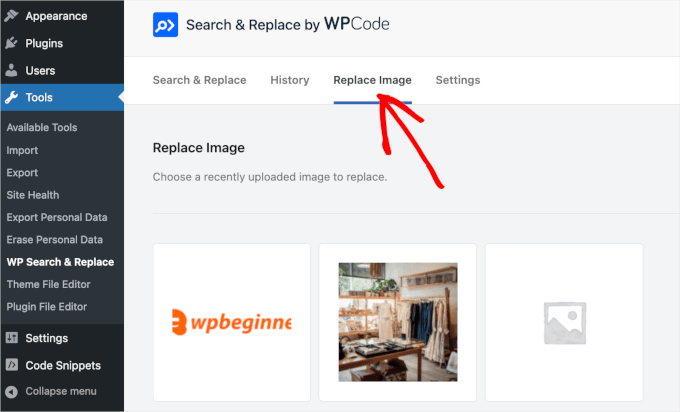
Now, you’ll want to find the file you want to replace. If you have a large library, you can use the search bar at the top right of the screen to find the specific file by name.
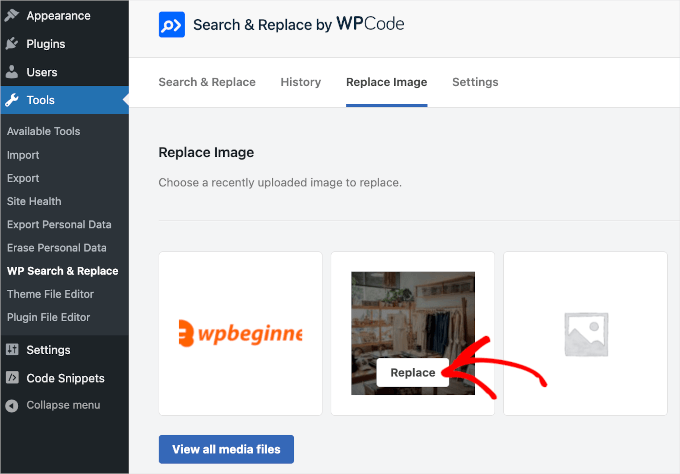
Once you have found the file, simply hover your mouse over it, and you will see a ‘Replace’ button. Click this button to open the replacement screen for that specific image or media file.
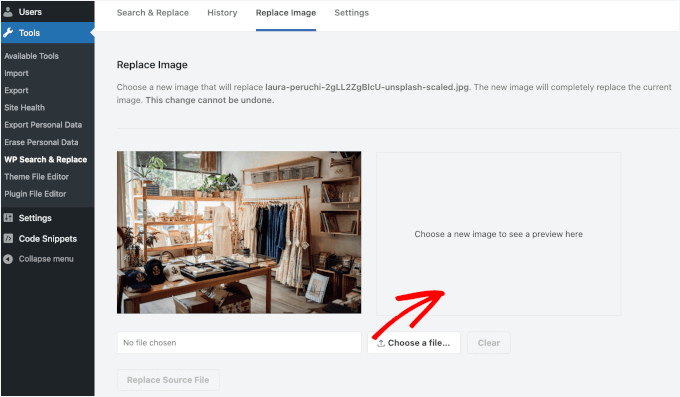
This will take you to the ‘Replace Image’ panel.
You can upload your new image by clicking on the ‘Choose a file’ button or the ‘Choose a new image to see a preview here’ box.
Either way, it will redirect you to your computer’s local storage to choose an image replacement.
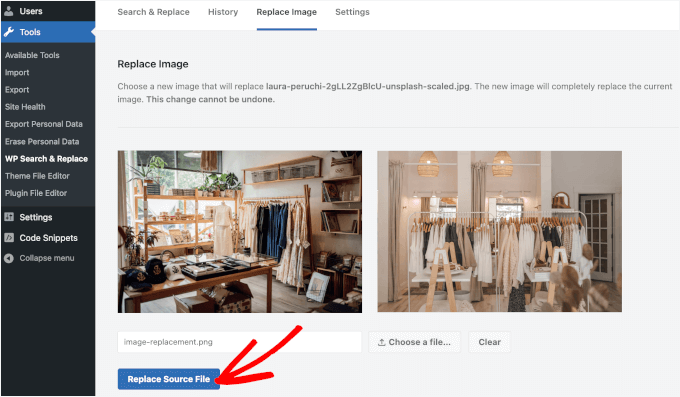
Once you choose a file, it will appear in the box to the right of the old image. This lets you compare the old and new image side by side before you confirm the change.
If everything looks good, go ahead and click the ‘Replace Source File’ button. The plugin will keep the same URL and attachment ID, but swap out the underlying file.
You’ll then see a warning pop-up window that says the change will be permanent and cannot be undone without restoring from a backup or using the Pro version’s history feature.
Simply click the ‘Yes’ button to commence the process if you’re sure everything is good to go.
💡 Note: When you replace an image, details like the media title and alt text stay the same. You can update them later if needed, but using a replacement image that fits the existing image title and alt text can save time.
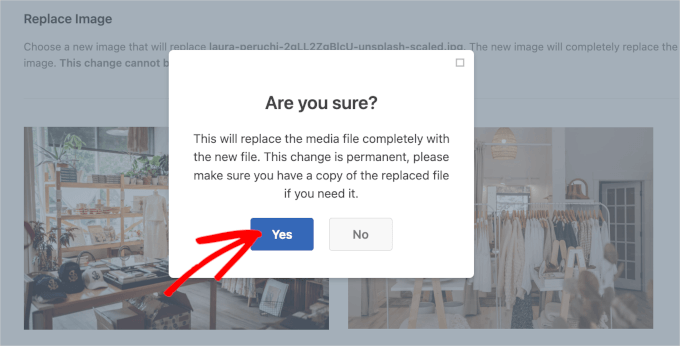
After that, Search & Replace Everything will process the replacement in the background and update the file everywhere it’s used on your site.
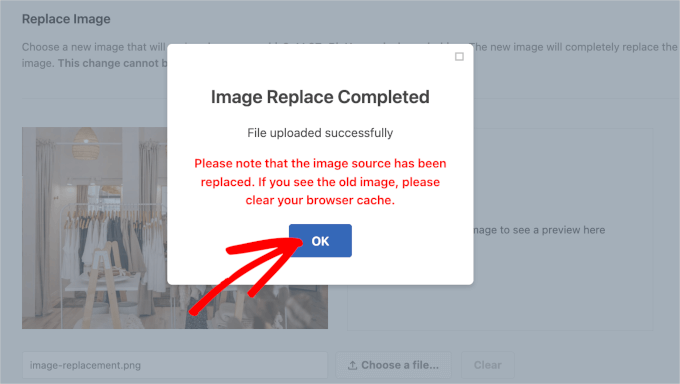
Once it’s done, you’ll see another popup window.
Here, it says ‘Image Replace Complete,’ followed by some notes, and you can click ‘OK’ to finish the process.
Step 3. Check if Your New Images or Media Files Are Live
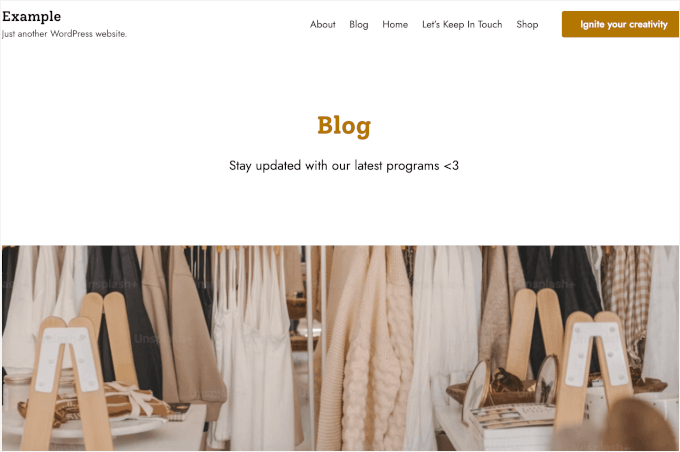
You can now visit your posts or pages where this media file was attached and see it replaced with the new file you just uploaded – without needing to edit each post manually.
Here’s what ours looks like:
If you still see the old image, first try a “Hard Refresh” on your browser (Ctrl+F5 on Windows or Cmd+Shift+R on Mac).
If that doesn’t work, you may need to clear your WordPress cache. Your caching plugin or CDN might be serving an older version of the file. For details, see our step-by-step guide on how to clear your cache in WordPress.
Bonus Tip: Use Image Lazy Loading to Speed Things Up
Images are often the biggest reason your WordPress site takes longer to load. Lazy loading helps solve this by only loading images when someone is about to see them, rather than all at once.
This makes your website load faster right away, keeps visitors from bouncing, and can even help you rank better on Google.
Since WordPress 5.5, lazy loading is built in by default for most standard images. But if you want more control, like lazy loading background images, you can use a plugin like Optimole or WP Rocket.
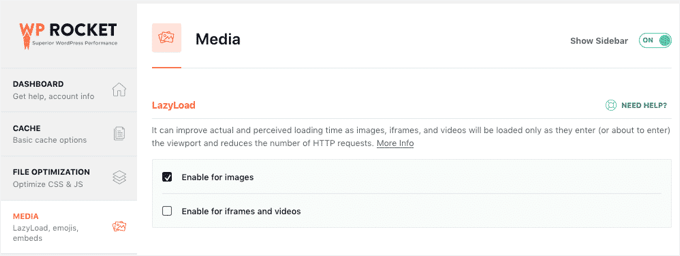
For more information, you can refer to our guide on how to easily lazy-load images in WordPress. Then, you can combine lazy loading with image compression for even better results!
FAQs: Replace Images and Media Files in WordPress
Here are some frequently asked questions about replacing images and media files in WordPress:
Can I replace multiple images at once?
If you need to update image URLs across your database, for example, moving from http to https, the Search & Replace Everything plugin has a separate “SQL Replace” mode for bulk database updates.
What should I do if my images don’t update after replacement?
You can start by clearing your browser and site cache. If you’re using a CDN like Cloudflare, make sure to purge its cache too, as it might be serving older versions of your images.
Will replacing an image affect its SEO?
It can, especially if you change the file name or alt text. To preserve or even improve your SEO, use clear, descriptive file names and alt text that reflect the content of the image.
Is it possible to undo a replacement?
If you’re using the Pro version of Search & Replace Everything, you can access the history feature to roll back changes. Otherwise, having a recent backup will let you restore your site if needed.
Video Tutorial
Need a visual step-by-step guide? Feel free to watch our video tutorial for replacing images and media files in WordPress, where we walk through this exact process on a live site.
More WordPress Guides for Using Images Effectively
We hope that this article helped you find an easier and safer way to replace images and media files in WordPress without breaking links or hurting your SEO.
Want to take your image optimization to the next level? Check out these extra WordPress guides to help you use images like a pro:
- WebP vs. PNG vs. JPEG: The Best Image Format for WordPress
- How to Rename Images and Media Files in WordPress
- How to Resize and Make Images Larger without Losing Quality
- How to Create an Image Gallery in WordPress (Step by Step)
- Best Featured Image Plugins and Tools for WordPress
If you liked this article, then please subscribe to our YouTube Channel for WordPress video tutorials. You can also find us on Twitter and Facebook.



Daniel Whalen
I love your videos but please slow down on how to do it, older persons need to see it slowly.
WPBeginner Support
Thank you for your feedback on our video!
Admin
Phil
Is there a way to batch replace? I’m a photographer and sometimes have over 100 images per blog post. I wanted to replace them with smaller file sizes to help with my pages speeds. Is this possible?
Many thanks
WPBeginner Support
Not manually but there are plugins to help make the process easier for you that we cover in our list below:
https://www.wpbeginner.com/plugins/best-wordpress-image-compression-plugins-compared/
Admin
Jeff Vetterick
If I use the plugin to just “replace image only” (with one of the same file name) will the alt text, image description, and image caption of the original image be overwritten or preserved. If they are preserved, this would save me a ton of time.
WPBeginner Support
It should keep that information if it is able, you would want to reach out to the plugin’s support for specifics.
Admin
jg
This option isn’t available in the new version as it just allows you to delete or edit it. if I delete it I don’t know the url to replace it with?
WPBeginner Support
You may want to ensure you are in the correct view for your media library as the feature is currently available
Admin
Sanjay Sajeev
Thank you for your post.
I installed enable media replace plugin in my site. But when I replace an image that I used in a blog post, I can see the image has been replaced in the media library. But When I check that image in the blog post, there is no change to that image and its file size. What I have to do to resolve this?
WPBeginner Support
You may want to try clearing your cache and if that does not work, reach out to the plugin’s support for them to take a look at possible issues.
Admin
Linda Joyce
Can I do the same thing manually by replacing the image via FTP? Will that change the image?
WPBeginner Support
Hi Linda,
That would work. But WordPress will not be able to regenerate thumbnails and image sizes.
Admin
Rehan
Can I disable this plugin permanently after all images have been replaced in media library ?
Fede
Hi. I keep getting request timeout. Same as when uploading using usual wp means. That is why I had to switch to uploading via ftp and then loading them through a plugin meant for that. I really need to get this working since some of the images are not scaling properly nd need to change them. Any help would be apreciated. Thanks.
hitesh
Hi
in my wordpress admin there is no any option like replace media..in mine there are only 3 options 1) EDIT 2) DELETE PREMANENTLY 3) VIEW
So what is the issue there ..its old version or have any other issue can u please clear that so that i can replace that media files
Regards
Hitesh
Luke
That’s why you need to install the mentioned plugin.
Nicole
Help
I’m a perfrormer contacting agents and tried to replace voice reels after successfully installing yourplugin ( thought it was safest way to go )
Now htey are blanks – I’ve cleared browsing cache
I followed the instructions
my media player is this :
svnlabs HTML5 Mp3 player 3.6 installed
please help :0
Riccardo
Hi thanks for the article, the plugin works great. There’s one thing I don’t get though: the image replacement seems to only affect the image in its original size, when the site displays the image in other formats (thumbnails, previews, etc…) I can still see the old image file.
How can I force the image replacement on all the other image files (e.g. imagename-300×200.jpg)?
thank you
Rehan
Please use Regenerate thumbnails plugin to regenerate your images. after that you will see the replaced images.
Leed
Thanks a lot.
You help me for this problem.
Panagiotis Tabakis
The Enable Media Replace plugin poses a security threat, I would totally avoid it. Its a shame to suggest users to use dangerous software. Please research before posting.
The exploit holds since 2011.
For more info see
WPBeginner Support
Hi Panagiotis,
The issue was immediately resolved by the plugin author in the very next release (please see plugin’s changelog and scroll down to version 2.4).
This is why we recommend users to keep their WordPress site and plugins updated.
Admin
Panagiotis Tabakis
Yes, you are correct. I’m sorry, I saw a support post which the plugin author didn’t answer and thought it wasn’t resolved.
The exploit was patched @ 09 February 2011 (the same day).
I wonder why the author hasn’t replied but I will inform the forum users.
Again, sorry.
WPBeginner Support
No problem It’s good to be cautious about security issues. Hopefully, your answer on the support forums will help other users.
Blake
I am running WP 4.6.1 bootstrap and I want to remove a background photo and replace it with one that is in my galley. Can you tell me how to do it, Thanks
Sky
I followed the steps and in the library the new image is displayed but where the image is located on the home page remains the old photo. Not sure what to do…
Christian Scholz-Flöter
Maybe it’s a browser cache related issue and you need to clean/delete the browser cache. If you don’t know how to do it, google your browser’s brand name and “clear browser cache”.
jorge
This plugin works great in the media page. However I would like to also replace images/media from within the media modal window inside a post/page edit page without leaving the page. Any ideas?
Thanks for this amazing post!
Marilyn
I wish I had known this sooner! I didn’t detach my media files before I deleted them. I replaced them with a new image. The problem is that resulted in broken images. Even though I go back and reattach/choose the correct image down the road it breaks again. In my Easy recipe program I see the placeholder for the deleted image and the program searching for it. Is there a fix for this? Unfortunately there are about 200 files doing this.
Rosy
Hi, unfortunately the “replace media” link is not showing as an option?