


Creating a product catalog in WordPress allows you to showcase your goods or services without needing a full shopping cart.
Many businesses we’ve worked with prefer this approach to display their offerings while managing orders via phone or in person.
That said, setting up a product catalog isn’t always straightforward. If it’s not done right, your catalog can feel messy or confusing, which might frustrate visitors and drive them away.
The good news? With YITH WooCommerce plugins, you can build a smooth, user-friendly catalog that showcases your products beautifully and keeps customers coming back.
In this guide, we’ll walk you through the step-by-step process of creating a product catalog in WordPress.
💡Quick Answer: Creating a Product Catalog in WordPress
To create a product catalog, you first need to install WooCommerce. Then, you can choose one of these two methods:
- Catalog Mode (No Sales): Use the YITH WooCommerce Catalog Mode plugin to hide the ‘Add to Cart’ button. This is perfect for showcasing products that require a phone call or visit to purchase.
- One-Click Checkout (Fast Sales): Use the YITH WooCommerce One-Click Checkout plugin. This removes the shopping cart page and lets users buy instantly.
Why Add a Product Catalog without a Shopping Cart?
Some businesses need to showcase products but cannot sell them directly online. Here are a few common reasons why you might want a catalog without a shopping cart:
- Undetermined Price: Your products may have custom pricing that changes based on specific requirements.
- Wholesale or B2B: You might only sell to approved retailers or bulk buyers rather than the general public.
- Offline Transactions: You want visitors to call or visit a physical location to complete the purchase.
With that in mind, we’ll guide you through the steps for how to easily create a product catalog in WordPress.
Getting Started with Your Product Catalog in WordPress
The best way to create a product catalog in WordPress is by using WooCommerce. It is the best eCommerce plugin for WordPress and helps you create all types of online stores.
Plus, it supports multiple third-party plugins and extensions. You can use them to add new features, customize your store, and introduce new functionality to your WooCommerce store.
If you don’t have a WordPress site setup, then see our guide on how to create an online store to quickly set up WordPress with WooCommerce.
Once you have installed WooCommerce, you can move on to creating your product catalog in WordPress. We will cover 2 methods, including adding a product catalog without a shopping cart and with one-click checkout.
Let’s get started!
Method 1: Create a Product Catalog without a Shopping Cart
By default, WooCommerce displays an add to cart or buy button next to all your products. This makes it difficult to create a product catalog without the shopping cart feature.
Luckily, there’s an easy solution that fixes this problem.
First, you need to install and activate the YITH WooCommerce Catalog Mode plugin. We’ve tested it across a bunch of WooCommerce stores, and you can read our YITH WooCommerce Catalog Mode review for more details.
If you need help installing the plugin, please see our step-by-step guide on how to install a WordPress plugin.
Upon activation, you need to visit the YITH » Catalog Mode page to configure the plugin settings.
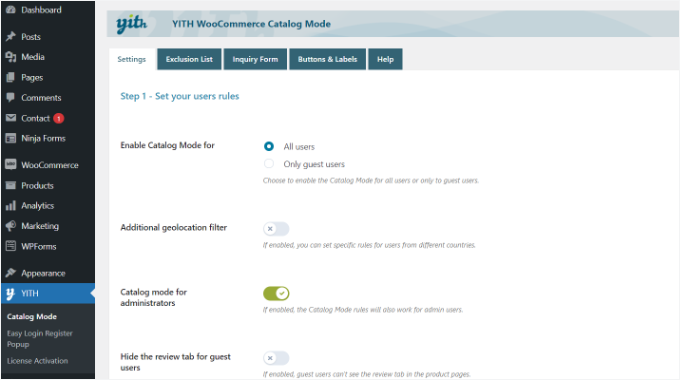
The plugin lets you enable catalog mode for all users or only for guest users.
Next, you can scroll down to view more settings. You can go ahead and click the ‘Disable Shop’ option.
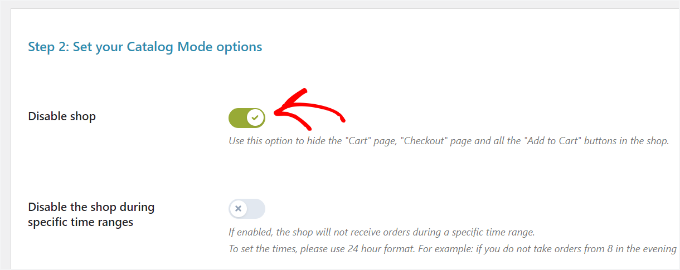
Don’t forget to save the changes and store your settings.
Adding Products to Your WordPress Product Catalog
Next, you can go ahead and start adding products to your site. Simply visit the Products » Add New page to enter your product information.
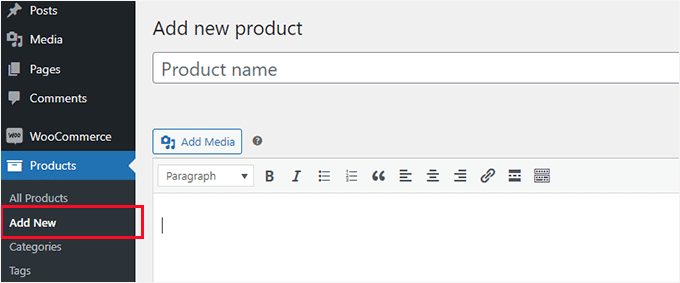
On the products screen, you can provide a product title, description, short description, product image, and product gallery.
Under the ‘Product’ data section, you will find the price options. You should go ahead and enter your price here.
Normally, adding a price would automatically show an ‘Add to Cart’ button. However, the plugin settings you just configured will hide that button while keeping the price visible.
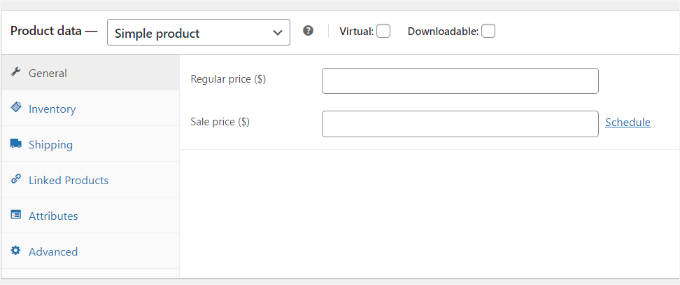
Once you are finished, go ahead and publish your product. Repeat the process to add as many products as needed to build up your catalog.
You can visit your WooCommerce shop page to view your default catalog in action. Your shop page is usually located at a URL like this:
http://example.com/shop/
Replace example.com with your own URL to view your WooCommerce shop page in catalog mode.
If that link doesn’t work, you can find the correct URL by going to Settings » Permalinks in your dashboard or by checking your Pages list.

If you don’t want to use the shop page, then you can also display your products on any WordPress page and use it as your product catalog.
All you have to do is create a new WordPress page or edit an existing one, and add the following shortcode in the content area:
[products columns="4" limit="8" paginate="true"]
Feel free to change the number of columns and the items per page limit to your own requirements. Once you have adjusted the shortcode, go ahead and save or publish your page to preview it.
You will notice that the product pages will not show any add-to-cart or buy buttons.
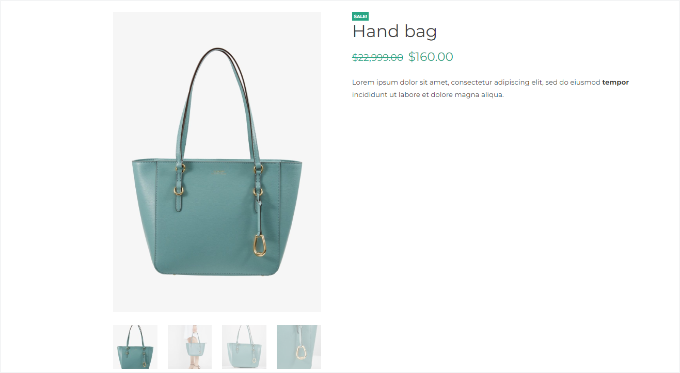
You can click on any individual product to see the product details page. It will show all the product information images, description, gallery, and without an add to cart or buy button.
Remember, you can use the product description to include your contact info so that customers who are interested in the product can get in touch with you about purchasing it.
Method 2: Create a Product Catalog with One-Click Checkout
Another option is to create a shoppable catalog using a one-click purchase option.
This allows customers to instantly buy a product by clicking a ‘Buy Now’ button without going through a full shopping cart process. It is great for digital goods or simple catalogs where you still want to allow online sales.
First, you will need to install and activate the YITH WooCommerce One-Click Checkout plugin. For more details, please see our guide on how to install a WordPress plugin.
We also have tested it extensively to see all its features, and we believe it is a great option for WordPress stores.
Upon activation, you can head to YITH » One-Click Checkout from the WordPress dashboard and edit the general settings.
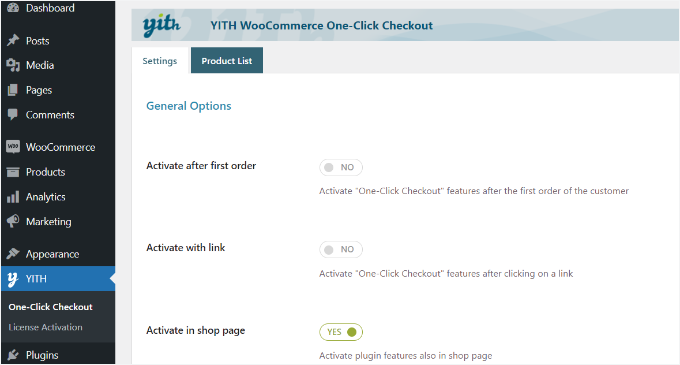
For instance, you can enable the ‘Activate in shop page’ option.
Next, you can scroll down to view more settings. The plugin lets you exclude certain product categories.
It also lets you choose where you’d like to redirect customers after placing an order. You can redirect them to a product page, payment page, thank you page, or choose a custom page.
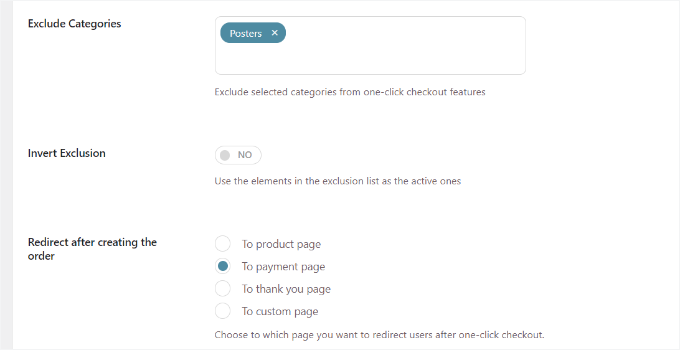
Other than that, you get different customization options with a one-click button.
There are settings for changing the button label, background, text color, background on hover, and more.
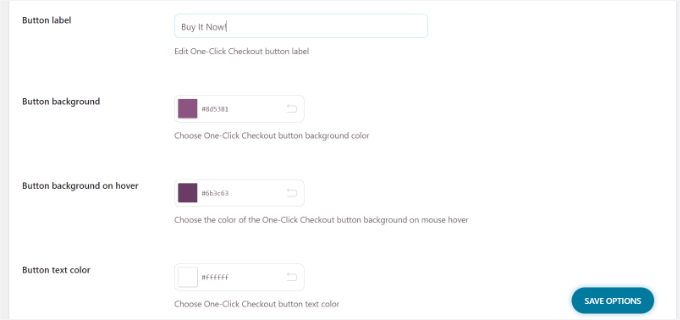
When you’re done, click the ‘Save Options’ button.
You can now visit your website to see the one-click or buy it now button.

Frequently Asked Questions: Creating a Product Catalog in WordPress
Here are some questions that are frequently asked by our readers about creating a product catalog in WordPress:
Can I create a product catalog without using WooCommerce?
Yes, you can create a product catalog without WooCommerce, but WooCommerce makes it much easier.
If you don’t want to use WooCommerce, then you can use catalog-specific plugins like Ultimate Product Catalog, or even a visual page builder like SeedProd to create static catalog layouts.
However, WooCommerce gives you more flexibility. You can enable catalog mode using a plugin that hides the cart and checkout features. This way, you get all the benefits of WooCommerce’s product management without forcing users to make purchases.
Can I add a contact form to each product in the catalog?
Yes, you can add a contact or inquiry form to each product in your catalog. This is especially useful if you’re not using direct checkout.
We recommend using WPForms to create a custom form and embed it on each product page.
You can even use the WPForms Smart Tags feature to automatically include the product name in the email notification. This way, you know exactly which item the customer is asking about.
Will creating a product catalog affect my website speed?
Not necessarily—but it depends on how many products you’re adding and how optimized your site is. To ensure fast performance, follow these tips:
- Use a lightweight theme that’s optimized for WooCommerce or product listings
- Compress your product images before uploading them
- Use a caching plugin like WP Rocket
- Consider a content delivery network (CDN) to serve images faster
A well-built product catalog shouldn’t slow down your site, especially if you’re not using full eCommerce checkout features.
Additional Resources for Optimizing Your Product Catalog
Want to make your product catalog even more stand out? These handy guides will help you refine and elevate your catalog for an even better user experience:
- Best Product Grid Plugins for WooCommerce (Free + Paid)
- How to Sell a Single Product Online with WordPress
- How to Display Popular Products on WooCommerce Product Pages
- Best WordPress Product Comparison Plugins (Compared)
- How to Customize WooCommerce Product Pages (No Code Method)
We hope this article helped you learn how to easily create a product catalog in WordPress. You may also want to see our list of the best WooCommerce themes that you can use for your product catalog website, and our guide on WooCommerce SEO made easy.
If you liked this article, then please subscribe to our YouTube Channel for WordPress video tutorials. You can also find us on Twitter and Facebook.




Ralph
This looks like a great solution for my wife interior design blog where she wants to sell custom made furniture. We can’t really show fixed price for everything but still want to show, what we can do. Great and simple guide!
James
this is perfect, is there a monthly fee while you are on catalog mode?
WPBeginner Support
The plugins from this article charge on a yearly basis unless they change their pricing plan.
Admin
Lorraine
Can I link the products for payment elsewhere? I want to put all my courses on this page and have payment handled by Thinkific. How do I do that?
WPBeginner Support
For something like that, you shouldn’t need this specific plugin, you should be able to set up WooCommerce to link to the external page similar to our guide on Amazon below:
https://www.wpbeginner.com/wp-tutorials/how-to-build-an-amazon-affiliate-store-using-wordpress/
Admin
Morgan
Hello, does this practice will lead to error missing price on search console ?
WPBeginner Support
Unless there is an error, you should not run into that issue.
Admin
Ezeequiel
Is there a way to create two catalogues for the same site? I mean I want to have a catalogue of pens and a catalogue of books.
Lalit
Thank you so much for this post! I was worried about displaying my product catalog without a cart but you made it easy for me! Thank you for guiding!
hitesh
hello there, is there any plugin in WordPress which adds another section for retailers where they can add their product description and photo and it will list in my e-commerce site after our approval? please answer, I will be very grateful to you.
WPBeginner Support
For something like that you would want to take a look at our guide below:
https://www.wpbeginner.com/wp-tutorials/how-to-create-an-online-marketplace-using-wordpress/
Admin
Denise Ellis
Thank you, any recommendation what can be used to add a button on product page that when clicked redirects the user to another url/website.
WPBeginner Support
For something like that, you would want to take a look at our article below:
https://www.wpbeginner.com/wp-tutorials/how-to-build-an-amazon-affiliate-store-using-wordpress/
Admin
Denise Ellis
Great article thank you. Once add to cart is disabled, will this allow me to then replace the add to cart with a “buy now” call-to-action button that directs the user to a shop direct product page where the user can “add the cart” and complete their order?
WPBeginner Support
No, the goal of this guide would be to remove the option to purchase from your site.
Admin
Rahul Bera
Thanks a lot , this tutorial really helped
WPBeginner Support
You’re welcome
Admin
David
Hello. Thanks for the great blog. Very useful. I was wondering. Is there a shortcode for showing categories rather than products? Thanks.
WPBeginner Support
It would depend on how specifically you wanted them displayed, if you check WooCommerce’s shortcodes there are multiple display options you can take a look at
Admin
Sanjeev
Is it possible to build a website for ecommerce, dropshipping and affilateed product in onesingle platform
WPBeginner Support
If you wanted to you could certainly do that
Admin
mike
At my company, we have one catalog that needs NO pricing. Then on another section, we need pricing. Any simple suggestions on how to resolve this?
Would I need to occurrences of WooCommerce or something?
WPBeginner Support
You would want to reach out to the plugin’s support but that would likely be handled by the pro version of the plugin
Admin
Peter
If my customer changes his mind in a few months, can i enable all the buying options such as cart icon etc. and continue use WooCommerce or I will have to set all the product from the beginning?
WPBeginner Support
You would disable the catalog mode and it would start working as a normal WooCommerce store
Admin
Nicola
Hi. This is great thank you. Is there a way of adding something to the short code so I just show products listed in a particular category on particular pages on my website?
WPBeginner Support
You would want to reach out to the plugin’s support and they would let you know what customizations are available
Admin
David
Hi Nicola, I don’t know if you already found this out but I just found out you can do it this way:
[products columns=”4″ limit=”8″ paginate=”true” category=”YOUR CATEGORY”]
Hope that helps
Suzy Knapp
I’m wanting to to showcase art from different sources (with affiliate links) on my upcoming post about sourcing art online. Would this plugin work for that?
Thanks for your help!
WPBeginner Support
It would depend on how you want to display the content but this method should work for what it sounds like you’re wanting
Admin
Sonali
I am facing an issue with uploading product images in the catalogue mode, can someone tell me what the problem might be? Because I am way below the 99 product limit
WPBeginner Support
You would want to first reach out to the plugin’s support for assistance with it
Admin
Farhan Muntaqo
Actually I want to replace the add to cart or buy button with WhatsApp button, any help I would apppreciate, Thanks.
WPBeginner Support
You would want to reach out to the plugin’s support for if there is a built-in option for that or recommended method for setting that up.
Admin
Styleloft Apparels
It is a super helpful article , I was trying to show product without cart & it just solved my problem in 2 minutes. Great thanks to the author