


Have you ever lost leads because your contact form was slow or required the whole page to reload? That’s a story we hear all too often.
We’ve also seen firsthand how frustrating traditional WordPress forms can be – both for site owners and their visitors. AJAX forms solve this problem, and they can do the same for yours.
These modern forms submit data instantly without refreshing the page. They create a smoother experience that helps keep visitors engaged.
We’ve implemented these forms many times on client and partner websites, and the results speak for themselves.
In this guide, we’ll share a simple 4-step process for building a WordPress AJAX form. We’ll use a beginner-friendly plugin that simplifies the technical work so you can easily follow along. 🙌

What Is AJAX and Why Use it For Your Forms?
AJAX, short for Asynchronous JavaScript and XML, is a programming technique that allows web pages to send and receive data without reloading.
It’s commonly used in web forms, allowing users to submit form data without reloading the page. This makes form submission easy and fast, which improves the overall user experience.
Web applications like Gmail and Facebook also use this technique extensively to keep users engaged while background tasks run seamlessly.
You can use AJAX for forms on your WordPress site to avoid unnecessary page reloads and keep users engaged on the page they’re currently viewing.
This is especially helpful if you run an online store and want to collect user feedback without interrupting the shopping experience.
You can also use the same AJAX functionality for other custom forms on your website. For example, a custom user login form can let users log in without an additional page load.
With that in mind, we’ll show you how to create a WordPress AJAX contact form in 4 simple steps.
Let’s get started.
Step 1: Install the WPForms Plugin
The first step is to install and activate a form builder plugin.
For this tutorial, we’ll use the WPForms plugin. It’s the best WordPress contact form builder on the market, and it allows you to easily create Ajax-powered forms.
At WPBeginner, we use WPForms to display our contact form, run annual reader surveys, and manage migration service requests, among other things.
It’s been a great experience, and you can see our full WPForms review for more insights.
To start, you may want to create a WPForms account. On the WPForms website, click the ‘Get WPForms Now’ button, choose a plan, and complete the checkout process.

📝 Note: To create an AJAX form, you can use the free WPForms version. But if you need more advanced features like conditional logic, file uploads, or Google tool integrations, you’ll need WPForms Pro.
With that done, you should have your own WPForms account dashboard, where you can download your WPForms Pro zip file and copy your license key.
Next, let’s install and activate the WPForms plugin.
In your WordPress admin area, you can head over to Plugins » Add New Plugin.

Then, you can use the search bar to quickly find the plugin.
When you see it, click ‘Install Now’ and then once again on ‘Activate.’
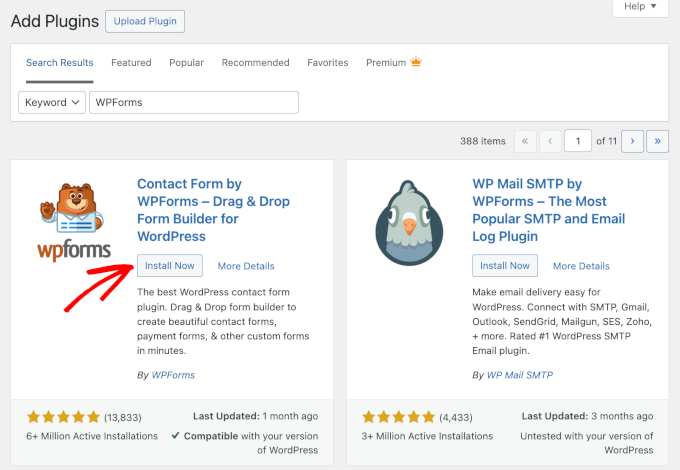
For more details, see our step-by-step guide on how to install a WordPress plugin.
After activation, go to the WPForms » Settings page to enter your license key.
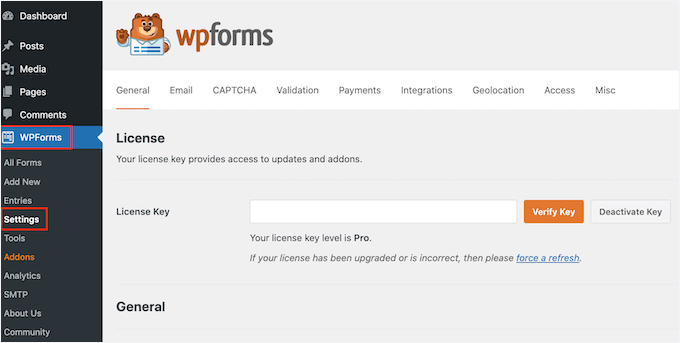
Once verified, you’ll be able to receive automatic updates and install add-ons. You’re now all set to start creating AJAX forms in WordPress.
Step 2: Create Your First Form
Now let’s go ahead and create your first WordPress form.
Simply visit the WPForms » Add New page in the WordPress admin area.
On the next screen, you can first name your new form, for example, ‘Contact Form.’
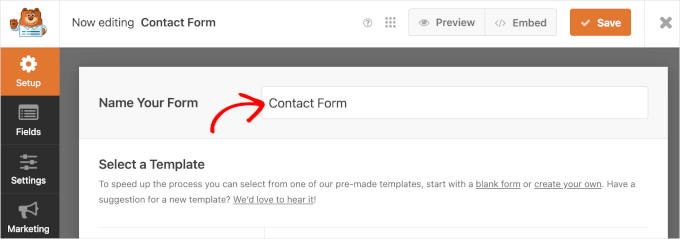
After that, you’ll choose how you will build your forms.
With WPForms, you can build your forms from scratch, use the AI form builder, or choose from 2,000+ pre-made templates.
For example, if you want to use WPForms AI, you just need to enter a simple prompt and it will generate the form for you in the preview area.

For this tutorial, though, we will be creating a contact form using a pre-made template.
Let’s hover over the ‘Simple Contact Form’ box and click ‘Use Template.’ Note that you can create any other type of form you need; the process is the same.

WPForms will now load your form with basic fields already added.
From here, you can simply click any form field to edit it.
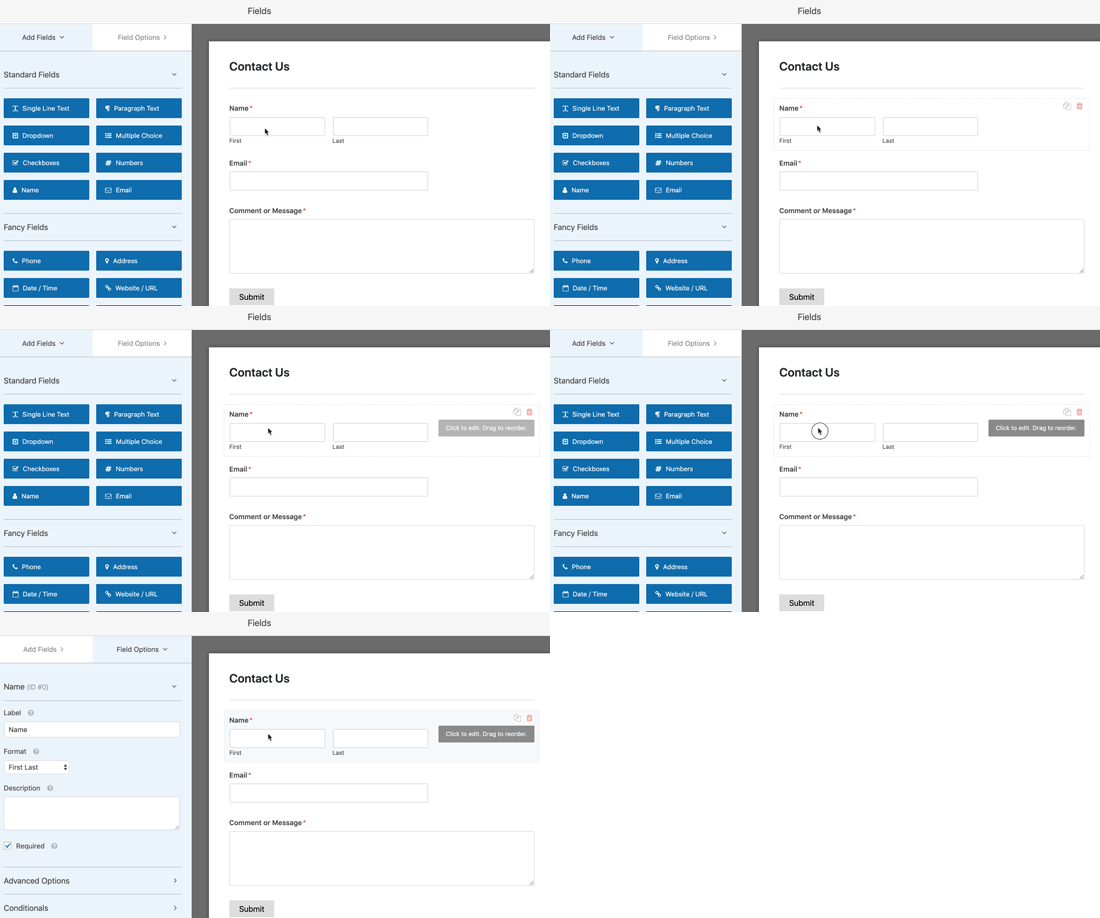
You can also add new form fields from the left column by clicking on them.
The new field will appear at the bottom of your form, just above the Submit button.
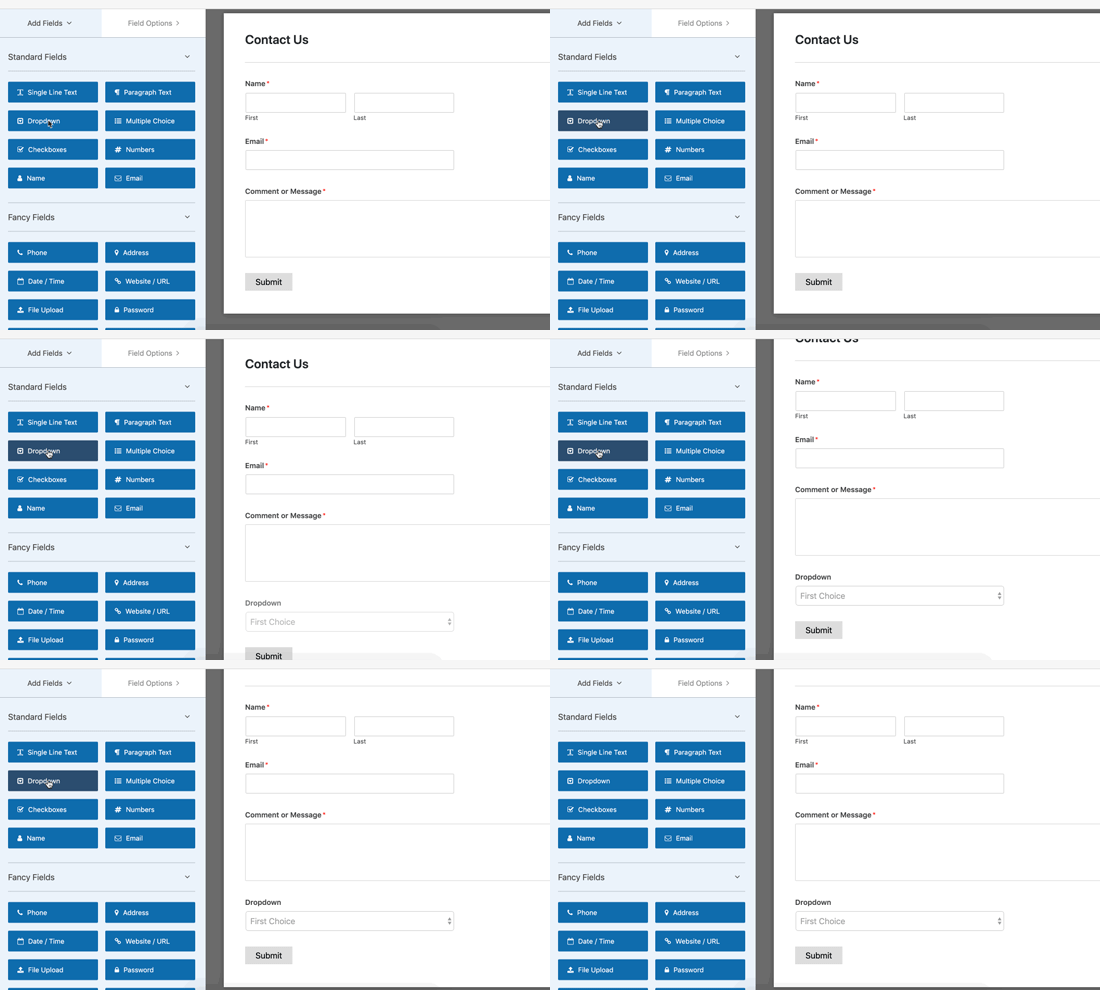
You can then drag and drop the form fields to rearrange their order.
Once you’ve finished customizing the form, you can move on to the next step.
Step 3: Turn On the AJAX Form Submission Feature
Depending on your settings, WPForms may not have AJAX form submission enabled by default, so let’s verify that now.
To do this, simply switch to the ‘Settings’ tab in the form builder.
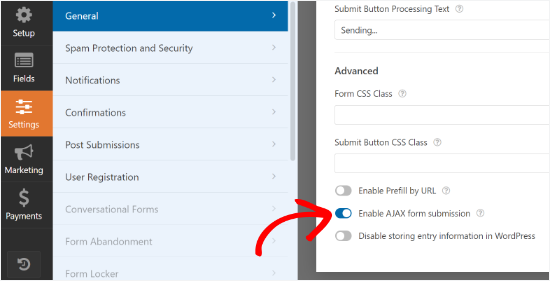
In the ‘General’ settings tab, go ahead and click the toggle next to the ‘Enable AJAX form submission’ option.
Now let’s set up what happens after someone submits the form.
First, you can switch to the ‘Confirmation’ tab under settings. This is where you inform your users that you have received their form submission.
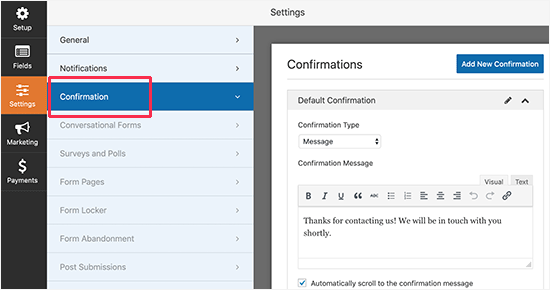
WPForms allows you to do that in different ways. For example, you can redirect users to a URL, show them a specific page, or simply display a message on the screen.
While you can redirect users to a new page, that requires a page load. To get the most benefit from AJAX, we recommend simply showing a ‘Message’ so the user stays on the same page.
You need to select the message option and edit the confirmation message. You can use the formatting toolbar or add links to guide users on what to do next.
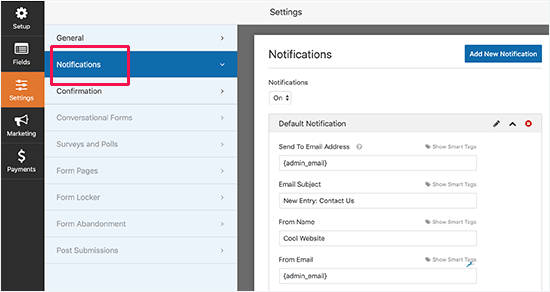
Next, set up how you’d like to be notified about new form submissions.
Switch to the ‘Notifications’ tab in the form settings and configure notification email settings.
When you’re done, you can save your form and exit the form builder.
Step 4: Add Your AJAX-Enabled Form in WordPress
WPForms makes it easy to add forms to your WordPress site, whether on a post, page, or sidebar widget.
Simply edit the post or page where you want to add the form and insert the WPForms block into your content area.

After that, you need to select the form you just created from the dropdown menu inside the WPForms block.
WPForms will immediately load a live preview of the form in the content editor.
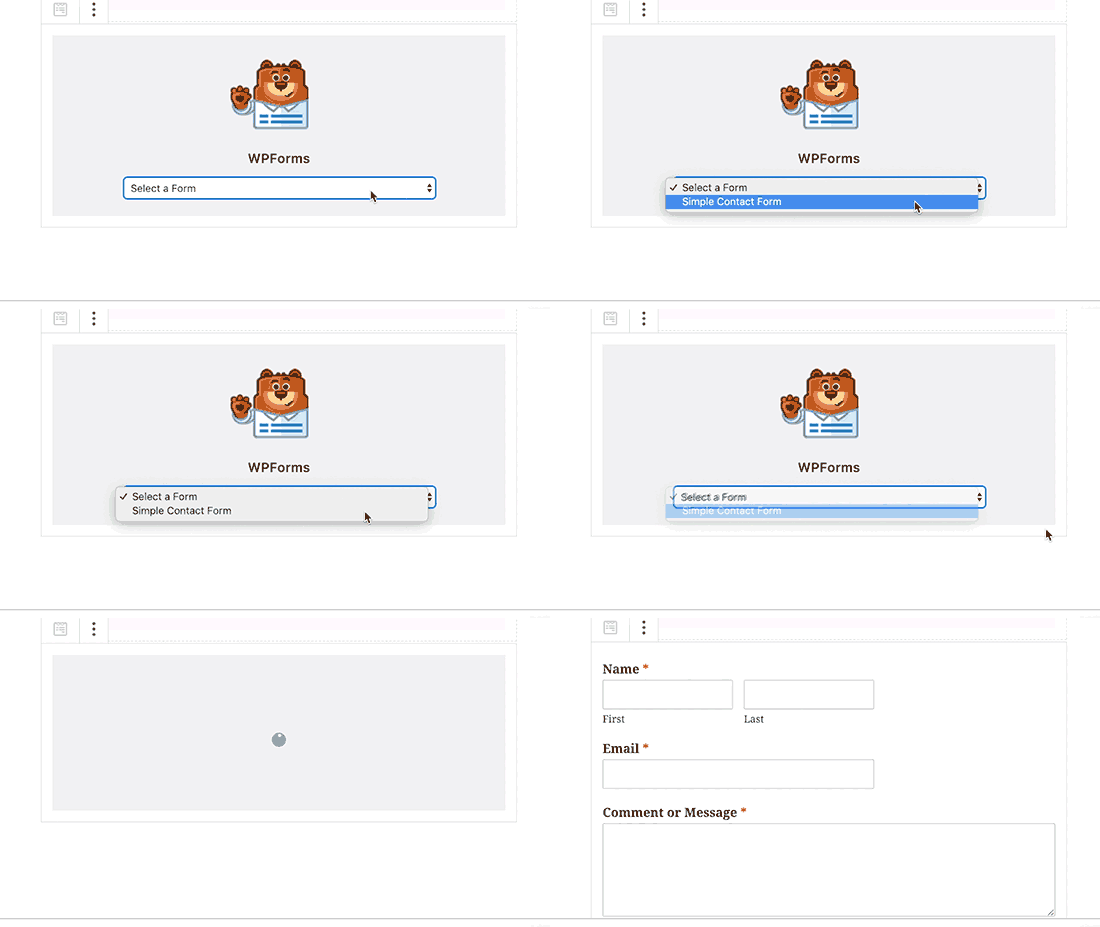
You can now save or publish your content, then visit your WordPress website to test the form’s AJAX functionality.
Here’s a quick look at the WordPress AJAX form example from our demo site:
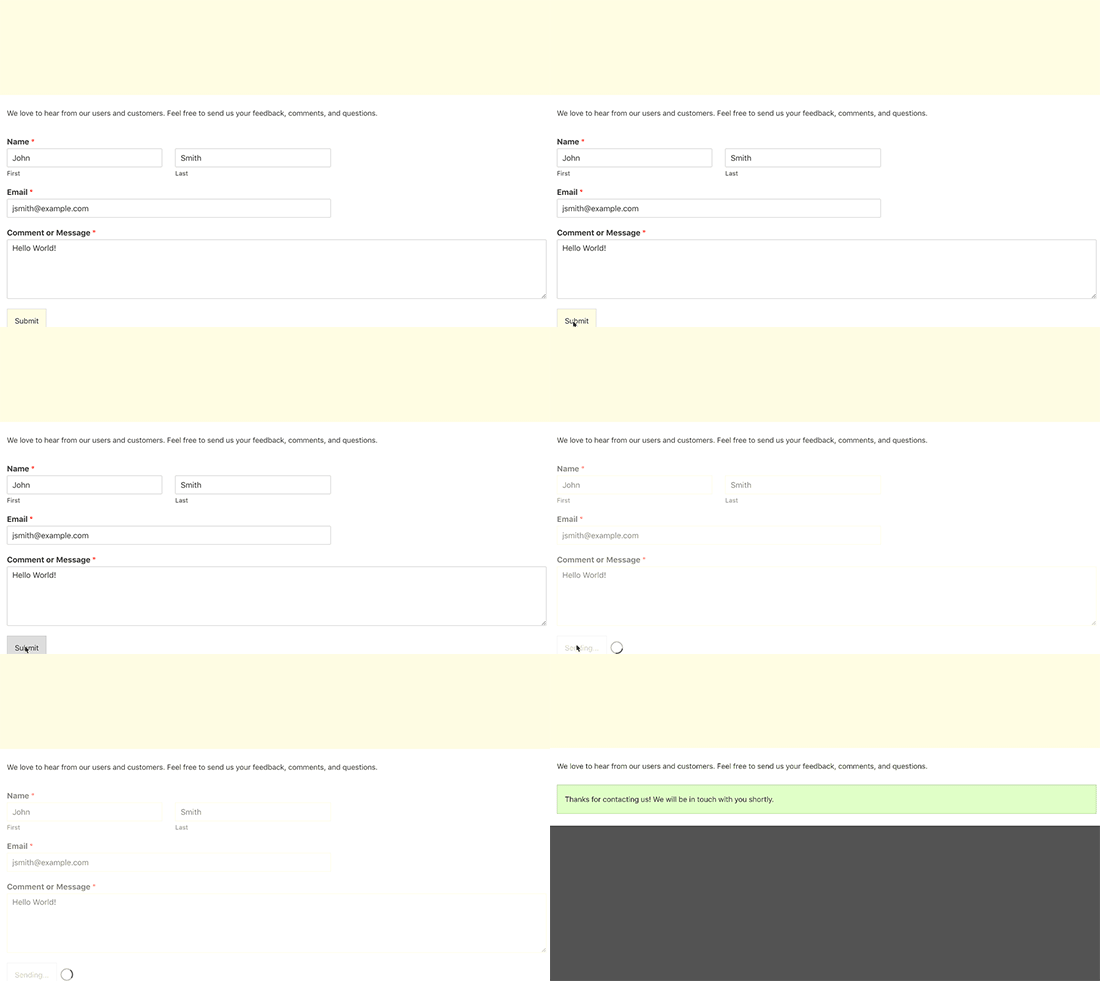
You can also add your form to a sidebar widget in WordPress.
To do that, go to the Appearance » Widgets page and add the WPForms widget block to a sidebar.
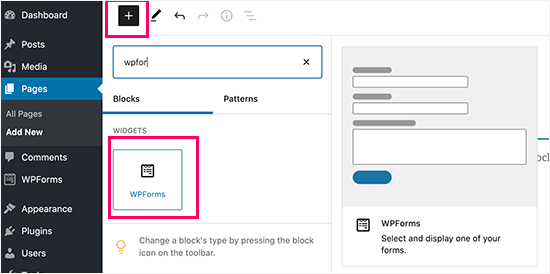
Select the form you created earlier and click the “Update” button to save the widget settings. You can now visit your website to see your AJAX-powered form in action.
Bonus Tip: Export Form Entries to CSV or Excel 📄
Once your AJAX form is up and running, you might want to keep a record of all submissions. Especially if you’re collecting leads, customer inquiries, or registration info.
The easiest way to do this is by exporting your entries as a CSV or Excel file.
This makes it easy to organize and analyze responses in spreadsheet tools like Google Sheets or Microsoft Excel. It’s also handy for sharing reports with your team or backing up form data outside of WordPress.
If you’re using WPForms, exporting form entries is straightforward: go to WPForms » Entries, select your form, choose your export options, and download the data as a CSV or Excel file.
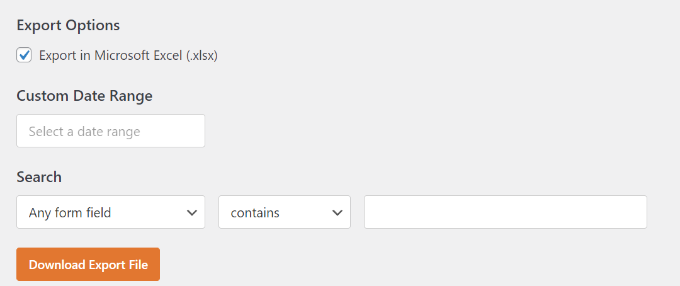
Want to set this up? Follow our full guide on how to export WordPress form entries to CSV and Excel.
FAQ: WordPress AJAX Forms
Before we wrap up, here are some common questions that come up when people start using AJAX forms in WordPress.
How do I use AJAX for form submission?
The easiest way is to use a form plugin that already supports AJAX, like WPForms. You just enable the AJAX option in the form settings, and the plugin handles everything for you.
If you’re building a custom form, you’d need to use JavaScript and WordPress’s AJAX hooks. But for most sites, a plugin is much simpler and more reliable.
Where do I find the AJAX setting in WPForms?
In WPForms, the AJAX option is inside the form settings. After opening your form in the builder, go to Settings » General, then look for the Enable AJAX form submission checkbox. Once it’s turned on, the form will submit without reloading the page.
What are the disadvantages of AJAX?
AJAX relies on JavaScript, so it can conflict with aggressive caching plugins that minify or defer scripts. If your form ‘spins’ but doesn’t send, try clearing your cache or checking your optimization plugin settings.
It may also cause issues with page builders or older themes if it isn’t set up correctly. That’s why it’s important to test your forms after enabling AJAX.
Bonus Resources: More WordPress Forms Guides
We hope this article helped you learn how to create a WordPress AJAX contact form for your website. Next, you may also want to see our articles on:
- How to Create a Contact Form Popup in WordPress
- How to Use Contact Forms to Grow Your Email List
- How to Create Contact Forms with Multiple Recipients
- How to Create a Secure Contact Form in WordPress
- How to Block Contact Form Spam in WordPress
- How to Track and Reduce Form Abandonment
- The Ultimate Guide to Using WordPress Forms
If you liked this article, then please subscribe to our YouTube Channel for WordPress video tutorials. You can also find us on Twitter and Facebook.


Have a question or suggestion? Please leave a comment to start the discussion.