


If you are hiring freelance editors or growing your content team, then you might be worried about giving them too much access to your WordPress site. The last thing you want is someone accidentally deleting important pages or messing with content they shouldn’t touch.
WordPress’s default editor role doesn’t help much here. It gives users the ability to edit every page on your site, which creates unnecessary risk.
At WPBeginner, we believe in giving users only the access they absolutely need to keep our site secure while empowering our editorial team. Luckily, there’s a simple way to give your editors access to only the pages they need.
In this guide, I will show you how to set up page-level restrictions in WordPress. I will cover two methods: how to block editors from specific high-value pages (such as your homepage), and how to restrict editors so they can only edit their assigned pages.
TL;DR: You can restrict editor access in two ways: blocking them from specific pages (like the homepage) or restricting them to only edit their own pages. This guide shows you how to do both using free plugins to keep your site secure.
Understanding WordPress User Roles and Pages
WordPress comes with a built-in user roles and permissions system that controls what different users can do on your site. Each role has specific capabilities that determine its level of access.
One of these roles is called Editor. Users with the Editor role can edit all posts and pages on your website, regardless of who created them.
Note: If you only want the user to write blog posts, it is better to assign them the Author role. Authors can only create posts and cannot touch your pages at all.
However, if you need your team to manage Pages (such as landing or service pages), they must have the Editor role. This is why we need to restrict their access to prevent them from accidentally editing the wrong pages.
Many WordPress sites are structured so that editors manage dynamic content like blog posts and articles. These pieces of content change frequently and require regular updates from your team.
Pages, on the other hand, are typically static content that doesn’t change often. They display critical information like your homepage, about page, privacy policy, and contact form.
If you don’t want editors to access all your pages, or if you want them to only edit specific pages, you’ll need to modify their permissions. The good news is that you can do this without affecting their ability to manage posts.
In the next sections, I will show you exactly how to set up page-level editing restrictions using two free WordPress plugins. You can choose the method that best fits your workflow:
Method 1: Block Editors from Specific Pages
The easiest way to restrict editors to specific pages is with the PublishPress Permissions plugin. This free plugin adds a permissions box to every page on your site, letting you control exactly who can edit each one.
I recommend PublishPress Permissions because it gives you granular control without complicated setup. You can allow editors to access most pages while blocking them from critical ones like your homepage or legal pages.
💡 Expert Tip: If you have a multi-author blog, then I recommend using the PublishPress suite of plugins for managing your site. To learn more, see our top picks for the best WordPress multi-author blog plugins.
Step 1: Install and Activate PublishPress Permissions
First, you’ll need to install and activate the PublishPress Permissions plugin. If you need help, please see our beginner’s guide on how to install a WordPress plugin.
Once the plugin is activated, it will automatically add permission controls to all your pages. You don’t need to configure any initial settings to get started.
Step 2: Set Up Editing Permissions
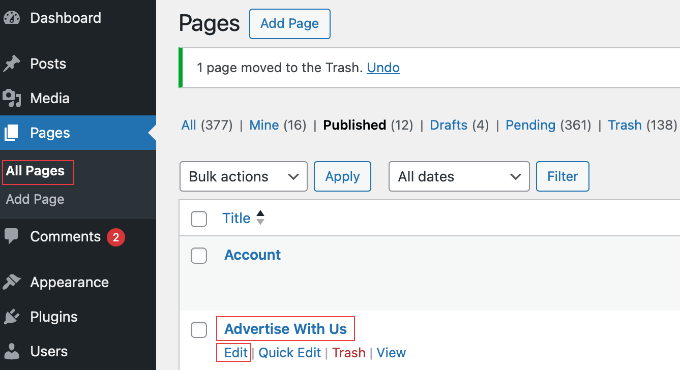
Upon activation, simply visit Pages » All Pages and open the page you want to restrict in the WordPress editor.
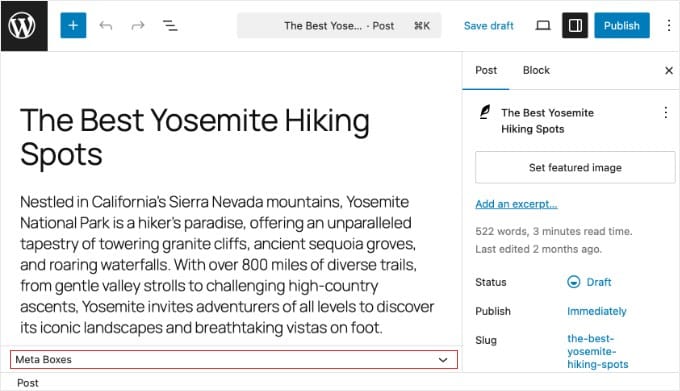
Once you are editing the page, scroll down to the very bottom of the editor screen (below the text area).
You should see a new box labeled ‘Permissions: Edit this Page’. If you don’t see it immediately, check if there is a collapsed section labeled ‘Meta Boxes’ and click to expand it.
Inside the ‘Edit this Page’ box, you will see a list of user roles. You may also see other boxes labeled ‘Viewing’ or ‘Parent’, but you can ignore them.
Find the Editor row. You will see columns for ‘This Page’ and ‘Sub-Pages’. To block access to just this specific page, go to the ‘This Page’ column and choose ‘Blocked’.
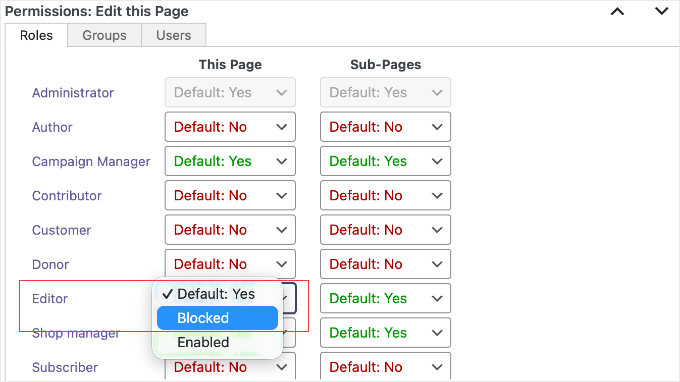
Once you’ve set the permission to ‘Blocked’, click the ‘Save’ or ‘Update’ button to save your changes. That’s it. Editors will no longer be able to edit this particular page.
You can repeat this process for any pages you want to protect. For example, you might block editors from a static homepage, privacy policy, and terms of service pages while allowing them to edit other pages, like blog category landing pages.
The beauty of this method is its flexibility. You’re not removing the Editor role’s ability to edit pages site-wide. You’re just controlling access on a page-by-page basis.
Step 3: Test Editing Restrictions
To verify that the permissions are working correctly, you need to log in to your WordPress site using an Editor account.
If you don’t have an extra editor account, you can create a new user by going to Users » Add New User. Give the user a name and email, and make sure to set the role to ‘Editor’.
Now, log out of your administrator account and log back in as the Editor you just created.
Once you are logged in, head over to Pages » All Pages.
You should notice that the specific page you blocked (for example, the ‘Advertise With Us’ page) is completely missing from the list. The plugin automatically hides it because the editor does not have permission to edit it.
Method 2: Allow Editors to Edit Only Their Own Pages
The first method works well if you only want to protect a few specific pages. However, if you have a large site and want editors to only edit the pages you specifically assign to them, this second method is much better.
Important: This plugin makes permanent changes to your WordPress database. If you deactivate or uninstall the plugin, the user roles will NOT automatically revert to their default settings. If you want to undo your changes later, you must use the plugin’s ‘Reset’ tool found at Capabilities » Backup.
For this, we will use the PublishPress Capabilities plugin. It allows us to change the ‘Editor’ role so they cannot touch anyone else’s content.
First, install and activate the plugin. Then, go to Capabilities » Capabilities and select ‘Editor’ from the dropdown menu in the top left corner.
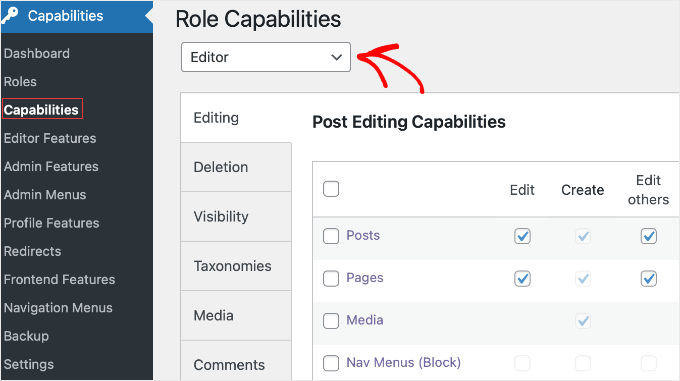
Under the ‘Editing Capabilities’ area, look for the ‘Pages’ row.
You need to uncheck the ‘Edit others’ box.
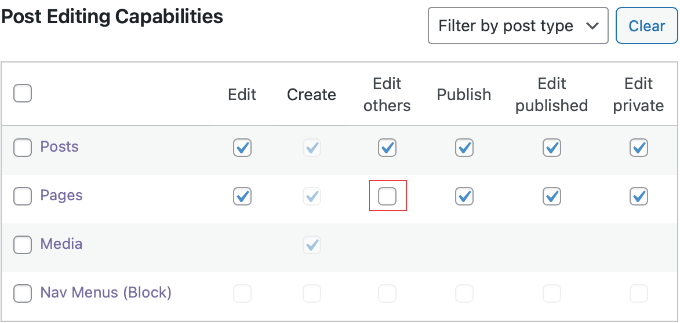
Tip: If you want to completely block editors from accessing the ‘Pages’ menu (so they only work on Posts), you can simply uncheck the main ‘Edit’ box here. However, to allow them to edit their assigned pages, you need to keep this checked.
Once you have unchecked ‘Edit others’, scroll to the top or bottom of the page, then click the ‘Save Changes’ button to store your settings.
What Can the Editor Do Now?
With this change, Editors can still create new pages and edit them. However, they will not be able to edit any existing pages created by others (like your Legal or About pages).
If you want them to edit a specific existing page, you must assign it to them using the steps below.
How to Assign a Page to an Editor
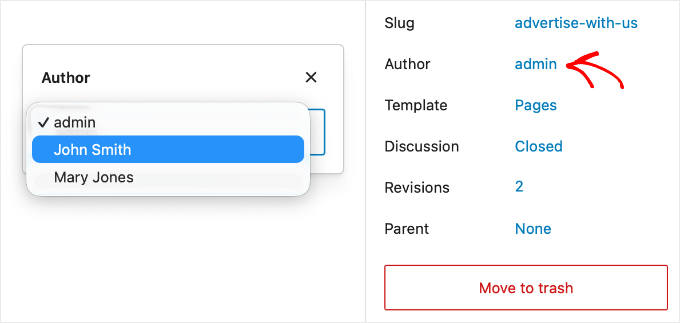
To give an Editor access to a page they didn’t create, you must make them the ‘Author’ of that page.
Simply edit the page you want them to work on. In the settings panel on the right, look for the ‘Author’ option and select the editor’s name from the dropdown.
For detailed instructions, see our guide on how to change the author of a post in WordPress.
Once you update the page, that specific editor will be able to see and edit it, but they will remain locked out of everything else.
Bonus: How to Limit Authors to Their Own Posts
If you run a multi-author site, you might also want to restrict Authors so they can only see their own posts in the dashboard. This keeps the interface clean and prevents them from snooping on other people’s drafts.
If you used Method 1 using PublishPress Permissions, the plugin often handles this for you. However, if your authors can still see other users’ posts, you may need to adjust the settings.
To learn more about this feature, check out our full guide on how to limit authors to their own posts in WordPress admin.
Frequently Asked Questions About WordPress Editor Permissions
Here are some of the most common questions our readers ask about restricting editor access to specific pages in WordPress.
1. Can I allow an editor to edit only one specific page in WordPress?
Yes. The best way to do this is using Method 2 in this guide.
By removing the ‘Edit Others’ permission, the editor will lose access to all pages except the ones they are the author of. You can then make them the author of the one specific page you want them to manage.
Note: If this editor has created pages in the past, they will still be able to edit them. To restrict them to strictly one page, you should reassign their older pages to a different user.
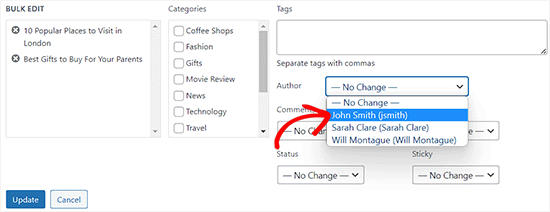
You can do this quickly by going to Pages » All Pages, selecting the pages, and using the ‘Bulk Actions’ menu to ‘Edit’ the author for all of them at once.
2. Will limiting the Editor role affect Administrator accounts in WordPress?
No, limiting the Editor role with PublishPress Permissions will not affect Administrator accounts in WordPress. Administrators always have full access to all areas of your WordPress site, regardless of any permission restrictions you configure.
However, when using PublishPress Capabilities, be sure to select the ‘Editor’ role from the dropdown before making changes, so you don’t accidentally modify Administrator permissions.
3. How do I stop WordPress editors from editing my homepage?
If you are using a static homepage, you can stop editors from modifying it using the PublishPress Permissions plugin. Simply open your homepage for editing.
Scroll down to the ‘Permissions: Edit this Post’ box, find the Editor role in the list, and change the setting to ‘Blocked’.
4. Does PublishPress Permissions work with product pages and custom post types?
Yes, PublishPress Permissions works with WooCommerce product pages and custom post types in addition to standard WordPress pages and posts. You’ll see the same ‘Permissions: Edit this Post’ box on any custom content type that supports WordPress’s built-in permissions system.
This allows you to apply page-level editing restrictions to portfolios, products, events, or any other custom content on your WordPress site.
5. How do I undo editing restrictions on WordPress pages?
You can undo editing restrictions on WordPress pages by opening the restricted page and finding the ‘Permissions: Edit this Post’ box that PublishPress Permissions added.
Change the Editor role setting back from ‘Blocked’ to ‘Enabled’ and click the ‘Update’ button. The editors will immediately regain access to edit that specific page without affecting any other permission settings you’ve configured.
Additional Resources for WordPress Roles and Capabilities
I hope this article helped you learn how to allow editors to only edit certain pages in WordPress.
If you want to dive deeper into managing user access and customizing what different roles can do on your site, you might also like to see these additional resources:
- WordPress User Roles and Permissions (Complete Guide) – This comprehensive guide explains all the default WordPress user roles and their capabilities, helping you understand exactly what each role can and cannot do on your site.
- How to Add or Remove Capabilities to User Roles in WordPress – Learn how to fine-tune user roles by adding or removing specific capabilities.
- How to Restrict WordPress Pages by User Role – This tutorial shows you how to make entire pages visible only to specific user roles. This is perfect for creating members-only content or private sections of your site.
- Best User Management Plugins for WordPress – Discover our top picks for plugins that help you manage users, roles, and permissions more effectively.
- How to Limit Authors to Their Own Posts in WordPress Admin – Find out how to prevent authors from seeing other contributors’ posts in the WordPress dashboard. This creates a cleaner and more focused admin experience.
- How to Add New Users and Authors to Your WordPress Blog – This step-by-step guide walks you through the process of adding new team members to your WordPress site and assigning them the right user roles.
If you liked this article, then please subscribe to our YouTube Channel for WordPress video tutorials. You can also find us on Twitter and Facebook.




Christoph Wendel
Thanks for the tutorial.
However, in my case I have more than one editors who are to get permission to edit certain specific pages. How can this be achieved?
It seems to be impossible to assign several users as authors of a page, unfortunately.
Could you give me some advice about this, please.
WPBeginner Support
If you are using it by author then you could use our guide below for adding multiple authors:
https://www.wpbeginner.com/plugins/allow-multiple-authors-to-be-associated-with-a-post-in-wordpress/
Admin
Christoph Wendel
Thank you a lot, this perfectly solved my problem. Thank you so much!
Virginia Fonseca
I have limited the pages a user can view and edit. Is it possible to prevent the user from Updating an already published page. We want them to be able to edit the page but not update it.
WPBeginner Support
For what you are looking to achieve we would recommend taking a look at the roles and permissions from our article below:
https://www.wpbeginner.com/beginners-guide/wordpress-user-roles-and-permissions/
Admin
Pavle Nikolic
Hi, if a user doesn’t have permission to Publish pages but has permission to Edit Published pages, does this mean they able to publish the edited version of the already published page after changing it?
WPBeginner Support
Yes, they should be able to do that
Admin
Cheryl
Step 2 says to change the Screen Options, but that isn’t available in Gutenberg.
WPBeginner Support
For Gutenberg, the settings should be in the status and visibility settings for the document.
Admin
Cheryl
Thank you! That works beautifully
WPBeginner Support
You’re welcome
Trish Murphy
Hi
Is there any way to let a client edit just the text on a page i.e. I don’t want them to change permalinks or page layout or custom fields or featured image, etc – or anything at all.
I just want them to be able to go to the webpage and edit text e.g. add a paragraph etc.
Is this possible?
I’ve looked at tons of sites and videos but haven’t found answer to this question! My clients have ZERO technical ability!!
Hoping someone can advise?!
WPBeginner Support
You could create a custom user role using the method in our article here: https://www.wpbeginner.com/beginners-guide/wordpress-user-roles-and-permissions/
Admin
Joost
Hi, thanks for this post. Is there a way to hide the add new button? I managed to let users only edit their own page, but the add new button is stil there.
They should only be able edit their own page, nothing more
Thanks.
WPBeginner Support
You can remove the capability to create posts using the capability manager plugin from our article here: https://www.wpbeginner.com/beginners-guide/wordpress-user-roles-and-permissions/
Admin
Chris Howard
A quicker way to change authors, and a way you can do it in bulk, is from the post listing page. Select all that you want to change, then from the Bulk Actions dropdown choose Edit and hit Apply. Then change the author there and Update.
WPBeginner Support
We do state this in the first option but thank you for stating again for those who check the comments section
Admin
Tony V
Is there a way to prevent Editors from editing any posts made just by the Administrator. They would still have the ability to edit other Editor’s posts?
Anas
Thank you for your share,
This is a solution to allow one editor to edit specific post,
What if we want to have multiple editors for the same specific post ?
What can we do in this case ?
Is there a solution with this plugin (or other one) ?
Thank you again
Andy Leppard
Great question – and it seems to me to be a more usual use case
Gregory
Fantastic post! I didn’t know that was possible in WordPress. I wish I would have found this sooner. Is there a way to assign, let’s say, two or three authors as editors of one or more pages? If so, I would love to know how that works. I have a multi-site setup and I would like for my editors to only see the pages they are responsible for editing. However, I would need some pages to be editable by more than one person… So, in this case, some pages would need more than one author. Is that possible? Hopefully it is! That will help me out a bunch! Thanks!
Niels
Is this also possible for a custom post type?
Rabson
Is there any solution for this problem ?
I want develop theme for link .
for example you type /home show a template no.1 and if type /blog show
template no.2 but if you type /home/anything show no.1 .
I don’t want use link . thank you
Rabson
Hi . tnx about your perfect site .
How can set a video for online show who can’t download it .
many downloader for example idm can download online video but how can I prevent this ?
is there any method if the user want to download this , system ask password ?
tnx so much
Vikas Sharma
Nice article. How can I add custom login pannel or dashboard in my wordpress website for a client or user without using wp-admin.?
WPBeginner Support
Please see our guide on how to create a custom login page for WordPress.
Admin