


If you run a food blog or share recipes online, you want your posts to stand out in Google search. Yet, many recipe sites miss a simple opportunity to get noticed: recipe schema markup.
Without structured data, your recipes look like any other blog post. Add schema markup, and Google can show rich snippets—cooking times, ratings, calories, and ingredient lists—right in search results.
These enhanced listings often get more clicks, bringing more readers to your site. And the good news? Adding recipe schema to WordPress is easier than most people realize.
In this guide, we’ll show you the simplest way to add schema—no coding required—so your recipes are optimized for search and ready to attract more organic traffic in just a few minutes.

What Is Recipe Schema and Why Use It?
Recipe schema markup is a special type of structured data code that you add to your WordPress website. Think of it as a translator that helps search engines understand exactly what your recipe content is about, from ingredients and cooking times to nutrition facts and user ratings.
This code works behind the scenes in your website’s HTML. Your visitors won’t see it, but search engine crawlers use this information to create those eye-catching recipe cards you see in Google search results.
When Google finds properly structured recipe data on your site, it can display your content as rich results or featured snippets. These enhanced search results show ingredients, star ratings, prep time, cooking time, calorie counts, and even recipe photos, before someone clicks your link.
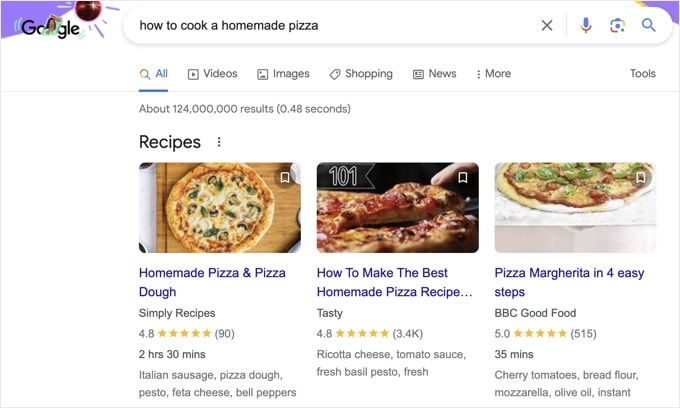
Here’s why this matters for your website. Rich results with recipe schema stand out significantly more than standard search listings.
When people can see your recipe’s rating, cooking time, and ingredients right in the search results, they’re much more likely to click through to your site because they already know the content matches what they’re looking for.
Recipe schema also helps your content compete for Google’s recipe carousel feature, where multiple recipes appear side-by-side for popular search terms like ‘easy dinner recipes’ or ‘chocolate chip cookies’. Getting featured in these carousels can drive significant traffic.
The best part? You don’t need to be a developer to add recipe schema to your WordPress site. We’ve tested multiple methods over the years, and we’ll show you the easiest approach that takes just a few minutes to set up.
That being said, let’s look at how you can easily add recipe schema in WordPress.
Adding SEO-Friendly Recipes With Schema in WordPress
The easiest way to add recipe schema markup in WordPress is by using the All in One SEO (AIOSEO) plugin for WordPress.
It’s the best WordPress SEO plugin on the market that helps you optimize your website for search engines without needing to hire an SEO expert.
Note: You will need the AIOSEO Pro version as it includes the Schema Generator feature, which allows you to add any type of schema markup to your content. Plus, there are other powerful features like sitemaps, redirection manager, and more. There is also a free version of AIOSEO that you can try.
First, you will need to install and activate the AIOSEO plugin on your site. If you need help, then just follow our tutorial on how to install a WordPress plugin.
Upon activation, the plugin will automatically launch its setup wizard. You can go ahead and click the ‘Let’s Get Started’ button to set up the plugin on your website.

For more details, you can read our guide on how to set up All in One SEO for WordPress.
Next, head to AIOSEO » Search Appearance in your WordPress dashboard. Then click the ‘Content Types’ tab. This is where you tell AIOSEO what type of content you want to mark up.
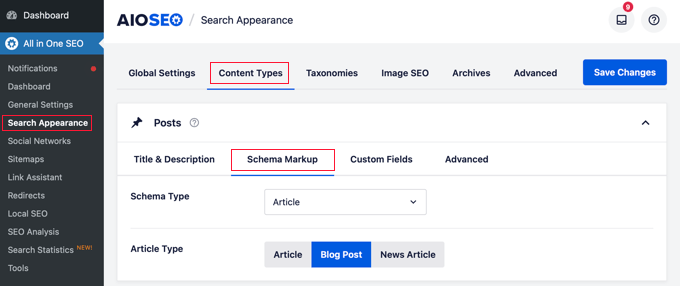
Under the Content Types section, you can edit the schema markup for posts, pages, products, groups, memberships, and all other types of content on your WordPress blog.
Under ‘Content Types’, select the ‘Schema Markup’ tab for Posts. From the Schema Type dropdown, choose ‘Recipe’. We found this step makes it clear which content will get the structured data treatment.
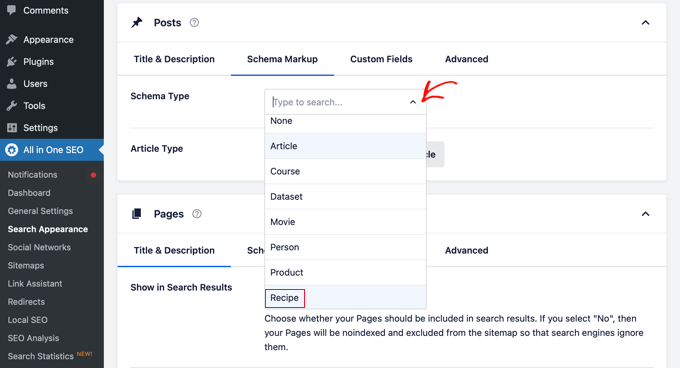
You can do the same for pages, products, custom post types, and all other content types.
After selecting ‘Recipe’ as the schema type, don’t forget to save your changes. You can do this by clicking the blue ‘Save Changes’ button at the top right of the page.
Adding Schema Recipe Information to Posts & Pages
The next step is to add your recipe information to each WordPress post or page that you want to display in the featured snippets.
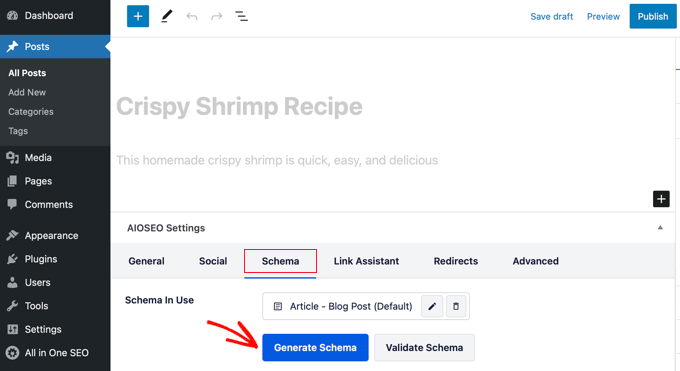
Start by editing a post or creating a new one. In the WordPress editor, scroll down to the ‘AIOSEO Settings’ box, click on the ‘Schema’ tab, and then hit ‘Generate Schema’. I found this step a little hidden at first, but once you know where to look, it’s straightforward.
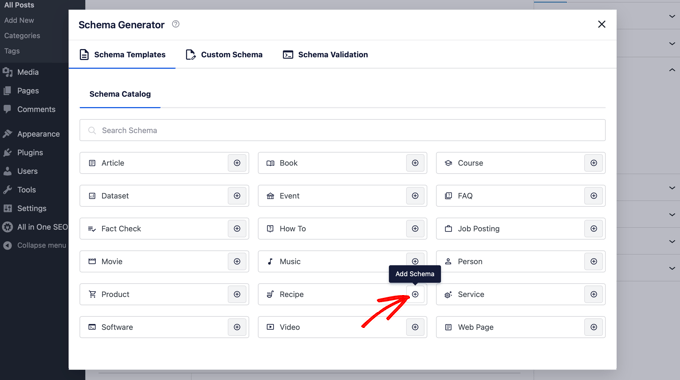
A popup called the Schema Catalog will appear. Here, you choose the type of schema to add. For recipes, it’s as simple as clicking the ‘Recipe’ option.
Go ahead and click the ‘Add Schema’ button next to the ‘Recipe’ option.
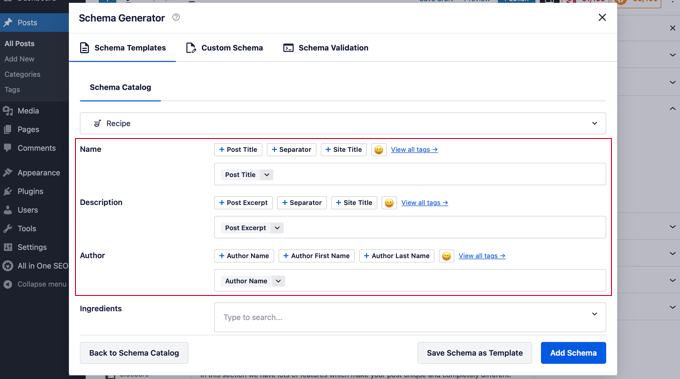
Next, a modal opens where you can enter the details of your recipe. This is where you tell Google what your recipe is all about—everything from the name to cooking time and ingredients.
I usually start with the basics: the dish name, a short description, and the author. These show up in search results and give readers a quick snapshot of what to expect.
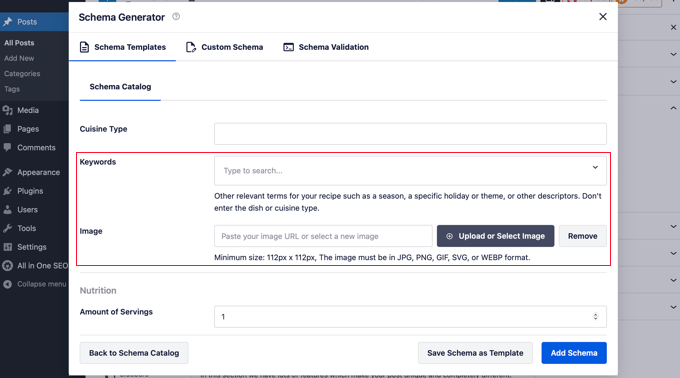
Scrolling down, you can add keywords that match the search terms people might use. For example, I like including seasonal terms or holiday mentions. It’s helped a few recipes get noticed during busy times of the year.
For example, you might include a season or specific holiday and the image that will be displayed in search results.
Beyond keywords, AIOSEO gives you fields for extra details—like dish type, cuisine, cooking time, servings, ingredients, calories, and instructions. In our experience, filling these out improves how your recipes appear for different search queries.
You can enter details about the dish type, cuisine type, time required, number of servings, ingredients, calories, instructions, star ratings, and much more.
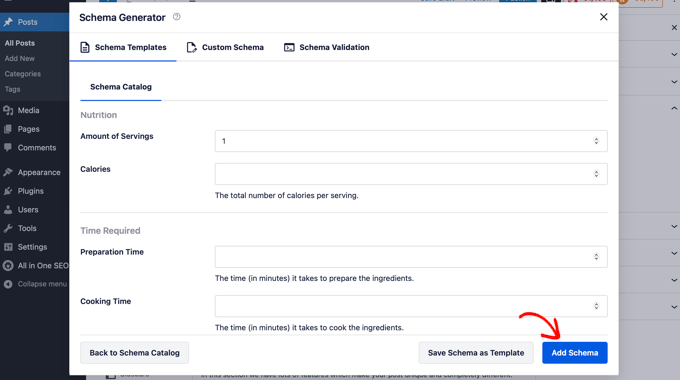
After adding all your recipe info, click ‘Add Schema’. We’ve found that double-checking each field before saving prevents mistakes and ensures Google sees the right details.
Now you can publish the post. Even though nothing changes visually on your site, AIOSEO adds the schema in the background so search engines can read it.
Remember, your visitors won’t notice anything different on the front end. But behind the scenes, search engines now have all the structured data they need to show your recipe in rich results and featured snippets.
To learn more, see our detailed AIOSEO review.
Optimizing Your Recipes in WordPress
Once your recipe schema is in place, the next step is to optimize your posts for even more search traffic. I usually start with our blog post SEO checklist. It’s a simple guide that helps make sure your content is discoverable by the right audience.
In our experience, pairing AIOSEO with a recipe-specific plugin makes life easier. I personally like WP Tasty Recipes. It adds beautiful recipe cards and extra features that AIOSEO alone doesn’t cover.
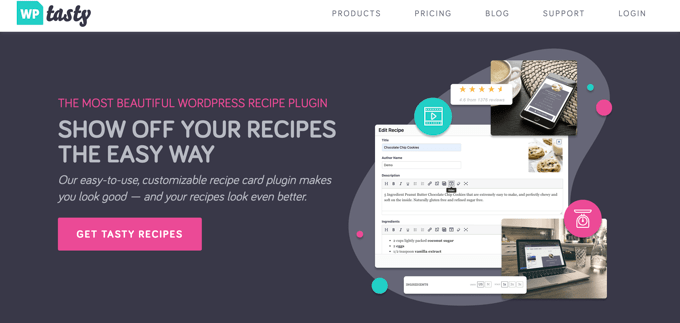
WP Tasty Recipes is one of the best recipe plugins for food bloggers. It lets you easily create customizable recipe cards to make your recipe posts look amazing.
One thing I appreciate is the variety of options. WP Tasty Recipes includes six recipe card themes, ingredient checkboxes, video integrations, custom share buttons, and handy ‘jump to recipe’ shortcuts. I’ve found these features make recipes much easier for readers to follow.

For step-by-step instructions, you can follow our tutorial on how to make recipe cards in WordPress. You can also check out our complete WP Tasty review for more information.
Another tool I like to use is Nutrifox. It generates nutrition facts labels that appear right under your recipes.
I’ve noticed that including this info not only helps readers make informed choices but can also boost engagement, because people often share recipes that feel complete and trustworthy.
To learn more, see our guide on how to make nutrition facts labels in WordPress.
Frequently Asked Questions About Recipe Schema in WordPress
Adding recipe schema markup can seem technical at first, but it’s one of the easiest ways to make your food blog stand out in Google search. Here are some common questions food bloggers have about using schema to boost their recipe posts.
1. What is recipe schema and why should I use it?
Recipe schema is structured data you add to your WordPress site to help search engines understand your content. It allows Google to display rich snippets with ratings, cooking times, calories, and ingredients, making your recipes more visible and clickable in search results.
2. How do I add recipe schema to WordPress?
The easiest way is by using a plugin like All in One SEO (AIOSEO).
After installing the plugin, you can select ‘Recipe’ as the schema type for your posts or pages and fill out the recipe details, no coding required.
3. Can I use recipe schema without a plugin?
Yes, you can manually add structured data to your WordPress HTML, but it requires technical knowledge of JSON-LD or microdata. Using a plugin is faster, reduces errors, and makes managing schema across multiple posts much easier.
4. Will recipe schema improve my Google rankings?
While schema itself doesn’t directly boost rankings, it makes your search listings more attractive through rich snippets and featured snippets. This usually leads to higher click-through rates, more traffic, and better engagement, all of which can indirectly help your SEO.
5. Do I need to add nutrition facts to my recipe schema?
Adding nutrition information is optional but recommended. Google may display calorie counts and nutrition details in rich snippets, which can improve click-throughs and provide additional value to your readers.
6. Should I use a recipe card plugin along with schema markup?
Yes. Plugins like WP Tasty Recipes and Nutrifox make it easy to create visually appealing recipe cards and nutrition labels. These plugins work well alongside schema markup, helping your recipes look great and attract more clicks from search results.
Additional Resources on Schema Markup
We hope that this article helped you learn how to add SEO-friendly recipes with schema in WordPress. You may also want to see some other posts related to improving your SEO with schema markup:
- How to Add Schema Markup in WordPress and WooCommerce
- Beginner’s Guide: How to Use Rich Snippets in WordPress
- How to Get a Google Featured Snippet with Your WordPress Site
- What Is Google Knowledge Panel + How to Claim It With WordPress?
- How to Add FAQ Schema in WordPress
- How to Properly Add SEO-Friendly ‘How to’ Schema in WordPress
- How to Add Multiple Locations Schema for Local Business in WordPress
- Best Schema Markup Plugins for WordPress
If you liked this article, then please subscribe to our YouTube Channel for WordPress video tutorials. You can also find us on Twitter and Facebook.


Jiří Vaněk
I love AIO SEO and their schema markup. It’s a really powerful feature that has often turned my articles into some of the highest-rated ones in Google’s SERPs. Since then, I’ve been filling out markup everywhere, including on recipes in the personal section of my blog. It’s clearly visible and, most importantly, it works.
Jenn
We’re looking for an alternative to EasyRecipe because it’s no longer working, since we updated to the latest version of WP 4.6.1. I’ve heard rumblings that the developer quit supporting EasyRecipe. Any suggestions on an alternative?
Yemek Tarifleri
thanks. it is very useful for me.
Mattia
Hi, thanks. Do you also know some professional (pay) plugin, apart from this one? I find all the alerts and the structure of this plugin not very clean… And sometimes a bit annoying!
Editorial Staff
Recipress is another one.
Admin
Deepali Jain
Thanks Syed. I use your tuts quite a lot. I find them much easier to follow and understand than others. I use ziplist recipe plugin. Test tool shows rich snippets for recipes which I am entering with ziplist.
This takes care of new recipes. how to add rich snippets or make old recipes SEO friendly? I’ve roughly 90 old recipe posts which I would like to update. All help will be appreciated.
Editorial Staff
Go back and edit each old recipe one by one.
Admin
Chrissy
Thanks for this post. Working on my recipe blog and this will come in handy! You guys are awesome thank you !
Randall
Nice tut, thanks.
Noah
I usually post them directly in my wordpress text editor! Thanks a lot for this tutorial, I’ll sure use it.