


Creating multi-column layouts used to require HTML knowledge or a developer’s help, but not anymore. ✨
Through our testing of WordPress’s content editing features, we’ve found a user-friendly way to split your content into columns without touching any code.
These layouts can make your posts easier to read and more visually appealing, especially when you’re comparing features, listing pros and cons, or organizing large chunks of text.
In this guide, we’ll share the simplest methods we’ve discovered for adding multi-column content to your WordPress posts.
💡Quick Answer: How to Add Multi-Column Content in WordPress
Here is a quick overview of the methods we will cover for adding columns to your WordPress posts and pages.
- Using the Block Editor: The simplest method is to use the built-in ‘Columns’ block to create layouts without any plugins.
- Using the Classic Editor: For users still on the older editor, we will show you how to use the Column Shortcodes plugin to add a grid layout.
Why Add Multi-Column Content in WordPress?
The main reason to add multi-column content is to make your posts more scannable and visually organized, which helps keep readers engaged.
While single-column layouts are common online, grid layouts are a powerful tool for improving user experience. Here are the key benefits of using a multi-column layout in WordPress:
- Improves Readability: Just like newspapers and magazines, columns break up long lines of text, making your content easier for visitors to read and scan quickly.
- Better Organization: They are perfect for organizing information side-by-side. This is ideal for product comparisons, pros and cons lists, or showing images next to text descriptions.
- Highlights Key Information: You can use a column layout to draw a reader’s attention to the most important parts of your article.
- Boosts Engagement: By making your content easier to digest, you create a better user experience. This can encourage visitors to spend more time on your site.
That said, let’s see how you can add multi-column content in the block and classic editor. You can simply click the links below to jump ahead to the method you want to use:
Adding Multi-Column Content in WordPress Block Editor – The Easy Way
Creating multi-column content, also known as grid column content in WordPress, is now easy because it is a default feature. The WordPress block editor includes a Columns block.
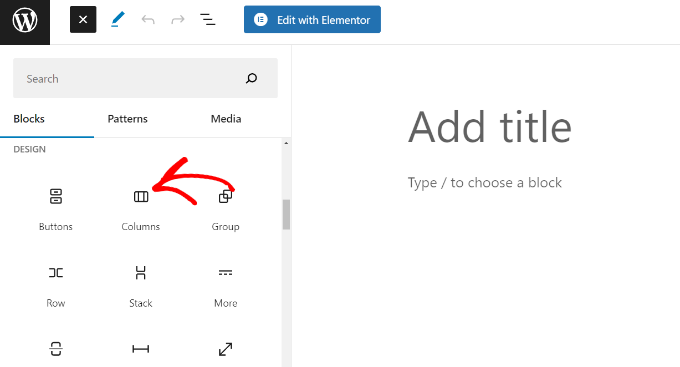
To add a multi-column layout, you need to create a new post or edit an existing one. Once you are in the content editor, click on the ‘+’ icon at the top to add a block.
Next, you need to select the Columns block in the ‘Design’ tab.
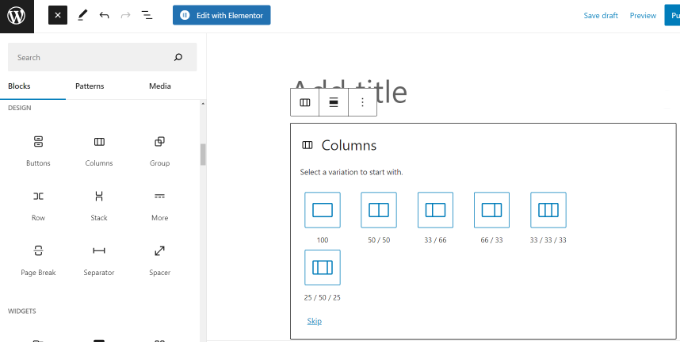
Next, you will need to select the number of columns and layouts you would like to use for your blog post.
WordPress will show you different options to choose from. For example, you can pick a 50/50 column layout, use a 33/66 layout, and more.
After choosing a layout, you can add blocks to your columns. The Columns block allows you to add blocks inside each column.
For example, you can select the Paragraph block and add content to it.
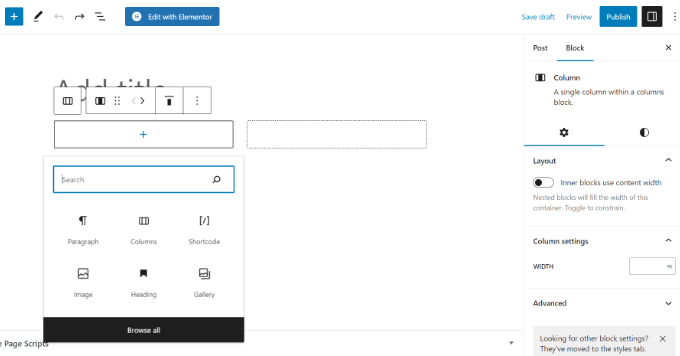
You will also be able to see the block settings in the right column of the post-edit screen in the settings panel. Here, you can edit the width of the columns.
In addition to the text, you can also add images and embed videos in WordPress columns.
Simply take the mouse to one of the columns and click the ‘+’ button to add a block. You can also add a block by typing ‘/’ and then the block name.
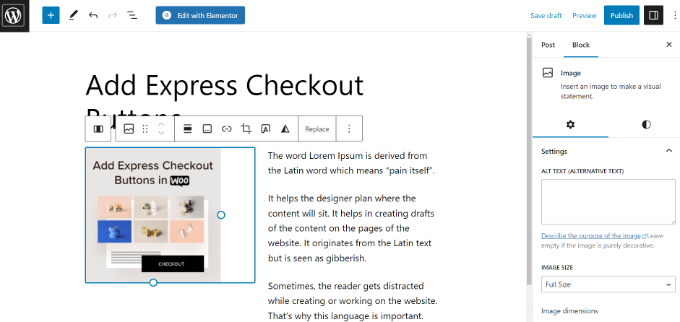
For example, we added an image in one column and some text in the other column.
Adding Multiple Columns in Old WordPress Classic Editor
If you haven’t upgraded your WordPress to Gutenberg and are still using the Classic Editor, then you will need to install a separate plugin for creating a grid column layout.
First, install and activate the Column Shortcodes plugin. For detailed instructions, follow our step-by-step guide on how to install a plugin in WordPress.
📌 Disclaimer: Keep in mind that the plugin hasn’t been tested with the latest version of WordPress. However, when we tested it on our demo website, it worked fine. If you are still unsure, then see our beginner’s guide on the use of outdated plugins.
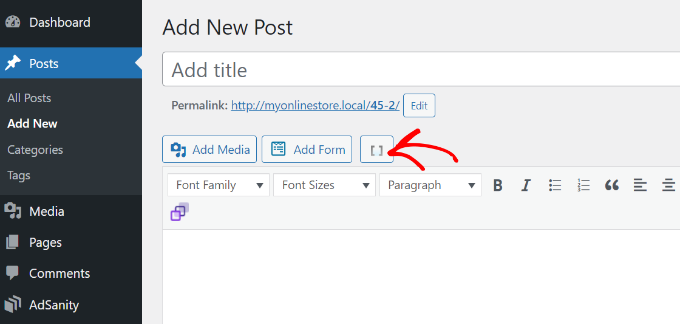
Upon activation, you can create a new post or edit an old one. Once you are in the classic editor, simply click on the ‘[ ]’ button in the toolbar.
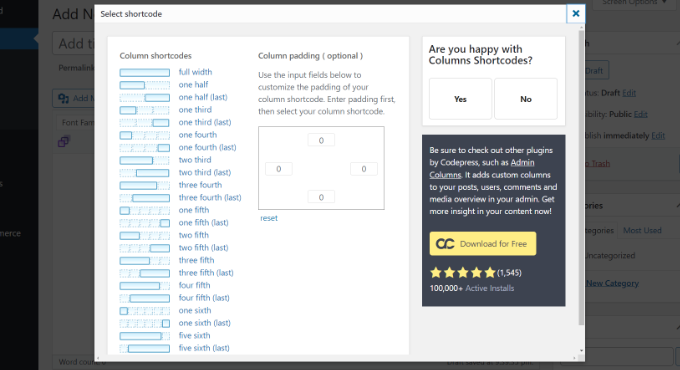
The plugin will now show you a list of column shortcodes for your blog post.
You can choose any layout you would like to add to your WordPress blog. There are also options to edit the column padding.
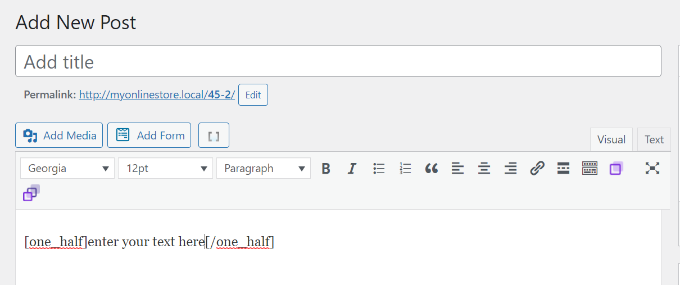
Once you have selected a shortcode, it will automatically appear in the classic editor. For instance, we picked the ‘one half’ shortcode for this tutorial.
You can then enter your content between the shortcodes.
Next, you can click the shortcode icon ‘[ ]’ again to add another column shortcode.
Let’s add the ‘one half (last)’ shortcode to show two columns next to each other. From here, you just need to add your content to the other column.
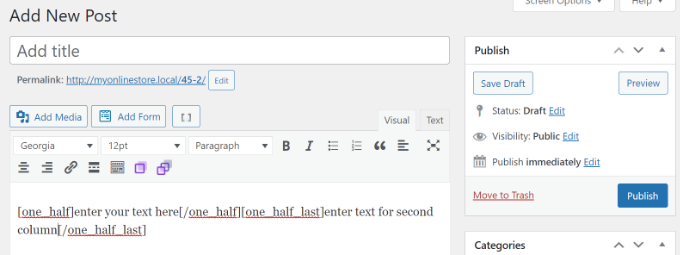
After that, you can preview your post and publish it.
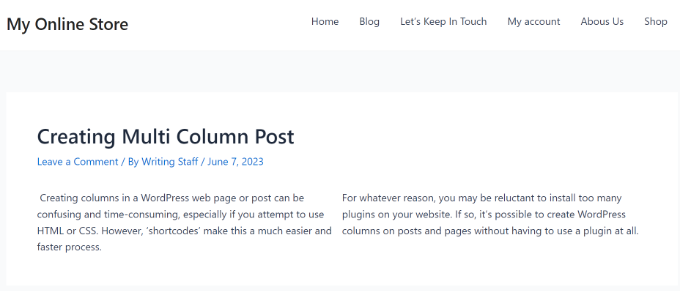
Here’s how it looked on our test site.
Frequently Asked Questions About Adding Multi-Column Content in WordPress
Here are some questions that our readers have frequently asked about adding multi-column content on their websites:
How do WordPress columns look on mobile devices?
WordPress automatically handles this for you. On smaller screens like mobile phones, the columns will stack vertically on top of one another.
This responsive design ensures your content is always readable and user-friendly, regardless of the device.
Can I adjust the width of individual WordPress column block?
Yes. To adjust the width, click to select an individual Column block (not the parent ‘Columns’ container). In the block settings sidebar on the right, you can specify a width value.
You can use percentages (%), pixels (px), and other web units for precise control.
What if I need more advanced layout options?
The default Columns block is excellent for most simple layouts. However, if you need more advanced control over spacing, alignment, responsive settings, or want to create more complex grid designs, then a page builder plugin is the best solution.
We recommend using a tool like SeedProd for complete drag-and-drop design freedom.
We hope this article helped you learn how to add multi-column content in WordPress posts and pages. You may also want to see our simple guide on how to add a blog post checklist in the WordPress editor and our tutorial on how to add content templates in WordPress.
If you liked this article, then please subscribe to our YouTube Channel for WordPress video tutorials. You can also find us on Twitter and Facebook.



Jiří Vaněk
Great, finally I know how to do it in Gutenberg as well. That’s actually why I switched to Elementor because I found Gutenberg not very intuitive. Maybe I was just too lazy to learn it. However, in Elementor, I understood and found this feature right away. Now I know how to handle Gutenberg too :). Thanks!
Ralph
Thank you! It was really simple with your guide. Using 3 columns will definitely make some of my content look better than boring wall of text.
WPBeginner Support
Glad our guide could help!
Admin
Nishant Kumar
Really very useful. I am not aware of how to add a column section in the WordPress blog. Now I got it.
WPBeginner Support
Glad our guide could help
Admin
Matt
Hi there – thanks for this post really helpful post. One quick question – is the text auto assigned to each of the (two) columns to ensure the columns are the same height on the page, or is this something you have to test/manage on text entry?
WPBeginner Support
You would need to manually ensure your content is the same or similar length if you wanted that.
Admin
Sir Newton
Please, how can I make my ecommerce website to display two column product view on mobile.
Thanks
WPBeginner Support
You would want to check with the support for your theme or the ecommerce plugin you are using for modifying the styling of your store page.
Admin
Stuart
Hi – I need 11 columns. Is there a way of exceeding what I figure to the max (10)?
WPBeginner Support
We do not have a recommended method for going 11 columns wide at the moment. Depending on what you’re looking to display you may want to take a look at creating a table instead of columns.
Admin
Caite Adamek
Is there a way to automatically transfer the columns? When I set up my 2 columns, I put the images in the 1st column, then the text in the 2nd. I noticed that the mobile version can’t display the 2 columns next to each other, so the images are displayed first, then the text. I would like the text to be displayed first, then the images. Do I have to retype it all, or is there a clever way to switch the content of the 2 columns?
WPBeginner Support
Not at the moment, you could create a 2 column area beneath where you have it currently and place the content how you want it there then delete the original.
Admin
Kimberly Kelley
Using the multi-column (2) columns, the videos overlap themselves. is there anyway to adjust the max with of the videos since the only way I can seem to add them is via url, not embed code.
WPBeginner Support
You may want to check if the videos overlap on the when not viewing in the editor, otherwise, you could look in the advanced CSS section and set the width using that selector: https://www.wpbeginner.com/glossary/css/
Admin
Nicole
Any way to vertically center things in a column with new blocks/Gutenberg editor? Like I’d want a vertically centered image on the left, and text on the right. So say 30 lines of text and a 200 px height image – is there an easier way than manually inserting and sizing spacer blocks?
WPBeginner Support
For what it sounds like you’re wanting, you may want to use the media and text block rather than the columns block.
Admin
Rob Tait
Hi
How do I write in 1 column and then 2 columns for next paragraph and then back to 1 column for the 3rd p/graph?
Any help much appreciated?
Thanks
Rob
Ashish
Why can’t we just elementor or any such page builder plugin. It is a lot more easier to use with so many additional features.
dimiter kirov
This plugin has not been updated for 3 years and to top it all it won’t work with Gutenberg plugin
Jenny
Hello,
I tried adding columns to one of my pages and the Advanced Column button did not appear. I checked my plugins and it said it’s installed. Do you know what the problem would be?
Thank you!
Jenny
Rob Tait
You need to install an advanced visual editor such as TIny MCE in order to see the button. It won’t display on the standard default visual editor. Just had the same problem but it now shows after installing the above which is free.
Hope that helps
Rob
Dennis
Great. Just what I was looking for and finally, someone who can explain everything step by step.
Heather
I installed the plugin and activated it. It is displaying as “activated.” Still, there is no button. How do I troubleshoot this; I already know how to install a plugin so that fix is not applicable.
Kirk
Installed the plugin with a basic free theme, and the column button never appeared in my Pages editor. I know you’re not the creator of the plugin, just wanted to share our experience
om zho
upon pasting from text edit, the text spacing is weird as there are no “clean format” selection for advance WP column.. how can you fix it?
Martine S.
Hey, this sounds great! But how will it look on phones? I’m using a similar plugin to have two columns, one for Norwegian and one for English. But when people read my blog via phone, the second column comes right after the first column so it looks like a full text – in two different languages!
Joe Nelo
What plug in are you using to display two columns of text? I am trying to do the same for English and Esperanto.
Elizabeth
How do you activate the puglin??
WPBeginner Support
Hey Elizabeth,
Please see see our step by step guide on how to install a WordPress plugin.
Admin
PB
Is there a way to ensure the text in these columns displays as a list, i.e. with hard line breaks between items rather than as a single block of run-on text?
Many thanks in anticipation of your advice
Steve Elliott
Is there a way to five these columns a background color?
Bhagyashree barlingay
I cannot copy/paste material that I have already typed , into these columns.
Naveed
i am using wordpress version 4.5 , but this plugin is not compatible with my theme can i use this plugin for my theme ??
ik
Can you add images to each column? Or can you add action buttons to each column?
WPBeginner Support
Yes.
Admin
Kate
Columns working but when trying to embed VIDEO within columns only text of the code is showing…
Daniel Speraw
It looks good when columns are added to the post, but when I look at it published it has reverted to 1 centered column. I’ve tried it multiple times and in two browsers. Any thoughts?
This is by far the easiest plugin. I REALLY want to use it.
Many thanks,
Daniel
Meshellklip
Can you add images to each column? Or can you add action buttons to each column?
Sri Harsha Chilakapati
Hi,
My site uses the responsive Customizr theme, and I don’t wanna lose that responsiveness. Can I add responsive columns using this plugin?
Chris Xphstos
Ηι!
Is there a way to present a layout with columns but not one post with 2-3-4 columns etc.?
Each column withing a page will be a seperated post. Something like Joomla’s Blog Layout…
WPBeginner Support
For that you would want to look into a multi column WordPress theme, there are plenty of such themes out there.
Admin
Karen
Thank you! I’ve been wanting to learn how to do this for a while now – all good now! xx
Debra Torres
This is exactly what I needed! Been trying to use tables for columns and getting so frustrated. Thank you, thank you, thank you!
Mark Corder
I must say – if you need to use multiple columns on a regular basis, this looks like a great solution even if you DO know HTML/CSS! Love the fact that they included a breakpoint in the Options for adapting to responsive designs…