


Do you want to keep visitors on your website longer and increase your pageviews?
Getting users to read more than one article is a challenge for every blogger. While many sites place related posts at the bottom of the page, I’ve learned that many readers don’t scroll that far.
That is why inline related posts are so effective. By showing relevant articles right in the middle of your content, you can catch readers exactly when they are most interested. This simple change helped me significantly increase engagement on my website.
In this article, I will show you how to easily add inline related posts in WordPress blog posts.
Why Add Inline Related Posts in WordPress?
Adding inline related posts in WordPress helps keep readers engaged by showing them relevant content exactly when they’re most interested.
Instead of waiting until someone finishes your article and scrolls to the footer, inline posts appear right in the middle of your content where readers are already paying attention.
Here’s why inline related posts work so well:
- Higher engagement rates – Placing related posts within your content catches readers when they’re actively engaged, leading to more clicks than footer or sidebar placements that readers often ignore.
- Lower bounce rates – When readers see relevant content suggestions mid-article, they’re more likely to explore your site instead of leaving after finishing one post.
- Better content discovery – Inline posts help readers find helpful articles they might otherwise miss, especially evergreen content buried in your archives.
- Improved SEO through interlinking – Each inline related post creates an internal link that helps search engines understand your site structure and discover more of your content, which can boost your rankings.
- More page views per visit – Each inline related post creates another opportunity for readers to dive deeper into your content, increasing the total pages they view.
Major news sites like Mashable have been using inline related posts for years because they work. They style these links to stand out without distracting readers, making them feel like a natural part of the article.
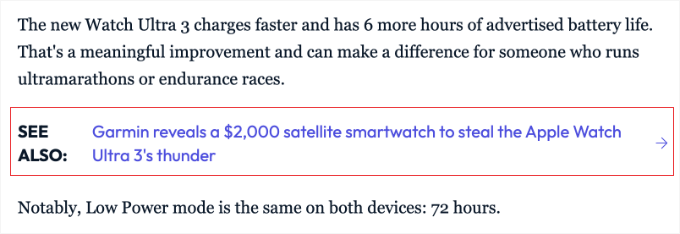
Inline related posts differ from traditional footer or sidebar placements because they appear at strategic points in your article. Footer placements only work if readers scroll all the way down, and sidebar placements often get ignored on mobile devices, where most people browse today.
Related: For more details on different ways to display related content, see my guide on how to display related posts in WordPress.
Using the Inline Related Posts Plugin
Now that you understand why inline related posts are valuable, let me walk you through setting up a related posts plugin on your WordPress site. The process is straightforward, and you’ll have related posts appearing in your content within minutes.
This plugin also automatically detects line breaks to integrate related content smoothly, so it feels natural rather than intrusive.
Step 1: Install and Activate the Plugin
First, you’ll need to install and activate the Inline Related Posts plugin. For detailed instructions, see our beginner’s guide on how to install a WordPress plugin.
Once the plugin is activated, you’re ready to configure how and where your inline related posts will appear.
Step 2: Configure Inline Related Posts
After activation, navigate to Settings » Inline Related Posts in your WordPress dashboard.
The first time you visit this page, you may see a welcome screen introducing the plugin. You can simply skip the upgrade options to continue using the free version for this tutorial.

Next, you need to check the ‘Active’ box in the plugin settings.
This master switch enables the feature, allowing your related posts to start appearing on your site once you save your changes.
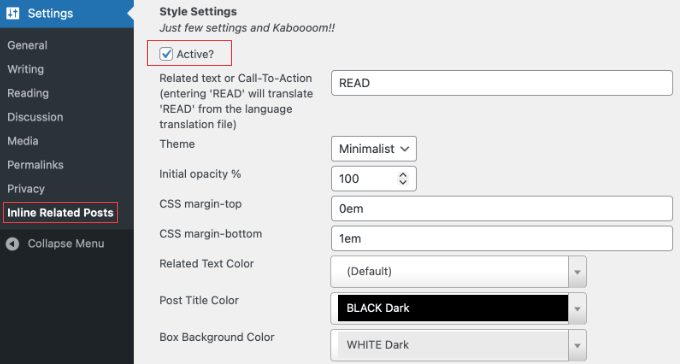
Now the page will show the plugin settings, divided into different sections: Style Settings, Plugin Settings, and Engine Settings.
Style Settings
First, you will see the Style Settings heading at the top.
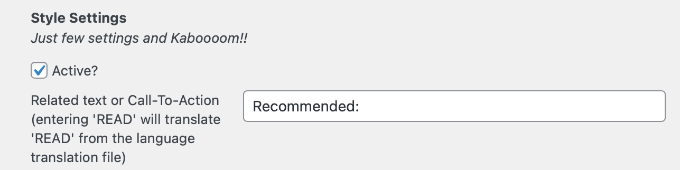
In this section, you can change the related text. This is the call-to-action text that appears before the link.
By default, this is set to ‘READ’, but I prefer changing it to something more inviting, like “Recommended:” or “Read Also:”.
Next, you can choose a theme from the dropdown menu. The plugin offers several styles, and with the free plugin, you can choose ‘Minimalist’ or ‘Shock’.
One feature I really like is the real-time preview displayed right below the settings. Whenever you change a color or theme, you can see exactly how it will look before you save your changes.
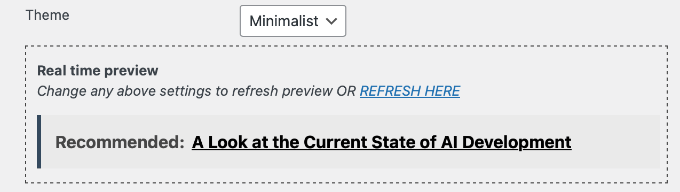
For example, this is what the Minimalist theme looks like.
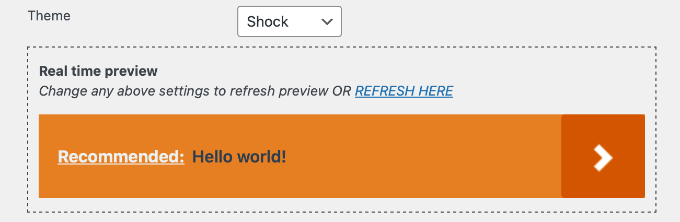
However, you may prefer your related posts to stand out more.
In that case, you can try the Shock theme.
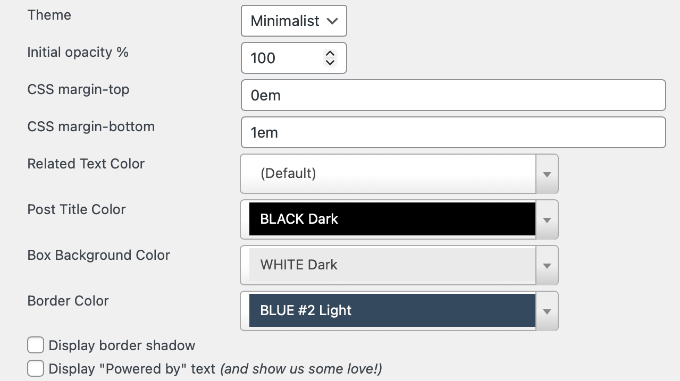
You can use the other settings in this section to customize your theme.
For example, you can change the opacity, margins, and colors used when displaying related posts.
Plugin Settings
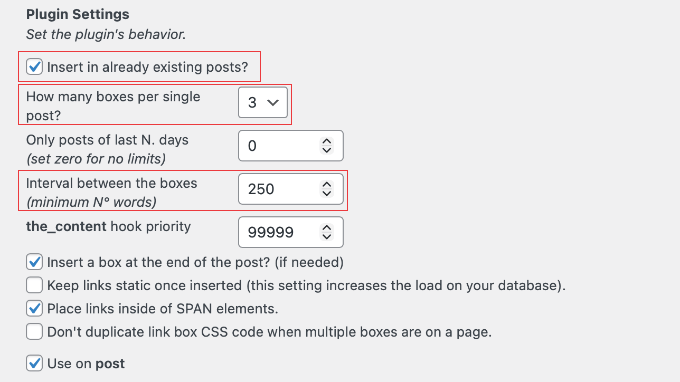
Next, scroll down to the Plugin Settings section. This controls where and how often the links appear.
Here are the settings I recommend for the best results:
- Insert in already existing posts? Check this box to have the plugin automatically apply to your old blog posts.
- How many boxes per single post? I recommend setting this to 3. This provides enough opportunities for clicks without annoying your readers.
- Interval between the boxes: This determines how many words appear between each related post. I find that a gap of 250 or 300 words works best to keep the content readable.
Engine Settings & Metabox Integration
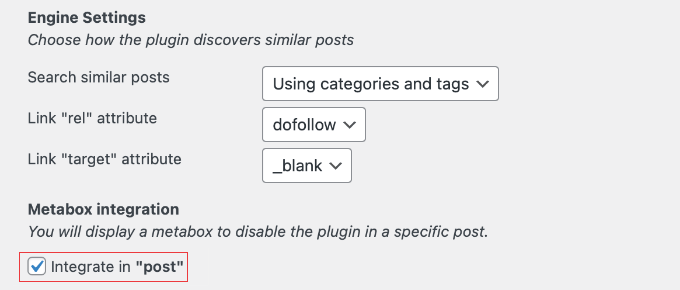
Under Engine Settings, the default ‘Search similar posts’ setting usually works fine. It uses categories and tags to find relevant content.
Finally, look at the Metabox integration section at the bottom. Make sure the box for ‘Integrate in post’ is checked. This adds a small setting to your post editor that allows you to manually turn off related posts for specific articles (like sales pages).
Step 4: Save Changes and Test
After customizing your settings, click the ‘Save’ button at the bottom of the page.
Now, you can visit a post on your WordPress blog to see your inline related posts in action. I recommend checking on both your computer and your mobile phone to ensure the links appear in natural places and look good on smaller screens.

If you notice that inline related posts aren’t appearing where you expected, go back to your settings and reduce the ‘interval between the boxes’ setting.
Sometimes, if this number is too high (perhaps 300 words or more) and your post is short, the plugin won’t find enough space to insert the link.
Disabling Inline Related Posts on Specific Posts
While inline related posts work great for most content, there are times when you might want to turn them off for specific posts. The Inline Related Posts plugin makes this easy with a simple per-post control.
To use this feature, make sure you have checked the box in the ‘Metabox integration’ section of the plugin settings. Then, when editing a post, you can scroll down to find the Inline Related Posts metabox in the right-hand column.
Inside this metabox, you’ll see an option to disable inline related posts for that particular post. Simply check the box, and inline related posts won’t appear when readers view that article.

This feature is especially useful for:
- Sales or Landing Pages: Where you want readers focused on a specific call to action (Buy Now) rather than reading other articles.
- Short Posts: If an article is very short, inline links can make it look cluttered.
- Strategic Content: Posts where you have already manually added specific internal links and don’t want automated suggestions to interfere.
The per-post control gives you flexibility without having to completely disable the plugin. You can keep inline related posts active across your site while making exceptions for specific content.
Remember to update or republish your post after changing this setting. The changes won’t take effect until you save the post.
Frequently Asked Questions About Inline Related Posts
Here are answers to some of the most frequently asked questions from our users about internal linking and displaying related content in WordPress.
1. Do inline related posts help with SEO?
Yes, inline related posts are excellent for SEO (Search Engine Optimization).
They create a stronger internal linking structure, which helps search engine bots crawl your site more effectively. Additionally, they often keep visitors on your website longer. This increases user engagement and reduces bounce rates, which are positive signals to search engines.
2. How does the Inline Related Posts plugin determine which posts to display?
The Inline Related Posts plugin determines which articles to display by analyzing the categories and tags of the current post.
It searches your website database for other posts that share the same specific tags or categories and inserts them as links, ensuring the suggestions are relevant to the topic.
3. Are inline related posts better than sidebar widgets?
Generally, inline related posts perform better than sidebar widgets, especially on mobile devices.
On smartphones, sidebar content is usually pushed to the very bottom of the page, where users rarely see it. Inline links appear within the natural reading flow of the article, making them much more likely to be clicked.
4. How many related posts should I include in a single article?
I recommend setting the ‘How many boxes per single post’ option to 3. However, the actual number displayed will depend on your ‘Interval’ setting (such as every 250 words).
This ensures that shorter articles automatically display fewer links to prevent clutter, while longer guides utilize the full maximum of 3 links.
Additional Resources for Related Posts
I hope this article helped you learn how to add inline related posts in WordPress.
If you want to learn more about improving engagement and optimizing your WordPress site, these resources will help you take your content strategy to the next level:
- For a comprehensive guide on improving your site’s visibility, check out our tutorial on how to improve WordPress SEO. This guide covers everything from optimizing your content to setting up the right plugins for better search rankings.
- Speaking of plugins, see our list of must-have WordPress plugins for every website. These essential tools will help you add more functionality, improve security, and create a better experience for your visitors.
- To drive more traffic to your blog and keep readers coming back, read our guide on how to increase your blog traffic with a bunch of proven tips. These strategies work together with inline related posts to build a loyal audience.
- Finally, proper content organization makes it easier for the Inline Related Posts plugin to find relevant connections. Learn how to use categories and tags to organize content in WordPress to improve both user experience and related post accuracy.
These resources complement what you’ve learned in this tutorial and will help you build a more successful WordPress site.
If you liked this article, then please subscribe to our YouTube Channel for WordPress video tutorials. You can also find us on Twitter and Facebook.


Nithya Pravinkumar
Can we choose the article to appear as a related post? Or, it only picks random recent articles? My requirement is to choose them on my own.
WPBeginner Support
You are not currently able to select specific posts but you can limit the posts it is able to select.
Admin
mehdi
how to change title font in Inline Related Posts pro plugin ?
WPBeginner Support
If the plugin does not have the option built-in, you would want to use inspect element to find the CSS for the plugin and modify the font. We have a guide on how to use inspect element here:
https://www.wpbeginner.com/wp-tutorials/basics-of-inspect-element-with-your-wordpress-site/
Admin
LINAS
Thank You. I Searched whole google how to incorporate this in my posts.
WPBeginner Support
Glad our article could help
Admin
Alok Patel
I refreshed my page 3 times yet its font is showing overlapping in a mobile phone. I checked all the settings but I am not able to improve this. please help me out. as soon as possible. thank u for sharing this article.
WPBeginner Support
Hi Alok,
This is probably due to your theme’s CSS. You will need to use custom CSS to fix font overlapping issue.
Admin
Leo Izzo
Thank you very much!
Paul Olyslager
I have integrated the plugin as well. I was just wondering how I would track the clicks on these links through Google Tag Manager. It seems that the class name (used for tracking) is dynamically changed for every separate link. Any idea on how to define the trigger in GTM?
Sumit Kumar
And also how to change no. of links from 1 to 5 of inline related post. Please guide me. I am on beginners stage on wordpress
Sumit Kumar Gogawat
it is showing bottom of the post, how can add this in between post or right after first paragraph of post
Sumit Gogawat
Thank you very much… I was comment on another post on your site for this post and I m surprised you reply very fast. I become your fan.
Thanks
WPBeginner Support
Thanks for the kind words.
Admin
kentot
It can’t appear on mobile device. Bad idea to use it.
WPBeginner Support
It works perfectly on mobile. Please open a support thread on plugin’s website to troubleshoot it.
Admin
Shoutatech
I’m sorry you feel that way. But Syed has a point it does work you can see it live on my website
Thanks for this plugin dear.
sakir
Thank for sharing.
Jeff M
Thanks for the article. I took your advice and installed the plugin on two sites I manage, including my personal resume/portfolio/blog site. I’ll keep track of things using Google Analytics and see if it makes a difference. Easy to install and customize. Always glad to find some new, cool stuff to add to WP. Nothing tested, nothing gained.
Gaurav Khurana
good one, yes they play an important role , but i think we should make them to open the new posts in a new tab
Catherine
Thank for sharing.
Question: do you know how “inline Links” impacts on the article? For example, readers read less and leave for the other page? Or do they read to the end and then leave?
Adeniyi Badmus
I think that depends on how engaging the article is.