


Many websites use a scrolling line of text at the top of the page to call attention to important updates, like sales, announcements, or breaking news.
This feature, often called a news ticker, is an easy way to make sure key messages get seen without taking over your layout or distracting visitors.
We’ve used news tickers on our own WordPress sites to promote limited-time offers and share important updates, and they work especially well when you want to highlight something without redesigning your homepage.
In this guide, we’ll show you how to add a scrolling news ticker to your WordPress site, step by step.

💡Quick Answer: How to Add a News Ticker
The easiest way to add a scrolling news ticker in WordPress is by using the Ditty plugin. Simply install the plugin, add your text items, choose the ‘Ticker’ display type, and paste the generated shortcode into your site header or homepage.
What Is a Scrolling News Ticker?
A news ticker is a single line of text that scrolls continuously across the screen.
It is a great way to display small snippets of information in an eye-catching way. Since the content is always scrolling, you can show a lot of information in a limited space.
Tickers are typically used to display:
- Current news items
- Sports results
- Live financial information
- Weather information
- Free shipping thresholds
- Coupon codes and sales announcements
This is similar to how you might use a sticky floating footer bar.
Let’s look at how to add a scrolling news ticker to your WordPress blog or website.
How to Add a Scrolling News Ticker in WordPress
The easiest way to create a news ticker is by using a plugin. While custom CSS offers some customization, it is not beginner-friendly.
We recommend Ditty (formerly Ditty News Ticker). It is one of the best WordPress news plugins on the market.
With this plugin, you can add moving, scrolling, and sliding content to your website. You can also change the animation’s direction, spacing, speed, and styling.
First, you need to install and activate the plugin. For more details, see our complete guide on how to install a WordPress plugin.
Upon activation, you need to go to Ditty » Add New in the WordPress dashboard. Then click the ‘Add Default’ button.
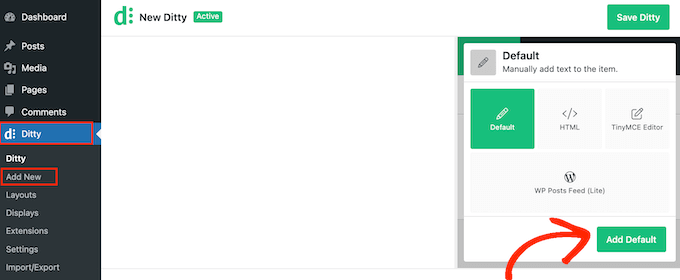
Now, you can create the first item for the ticker. In the ‘Content’ box, type the text you want to show.
You might make an announcement or share useful information. For example, you could let shoppers know about a scheduled sale or recent posts.
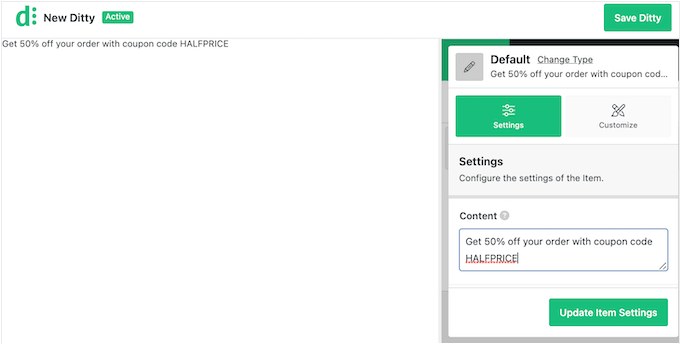
You can also add links to the news item. This lets people easily visit the page or post featured in the ticker.
To do this, add a URL to the ‘Link’ field.
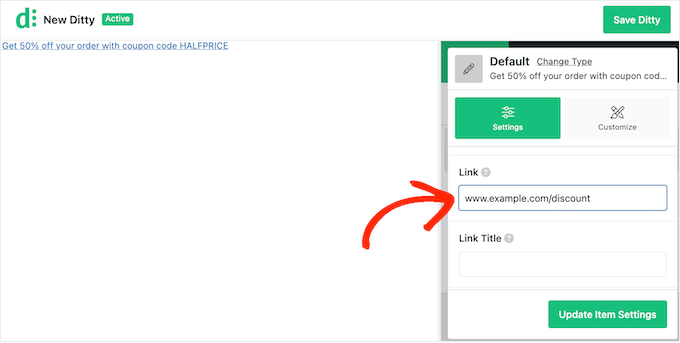
You can also add a link title, mark the URL as nofollow, and more.
To make the most of the ticker, you may want to add multiple news items. Click on the ‘Update Item Settings’ button to save your changes.
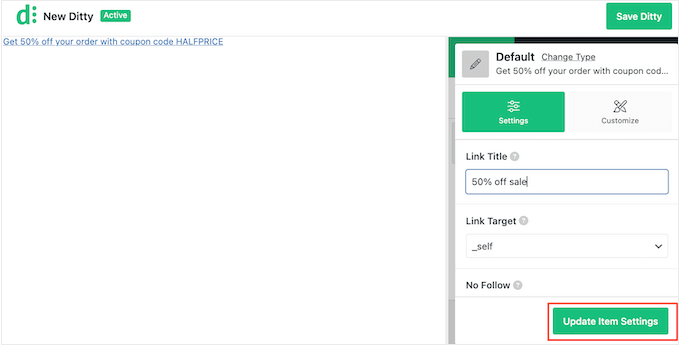
The preview will now update to show the item you just created.
To add another item to the ticker, click on the ‘Add Item’ button.
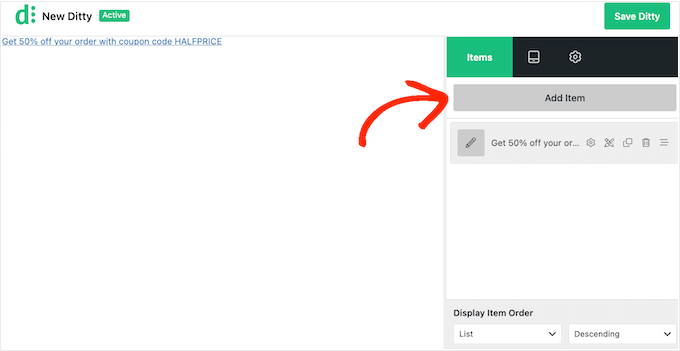
You can then repeat the steps above to add as many news items as you need.
Once you are happy with your items, you may want to rearrange their order. Simply grab the item you want to move and drag it into a new position.
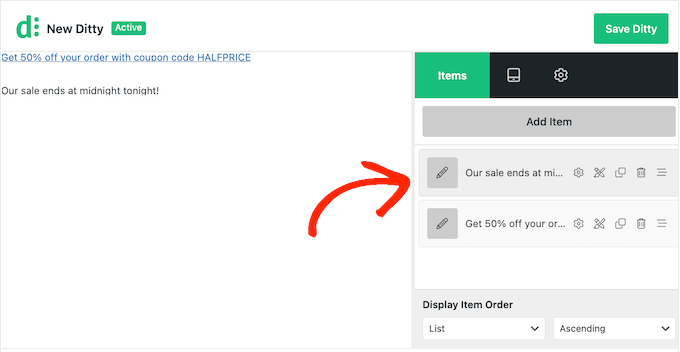
By default, Ditty shows your items in a list.
Since you want to create a scrolling ticker, click on the ‘Display’ tab.
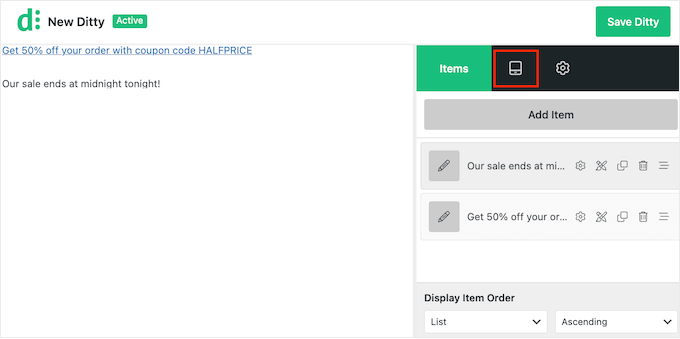
On this screen, click the ‘Change Type’ link.
In the popup that appears, select ‘Ticker’ and then click ‘Update Type’.
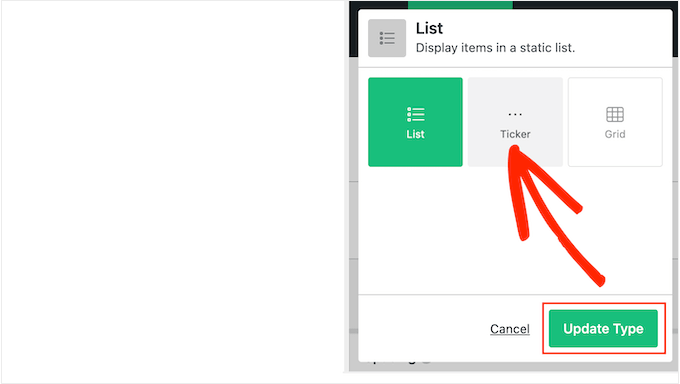
You can now change how the ticker looks and acts on your WordPress website.
This includes changing the scroll direction, speed, and spacing between ticker items.
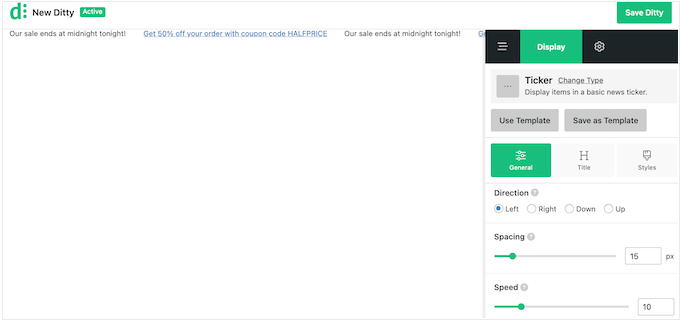
You can also choose between different styles for the ticker container, items, titles, and more. Most of these settings are self-explanatory, so it is worth exploring them to see what changes you want to make.
When you are happy with how the ticker is set up, click on the ‘Save Ditty’ button.
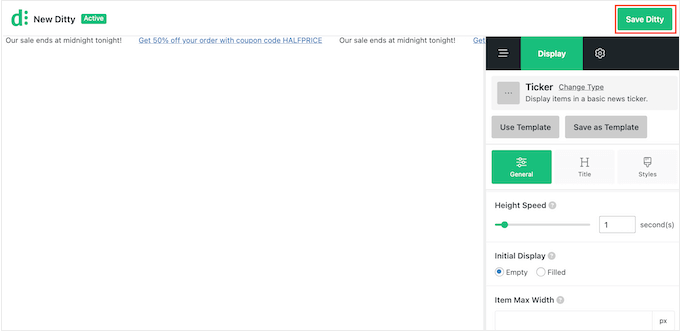
After that, you are ready to add the ticker to your site using a shortcode. To get this shortcode, click on the ‘Settings’ tab.
Now, copy the value in the ‘Shortcode’ field.
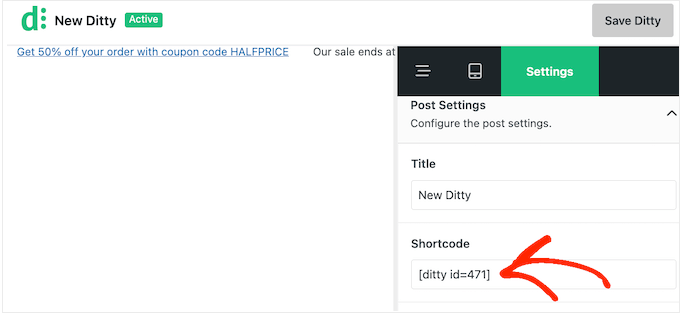
You can add the shortcode to any page, post, or widget-ready area. However, tickers are most effective when placed in the site header or at the top of the homepage.
For more information on how to place the shortcode, please see our guide on how to add a shortcode.
Once you have done that, just update or publish your changes to make the ticker live on your WordPress website.

🎁 Bonus: Add a Sticky Footer Bar for Maximum Impact
A scrolling news ticker helps highlight rotating announcements. However, combining it with a sticky floating footer bar can effectively grab visitors’ attention for different purposes.
The footer bar keeps essential, static information visible. The news ticker ensures timely updates are front and center.
With tools like OptinMonster, you can create attractive footer bars and coordinate them with your news ticker to showcase special offers, urgent news, or popular posts.

Think of the footer as a constant call-to-action, while the news ticker delivers short-term, important updates.
Together, these features improve the user experience and can boost conversion rates by encouraging timely engagement with offers and key content.
To get started, see our tutorial on how to create a sticky floating footer bar in WordPress.
Frequently Asked Questions About Scrolling News Tickers
Here are some questions that our readers have frequently asked about adding scrolling news tickers in WordPress:
How to add scrolling news in WordPress?
The best way to add scrolling news is by using a specialized plugin like Ditty. You can install the plugin, create a new ticker item, and use the generated shortcode to display the news feed on your posts, pages, or sidebar.
How to add scrolling text in WordPress?
You should use a plugin to add scrolling text to ensure it works on mobile devices. We recommend avoiding the old HTML <marquee> tag because it is outdated and may not display correctly in modern web browsers.
How do I add a scroll bar in WordPress?
If you want to add a scrolling bar of text (ticker) to your site, you can use the Ditty plugin as shown in this guide. If you are looking to add a custom scrollbar for navigation or a reading progress bar, you will likely need a different plugin like Worth The Read.
We hope this tutorial helped you learn how to add a scrolling news ticker in WordPress. You may also want to learn how to highlight new posts for returning visitors or see our expert picks of the best WordPress sidebar tricks to get maximum results.
If you liked this article, then please subscribe to our YouTube Channel for WordPress video tutorials. You can also find us on Twitter and Facebook.


Jiří Vaněk
Thank you for this article; it has helped me solve an issue I’ve been dealing with for a year. I have a blog and wanted to add a so-called microblog—a small section on the website where I could post very quick and concise updates about new developments. However, there currently isn’t a specific plugin for microblogging. This method is exactly the way I needed to finally address the microblog issue and add quick, short updates to my site. I’m thrilled to have found a usable solution after a year – fantastic!
kzain
‘ve been wanting to tweak the look of my links and this post made it super easy. The customizer option was perfect for my basic needs, but I’ll definitely keep the CSS method in mind for more advanced changes.
Consider using a color palette tool to ensure your link color contrasts well with the rest of your website’s design.
Lin
I have two websites. Can I add a ticker on one site that will reflect the other site?
WPBeginner Support
While the ticker would not transmit the information to your other site, you can certainly add the same information in the ticker.
Admin
karbhari
How do i add the Latest News: title to the scrolling news, after header in main page it shows on my site.
Anna Sue
Where do you enter the text for your ticker? My install doesn’t show some of the items you have in your screenshots.
Anna Sue
I this may be the ticker I want but, as in many online videos about plugins, you talked and moved so fast I could get the instructions.
H.M.Mohiuddin
how can i add a news ticker without using plugin
plazma
its not dynamic.
felix
How do i add the Latest News: title to the scrolling news, it shows on my site, but i didnt see where to add if its lastest news or latest update etc
hosam abdallah
very good plugin but i have aquestion
i use artisteer to make my themes can you tell me where can i add php function to widget
in this or from where can i add to my themes
Abdulmumin
Hello, Please how can I add the direct function, kindly provide the ste by step instruction in adding the direct funtction.
I added the shortcode in my about page and it worked but i added it on my home page but it didnt work…..kindly advice
WPBeginner Support
Simply copy the Direct function as shown in the last screenshot of the article and paste in your theme’s home.php or header.php. Paste it at the location where you would like your news ticker to appear.
Admin
Sujani
hey,
thanks for giving the instructions clearly.. i had a a question where should we put the shortcode and direct function?
do we place it in the post/page?
Thanks,
Sujani
WPBeginner Support
shortcode for posts/pages/widgets and direct function if you want to hard code it in your theme’s template files.
Admin
Peter Johnson
It seems a great theme, as I am not a PHP developer but I want to use this theme and integrate this theme on my wordpress blog. I just want you to describe ho can I use this theme in my Blog so my latest news can be shown on top of my menu or below my main menu like a slide shown on Television. Please I need a procedure.
Thanks
Mackenzie
Thanks, really nice tut.