


Have you ever noticed how frustrating it is when you have to hunt for the login page on a website? A simple login form in the sidebar can fix that problem on your WordPress website by letting people sign in from anywhere.
For eCommerce stores, it can mean more completed purchases. For online courses, it can help students come back more often. And for any site, it creates a smoother, more engaging experience.
At WPBeginner, we’ve helped many site owners place their login forms in just the right spot. Some themes already include this option, but when they don’t, a plugin like WPForms makes it easy to build your own form and display it wherever you want.
In this tutorial, we’ll walk you through how to add a custom login form to your WordPress sidebar.
💡 Quick Answer: How to Add a Login Form in Your WordPress Sidebar
In a hurry? Here are the 2 easiest ways to add a login form to your WordPress sidebar:
- Default WordPress Login Form (Login/Out Widget): This method uses WordPress’s built-in Login/Out widget to add a login form to your sidebar. It’s best for sites that just need a basic login option without extra customization or features.
- Custom Login Form with WPForms: This method lets you create a fully customizable login form using WPForms and its User Registration addon. It’s ideal if you want a branded login experience, extra fields, or added security features like CAPTCHA.
Why Add a Login Form to Your WordPress Sidebar?
A login form in your sidebar gives users immediate access to their accounts. It simplifies the login process and improves overall usability.
Here are the main benefits of adding a login form to your WordPress sidebar:
- Improved Accessibility: Users can log in instantly from any page on your site, eliminating the need to search for a dedicated login page.
- Increased Engagement: When the login option is easy to find, members, students, or customers are more likely to return and interact with your content, courses, or account features.
- Higher Conversions: For eCommerce or membership websites, making the login process easier can help users access their accounts faster, track orders, continue courses, or complete purchases.
Now, let’s look at how to add a login form to your WordPress sidebar easily. We will show you how to add the default login form to the sidebar and create a custom login form.
You can click the links below to jump ahead to your preferred section:
Method 1: Adding the Default WordPress Login Form in the Sidebar
You can show the default WordPress login form in the sidebar of your website.
This makes it super easy for users to enter their username and password to access their accounts or restricted content on your website. The form also includes convenient options like ‘Remember Me’ and ‘Lost your password?’ links right in the sidebar.
For this tutorial, we will use the Hestia theme. Note that the options may vary depending on the WordPress theme you are using.
To start, you need to go to Appearance » Widgets from your WordPress dashboard.
From here, you can click the ‘+’ button and search for ‘Login/Logout’. Click on the ‘Login/Logout’ block to add it to your sidebar.
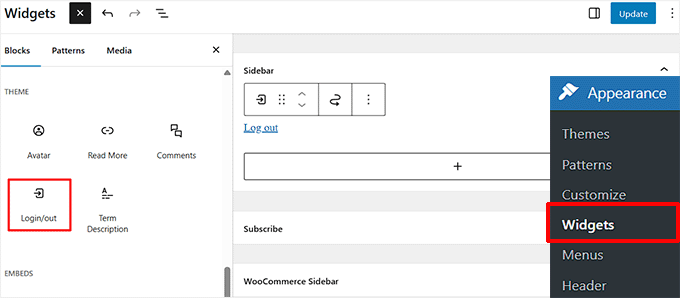
Next, you’ll see the ‘Login/Logout’ block in your widgets area.
In the block settings panel (usually on the right), make sure the ‘Display login as form’ option is checked to display the full login form.
When you’ve made the changes, click the ‘Update’ button at the top.
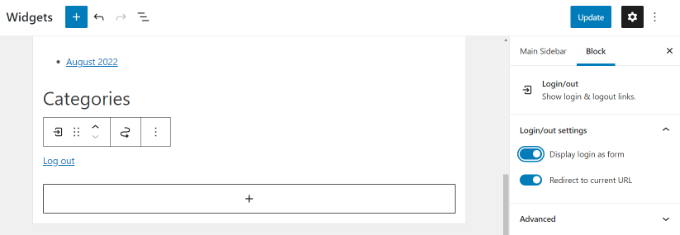
After that, you can visit your WordPress website to see the default WordPress login form in action.
Note that you’ll be logged in if you immediately go check the form. Simply log out of your site to see how the form will appear to your members.

Method 2: Adding a Custom Login Form Using WPForms Plugin
The default WordPress login form only offers a username and password field. Instead, we recommend creating a custom login form that matches your site’s branding and includes extra features.
The best way to do that is by using WPForms with its User Registration Addon, which lets you create both custom login and registration forms with custom fields.
We have also used it to create contact forms and annual surveys, and have had a great experience. To learn more about our experience, take a look at our detailed WPForms review.
The first thing you need to do is install and activate the WPForms plugin. For more details, see our step-by-step guide on how to install a WordPress plugin.
Upon activation, you need to visit the WPForms » Settings page to enter your license key. You can get your license key from your WPForms account on their website.
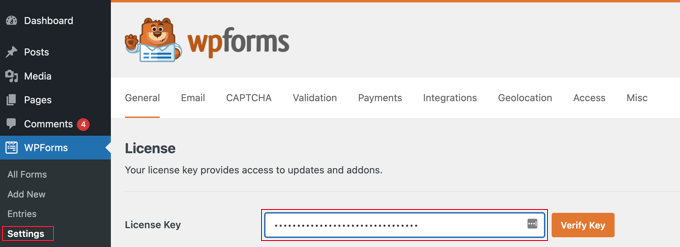
After verification, you need to go to the WPForms » Addons page.
From here, scroll down to the ‘User Registration Addon’ and click the ‘Install Addon’ button.
Don’t worry, even though it’s called the Registration addon, it’s also what you’ll use to create your custom login form.
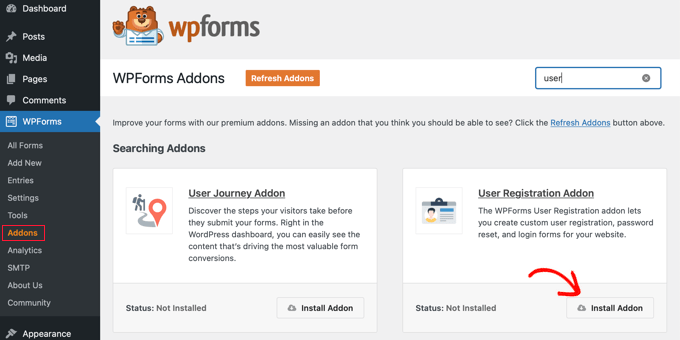
The addon will now automatically install and activate on your website.
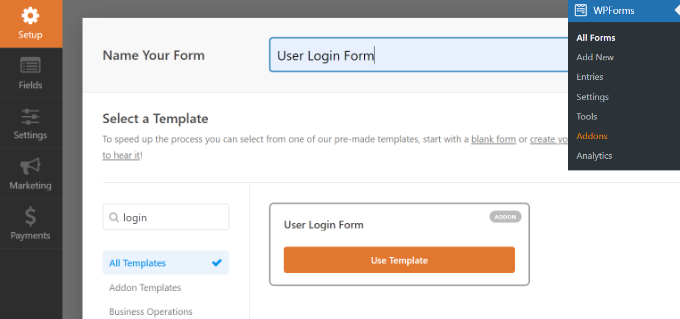
You are now ready to create a custom WordPress login form. Simply visit the WPForms » Add New page to launch the WPForms builder.
First, you need to enter a form name at the top and then select the built-in ‘User Login Form’ template. Simply hover over it and click the ‘Use Template’ button.
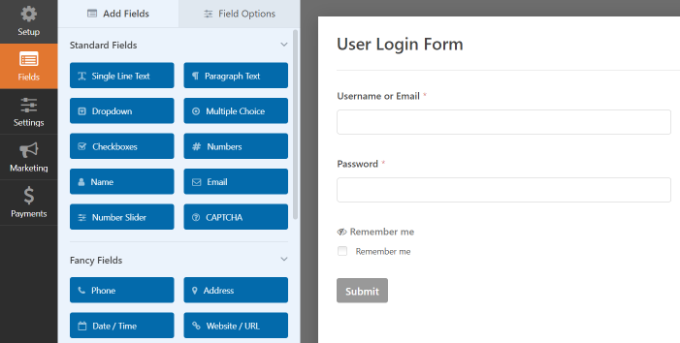
It will display the login fields pre-loaded in your form. You can click on a field to edit it or add new fields from the left column.
WPForms offers multiple form fields you can add using the drag-and-drop builder. For example, you can add a CAPTCHA field to significantly improve security and prevent spam submissions, or customize the submit button’s text.
This approach to security helps protect your user accounts and maintain site integrity from brute-force attacks and unwanted bot registrations.
Afterward, head to the ‘Settings’ tab and click on the Confirmation section.
This is where you need to define what to do once a user successfully logs in to your site.
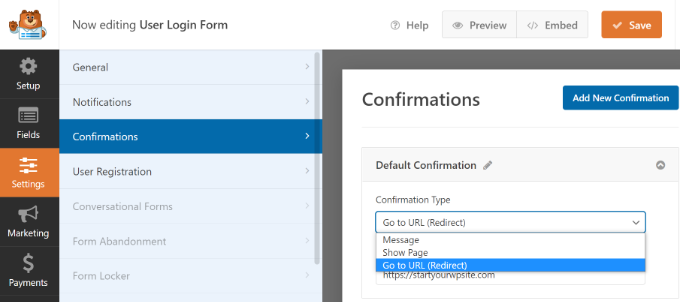
The options include a message, a custom page, or a redirect URL to any page on your site. We recommend redirecting users to a more useful page.
Sending them to a custom page like a member dashboard or client portal provides a much better user experience than the default WordPress profile page.
You can also redirect them to your homepage or any other important page. Next, you can click the ‘Save’ button at the top and exit the form builder.
Your login form is now ready. From here, you can add it to your WordPress sidebar.
Simply visit the Appearance » Widgets page in your WordPress admin area. On this page, add the ‘WPForms’ widget block in the sidebar widget area of your site.
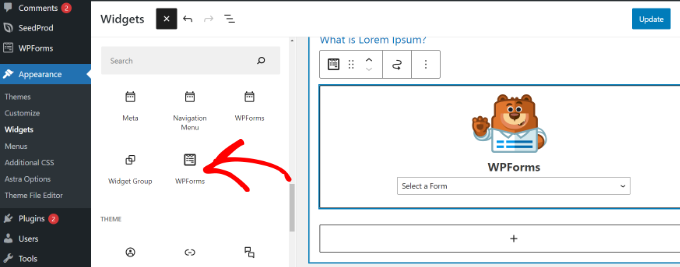
Next, you can select your user login form from the dropdown menu.
You can view more options in the settings panel on your right. For instance, there are options to show the form title and description.
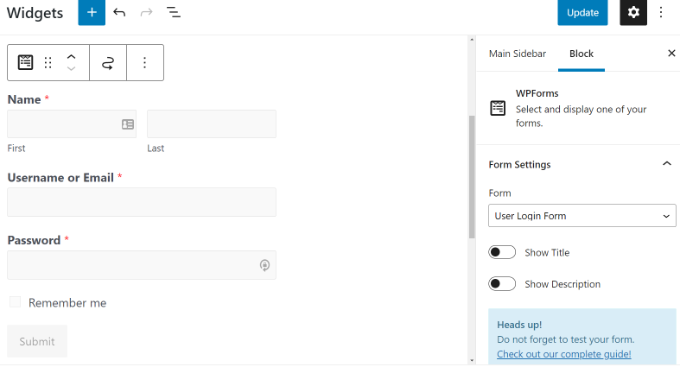
Don’t forget to click the ‘Update’ button when you are done.
You can now visit your website to see the custom login form WordPress feature.
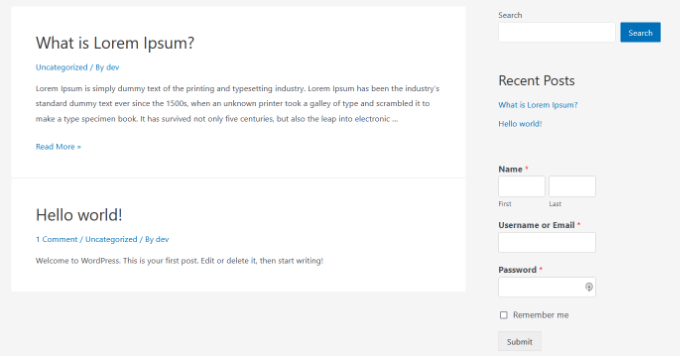
You can also use WPForms to create a custom user registration form with anti-spam features.
Frequently Asked Questions About Adding a Login Form in the Sidebar
Here are some questions that are frequently asked by our readers about adding a login form to the WordPress sidebar.
Can I customize the look of my sidebar login form?
Yes, you can. If you use a plugin like WPForms, you get access to styling options to change the form’s appearance. For more advanced changes, you can use custom CSS to match it perfectly with your theme’s design. However, the default WordPress login widget offers very limited customization options.
Is it secure to put a login form in the sidebar?
Absolutely. The location of the login form does not affect your website’s security. Your site’s safety depends on using strong passwords, keeping WordPress core, themes, and plugins updated, and using a good WordPress security plugin.
Can I add social login options in my sidebar form?
Yes, you can add social logins (like Google or Facebook) to make it even easier for users to sign in. This typically requires a separate social login plugin that integrates with your user registration system.
What if my theme doesn’t have a sidebar?
If your theme doesn’t have a sidebar, you can place the login form widget in other available areas, such as the footer. Alternatively, you can simply add a “Login” link to your main navigation menu that directs users to your standard login page.
We hope this article helped you learn how to add a login form in your WordPress sidebar. You may also want to see our step-by-step guide on how to allow user registration in WordPress and the best WordPress login page plugin.
If you liked this article, then please subscribe to our YouTube Channel for WordPress video tutorials. You can also find us on Twitter and Facebook.




Paul Jurado
Does the Sidebar Login Plugin still work? The plugin site shows it hasn’t been updated in 3 years and therefore may have some compatibility issues. Please advise.
WPBeginner Support
The plugin appears to be working currently but we will certainly take a look at alternatives.
Admin
Hafsa
Hi,
Could u plz tell me, if i can creat a custome login form for users without the need of registration??
WPBeginner Support
Hi Hafsa,
Yes, you can.
Admin
Zion Oyemade
Just a thought, the WordPress sidebar login has not being updated in two years. I’m wondering if this was an oversight considering that this blog post was recently updated.