


When we first started optimizing WordPress sites, we quickly realized WooCommerce stores face unique speed challenges.
Unlike regular websites, online stores manage product catalogs, shopping carts, checkout, and payment systems—all of which need to run smoothly and fast.
That’s why so many store owners struggle with slow loading times.
At WPBeginner, we’ve tested plenty of strategies to speed up WooCommerce stores, and we’ve seen how proper optimization can turn a slow, underperforming store into a conversion booster.
In this guide, we will share 13 proven tips to improve your WooCommerce site speed. These are practical, tested methods we’ve used to help store owners get faster sites that support faster customer transactions.
💡Quick Answer: Top 3 Ways to Speed Up WooCommerce
If you don’t have time to read the full guide, here are the 3 most important steps to take immediately:
- Upgrade Hosting: This is the biggest performance factor. We recommend SiteGround for specialized WooCommerce hosting.
- Enable Caching: Caching serves static copies of your site to load faster. WP Rocket is the best plugin for this (just make sure to exclude checkout pages).
- Optimize Images: Large product photos kill speed. Always compress your images before uploading them.
Why Is WooCommerce Speed Important?
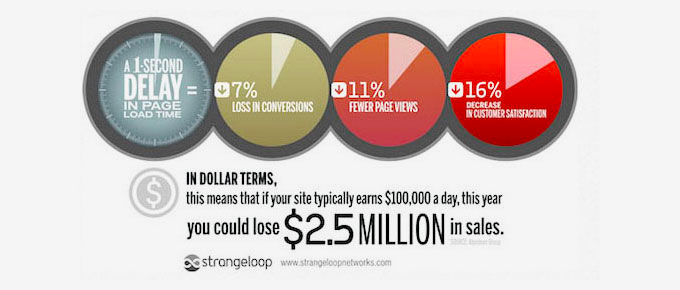
WooCommerce speed is crucial because it directly affects your sales, user experience, and SEO rankings. Even small delays can hurt conversions and customer satisfaction.
A fast-loading online store keeps customers engaged, encouraging purchases, while slow sites drive them to competitors.
Additionally, page speed can affect your SEO rankings. Search engines like Google use site speed as a ranking factor, which means faster WooCommerce stores are more likely to appear higher in search results.
Google also pays close attention to something called Core Web Vitals. These are performance metrics that measure how quickly your store loads, how responsive it feels, and how stable the layout is while users browse.
Here are the main Core Web Vitals metrics for WooCommerce stores:
- Largest Contentful Paint (LCP): Measures how quickly important content like product images and page headings load.
- Interaction to Next Paint (INP): Measures how quickly your store responds to customer interactions, such as clicking ‘Add to Cart’, opening product filters, or beginning checkout.
- Cumulative Layout Shift (CLS): Measures visual stability and helps prevent unexpected layout shifts while the page loads.
Improving these metrics can create a smoother shopping experience, increase conversions, and help signal to Google that your WooCommerce store provides a high-quality user experience
To evaluate your store’s speed, you can use tools like IsItWP’s free speed test tool, GTMetrix, or Pingdom. These tools help measure page load times and identify areas for improvement.
If you want to monitor performance on an ongoing basis, then you can also use MonsterInsights. Its Site Speed report lets you track Core Web Vitals and other performance metrics directly inside your WordPress dashboard, making it easier to spot issues over time.
Common Causes of a Slow WooCommerce Store
Before optimizing your store, it helps to understand what is causing the slowdown in the first place. Some of the most common reasons for poor WooCommerce performance include:
- Low-quality hosting that cannot handle WooCommerce’s dynamic features.
- Large, unoptimized product images that take longer to load.
- Poorly coded plugins or too many unnecessary WooCommerce extensions.
- Outdated PHP versions, themes, or plugins.
- Excessive JavaScript and CSS files that delay page rendering.
- Database bloat caused by old revisions, transients, and unused data.
- Traffic spikes that overwhelm your server resources.
The good news is that most WooCommerce speed issues can be fixed with the optimization techniques covered below.
🤝Why Trust WPBeginner?
At WPBeginner, we know the frustration of navigating sluggish websites all too well. That’s why we’ve made site speed a top priority across all our projects.
We’ve tested countless tips and tricks to boost our own site speed, ensuring our visitors enjoy a fast, seamless experience every time they visit.
But it’s not just us. We’ve extended our expertise to partner brands and countless customers, helping them accelerate their own WooCommerce stores.
By applying proven strategies, we’ve witnessed firsthand how speeding up a store can transform user experience and elevate a brand’s online presence. For more details, see our editorial process.
With that in mind, let’s dive into actionable tips to improve WooCommerce speed and performance:
- 1. Upgrade Your WooCommerce Hosting
- 2. Set up Caching for Your WooCommerce Store
- 3. Keep WooCommerce Updated
- 4. Optimize Product Images in WooCommerce
- 5. Choose a Faster Loading WooCommerce Theme
- 6. Replace Poorly Coded Plugins & Extensions
- 7. Use The Latest PHP Version
- 8. Turn On a DNS Level Firewall
- 9. Make Sure Your Store Uses HTTP/2 or HTTP/3
- 10. Use an SMTP Service to Send WooCommerce Emails
- 11. Upgrade Conversion Optimization Tools
- 12. Optimize WooCommerce Database
- 13. Optimize JavaScript and CSS Files
- Frequently Asked Questions About Speeding Up WooCommerce Performance
- Bonus Resources
1. Upgrade Your WooCommerce Hosting
We run several online businesses, and their success depends on reliable performance. Over the years, we have learned that choosing the right hosting provider makes the biggest difference.
For online stores running WooCommerce, a reliable host ensures faster load times and a better overall user experience.
Hosting is where all your WooCommerce files are stored. If the hosting provider doesn’t offer an optimized platform, it can lead to slower page loads and an unsatisfactory shopping experience for your customers.
Even the best WooCommerce optimization tips won’t work effectively without solid WooCommerce hosting. It’s the foundation of your store’s speed and reliability.
You need a hosting provider that offers specialized server environments optimized specifically for WooCommerce. This often includes finely tuned server configurations, dedicated resources, advanced caching mechanisms like Redis or Varnish, and security features tailored for eCommerce.
It ensures your store can handle traffic spikes without crashing.
If you’re just starting out, we recommend using SiteGround. They are an officially recommended WooCommerce hosting provider and have consistently impressed us with their speed and customer support.
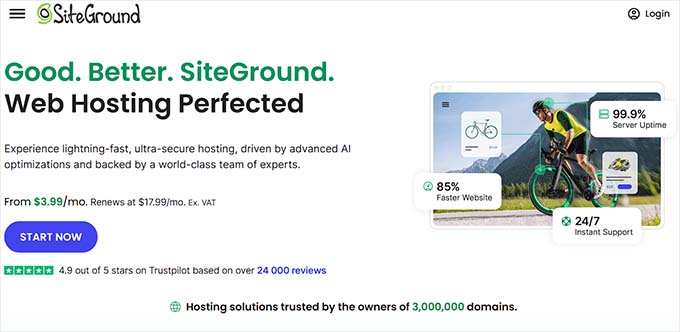
WPBeginner users can take advantage of a special discount when using our SiteGround coupon. Their hosting includes powerful features like Ultrafast PHP, eCommerce caching, and easy upgrades to VPS hosting for scaling your business.
If you’re looking for alternatives, we also recommend Hostinger. For those who can afford to spend a little more, we recommend WordPress.com (the Commerce plan gives you WooCommerce support) or Rocket.net.
Need help migrating your WooCommerce store? We’ve got you covered.
Follow our step-by-step guide on how to move WordPress to a new host without downtime.
2. Set up Caching for Your WooCommerce Store
WooCommerce runs on top of WordPress. It automatically generates pages when a user visits your website.
This means more people visiting your WooCommerce site will keep your hosting server busier for longer.
Caching helps you solve this issue.
Instead of generating pages on the fly, it serves your users a static copy it has stored.
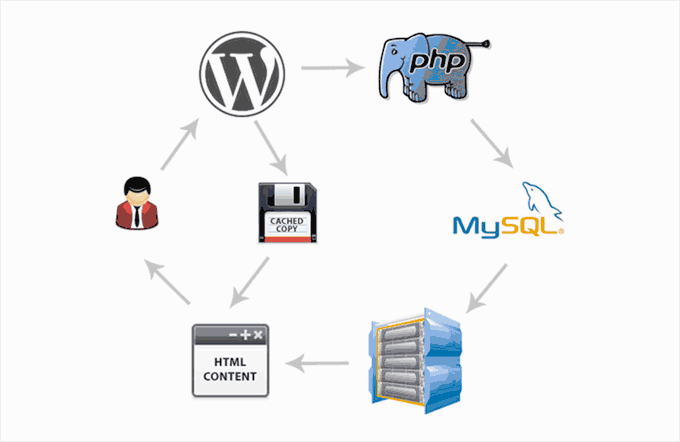
This frees up your website server resources, making it faster and more responsive.
The best way to add caching to your WooCommerce store is by using WP Rocket. It is the best WooCommerce performance plugin on the market that is incredibly powerful yet totally beginner-friendly.
Over 3 million websites are using it, and it is consistently rated well by users.
We use WP Rocket on our own websites and have found it to be incredibly powerful. For more details, see our complete WP Rocket review.
Simply install and activate the WP Rocket plugin.
Once installed, it will automatically generate a cache and apply WooCommerce-related settings.
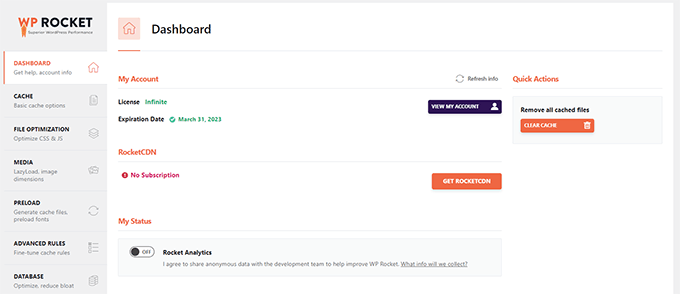
For more details, check out our tutorial on how to set up WP Rocket in WordPress.
WP Rocket proactively caches your WooCommerce store pages, includes lazy loading for images, and serves pages with gzip compression.
It also follows Google’s core web vitals guidelines to improve your speed test scores in page speed insights and other Google speed test metrics.
Most importantly, it will exclude important pages from the cache, like a customer’s checkout page, shopping cart, and account page.
📍Note: If you are not using WP Rocket, you must ensure your caching plugin excludes the Cart, My Account, and Checkout pages. If you don’t do this, your customers will not be able to complete their purchase.
Alternatives: Some free alternative WordPress caching plugins are WP Super Cache, or LiteSpeed Cache
3. Keep WooCommerce Updated
WooCommerce frequently releases new versions. These new versions fix bugs and introduce new features, and they also improve website performance.
Make sure that your WooCommerce version is always up to date.
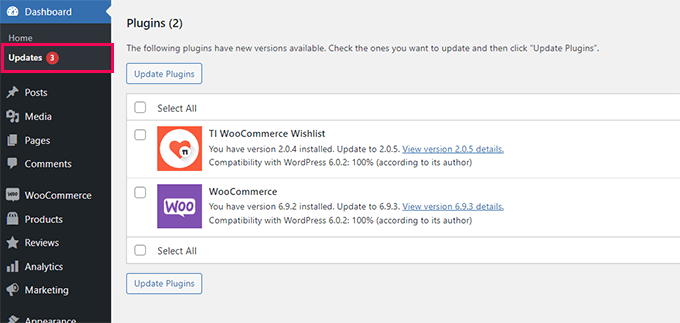
However, WooCommerce relies on WordPress and the whole ecosystem of your theme and plugins. Updating WooCommerce alone doesn’t mean that you are using the latest software for your online store.
You’ll also need to ensure that you are using the latest version of WordPress and have installed all plugins and theme updates.
It is always necessary to ensure that you have made a complete backup of your WooCommerce website before installing updates in the correct order.
We recommend using Duplicator, as it’s the best backup plugin on the market, used by over 1.5 million website owners. See our guide on how to back up your website for step-by-step instructions.
We use Duplicator on our own websites, including WPBeginner. See our complete Duplicator review for more details.
4. Optimize Product Images in WooCommerce
For an eCommerce website, you need product images to grow your business. However, images take longer to load and impact the speed of your WooCommerce store.
By optimizing your product images, you can significantly reduce their file size without losing quality. This makes all your store pages, product categories, and product pages load faster.
Now, there are several ways to optimize images. The most reliable image optimization tip is to resize and compress them before uploading them to your WooCommerce product.
Most image editing software like Adobe Photoshop allows you to export images for the web.
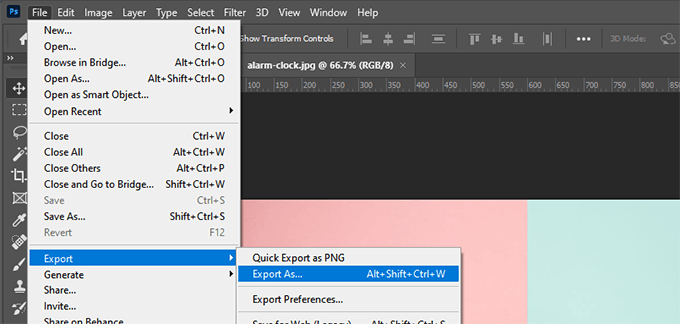
During the export dialog, you can choose the image file format (JPG/JPEG, PNG, WebP) that produces the smallest file size.
Then, you can reduce quality, colors, and other options to decrease file size further.
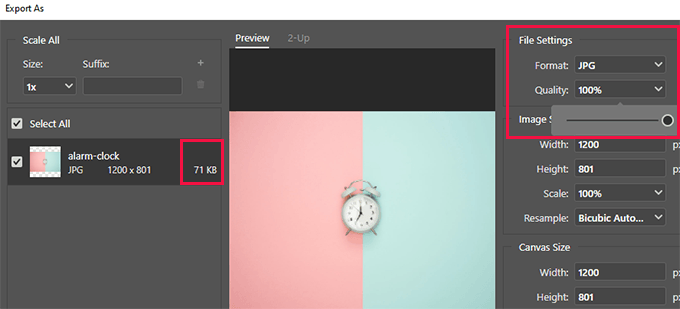
Using your image editing tool to reduce filesize is the most efficient way to improve images on your WooCommerce store.
However, you can also use an image compression plugin to automatically adjust image file sizes.
These WordPress image optimization plugins allow you not only to optimize new images but also let you bulk optimize previously uploaded images. This improves page loading speed for your older product pages and boosts your store’s performance.
For more details, see our tutorial on optimizing images for the web.
5. Choose a Faster Loading WooCommerce Theme
When choosing themes for their WooCommerce stores, many beginners choose the fanciest theme with the most features.
However, themes with tons of plugin-like features can significantly slow down your site speed.
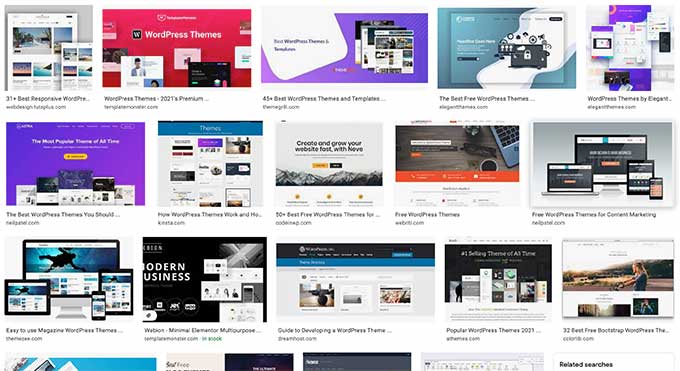
To keep your store fast, avoid themes that contain these common “bloat” red flags:
- Built-in Sliders: These are heavy on code and often slow down page rendering.
- Excessive Bundled Plugins: If a theme forces you to install 10+ plugins, it will likely hurt performance.
- Unused Scripts: Themes that load styles and scripts for features you aren’t even using.
WordPress themes are meant to control only your website’s appearance, not add functionality. For features, you should use specific plugins.
If you need quick theme recommendations, we recommend Botiga. It’s a highly-rated, lightweight theme perfect for modern WooCommerce stores, known for its speed and flexibility.
For creating a custom, lightweight WooCommerce theme without any code, SeedProd (trusted by over 1 million users) is an excellent choice for beginners.
Do you need to design individual pages for conversions? Take a look at Thrive Architect, a powerful page builder known for its conversion-focused templates and ease of use.
Need more ideas? Check out our expert pick of the best WooCommerce themes to find a faster theme for your online store.
6. Replace Poorly Coded Plugins & Extensions
The best part about using WooCommerce is accessing thousands of extensions and WordPress plugins.
As long as they are well-coded, you can install as many plugins as you need without any noticeable performance impact.
However, some poorly coded WordPress plugins can slow down your website. To avoid this, always choose plugins from reputable developers, check their update frequency, and read user reviews. Also, ensure they are compatible with the latest WordPress and WooCommerce versions.
These plugins typically run database-intensive queries or load unnecessary JavaScript and CSS.
You can use plugins like Query Monitor to see the number of queries run on each page load.
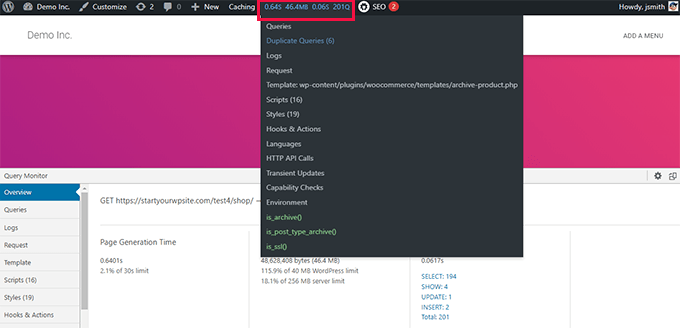
Query Monitor allows you to see the following activity:
- Database queries triggered by a page on your WooCommerce store
- HTTP requests made by scripts in your themes or plugins
- Hooks and actions triggered on a page
- Language, user role checks, and template files used to display the page
- Your hosting environment details, such as PHP and MySQL versions, memory limits, and more.
For more details and step-by-step instructions, see our tutorial on how to add a query monitor in WordPress.
If this doesn’t help, you can simply test your website after deactivating all plugins.
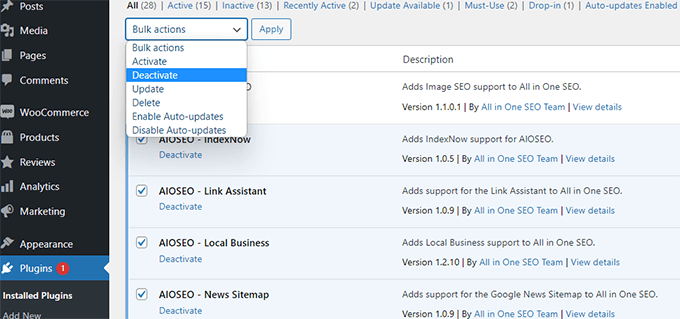
If deactivating plugins suddenly improves WooCommerce performance, you can activate them one by one to figure out which is the culprit.
You can then contact that plugin’s support and let them know about the issue. Meanwhile, you can replace the plugin with an alternate option.
For essential features, take a look at our expert pick of the best WooCommerce plugins that every online store should install.
7. Use The Latest PHP Version
WooCommerce and WordPress are both written using PHP as the main programming language.
PHP is an open-source programming language, just like WordPress. It is regularly maintained by a very active community of developers who frequently release new versions.
They spend a large amount of time and resources on improving PHP performance by making it faster for each new release.
However, WordPress hosting companies are often not as quick to switch to the latest PHP version. They often run several versions behind to ensure software compatibility.
You can see which PHP version is used by your website by visiting the Tools » Site Health page and switching to the ‘Info’ tab.
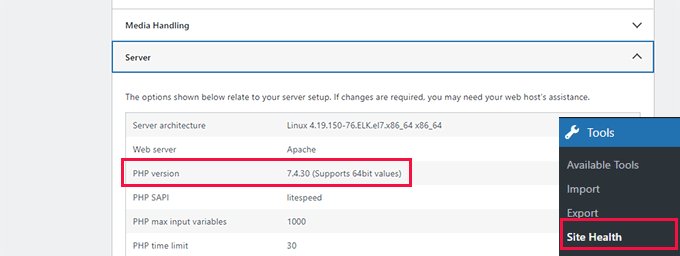
At the time of publication, the latest stable PHP version is 8.5.
📍Note: Before changing your PHP version, we recommend creating a complete backup of your WooCommerce store and checking that your theme, plugins, and WooCommerce version support the newer PHP release. If possible, test the change on a staging site first.
If you run into any issues after upgrading, you can usually switch back to your previous PHP version using the same hosting settings screen.
All top WordPress hosting providers have easy tools to select which PHP version you want to use on your website.
For instance, on Bluehost, you can go to your hosting control panel and click ‘Settings’ under your website.
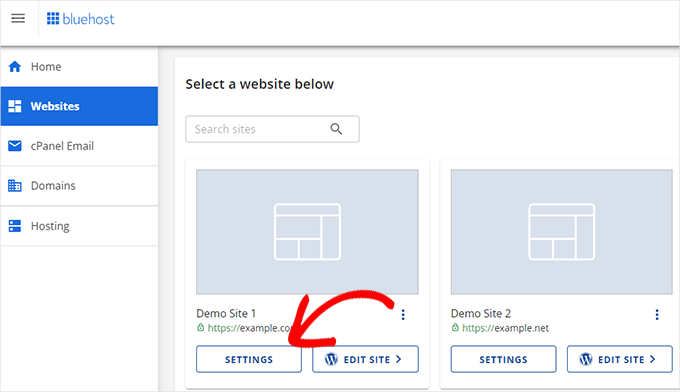
Next, click on the ‘Advanced’ tab at the top.
After that, scroll down a little to the cPanel section and click ‘Manage’.
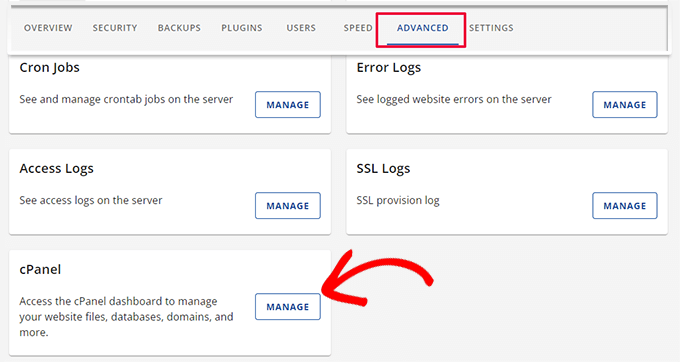
This will open the cPanel dashboard in a new tab.
Scroll down a little to the Software section and then click ‘MultiPHP Manager’ to continue.
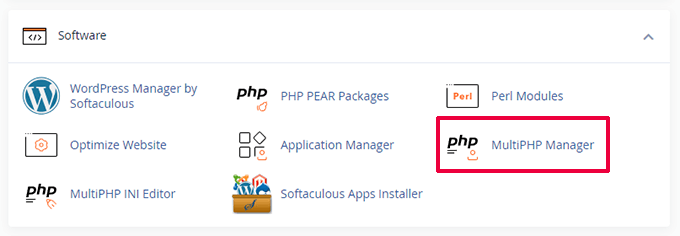
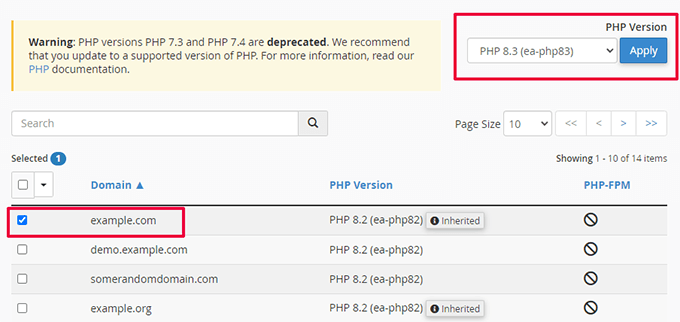
After that, you need to select your domain name from the list and then select the PHP version at the top.
Finally, click ‘Apply’ to start using the newer version of PHP.
For more information on this topic, you may want to see our article on updating the PHP version of your WordPress website.
8. Turn On a DNS Level Firewall
A DNS-level firewall protects your WooCommerce store against malicious activity. It blocks suspicious requests from reaching your WordPress site before they reach your server.
Hacking attempts, suspicious crawlers, and DDoS attacks can eat up your hosting resources and slow your website.
A DNS firewall blocks them from loading a web page, freeing up your server resources to do other things.
We recommend using Cloudflare. It is a leading firewall and CDN service, protecting and accelerating over 40 million internet properties globally. This makes it a critical asset for any WooCommerce store.

Their massive global network of edge servers means your customers will access most of your website content from a server closest to them.
In addition, Cloudflare blocks most spam, DDoS attacks, hackers, and malicious requests from reaching your website.
We use Cloudflare on all our websites, including WPBeginner. Our case study explains why we switched to Cloudflare.
Alternative: Sucuri
For more details, see our guide on why you need a CDN for your WordPress website.
9. Make Sure Your Store Uses HTTP/2 or HTTP/3
HTTP/2 and HTTP/3 are modern web protocols that help browsers load WooCommerce stores more efficiently.

They allow multiple files to be downloaded at the same time, which can significantly improve page loading speeds for product pages, category pages, and checkout screens.
Most quality WordPress hosting providers and CDN services already support HTTP/2, and many now support HTTP/3 as well.
If you are using a CDN like Cloudflare, then HTTP/3 is often enabled automatically.
If you’re unsure whether your store is using HTTP/2 or HTTP/3, you can contact your hosting provider or CDN service for confirmation. You can also use the free HTTP/2 Test tool to find out.
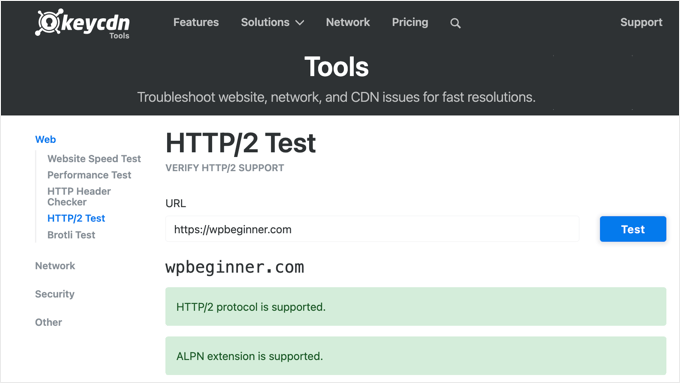
While enabling these protocols won’t fix every performance issue, they provide a strong foundation for faster WooCommerce page delivery.
To get started, see our tutorial on what Is HTTP/2 and how to enable it in WordPress.
10. Use an SMTP Service to Send WooCommerce Emails
Your WooCommerce store sends email notifications for account management, order confirmation, and administrative notices.
By default, WordPress uses the PHP mail() function to send emails. This function can be misused by spammers, and many hosting companies deliberately limit or block it.
That’s why you need to use an SMTP server to send your WooCommerce emails.
SMTP is the standard protocol for sending emails.
Now, your hosting company may provide a free business email address that you can use to send emails via SMTP.
However, hosting companies typically host the mail server on the same computer as your web hosting server.
This means sending a large number of emails can slow down your website. In WooCommerce, it may even delay the checkout process because the server tries to send confirmation emails before loading the “Thank You” page.
A slow WooCommerce checkout can also be caused by other issues, including unoptimized database queries, plugin or theme conflicts, high-resolution images, excessive external scripts, or limited server resources.
To fix this problem, you’ll need to use an SMTP service provider. This can improve transaction speed by reducing delays caused by email processing and helps ensure your emails actually reach the inbox.
We recommend using SendLayer, which is the best SMTP service provider on the market. It’s easy to set up, and they also have a free trial that lets you send up to 200 emails.
Alternatives: SMTP.com and Brevo (formerly Sendinblue)
Once you have signed up, you can use WP Mail SMTP to start sending emails via your SMTP service provider.
Having issues with WooCommerce emails? See this tutorial to fix WooCommerce not sending emails issue.
11. Upgrade Conversion Optimization Tools
Conversion optimization is the combination of techniques store owners use to nudge website visitors into making a purchase or signing up.
To do that, they use a bunch of tools to display popups, promote coupons, display targeted offers, and more.
The problem is that some of these tools are often not optimized for speed. They may load too many unnecessary files, prevent page rendering, and destroy the user experience on your store.
We recommend using conversion optimization software that creates non-blocking scripts. This ensures your website content loads first before the popup appears.
This is where OptinMonster comes in. Trusted by over 1.2 million websites, it is the leading conversion optimization software designed to convert website visitors into customers without slowing down your site.

It comes with smart popups, slide in widgets, header and footer tools, countdown timers, and other tools to grow your business.
It also includes powerful targeting options that allow you to display your campaigns at the right time to the right users.
Most importantly, your OptinMonster campaigns are highly optimized for speed, performance, and user experience across all screen sizes.
We use OptinMonster on all our business websites, including online stores. We have found it highly useful in generating sales and increasing conversions. See our full OptinMonster review for more details.
For more tools and tips, see our expert tips on recovering abandoned carts in WooCommerce.
12. Optimize WooCommerce Database
WooCommerce uses the same database as your WordPress installation. They both save a lot of data that becomes useless after a while.
For instance, old revisions, transients, spam comments, and more will stay in your database long. WordPress may even query them when your website loads, which is an unnecessary waste of resources.
Now, this means that your WordPress backup plugin will take longer to prepare a backup. It will also take more time to download or upload it.
Luckily, there are excellent tools to optimize your WordPress database.
If you are using WP Rocket, then you can go to Settings » WP Rocket page and switch to the Database tab.
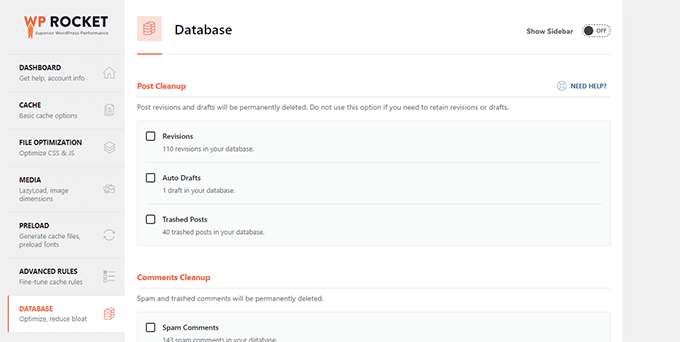
From here, you can clean up your WordPress database. Simply select the unnecessary items you want to remove and click on the Save Changes and Optimize button.
📍Note: Always create a fresh backup of your store before performing database optimization. This ensures your data is safe if anything goes wrong.
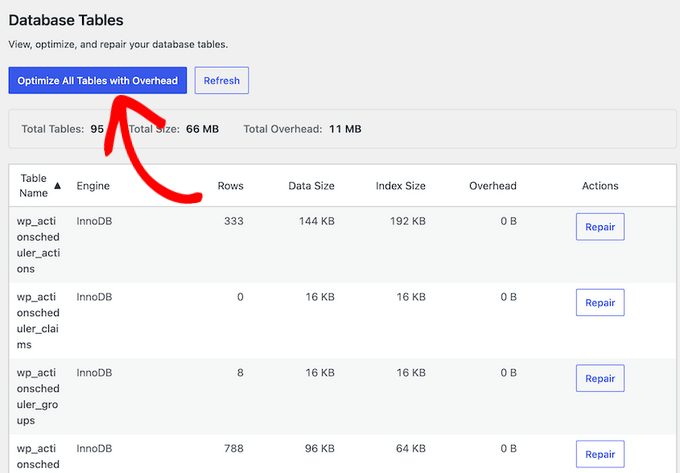
Alternatively, you can use the DB Optimizer plugin by Duplicator. It gives you a clear breakdown of your database health alongside the tools to clean it up and optimize it.
Simply install and activate the plugin, then click ‘DB Optimizer’ in your WordPress admin sidebar. Then, open the ‘Cleanup’ tab to see a count of unnecessary items in your database and how much space you can reclaim.
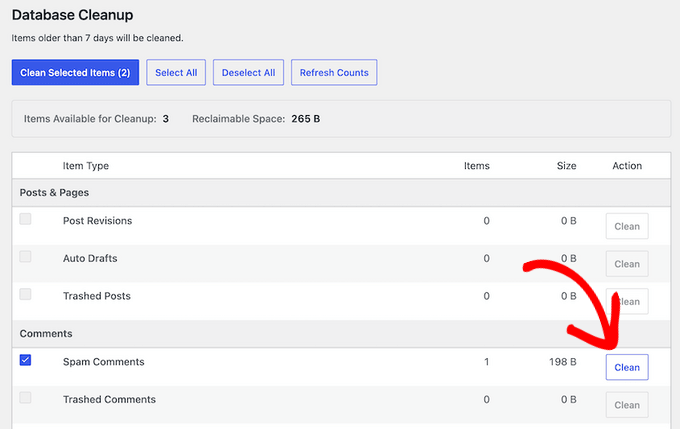
Select what you want to clean up from item types like post revisions, auto drafts, spam comments, etc., and click the ‘Clean’ button to clear them out.
You can also go to the ‘Tables’ tab to optimize your database tables and recover wasted space. Just click the ‘Optimize All Tables with Overhead’ button.
For more details, see our tutorial on how to optimize your WordPress database.
13. Optimize JavaScript and CSS Files
JavaScript and CSS files send individual HTTP requests and increase the time it takes for a page to load. Some of these files may block rendering, which means other plain HTML parts of the page will not be displayed until the browser has downloaded those files.
There are multiple ways to optimize JavaScript and CSS file delivery. We have already discussed using CDNs and caching.
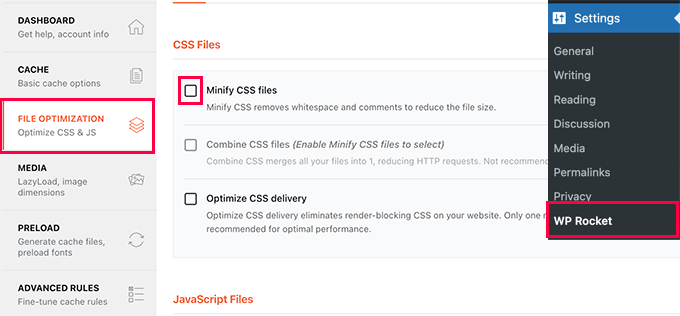
More advanced users can minify or combine those files.
Minification removes white spaces from JavaScript and CSS files, which reduces their download size.
Combining all your JavaScript and CSS files allows you to serve users all the JavaScript and CSS in one file.
📍Note: If your website uses HTTP/2 or HTTP/3 (which most modern hosts and CDNs do), combining files may not be necessary. However, minification is always recommended.
You can do that using the WP Rocket plugin. Simply go to the File Optimization tab, and turn on the minify and combine options for CSS and JavaScript.
For alternate methods and more details, you may want to check out our tutorial on how to minify CSS and JavaScript in WordPress.
Note: Minifying and combining these files may cause unexpected issues on your website. If it does, you can simply turn it off.
Frequently Asked Questions About Speeding Up WooCommerce Performance
Here are some questions that are frequently asked by our readers about WooCommerce store speed.
How often should I update my WooCommerce plugins and themes?
It’s best to update plugins and themes regularly. Check for updates monthly at a minimum, and immediately apply any security patches or major updates to ensure your store’s performance and security remain optimal.
Can using too many extensions slow down my WooCommerce store?
Yes, especially if they are poorly coded. It’s important to use extensions that are essential and well-coded. You should regularly review and deactivate extensions you no longer need.
How can I speed up database queries in WooCommerce?
Regular database optimization is key. Use plugins like WP Optimize to clean up unnecessary data and optimize your database for quicker query times.
Is a CDN necessary for improving WooCommerce speed?
While not strictly necessary, we have found that a Content Delivery Network can greatly improve load times for users by serving content from servers closer to their location, thus speeding up your WooCommerce store worldwide.
Bonus Resources
The following are a few additional resources that will help you efficiently manage your WooCommerce store and increase sales.
- Best WooCommerce Automations to Increase Sales
- Best WooCommerce Sales Funnel Plugins to Boost Your Conversions
- How to Create a WooCommerce Popup to Increase Sales
- WooCommerce SEO Made Easy – A Step-by-Step Guide to Ranking #1 in Google
- How to Setup WooCommerce Conversion Tracking (Step by Step)
- The Ultimate eCommerce Launch Checklist for WordPress
- How to Add Trust Badges to Checkout Pages in WordPress (& Boost Sales)
- Profitable Ecommerce Business Ideas for WordPress (Expert Pick)
If you liked this article, then please subscribe to our YouTube Channel for WordPress video tutorials. You can also find us on Twitter and Facebook.



Olaf
The foundation of a fast WooCommerce site is always the hosting. It’s hard to optimize website speed if it’s built on a slow hosting plan. Once this basic condition is met, WooCommerce optimization becomes much easier. Let’s be honest—paired with WordPress, this duo can be pretty resource-hungry, especially if there’s heavy traffic on the site. But otherwise, the points you outlined -> caching, PHP version, image optimization, and many more—can greatly improve both TTFB and the overall loading of the entire site, product pages, and the cart. For e-commerce sites with an international clientele, I always recommend a CDN, like Cloudflare. It can work wonders in delivering content.
Dayo Olobayo
I’ve seen firsthand how implementing the tips in this article can dramatically improve website performance. I was able to reduce the loading time of my WooCommerce store by over 50% by using the WP Rocket plugin. Thanks!
Jiří Vaněk
I also use the WP Rocket caching plugin and I have one more recommendation for readers. It’s seriously a good practice to keep a record of the changes you’ve made in the settings. For example, I once made several changes in the plugin settings and the website was working perfectly. However, after about 14 days, I noticed that at certain times, something unusual was happening on the website. After a few refreshes, the header jumped each time. As I hadn’t recorded the changes made, it was extremely difficult for me to locate the issue. It turned out that the problem was caused by the minification. Therefore, just because the website doesn’t behave strangely immediately after changes doesn’t mean it won’t happen later, and keeping a list of made settings changes can significantly help you revert back to the original setup. It’s also a good idea to backup the original WP Rocket settings into a JSON file, so you can revert to the initial settings at any time.
Moinuddin Waheed
Page speed of any website or blog is the fundamental aspect as it helps in good user experience for visitors and better chances of search engine visibility by Google.
One of the reasons why developers not talk good about wordpress is the website speed which has nothing to do with wordpres itself but having bad practices and not properly optimizing it to have good speed.
For e-commerce website it becomes more important to load faster.
Thanks for detailing everything about increasing ecommerce website performance and speed. These techniques will definitely help for all kinds of websites.