


The visual editor in WordPress can be great for beginners, but it often gets in the way when you need precise control over your content formatting.
Whether you’re pasting code snippets, working with custom HTML, or just prefer the simplicity of text-only editing, removing the visual editor can speed up your workflow.
The good news? After extensive testing, I’ve found an easy way to disable the visual editor and stick with the clean, code-friendly text editor.
In this guide, I’ll show you exactly how to remove the visual editor in WordPress, based on my hands-on testing experience.
💡Quick Answer: How to Remove the Visual Editor in WordPress
I have found that the easiest and safest way to disable the visual editor in WordPress is to use the WPCode plugin.
This method lets you add a simple one-line PHP snippet to disable the editor just for your user account, without editing your theme’s functions.php file.
Why Remove the Visual Editor Mode in WordPress?
Some WordPress users prefer to remove the visual editor to avoid extra formatting and gain more control over their HTML. The visual editor can automatically insert styling or additional tags, which can cause issues if you’re trying to keep your code clean and precise.
By default, WordPress opens in the visual editor. This mode shows a styled, What-You-See-Is-What-You-Get (WYSIWYG) interface.
You can add blocks for text, images, videos, buttons, and more. It also gives you formatting tools for changing text color, adjusting typography, aligning content, and embedding media.
For more details, see our tips on mastering the WordPress visual editor.
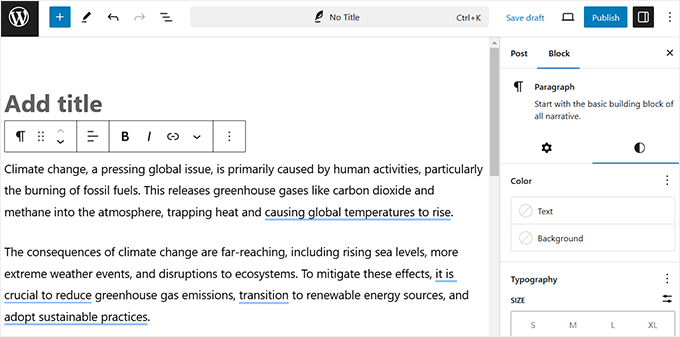
While this mode is helpful for most users, it can sometimes apply unexpected formatting or create extra HTML that’s hard to clean up.
The code editor offers a more minimal interface. Instead of blocks, it shows the raw HTML behind your content. There are no formatting buttons or previews—just plain text and markup.
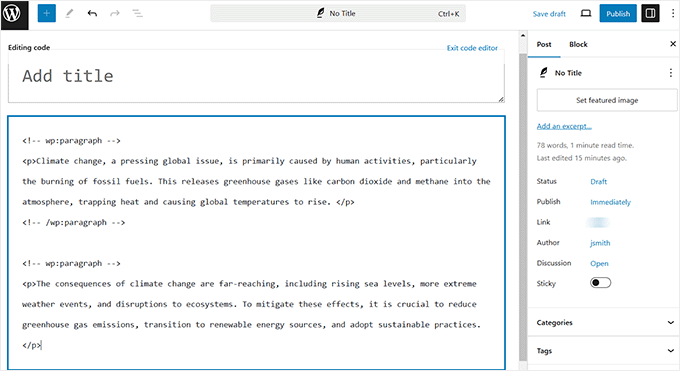
This makes it ideal for users who want full control over the structure and style of their content without switching back and forth between editing modes.
Now, let’s look at how to disable the visual editor and work directly in the code editor by default.
How to Remove the Visual Editor Mode in WordPress
You can turn off the visual editor in WordPress by adding custom code to your theme’s functions.php file. However, this can be risky because even a tiny error could break your site and lock you out of the dashboard.
That’s why I recommend using WPCode, which is the best WordPress code snippets plugin.
Unlike editing theme files directly, WPCode lets you safely add custom code without touching your core files. What makes it even better is its built-in error handling.
If something goes wrong, WPCode will automatically disable the faulty snippet to keep your site running smoothly.
These features are exactly why I find WPCode to be the safest and easiest way to add custom code in WordPress, especially if you’re a beginner.
You can also check out our full WPCode review to learn more about our experience with the tool.
One important thing to note is that this snippet only disables the visual editor for your user account. That’s because the user_can_richedit filter in WordPress checks permissions on a per-user basis. Other users on your site will still have the visual editor unless you apply this code to them as well.
First, you need to install and activate the WPCode plugin. For details, see our tutorial on how to install a WordPress plugin.
💡Note: The free version of WPCode has everything you need to follow this tutorial. However, as your site grows, you may want to upgrade to WPCode Pro to unlock powerful features, such as smart conditional logic, a cloud library of snippets, and the ability to schedule snippets.
Upon activation, head over to the Code Snippets » + Add Snippet page from the WordPress dashboard.
Here, click the ‘Use Snippet’ button under the ‘Add Your Custom Code (New Snippet)’ option.
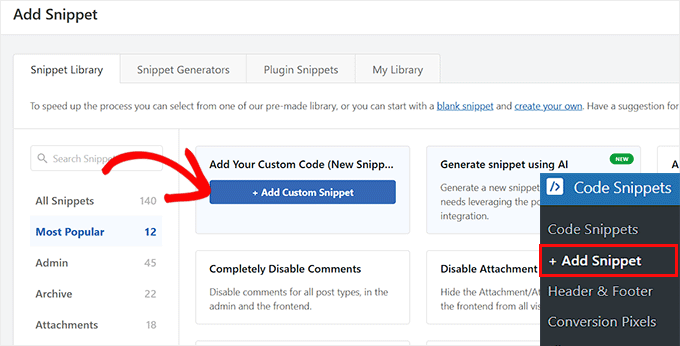
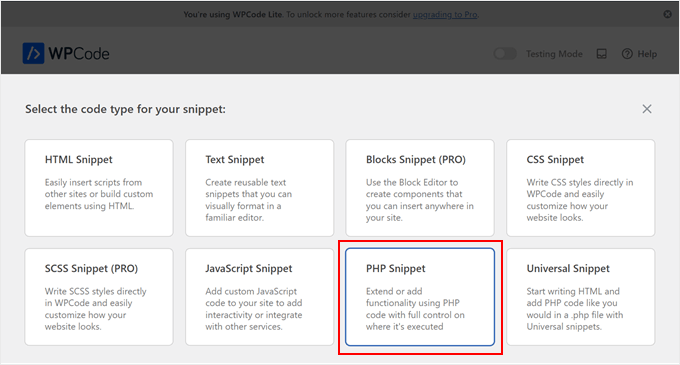
This will take you to the ‘Create Custom Snippet’ page, where you have to select ‘PHP Snippet’ as your code type from the popup.
Then, add a name for your snippet. It’s best to use a clear, descriptive name, such as ‘Disable Visual Editor’, so you can easily identify what the code does later.
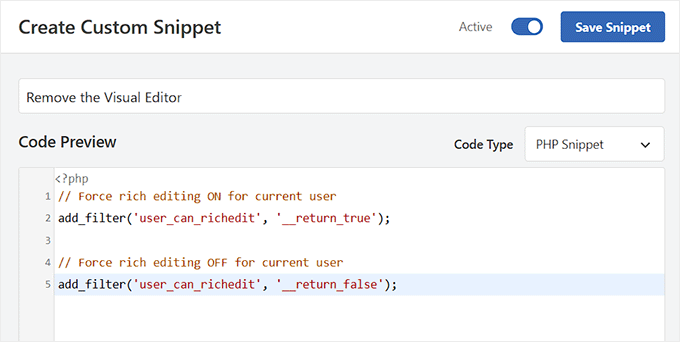
Next, add the following custom code into the ‘Code Preview’ box:
// Force rich editing ON for current user
add_filter('user_can_richedit', '__return_true');

// Force rich editing OFF for current user
add_filter('user_can_richedit', '__return_false');
This snippet turns off the visual editor for your user account and switches WordPress to show only the code editor when you’re writing posts or pages.
That means you won’t see any formatting buttons or block options — just the raw HTML view of your content.
After that, switch the toggle from ‘Inactive’ to ‘Active’ so the code will run. Then, click the ‘Save Snippet’ button to store your changes.
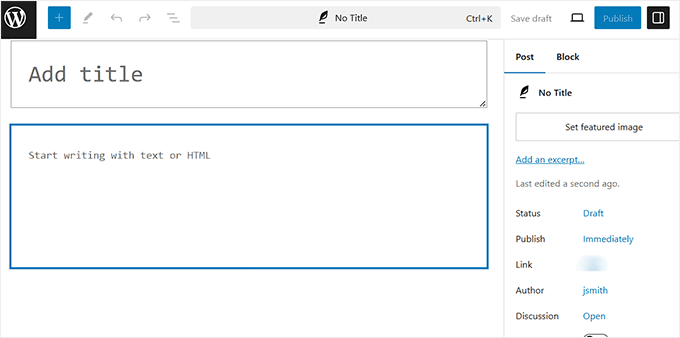
Now, open a new post or page in the block editor. You will notice that the visual editor is disabled, and the code editor is set as the default.
Note: If you are using the classic editor, then don’t worry. You can still follow all the steps above to disable the visual mode and use the plain text editor in WordPress.
With this mode, you will see your content as raw HTML, which means it won’t have the usual formatting or styling options in the block panel that appear in the visual editor.
For example, a paragraph block will look something like this in the editor:
<!-- wp:paragraph --><p>This is my paragraph.</p><!-- /wp:paragraph -->
You’ll also notice the ‘Add Block’ (+) button is disabled. This is because you are now in the code editor, which shows the raw HTML of your blocks instead of the visual interface.
How to Enable the Visual Editor Mode Again in WordPress
If you want to re-enable the visual editor in WordPress, all you need to do is disable the code snippet that turned it off. You can do this easily from the WPCode dashboard by toggling the status switch to “Off.”
To get started, go to the Code Snippets page in your WordPress admin area. Locate the snippet that disables the visual editor and toggle it off.
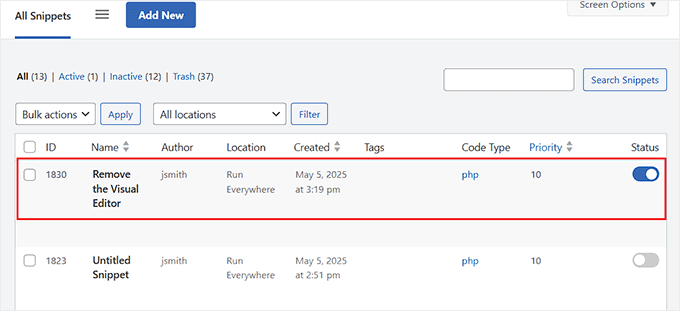
Once disabled, WordPress will automatically restore the visual editor for your user account — no additional steps required.
This simple toggle is a quick fix if you ever change your mind or need the visual editor back for editing posts and pages more easily.
Bonus: Use Distraction Free Mode in WordPress
Now that you’re working directly in the code editor, you’ll notice you don’t use the sidebar block settings at all. That sidebar can become unnecessary clutter.
This is where WordPress’s built-in Distraction Free mode comes in handy.
It hides all the unnecessary elements, giving you a clean, fullscreen workspace. This lets you focus entirely on your content, boosting concentration, creativity, and productivity as you write.
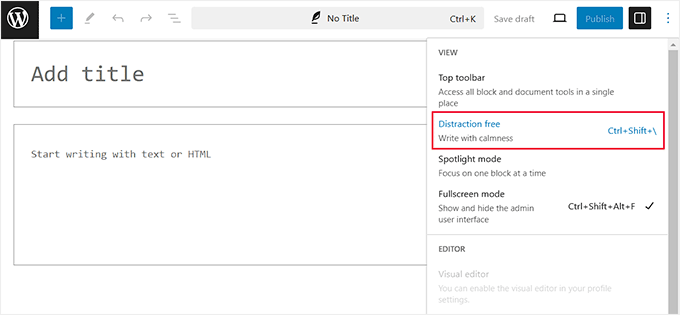
To activate this mode, just open a page or post in the block editor and click the three-dot icon at the top right corner. This will open a dropdown menu where you must choose the ‘Distraction free’ option.
Once you have done this, you can now write your content on a clean and clutter-free canvas. To learn more, see our tutorial on how to use the distraction free fullscreen editor in WordPress.
Frequently Asked Questions About the WordPress Editor
Here are some questions that our readers have frequently asked about the WordPress visual editor:
How do I disable the WordPress visual editor?
The easiest way to disable the WordPress visual editor is by adding a small PHP code snippet using a plugin like WPCode. This allows you to switch to the code editor by default without having to directly edit your theme’s functions.php file.
How do I get rid of screen options in WordPress?
You can hide items by clicking the ‘Screen Options’ tab at the top right corner of many WordPress admin pages. From the dropdown menu, simply uncheck the boxes for any panels or meta boxes you wish to remove from your view.
How do I disable file editing in WordPress?
To disable the theme and plugin file editor, you must add the following line of code to your wp-config.php file:
define('DISALLOW_FILE_EDIT', true);.
This is a highly recommended security practice to protect your website from unauthorized code changes.
We hope this article helped you learn how to remove visual editor mode in WordPress. You may also want to see our ultimate guide on how to use the WordPress block editor or our top picks for the best Gutenberg-friendly WordPress themes.
If you liked this article, then please subscribe to our YouTube Channel for WordPress video tutorials. You can also find us on Twitter and Facebook.




Boool
Hi, I used the option to disable the visual editor in many of my WP sites, but I have now noticed that the option is no longer available.
It is present for old users, but when creating a new user this option dissaperd,
is there a fix for it?
WPBeginner Support
That is due to the 6.8 WordPress update. We will update this article for an alternate option when we can!
Admin
Fajri
short and clear explanation.
I myself have never used this feature, especially since the block editor era.
but there may be conditions where turning off the visual editor can help efficiency in creating or editing articles.
Joanne Hurlock
LIFE SAVER!!
For turning the visual editor back on!!!
WPBeginner Support
Glad our guide was helpful
Admin
Thien
That’s amzingn acticle. I have practice on my site thanks so much
WPBeginner Support
You’re welcome, glad you liked our article
Admin
radin
im realy appreciate for this article
Swapnil Sutar
Can we disable Visual editor only for pages not posts?
Michael
Your advice is great but surely the best/additional solution would be to stop some of the idiotic behaviour of the visual editor, ESPECIALLY adding and in stupid places, which can disrupt pages completely. I’ve even seen it add tags in the middle of internal style declarations! It also seems to remove HTML comments at times.
As one of several people maintaining a certain website, I’ve had to waste many hours fixing the mess made by the visual editor because someone else insists on using it.
SURELY it can be made to listen to what the user actually TYPED instead of taking matters into its own hands for no reason. If I type a succession of carriage returns, and didn’t go into text and add , MAYBE because that’s what I actually WANTED.
This behaviour has been *programmed* into it, it can therefore be removed.
Satnam Singh
Do you use wordpress visual editor on your website ? Or any plugin of shortcodes instead or any thing else ? Mind sharing ?
WPBeginner Support
Hi Satnam,
We use text editor when writing posts. You can see all the plugins we use on our blueprint page.
Admin
Karen Doll
Hello,
I’m hoping you can help me with my Visual Editor issue. I know this page addresses how to disable the Visual Editor, but I’m hoping you can help to enable my Visual Editor. I am a freelance writer and a client set up a WordPress account for me on her site. I cannot access the Visual Editor. The disable Visual Editor box in NOT checked. And, when I tried to click on Visual, all of my text disappears. The word counter remains the same as if there are invisible words on the page. Perhaps there is something you can tell me that I can forward onto the site owner.
Thanks so much for your help
Karen
WPBeginner Support
Take a look at our tutorial on how to fix white text and missing buttons in WordPress visual editor. You will need to ask your client to help you solve this issue.
Admin
sunil
Does enabling visual editor erase the html code again?
WPBeginner Support
No, but if you edit a post and switch to visual editor, then it may try to fix unclosed HTML tags, etc. This could affect your post’s formatting a little bit.
Admin
WPBeginner Staff
You can go to your user profile and check the option disable visual editor when writing.
Stefani
Hi there! Do you happen to know if it would cause formatting issues if the visual editor is enabled for one user and they were told not to click the text editor button at all (for my client, so they can do things like change text color for a word here and there) and disabled for me (so that I can easily code things if needed)? Thank you!!
Carolee Lawrence
There is no “visual editor” on Users/my profile
WPBeginner Support
It should be the first option on your profile page.
Admin
rajkanuri
for WordPress Visual Editor is acting weird, it is not showing up in Firefox and Chrome but working fine in IE… what should be the error, I have even reinstalled the WordPress using the reinstall option in the dashboard..