


Nothing makes you look more unprofessional than sending business emails from a Yahoo or Hotmail account. Think about it: which one looks more credible – myname123@yahoo.com
or johndoe@example.com?
A custom email domain makes your business look legitimate. It builds trust, keeps your branding consistent, and even helps keep your emails out of the spam folder.
After years of running online businesses, I’ve tested nearly every email hosting service you can imagine. The surprising part? Some of the best options are completely free – if you know where to look.
In this guide, I’ll walk you through step by step how to set up a free professional email domain. Whether you’re starting fresh or upgrading your current setup, you’ll find a solution that works for you. 📩

🧑💻 Disclaimer: Before we start, let’s clear up what “free” really means. In most cases, you’ll get free professional email accounts (like you@yourbusiness.com) bundled with a web hosting plan.
The domain name is usually free for the first year, but you’ll need to pay for renewal after that. This is the most common and budget-friendly way to get started.
Quick Guide: Picking the Right Free Email Domain Option
Let’s take a quick look at the most popular options and what makes each one stand out:
| Provider | Free Email Domain? | Users / Mailboxes | Storage (per user) | Ease of Setup |
| Bluehost | ✅ With hosting | 1 to unlimited (plan-based) | 500 MB (adjustable) | Beginner-friendly via cPanel |
| Hostinger | ✅ With hosting | 1-10 (plan-based) | 1 GB | Very easy via hPanel |
| HostGator | ✅ With hosting | Multiple (plan-based) | 500 MB (adjustable) | Straightforward via cPanel |
| Google Workspace | ❌ Paid only | Per-user basis (scales) | 30 GB, more on higher plans | Smooth, integrates with Google tools |
| Zoho Mail | ✅ Yes (Forever Free) | Up to 5 users | 5 GB | Easy via Zoho admin panel |
| Mail.com | ✅ Yes | 1 mailbox | 65 GB | Simple, but with ads |
Why Do You Need a Free Email Domain?
Using a personal Gmail or Yahoo address for your business can hurt your credibility. Customers often expect professional communication from a branded email address, and sticking with free accounts can make your business look less trustworthy.
Here are the main reasons to get a free email domain:
- Professional credibility – Build trust by showing clients and partners you’re serious about your business.
- Cost savings – If you’re running a business website, many hosting providers include free email domains with their plans, which can save you money compared to using standalone email services.
- Brand consistency – Keeps your email communications aligned with your business site and overall branding.
📝 Note: While your hosting plan can often provide a free email domain, I’ll also cover a paid solution – Google Workspace. It offers extra storage, stronger security, productivity tools, and more scalability for growing teams.
Now that you know why a custom email domain matters, I’ll walk through the best free options and how to set them up.
Here’s a quick overview of all of the topics I’ll share in this guide:
Now let’s dive into the best options and how to set them up. I’ll show you exactly how to get your professional email address up and running with each provider.
1. Bluehost
⭐ Best For: Beginners who want an email bundled with the best WordPress hosting
 | ✅ Free emails included with hosting ✅ Easy to manage via cPanel ✅ Flexible storage (adjustable quotas, up to 80 GB with upgrades) ✅ Reliable customer support |
| ❌ Storage starts small (500 MB by default) ❌ Renewal prices for hosting are higher than intro offers |
Bluehost is one of the best WordPress hosting providers, and they make setting up your free email domain straightforward. When you sign up for their hosting plans, you automatically get free email accounts included with your domain registration.
What makes Bluehost especially appealing is their user-friendly interface and reliable customer support. If you’re new to managing websites and email, their team can walk you through any setup questions you might have.
I’ve personally set up a few websites and email domains on Bluehost, and it’s always a great experience every time. Check out our extensive Bluehost review for more information.
Step 1: Set up your free email domain
First, you’ll need to sign up for a Bluehost hosting plan. Visit the Bluehost website and click on the ‘Get Started Now’ button.
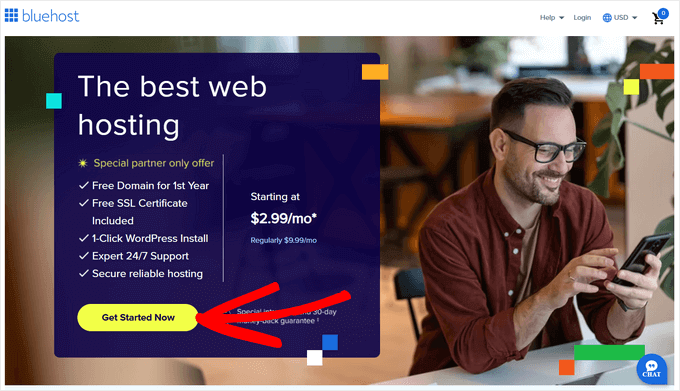
On the next screen, you’ll want to select a hosting plan that includes email.
For small businesses, the Starter and Business plans are the most popular choices. Click ‘Choose Plan’ to proceed to checkout.

During the signup process, you’ll register your domain name.
This domain will be used for your email address, so choose something that represents your business well.
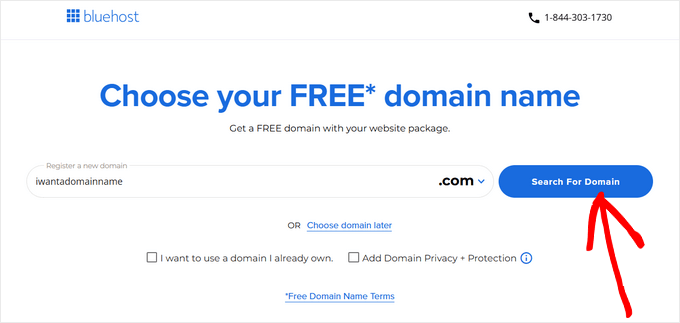
Then, you can just follow the on-screen instructions to complete checkout.
Here’s what the checkout page looks like:
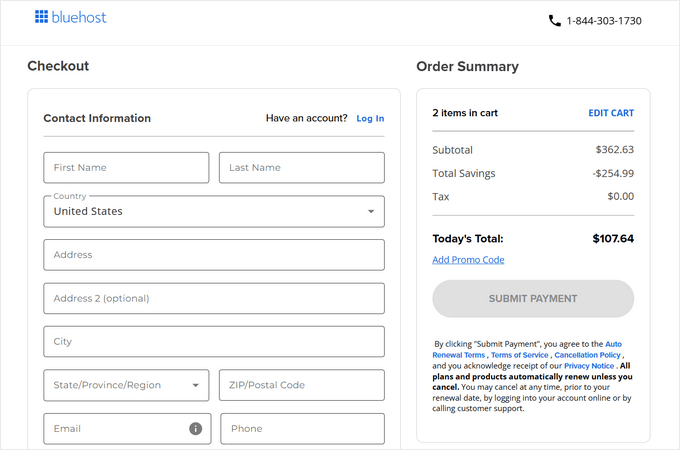
Once your account is set up, you’ll receive an email with details on how to log in to your web hosting control panel. This is where you manage everything, including website management, business email accounts, and other settings.
Step 2: Adding email accounts to your domain
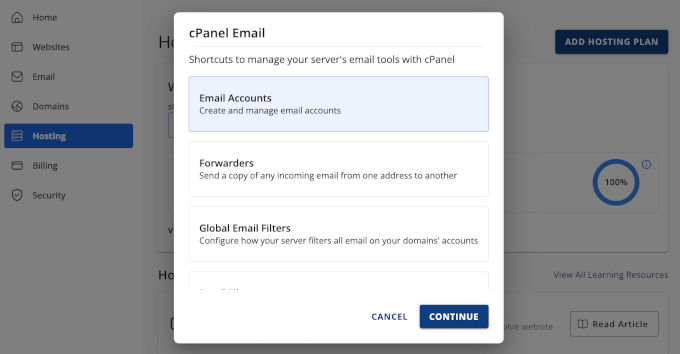
To start creating custom email addresses, let’s go to the Hosting tab in your hosting account dashboard. Then, click on the ‘cPanel Email’ button.
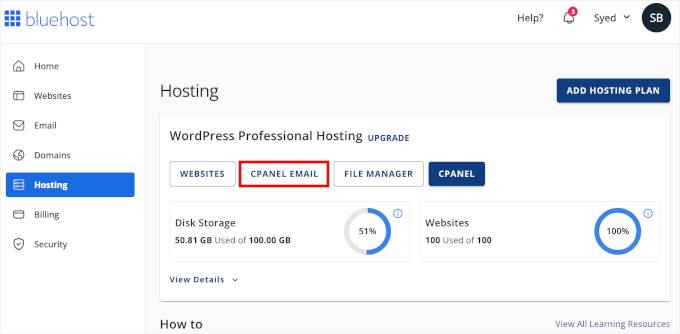
This will bring up a popup with different email-related options.
Just click to select the ‘Email Accounts’ option and then click ‘Continue’.
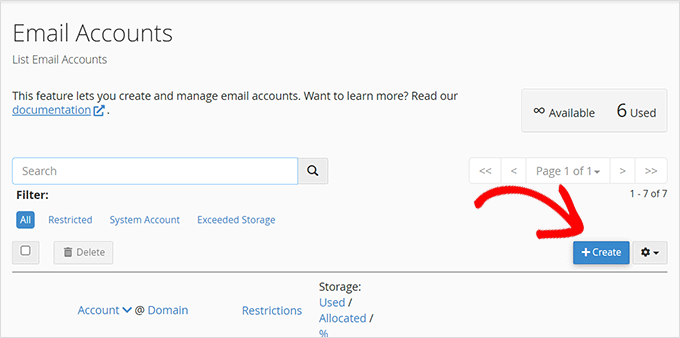
This will open a new tab for the ‘Email Accounts’ page in cPanel.
From here, you need to click on the ‘Create’ button to add a new email account.
Make sure that your domain name is selected in the ‘Domain’ dropdown menu.
Then, enter the username you want (like ‘info’ or ‘hello’). This will appear before the @ sign in your email address.
After that, you can set up a strong password. Or simply click on the ‘Generate’ button to get a unique, strong password automatically.
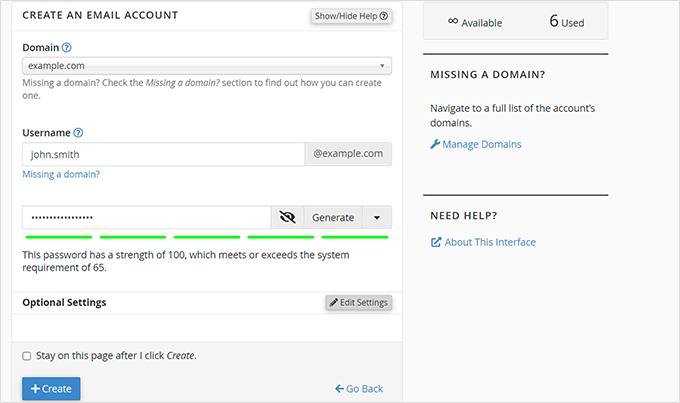
Don’t forget to click ‘Create’ when you’re finished. Bluehost will then create your email account and show you a success message when it’s done.
Step 3: Using your custom domain email with Bluehost
After creating your email account, Bluehost will take you to the ‘Email Accounts’ page, where you’ll see your new address listed. Let’s look at three ways to access and use it.
Option 1: Access Email via Webmail
💡 What it is: Check and manage your email directly from your web browser. It’s handy if you don’t want to set up an email app on your phone or computer. The only catch is that you’ll need to log in to your hosting account each time to check your inbox.
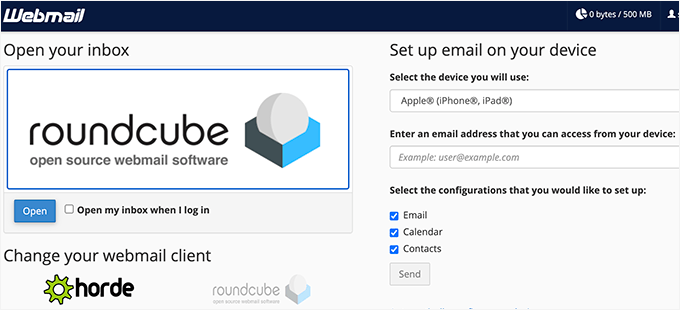
To start using webmail, just click ‘Check Email’ next to your account.
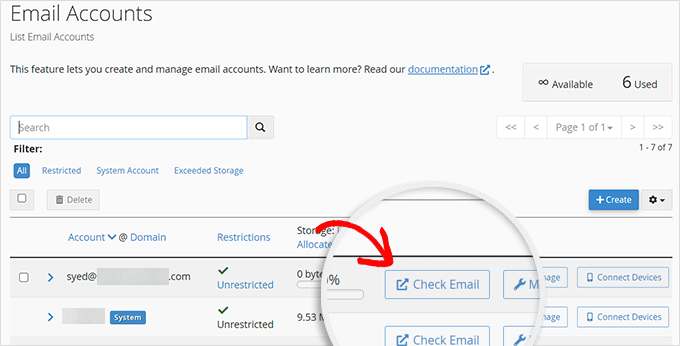
On the next screen, go ahead and choose a default webmail app (I recommend Roundcube for its clean interface).
Then, you can click the ‘Open’ button.
Option 2: Use your email on other devices and apps
💡 What it is: Connect your Bluehost email to desktop or mobile apps like Outlook, Apple Mail, or Thunderbird.
To use an email app on your computer or phone, just click ‘Connect Devices’ on the ‘Email Accounts’ page.
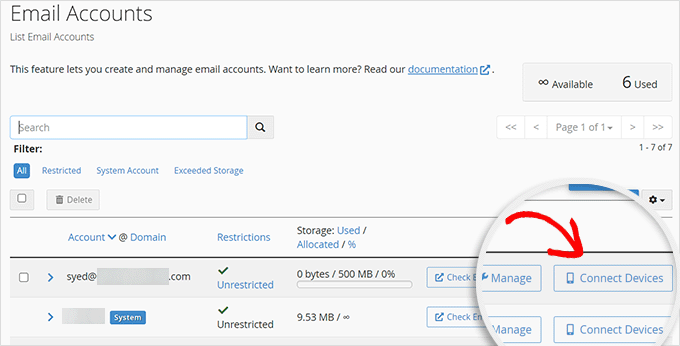
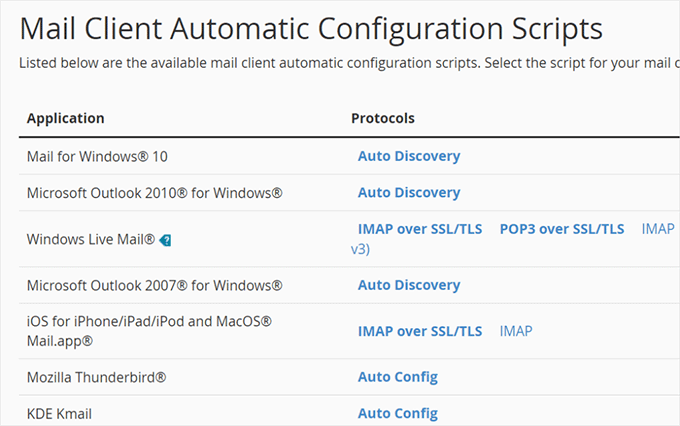
You’ll then see a list of popular apps and devices you can connect with Bluehost.
Go ahead and pick the one you want to use. Bluehost will then provide you with step-by-step instructions to connect it.
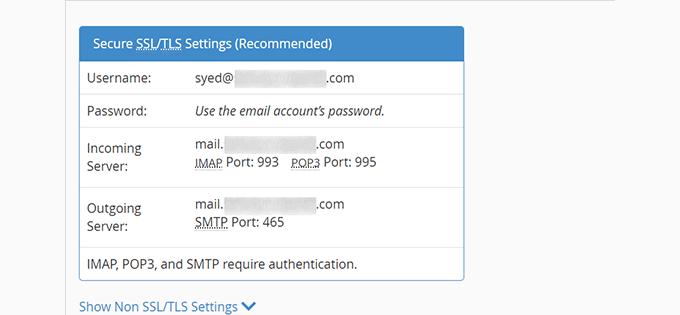
At the bottom of the page, you’ll also find the manual IMAP settings, which you can use for any app or device that’s not on the list:
- Incoming server (IMAP):
mail.yourdomain.com - Outgoing server (SMTP):
mail.yourdomain.com - Port: 993 (IMAP SSL), 465 (SMTP SSL)
- Username: Your full email address
- Password: Your email password
🧑💻 Pro Tip: Want your WordPress site to send emails more reliably? Use these same SMTP details in the WP Mail SMTP plugin.
It connects WordPress to your hosting email server, so important messages, like contact form entries, order confirmations, and password reset emails, don’t get lost or marked as spam.
Option 3: Use your Bluehost email with Gmail
💡 What it is: Send and receive messages from your Bluehost email directly in your Gmail account – for a more professional setup.
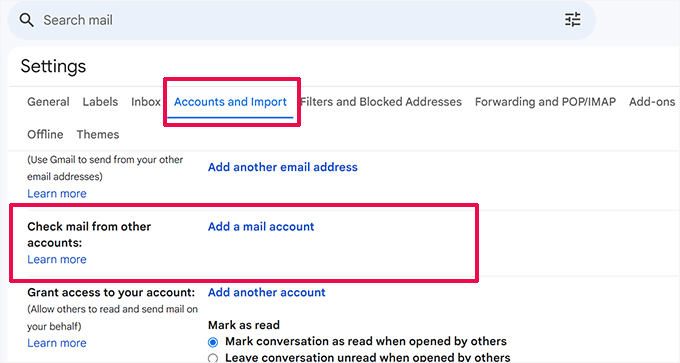
To connect to Gmail, go to your Gmail settings, switch to the ‘Accounts and Import’ tab, and click ‘Add a mail account’.
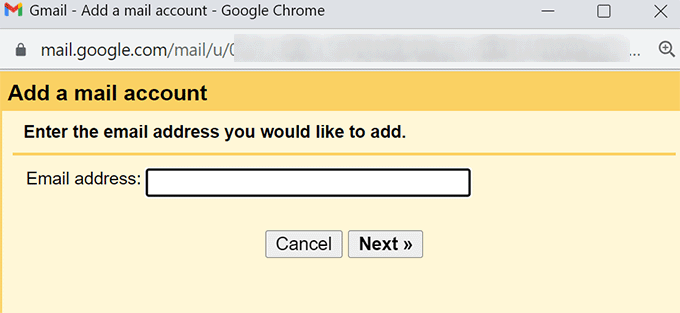
A popup will appear asking you to add your email account.
You can enter the custom domain email you created with Bluehost, then click ‘Next.’
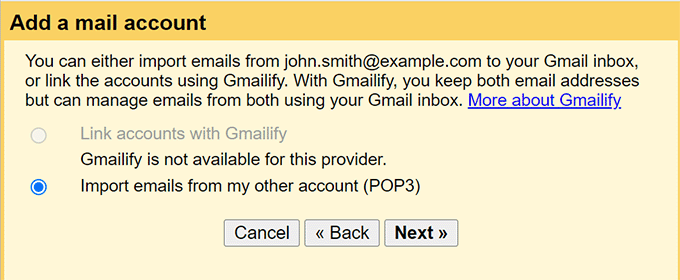
The wizard will then ask how you would like to import your emails.
📝 Note: The steps below will use a protocol called POP3. It’s great if you check your email from one main computer, as it downloads your messages directly to that device.
The other option is IMAP, which syncs your email across all your devices (phone, laptop, tablet). If you read an email on your phone, it will show as read on your computer, too.
For this guide, we’ll stick with the simple POP3 setup. The process for IMAP is very similar; you would just use the IMAP server settings we listed in Option 2 instead.
Select ‘Import emails using POP3,’ and click ‘Next’ again.
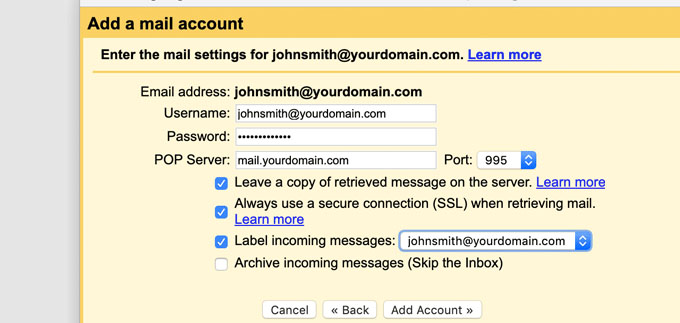
After that, Bluehost will ask you to provide your account details:
- Username: Your full email address
- Password: Your email password
- POP server:
mail.yourdomain.com - Port: 995
- Check “Always use a secure connection (SSL)”
Once complete, click the ‘Add Account’ button.
Next, Gmail will ask you if you would like to use that account to send emails.
Select ‘Yes’ and then click on the ‘Next’ button.
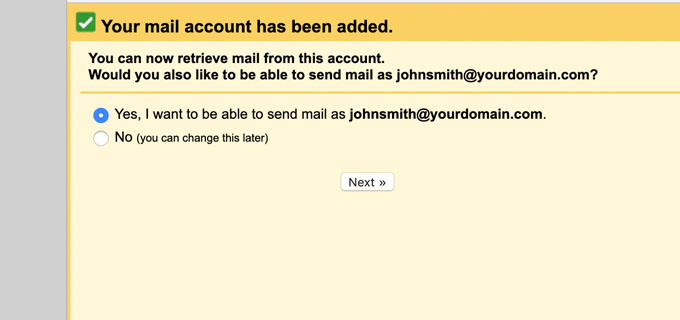
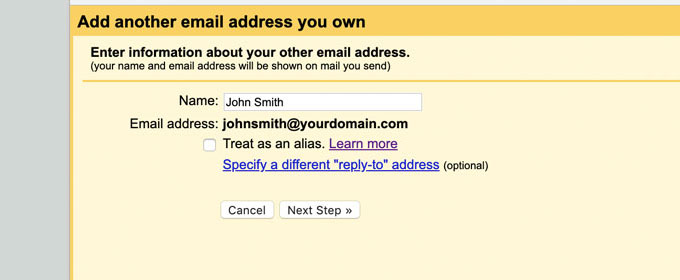
Next, Gmail will ask for the name you want to show as the sender.
You can also choose to use this account as an alias. This is helpful if you manage multiple email addresses — for example, your personal and company email.
If you want to keep this account separate, such as a team address like support@example.com or info@yourdomain.com, just uncheck the alias box.
Click on the ‘Next Step’ button to continue.
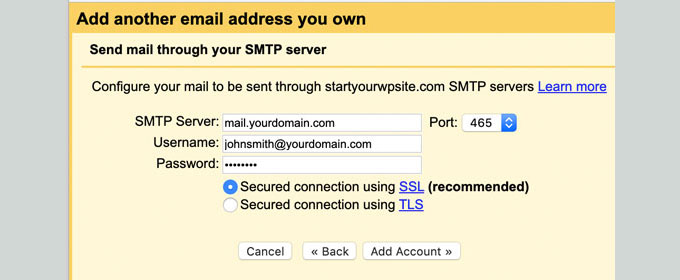
Now, you’ll need to add your SMTP details. SMTP (Simple Mail Transfer Protocol) is the industry standard to securely send emails.
Here are the details:
- SMTP server:
mail.yourdomain.com - Port: 465
- Username: Your full email address
- Password: Your email password
Click on the ‘Add account’ button to continue.
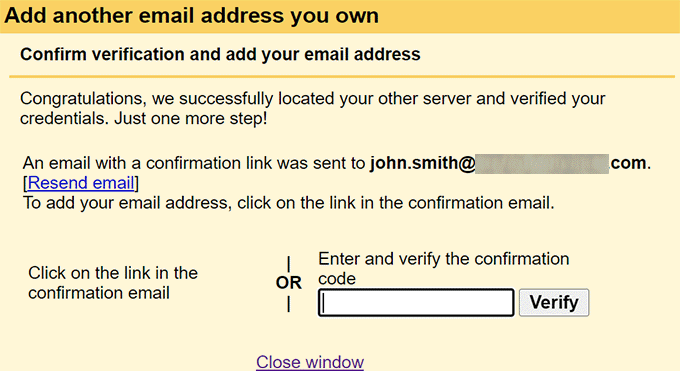
With that done, Gmail will send a verification code. Since you have already added that email address, you will get the email directly in your Gmail inbox.
Simply copy the code, paste it in Gmail, and you’re done.
You can now send and receive Bluehost emails directly in Gmail.
2. Hostinger
⭐ Best For: Budget-conscious users needing a simple setup
 | ✅ Affordable hosting with free email included ✅ Very simple setup through hPanel ✅ Option to upgrade to larger storage plans easily ✅ Good performance |
| ❌ Free mailboxes limited (usually only first year) ❌ Basic free plan only ~1 GB per account ❌ Advanced features locked behind paid email plans |
Hostinger stands out for offering some of the most affordable hosting plans while still including free email hosting. Their hPanel control interface is even simpler than traditional cPanel, making it perfect if you want to get your email set up quickly without any confusion.
What I appreciate most about Hostinger is how they’ve streamlined the entire process. From domain registration to email setup, everything happens in one clean, modern dashboard.
If you want a full breakdown of what they offer, see our complete Hostinger review.
Step 1: Getting your free email domain with Hostinger
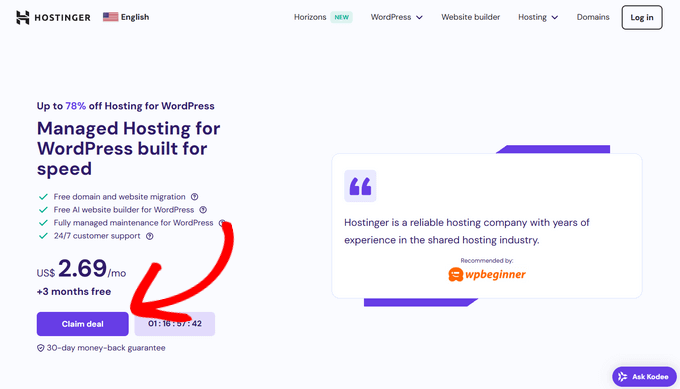
Head to the Hostinger website and click on the ‘Claim deal’ button.
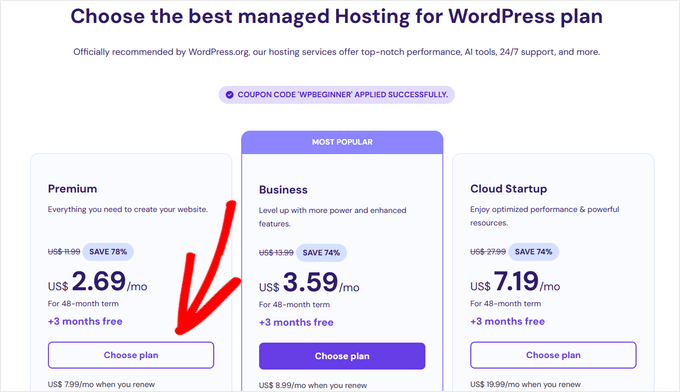
On the next screen, you can choose a hosting plan that includes email hosting.
Their Premium and Business plans both come with free email accounts for your first year.
After completing your purchase, you’ll receive login details for your Hostinger account. The setup process typically takes a few minutes, and you’ll get a confirmation email when everything is ready.
Step 2: Setting up an email account in Hostinger
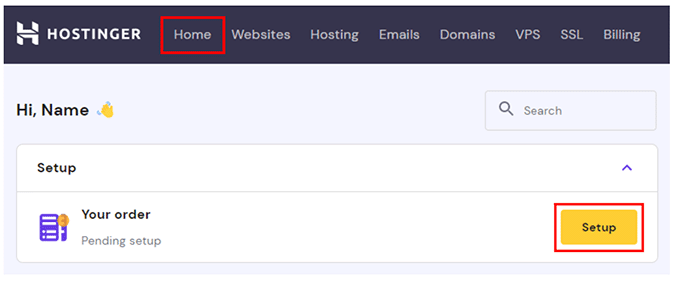
Once you have signed up, you’ll receive an email with instructions to log in to your Hostinger account dashboard. They call it the hPanel, and this is where you will manage your domain name, website hosting, and email accounts.
From the hPanel dashboard, look for the ‘Email’ tab in the main menu and click on the ‘Setup’ button to continue.
✋ Heads Up: hPanel updates pretty frequently, so don’t worry if your screen looks a little different.
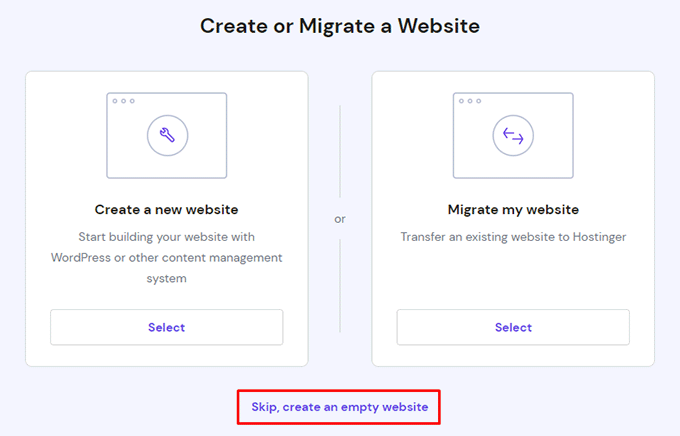
After that, you’ll choose to create a new website or migrate an existing website.
For this tutorial, just click on ‘Skip, create an empty website’. You can always set up a website or move your existing site later.
On the next screen, you’ll see an option to claim a free domain.
Go ahead and click the ‘Select’ button in its box.
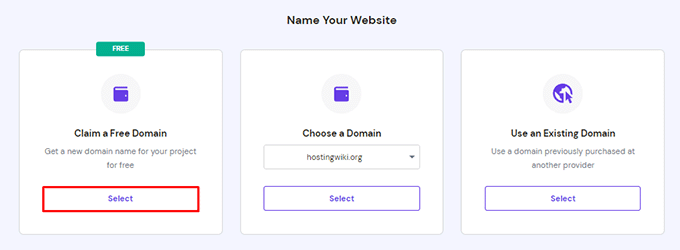
Next, just type in the domain name you want for your business email and click ‘Continue’. If the domain is available, Hostinger will register it for you and add it to your account.
Once your domain is ready, you can start creating your professional email address.
To do this, go to the ‘Email Accounts’ section under ‘Emails’ in your hosting dashboard.
On the next screen, you can locate the domain you just registered.
Then, click ‘Manage’ next to it.
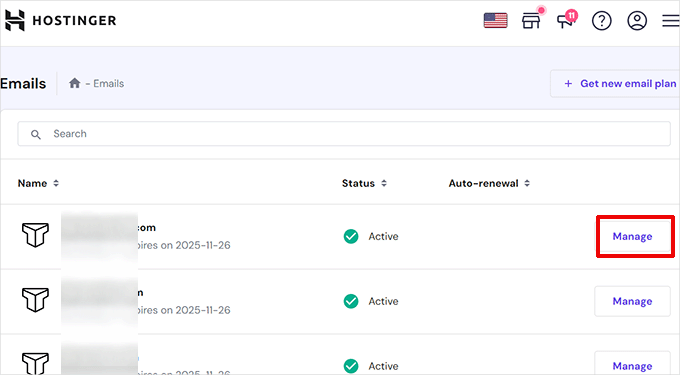
This will take you to the email management area for your domain.
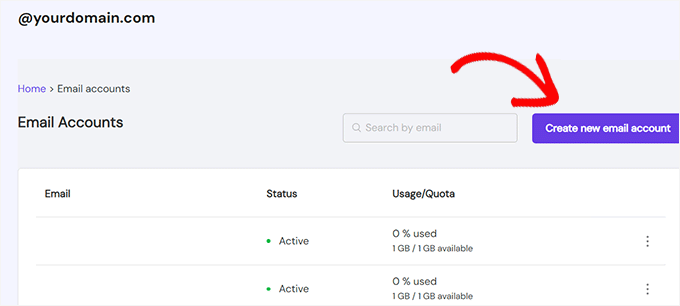
To create your first email account, click on the ‘Create a new email account’ button.
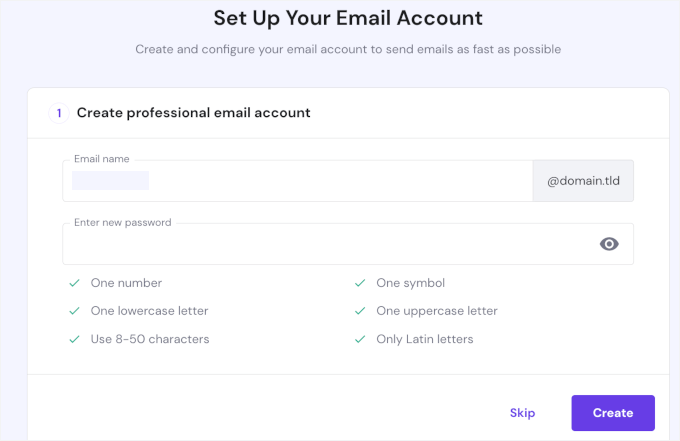
After that, the setup wizard will ask you to choose an email name. It’s the part that comes before the @ in an email address.
Next up, you can set up a strong password and click ‘Create.’
On the next screen, you’ll choose your apps and devices.
Just click on the dropdown to select your app or device and click the ‘Complete’ button when you’re done.
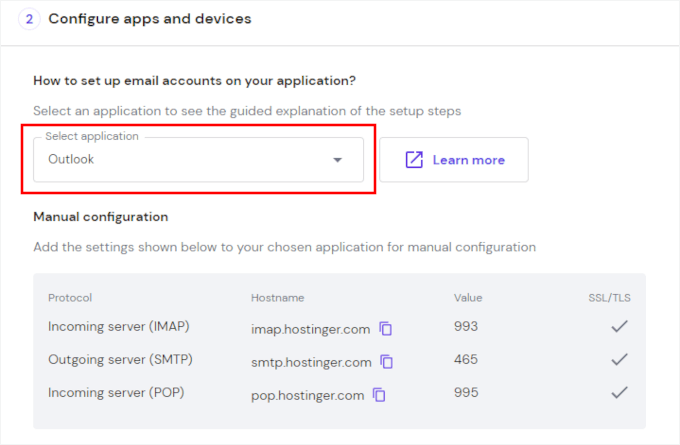
Alternatively, you can manually configure the email account by adding the IMAP, POP3, and SMTP protocols.
Step 3: Using your custom domain email with Hostinger
Now that your custom domain email is set up, let’s look at three easy ways to use it.
Option 1: Access email via Webmail
💡 What it is: Check and manage your email directly from your browser. Perfect if you don’t want to bother setting up an email app. The trade-off is that you’ll have to log in to your hosting account each time you want to read your mail.
The quickest way to start using your new email is through Hostinger’s webmail interface.
From your hPanel dashboard, you’ll first want to open the ‘Emails’ tab. Then, next to your new email account, you can click the ‘Webmail’ button.
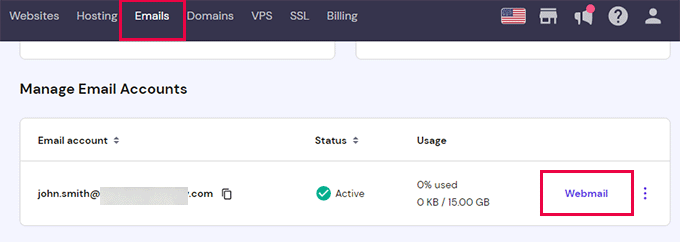
On the next screen, you’ll see an ‘Access Webmail’ option that opens a clean, modern inbox right in your browser. From here, you can send emails, organize your messages, and manage contacts just like any other email service.
Option 2: Use your email on other devices and apps
💡 What this method is: Connect your Hostinger email to any desktop or mobile app, such as Outlook, Apple Mail, or Thunderbird.
If you prefer to use your phone or a favorite email app, you can do so as well. You can use the details below:
| Protocol | Server Host | Port |
|---|---|---|
| IMAP (Incoming) | imap.hostinger.com | 993 |
| SMTP (Outgoing) | smtp.hostinger.com | 465 |
| POP (Incoming) | pop.hostinger.com | 995 |
🧑💻 Pro Tip: You can also use these SMTP settings in the WP Mail SMTP plugin to send WordPress emails through your custom domain.
It helps WordPress send emails through your hosting server instead of the default PHP mail function. This helps improve deliverability for messages like form notifications and password resets, so they don’t end up in the junk or spam folder.
Option 3: Use your Hostinger email with Gmail
💡 What it is: Connect your Hostinger email to Gmail to send and receive messages in one place.
To connect your Hostinger email with Gmail, you can head over to your Gmail settings. Then, in the ‘Accounts and Import tab,’ let’s click on ‘Add a mail account.’
From here, you can just follow the on-screen instructions.
To see the complete walkthrough, head to the Bluehost section: Use your Bluehost Email with Gmail. The process is almost identical — just remember to use your Hostinger email details instead.
Once done, you can send and receive Hostinger emails directly in Gmail.
3. HostGator
⭐ Best For: Small businesses already hosting with HostGator
 | ✅ Unlimited email accounts on most shared hosting plans ✅ Easy to set up with cPanel ✅ Works well if you’re already using HostGator |
| ❌ No standout email features compared to Bluehost/Hostinger ❌ Storage limits not advertised, and defaults are often low ❌ Support can be hit-or-miss |
HostGator is a solid pick for a free email domain if you’re already hosting your WordPress site with them. Most of their shared hosting plans let you create unlimited email accounts, which is handy for multiple team members or departments.
The WPBeginner website actually started out on HostGator. As the blog grew, we moved from shared hosting to a VPS, then a dedicated server, and finally a custom cloud setup to handle everything. We eventually switched to a different host for even more scalability.
To learn more, you can read our full HostGator review.
Step 1: Sign up for a HostGator account
First, you’ll need a HostGator account. You can create one by visiting the HostGator website and clicking ‘Get Started.’

Then, go ahead and select a hosting plan that includes email hosting.
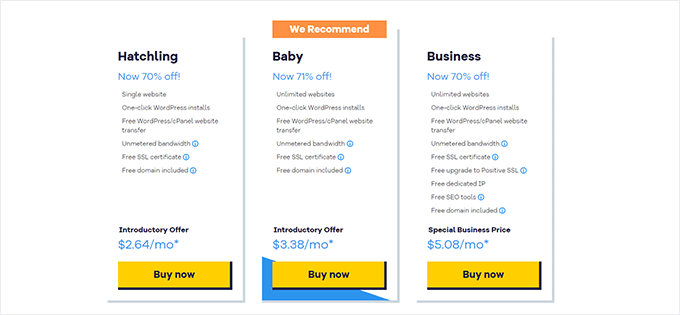
Most of their shared hosting plans (Hatchling, Baby, and Business) come with email accounts included. Click the ‘Buy now’ button under the plan you want to use.
During the registration process, you’ll choose your domain name or connect an existing domain.
Make sure this domain reflects your business name since it will be part of your email address.
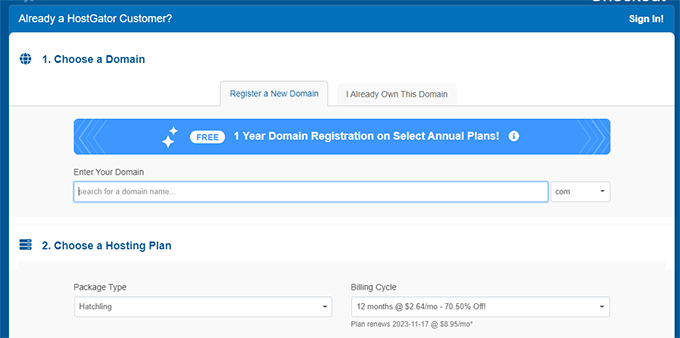
From here, you can complete the signup process and wait for your account activation email. HostGator typically activates accounts within a few hours, and you’ll receive your HostGator control panel login credentials via email.
Step 2: Create an email account
In your HostGator dashboard, let’s open the ‘Hosting’ menu and click on ‘Email Accounts’.
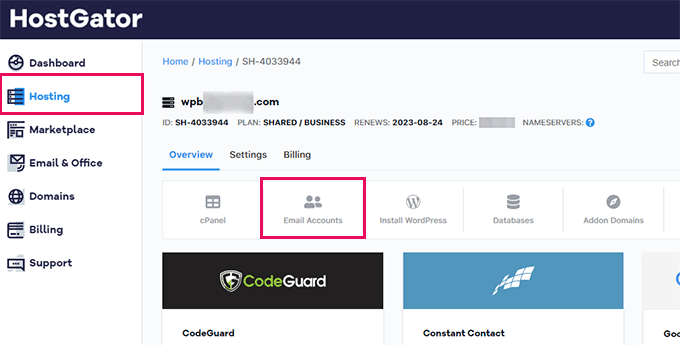
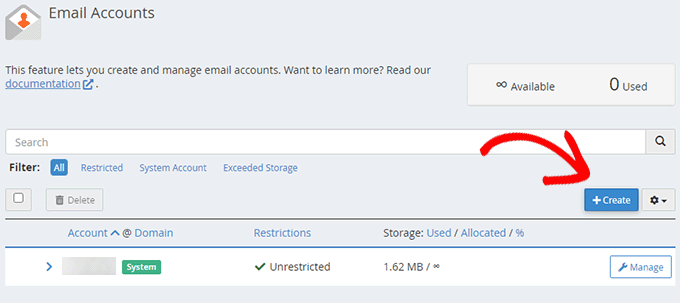
This will take you to the ‘Email Accounts’ page in cPanel.
Simply click ‘Create’ to add a new email account.
Then, you can enter the username you want for your email address (like ‘contact’ or ‘support’) and select your domain from the dropdown.
After that, you can set a strong password or auto-generate it using the ‘Generate’ button.
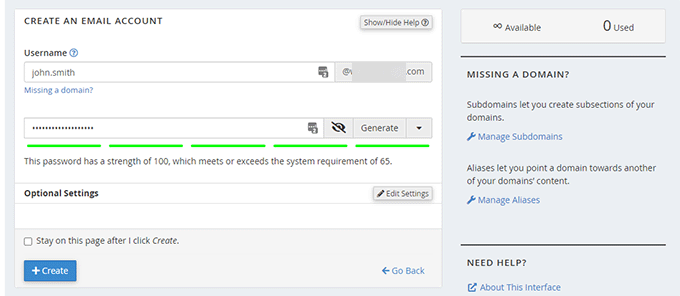
With that done, go ahead and click the ‘+ Create’ button, and your new email address will be ready to use immediately. HostGator will show you the account details and server settings in case you need them later.
Step 3: Using your custom domain email account on HostGator
HostGator offers similar ways to access your custom domain email as Bluehost and Hostinger. Let’s explore each one.
Option 1: Access email via Webmail
💡 What it is: Send and receive emails directly from your HostGator dashboard. It’s ideal when you just want quick access to your inbox without installing any apps. The only downside is that you’ll have to log in to your hosting account each time.
The easiest way to access your new email is through HostGator’s webmail interface. From your cPanel, go to ‘Email Accounts’ and click ‘Check Email’ next to your account.
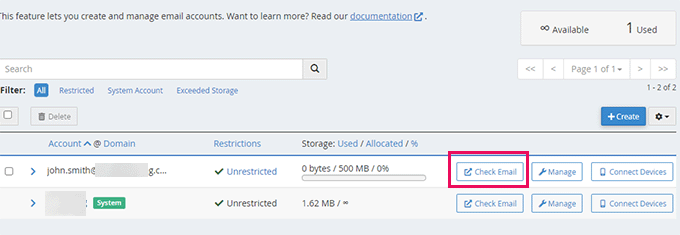
This opens a web-based email client where you can send and receive emails directly from your browser.
Option 2: Use your email on other devices and apps
💡 What it is: Connect your custom domain email to third-party mail apps on your computer or phone.
For better functionality, you can connect your custom email to popular email clients like Outlook or Apple Mail.
To set this up, you can use the following settings:
| Type | Server | Port | SSL | Username | Password |
|---|---|---|---|---|---|
| POP3 (Incoming) | mail.yourdomain.com | 995 | SSL/TLS | Your full email address | Your email password |
| SMTP (Outgoing) | mail.yourdomain.com | 465 | SSL/TLS | Your full email address | Your email password |
🧑💻 Pro Tip: You can also use these same SMTP settings in the WP Mail SMTP plugin to send WordPress emails through your custom domain.
This plugin lets WordPress send emails using your hosting provider’s mail server, so your messages (like form notifications and password resets) are more reliable and less likely to end up in spam.
Option 3: Use your HostGator email with Gmail
💡 What it is: Integrate your HostGator email with Gmail to send and receive messages from one inbox.
To set this up in Gmail, just go to your Gmail settings and open the ‘Accounts and Import’ tab. There, click ‘Add a mail account.’
From here, you can follow the same steps shown in the Bluehost section: Use your Bluehost Email with Gmail. Just be sure to use your HostGator email details when entering the server information.
Once completed, you’ll be able to manage your HostGator emails right from your Gmail account.
4. Google Workspace
⭐ Best For: Teams that need collaboration and large storage
 | ✅ 30 GB+ storage per user (upgradable) ✅ Best-in-class spam protection ✅ Access to Gmail, Drive, Calendar, Docs, and more ✅ Scales easily for teams of any size |
| ❌ $6+ per user, per month (ongoing cost) ❌ Must register your domain separately (no website builder) |
Google Workspace (formerly G Suite) isn’t free, but it’s worth considering for businesses that need premium email features. At about $6 per user per month, you get professional Gmail accounts along with Google Drive, Calendar, Docs, and other collaboration tools.
At WPBeginner, we use Google Workspace for our own business and can honestly say it is the best email hosting provider. See our detailed Google Workspace review for more information.
What sets it apart is how smoothly it integrates with tools you probably already use, offers strong spam protection, and gives each user 30 GB of storage. This is a lot more than most free options.
⚠️ Important: Do not register your domain directly with Google Workspace. Google doesn’t offer a website builder, and you’ll probably want your domain for a website too, not just email.
Instead, we recommend getting your domain through a domain registrar like Network Solutions or a WordPress host like Bluehost. Once your domain is ready, you can connect it to Google Workspace for email while keeping full control over it.
Step 1: Sign up and select your plan
To get started with Google Workspace, you’ll need to create an account. The starter plan costs $6 per user per month and includes Gmail, Docs, Drive, Calendar, and video/audio conferencing, plus 30 GB of cloud storage per user.
You’ll also need a domain name. If you already have one, you can use it. If not, you can buy a new domain during signup.
Start by going to the Google Workspace website and clicking the ‘Get Started’ button.
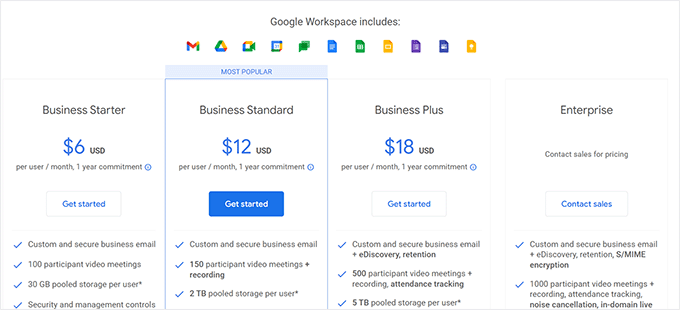
On the next screen, you’ll need to enter your business name, the number of employees (including you), and your country.
If it’s just you for now, that’s fine – you can always add more users later. But do note that Google Workspace will charge you for each user account.
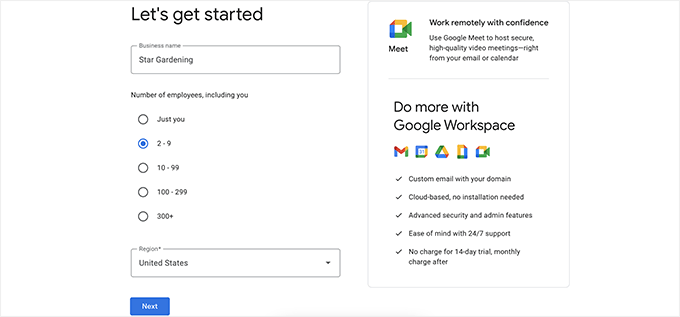
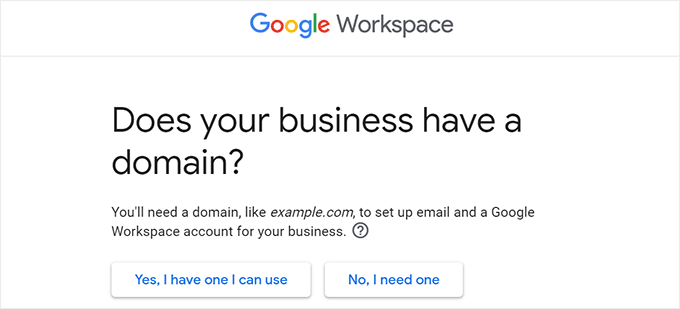
Then it’s time to choose a domain.
If you already have one, select ‘Yes, I have one I can use.’
If you need a new domain, choose ‘No, I need one,’ and Google will show the cost of registering it, usually starting around $14.99.
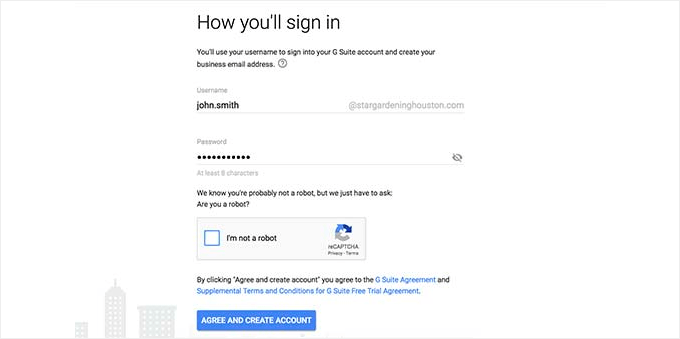
Once your domain is selected, you’ll create your first user account by choosing a username and password.
This username will also become your first business email address, so pick something professional that you want to use for work.
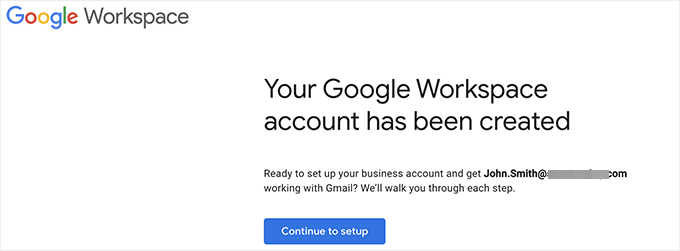
After completing these steps, Google Workspace will show a success message.
Click the button to continue, and you’ll be ready to move on to the next part of the setup.
Step 2: Domain setup and verification
In this step, you’ll complete your Google Workspace setup by connecting it to your domain name and creating user accounts for your business email.
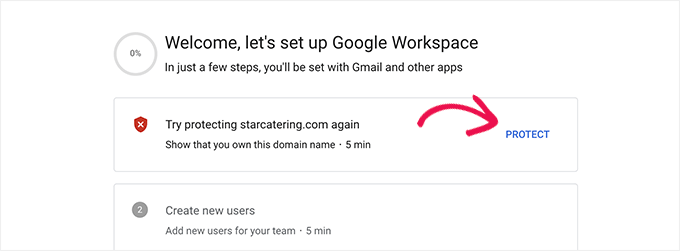
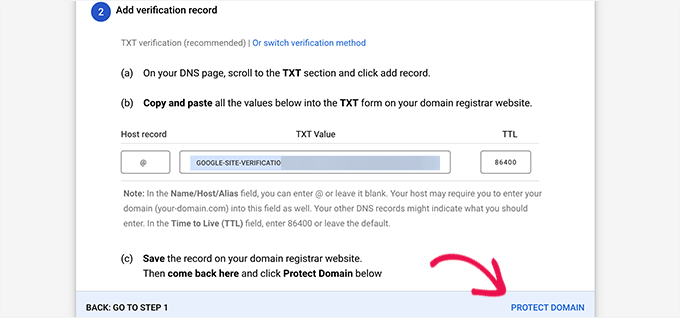
The first thing Google asks you to do is verify that you own your domain. To begin, click the ‘Protect’ button on the setup screen, and you’ll see the verification instructions.
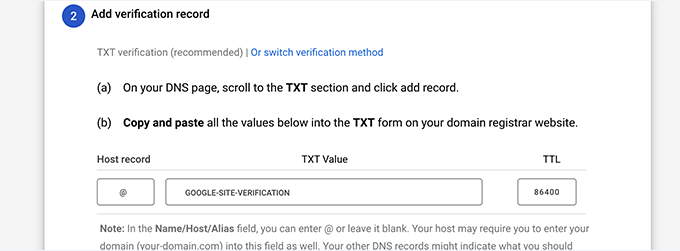
Google will provide a special TXT record, which is basically a short piece of text that proves you own your domain. You’ll need to add this to your domain’s DNS settings so that Google Workspace can verify your domain.
To do this, copy the TXT code Google provides, store it somewhere safe, then log in to your domain registrar or hosting provider – anywhere you manage your domain’s DNS.
If you’re using a hosting provider like Bluehost, you’ll find DNS management inside the ‘Domains’ section of your control panel.
To get there, you can navigate to the ‘Website’ section, then click ‘Manage’ next to your website.
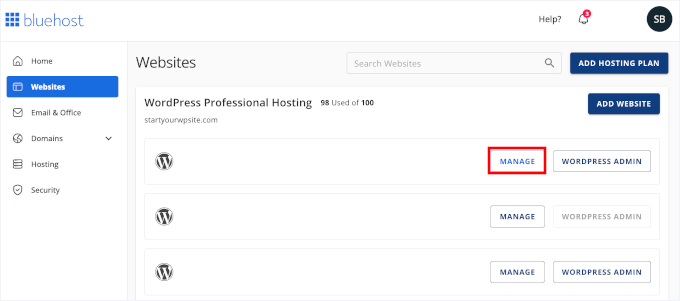
On the next screen, you’ll see the ‘Domains’ tab. Go ahead and click on it.
Then, click the three-dot button at the end of your registered domain and select ‘Advanced DNS Editor’ from the dropdown.
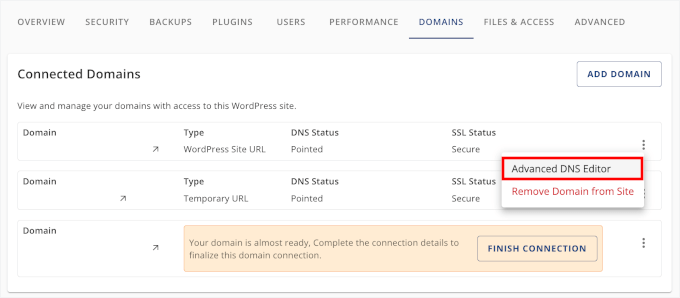
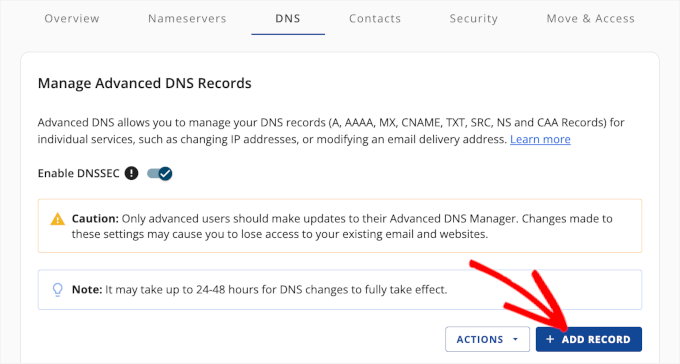
From there, you can go to the ‘DNS’ tab to see all your DNS records.
Let’s click the ‘Add Record’ button.
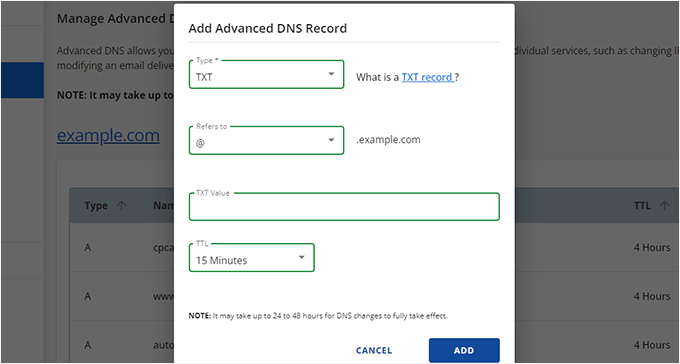
On the ‘Add DNS Records’ screen, let’s choose ‘TXT’ as the record type.
Then, you can enter @ as the host (or “Refers to”) and paste the TXT value provided by Google. Once done, click ‘Add’ to save your changes.
When the record is in place, go back to the Google Workspace setup page and click ‘Protect Domain.’ Google will then check your DNS records.
The verification usually happens within minutes, but in some cases it may take up to 24 hours.
Once your domain is verified, you’ll see a success message.
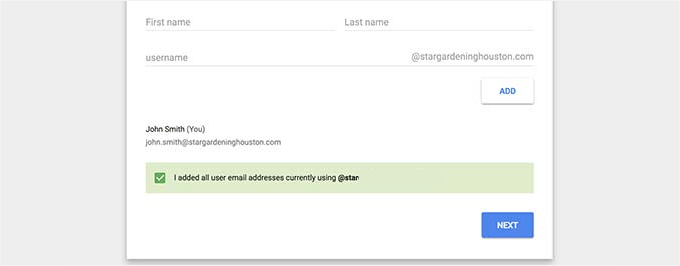
At this point, you can start adding user accounts and email addresses. For example, you might create accounts for employees, departments, or different roles within your organization.
If you’re not ready to add everyone just yet, you can simply click ‘I have added all user email addresses’ and click ‘Next.’
Step 3. Adding domain MX records
If you’re using an existing domain for your business emails, the next step is to add MX records so Gmail can handle your email. (If you registered a new domain directly through Google, you can skip this part.)
Start by clicking the ‘Activate Gmail for yourdomain.com’ section in your Google Workspace setup. Follow the on-screen instructions until you get the MX record details you’ll need.
After that, you can keep this tab open or copy your MX records somewhere safe (I’d recommend a password manager).
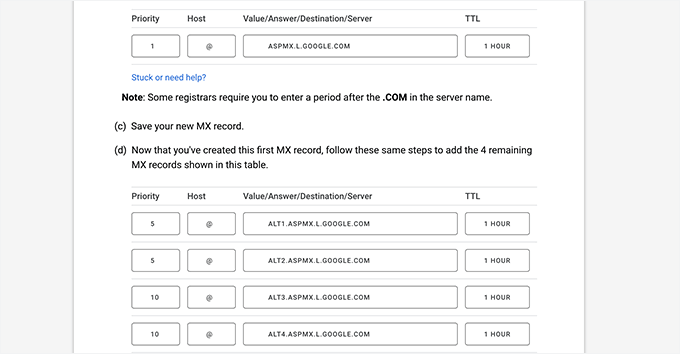
MX records are basically directions that tell the internet where to deliver emails for your domain. Since your domain isn’t registered with Google, messages won’t automatically land in Gmail – you need to point them there.
Think of an MX record as a change-of-address form for your email. By default, your domain’s “mail address” points to your web host.
By adding Google’s MX records, you’re telling the internet’s postal service, “From now on, deliver all mail for @yourdomain.com to my Gmail inbox.”
It’s a quick update that makes sure your email gets delivered to the right place.
For example, in Bluehost, start by navigating to the ‘Website’ section and clicking ‘Manage’ next to your website.
On the next screen, switch to the ‘Domains’ tab.
Find your registered domain, click the three-dot button at the end of its row, and select ‘Advanced DNS Editor’ from the dropdown.
This will take you to the DNS tab, where you can see all your DNS records.
From here, click the ‘Add Record’ button to add a new MX record.
On the popup that appears, choose MX as the record type.
In the ‘Refers to’ field, you can enter “@” and then paste the MX record value Google Workspace provided under Mail Server.
You’ll also need to set a priority – usually 1 for the first record – and a TTL (Time To Live), which can generally be left at the default or set to the shortest option for quicker propagation.
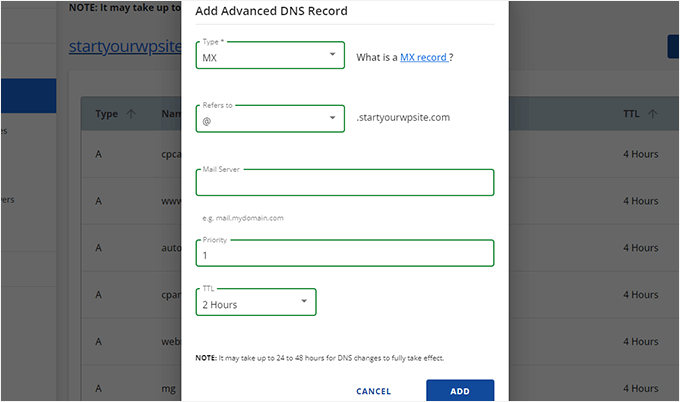
Save the record, then repeat the process for any additional MX entries Google gives you.
Once all MX records are added, go back to the Google Workspace tab and click ‘Activate Gmail.’
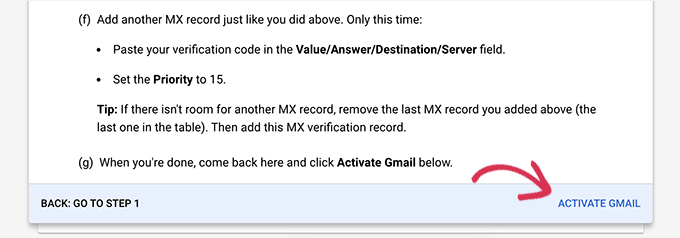
Google will verify your records, and if everything is correct, you’ll see a success message. From that point on, Gmail is ready to send and receive emails using your business domain.
Step 4: Using Gmail with your custom domain
Once everything is set up, you can access your email by going to gmail.com and logging in with your custom domain email address and password.
The interface is exactly like regular Gmail, but now all emails will show your custom domain instead of @gmail.com.
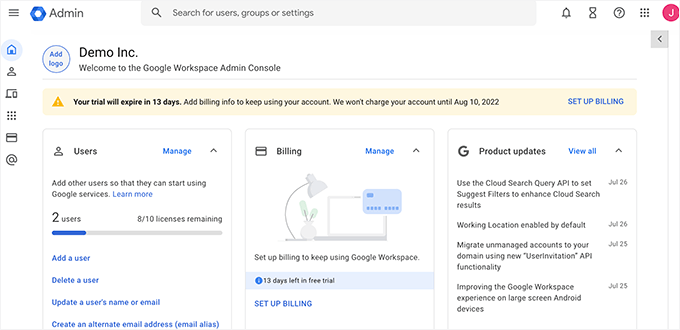
If you added more users, your team will also automatically get access to Google Drive, Calendar, and Docs with their login credentials.
Plus, by letting everyone share documents and schedule meetings within the same platform, this makes team communication and collaboration smoother.
For mobile access, users can download the Gmail app and add their work email account. The setup is automatic – just enter the email address and password, and the app handles the rest.
If you need more detailed instructions, please see our guide on setting up professional email with Gmail and Google Workspace.
🔗Alternative: Microsoft 365 is a powerful alternative to Google Workspace that comes bundled with Word, Excel, PowerPoint, and Outlook. Along with email hosting and productivity apps, it gives you enterprise-grade storage and advanced security.
5. Zoho Mail
⭐ Best For: Small teams who want a forever-free solution
 | ✅ Free plan with 5 users, 5 GB each ✅ Includes webmail, mobile apps, and admin controls |
| ❌ No advanced features (like IMAP/POP) on free tier ❌ Storage capped at 5 GB per user ❌ Ads and upsells for premium plans |
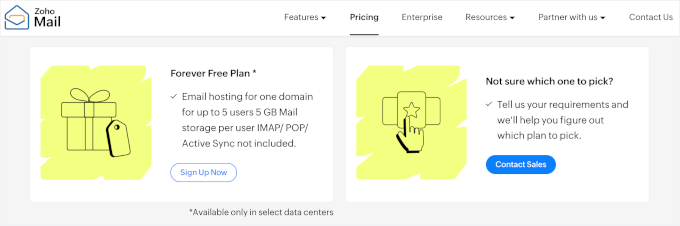
Zoho Mail offers a free email hosting solution, though you’ll still need a domain name to use it. Their forever-free plan supports up to 5 users with 5 GB of storage each. It’s ideal for small teams or solo entrepreneurs who want a professional email without ongoing costs.
What makes Zoho Mail stand out is that it’s built specifically for business use, unlike typical consumer email services. You get a clean, ad-free interface on the free plan, along with basic admin controls to manage your team.
Step 1: Sign up for the Zoho Mail free plan
First, let’s sign up for a Zoho Mail account.
On the Zoho Mail pricing page, you can scroll far down to locate the Forever Free Plan. Once you’ve found it, click ‘Sign Up Now’ to start the registration process.
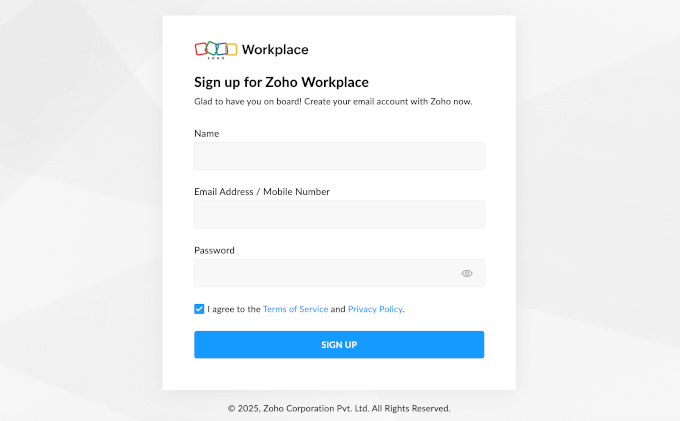
Next, you’ll see a signup form where you can enter your name, choose your email address, and create a strong password.
After that, review the terms of service and privacy policy, check the box to agree, and click ‘Sign Up’ to continue.
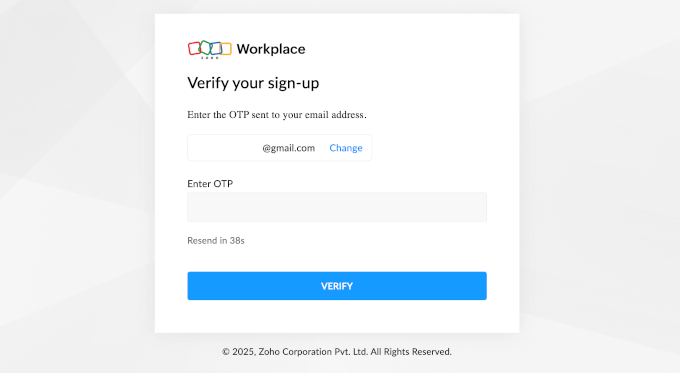
To finish signing up, verify your registration by clicking the confirmation link Zoho sends to your email.
This will activate your account and get you started.
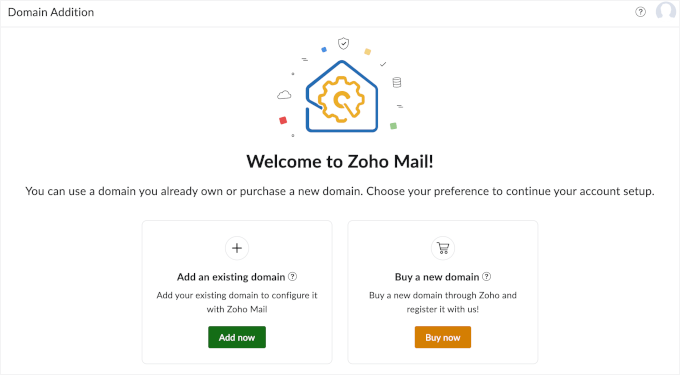
Upon account activation, you’ll see the Zoho Mail setup wizard.
Here, you can click ‘Add now’ to connect your existing domain name.
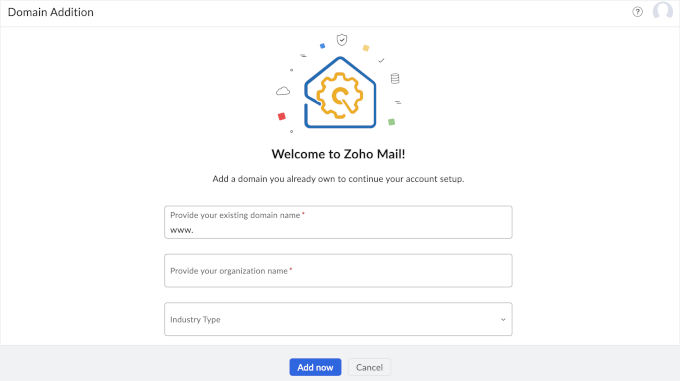
After that, you can enter your domain, type in your organization name, and select your industry.
Click ‘Add now’ to continue.
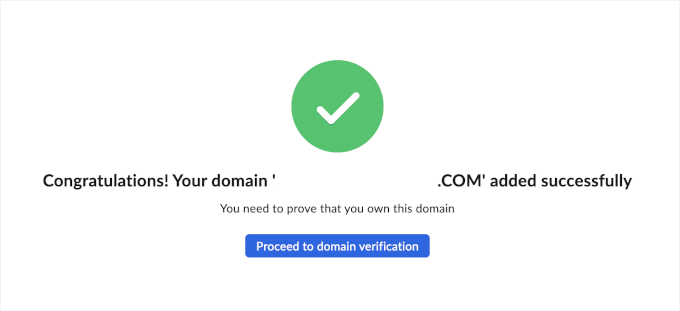
On the next screen, you’ll see a success message.
This popup also prompts you to verify your domain. Go ahead and click the ‘Proceed to domain verification’ button.
Step 2: Add and verify your custom domain
Before you can use Zoho Mail, you’ll need to prove you own the domain you want to use.
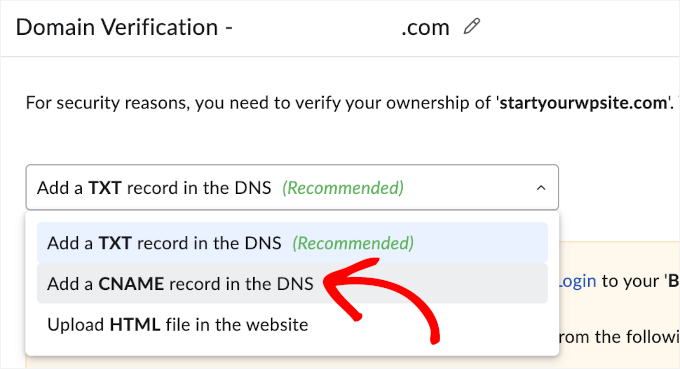
Zoho offers several verification methods, but the easiest is usually adding a CNAME record to your domain’s DNS settings.
📝 Note: IMAP and POP access (which lets you use email clients like Outlook or Apple Mail) is only available on paid plans.
Once you’ve selected the CNAME method, you’ll see your CNAME Name /Alias and CNAME Value / Points To / Destination.
You can keep this tab open, or copy and store these details somewhere safe – like in a password manager.
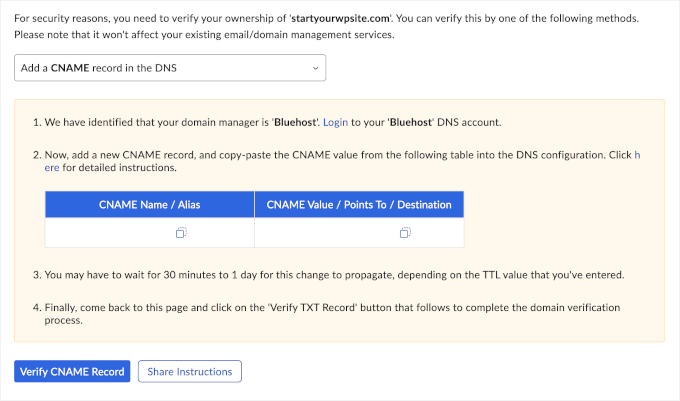
Now, you’ll need to add your CNAME records to your domain registrar.
For example, if you use Bluehost, you can log into your Bluehost control panel and go to the ‘Website’ section. Then, you can click ‘Manage’ next to your website.
On the next screen, you’ll want to go to the ‘Domains’ tab.
After that, you can click on the three-dot button at the end of your registered domain’s row. In the dropdown, select ‘Advanced DNS Editor.’
This will take you to the DNS tab in your Bluehost panel, where you can see all your DNS records.
Here, let’s click ‘+ Add Record’ to add your CNAME records.
This will open the ‘Add Advanced DNS Record’ popup.
Here’s how to navigate the fields:
- Open the ‘Type’ dropdown and select CNAME.
- In the ‘Refers to’ field, choose ‘Other Host.’ You’ll then now see a new field where you can paste the CNAME Value / Points To / Destination that Zoho gave you.
- Enter your CNAME Alias in the ‘Alias to’ field.
- Set the TTL (Time to Live).
TTL tells servers how long they should keep or cache your DNS records before checking for updates again. For faster setup, choose the shortest TTL option available.
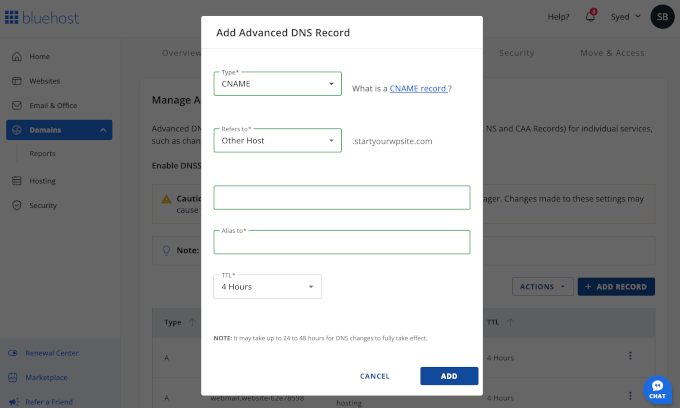
Once completed, you can click ‘Add’ and Bluehost will process this new configuration. The verification process typically takes 15-30 minutes, but it can take up to 24 hours in some cases.
For now, you can check if your verification is complete by returning to the Zoho tab and clicking ‘Verify CNAME Record’.
It will tell you if it’s still in progress or has been successful.
Step 3: Update MX, SPF, and DKIM records
Once your domain is verified, Zoho will guide you through updating your DNS with the correct MX records. These are what route incoming emails to Zoho’s servers, so they’re essential.
You can think of MX records like a change-of-address form for your email. By adding Zoho’s MX records, you’re telling the internet’s postal service: “From now on, send all mail for @yourdomain.com to my Zoho inbox.”
To do this, you’ll first need to fetch your MX records information in your Zoho account console.
Just navigate to Mail Settings » Tools & Configuration. Then, you can scroll down the panel to locate the ‘MX’ section.
You can keep this browser tab open or store your MX records somewhere safe.
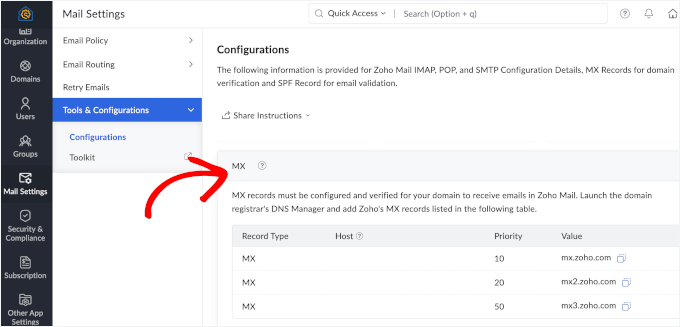
Now, in the DNS tab in your Bluehost panel, you’ll need to remove any existing MX records for your domain, if any.
Once you’ve done that, you can click ‘+ Add Records.’
In the popup that appears, you can add Zoho’s MX records.
In the ‘Add Advanced DNS Record’ popup, go ahead and set the type to MX, select ‘Other Host’ in the ‘Refers to’ field, and enter your MX details.
Then, you can set your TTL (Time to Live) to the shortest option available and click ‘Add.’
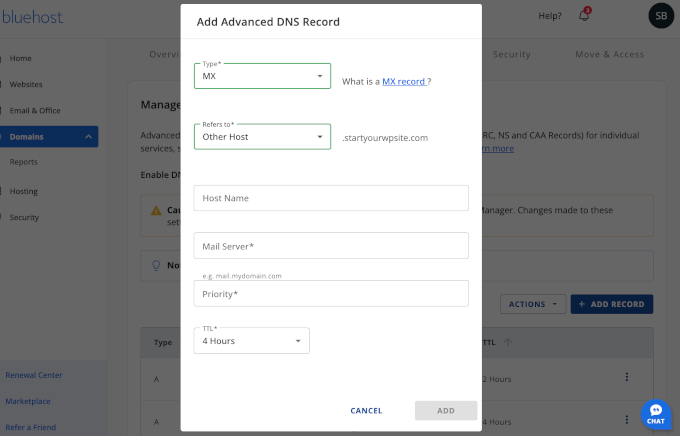
After that, you’ll see prompts to add SPF and DKIM records in your Zoho Tools & Configuration tab.
These are just TXT records you place in your DNS settings:
- SPF tells mail servers which providers can send email on behalf of your domain.
- DKIM adds a digital signature to your messages to prove they weren’t tampered with.
Adding SPF and DKIM helps keep your emails out of spam folders and protects your domain from spoofing. Zoho gives you the exact values to copy and paste, just like you did with the CNAME and MX records.
Step 4: Connect to WordPress via API (optional to improve email delivery)
Once your Zoho Mail account is fully set up and your domain is verified, you might want to send emails directly from your WordPress site or other apps.
By default, WordPress uses the PHP mail function, which isn’t very reliable and can cause transactional emails, like form notifications or WooCommerce receipts, to end up in spam.
To avoid this, you can configure Simple Mail Transfer Protocol (SMTP), which sends emails through a proper mail server for higher deliverability.
The good news is that WP Mail SMTP, the best SMTP plugin for WordPress, supports Zoho Mail integration via API. This routes your WordPress emails through your verified Zoho account, making sure they land in the inbox instead of the spam folder.
In fact, we use it to improve email deliverability on WPBeginner. See our complete WP Mail SMTP review to learn more about it.
To start, you can create a WP Mail SMTP account by clicking ‘Get WP Mail SMTP Now’ on their website.
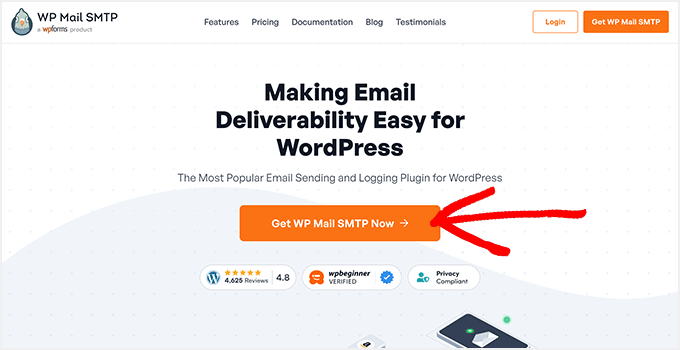
📝 Note: To use the Zoho Mail integration directly within WordPress, you’ll need WP Mail SMTP Pro. However, there’s a free version of the plugin you can try out first to test basic SMTP functionality with more popular email services like Brevo and SendLayer.
Then, you can install and activate the WP Mail SMTP plugin. You’ll upgrade it using the license key in your WP Mail SMTP account.
Head over to Plugins » Add New Plugin from your WordPress admin area.

On the next screen, you can use the search bar to look for WP Mail SMTP.
In the search results, simply click on ‘Install Now’ and then ‘Activate’ when it appears. If you need help, you can see our guide on how to install a WordPress plugin.
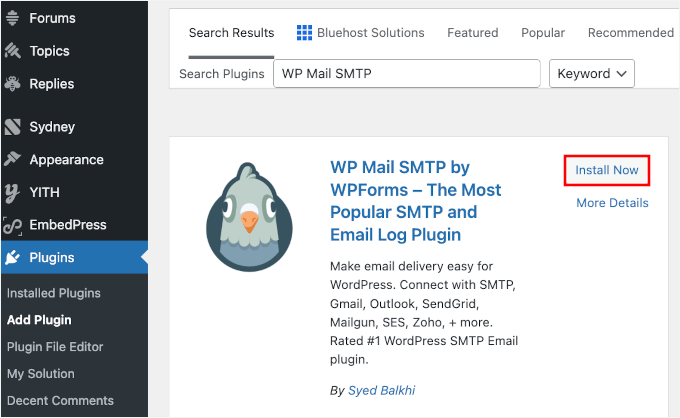
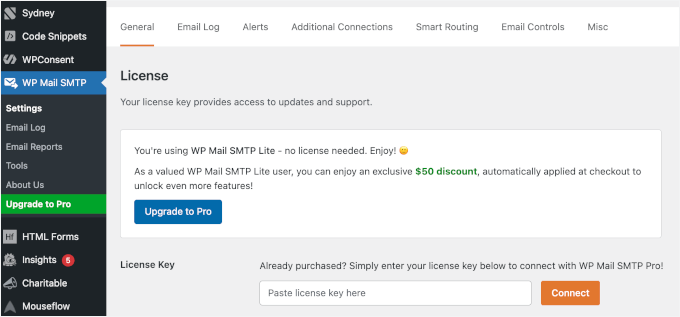
Once installed and activated, you’ll need to activate your Pro license.
To do this, navigate to WP Mail SMTP » Settings, then paste your license key into the respective field and click ‘Connect.’
Once verified, you can scroll down to the ‘Mailer’ section.
Here, let’s choose Zoho Mail by clicking on its radio button.
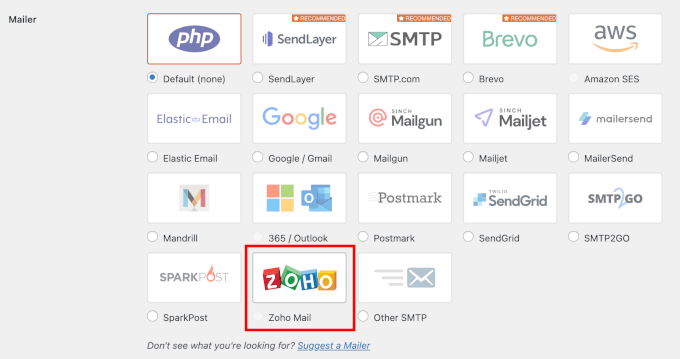
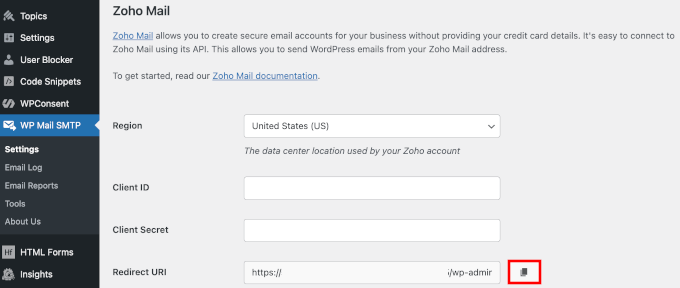
This will open new fields under the Mailer section to add your Client ID and Client Secret.
Here, let’s click the copy button for your Redirect URI. You will need it to create a Zoho API connection.
No, let’s open a new browser tab and head over to the Zoho API console.
If this is your first time accessing the API, you’ll see a ‘Get Started’ button – go ahead and click it. If you’ve created an app before, look for the + Add Client button in the top right corner instead.

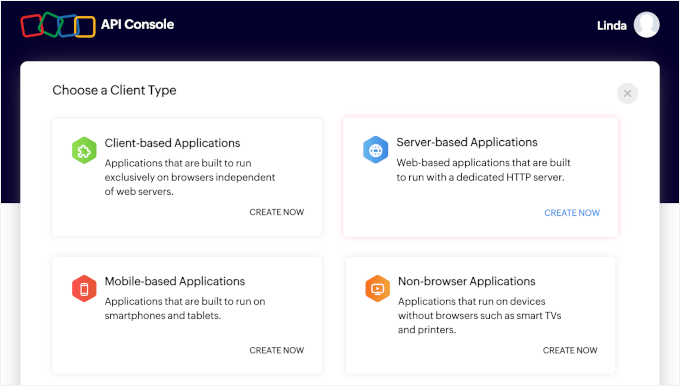
Next, you’ll be asked to choose a client type.
For this setup, select ‘Server-Based Applications.’
Then, it’s time to fill out your app details.
You can give your app a ‘Client Name’ – this can be anything that helps you tell your apps apart, like your website name. After that, enter your website’s URL in the ‘Homepage URL’ field.
For the ‘Authorized Redirect URIs’ field, you can paste the value from the ‘Redirect URI’ field in your WP Mail SMTP settings.
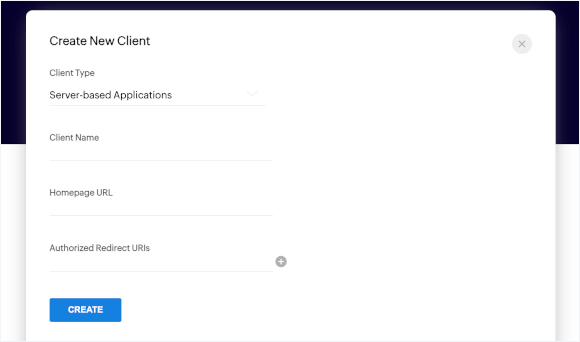
Once all the information is in, click ‘Create.’
Zoho will then show your Client ID and Client Secret. Copy both carefully and paste them into the corresponding fields in your WP Mail SMTP settings.
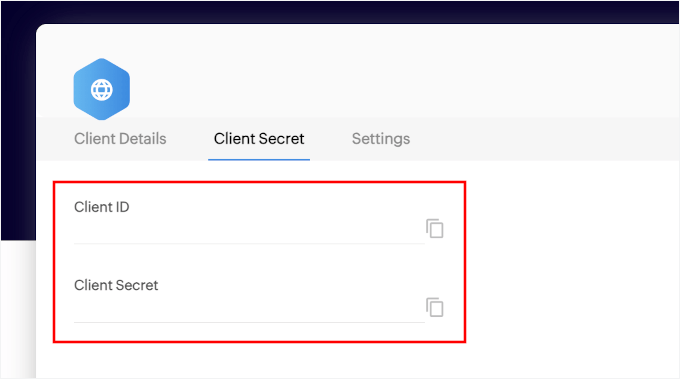
Before authorizing your connection, you’ll first. need to save your Client ID and secret information. Scroll down the page and click ‘Save Settings.’
Once the settings update, go ahead and click the ‘Allow plugin to send emails using your Zoho Mail account’ button.
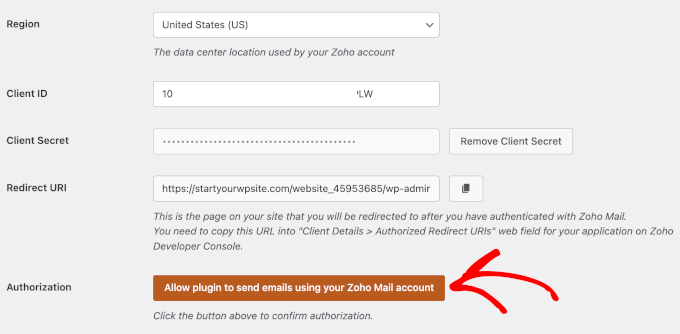
With that done, you can save your settings and run a test email to make sure everything is working.
Once it’s set up correctly, WordPress will reliably send emails using your Zoho Mail account.
Step 5: Create up to 5 user mailboxes
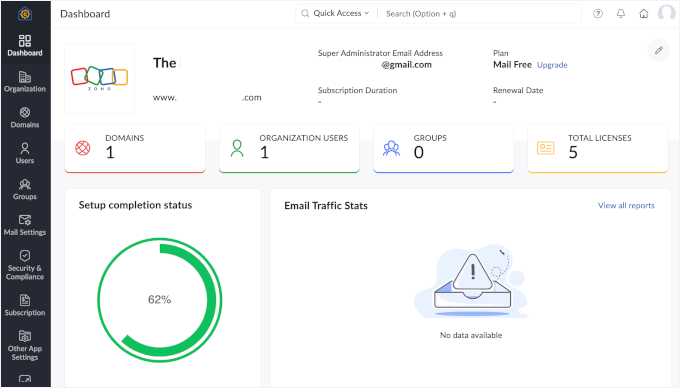
Finally, let’s explore the Zoho Mail admin console. It’s where you manage everything, and it’s packed with tools to keep your organization’s email running smoothly.
Here’s a quick overview:
- Reporting Dashboard – See a snapshot of your account details, including domains, groups, users, and email stats.
- Organization Menu – Manage overall organization details.
- Domains Menu – Add or remove domains associated with your account.
- Users Menu – Add, remove, import, or export user accounts for your team.
- Groups – Create groups to make internal and external communication easier, while keeping your inboxes organized.
- Mail Settings – Adjust routing, retries, and other email configurations.
- Security Tools – Set up two-factor authentication, manage user roles, and block unwanted emails.
- Subscription – If you’re on a paid plan, manage your subscription here.
- Integrations – This is where you can connect Zoho Mail with other Zoho apps, or link it to third-party storage services like Dropbox and Google Drive.
The console makes it easy to manage your email setup while keeping your team organized and secure:
To create email accounts for your team, you can go to the ‘Users’ tab.
Just click on it.
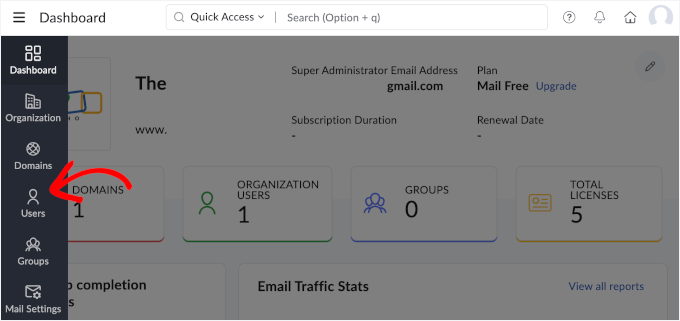
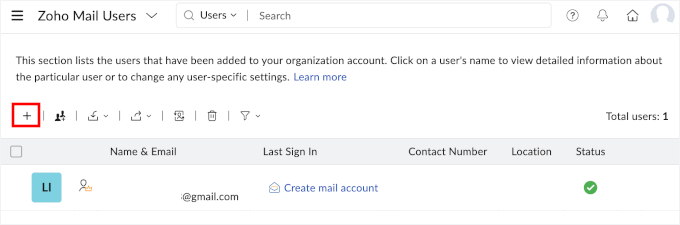
This will take you to the Zoho Mail Users page.
Go ahead and click the ‘+’ button to add a new user.
After that, you can enter each team member’s name, last name, and username.
Then, you can set temporary passwords for each account by clicking the ‘Auto-generate’ option and checking the ‘Force users to change password on first log in’ box.
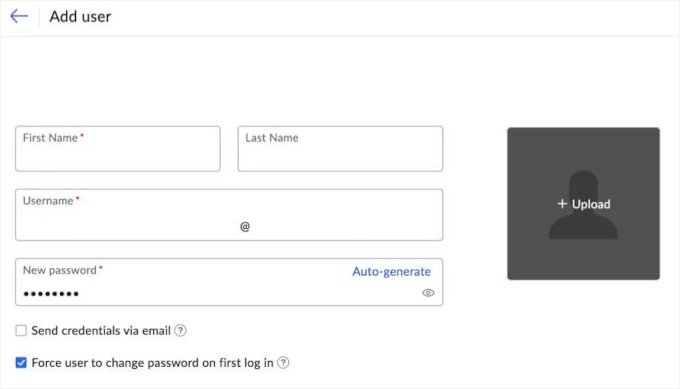
Don’t forget to click ‘Add’ to store your user registration.
You can create up to 5 email accounts on the free plan, each with 5 GB of storage. Go ahead and repeat the process as needed.
With that done, your team will then be able to access their email by going to mail.zoho.com and logging in with their custom email address and temporary password.
6. Mail.com
⭐ Best For: Individuals who want a free, quick setup
 | ✅ Free to use with a lot of storage (65 GB) ✅ Many domain options like @consultant.com, @engineer.com ✅ No need to buy hosting or a domain |
| ❌ Limited credibility for businesses (not truly your own domain) ❌ Ad-supported platform ❌ No advanced business features |
Mail.com takes a different approach to professional email. Instead of using your own domain, you can choose from dozens of professional-looking options like @consultant.com, @engineer.com, or @accountant.com.
While you don’t own the domain, these addresses still look more credible than standard free emails like Gmail or Yahoo. Plus, setup is quick, so you can have a professional-looking email ready in just a few minutes.
✋ Heads Up: Mail.com is only available in certain countries. If you’re in an unsupported region, registration may be blocked based on your IP address, or you might be redirected to local services like GMX in Germany, Austria, or Switzerland.
Step 1: Sign up at Mail.com
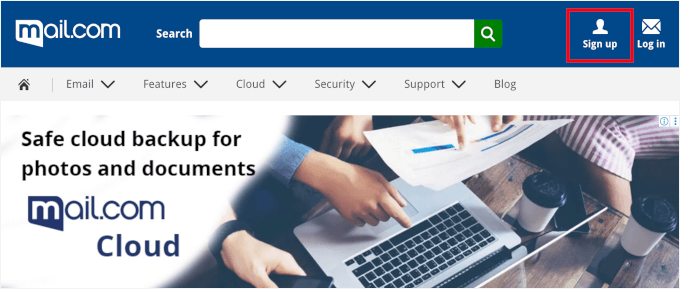
To get started with Mail.com, head over to their website and click the ‘Sign up’ button in the top-right corner.
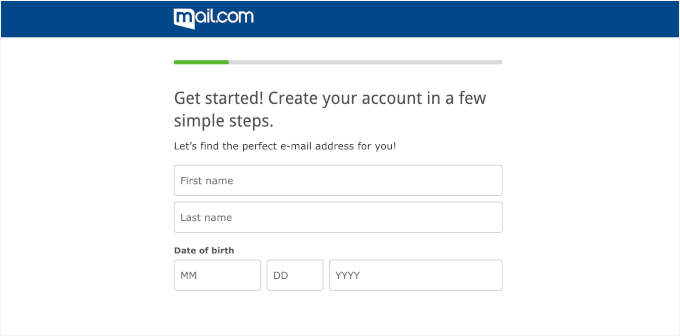
You’ll see a simple registration form.
First, go ahead and enter your user details, which include your name and date of birth.
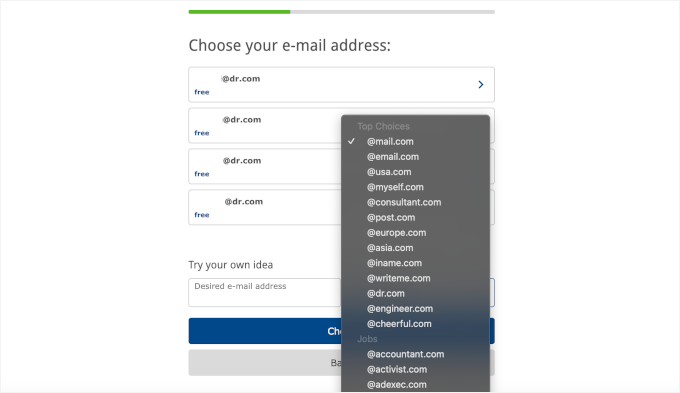
Next, you’ll choose your email address.
You can see that Mail.com provides a few available options based on the user details you added. But you can also create your own desired email using its 100+ domains.
Top choices include consultant.com, writeme.com, and engineer.com. In the ‘Jobs’ section, you’ll find more options like accountant.com, contractor.com, graphic-designer.com, and programmer.net.
Simply browse through this dropdown to find the best one for your project.
📝 Note: Keep in mind that while these can look professional, they won’t carry the same brand recognition as using your own company domain.
Once you’ve selected your domain and username combination, Mail.com will check availability and let you proceed with account creation.
After that, you’ll complete some additional information.
This includes how you’d like to be addressed and your location.
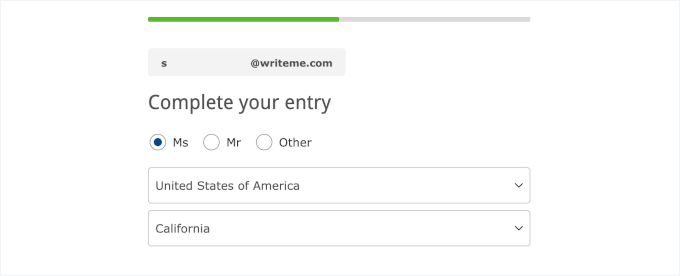
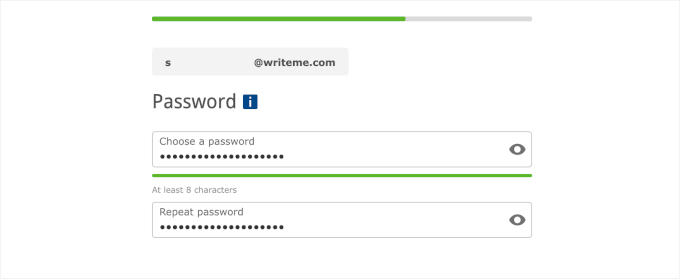
On the next screen, you’ll need to create a strong password.
Your password must be at least eight characters long and include a mix of uppercase and lowercase letters, numbers, and special characters.
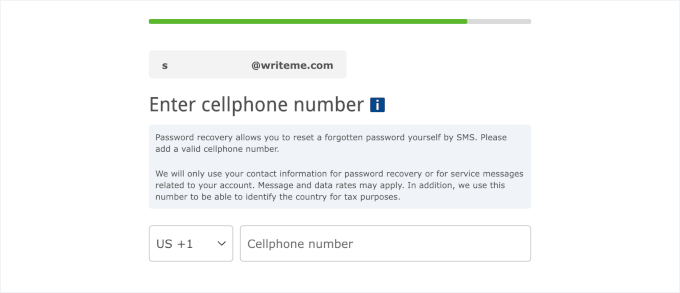
Next, you’ll be asked to add a recovery option using your phone number.
This is required so you can reset your password if you ever get locked out.
After that, just complete the CAPTCHA to prove you’re not a robot, review the Terms and Conditions, and click the ‘Accept’ button.
That’s it! Your new Mail.com account is ready, and you can start using your inbox right away on any device.
Step 2: Explore your Mail.com dashboard
Once you’ve activated your Mail.com account and logged in, you’ll land right in the E-mail section. This is your main hub for sending and receiving messages, but there’s a lot more you can do:
- Cloud – Store and manage your documents or photos.
- Contacts – Keep track of everyone you email.
- Organizer – Set appointments or reminders.
- More – Access extra options like color and language settings to personalize your account.
- Account – Update personal details, change your password, or tweak security settings.
- Settings (under your folder list) – Adjust email preferences, manage active sessions, and make other changes to fit your workflow.
Sometimes, however, you may see advertisements in the interface, as this is a free, ad-supported service.
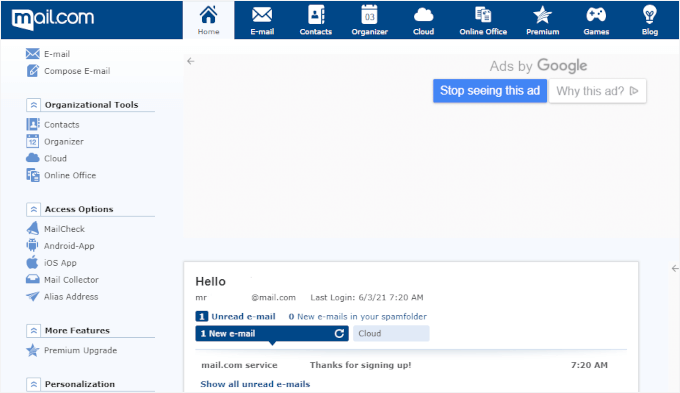
By getting familiar with these sections, you can easily manage contacts, stay organized, and customize your Mail.com experience.
Step 3: Import emails from another account (optional)
If you want to bring emails from another account into your Mail.com inbox, it’s easy.
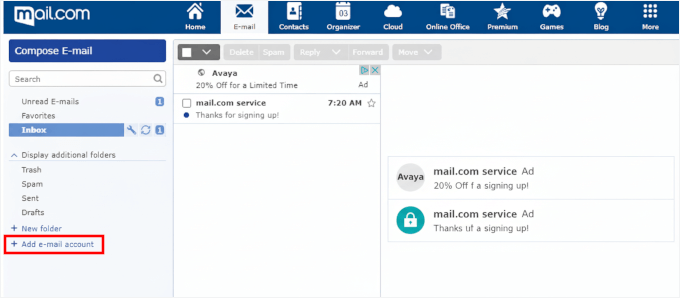
From the dashboard, click the E-mail icon at the top of the page. Then, near the bottom left, click the ‘+ Add e-mail account’ link.
Next, enter the email address and password from the account you want to import.
You can choose whether to delete emails from the other server after fetching and whether to sort emails into a separate folder.
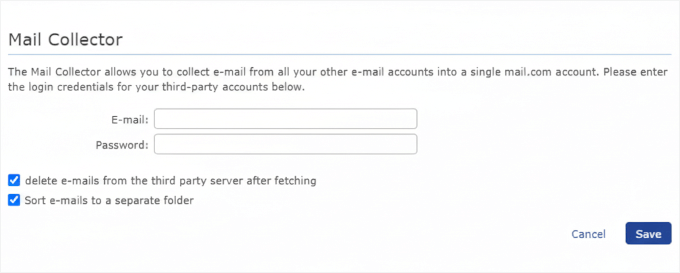
Once you’ve configured your preferences, click ‘Save.’
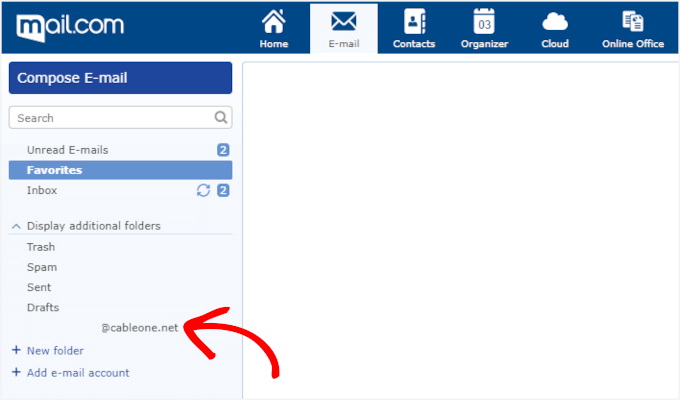
Your imported email account will now appear on the left side of the page under the ‘Display additional folders’ dropdown. And your emails will start appearing in your Mail.com inbox.
Step 4: Start using your new mailbox immediately
Mail.com gives you 65 GB of storage, which is plenty for regular business emails.
You can check your Mail.com email on their mobile apps or set it up in programs like Outlook or Apple Mail using IMAP or POP.
For a professional touch, you can use this email address consistently on your business cards, website, and marketing materials. Even though it’s not a custom domain, it still looks more credible than a typical Gmail or Yahoo address.
Other Free Email Domain Providers I Considered
While the six options above are my top recommendations, I also tested several other providers that might work for specific situations.
Here are the ones worth mentioning, along with why they didn’t make my main list:
IONOS
 | ✅ Often bundles free email with trial domains ✅ 2 GB storage per mailbox ✅ Easy to manage through the IONOS panel |
| ❌ Free period limited — renewals cost extra ❌ Not ideal for scaling long-term ❌ Support varies by region | |
| ⭐ Best For: Users testing a domain + email together |
DreamHost
 | ✅ Free email with most hosting plans ✅ Generous 25 GB per mailbox ✅ Ad-free, clean webmail interface |
| ❌ Not the easiest panel for beginners ❌ Storage is per account, not pooled ❌ Renewal costs are higher than the first year | |
| ⭐ Best For: Users wanting more storage per mailbox |
InMotion Hosting
 | ✅ Unlimited email accounts included ✅ 10 GB storage per mailbox ✅ Solid cPanel-based management |
| ❌ Hosting plans start a bit higher ❌ Limited data centers outside US | |
| ⭐ Best For: Small to mid-sized businesses needing multiple accounts |
Which Is Truly the Best Free Email Domain Option?
After trying out all the providers, my take is that most small business owners are better off starting with the free custom email that comes with their web hosting plan. It’s the easiest and most cost-effective option since your website and email are managed in the same place.
WordPress hosting companies like Bluehost, Hostinger, and HostGator all include free business email addresses with their WordPress hosting. This way, you get a professional email that matches your domain and the convenience of managing everything from one dashboard.
As your business grows, it’s worth upgrading to a paid option like Google Workspace (about $6/month per user). At WPBeginner, we use it ourselves because it’s rock-solid, integrates with Google’s apps, and has excellent spam protection.
If you’re a solo entrepreneur or a very small team, Zoho Mail’s forever-free plan is a great choice. It gives you up to 5 custom email addresses with 5 GB each – more than enough for most small businesses starting out.
Bonus Tips for Managing Your Email Domain
Getting your email set up is just step one. Here are a few practical tips to help you manage it smoothly:
- 🔐 Set up email security. Add SPF and DKIM records through your hosting provider to keep your emails out of spam and protect your domain’s reputation. Most hosts will guide you through it.
- 🧑💻 Use consistent formats. Stick with something professional like firstname@yourdomain.com for team members, and functional addresses like info@yourdomain.com or support@yourdomain.com for general use.
- 🖋️ Create a clean email signature. You can add your name, title, company, phone, and website to your signature. That way, every email becomes a chance to build trust and make it easy for people to reach you.
- 🗂️ Stay organized with multiple addresses. If you have lots of email addresses, you’ll want to set up forwarding so you don’t miss important emails. For example, you can forward support@ and sales@ to your main inbox.
- 💵 Know when to upgrade. Free plans are great to start, but if you need more storage, advanced security, or tools like calendars and document sharing, it’s time to move to a paid solution.
FAQs: Free Email Domains for Your Business
Can I get a free email domain without buying hosting?
If you’re looking for a truly free email domain without hosting, Mail.com is your top pick. You can sign up for up to a free address using one of their domains, such as @consultant.com or @engineer.com.
Alternatively, with Zoho Mail‘s Forever Free plan, you can create a personal Zoho email (like username@zoho.com), though it won’t look quite as professional.
Can I keep my email if I switch hosts?
Yes, you can keep your email when switching hosts, but the process depends on how your email is set up.
If you use a standalone email service like Google Workspace or Zoho Mail, your email stays completely independent of your hosting provider.
If your email is hosted with your web host, you’ll need to migrate your emails and update your domain’s MX records to point to your new provider.
Is free email safe for business use?
Free email services can be safe for business use, but the level of security varies by provider. Services like Google Workspace and Zoho Mail offer strong security features even on their free tiers, including spam protection and secure connections.
However, free hosting-based email typically has more basic security features, so consider upgrading to a paid email service if you handle sensitive business communications or need advanced security compliance.
Other Helpful Expert Guides for Domain Names
I hope this guide has helped you get a free email domain for your business.
If you found this helpful, you may also want to see some other guides on:
- Beginner’s Guide: What is a Domain Name and How Do Domains Work?
- What’s the Difference Between Domain Name and Web Hosting (Explained)
- How to Renew a Domain Name (All Major Hosting Registrars)
- How to Check Domain Name Availability (Easy Domain Search Tools)
- Best Google Domains Alternatives (Compared)
- How to Change MX Records for Your WordPress Site (Step by Step)
If you liked this article, then please subscribe to our YouTube Channel for WordPress video tutorials. You can also find us on Twitter and Facebook.


Dennis Muthomi
I found the comparison between free options and paid solutions like Google Workspace and Microsoft 365 especially helpful.
As someone who has moved from a free hosting provided email to Google Workspace I can attest to the benefits of better security, spam filtering and integration with other productivity tools.
I’d like to add a tip for the free options: While setting up your custom email domain make sure to also set up your SPF and DKIM records.
These additional DNS records will help with email deliverability and reduce the chances of your emails being marked as spam.
Jiří Vaněk
I would currently add to your comment that SPF is now a requirement for domains. If a domain doesn’t have at least an SPF record set, you likely won’t be able to send an email to a @gmail.com address because Google considers emails from domains without SPF as unwanted. The advantage is that Google sends error messages back with the reason, so the sender at least knows their message wasn’t delivered and why. So, SPF is no longer just a recommendation but an absolute necessity. Additionally, many people have delivery issues due to SPF when they use the standard PHP mail() function instead of SMTP.
Anthony O'Keeffe
Is that Bluehost offer free for ONLY the first year, please?
WPBeginner Support
Hosting signup discounts are only for the first signup period at the moment.
Admin
Moinuddin Waheed
I have used bluehost and have used the free email domain service by it.
having a domain email looks like a professional and gives a sense of branding for the buisness or blog.
I was hesitant earlier to use it but as it is very simple steps to follow and also we can get these emails gets delivered in our free Gmail account or in other email apps like outlook, it is good to have domain email.
Thanks for the step by step guide.
WPBeginner Support
Glad our guide was helpful
Admin
Ralph
Thanks for this guide. In the beginning every blogger want to save every penny but after years of blogging and making it my fulltime income leaving my job – just spend that 10 dollars to look more professional. Don’t be afraid and give your best. This will bring some money making possibilities. You just have to treat it like investment, not a cost.
Leland Garner
Thanks for this excellent guide. I use Google Workspace but for a friend I set up email at Zoho. Do you think Zoho is still a good option as well?
WPBeginner Support
We have not recently reviewed Zoho for any changes in its quality but when we will look into them for future updates
Admin
bina
Hi! Thanks so much for this guide, it was so helpful. I successfully linked my account from bluehost to google and am able to send e-mails from my domain, but I’m unable to receive emails from the account. Did I miss a step? Would you be able to help me fix this? Thanks so much
WPBeginner Support
You would want to reach out to BlueHost and they should be able to assist but more than likely you missed a step with the SMTP setup.
Admin
Omer Yousuf
Thanks for sharing the info, it does give me some peace of mind before proceeding with creating a custom domain email.
WPBeginner Support
Glad our guide could be helpful
Admin
Michael Oladipo
If I use a host, I don’t need to worry about creating a website for now? Please help, I will create a website in future but I need the email now, how can I use host for the G-Suite? Thanks.
WPBeginner Support
If your host is not one listed on this guide, you would want to reach out to them and they can assist with creating your email.
Admin
Smith
Thank you for the guidance..
WPBeginner Support
You’re welcome
Admin