


Proper user registration is the foundation of building an engaged online community with WordPress. It’s something we learned early on while growing WPBeginner into the largest WordPress resource site today.
Along the way, we’ve seen websites evolve from simple blogs into vibrant communities, all by setting up the right user registration system.
So, whether you want to accept guest posts, create a membership site, or grow a community, it all begins here.
In this guide, we’ll show you exactly how to allow user registration on your WordPress site – no complicated code, just simple steps that actually work. 🚀
Why Allow User Registration in WordPress?
A registered user is an account holder on your WordPress site who has login credentials (username and password) and an assigned role that determines what they can do on your site.
Adding a user registration form to your WordPress website can allow users to interact with each other and even build a community around your brand.
Plus, you can accept and post user-generated content on your WordPress blog, like posts, comments, images, videos, and more.
If you have an online store, then you can increase engagement by offering exclusive content or discount offers to customers who are registered on your site.
This can help improve user engagement, increase loyalty, and even help you build an email list by letting you collect email addresses during the registration process.
That being said, let’s see how to easily allow user registration in WordPress.
Here is the list of topics we will cover in this tutorial. You can use the quick links below to jump to different sections:
- Enabling User Registration in WordPress
- Adding Login and Register Links in WordPress
- Method 1: Adding the Meta Widget to the WordPress Sidebar
- Method 2: Creating Custom Login Pages Using WPForms
- Method 3: Create a Custom Login Page Using SeedProd
- Security Best Practices for WordPress User Registration
- Bonus Tip 1: Manage Users in WordPress
- Bonus Tip 2: Show Recently Registered Users on Your Site
- Frequently Asked Questions About WordPress User Registration
- Next Step: Using Forms in WordPress
📝 Note: This guide focuses on adding users to your WordPress site with default user roles and capabilities.
If you are looking to make money online by allowing users to pay for premium content and access to a community, then you should see our ultimate guide to creating a WordPress membership site instead.
Enabling User Registration in WordPress
WordPress comes with built-in functionality to manage user registrations. It is turned off by default, but you can easily turn it on.
To do this, simply head over to the Settings » General page in your WordPress admin area.
From here, scroll down to the ‘Membership’ section and check the box next to the ‘Anyone can register’ option.
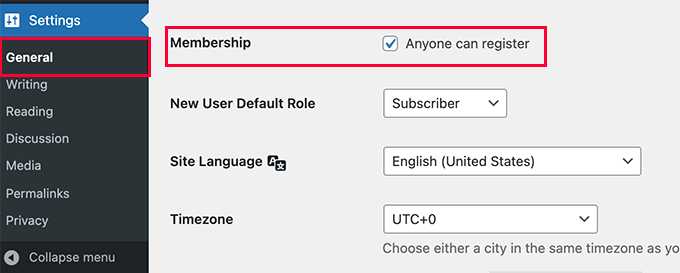
Next, you have to select the default user role. This is the user role assigned to each new user who registers on your WordPress website.
Each user role in WordPress comes with its own permissions and capabilities. See our guide on WordPress user roles and permissions to learn more about user roles in WordPress.
The default user role is ‘Subscriber’, which is the safest option because subscribers can only manage their own profiles and read content, but cannot alter your site. You can change this to any other user role available if needed.
For example, if you want users to write posts on your website, then you can change the default user role to Contributor or Author.
📌 Important: Never use ‘Administrator’ as the default user role for user registrations, or a new user may be able to take over your website and lock you out.
Don’t forget to click on the ‘Save Changes’ button to store your settings.
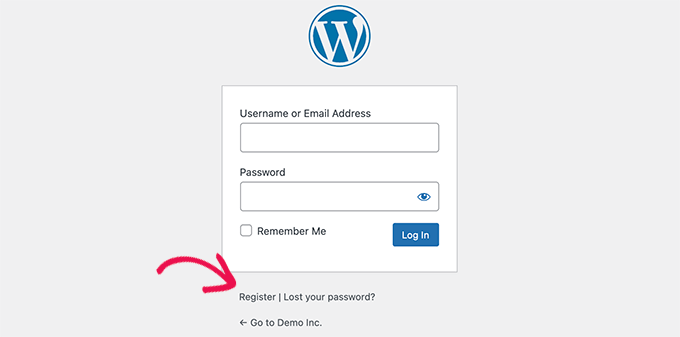
Now, your WordPress site is open to user registrations. You can visit your WordPress login page, and you will see an option to register as a new user.
Adding Login and Register Links in WordPress
After opening your website for user registration, you will want to let users know that they can sign up and log in to their accounts.
There are multiple ways to do that.
You can simply add links in your WordPress sidebar to your login and registration page, or you can create custom login and registration pages for your website.
We will show you 3 different methods so you can choose the one that best suits your needs.
Method 1: Adding the Meta Widget to the WordPress Sidebar
The simplest way to add a login link is by adding the meta widget to your sidebar.
Simply go to the Appearance » Widgets page and add the ‘Meta’ widget to a sidebar. You can see our guide on how to add and use widgets in WordPress for detailed instructions.
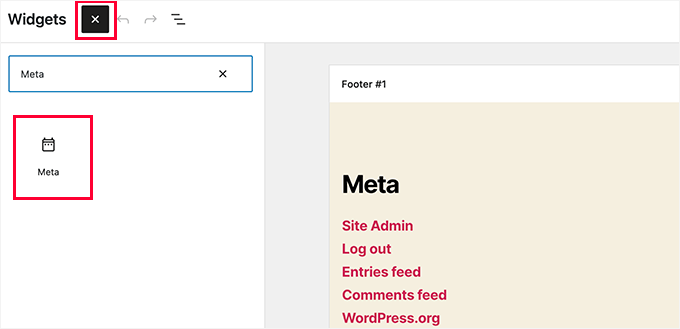
The meta widget includes links to register, login / log out, RSS feed, comments feed, and WordPress.org website.
This is how it appears on our example website:

Keep in mind that if you are using a block theme with the Full Site Editor, the Appearance » Widgets option won’t be available for you. In that case, we highly recommend using Method 2 or 3 below.
Method 2: Creating Custom Login Pages Using WPForms
The problem with the first method is that there is no way to customize the registration or login forms. You can’t add form fields or change the design of the forms, and they won’t match the design of your WordPress website.
By using your own custom login pages, you can offer a much better user experience. You can embed your forms on any page on your website and add form fields to collect any information you want.
We will show you different ways to create your own custom login pages. The easiest one is to use the WPForms plugin.
It’s the best WordPress contact form plugin on the market that comes with a user registration addon. It allows you to easily add and customize login and registration forms anywhere on your website.
Unlike Contact Form 7, which requires manual coding and configuration, WPForms includes a drag-and-drop builder that makes it easy to create professional registration forms without technical expertise.

Plus, it is trusted by over 6 million WordPress sites and holds an impressive 4.8/5 rating from more than 14,000 reviews on WordPress.org. Users highlight its excellent customer support and ease of use, with many reporting they can create professional registration forms in minutes without any coding.
Beyond basic user registration, WPForms offers premium features like Conversational Forms for higher completion rates and Form Abandonment to capture partial registrations, among other things. You can also accept payments through Stripe, PayPal, Authorize.Net, and more.
👉 Did you know? At WPBeginner, we use WPForms for all of our form needs, be it our contact form or annual reader survey. We love how easy it is to use, and with the AI tools rolling out, creating WordPress forms has never been easier.
Check out our complete WPForms review to explore its features!
Getting Started with WPForms
First, you need to install and activate the WPForms plugin. For more details, see our step-by-step guide on how to install a WordPress plugin.
📝 Note: WPForms also has a free version. However, you will need at least the Pro license of the plugin to access the user registration addon.
Upon activation, visit the WPForms » Settings page to enter your license key.
You can find this information from your account on the WPForms website.
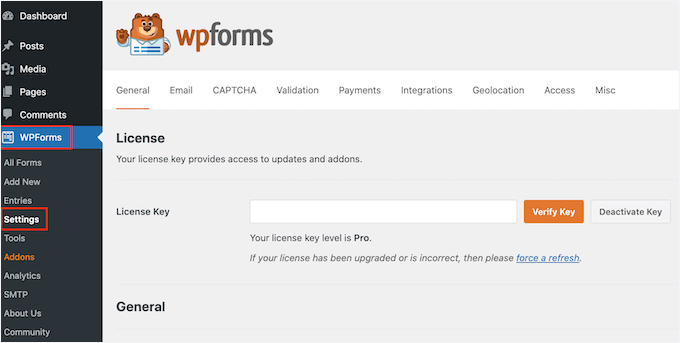
After verification, head over to the WPForms » Addons page from the WordPress dashboard.
Here, scroll down to ‘User Registration Addon’ and click on the ‘Install Addon’ button next to it.

WPForms will automatically install and activate the addon for you. If it doesn’t activate automatically, simply click the ‘Activate’ button to start using it.
You are now ready to create custom registration and login forms using WPForms.
Creating a Custom Registration Form
Simply visit the WPForms » Add New page to launch the WPForms form builder.
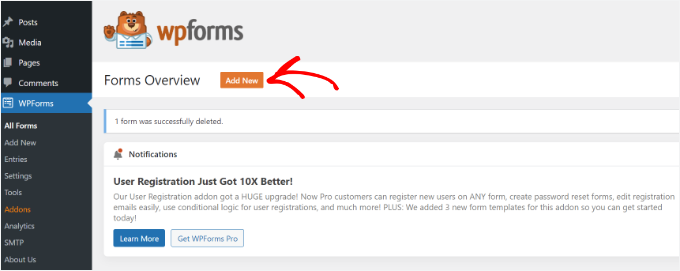
Here, you’ll first need to enter a form name and then choose how you want to create your form: using AI, from scratch, or pick a template.
🧑💻 Pro Tip: With WPForms AI, all you need is a simple prompt, and the tool will automatically generate the form for you. It even includes ready-made prompt examples you can click to get started faster.
Do note that you’ll need the Basic license or higher to use the AI-powered form builder.
In this guide, we’re going to use a ready-made template.
Simply use the search bar under the ‘Select a Template’ section to quickly find the user registration template.
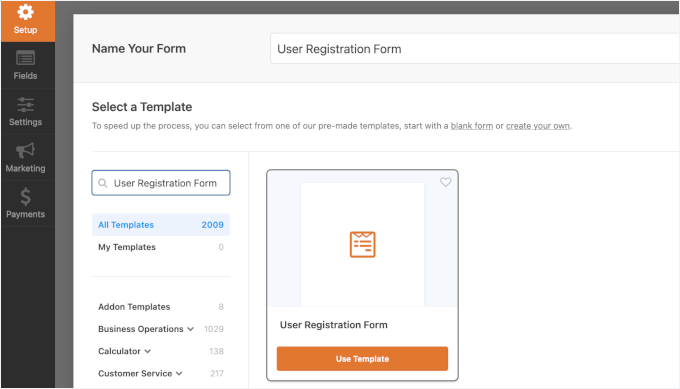
Once you’ve done that, click on the ‘Use Template’ button to continue, and WPForms will create a simple WordPress user registration form for you.
You can now add new fields from the left panel as well as customize the order of existing fields by using a simple drag-and-drop interface.
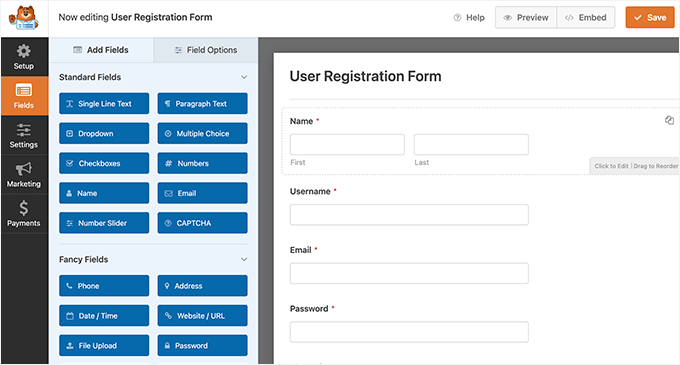
Once you are done adding the fields, click on the ‘Settings’ menu on the left.
Then select the ‘User Registration’ tab.
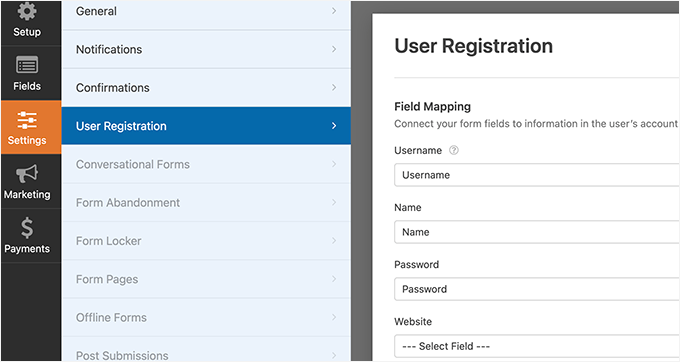
Here, you can map each form field to information in the user’s profile, select the user role, enable notifications, select the confirmation page, and enable user activation.
The user activation feature helps you reduce spam user registration in WordPress.
If you select the manual method, then all users must be approved by an admin before they can log in to your site.
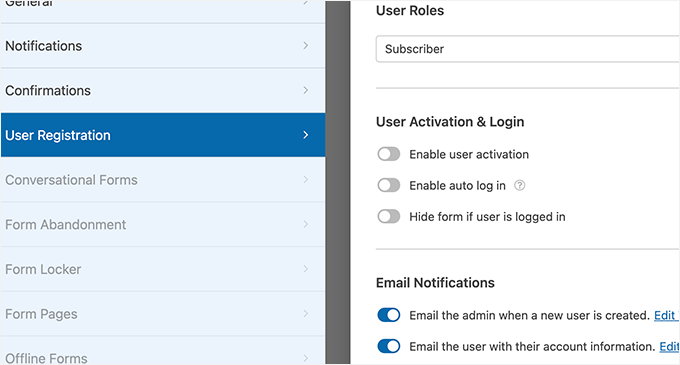
If you select the email method, the user will receive an automated email containing an activation link they must click before they can log in to your website.
💡 Pro Tip: To ensure activation and notification emails reliably reach your users’ inboxes, we recommend using the free WP Mail SMTP plugin. This plugin fixes WordPress email deliverability issues.
See our guide on how to fix WordPress not sending email for details.
Besides adding form fields, you can also connect your form with other WPForms addons.
For instance, you can connect to your email marketing service provider and automatically add new users to your email list. Similarly, you can connect WPForms to payment services like PayPal and Stripe to receive online payments.
When you are finished, don’t forget to click on the ‘Save’ button in the top right corner of the screen to save your form settings. You can now exit the form builder by clicking on the ‘Close’ button.
Your user registration form is ready to be added to your WordPress site.
Adding User Registration Form to WordPress Site
To add your user registration form to your website, click the ‘Embed’ button at the top of the WPForms form builder.
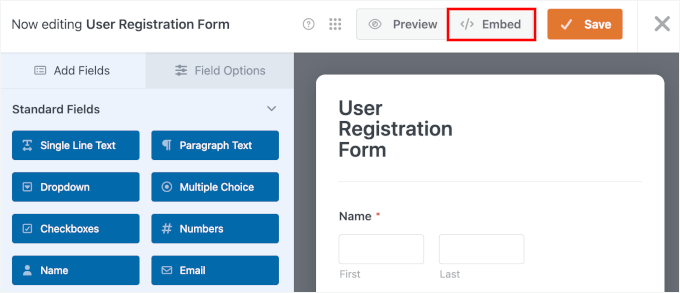
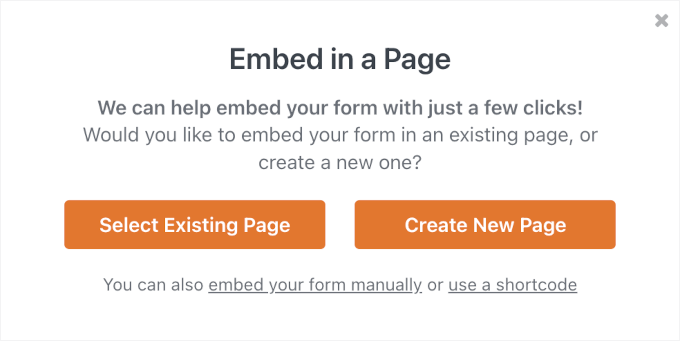
A popup window will appear, you can either click:
- Select Existing Page – to add the form to an existing page using the WPForms block.
- Create New Page – to let WPForms embed the form automatically.
There’s also the shortcode option, which works best if you want to embed your registration form in a widget area, custom template, or page builder that supports shortcodes.
Creating a new page is the quickest option, but for this tutorial, we’ll show you how to add the form to an existing page. In the popup, select ‘Select Existing Page’.
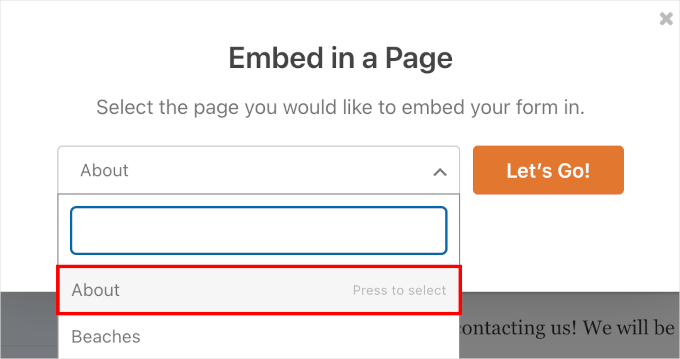
Next, choose the page where you want to display the form.
The dropdown menu will show all published pages on your WordPress site, including your Home, About, and Contact pages.
Simply select the page where you want users to register and click ‘Let’s Go!’.
WPForms will take you to the content editor.
From here, click the ‘+’ add block button, type ‘WPForms’ into the search field, and select the WPForms block when it appears.
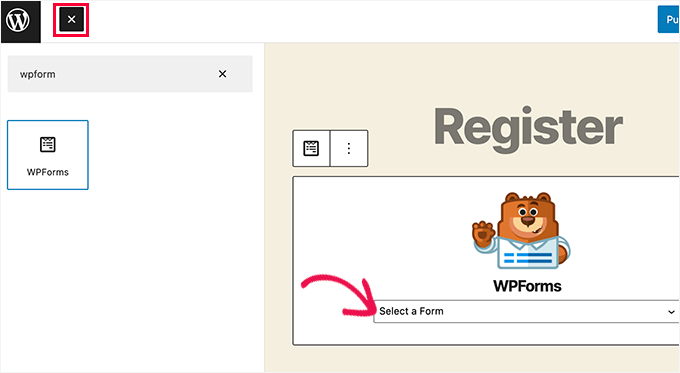
From the WPForms block, simply click on the dropdown menu and select the ‘User registration form’ you created earlier.
You can now save or publish your page and then visit it to see your custom user registration page in action.
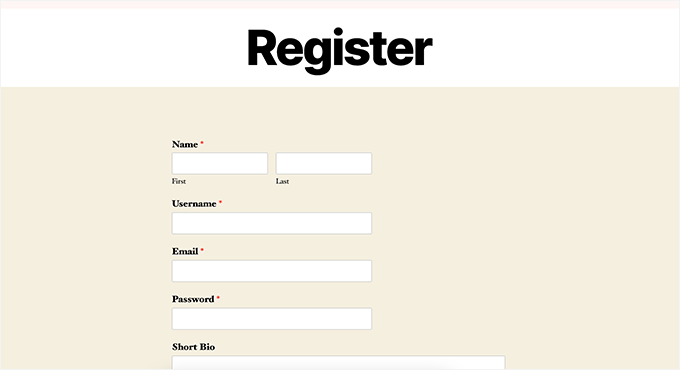
For details, see our guide on how to embed forms in WordPress.
Creating a Custom Login Form
Now that your custom user registration page is active, you can also create a custom login form for your site with WPForms, making it the best WordPress user registration plugin on the market.
To get started, visit the WPForms » Add New screen.
This will launch the form builder interface of WPForms.
You need to provide a name for your custom login form and then select ‘User Login Form’ as your template.
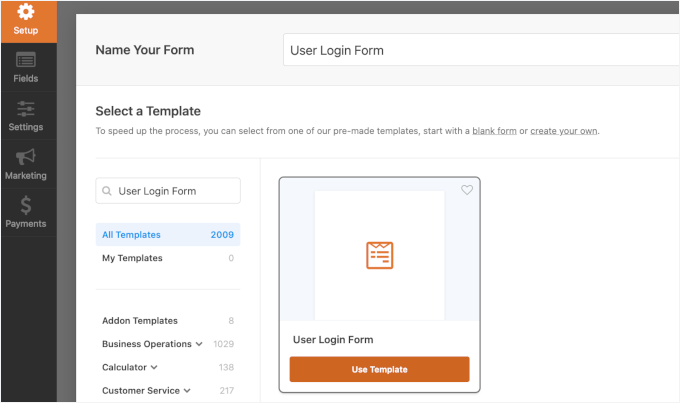
WPForms will now create a new login form.
By default, it only has the username and password fields.
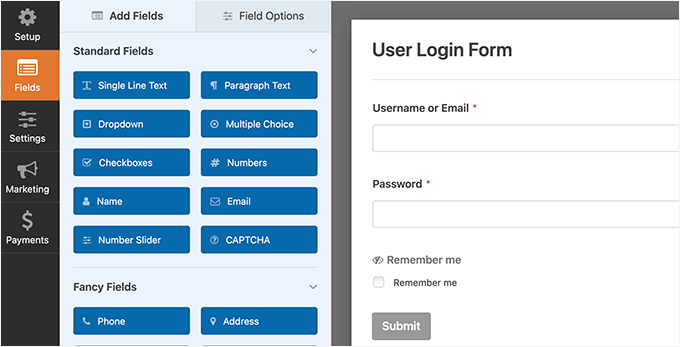
However, you can also add additional fields to the form by dragging them from the left panel.
Next, click on the ‘Settings’ tab and then click on the ‘Confirmation’ tab. This is where you can define what to do after a successful login.
You can show users a message, redirect them to the page they came from, or redirect them to any other page on your site.
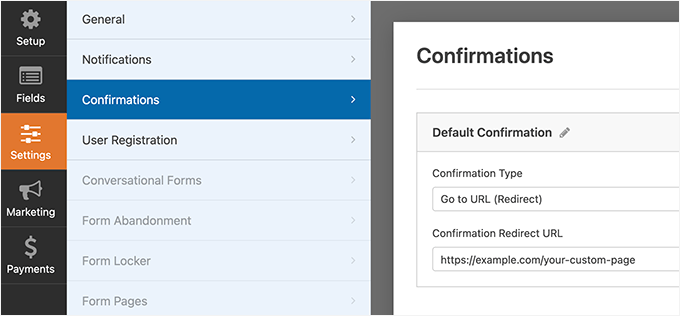
Click on the ‘Save’ button in the top right corner of the screen to store your form settings. You can now exit the form builder interface by clicking on the ‘Close’ button.
Your custom login form is ready to be added to your WordPress site.
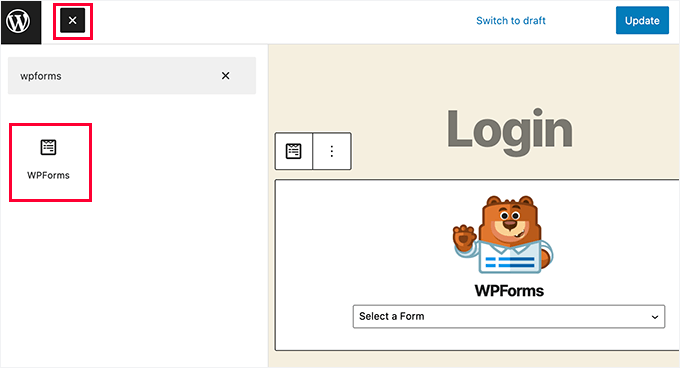
You can add your custom login form to a page by creating a new page and then adding the WPForms block to the content area.
You can also add your custom login form to a sidebar.
Simply head over to the Appearance » Widgets page and add the WPForms block or the legacy widget to a sidebar.
📝 Note: This sidebar option is only available for classic themes. If you’re using a block theme with the Full Site Editor, you should embed the login form in a page or use the Site Editor instead.
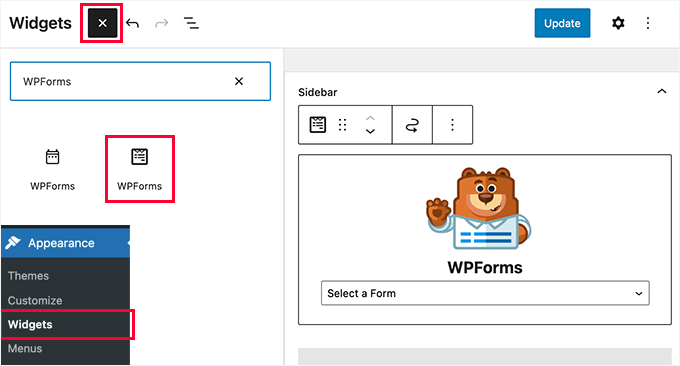
Select the custom login form you just created from the dropdown menu, and then click on the ‘Update’ button to store your widget settings.
You can now visit your website to see your custom login form in action.
💡 Pro Tip: To properly test your new registration and login forms, make sure to open your website in an Incognito or Private browsing window. This lets you view the forms exactly as a logged-out visitor would see them.
For more on this topic, see our guide on how to create a custom login page for WordPress.
Method 3: Create a Custom Login Page Using SeedProd
If you use WPForms alone to create a custom login page, then the design of your login page will still depend on your WordPress theme.
What if you wanted to design a custom login page that looks more professional and sleek?
SeedProd allows you to easily create a beautiful custom login page for your website.
It is the most powerful WordPress page builder on the market. You can use it to create any type of page without writing any code or learning any special design skills.

👉 Some of our business partners use SeedProd to build their websites. The drag-and-drop editor helps them create high-converting pages easily and quickly. See our complete SeedProd review to explore its features!
First, you need to install and activate the SeedProd plugin. For more details, see our step-by-step guide on how to install a WordPress plugin.
📝 Note: The custom login page feature requires a paid SeedProd plan (Basic or higher). The free SeedProd Lite version does not include this feature.
Upon activation, you’ll be asked to enter your license key. You can find this information in your account on the SeedProd website.
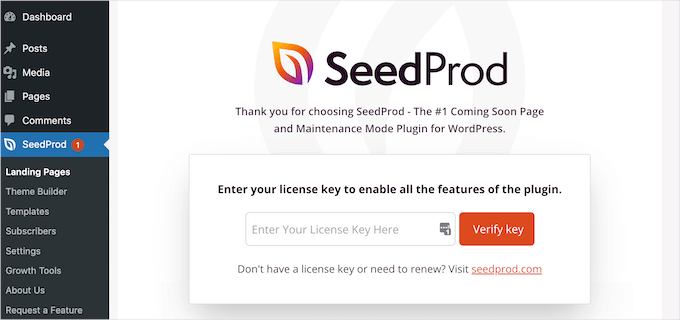
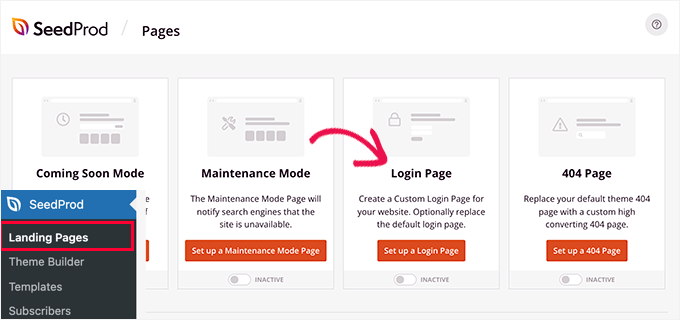
Next, visit the SeedProd » Landing Pages screen from the WordPress admin sidebar.
Once you are there, click on the ‘Set up a Login Page’ button.
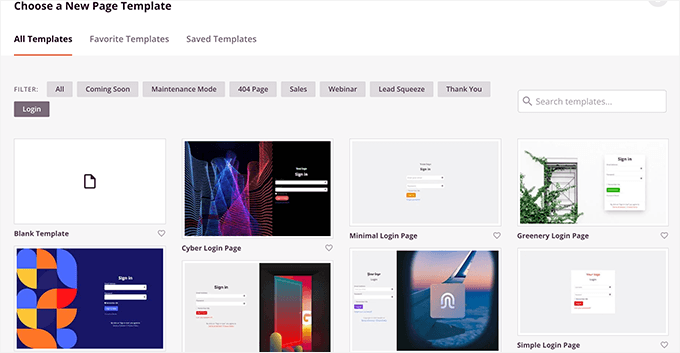
Next, you will be asked to choose a template for your login page.
SeedProd comes with several professionally designed templates to choose from, or you can also start with a blank canvas.
After that, you will have to provide a name and URL for your custom login page.
Then click on the ‘Save and Start Editing’ button to continue.
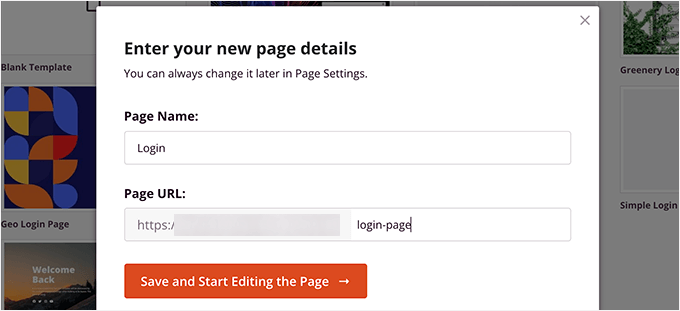
This will launch SeedProd’s page builder interface on your screen.
Here, you’ll see a live preview of your login page where you can point and click to edit any item.
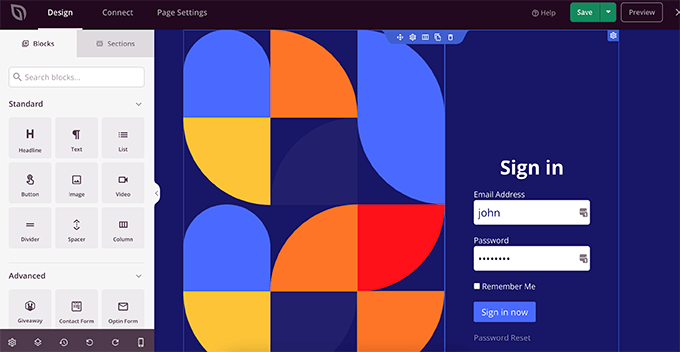
You can also add new blocks to your login page from the left column.
Once you are satisfied with the design, switch to the ‘Page Settings’ tab.
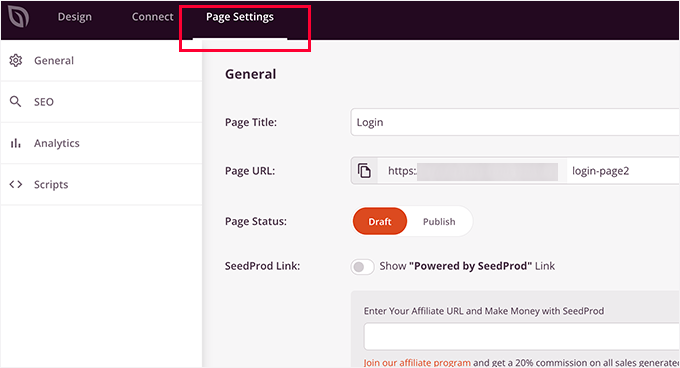
From here, you can redirect users from the default WordPress login page to your custom login page. You can also run your login page in isolation mode, which disables any WordPress header and footer scripts from loading.
Once you are satisfied with your changes, you can simply click on the ‘Save’ button and ‘Publish’ your login page.
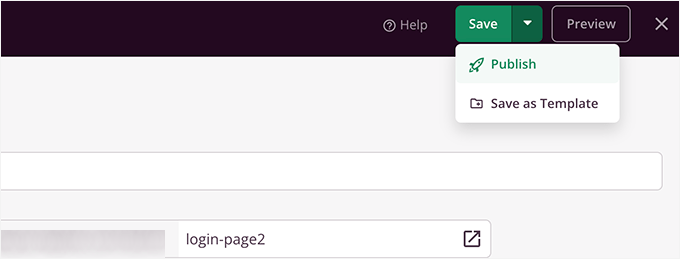
You can now open a new browser tab in Incognito mode and visit your login page to see it in action.
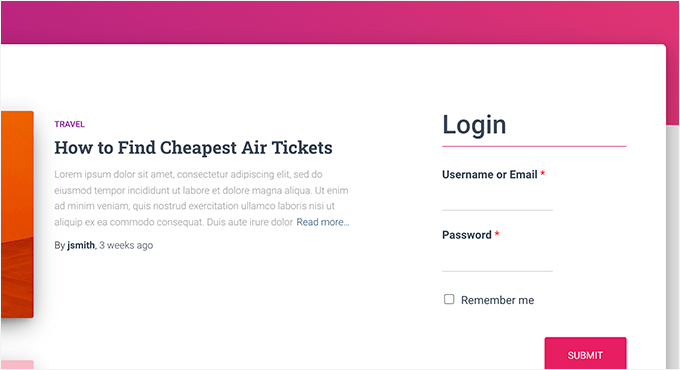
Here’s what ours looks like on the demo site:

For more details, see our ultimate guide on how to create a custom login page in WordPress.
Security Best Practices for WordPress User Registration
Allowing user registration opens your site to potential security risks, but following these best practices will keep your WordPress site safe while building your community.
| Security Tip | Why It Matters |
|---|---|
| Never Use Administrator as the Default Role | Always set the default user role to ‘Subscriber.’ Otherwise, anyone who registers could gain full control of your website. |
| Enable Email Verification | Confirms users are registering with valid email addresses and helps prevent fake or spam registrations. |
| Add CAPTCHA Protection | Blocks automated bots from creating fake accounts. Note that plugins like WPForms also include built-in “honeypot” anti-spam protection, making CAPTCHA a great secondary layer. |
| Require Strong Passwords | Reduces the risk of brute force attacks and unauthorized account access. |
| Use SSL (HTTPS) | Encrypts data submitted through registration forms, protecting passwords and personal information. |
| Limit Login Attempts | Prevents attackers from repeatedly guessing passwords by temporarily blocking failed login attempts. |
| Enable Two-Factor Authentication (Optional) | Adds an extra layer of security by requiring a verification code in addition to a password, called 2FA. |
| Regularly Audit User Accounts | Helps identify and remove spam, suspicious, or inactive accounts and keeps user management organized. |
For details, see our guide on how to create a secure contact form.
Bonus Tip 1: Manage Users in WordPress
Once user registration is enabled, you’ll want an easy way to view and manage your site’s registered users.
To do that, simply head to your WordPress dashboard and click on the ‘Users’ menu tab.
WordPress will show you a list of users with their usernames, names, roles, and email addresses.
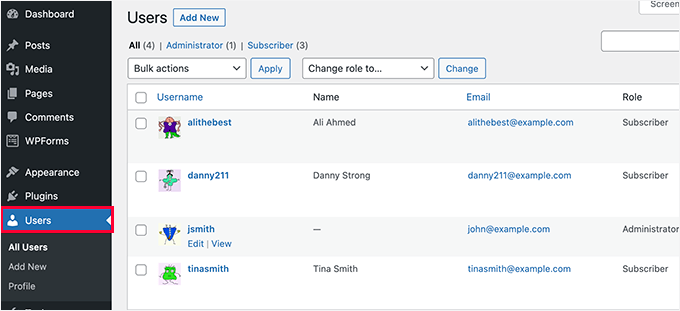
As an administrator, you can easily remove inactive or spam user accounts whenever necessary. However, be careful: if the user has authored content on your site, WordPress will ask you to either delete all their content or assign it to another user to prevent data loss.
You can also edit user profiles, change their roles, and even change their passwords. This gives you full control over what users can or cannot do on your WordPress site.
For more information, you may like to see our beginner’s guide on how to add or remove capabilities to user roles in WordPress.
Bonus Tip 2: Show Recently Registered Users on Your Site
Want to take things to the next level? A great way to boost user engagement is by displaying your newest members on your website.
This creates a sense of community and shows that your site is active and growing, which can encourage even more visitors to sign up. It’s a simple but effective way to build trust and highlight real user activity.
You can use a plugin, like Formidable Forms and Dynamic User Directory, or add a custom code snippet using WPCode to showcase recent users in a sidebar, footer, or member directory.
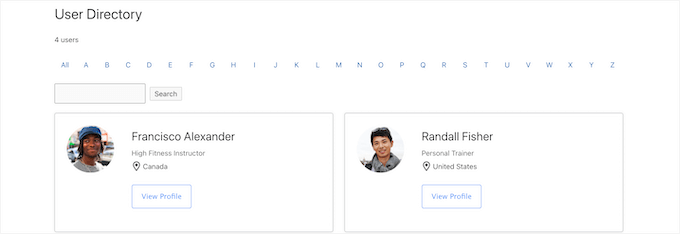
For details, you can refer to our guide on how to display recently registered users on your WordPress website.
Frequently Asked Questions About WordPress User Registration
Can I disable user registration later if I change my mind?
Yes, you can disable registration at any time. Simply go to Settings » General in your WordPress dashboard and uncheck the ‘Anyone can register’ option. This immediately stops new registrations without affecting existing user accounts.
How do I see who registered on my site?
Go to Users » All Users in your WordPress dashboard. This shows every registered user, their role, email address, and registration date. You can sort by date to see the newest members or search for specific users.
What’s the safest default user role for new registrations?
Always use Subscriber as the default user role. Subscribers can read your content and manage their own profile but cannot publish posts, edit pages, or access administrative functions. Never use Administrator, Editor, or Author roles for public registrations.
Should I allow users to choose their own role during registration?
No, this is a security risk. Always set one default role (Subscriber) for all new registrations. If users need elevated permissions, you can manually change their role after reviewing their account and confirming they’re trustworthy.
Do I need a plugin for custom registration forms?
Not necessarily, but plugins are highly recommended. WordPress’s built-in registration only collects username and email, which limits what information you can gather.
Plugins like WPForms let you add custom fields, create branded registration pages, enable email verification, and provide much better user experience.
How do I prevent spam registrations?
Use CAPTCHA and email verification to prevent spam registrations. CAPTCHA blocks automated bots, while email verification confirms users provide valid email addresses. Most registration plugins include both features.
Can I collect additional information during registration?
Yes, but you’ll need a plugin like WPForms. The default WordPress registration only captures username and email. With WPForms’ User Registration addon, you can add custom fields for phone numbers, company names, addresses, or any other information relevant to your site.
Can users register with just their email address instead of a username?
By default, WordPress requires both username and email. However, plugins like ProfilePress and WPForms allow email-only registration, where the email address becomes the username. This simplifies the registration process and reduces friction.
Can I create a private registration that requires approval?
Yes, with plugins like WPForms. You can set registrations to require manual approval, meaning new accounts remain inactive until you review and approve them. This gives you complete control over who joins your site.
What’s the difference between registration and membership plugins?
Registration plugins handle the signup process and user account creation. Membership plugins go further by restricting content access based on membership levels, managing subscriptions, and handling payments.
If you only need basic user accounts, registration plugins are sufficient.
How do I redirect users after they register?
Most registration plugins let you set custom redirects. With WPForms, you can send users to a welcome page, thank you message, or specific content after registration. This is configured in the form’s confirmation settings.
Next Step: Using Forms in WordPress
We hope this article helped you learn how to allow user registration on your WordPress site. You may also want to learn:


Mrteesurez
Weldone,
If I use Seedprod for the login page, I think I will still need WPForms as the Seedprod plugin is just to design the interface while the real functionalities if the form will be controlled by WPForms.
Am I right ?
WPBeginner Support
No, you would only need one of those two plugins to have a working custom registration page.
Admin
Mrteesurez
Wow, do you mean Seedprod as page builder can do it alone ?. I thought it’s only for design purpose and just for layout.
Ok thanks for the reply.
Anna
This is awesome – thank you!
Newbie here and I would like to create one registration form for users and that would allow them to be registered in several plugins, so they don’t have to register multiple times for each plugin. What is the best way as Admin to accomplish this?
WPBeginner Support
If you mean several websites then we do have a guide you could follow below:
https://www.wpbeginner.com/plugins/how-to-share-users-and-logins-between-multiple-wordpress-sites/
If you are selling plugins on your site then it would depend on your payment system.
Admin
Robert Whyte
I want to email readers when I post new on my personal blog.
How do I trigger an automatic email when a post is new or modified (assuming I don’t check the ‘don’t change the modified date’), preferably with a link to the post?
Also, can I send an email on general subject without posting?
WPBeginner Support
For what you’re wanting, we would recommend taking a look at our guide below about how to create a newsletter!
https://www.wpbeginner.com/beginners-guide/how-to-create-an-email-newsletter/
Admin
Peter Van Kleeck
There is no “anyone can register” in my Admin panel under General > Settings. In fact there is no “Membership” section at all. What am I missing?
WPBeginner Support
You may be on WordPress.com instead of WordPress.org in which case we would recommend taking a look at our article below that describes the differences between the two.
https://www.wpbeginner.com/beginners-guide/self-hosted-wordpress-org-vs-free-wordpress-com-infograph/
Admin
Bamidele Omonayin
How can i develop a site that users needs to pay before they sign up
WPBeginner Support
You are thinking of a membership site, we cover how to create that in our guide below:
https://www.wpbeginner.com/wp-tutorials/ultimate-guide-to-creating-a-wordpress-membership-site/
Admin
John
Is there a way to have login access required to access a specific page or set of pages and not the entire site?
WPBeginner Support
For that, you would want to use a membership plugin such as one from our list below:
https://www.wpbeginner.com/plugins/5-best-wordpress-membership-plugins-compared/
Admin
Brandon
Hi, I’ just started using Wordpress 3 days ago to start developing my e-commerce website but my general setting doesn’t include the membership option to enable users to register on my website nor the option to choose the new user default role. I’m wondering if it’s because I’m using the multi-site network. Please help me out I’m lost.
WPBeginner Support
If you are using multisite then you would need to go to your network admin site and allow registrations in the settings for that site to allow your subsites to accept registrations.
Admin
Esme
Hi there,
There is no ‘Membership’ section in my WP Settings. Have these settings been moved since this article was written?
WPBeginner Support
If you are on WordPress.com instead of WordPress.org it would be the most common reason, you can see our guide on WordPress.com vs WordPress.org below:
https://www.wpbeginner.com/beginners-guide/self-hosted-wordpress-org-vs-free-wordpress-com-infograph/
Admin
Norma
Hello. What if you don’t want people to register on your website, but rather you assign a username and password and then they just go on to log in? Can that be done?
WPBeginner Support
You can do that and manually create users for each person in which case you do not need to enable user registration.
Admin
Norma
Is there an addon to upload a csv list with 5000 usernames and passwords?
WPBeginner Support
You would want to take a look at the plugin in our article below for importing users:
https://www.wpbeginner.com/plugins/how-to-easily-import-and-export-wordpress-users
Karen
My son runs the school newspaper and wants to set up an online version. The IT staff at his school want to set up a Wordpress site and his head teacher wants to limit the people who can view the paper to pupils only. Is the best way to do this by setting up usernames and passwords as per this article (and only allowing subscribers with a school email address) or is there a better way?
WPBeginner Support
It would be personal preference question on what would be the best method but you can certainly do it that way for one option to limit access.
Admin
Mohammad Ashraf Patel
Hi, I want to force ‘number only’ in username field in new user registration. This is to force the user to enter his mobile number as his username.
Does WPFORMS new user registration have this facility/function?
WPBeginner Support
You would need to use an input mask for what you’re wanting and WPForms would be able to do what you’re wanting.
Admin
David Barker
This tutorial was extremely clear and helpful!
I followed the tutorial for creating a Login WPForms widget. One problem I had was that after the user logged in, they could still see the widget. After a user registers on the User Registration page, then logs in, they can still see the User Registration page. Is there a way to hide pages from users that are logged in?
WPBeginner Support
We do not have a specific recommendation at the moment, we will be sure to keep an eye out for a plugin we would recommend.
Admin
Louise Harris
I work on a WooCommerce site and about 5 or 6 of us in the office use the same admin user account.
We quite often get server errors, 503 I think.
Is this because we’re all using the same user account at the same time?
Thanks!
WPBeginner Support
You would want to try having a user for each person if possible to see if that is the issue.
Admin
Keren Shavit
I use Woocommerce website. If I uncheck “anyone can register”, will people still be able to create an account and buy? people who have purchased show up as “customers” and people who register show up as “subscribers”.
WPBeginner Support
Rather than that, you may want to go under Settings>General and set the default user role to customer. That way any user who signs up to your site by default is a customer
Admin
Dee
Hi,
Is there any way by which the user automatically gets added to subscription list when he posts a comment on any post with their email id?
WPBeginner Support
You are required to make that an option rather than automatic to comply with laws like GDPR
Admin
Lucho
Hi, just something I am doing some research and didnt find any solution yet. Many plugins offers the ADMIN APPROVAL feature for new users registration. Is there a way to allow EDITORs to approve? The reason why is to keep the admin profile to the developers, no one else.
Thanks in advande!
Best,
Lucho.-
WPBeginner Support
You could change user permissions for your editors using the method from our guide here:
https://www.wpbeginner.com/beginners-guide/wordpress-user-roles-and-permissions/
Admin
Rick
Hello,
Can you have the details page, edit details, edit password, logout on a post page?
WPBeginner Support
We do not have a recommended method for placing that on the front end of your site at the moment.
Admin
Minerva
The tutorial is a great help. Very imprtessive! HOWEVER, the way the steps are decribed goes extremely fast. I have to keep replaying five times, at least, to be able to get one instruction then move on… then replay again… then move in 3 seconds, then replay again… Extremely fast. I wish you could speak even just 20 percent slower. Thank you
WPBeginner Support
Thank you for your feedback on our video, you should have the option using the cog in the bottom right of the video to change the playback speed
Admin
Vince Weeks
I want to allow users to register on my site. When I follow the tutorial, it tells me to go to wp admin – settings – general – membership and select allow anyone. I don’t see this option. What now?
WPBeginner Support
You may want to ensure you are an admin of your site and that you are actually in the wp-admin area of your site.
Admin