


It can be frustrating to pour hours into creating great content, only for it not to appear in search results. We know that sinking feeling when your articles don’t rank as they should.
After growing multiple WordPress sites to millions of monthly visitors, we learned that the foundation of good SEO often comes down to getting your keywords and meta descriptions right.
These two elements help tell search engines what your content is about.
A good meta description acts like an ‘ad’ for your article in search results, while the role of meta keywords has changed over the years. You don’t need to be a technical wizard to master this, and we’ll show you what to focus on.
In this guide, we’ll walk you through the exact, beginner-friendly steps we use on all our sites to optimize our content for search. Let’s get your content the visibility it deserves.

Why Add Keywords and Meta Descriptions in WordPress?
At WPBeginner, we’ve found that one of the most important aspects of SEO is helping search engines understand your content. Keywords and meta descriptions are essential tools that tell search engines exactly what your WordPress posts and pages are about.
Keywords are the specific terms and phrases your target audience uses when searching for content like yours. You can think of them as the language your potential visitors speak when looking for information.
Meta descriptions, on the other hand, are your content’s ‘elevator pitch’, a brief, compelling summary that appears in search results.
Here’s how these elements appear in Google search results:
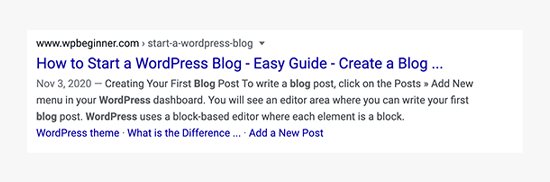
While keywords and meta descriptions might sound technical, they’re actually quite straightforward. They’re HTML meta tags that live in your website’s header code. They are invisible to visitors but crucial for search engines and browsers.
The good news is that you don’t need to touch any code. Modern WordPress SEO tools and plugins make it easy to add and optimize these elements right from your dashboard.
How Important Are Meta Keywords and Meta Descriptions for SEO?
Based on our decade-plus experience and extensive testing across thousands of WordPress sites, we’ve gained clear insights into what works. Meta descriptions continue to play a vital role in search results, though Google doesn’t always use the ones we write.
When our meta descriptions do appear and are written effectively, they help improve click-through rates and can indirectly impact rankings through better engagement. Search terms even appear in bold when they match user queries.
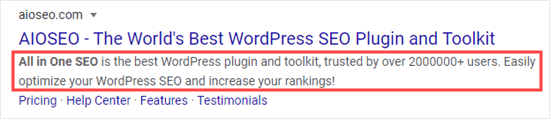
The landscape for keywords has evolved significantly. Traditional meta keywords now have limited impact on most search engines. Yandex (the Russian search engine) is the main exception.
Modern SEO focuses instead on natural keyword placement in your page titles, content headings, body text, and meta descriptions.
Our Recommendations for Meta Keywords and Meta Descriptions
After helping millions of WordPress users improve their SEO, our recommendations are clear and straightforward. For meta descriptions, we strongly advocate creating unique, compelling descriptions for every blog post, important page, homepage, and category page.
This extra effort pays off in better visibility and click-through rates.
When it comes to keywords, focus on natural placement within your content. Tools like AIOSEO‘s TruSEO score can guide you in optimizing your content effectively without falling into the trap of keyword stuffing.
Pro Tip: While Google may sometimes generate its own description, a well-crafted meta description can significantly improve your click-through rates when it does appear.
That being said, let’s take a look at how to add keywords and meta descriptions in WordPress. Use the links below to jump to the section you are interested in:
- Installing and Activating All in One SEO for WordPress
- Enabling Meta Keyword Support in All in One SEO
- Adding Keywords and Meta Descriptions to Your WordPress Posts and Pages
- Adding Keywords and a Meta Description for Your Homepage
- Adding Keywords and Meta Descriptions to WordPress Category and Tag Archives
- Bonus: Track Your Keyword Performance with All in One SEO
- How to Add Keywords and Meta Descriptions in WordPress (Video Tutorial)
- Frequently Asked Questions About Keywords and Meta Descriptions
- Additional Resources on WordPress Meta Data
Installing and Activating All in One SEO for WordPress
For this tutorial, we will be using All in One SEO (AIOSEO), which is the best WordPress SEO plugin on the market. It allows you to easily optimize your entire WordPress site for better SEO and comes with a comprehensive set of tools to grow your business.
First, you will need to install and activate the All in One SEO plugin. For more details, see our guide on how to install a WordPress plugin.
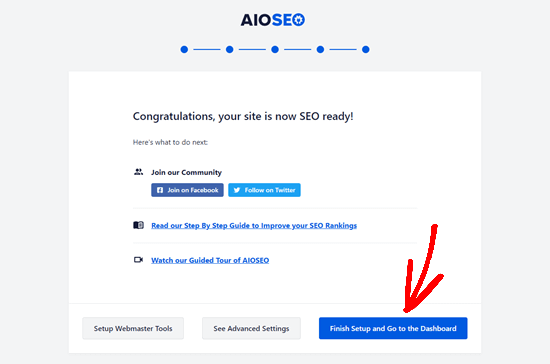
Upon activation, All in One SEO will take you through a simple setup wizard. Just follow the step-by-step instructions to get everything set up for your site. Alternatively, you can follow our guide on how to set up All in One SEO for WordPress correctly.
After completing the setup, simply click the ‘Finish Setup and Go to the Dashboard’ button.
Enabling Meta Keyword Support in All in One SEO
All in One SEO comes with built-in support for meta descriptions and keywords. However, the meta keywords feature is turned off by default. This is because many search engines give little or no importance to keywords in their rankings.
Note: The meta keywords tag is ignored by major search engines like Google and Bing. We recommend focusing your energy on writing a great meta description and placing keywords naturally in your content. This feature is off by default for that reason.
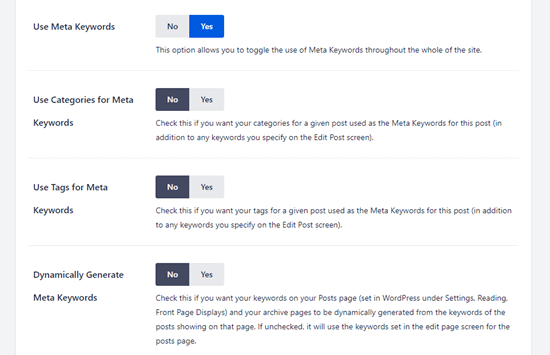
To enable it, go to All in One SEO » Search Appearance » Advanced in your WordPress dashboard. Then, switch the meta keywords toggle from No to Yes.
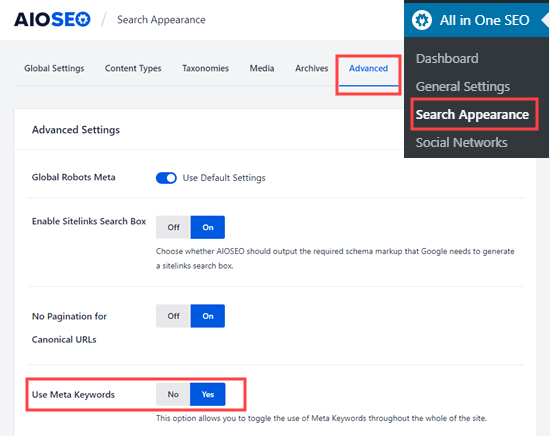
After enabling meta keywords in WordPress, you will see some additional options.
You can also set the plugin to automatically generate meta keywords for your posts and archive pages based on their existing categories and/or tags.
It’s up to you whether you want to use these automated options or not. Regardless, you will always be able to manually define keywords for each post and page.
Don’t forget to click the ‘Save Changes’ button at the bottom of the page to store the changed settings.
Adding Keywords and Meta Descriptions to Your WordPress Posts and Pages
First, you need to edit a post or page where you want to add your meta keywords and meta description. AIOSEO works in both the WordPress block editor and the classic editor.
Once you are on the content editor screen, scroll down to the ‘AIOSEO Settings’ box below the content area.
Adding a Meta Description to Your Post or Page Using AIOSEO
You will see your site’s SEO title and an automatically generated description as the snippet. Below that, you will see the ‘Meta Description’ field.
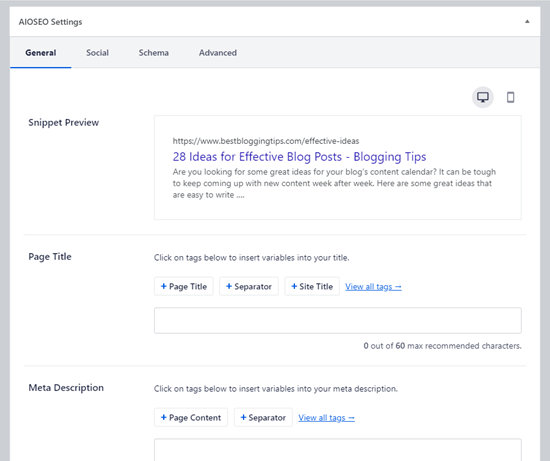
Go ahead and enter a description into the ‘Meta Description’ field. All in One SEO will let you know how many characters you have used. Try to stay within the 160-character limit. This is the recommended length to prevent your description from being cut off in search results.
You will see that your snippet preview automatically updates as you type in your meta description.
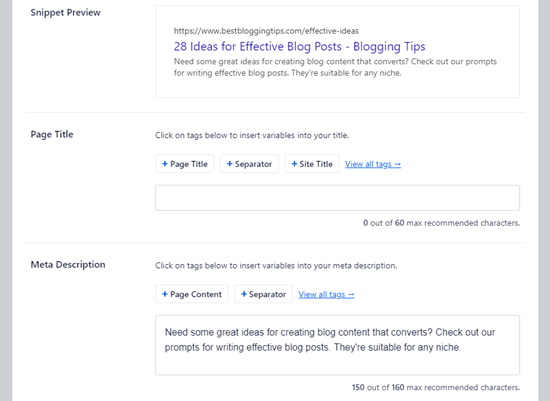
Once you have finished, simply save or publish your post to save the changes to your meta description.
Pro Tip: A great meta description is like a mini-ad for your post! It should be active, compelling, and include your focus keyphrase. Try to end with a call to action, like “Learn how to…” or “Discover the best…” to encourage clicks.
Using All in One SEO’s Dynamic Tags in Your Meta Descriptions
Optionally, you can add tags to your meta description. The ones that All in One SEO offers by default are Page Content and Separator, but you can add other dynamic tags as well.
For example, we have added the author’s name to our meta description here.

To add a tag, simply type the ‘#’ character into the meta description box.
You will then see a dropdown menu of available tags.
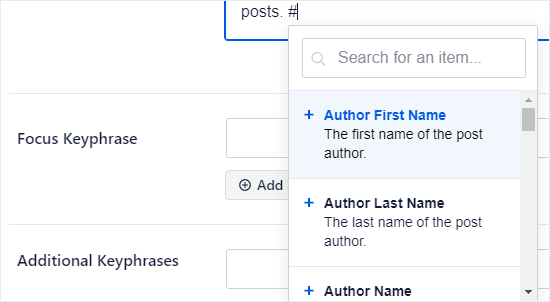
You can choose from tags like Category Title, Current Year, Post Date, Post Title, Site Title, Post Excerpt, and more.
Using All in One SEO’s ChatGPT Integration to Automatically Generate Meta Descriptions
If you want to save time, then you can also use All in One SEO’s AI-powered Title / Description Generator. It uses ChatGPT to automatically craft high-quality meta descriptions based on the main theme of your content.
To get started, simply click on the robot icon in the ‘Meta Description’ field.
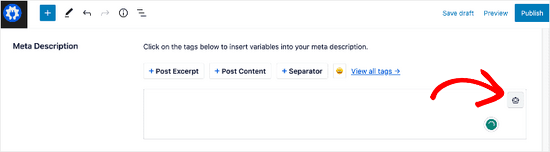
If you haven’t used this feature before, you will be prompted to connect your OpenAI account.
Heads up: This feature uses the OpenAI API, which is a pay-as-you-go service. While very affordable for generating descriptions, it is not free. You will need to add a payment method to your OpenAI account to use it.
Enter your email address and follow the easy steps in the setup wizard to create your account and connect it to All in One SEO.

Once that’s done, you can click on the robot icon again.
This will generate 5 meta description suggestions.
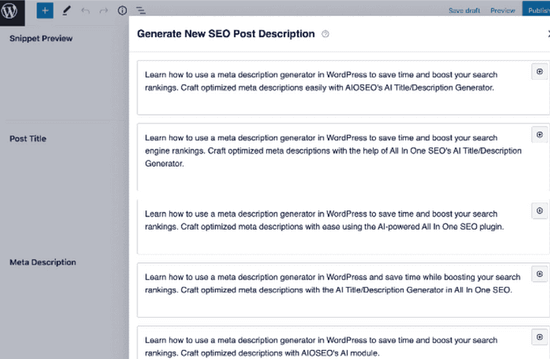
You can select the meta description you want by clicking on the ‘+’ button. Then, it will be automatically added to the meta description field, where you can tweak it according to your needs.
Adding Meta Keywords to Your Post or Page Using AIOSEO
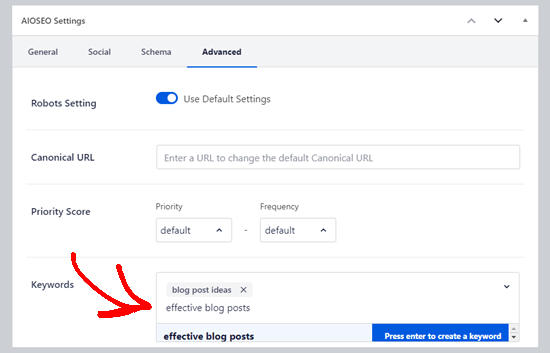
To add your meta keywords, you need to click the ‘Advanced’ tab for your AIOSEO settings.
Simply type in your keywords and press ‘Enter’ after each one. It’s important to only use keywords that are relevant to your content. Adding irrelevant keywords will not give you any SEO benefits.
Tip: Meta keywords are completely separate from your Focus Keyphrase. The Focus Keyphrase is the main term you want your post to rank for. You set it in the ‘General’ tab to get personalized feedback on how to improve your content. It does not automatically become a meta keyword.
Adding Keywords and a Meta Description for Your Homepage
You can also add meta keywords and a meta description for your website’s homepage in WordPress. Here is how to do that using All in One SEO.
First, go to Search Appearance » Global Settings in your WordPress admin. Then, scroll down to the Home Page section.
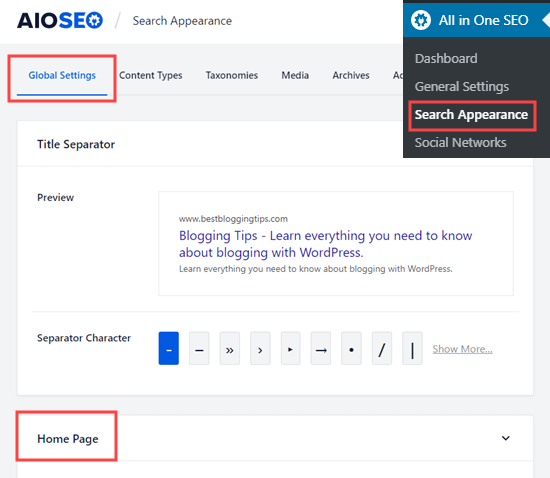
On this screen, you can easily enter a meta description and keywords, just like you would for a post or page.
All in One SEO will use your tagline as your meta description by default. You can leave that in there, or you can customize it.
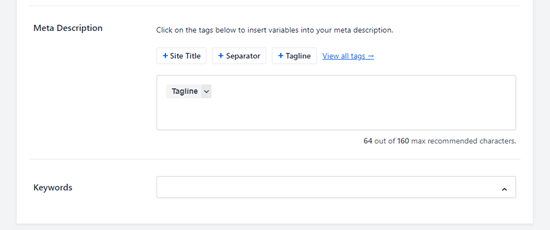
You can also click on the other options to add those tags to your meta description. Alternatively, you can add different tags by typing the ‘#’ character in your meta description, as described above.
Tip: It’s better to use these tags rather than manually typing your site title, tagline, or separator character. This is because your meta description will automatically be updated if you later make changes to any of those.
Make sure you click the ‘Save Changes’ button at the bottom of the page after adding your meta description and keywords.
Adding Keywords and Meta Descriptions to WordPress Category and Tag Archives
You can also add keywords and descriptions to your category and tag archive pages.
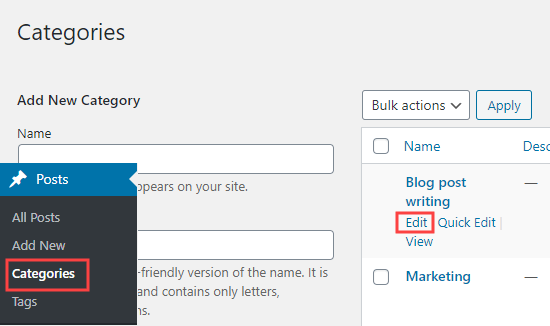
First, you need to visit the Posts » Categories page. Take your mouse over to the category you want to edit, and then click on the ‘Edit’ link.
Next, you should scroll down on the category’s page to the AIOSEO Settings box.
Here, you just need to enter a meta description for your category. Again, you can use All in One SEO’s tags within this if you want to.
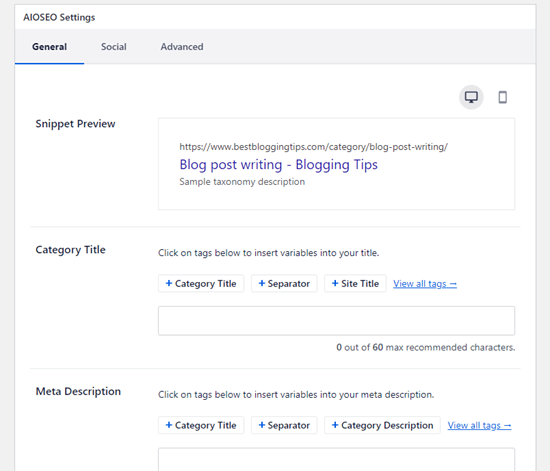
To add keywords, simply click on the ‘Advanced’ tab like you would for any post or page.
Make sure you save the changes to your category before moving on.
Your meta description and keywords will now be used for the category page, which is the archive of posts in that category.
You can repeat the process to add meta keywords and descriptions to your blog’s tags and other custom taxonomy archive pages.
All in One SEO integrates seamlessly with other popular WordPress plugins. This allows you to add keywords and meta descriptions for your WooCommerce product pages, SeedProd landing pages, MemberPress course pages, and more.
Bonus: Track Your Keyword Performance with All in One SEO
After you’ve optimized your meta descriptions and placed keywords in your content, how do you know if it’s working? Instead of guessing, you can track your keyword performance directly in your WordPress dashboard. This helps you see which pages are ranking and which ones need more work.
With All in One SEO’s Search Statistics and Keyword Rank Tracker feature, you can easily see how your chosen keywords are ranking in search results, right from the WordPress dashboard.
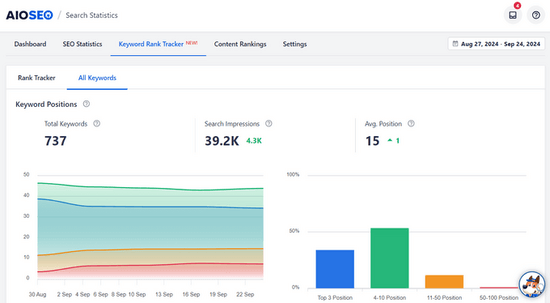
This includes valuable information like keyword position, clicks, average click-through rate, impressions, position history, and much more.
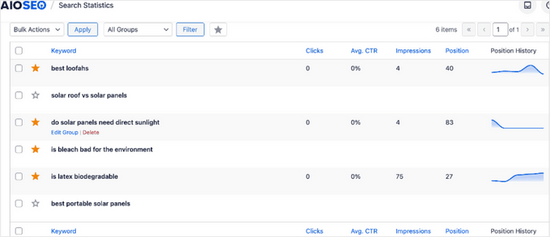
By tracking these metrics, you can see what’s working and what’s not. This will help you adjust your keyword strategy so that you can improve your rankings and drive more traffic to your site.
For more details, see our guide on how to check if your blog posts are ranking for the right keywords.
How to Add Keywords and Meta Descriptions in WordPress (Video Tutorial)
Frequently Asked Questions About Keywords and Meta Descriptions
Here are the answers to some of the most common questions we receive about adding keywords and meta descriptions in WordPress.
1. What is the best length for a meta description?
The ideal length for a meta description is around 155-160 characters. This ensures the full summary appears in search results without being cut off. Tools like All in One SEO provide a helpful character counter to keep you on track.
2. Does Google always use my meta description?
No, Google does not always use the meta description you provide. Google’s goal is to provide the most relevant answer to a search. If a specific sentence from your article better matches a person’s search query, Google may show that snippet instead.
That’s why writing a great meta description is still a best practice! It’s your best chance to control the message and encourage clicks when Google does use it.
3. Are meta keywords still important for SEO?
For most search engines, including Google, the traditional meta keywords tag has very little to no impact on rankings. Modern SEO focuses on naturally including your main keywords and phrases in the page title, content, headings, and the meta description itself.
4. What is the difference between a focus keyword and a meta keyword in AIOSEO?
A focus keyword is a feature within the All in One SEO plugin that acts as an internal guide. You set it to get a performance score and suggestions on how to better optimize your content for that specific term. It is a tool for you, the writer. A meta keyword, on the other hand, is added to your site’s code for search engines, though it is now largely ignored.
Additional Resources on WordPress Meta Data
We hope this article helped you learn how to easily add keywords and meta descriptions to your WordPress posts and pages. You may also want to see some other guides related to adding metadata in WordPress:
- How to Display Blog Post Meta Data in Your WordPress Themes
- How to Customize WordPress Excerpts (No Coding Required)
- How to Add Custom Meta Boxes in WordPress Posts and Post Types
- How to Add Custom Meta Fields to Custom Taxonomies in WordPress
- How to Add Facebook Open Graph Meta Data in WordPress Themes
- What Is rel=”noopener” in WordPress? (Explained)
- How to Hide a WordPress Page From Google
If you liked this article, then please subscribe to our YouTube Channel for WordPress video tutorials. You can also find us on Twitter and Facebook.



Ashok Punetha
Titles & Metas not showing under the SEO
WPBeginner Support
With the recent updates with Yoast, you would want to click the snippet preview in your post editor to bring the edit options up.
Admin
Kaushik Bhatnagar
Sie,
Ita s very good knowledgeable article. I was actually searching for “Adding Keywords and Meta Description for Homepage”
There are infinite articles but failed to exhibit in pictorial form. Here it made me to understand very easily.
A million dollar thanks to you.
Mike Davis
This doesn’t work anymore. The very clever folks at Yoast disabled the keyword feature as of v 7.2
Personally, I think this is a function that does have value. Even if the search engines don’t use it, a couple rank tracking proggies I use do, but whatevs.
I rolled back to the earlier version.
I won’t ever buy Yoast SEO Premium. Too many updates, and the recent updates require too much babysitting.
James Emmanuel
You are very right. Please can you share on how to roll back to previous version? I like to do same on our website.
Chris
Can you use Wordpress Custom Fields and make them into SEO containers? The descriptions on pages and the keywords for those are important to Google because Google creates scores on your ads based on whether or not the keywords in your ads match the keywords on the landing page. I would think instead of using an SEO plugin we could just easily create custom fields and produce the same thing on a page by page and site by site basis including categories and tags – no?
Powell Nwoke
My snippet is not displaying my post contents as usual, rather its showing, “Please provide a meta description by editing the snippet below.” How do I rectify it? Thank you
Paul Gleave
The meta keywords feature has been removed from Yoast (in April 2018), for anyone looking for it now. This is because the meta keywords tag is no longer used by search engines.
Luke Harper
Thanks! What’s important for SEO now then?
Lisa Michels
I am really trying to follow the instructions but the version of Yoast SEO that I downloaded only has three tabs. Dashboard/Features/Webmaster
I watched the video and read the instructions multiple times. Please help!
Raj
Are you able to see ‘Search Appearance’ link below SEO and that will lead to some of the tabs mentioned in the article. Looks like article is bit old, but we can look for similar tabs/links in the SEO section of the WP area
Dheeraj
Great Article !
Please also post article related to news website.
Like How to create hindi news website? & How to do SEO of any news website?
Thanks
Abhishek Verma
Hello WPBeginner,
There is no option available for Title & Meta’s for Homepage in latest update of Yoast Plugin.
Please guide me.
Thanks.
Aman
Hi,
Yoast Plugin is not showing Meta keyword template in Titles & Meta -> Homepage.
Now, How can I add Meta Keywords In my website?
Rohan singh
Hi,
Yoast Plugin is not showing Meta keyword template in Titles & Meta -> Homepage.
Now, How can I add Meta Keywords In my website?
Maikaal Hydr
Simply Outstanding…..I was kinda looking such tutorial from long time, at last i got it from YOU ./….Thanx Buddy
Dolan Yok
Can you give me an answer, how best to avoid duplicate content, from images, tags, and desktops page 2 and so on
Deepak Yadav
Thanks for writing this helpful articles it helps me too much.
Riyaz
What is better? Using Meta tags, or using Yoast plug in. Also, can I know if Wordpress is HTML, HTML5 or XHTML..
Help is much appreciated.
Bradley B
Nailed it! Thank you.
Iqbal Hussain
How to add
using yoast seo plugin. I have installed yoast seo plugin in my blog but it don’d have this feature.
Iqbal Hussain
meta name revised
Kerry
Curious why you recommend using Meta Keywords? Even Yoast – as used in your example, says keywords are dead. (Thus why they advise you not bother, right on the page where you enable them?
WPBeginner Support
Hi Kerry,
Many SEO experts believe that meta keywords are not useful anymore. We do not agree with this. We think that they can still be useful and are perfectly harmless if used in moderation (i.e. avoid keyword stuffing or using too many meta keywords in each article).
Admin
amolkarde
in SEO only one focus keyword use and in premium version how many keyword use…Thanks for the meta keyword info.
Ayo
Thanks for the post. I tried to set up my homepage description on yoast. The tabs there is unclickable. I tried to click on it several times but isn’t clickable.
Mark Abahi
Thank very much I love it
febrifahmi
Hi, Sir! Thank you for the brief and easy to follow step by step explanation on adding keywords to WordPress. It’s really helpful for me as a beginner. By the way, i already used Yoast SEO plugin for my site. But i still have a question about how can we know what is working and what is not in our SEO setting, or how we measure the performance of our SEO setting from outside? Thanks!
WPBeginner Support
Hey febrifahmi,
The simplest way to measure the success of your SEO score to see if your site has started ranking for the keywords you are targeting. If those keywords have more competition, then initially you may not appear on the first or even the second page of the search results. However, overtime your ranking will keep improving if you keep following your SEO plan.
Admin
Mozammel
how can I add my research keyword of my website??
Digember
You can also use google keyword planner for keyword research.
Mike Hamme
Found exactly what i was looking for by reading this post, and you made it extremly simple to follow..so thank you!
ashima
meta keyword option is not displaying
s.k.mukherjee
Can I used more than one keywords in my wordpress blog in yoast plugins without a premium version ?
ghalia
hey
I’m having a problem that the meta description added is not shown in the page source code or on search engines.
can any one help me ?
Adi
Meta keywords not displaying … Anyone?
ranjith
In advanced setting page of yoast seo snippchet . meta keyword is not showing..
[After that you need to click on the ‘Settings’ button to enter meta keywords to be used for that particular category’s archive pages.]
Dana
do you know how long does it take for Google to update their meta description snippet after you’ve updated it in wordpress?
Nisa
Is there any function to force enable index in search page?
Kristi M Ambrose
I keep having the same issue that has been happening to me is still happening. I contacted Yoast and they could care less about my issue as a free member. If the plugin didn’t work, fine, I could get them not helping me. But the fact that this is my problem and they wont help me is utterly annoying:
I have Yoast on two different sites.
On site #1 I see one interface
On site #2 I see a completely different interface.
On site 1 I see what you see above with a whole slew of other options.
On site 2 I see a very limited view in terms of the interface and options.
WPBeginner Support
Hi Kristi,
By default, when you install Yoast SEO plugin, it hides advanced settings pages. You need to visit SEO > Dashboard and then click on the Features tab. Scroll down to ‘Advanced settings pages’ option and click on Enabled. Don’t forget to click on the save changes button.
Admin
Katie
As a new blogger, let me tell you how difficult it was to get meta data added to my blog – all in the name of getting rich pins! This was legitimately the best step-by-step instruction I’ve found (after HOURS of hunting). Thanks for the great post!
sudhakar
new to wordpress i know basic wordpress how to use themes and plugins and my doubt is what to learn next either loops and hooks and functions or php deeply because i dont know how to modify the template in theme editor what to do please help me
Rupam Chakma Babu
Nice info,very easy to understand Meta Information.
Thanks a lot.
Paul Davis
Nice. This was easy to follow, now I get to see if meta information really helps with search engines.
Asumpta
This was super helpful to me.
Deepak Patel
Detailed & Infromative, You saved my life. I was desperate to where I should insert meta Description and Keyword for my homepage.
Thank You
Aiswarya
Thank you so much sir,this article is very much useful for beginners like me.
nikhil
everything is working like charm just have an issue is that I want to put meta description for homepage and I put it over homepage section but not showing any metatag in the facebook posts meta checker while other page’s meta is showing there as desired.
please help me with index page’s metas
nikhil
Thanks admin It’s very useful for me, its just take few seconds to add meta tags and keywords using this demo examples and its pretty easier so that don’t need to be a SEO expert to do that.
Rahul
thanx admin. it is really helpful for me.
Bill Marshall
This is utter rubbish! No SEO expert thinks meta-keywords are of any use at all – only people who have read other inaccurate and outdated posts like this one. Google stopped using them about 15 years ago, Bing only use them to identify spammers.
Ja Ochui
If you had actually read the article, you will realise that the author wrote exactly that: “Even Google says that they don’t give importance to meta keywords.”
Manjunath
Hello, thanks for letting know about the meta keywords and I found this post very useful. I never used meta keywords but after reading this post and letting the importance of the meta keywords I feel I should use these keywords on my blog.
Kufre Akpan
This post is really good. It makes me battle ready for my competitors. Thanks admin!
Attila
Hi,
How should we proceed with the custom meta descriptions for categories (custom taxonomy) with several sub pages (for ex: category: apple tv 4. page 1, page 2, page 3) as google see it as duplicate meta description for each sub page.
Your “Meta Keywords and Description for Category Archives” description is ok if I have 1 single page in that particular category. But what about if I have more then one?
Yoast have a great solution for the titles in this case (for ex: Title: Apple TV 4 – site name – page 2 of 3) but not for the “CUSTOM” meta descriptions for the categories with sub pages.
Our case ex:
Articole page – with 4 categories
Cat 1. Apple tv 1 result: 6 sub pages
(for the titles we use Yoast/Titles/Taxonomy
Title: %%term_title%% %%sitename%% %%page%%
= Apple tv 1 – site name – page 1 of 6) The result is OK!
(for the custom meta description we are using: Categories/Edit)
and the meta description is the same on each page!!) This is the problem:) How can we fix this?
Any ideas please:)
Thanks
Gerardo Morillo
Hey,
Thanks for creating this post I found it very helpful. I had no idea Yoast disabled this by default. I used to think this was unimportant. I will test now and see if it helps me increase my traffic.
Thanks,
Gerardo
Eka
I’ve ever use Yoast before, but doesnt give any change on my snippet, then manually I add my meta tag on head every single post and it works, but another problem is my post give a distance between content wich is paragraph and Post title, well I don’t know why because I’m not use a visual mode to edit my post..any advice maybe? need guide please…and sorry for my english…thank you
Steve Williams
Thanks for the meta keyword info. It shouldn’t hurt if I implement them.
BTW, how did you implement your sidebar “I need help with …” widget? Is it done via a special plugin?
Off to share your post.
-steve
WPBeginner Support
Hi Steve,
Yes it has custom CSS and some custom code behind it.
Admin
Joanne Taylor
Sincerely Thank You! This article was very informative for a true beginner as myself. Do you have a live YouTube on step -by-step blogging for beginners?
WPBeginner Support
Hi Joanne,
Check out our YouTube Channel. It has tons of video tutorials covering many different topics about using WordPress.
Admin
Priyanshu Raj
Meta keyword are good for SEO ?
And what is this ?
If you type something above it will override your meta keywords template.
WPBeginner Support
Hi Priyanshu,
Some experts believe that they are redundant now, but many other SEO experts disagree. We believe that they are still useful.
If you turn on Meta Keywords, then Yoast SEO will try to get your keywords from your post’s tags. However, if you enter them manually, then it will not use tags as keywords.
Admin