


One of the more common errors we’ve seen WordPress users run into, especially on shared hosting, is the memory exhausted error.
Sometimes it shows up with a technical message like “Allowed memory size exhausted.” Other times, WordPress just displays the generic “There has been a critical error on this website” screen.
This usually means your site needs more PHP memory than the server is currently allowed to use. It can happen when you install resource-heavy plugins, upload large media files, or outgrow your hosting plan.
In this guide, we’ll show you how to safely increase your PHP memory limit in WordPress and fix the error. We’ll also share best practices to prevent it from coming back.
What Is the WordPress Memory Exhausted Error?
The memory exhausted error in WordPress usually happens when your website tries to use more PHP memory than your server allows.
This can cause pages to crash, break plugins, or trigger a full-site error. In many cases, you’ll now see a message saying: “There has been a critical error on this website.”
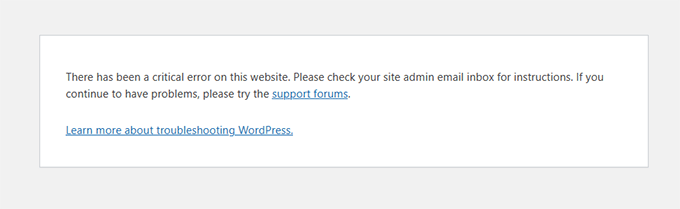
Behind the scenes, the actual error looks something like this:
Fatal error: Allowed memory size of 33554432 bytes exhausted (tried to allocate 2348617 bytes)
WordPress is built with PHP, which runs on your server and needs memory to function. If your site pushes past the available memory limit, PHP stops working, and you get this error.
From helping many users fix this, we’ve seen it happen when sites have:
- One or more poorly coded plugins are installed
- Large images or videos that use extra server memory
- Limited hosting resources, especially on shared plans
WordPress does try to increase the memory limit automatically if it’s lower than 64 MB. But in many cases, that’s just not enough, especially for modern plugins and themes.
Why You May Not See the Actual Memory Error
Wondering why you aren’t seeing the actual memory error? This is important to understand before you try fixing it.
In older versions of WordPress, you would often see the full memory exhausted error message directly on your screen.
But in recent versions, WordPress shows a more generic message instead:
“There has been a critical error on this website. Please check your site admin email inbox for instructions.”
This happens because WordPress now hides sensitive error details by default. It’s part of a security feature that prevents visitors from seeing technical information about your site.
However, the real error is still logged in the background. You can view the full message by:
- Looking in the email inbox of your site admin address for instructions.
- Enabling WordPress debug mode in your
wp-config.phpfile. - Checking your site’s error logs via your hosting control panel.
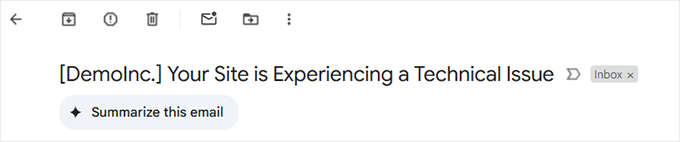
If you check your email inbox you may find an email with subject line “Your Site is Experiencing a Technical Issue.”
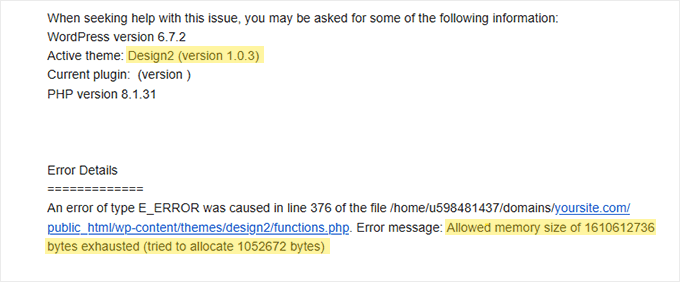
Inside this email, you will find where the error occurred and the exact error message.
For instance, you will see that the error is caused by your WordPress theme or a plugin. At the end of the email, you will see the actual error message.
We recommend enabling debug mode only temporarily while troubleshooting. Once you find the error, don’t forget to turn it off to avoid showing technical details to your visitors.
Now, in the next sections, we’ll show you how to manually increase the PHP memory limit to fix the error and keep your site running smoothly.
- Option 1: Editing the wp-config.php File
- Option 2: Editing the .htaccess File
- Option 3: Checking Your php.ini File
- Option 4: Upgrading Your WordPress Hosting
- How to Avoid Exhausting Your WordPress Memory
- FAQs About the WordPress Memory Exhausted Error
- Additional WordPress Error Guides
📝 Note: Some of these methods require you to directly edit your WordPress files. We suggest backing up your website first to avoid further errors from appearing on your website.
Ready? Let’s jump right in!
Option 1: Editing the wp-config.php File
First, you need to edit the wp-config.php file on your WordPress site. This is one of the core WordPress files located in the root directory, usually named public_html.
You will need to use an FTP client like FileZilla or the File Manager in your web hosting control panel.
Next, you need to paste the following line in the wp-config.php file just before the one that says, That's all, stop editing! Happy blogging.
define( 'WP_MEMORY_LIMIT', '512M' );
This line requests WordPress to allocate up to 512MB of PHP memory.
However, the final limit depends on your server’s configuration. If your host enforces a lower cap, this change may not take effect.
For more details, you can see our step-by-step guide on how to find and edit the wp-config.php file.
Once you are done, you need to save your changes and upload your wp-config.php file back to your server.
You can now visit your WordPress site, and the memory exhausted error should have disappeared.
Option 2: Editing the .htaccess File
The next method is to edit the .htaccess file. This file is also located in the WordPress website’s root folder.
Here, you need to paste the following code before the line that says #END WORDPRESS.
php_value memory_limit 512M
Similar to the previous code, it will tell WordPress to increase the PHP memory limit to 512MB.
That said, keep in mind this method only works if your server runs Apache with mod_php. If you’re using PHP-FPM or NGINX, this method may not have any effect.
After that, simply save your changes and upload the file back to your web server. You can now open your WordPress website again to see if the memory limit error has gone.
If you can’t find the .htaccess file, you can check out our guide on why the .htaccess file may be missing and how to find it.
Option 3: Checking Your php.ini File
If the above methods don’t work, you may want to look at your php.ini file.
php.ini is a file that controls your PHP settings, including the PHP version and PHP scripts. It’s not a WordPress core file, as your hosting provider usually manages it.
You can check its code to see your PHP memory usage limit. For more details, you can see our guide on how to find and edit the php.ini file.
However, because this is an advanced method, we recommend contacting your web hosting provider’s support team instead to see if they can increase the WordPress memory limit manually. Otherwise, this can result in further errors.
Plus, some shared hosting plans don’t allow users to access or modify the php.ini file.
You can read our guide on how to properly ask for WordPress support for more information.
Option 4: Upgrading Your WordPress Hosting
If you constantly encounter the memory exhausted error, it might be a sign that your website has outgrown its current hosting plan.
As your website attracts more visitors and adds more content, it requires more resources to function smoothly. Upgrading a plan with a higher memory allocation can be a permanent solution.
Consider upgrading your WordPress hosting if:
- You’ve tried the previous solutions, but the error persists.
- Your website has significantly grown in traffic or content.
- You plan to add features or functionality that require more resources.
Bluehost offers affordable and reliable WordPress hosting plans that can scale with your website’s needs. They provide a user-friendly platform specifically optimized for WordPress, making it easy to manage your website.
If you use our Bluehost coupon code, then you can get up to 61% off your first purchase. Just click the button below to get it:

How to Avoid Exhausting Your WordPress Memory
Now that you’ve fixed the WordPress memory exhausted error, here are some proactive steps to prevent it from happening again:
- Deactivate unused plugins. Many plugins contribute to memory usage. Regularly review your installed plugins and deactivate any you’re not actively using to free up memory for essential tasks.
- Optimize images. Large images can be memory hogs. Consider using a plugin like EWWW Image Optimizer to automatically compress images before uploading them to your site.
- Use a caching plugin. Caching plugins store website data, reducing the need for WordPress to regenerate it on every visit. This can significantly improve website performance and lower memory usage.
FAQs About the WordPress Memory Exhausted Error
What causes the memory exhausted error in WordPress?
This error happens when WordPress needs more memory than your server allows PHP to use. It’s often triggered by resource-heavy plugins, large images, or growing traffic on lower-tier hosting plans.
Why do I only see a “critical error” message instead of the memory error?
Newer versions of WordPress hide the technical error behind a generic “There has been a critical error on this website” message. You can still view the full error by enabling debug mode or checking your error logs.
How much PHP memory should I allocate?
We recommend setting the memory limit to at least 256MB. This is typically enough for most websites unless you’re running a large WooCommerce store or using heavy plugins.
Can shared hosting cause this error more frequently?
Yes. Shared hosting plans often come with limited resources. As your website grows, it can hit those memory limits faster. Upgrading to a better hosting plan can prevent this issue.
Is it safe to increase PHP memory manually?
Yes, it’s safe if done properly. We recommend backing up your website before editing files like wp-config.php or .htaccess. If you’re not comfortable doing this, our Pro Services team can help.
Additional WordPress Error Guides
If you’re troubleshooting other WordPress issues, here are some helpful guides we’ve written to make things easier for you.
- How to Fix WordPress Posts Returning 404 Error (Step by Step)
- How to Fix ‘Cookies Are Blocked Due to Unexpected Output’ Error in WordPress
- How to Fix WordPress Stuck in Maintenance Mode (The Easy Way)
- How to Fix the WordPress Admin Ajax 400 (Bad Request) Error
We hope this article helped you solve the WordPress memory exhausted error by increasing the PHP memory limit. You may also want to see our step-by-step beginner’s guide to troubleshooting WordPress errors and our expert list of the most common WordPress errors.
If you liked this article, then please subscribe to our YouTube Channel for WordPress video tutorials. You can also find us on Twitter and Facebook.





rahul
Fatal error: Allowed memory size of 67108864 bytes exhausted (tried to allocate 262198 bytes) in /home/content/p3pnexwpnas04_data01/91/3161991/html/wp-content/object-cache.php on line 574
Bijay Budhathoki
It Worked for me when i changed the following
define(‘WP_MEMORY_LIMIT’, ‘264M’);
Gus
Thanks! Worked like a charm! I tried 64M and did not worked, then I tried 512M and worked. Note: I always makes notes on my files for future reference, so I noticed that for some weird reason, when I wrote a note it did not worked, I removed the note and worked … I know! it is weird, but I am just sharing my weird experience in case this happens to someone else.
Brian
It really worked like a charm on my site One thing i am beginning to learning about wordpress. Have you FTP app open and ready when handling any upgrades or plugins installs
ussy
worked for me
Thanks
I increased it to 512M
Muhammad Farooq
Sometimes 64M also doesn’t work try to change it to 128M, then it will work fine.
Thanks for sharing this awesome info
Troy Vayanos
I’ve been getting this error for a couple of weeks now and my host continually increases the memory but it still occurs when I’m doing updates and going in and out of my WP dashboard.
Error below:
Fatal error: Allowed memory size of 805306368 bytes exhausted (tried to allocate 96 bytes) in /home/vwa9843/public_html/example.com/wp-includes/wp-db.php on line 1833
I’ve checked the plugins and they are all low of memory they take up.
Is there any other solution I could try?
Thanks
WPBeginner Support
Try switching to a default theme and see what happens.
Admin
Pascal mutulu
Thanks,
define(‘WP_MEMORY_LIMIT’, ’64M’);
It worked for me in a second after 1week hustle.
Tuấn
thank you so much, you are save my life, it’s worked like a charm!!
Avtar Nanrey
You’re a life saver. Thank You.
Olagoke Tobi
Thanks guys, worked like a charm!!!!!
Naveen Rishi
Nice buddy, Thanks
RetroMike
Nice one! Instafix
(well… after opening loads of other tabs and not doing it for 10 minutes…)
Shubham Singh
I’m getting this problem..please help me wp beginner..
Fatal error: Allowed memory size of 67108864 bytes exhausted (tried to allocate 786432 bytes) in /home/mom14isgod/public_html/wp-includes/SimplePie/Item.php on line 2736
JK
Howdy,
Where exactly should I place this in the wp-config.php file? Under what? Before what?
Please help – I think this issue has made me a bit more insane!
Ta
JK
WPBeginner Support
You should paste this code just before the line “/* That’s all, stop editing! Happy blogging. */”
Admin
sajid
sir i am trying to upload images in wordpress directory but after add images in wordpress page its not showing and also showing 404 error can you tell me the reason ?
WPBeginner Support
First try updating your permalinks. Simply visit Settings » Permalinks and then click on the save changes button without changing anything. If that doesn’t solve it, then it could be a file permission issue. See our guide on how to fix common image issues in WordPress.
Admin
Sarah
Problem: Fatal error: Allowed memory size of 134217728 bytes exhausted (tried to allocate 72 bytes) ..
Solve: I sovle It
step 1. Login Cpanel
step 2. Go to Web root (public_html/www) click GO
step 3 find php.ini OR .htaccess file
edit php.ini OR .htaccess file
max_execution_time = 30
max_input_time = 60
memory_limit = 128M
TO
max_execution_time = 30
max_input_time = 60
memory_limit = 512M
Then solve my error.
If any body face problem please contact me at
Shah Nasir
Fatal error: Allowed memory size of 67108864 bytes exhausted (tried to allocate 18 bytes) in /home/unlockingportal/public_html/wp-content/plugins/Ultimate_VC_Addons/modules/Ultimate_List_Icon.php on line 147
plz fix this i tried so many times with ur instructions but still i face same problem
Smith
I solve my problem flow your note but one more problem if you provided your contact i will helpfulness
faisal
hi. i have facing some issue with word press online. i worked locally on my machine then upload online, everything working fine, but my theme not editable online.
HTTP ERROR 500
john
hello mate im having this problem with my wordpress can you help i already tried that what you post. best regards
Gabriela
I can’t find my .htaccess or php.ini file in CPanel Help!
Help!
Anonimos
There’s a window open when you click on cpanel file explore, tick dot show hidden file
Alpesh Desai
Bro I searched this but not found
php.in
and Found
.htaccess
but not showing memory limit please email me
hassan
i increased the size but notning happens
saad
i had put up in the wpconfig.php
define(‘WP_MEMORY_LIMIT’, ‘512M’); still i am facing the problem
please help me out
Jhasketan Garud
Thanks a lot . It just saved me from a 503 error as well.
aqib
i am getting this eror when i publishig new post
”Fatal error: Allowed memory size of 33554432 bytes exhausted (tried to allocate 77 bytes) in /home/veri85fa/public_html/wp-content/plugins/wordpress-23-related-posts-plugin/recommendations.php on line 57
plz give sloution to fix this
WPBeginner Support
See how to increase memory size in WordPress. If this does not solve your problem, then try using another related posts plugin.
Admin
Ahmed
i don’t know how to thank you, i spent the whole day tryig to figure out what’s the problem with my site until i found this simple “memory increase” solution.
THANK YOU
Erick Ferrari
Thanks WP Beginner!
It worked great with my website.
As a suggestion: This happens due to the over usage of memory.
In my case I had too many Plugins installed in my website.
I deleted the unused plugins as well and the memory problem was solved easily.
If you are planing for a robust website it is better to extend the memory on the config.php as you start to build the website.
Thanks
Erick
Mos
Hello,
How do identify the main php tag?
Thanks!
Christian
Sweet! Worked perfectly. Thanks!
gopi
front-end is working fine but when open the back-end i tried to access the menu section under appearance but when i clicked on it, it shows the Fatal Error of Memory exhausted.
The error is
Fatal error: Allowed memory size of 33554432 bytes exhausted (tried to allocate 72 bytes) in /home/yyyyyy/public_html/yyyyyy.com/wp-includes/meta.php on line 838
Please help me in this regard.
sandy
I got this error when trying to install wordpress does anybody got in solution.
Fatal error: Maximum execution time of 30 seconds exceeded in F:\xampp\htdocs\site1\wordpress\wp-admin\includes\misc.php on line 105
thank you
sandy
Aldaz
New to word press how can I fix the following, any help is much appreciated.
Fatal error: Allowed memory size of 134217728 bytes exhausted (tried to allocate 6785803 bytes) in /home/content/p3pnexwpnas10_data01/69/2702869/html/wp-content/object-cache.php on line 574
Gerhard
Also had the memory limit problem on edit.php for a custom post type. Found out that if the CPT is hierarchical wp loads all posts so if you dont need it to be hierarchical set it to false in the declaration.
greets gerhard
Lindsay
Worked like a charm! Thanks for the super simple fix!
Dani
Thanks Sabi Hussain, it just fixed my problem. I saw every forum all adressing the same problem, I have 512M allowed with my server, and define in config.php for 128M but it wasn’t working till I saw your comment, best tip ever. It was overwriting what I define in config.php. Thanks a lot!
David
Please how do I locate my Root WordPress Directory. Please explain with images to help me understand better. Thanks
Ashlee
Hi;
Supposed to be updating today and got the white screen of death. Went into wp-config.php and changed debug status to true which then popped up with this message. I’ve added the suggested code of both 64 and then 128. This is not working and my host says there is nothing they can do? They keep saying that i’m well below my capacity on my hosting account. I’m not sure they completely understand the issue? Is it something in regards to WordPress that they have to change or does it have to do with my memory space on their server.
I hope this article isn’t too old and you can response quickly.
– Ashlee
WPBeginner Support
May be this article will help: How to fix the WordPress white screen of death.
Admin
Doug
Hi Ashlee,
If you have already changed your wp-includes/default-constants.php file, it could be the server. If you have access to WHM or a developer does who can change settings like max file size for upload.
For example, if you are having issues with uploading files to Wordpress because of their size this can be changed in WHM under Service Configuration > PHP Configuration Editor. You would want to change the upload_max_filesize field from 2M (default) to whatever file size you need.
Kenold Beauplan
128M worked for me.
Thanks
lootoffers
Fatal error: Cannot redeclare win_is_writable() (previously declared in /home/u805727311/public_html/wp-includes/functions.php:1684) in /home/u805727311/public_html/wp-admin/includes/misc.php on line 557
Please solutions
Sabir Hussain
so simple
check this file
public_html/wp-includes/default-constants.php
Enjoy
Dong
sorry but the suggested solution is not a fix for me.
I am using a w3 cache plugin but it was not the culprit.
I’ve increased memory in php.ini and wp-config.php to 512MB and I still get the Fatal error.
the workaround was to stop non-important plugin and so far the site is OK (temporarily)
Victoria Miller
Thanks SO much!
I had created a child theme (my first) and couldn’t understand why just trying to Customize the Appearance in dashboard would cause a Server error. This fix define(‘WP_MEMORY_LIMIT’, ‘128M’); did the trick!!!!
Alinn
Thanks a lot
herman
I can’t even get into the admin dashboard. I can’t login to do the changes.
WPBeginner Support
Please see our guide on what to do when you are locked out of WordPress admin area.
Admin
mrunmay phanse
Hey it worked awesome for me…… and thanks to that person who added 128m in comment… i used that tag and it worked =D thanks
Kim
Hi Everyone – Is there a fix for this exact same problem, except instead of “/wp-includes/plugin.php” at the end of the error it’s ” /file.php” ?
I’m still getting the error and I”m unable to update anything on my site. Thanks so much!
Kassiah
Thanks for this great tip! Worked like a charm
Saskia
I have a white screen and cannot open the items in the wordpress directory (only SEO and guestbook). How to increase the memory?
Alex
Hi guys,
This method can be use to fix the “508 Resource Limited Reached” Problem?
Thank You
Pete Trenery
Thanks for the great tip – worked a treat.
Unfortunately all we got after an initial upgrade to Wordpress was the WSOD when attempting to login and edit our website.
Your steps were clear and solved our issue – now able to access via admin login again.
Henry
its great thanks , it worked after increase the memory limit up to 128mb
define(‘WP_MEMORY_LIMIT’, ‘128M’);
Jessica
This worked for me, thanks a bunch everyone!
Abdul Qayoum
I installed a wordpress template and then demo content. After that i tried to access the menu section under appearance but when i clicked on it, it shows the Fatal Error of Memory exhausted.
The error is
Fatal error: Allowed memory size of 67108864 bytes exhausted (tried to allocate 28593220 bytes) in /home/xxxx/public_html/xxxxxx.com/wp-admin/includes/nav-menu.php on line 1198
Please help me in this regard.
Anriëtte
Had a strong suspicion this won’t work for my host, but it did, thanks!
Noel Cammack
Thanks for the help WPBeginner! You guys rock!
Phil
Perfect
added
128mb to remove error as short term solution
contacted hosting to see if there needs to be a longer term answer also getting php versions updated as well
added on top line after php tag
/** Memory Limit */
define(‘WP_MEMORY_LIMIT’, ‘128M’);
tegori.org
brilliant! thanks for this. I had to increase the limit to 256M, but it worked like a charm.
Kasra Khosravi
Thanks for the great article. I encountered this problem and I used a setting in “All in One SEO Pack” to increase the memory limit.