


After years of blogging and managing multiple WordPress sites, we’ve had our fair share of heart-stopping moments.
You know the ones – where you accidentally hit ‘Publish’ on a half-finished post, or worse, on one that’s barely started. It’s happened to us, and we bet it’s happened to you too.
But here’s the good news: we’re no longer nervous about accidental publishing. Why? Because WordPress now has a built-in way to prevent these mishaps.
In this guide, we’ll show you how this built-in safety feature works. We will also share some extra tips to help you create a safer publishing workflow on your site.
Why Accidental Publishing on Your WordPress Blog Can Happen
In our experience, the most common reason for accidental publishing on WordPress is simple muscle memory.
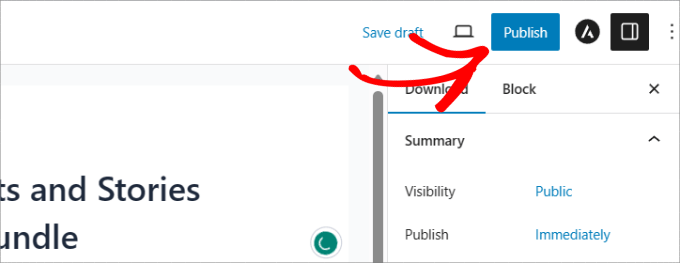
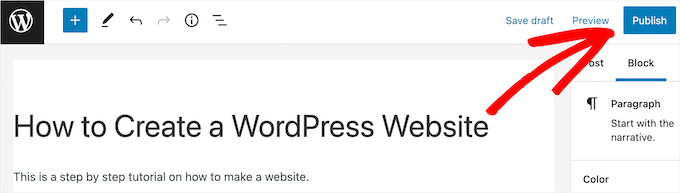
The ‘Publish’ button is located right next to ‘Save Draft’ and ‘Preview,’ making it easy to click the wrong one when you’re working quickly.
For an established blog, this can be a real problem. An unfinished post could instantly be sent out to thousands of email subscribers or get shared across social media feeds.
Plus, quickly unpublishing the post can create a new issue. Anyone who clicks the original link from an email or social media will land on a 404 error page, which creates a negative user experience.
The risk is even higher on a multi-author site. On our own team, we’ve built a specific editorial workflow to ensure a writer can’t publish a post before it’s thoroughly reviewed and ready.
With that said, let’s take a look at our beginner’s guide on how you can easily avoid accidental publishing in WordPress.
How WordPress Lets You Avoid Accidental Publishing
The WordPress Gutenberg block editor automatically includes an additional confirmation message before you publish a post or page in WordPress.
In the past, this feature had to be added to WordPress by using a publish confirm plugin to configure different settings or adding custom code snippets, but now it’s included automatically.
Now, if you open a WordPress page or post and click the ‘Publish’ button, it won’t publish the article right away.
Instead, a pre-publish panel will slide out from the right. This panel gives you a final chance to check your post settings and asks, ‘Are you ready to publish?’
You will need to click the ‘Publish’ button a second time to actually make the post or page live. This confirmation step makes it much harder to publish a post by accident.
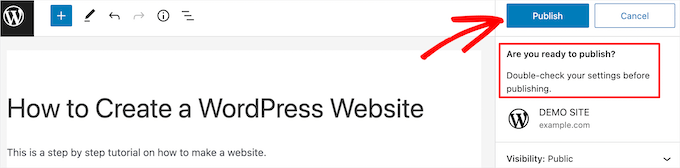
This additional confirmation message makes it much harder to accidentally publish a post since you’ll need to click the ‘Publish’ button two times.
Bonus: Pro Tips for a Safer Publishing Workflow
Even with the built-in confirmation step, mistakes can happen.
Here are some professional habits and tools you can use to add extra layers of safety to your publishing process:
- Use a Pre-Publish Checklist: You can use a plugin like PublishPress to create a checklist of tasks that must be completed before the ‘Publish’ button can be clicked. This is a great way to make sure every post is reviewed, has a featured image, and is properly categorized.
- Leverage User Roles: On a multi-author blog, assign writers the ‘Contributor’ role. This allows them to write posts but not publish them. An ‘Editor’ or ‘Administrator’ must approve the post, creating a mandatory review step.
- Edit Live Posts in a Draft: Never make major edits directly on a published post. Instead, copy the content into a new draft to work on it safely. Once your edits are finalized, you can paste the new version into the original live post.
- Know How to Use Post Revisions: Think of post revisions as your safety net. If a mistake goes live, WordPress saves previous versions of your content. You can use revisions to quickly restore an earlier version of the post to undo the error.
We use all of these tips on our multi-author blog, and they have really helped us avoid accidental publishing and improve editorial workflow.
Frequently Asked Questions About Accidental Publishing
Here are some questions that our readers have frequently asked us about accidentally publishing posts in WordPress:
Can I disable the ‘Are you ready to publish?’ confirmation in WordPress?
The two-step publish confirmation is a core feature of the WordPress block editor designed to prevent mistakes. It cannot be disabled through standard settings.
While it could be removed with custom code, we strongly advise against it as it is an essential safety feature.
What’s the difference between a Contributor and an Author role in WordPress?
The key difference is publishing capability. The ‘Contributor’ role allows a user to write and edit their own posts, but they cannot publish them. Their posts must be reviewed and published by an Editor or Admin.
The ‘Author’ role allows a user to write, edit, and publish their own posts without approval. For a safer workflow, the Contributor role is the best choice for writers.
Is there a plugin to edit a live post without copying it to a new draft?
Yes, there are plugins that make this process easier. For example, the Duplicator plugin allows you to clone a live page or post.
You can then edit the cloned version as a draft and, once finished, copy the content over to the live post. This is a more structured way to handle major revisions.
Does WordPress save unlimited post revisions? Will it slow down my site?
By default, WordPress can save a large number of post revisions. While this is useful for recovery, having too many revisions can increase the size of your website’s database over time.
You can limit the number of revisions WordPress saves by adding a code snippet with a plugin like WPCode.
We hope this article helped you learn how to avoid accidental publishing in WordPress. You may also want to see our expert picks of the best Gutenberg block plugins and how to automatically schedule your WordPress blog posts.
If you liked this article, then please subscribe to our YouTube Channel for WordPress video tutorials. You can also find us on Twitter and Facebook.





Jiří Vaněk
Yes, it has happened to me several times, and it was embarrassing every time. That’s why I eventually switched to Elementor, where this doesn’t happen to me. For this reason, I also applied your excellent guide on delaying articles in the RSS feed to the website. Together with Elementor, this combination ensures that I minimize problems with unwanted article publication.
Dennis Muthomi
this article reminds me when few years ago, I excitedly clicked on a email notification from one of my favorite travel blogs about their new “Summer Getaways” post (something like that), only to be met with a 404 error page.
it was confusing and disappointing ath the same time. That confirmation before publishing feature could have been implemented earlier to prevent such embarrassing situations.
Iain Anderson
Unfortunately I cannot download plugins as I am on wordpress.com. That being the case I hardly see how this is of any help to a “beginner”.
Try giving real assistance to those of us on the .com version of wordpress.
Saud Khan
Is there any way to do the same without plugin?
Alan Thompson
For me the biggest risk is via the WordPress App. When you create a new post in the app, the default state is “publish” so if you save it, you’re publishing it. I always have to remember to manually switch it to draft, then save. I wish they’d make them draft by default!
Saud Khan
Hi, I’ve accidentally published a post and changed the status to draft. Should I noindex & nofollow it and what about permalink?
Matthew Gates
Thank you so much for this! I have only done this once… accidentally published an article that was not ready to go out. Luckily, the WordPress had scheduled it for some time in the far past, instead of “immediate”, so it never got published for anyone to see on the home page. However, my automatic social media feeds that are connected to my site did publish it to the feed. I only discovered this because I get an email when people share their articles on social media, but I had to spend about an hour tracking all the feeds it got published too and deleting the article off the feed. So this will definitely come in handy.
Eric
I’ve actually never had this problem myself and just recently discovered the Editorial Calendar which I think will help organize content for the future so I can plan things out, too.
I like this tip though. You never know, just in case, it’s good to have it there.
Matt
I often just create a scheduled date a long time in the future, then remove it when I want to publish
Jaymes
Thanks for the article.
If I do add the code to functions.php, won’t that be overwritten when a new version of WordPress is released?
WPBeginner Support
No, but it will get overwritten when a new version of your theme is released and you update your theme. This is why we recommend our users to paste snippets in a site specific plugin.
Admin
Artem Russakovskii
Unfortunately, that doesn’t fix the issue for those of us using xmlrpc tools, like Windows Live Writer. I really wish there was a way to build UIs using xmlrpc responses.