


It’s a familiar story: you find the perfect plugin to add an exciting new feature, but that excitement quickly turns to frustration when your website slows to a crawl. We’ve been there, and we know how stressful it is to wonder if you have to choose between features and speed.
After managing WPBeginner and our other high-traffic sites for over a decade, we’ve learned the truth about performance. It’s rarely about the number of plugins, but rather the quality and how they are configured.
We created this guide to share the exact, practical methods we use to diagnose and fix plugin-related speed issues. You’ll learn how to keep your site running fast without sacrificing the tools you need to grow.
This is a comprehensive guide on plugins and WordPress performance. Please use the links below to navigate this article:
- How Do WordPress Plugins Work?
- How Plugins Affect a Site's Load Time
- Will Too Many Plugins Slow Down WordPress?
- Will Inactive Plugins Slow Down WordPress?
- How to Choose Faster Plugins
- How to Control Your Plugins Using Plugin Organizer
- How to Check Files Loaded by WordPress Plugins (Advanced)
- How to Manually Optimize WordPress Plugin Assets (Advanced)
- How to Manually Disable Plugin Stylesheets in WordPress (Advanced)
- How to Manually Disable Plugin JavaScript in WordPress (Advanced)
- How to Load Scripts Only on Specific Pages (Advanced)
- Frequently Asked Questions About WordPress Plugins and Site Speed
- Additional Resources to Speed Up Your Website
How Do WordPress Plugins Work?
WordPress plugins are like apps for your WordPress site. You can install them to add more features, such as contact forms, photo galleries, or an eCommerce store.
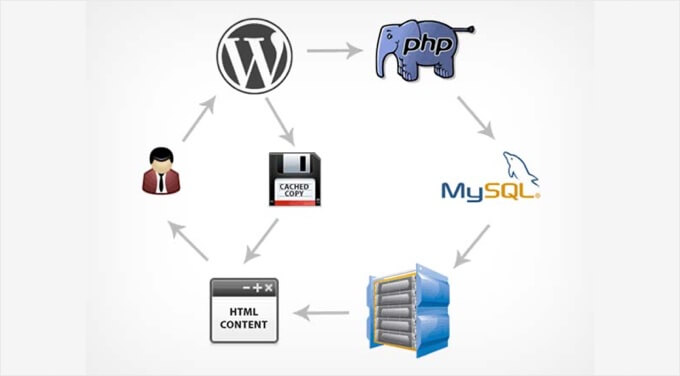
Both WordPress core and plugins are written in PHP. This PHP code runs on your web server and uses its resources.
That’s why it is important to choose fast WordPress hosting that lets you easily manage your server resources and run your site efficiently.
When someone visits your website, WordPress first loads its core files and then loads all your active plugins. You can learn more in our guide about WordPress plugins and how they work.
How Plugins Affect a Site’s Load Time
So, while WordPress plugins are amazing for adding features, they also use your website’s resources, and this can affect your site’s loading speed.
One way they do this is by looking up or storing information in your website’s database. If a plugin constantly needs to pull lots of data, or if its database requests aren’t efficient, it can slow down how quickly your server responds to a visitor’s request.
More commonly, plugins affect speed by adding extra files that need to be downloaded by your visitors’ browsers. These files often include stylesheets (CSS) that control the plugin’s appearance, JavaScript (JS) for interactive features, and sometimes images or fonts.
Ideally, a plugin should only load these files where and when they are needed. For example, a contact form plugin should only load its CSS and JS on the contact page.
However, some plugins are coded to load their assets on every single page of your site, even if the plugin’s feature isn’t present on that page.
Each one of these extra files adds to the total page size and the number of separate requests a visitor’s browser has to make to load your page. This directly increases the time it takes for your website to fully display for your visitors.
With this in mind, you can see why carefully choosing well-coded plugins and avoiding unnecessary ones is important for maintaining good website speed.
Will Too Many Plugins Slow Down WordPress?
How many plugins are too many? Many WordPress users wondering whether their website will slow down if they install too many plugins.
We believe the key problem is not the quantity of plugins but rather the quality.
All well-coded plugins try to keep the files they load to a minimum. You can have dozens of good WordPress plugins like this running on your website without any issues.
However, not all plugin developers are that careful. Some plugins will load files on every single page load, even when they don’t need those files. Too many plugins like this will slow your website down.
This means that the real issue is choosing fast plugins and avoiding poorly-coded ones.
For further discussion on this issue, please refer to our guide on how many WordPress plugins you should install.
Pro Tip: You can reduce the number of plugins by using WPCode, a powerful code snippet management plugin for WordPress. It will easily make at least 5 plugins unnecessary.
Will Inactive Plugins Slow Down WordPress?
You can temporarily switch off a plugin in WordPress by deactivating it. This does not delete the plugin, so you can easily reactivate it when you need it.
You might be wondering if inactive plugins slow down your website. They don’t.
WordPress does not load inactive plugins, so they will not use your website’s resources. Inactive plugins will not query your database or access files.
However, if you never plan to use an inactive plugin in the future, we recommend you delete it. Inactive plugins will still ask to be updated, and hackers can sometimes use them to gain access to your site.
For more details, see our guide called: Do inactive plugins slow down WordPress?
How to Choose Faster Plugins
As we said earlier, the most important thing is to choose well-coded plugins. These are plugins with good reviews and are recommended by trusted sources.
You can start by reading our detailed guide on how to choose the best WordPress plugins.
You will want to pay special attention to the plugin’s ease of use and performance. Here are some top picks:
- WPForms, the fastest and most beginner-friendly contact form plugin for WordPress, and is known for its lightweight code
- All in One SEO, a powerful WordPress SEO plugin that emphasizes website performance
- MonsterInsights, the best Google Analytics plugin for WordPress that lets you load gtag.js locally to speed up your Google Core Web Vitals scores
- SeedProd, a WordPress page builder that creates blazing-fast landing pages and themes while loading minimal assets to improve performance
Besides these recommendations, you can run your own speed tests. Simply test your site speed before and after installing a plugin to compare its impact on performance.
If you find that a WordPress plugin is affecting your site’s load, then look for a better plugin that does the same job without slowing down your website.
How to Control Your Plugins Using Plugin Organizer
Some of the plugins you use will not need to run on every page of your website. You can speed up your website by only running them where they are needed.
For example, if a plugin only needs to run in the WordPress admin area, then it should not load on the front end of your website.
Plugin authors can’t always anticipate how you will use their plugin features, so they may load the code whether it is needed or not. Now, if the plugin loads JavaScript and CSS files, then this may increase your website’s page load time.
Disabling those plugins on the pages where you don’t need them will improve their loading time.
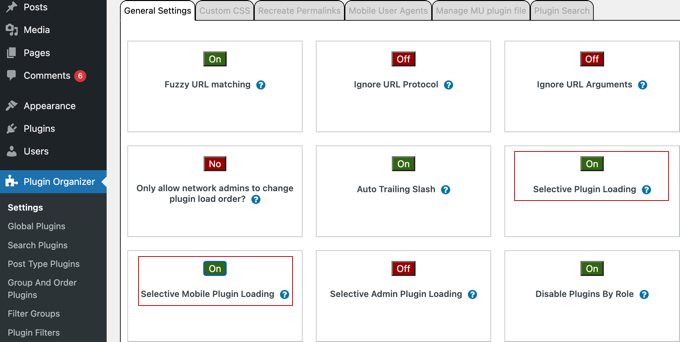
This is where Plugin Organizer can help. It is a WordPress plugin that lets you control your other plugins in the following ways:
- It lets you selectively enable or disable specific plugins based on URL.
- It lets you enable or disable plugins for different user roles.
- It lets you enable or disable plugins based on post type.
- It lets you rearrange the order in which plugins are loaded.
- It lets you disable certain plugins and only load them when needed.
Using these features, Plugin Organizer will let you control your plugins and fine-tune your website performance.
For detailed instructions, see our guide on how to use Plugin Organizer to speed up your WordPress site.
And since more than half of your website visitors will be using smartphones or other devices, you need to make sure your site loads quickly for them as well.
You can do this by using the Plugin Organizer to disable specific plugins on mobile. To learn how, see our guide on how to disable specific WordPress plugins for mobile users.
However, if you prefer to control your WordPress plugins without installing another plugin, then we will explain how to do that step-by-step in the remainder of this guide. However, this is only recommended for more technical users.
How to Check Files Loaded by WordPress Plugins (Advanced)
To see how plugins affect your page load time, you need to check which files are loaded by your WordPress plugins. Luckily, there are plenty of tools that you can use to figure this out.
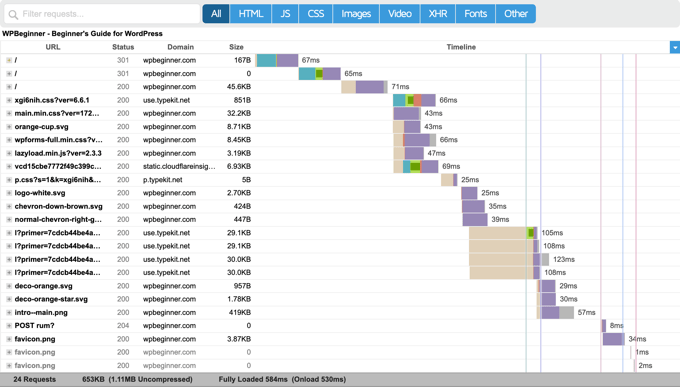
One simple way is to use your browser’s developer tools. In Google Chrome or Firefox, simply right-click your website and select ‘Inspect’. This will open the developer tools panel.
You need to click on the ‘Network’ tab and then reload your website. As the page reloads, you will be able to see how your browser loads each file.
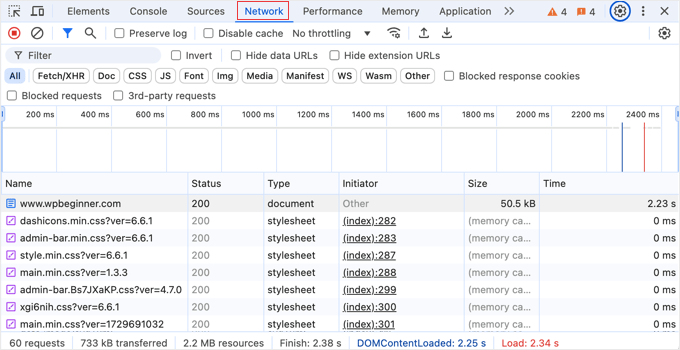
Watch out for files that are slow to load. You can see how long it took each file to load by looking at the ‘Time’ column.
If you just want to see certain types of files that may impact your loading times, such as JS (JavaScript) or CSS, then simply use the buttons along the top to filter the list.
For a more detailed report, you can also use third-party tools like Pingdom and GTmetrix. These tools will give you even more useful information about all the files that are loaded and the time they take to load.
How to Manually Optimize WordPress Plugin Assets (Advanced)
Advanced WordPress users can try to manage how WordPress plugins load files on their site. Keep in mind that this requires some knowledge of coding and some debugging skills.
Important Note: We strongly recommend that you don’t test any of the methods below on a live site. The best place to experiment is on a local WordPress install or a staging site with a managed WordPress hosting provider.
The proper way to load scripts and stylesheets in WordPress is by using the wp_enqueue_style and wp_enqueue_script functions.
Most WordPress plugin developers use these functions to load plugin files, ensuring that files are loaded only when and where needed. WordPress also comes with easy functions to deregister those scripts and stylesheets.
However, if you simply disable loading those scripts and stylesheets, then this will break your plugins and they will not work correctly. To fix that, you will need to copy and paste those styles and scripts into your theme’s stylesheet and JavaScript files.
This way, you will be able to load all of them at once, minimizing the HTTP requests and effectively decreasing your page load time.
Let’s see how to easily deregister stylesheets and JavaScript files in WordPress.
How to Manually Disable Plugin Stylesheets in WordPress (Advanced)
First, you will need to find the name or handle of the stylesheet that you want to deregister. You can locate it using your browser’s inspect tool.
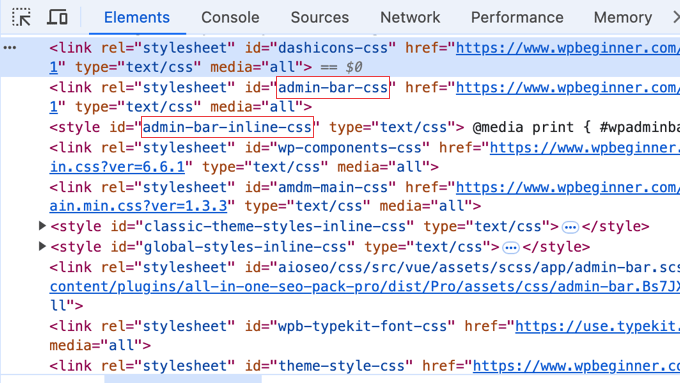
After you find the stylesheet handle, you can deregister it by adding this code using a snippet plugin like WPCode (recommended). We recommend using a snippet plugin because it’s much safer than editing your theme’s functions.php file directly, and your code won’t be erased when you update your theme.
add_action( 'wp_print_styles', 'my_deregister_styles', 100 );
function my_deregister_styles() {
    wp_deregister_style( 'gdwpm_styles-css' );
}
Don’t forget to change 'gdwpm_styles-css' to the style handle you wish to disable.
To add this code snippet using WPCode, simply create a custom PHP snippet, give it a name, and then paste the code into the Code Preview pane.
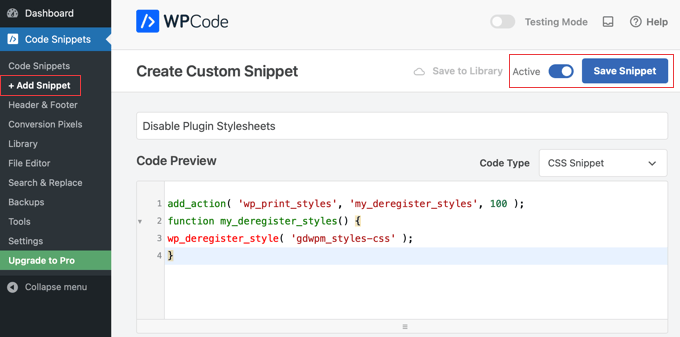
After that, make sure you toggle the snippet ‘Active’ and then click the ‘Save Snippet’ button to store the code. For more details, see our guide on how to add custom code snippets in WordPress.
You can deregister as many style handles as you want within this function.
For example, if you have more than one plugin to deregister the stylesheet for, then you would do it like this:
add_action( 'wp_print_styles', 'my_deregister_styles', 100 );
function my_deregister_styles() {
    wp_deregister_style( 'gdwpm_styles-css' );
    wp_deregister_style( 'bfa-font-awesome-css' );
    wp_deregister_style( 'some-other-stylesheet-handle' );
}
Remember that deregistering these stylesheets will affect plugin features on your website. You need to copy the contents of each stylesheet you deregister and paste them into your WordPress theme’s stylesheet or add them as custom CSS.
This helps speed up your site because a visitor’s browser only needs to download one combined CSS file instead of many smaller ones, which reduces the number of requests to your server.
How to Manually Disable Plugin JavaScript in WordPress (Advanced)
Just like stylesheets, you will need to find out the handle used by the JavaScript file to deregister it. However, you will not find the handle using the inspect tool.
Finding the correct handle for JavaScript files can be tricky because you can’t easily find them with the inspect tool. Thankfully, there’s an easy way to get a list of all script handles.
You can add this code to your theme’s functions.php file or a new WPCode snippet:
function wpb_display_pluginhandles() {
$wp_scripts = wp_scripts();
$handlename .= "<ul>";
    foreach( $wp_scripts->queue as $handle ) :
      $handlename .=  '<li>' . $handle .'</li>';
    endforeach;
$handlename .= "</ul>";
return $handlename;
}
add_shortcode( 'pluginhandles', 'wpb_display_pluginhandles');
After adding this code, you can use the[pluginhandles] shortcode to display a list of plugin script handles.
It should look like this:

Now that you have script handles, you can easily deregister them using the code below.
Simply add the code to your theme’s functions.php file or a new WPCode snippet, as you did when disabling stylesheets:
add_action( 'wp_print_scripts', 'my_deregister_javascript', 100 );

function my_deregister_javascript() {
    wp_deregister_script( 'contact-form-7' );
}
You can also use this code to disable multiple scripts.
It will look like this:
add_action( 'wp_print_scripts', 'my_deregister_javascript', 100 );

function my_deregister_javascript() {
    wp_deregister_script( 'contact-form-7' );
    wp_deregister_script( 'gdwpm_lightbox-script' );
    wp_deregister_script( 'another-plugin-script' );
}
As we mentioned, disabling these scripts will prevent your plugins from working correctly. To fix this, you would need to copy the JavaScript from each plugin and paste it into your theme’s main JavaScript file.
However, this advanced step is complex and can cause issues, as different scripts may conflict with one another. It requires careful testing on a staging site.
How to Load Scripts Only on Specific Pages (Advanced)
If you know that you will need a plugin script to load on a specific page on your website, then you can allow a plugin on that particular page.
This way, the script remains disabled on all other pages of your site and is loaded only when needed.
Here is how you can load scripts on specific pages:
add_action( 'wp_print_scripts', 'my_deregister_javascript', 100 );

function my_deregister_javascript() {
    if ( !is_page('Contact') ) {
        wp_deregister_script( 'contact-form-7' );
    }
}
This code simply disables the contact-form-7 script on all pages except the contact page. Simply change the page name and plugin script handle to those you want to use.
Frequently Asked Questions About WordPress Plugins and Site Speed
Here are the answers to some of the most common questions we receive about how WordPress plugins can affect website performance.
1. Is it the number of plugins or their quality that slows down a site?
Quality is far more important than quantity. A website can run dozens of well-coded plugins without any noticeable slowdown. However, just one poorly coded plugin can significantly impact performance by making too many database requests or loading unnecessary scripts on every page.
2. Will inactive plugins slow down my WordPress site?
No, inactive plugins do not affect your site’s load time. WordPress only loads the files for active plugins, so they don’t use any server resources. However, it is still a good security practice to delete any plugins you don’t plan on using again.
3. How can I find out which specific plugin is slowing down my website?
The most reliable method is to first test your site’s speed. Then, deactivate all your plugins and test again. You can reactivate them one by one, running a speed test each time. When you see a significant drop in speed, you’ve found the plugin causing the issue.
4. Is it better to use one large plugin with many features or several smaller, single-purpose plugins?
It depends entirely on the code quality. Often, several lightweight, specialized plugins are more efficient than one bloated multi-purpose plugin that loads assets for features you aren’t even using. Always choose plugins that are known for being fast and efficient.
Additional Resources to Speed Up Your Website
Now that you know how to manage your plugins for better performance, you can explore other ways to make your site even faster. We recommend these guides for your next steps:
- The Ultimate Guide to Boost WordPress Speed & Performance – Our complete tutorial covers every aspect of site speed, from hosting to image optimization and beyond.
- Best WordPress Caching Plugins – Caching is one of the most powerful ways to improve your site’s load time. This comparison will help you pick the best solution.
If you liked this article, then please subscribe to our YouTube Channel for WordPress video tutorials. You can also find us on Twitter and Facebook.


Dennis Muthomi
That part about picking faster plugins really hit home for me.
I’ve started doing something that’s been a huge help – I test every new plugin on a staging site first before it goes live. It’s saved me so many headaches with my client websites! It’s amazing to see the difference between plugins that are well-built versus ones that are just thrown together.
Totally agree about quality beating quantity. I’ve learned that having fewer, better-coded plugins often works better than loading up on mediocre ones. Even if you need 20 solid plugins, they’ll probably run better than 5 poorly-made ones slowing everything down.
Jiří Vaněk
I would like to respond to the question of how many plugins are too many. This website finally opened my eyes regarding the number of plugins. I always worked with WordPress under the assumption that I had to keep the website within 20 plugins, otherwise it would be slow. Sometimes, I struggled a lot with this and reevaluated which plugins to choose to fit into this limit. Only on your recommendation, that it’s not so much about quantity but about quality, did I abandon this dogma. Today, I have 38 plugins on my website (half of which are paid), and the website is still fast and doesn’t exceed any PHP limits. Your education on this matter helped me a lot in selecting plugins and generally working with them.
Moinuddin Waheed
In the nutshell it is not the number of plugins that make a huge difference but number of poorly coded plugins which makes the task difficult and creates problems for the websites.
one thing in my opinion while selecting a plugin should be to install task specific plugins only.
Not which loads everything in return to do a specific task easily.
Thanks for the guide.
Oscar
I’m not sure I understood everything. I want to use the last code snippet (Load Scripts Only on Specific Pages) for Contact Form 7.
What is unclear to me is on line 4. Does “Contact” refer to the title of the page where the contact form is located? If title of my page is “Contact Us” do I need to change this on line 4?
Thanks in advance. Regards,
WPBeginner Support
Correct, Contact would be the title of the post and you would change it to match the title of the page. You can also look up the page ID and add that number as an alternative if you prefer. Our guide on finding the ID can be found below!
https://www.wpbeginner.com/beginners-guide/how-to-find-post-category-tag-comments-or-user-id-in-wordpress/
Admin
Korii
Really great tips here!
Question re: deregistering plugin stylesheets and scripts and merging them into a single stylesheet and a single script file respectively, will you have to do this every time there is a plugin update? If so, is there a way to get around this?
WPBeginner Support
To protect the changes, you would likely want to create a child theme
Admin
Thomas
I use a couple of plugins when writing copy. (Font, etc) If I deactivate when I’m not using them will it help?
Mike Burk
Very good article! Thanks.
pete
Hi guys,
So, how would I add a Code Pen script to a page if it’s just a CSS only pen? And also, how would I add pens with JS, please?
Many thanks!
PeTe
amin
it’s a really useful post for all(beginners and advanced).also you can use css without blocking render to make your site or plugin faster.like
amin
also you can remove some languages of the plugin.so delet .po and .mo files(if they are not usable) can load you faster.and remove helps files and pictures and you can minify your js and css(not necessary) and some more….
abubakar
i have this website link is
i want to stop the ajax loading but i dont know how to do that can any one help me with that
i really appreciate it..
Thnakx
Jasmine
Thanks for the tips @Wpbeginner. I love you guys!
Matus
Could you please make a list of top social media share buttons for WP?
For example what are you using on your website to do that, plugin, Shareaholic or SumoMe? Or something made yourself?
Jasmine
Try out Social Warfare plugin