


We’ve helped many businesses go global, including those expanding into the Southeast Asia region. One thing that often comes up when entering this market is the need to support local payment methods, like GrabPay.
It’s a trusted and widely used option across Southeast Asia, and many customers expect to see it during checkout. To help meet this need, we tested different ways to add GrabPay to WordPress.
We looked at solutions for WooCommerce stores as well as simple payment forms for service-based websites. Surprisingly, the setup process turned out to be super easy.
In this guide, we’ll show you two easy ways to start accepting GrabPay payments on your WordPress site.
💡Quick Answer: How to Add GrabPay to WordPress
If you want to quickly accept GrabPay payments, here are the two best methods we found in our testing:
- WP Simple Pay: Best for accepting donations or payments for services. It lets you create a simple payment form without a shopping cart.
- WooCommerce Stripe Gateway: Best for full online stores. It adds GrabPay directly to your WooCommerce checkout page.
Why Set Up GrabPay Payments in WordPress?
If you plan to target customers in Southeast Asia, then adding GrabPay payments to your WordPress website is a smart move.
It allows you to tap into a massive market of millions of active users who rely on this digital wallet for daily transactions. Here are the key benefits of offering GrabPay on your site:
- Build Customer Trust: GrabPay is a household name in the region. Offering a familiar payment method makes your business look more legitimate and secure.
- Improve User Experience: Users can pay quickly with just a few taps on their smartphones or by scanning a QR code, which reduces friction during checkout.
- Boost Customer Loyalty: The GrabRewards loyalty program encourages users to shop more to earn points, which can lead to higher customer retention for your store.
- Easy Top-Ups: Since users can easily fund their wallets via credit cards or bank transfers, they are always ready to make a purchase.
Having said that, let’s take a look at how to easily set up GrabPay payments in WordPress. In this tutorial, we will be discussing 2 methods. You can use the links below to jump to your preferred approach:
Method 1: Set Up a GrabPay Payment Form in WordPress
This method is for you if you want to set up a GrabPay payment form on your WordPress website without building a full-blown online store.
It’s also perfect if you are not using WooCommerce. For instance, you may want to accept donations or charge for your professional services using GrabPay.
The easiest way to add a GrabPay payment form is using WP Simple Pay. During testing, we were really impressed by how beginner-friendly it is. We found that it allows you to add forms with just a few clicks.
In our opinion, it is the best WordPress Stripe plugin, with an intuitive builder, spam protection, and a premade GrabPay payment form template. To learn more about our experience, see our WP Simple Pay review.
Step 1: Install And Activate WP Simple Pay
To get started, you’ll need to install and activate the WP Simple Pay plugin. For details, see our tutorial on how to install a WordPress plugin.
Note: WP Simple Pay has a free plan. However, you will need the pro version to unlock the GrabPay payment form template.
Step 2: Configure the Setup Wizard
After you activate the plugin, you will see a setup wizard on your screen. Here, just click the ‘Let’s Get Started’ button.

You will now be taken to the next step, where you need to add your plugin’s license key.
You can find this information in your account on the WP Simple Pay website.

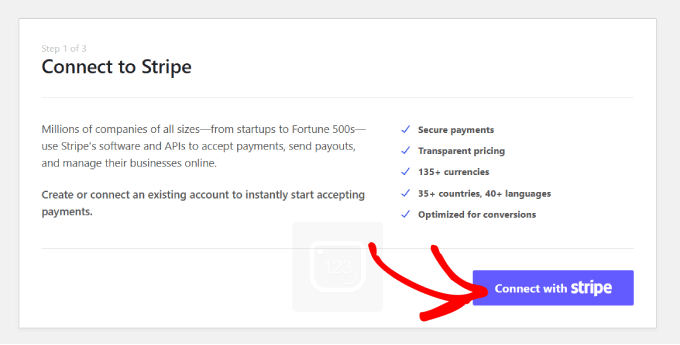
Once that is done, you will be asked to connect your plugin with Stripe. This popular payment gateway lets you accept online payments easily.
Keep in mind that since WP Simple Pay is a Stripe plugin, it won’t work on your website until you connect it with a new or existing Stripe account.
To start the process, click the ‘Connect with Stripe’ button.
For more details, see our tutorial on how to accept Stripe payments in WordPress.
Once you have successfully connected Stripe and WP Simple Pay, the setup wizard will ask you to configure your emails.
Here, you can enable options to receive email notifications for payment receipts, upcoming invoices, and payment notifications. You will also need to enter an email address to send them to.
Next, click the ‘Save and Continue’ button.

Then, complete the rest of the setup wizard steps according to your preferences.
Step 3: Create a Payment Form
Once you are done, go to the WP Simple Pay » Payment Forms page in the WordPress dashboard.
Here, click the ‘Create Your Payment Form’ button.
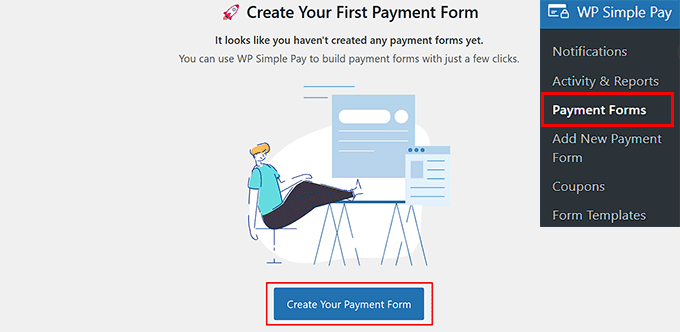
You will now be taken to the ‘Select a template’ page, where you will see a list of premade templates offered by WP Simple Pay.
Go ahead and locate the ‘GrabPay Payment Form’ template. Once you find it, click the ‘Use Template’ button under it.
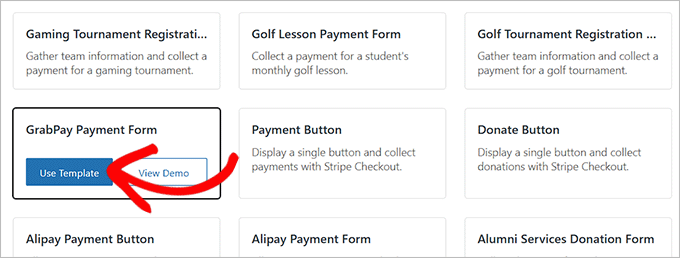
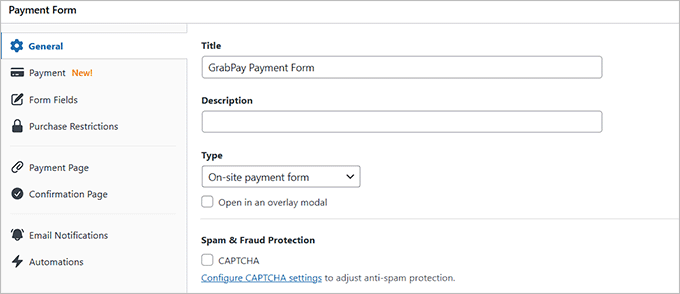
This will take you to the ‘Add New Payment Form’ page. Here, you can change your form’s title and add a description.
Then, choose ‘On-site payment form’ as your form type. You can also check the box under it to turn on spam protection.
Step 4: Add GrabPay as a Payment Option
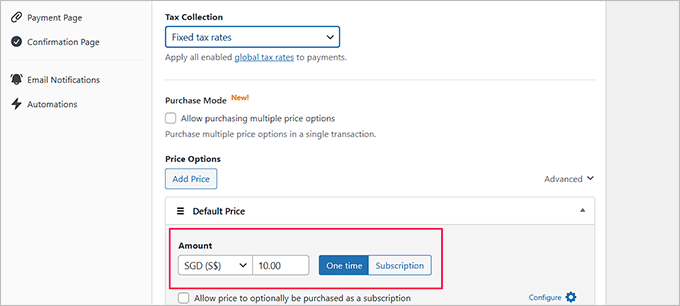
After that, switch to the ‘Payment’ tab in the left column. From here, choose your preferred tax collection rates under the ‘Tax Collection’ option.
Next, enter the price for the product or service you want to sell through the form. Ensure that ‘One-Time Payment’ is selected, as GrabPay does not support recurring subscriptions.
Remember to select a Southeast Asian currency like SGD or MYR in this section. If you don’t, then the GrabPay payment option won’t be displayed on your form.
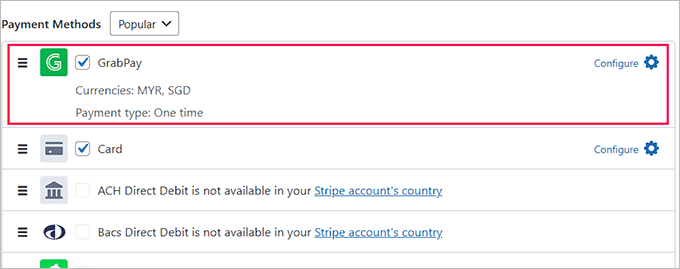
Now, you need to scroll down to the ‘Payment Methods’ section and select the ‘All’ option from the dropdown menu.
You will notice that GrabPay has already been selected from the list. However, you can also add other payment options, such as Klarna, AliPay, Card, or Bacs Direct Debit, if you like.
🚨Important Note: The GrabPay payment option will only be available if your connected Stripe account is based in a supported Southeast Asian country, such as Singapore or Malaysia.
Changing the country setting inside the plugin alone is not enough
Step 5: Add, Edit, or Remove Form Fields
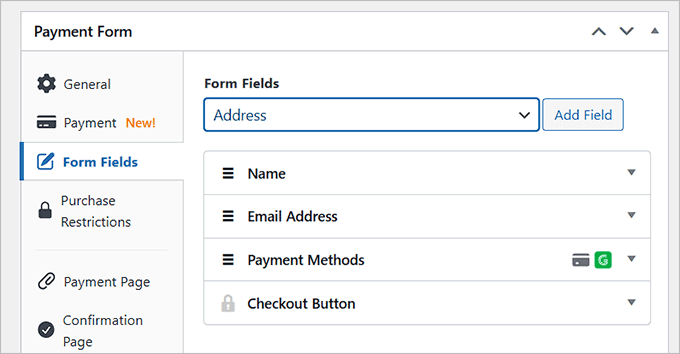
After that, switch to the ‘Form Fields’ tab. You can add a form field from the dropdown menu and configure its settings by expanding the tab. Plus, you can rearrange the existing fields by dragging and dropping them.
For example, you can add an address field on your form if you want to sell a physical product or provide in-person services. That way, customers will need to provide their address when they make a purchase or book an appointment.
Step 6: Publish the Payment Form
Finally, visit the ‘Payment Page’ tab to check the ‘Enable a dedicated payment page’ box. You can now create a custom payment form page without manually building a new page on your website.
WP Simple Pay lets you customize the form by setting a permalink, color scheme, image, and footer text.
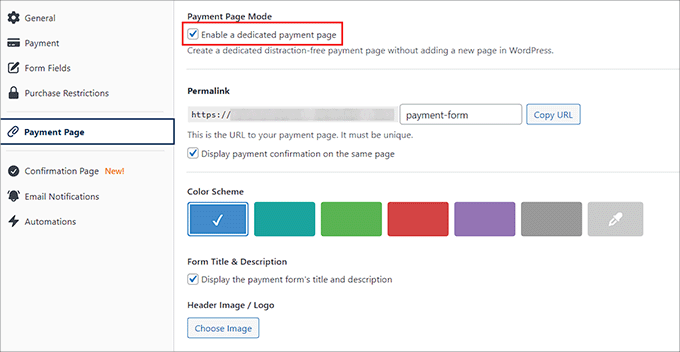
Once you are done, just click the ‘Publish’ button to save your changes.
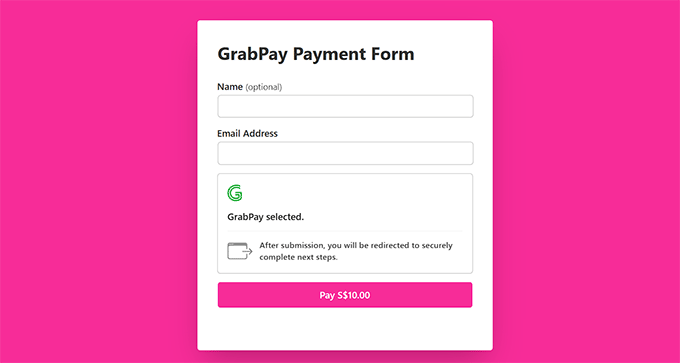
You can now visit your WordPress site to view the new page with the GrabPay payment form.
However, if you want to add the form to an existing page on your website, then simply click the ‘Publish’ button after adding form fields.
Next, find the page/post you want to use in the WordPress dashboard. Then, click the ‘Add Block’ (+) button in the top left corner to open the block menu.
From here, find and add the WP Simple Pay block to the page, and select the payment form you created from the dropdown menu within the block.
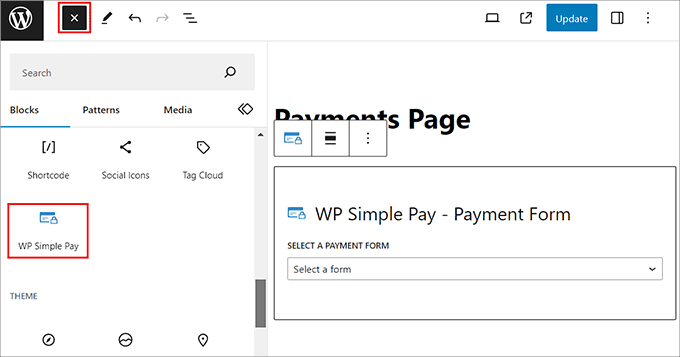
After that, click the ‘Update’ or ‘Publish’ button to store your settings.
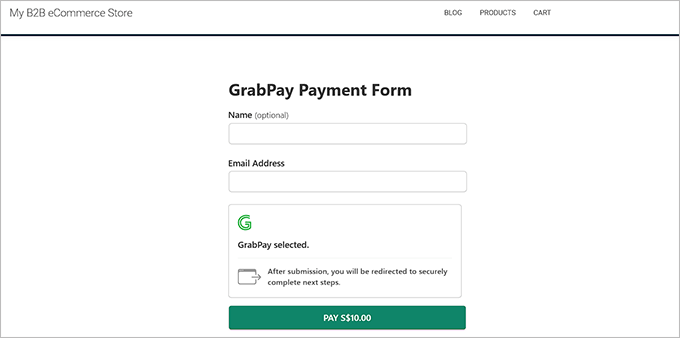
Now, visit your website to view the GrabPay payment form.
Method 2: Set Up GrabPay as a Payment Option in WooCommerce
If you want to accept GrabPay payments in your WooCommerce store, then this method is for you.
Step 1: Install And Activate Stripe Payment Plugin for WooCommerce
First, you’ll need to install and activate Stripe Payment Plugin for WooCommerce. For details, see our beginner’s guide on how to install a WordPress plugin.
Step 2: Connect WooCommerce to Stripe
After you activate the plugin, visit the WebToffee Stripe page in your WordPress dashboard and click the ‘Connect to Stripe’ button.
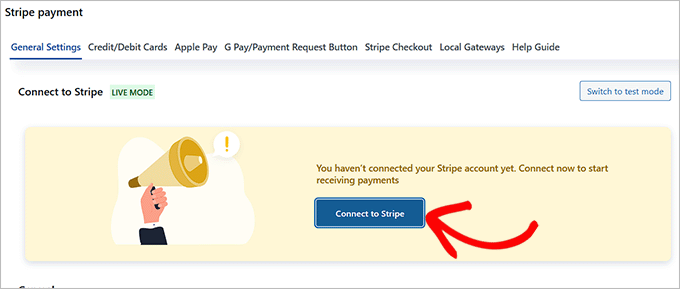
This will take you to a new tab where you will need to follow the on-screen instructions to connect the plugin to your Stripe account.
Step 3: Enable GrabPay as a Payment Option
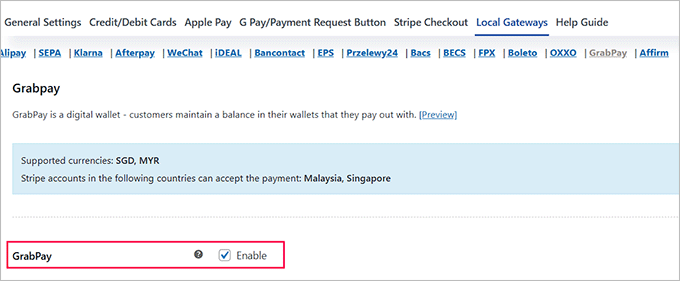
Once you have done that, just go back to your WordPress dashboard and visit the WebToffee » Local Gateways page. Here, switch to the ‘GrabPay’ tab at the top.
Next, check the ‘Enable’ box to add GrabPay as a payment method in your store.
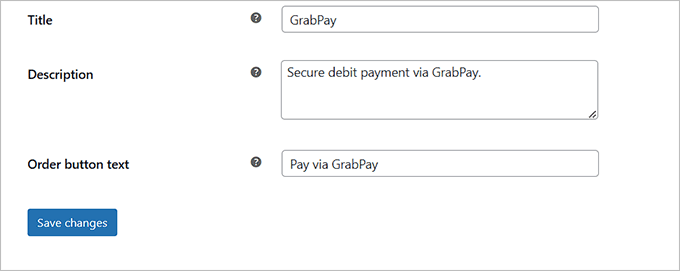
You can also add a title, description, and order button text to suit your needs.
For instance, to avoid confusion among global users, you can clarify that GrabPay is currently only available in Southeast Asia. This will prevent users from attempting to use a payment method that isn’t supported in their region.
Step 4: Preview Your WooCommerce Store
Finally, click the ‘Save Changes’ button to store your settings.
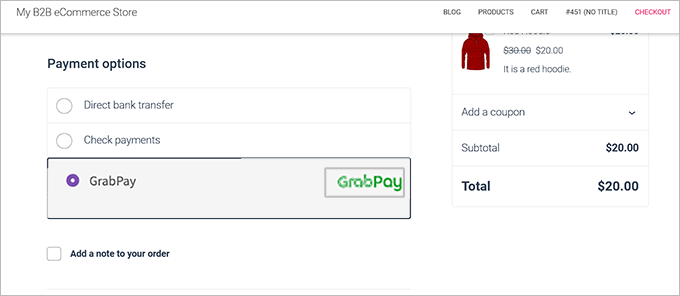
Now, visit the checkout page on your WooCommerce store to see the payment option in action.
Bonus: How to Accept SEPA Payments in WordPress
Just like GrabPay is a go-to payment option in Southeast Asia, SEPA is a widely used payment system across many parts of Europe.
It’s an initiative by the European Union that simplifies bank transfers in euros. With SEPA, you can make cashless euro payments to anyone in the SEPA area, regardless of their bank or country.
Plus, this transaction process charges lower fees than traditional cross-border payments, making it a great solution.
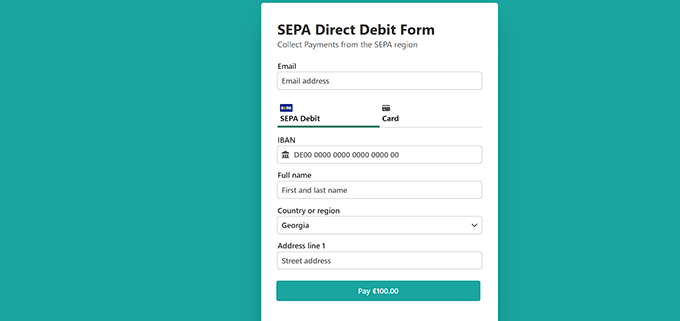
Luckily, it’s easy to accept SEPA payments with the WP Simple Pay plugin.
It even comes with a payment form template specifically for SEPA direct debits.
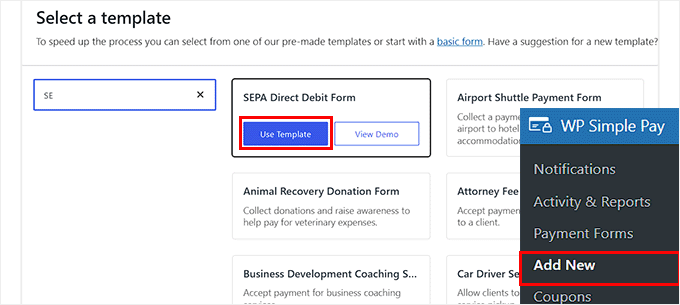
For more detailed instructions, just see our tutorial on how to accept SEPA payments in WordPress.
Frequently Asked Questions About GrabPay in WordPress
Here are some common questions we hear from users regarding setting up payments and using GrabPay.
How to set up payments on WordPress?
The easiest way to set up payments is by using a dedicated plugin like WP Simple Pay for simple forms or WooCommerce for full online stores.
These plugins connect your WordPress site to secure payment gateways like Stripe or PayPal, allowing you to accept credit cards and digital wallets without needing to write any code.
To get started, see our ultimate payment processing guide for WordPress.
How to integrate GPay in WordPress?
To integrate Google Pay (GPay), you need a payment gateway that supports digital wallets, such as Stripe. For step by step instructions, check our tutorial on how to accept Google Pay payments in WordPress.
What is the difference between GrabPay and GrabPay wallet?
GrabPay is the overall payment service or brand, while the GrabPay Wallet is the digital container where users store their actual funds.
When a customer selects “GrabPay” at checkout, they are usually choosing to pay using the balance currently stored in their “GrabPay Wallet.”
Is there a 1% fee for GrabPay?
Transaction fees depend on the payment gateway you use, but they are generally higher than 1% for merchants. For instance, if you use Stripe to accept GrabPay in Singapore, the fee is typically around 2.2% + S$0.35 per transaction. We recommend checking your specific payment gateway’s pricing page for the most accurate rates.
Which country made GrabPay?
Grab originally launched in Malaysia (as MyTeksi) before moving its headquarters to Singapore. It has since grown into a leading “super app” across Southeast Asia, widely used in countries like Indonesia, Thailand, Vietnam, and the Philippines.
Additional Resources: WordPress Payment Options
Exploring more ways to improve your site’s payment capabilities? These resources can help you diversify payment options and improve user experience.
- How to Add a PayPal Donate Button in WordPress
- How to Collect Cash App Payments in WordPress (Step by Step)
- PayPal Alternatives for Freelancers to Collect Payments in WordPress
- How to Accept iDEAL Payments in WordPress (Easy Methods)
- How to Add Bancontact Payments in WordPress (Step by Step)
- Stripe vs. PayPal: Which Is Better for Your WordPress Site?
- How to Test Stripe Payments on a WordPress Site (Easy Methods)
- How to Collect Taxes for Stripe Payments in WordPress (Easy Ways)
We hope this article helped you learn how to set up GrabPay payments in WordPress. You may also like to see our beginner’s guide on how to accept Google Pay in WordPress and our top picks for the best PayPal plugins in WordPress.
If you liked this article, then please subscribe to our YouTube Channel for WordPress video tutorials. You can also find us on Twitter and Facebook.





Have a question or suggestion? Please leave a comment to start the discussion.