


Many website owners feel trapped by Google AMP after noticing a sudden drop in engagement and conversions. When AMP first launched, we enabled it here at WPBeginner hoping for a mobile speed boost, only to quickly discover its strict limitations.
You might worry that turning it off now will hurt your hard-earned search rankings. Thankfully, you can safely remove it without damaging your SEO.
In this guide, we will walk you through the exact steps we use to help site owners switch back to their standard mobile themes. Here is how to properly disable Google AMP in WordPress.
Why You Should Disable Google AMP in WordPress
Accelerated Mobile Pages (AMP) is an open-source initiative to make the web faster for mobile users and improve user experience.
It does so by serving pages with minimal HTML and JavaScript. This allows the content to be hosted on Google AMP Cache. Google can then serve this cached version to users instantly when they click on your link in the search results.
However, if you have chosen to set up Google AMP in WordPress, you might feel that you have made the wrong choice.
You are not alone. Many bloggers, influencers, and online publications have stopped using AMP on their WordPress websites.
Let’s look at why you might want to disable AMP, and then we will show you exactly how to do it.
AMP Complicates Google Analytics 4 Tracking
With Google Analytics 4 (GA4) now being the standard for website tracking, it’s important to know that its integration with AMP can be difficult.
Because AMP strips out standard JavaScript, getting standard GA4 tracking to work correctly requires manual configurations with special HTML tags that are often challenging for beginners.
This can lead to inaccurate data or broken tracking, which is another great reason to switch back to your main mobile site.
Drastic Drop in Conversion Rates
Google AMP sets lots of restrictions on HTML/JavaScript. This means that many interactive elements from your WordPress website go missing with AMP, like optin forms and exit-intent popups.
As a result, site owners cannot encourage users to subscribe, fill out contact forms, or buy stuff.
Lower Pageviews by Mobile Users
AMP does not show your website’s sidebars or other content discovery features. This causes a significant drop in pageviews by mobile users.
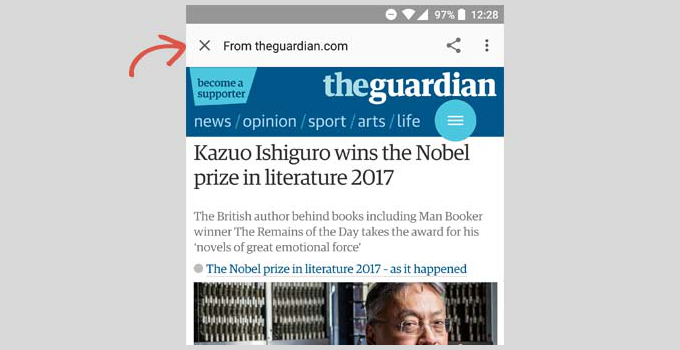
In fact, some user experience experts suggest that the close button on top actually encourages users to return to Google search after reading your article instead of browsing your website.
Lower User Engagement
Many websites thrive on user interactions, like click-to-tweet widgets, user ratings, comments, and so on. Google AMP makes it quite difficult for website owners to keep users engaged and interact with their content.
Should You Disable Google AMP?
The answer to this question actually depends on your website. If mobile users make up the majority of your audience, then you may still want to use AMP.
On the other hand, if you have tried Google AMP and it has negatively affected your conversion rates, then you should probably disable Google AMP on your website.
Contrary to popular belief, Google does not penalize websites for not using AMP. You can still improve your website’s speed and performance on mobile to compete for a mobile search audience.
With all that in mind, let’s see how you can disable AMP on your WordPress website.
Disabling Google AMP Plugins in WordPress
Not everyone uses the same WordPress plugins to add AMP support to their websites. However, the basic settings remain the same regardless of what plugin you use.
The first thing you need to do is to deactivate whichever AMP plugin you have installed.
Simply visit the Plugins » Installed Plugins page from your WordPress dashboard and click on ‘Deactivate’ below the AMP plugin’s name.
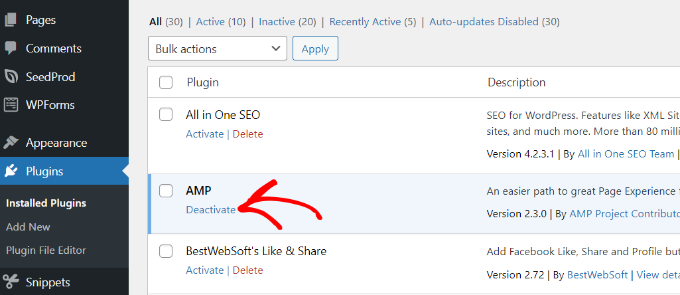
Just deactivating the plugin will disable the AMP support on your website. However, there are a few more steps to follow to ensure your site is AMP-free.
Setting Up Redirects for AMP Pages
Disabling the AMP plugin will remove the AMP version of your articles from the website. However, that alone is not enough, especially if you have AMP turned on for more than a week.
There is a good chance that Google already has those pages indexed and will keep showing those pages in search results. If a user clicks on one and you’ve removed it from your site, they will find a 404 page since that content is now missing.
To fix this problem, you need to redirect users coming to AMP pages to the regular non-AMP pages.
Think of a redirect as a permanent change of address notice for search engines and your visitors’ browsers. It automatically sends anyone trying to visit your old AMP page to the correct non-AMP version, ensuring no one gets lost or sees an error message. 👍
We will show you two different methods to set up redirects for Google AMP, first using a plugin and then using code. You can choose the one that’s most convenient for you.
Method 1: Using a Redirect Plugin
The easiest and safest way to set up redirects is by using the All in One SEO (AIOSEO) plugin. We recommend this for most users because it lets you fix the issue without touching any sensitive code, which avoids the risk of accidentally breaking your site.
Note that you’ll need the AIOSEO Pro license because it includes the redirection manager.
First, you will need to install and activate the All in One SEO (AIOSEO) plugin. For more details, see our step-by-step guide on how to install a WordPress plugin.
Upon activation, you can go to All in One SEO » Redirects from the WordPress dashboard and click the ‘Activate Redirects’ button.
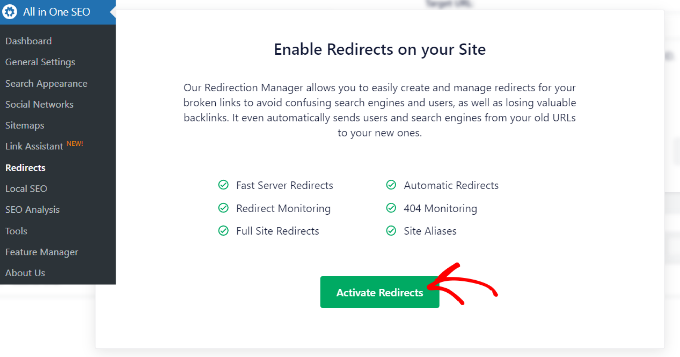
This will then help you install the AIOSEO Redirection Manager add-on that handles this feature. Upon activation, you’ll be taken to the ‘Redirects’ tab. Here, you can enter the source and target URLs to set up redirection.
First, you’ll need to click the ‘Gear’ icon in the Source URL field and enable the ‘Regex’ checkbox. Make sure you don’t type your full domain name here, as you only need to enter the specific pattern in the next step.
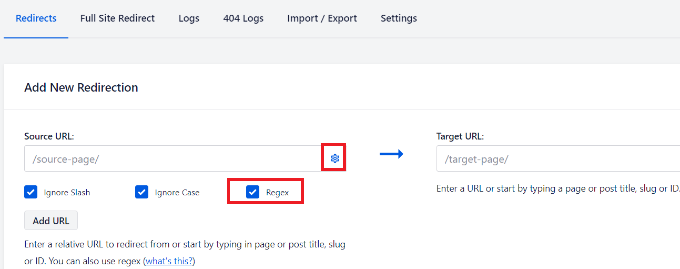
After that, you can add the following code in the Source URL field:
^/(.*)\/amp
This special expression is simply a pattern-finder. It tells AIOSEO to find any URL on your site that ends with /amp so it can be redirected.
In the Target URL field, you need to add your website’s URL in the following format. The $1 at the end acts as a special placeholder that automatically grabs the original name of your post, so you don’t have to set up individual redirects for every single page:
https://example.com/$1
Don’t forget to replace ‘example.com’ with your own domain name.
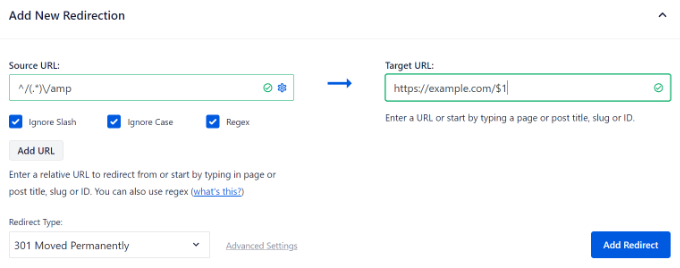
Next, you can keep the ‘Redirect Type’ as 301 Moved Permanently. This way, your users will be permanently redirected to the non-AMP pages.
Finally, click the ‘Add Redirect’ button to save your changes.
You can now visit the URL of a former AMP page on your website to see if the redirect is working properly.
AIOSEO also helps you track broken links on your website. You can quickly identify AMP pages leading to 404 errors and redirect them. For more details, please see our guide on how to track 404 pages and redirect them in WordPress.
Method 2: Manually Set Redirects in .htaccess
If you don’t want to use a plugin to set up redirects, then you can configure redirection using the .htaccess file on your WordPress hosting account.
Note: This method only works if your host uses an Apache server. If your host uses Nginx, you will not have an .htaccess file and should use Method 1 instead.
Warning: This method is for more advanced users. A small mistake in the .htaccess file can make your entire website inaccessible. We strongly recommend making a full backup of your site before proceeding.
First, you will need to connect to your website using an FTP client or File Manager in cPanel. For more details, please see our guide on how to use FTP to upload files in WordPress.
Once connected, you need to locate the .htaccess file in your website’s root folder.
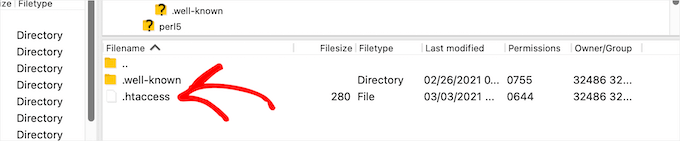
Next, you can edit the file in your root folder.
Then simply add the following code at the bottom of your .htaccess file:
# Redirect AMP to non-AMP
RewriteEngine On
RewriteCond %{REQUEST_URI} (.+)/amp(.*)$
RewriteRule ^ %1/ [R=301,L]
In this code, the RewriteCond line finds any visitor trying to access a URL that ends with /amp. The RewriteRule line then tells your server to send them to the same URL but without the /amp part, using a permanent 301 redirect.
Don’t forget to save your changes and upload the file back to your server.
You can now visit the URL for the former AMP version of any post on your website to ensure the redirect works as intended.
Frequently Asked Questions About Disabling AMP
Below are the answers to some of the most common questions we get about properly removing Google AMP from WordPress.
1. What happens if I just deactivate the AMP plugin without setting up redirects?
If you only deactivate the plugin, any AMP pages that Google has already indexed will lead to a 404 ‘not found’ error. This creates a poor user experience and can harm your SEO, which is why setting up 301 redirects from the old AMP URLs to your standard pages is a critical step.
2. Will my search rankings drop after I disable AMP?
No, disabling AMP should not negatively affect your SEO rankings as long as you redirect the old URLs correctly. Google no longer requires AMP for its ‘Top Stories’ feature and now prioritizes overall page experience and Core Web Vitals.
Today, modern mobile-responsive WordPress themes paired with good caching plugins can easily achieve high Core Web Vitals scores without needing AMP’s restrictive framework.
3. What should I do to keep my mobile site fast without AMP?
After removing AMP, you should focus on general WordPress speed optimization. This includes using a good caching plugin, optimizing your images, choosing a lightweight theme, and using a quality WordPress hosting provider. A fast, responsive design is the best way to deliver a great mobile experience.
4. Can I re-enable AMP later if I want to?
Yes, you can re-enable AMP at any time by reinstalling the AMP plugin and removing the redirects you set up. However, given the shift in Google’s focus and the known limitations of AMP, most websites are better off optimizing their primary mobile site instead.
Next Steps: Optimizing Your Mobile Site Without AMP
We hope this guide helped you properly disable Google AMP. Now that it’s removed, your next focus should be on making your standard website as fast and mobile-friendly as possible. These resources will show you how:
- The Ultimate Guide to Boost WordPress Speed & Performance
- Ultimate WordPress SEO Guide for Beginners (Step by Step)
- A Beginner’s Guide to Core Web Vitals for WordPress Users
- Ways to Create a Mobile-Friendly WordPress Site (Expert Tips)
If you liked this article, then please subscribe to our YouTube Channel for WordPress video tutorials. You can also find us on Twitter and Facebook.





Sarah
Hi,
Tried adding :
// Redirect AMP to non-AMP
RewriteEngine Aan
RewriteCond %{REQUEST_URI} (.+)/amp(.*)$
RewriteRule ^ %1/ [R=301,L]
But still lots of 404’s looking for AMP?
WPBeginner Support
We would recommend checking with your hosting provider as some have settings that need to be applied for redirects to work.
Admin
Ravi Bandakkanavar
Thanks for the redirection trick. It worked like a rocket
WPBeginner Support
Glad our guide could help!
Admin
Vyom Manikya
After following all the steps, now I’m getting this error “Discovered – Currently not Indexed” for my non-amp pages.
Loren
I’ve tried applying this to a site I’m working on without any luck. I’ve cleared cache and tried a handful of other things, but the redirects do not seem to be catching. Does this work for sites that google is wrapping the url in themselves?
Scott Hunt
I installed the Redirection Plugin and followed the process. Amp was only Active on our mobile version and only showed if our website was searched, for example, Delta, and then clicked on the link. If you entered the URL in the address bar it would show our website correctly. I am at a loss!
I know it was amp because Amp is the in URL when the website is not displayed correctly. Any advice would be sincerely appreciated.
WPBeginner Support
You would want to ensure you clear any caching you have on your site as that could be showing the cached version of the page on your site instead of the updated version.
Admin
James
Hey WPbeginner, Great article and helped me so much with my website .
Thanks
WPBeginner Support
Glad our guide was helpful
Admin
GILL COTTER
I did it and it works thanks.. I was in a panic. Just one thing – a little sad looking emoji guy pops up and says ‘404 that’s an error’ just before the user is directed to the correct page. It pops up for a minute then goes away. How can I get rid of him?
WPBeginner Support
You may either need to clear your browser cache or check with your hosting provider to ensure there isn’t something causing issues with your redirects.
Admin
Hicham
It works, Thanks so much ☺
WPBeginner Support
Glad our guide was helpful
Admin
Akshay Malhotra
Thank you so much for this post. As always WP beginner rocks!
WPBeginner Support
Glad you found our content helpful
Admin
sai ram
I have removed AMP from my website but when disabled my AMP i will recieved new issue in Google Search Console as a “Referenced AMP url is not an AMP”.
Please tell me sir how can it solved.
WPBeginner Support
You would want to set up redirection following step 2 for fixing that issue.
Admin
Mustafa
That’s great info and help guys. Thanks a lot. Here’s my question:
What is the right direction code or way for redirect my old website’s amp pages to my new domain’s non-amp pages?
WPBeginner Support
You would want to follow step 2 in the article and have the source URL be the old domain before the / in our recommendation.
Admin
Daniel
Can I delete the Redirect plugin when all the amp pages are deindexed from Google?
WPBeginner Support
We would recommend keeping the plugin active while using the redirect if you use the plugin method.
Admin
Faiz Khan
Today I desabled AMP plugin. When I checked my website with AMP URL it showing error.
WPBeginner Support
That issue is solved with the redirects which we show in this article
Admin
Stephen Walker
Hit a little snag. I have added the code you suggest to my .htaccess file. I now get an internal error 500 from the server if I am trying to access an amp post. Normal pages display correctly.
WPBeginner Support
For the 500 error, we would recommend first going through our guide below for possible solutions:
https://www.wpbeginner.com/wp-tutorials/how-to-fix-the-internal-server-error-in-wordpress/
Admin
Alvine
Thanks for the wonderful article. I wonder how one can remove just a single page from amp. Your method only explains removing all amp pages of a website but I want to remove just one page. How can I remove it please help.
WPBeginner Support
You would want to check with the plugin’s support for if that is currently an option. Normally, you should see an option on the page/post itself to not use AMP.
Admin
Laura
This is super easy to follow, so I’m so grateful to have found this post – but my AMP pages are still showing on Google, even after doing the redirection using the Redirection plugin. I’m not sure what to do, I saw in the comments something about caching, but I’m not sure how to do this?
WPBeginner Support
For Google’s cache, you would need to have Google recrawl your site with its URL checker or wait for Google to notice the update and change your links.
Admin