


If you run Facebook ads, adding a Facebook Pixel to your WordPress site is very important. It helps you understand what people do after clicking your ads, which lets you make better decisions and improve your results.
A Facebook Pixel is a small tracking code that records actions like page views, add-to-cart events, and purchases. With this data, you can measure sales, optimize your campaigns, and show ads to the right audience.
In this guide, I will show you how to add Facebook Pixel to WordPress step by step. You can use a plugin for a quick setup, or add the code manually for more control.
I’ll also walk through how to track eCommerce activity: purchases, add-to-cart events, and other key actions that help you see which ads actually lead to sales.
💡Quick Answer: How to Add Facebook Pixel in WordPress
There are two main ways to add a Facebook Pixel to your WordPress site, depending on your needs and comfort level:
- MonsterInsights (Easiest, No-Code): Perfect for beginners. Automatically tracks key actions like purchases, add-to-cart events, and form submissions. Ideal for WooCommerce, digital download stores, and membership sites.
- WPCode (Manual / Full Control): Best for advanced users or custom setups. It lets you manually add Pixel code and track specific events. The free version works for basic tracking, and Pro unlocks eCommerce event tracking.
Here is a quick overview of all the topics that I’ll be covering in this guide:
- What Is Facebook Pixel?
- Why Should You Add a Facebook Pixel to Your WordPress Site?
- How to Create a Facebook Pixel
- Method 1: Add Facebook Pixel Using MonsterInsights (Easiest, No-Code Option)
- Method 2: Add Facebook Pixel Using WPCode (Manual / Full Control)
- Where to See Your Facebook Pixel Conversion Data
- ❌ Common Facebook Pixel Mistakes to Avoid
- Frequently Asked Questions About Facebook Pixel and WordPress
What Is Facebook Pixel?
Facebook Pixel is a small snippet of tracking code that you add to your website. Its job is to record what visitors do on your site and send that information back to Facebook.
This information includes actions like viewing pages, clicking buttons, adding products to the cart, or completing a purchase.
Why does this matter? Because it helps you understand how effective your ads really are. With this data, Facebook can build better audiences for you, show your ads to the right people, and optimize your campaigns based on real customer behavior.
An easy way to think about it is like a security camera for your website. It quietly watches what visitors do and reports back, so Facebook knows exactly what happened after someone saw or clicked your ad.
Why Should You Add a Facebook Pixel to Your WordPress Site?
Adding a pixel to your WordPress site is essential if you want to understand how your Facebook ads are performing.
I recommend setting it up early because it gives you valuable insights into visitor behavior and helps you make data-driven decisions.
Here’s what the Facebook Pixel allows you to do:
- Track which ads actually drive sales (not just clicks).
- Retarget visitors who viewed products or abandoned their carts.
- Build lookalike audiences based on your most engaged customers.
- Optimize your ad spend using real conversion data.
- Monitor your eCommerce performance in real time.
With the Pixel in place, you can see exactly what’s working, improve your campaigns, and get better results from your advertising budget.
How to Create a Facebook Pixel
Now that you know why a Facebook Pixel is so valuable, it’s time to create one for your WordPress site. I’ve set up Pixels on several test sites, and I can tell you it’s easier than it sounds.
It only takes a few minutes, and once it’s done, you’ll have the data you need to make smarter ad decisions.
To get started, go to Meta Business Suite. This is Facebook’s hub for managing business pages, ad accounts, and analytics all in one place.
Once you’re there, click the ‘Events Manager’ tab in the left-hand menu.
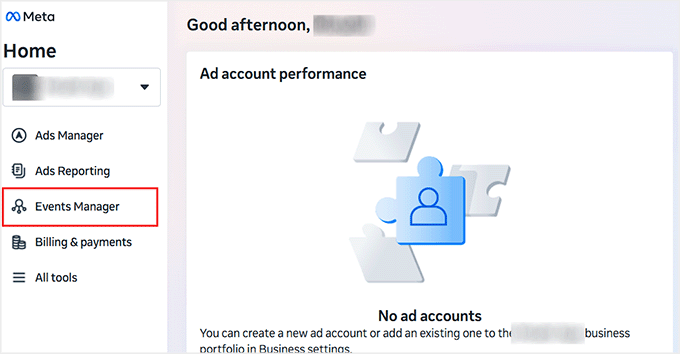
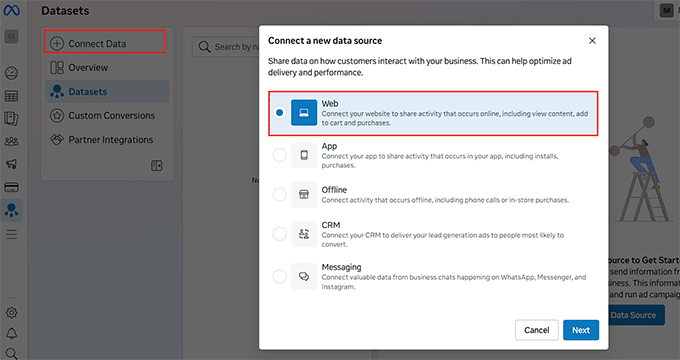
You will now be taken to a new page where you have to click the ‘Connect Data’ button.
When the prompt appears, select ‘Web’ and click ‘Next.’
This tells Facebook that you want to track activity on your website — such as page views, add-to-cart clicks, and purchases — rather than app activity or offline events.
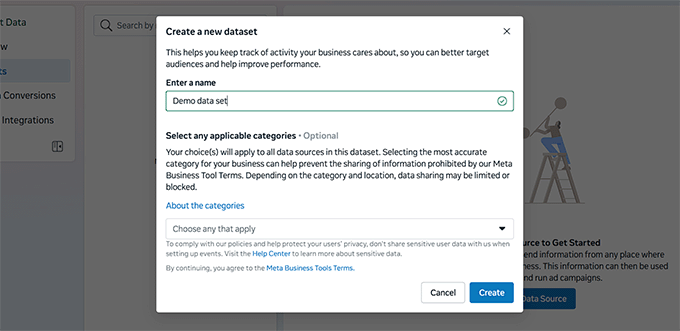
Next, you’ll create a new dataset. Give it a name that’s easy to recognize. I usually use my website or store’s name.
Now, you might be wondering what a dataset is and how it’s different from a Pixel. No need to worry — Facebook now combines Pixels into datasets, which organize all your tracking data from your website, apps, and other sources in one place.
So if you see ‘Dataset’ in your dashboard instead of ‘Pixel’, just know they work exactly the same way for tracking data from your website.
After naming your dataset, click ‘Create.’
Once your dataset is created, you’ll need to choose how to connect your website to it.
This time, select ‘Set Up Manually’ and click ‘Next.’ I like this option because it gives you full control over the installation.
📌Important: if you don’t have a business Meta account, this manual setup option won’t appear. Instead, you’ll only see the partner integration option, which is more limited and doesn’t give you much control.
I ran into this the first time I set up a Pixel, so make sure your Facebook Page and Ad account are linked to a business account before you start.
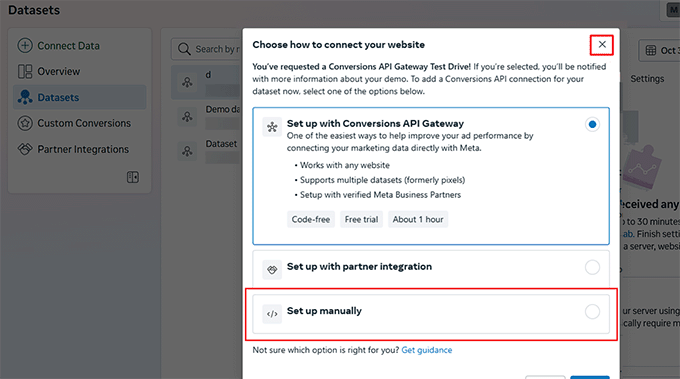
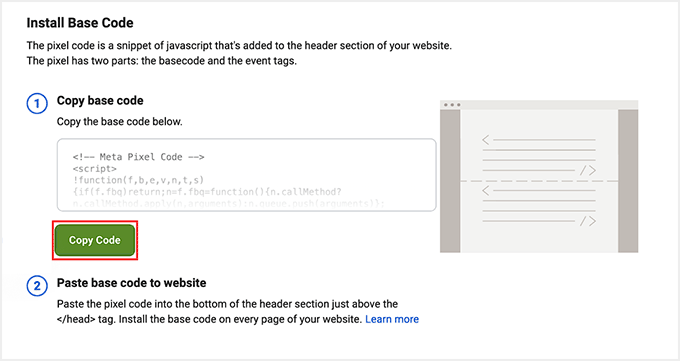
After selecting ‘Set Up Manually,’ Facebook will show you your Pixel code. This means your Facebook Pixel is now created.
If you’re using MonsterInsights (Method 1), you don’t need this full code. You can go straight to your WordPress dashboard—MonsterInsights only requires the Dataset ID, and I’ll show you how to get that in the next steps.
If you plan to use WPCode, copy the full Pixel code and save it somewhere safe. You’ll need it in the following steps to start tracking your site.
Method 1: Add Facebook Pixel Using MonsterInsights (Easiest, No-Code Option)
🏆Use this if you want the easiest setup and automatic eCommerce + CAPI tracking without touching code.
The easiest way to add a Facebook Pixel to your WordPress site is with MonsterInsights. No coding is needed, and it automatically tracks important actions like purchases, add-to-cart clicks, and form submissions.
Its PPC addon lets you quickly add your Meta Pixel and start tracking ad conversions, while its eCommerce addon automatically tracks key actions — like product views, add-to-cart events, and purchases — from platforms such as WooCommerce, EDD, or MemberPress.
At WPBeginner, we use MonsterInsights to track analytics across our website, and I’ve personally tested it multiple times.
It’s always been reliable, easy to use, and perfect for beginners who want automatic eCommerce tracking without touching any code. For more details about its features, check out our full MonsterInsights review.
Step 1: Install And Activate MonsterInsights and its Addons
First, you need to install and activate the MonsterInsights plugin. If you need guidance on this, check out our tutorial on how to install a WordPress plugin.
📌Note: MonsterInsights has a free plan. However, you’ll need to upgrade to the Pro plan to unlock the PPC Tracking and eCommerce addons.
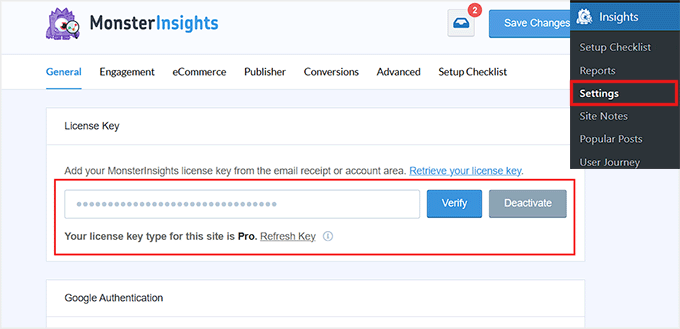
Upon activation, head over to the Insights » Settings page from your WordPress dashboard to enter your license key.
You can find this information in your MonsterInsights account on their website.
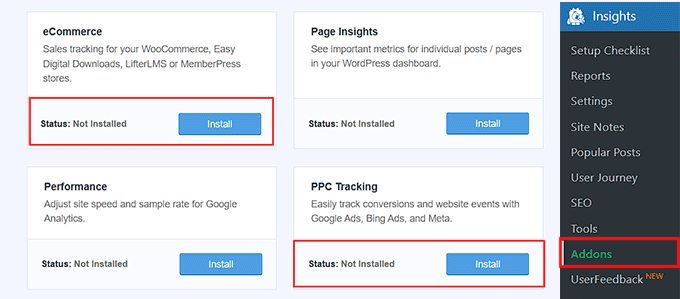
After that, go to the Insights » Addons page from your dashboard. Then, locate the PPC Tracking and eCommerce addons and click the ‘Install’ button for each.
Once these addons are installed, you’ll be able to set up your Facebook Pixel and track eCommerce actions automatically.
Step 2: Connect MonsterInsights to Your Facebook Pixel
Now it’s time to connect MonsterInsights to the Facebook Pixel (dataset) you created earlier.
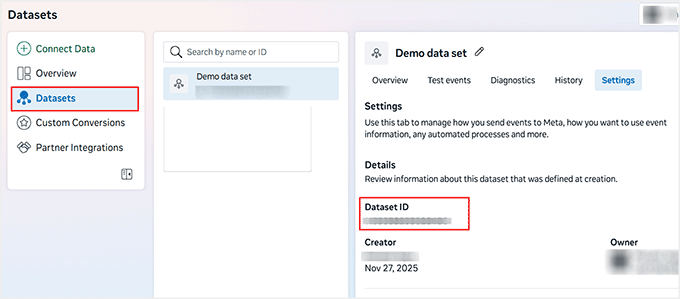
For this, go to your Meta Business Suite » Events Manager page and click on the ‘Datasets’ tab in the left column. This will show all the datasets or Pixels you’ve created.
From here, find the Pixel you want to use and switch to the ‘Settings’ tab at the top.
You’ll now see a string of numbers under ‘Dataset ID’ — this is your Pixel ID. Simply copy it, because you’ll need it to connect MonsterInsights to your Facebook ads.
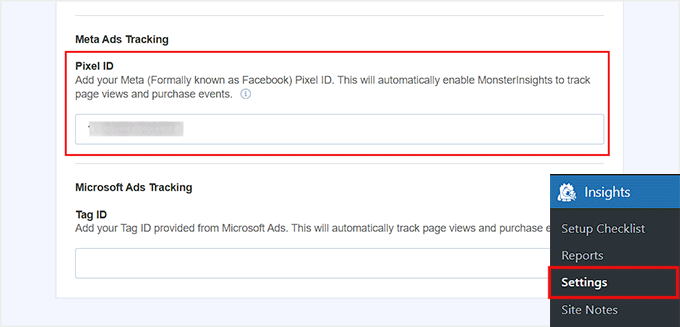
After that, go back to your WordPress dashboard and navigate to the Insights » Settings » Conversions page. Then, scroll down to the ‘Meta Ads Tracking’ section and paste your Pixel ID (Dataset ID) here.
Once you do, MonsterInsights will automatically save your changes. Your Facebook Pixel is now connected and ready to track conversions.
Step 3: Enable eCommerce Tracking
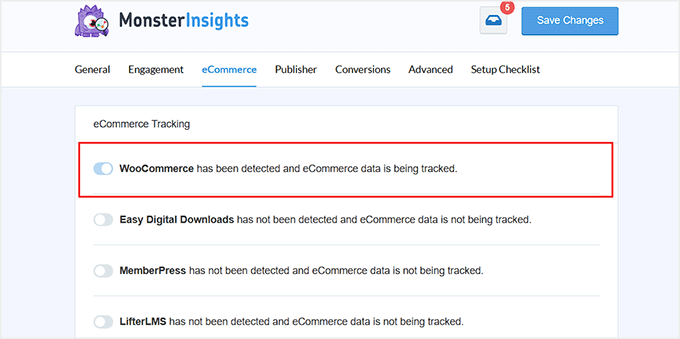
In the same Insights » Settings panel, switch to the ‘eCommerce’ tab at the top.
Then, simply toggle on tracking for the platform you’re using, like WooCommerce, Easy Digital Downloads, or MemberPress.
Once enabled, MonsterInsights will automatically track important events such as PageView, AddToCart, InitiateCheckout, and Purchase.
These actions are then sent to your Facebook Pixel, so you can see how your ads are performing and which actions lead to conversions — all without touching any code.
Step 4: Verify Your Facebook Pixel is Working
Before you finish, let’s make sure your Facebook Pixel is actually doing its job. This step is super important, and I do not recommend skipping it.
Verifying your Pixel ensures that all your eCommerce actions, like purchases and add-to-cart clicks, are being tracked correctly.
One way to check is by using Meta Pixel Helper. It is a free browser extension that works in the background to look for conversion or Facebook pixels and provides real-time feedback on your setup.
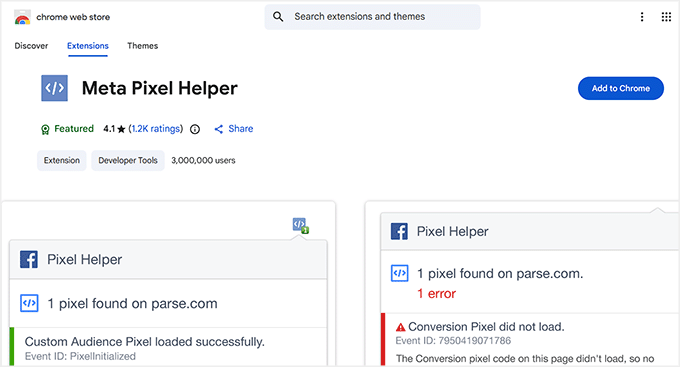
💡Expert Tip: If Meta Pixel Helper doesn’t recognize your Pixel right away, no need to worry. Instead, you can try clearing your browser cache or opening your site in an Incognito window—this usually fixes the issue and ensures your Pixel is firing correctly.
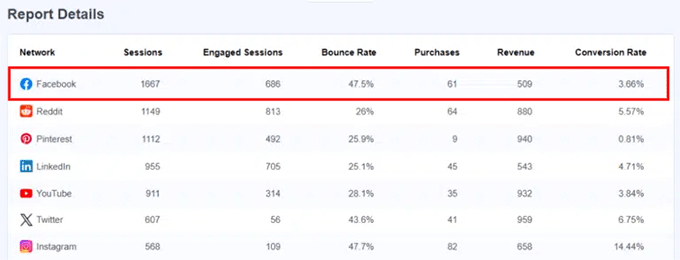
An even easier way to track your Pixel is with MonsterInsights. You can see your Facebook traffic right inside your WordPress dashboard.
Simply go to the Insights » Reports » Media page to get a clear view of how your visitors from Facebook are interacting with your site and whether they’re completing conversions.
Taking a few minutes to verify your Pixel now will save you headaches later and make sure your ads are tracking accurately.
Method 2: Add Facebook Pixel Using WPCode (Manual / Full Control)
🥈Use this if you want full control over where the Pixel loads or need to add advanced scripts, events, or custom conversions.
If you want full control over your Facebook Pixel, including custom events and integration with multiple ad platforms, then WPCode is a solid choice.
The free plan is powerful enough to add your Pixel to any website, letting you track page views and basic events easily. For online stores, the Conversion Pixels addon lets you track eCommerce actions like purchases, add-to-cart clicks, and checkout events.
It also gives you full control over how your Pixel is installed and which events you want to track, making it perfect for custom setups or advanced tracking needs.
If you want to dive deeper, check out our full WPCode review for more details.
Step 1: Install the WPCode Plugin
If you just want to add a Facebook Pixel to your WordPress blog, the free WPCode plugin is more than enough to get you started.
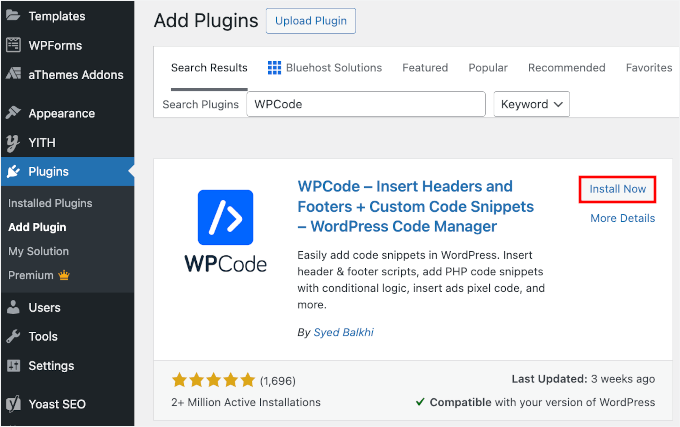
To install it, go to the Plugins » Add New page from your WordPress dashboard and search for ‘WPCode.’ Then, click the ‘Install Now’ and ‘Activate’ buttons.
If you’re new to WordPress plugins, don’t worry — we have a handy guide on installing WordPress plugins that will walk you through it step by step.
Once the plugin is activated, you’re ready to add your Facebook Pixel code and start tracking your site.
Step 2: Add Your Facebook Pixel Code to Your Site (For Simple WordPress Sites)
To add the Facebook Pixel to your website, head over to the Code Snippets » Header & Footer page in your WordPress dashboard.
Now, in the ‘Header’ box, paste the Pixel code you copied earlier when you created your Meta Dataset. This is the same code that connects your website to your Facebook Pixel.
Unlike MonsterInsights, where you just add your Pixel ID, here you’re manually adding the full code so it can start tracking visitor actions like page views, add-to-cart clicks, and purchases.
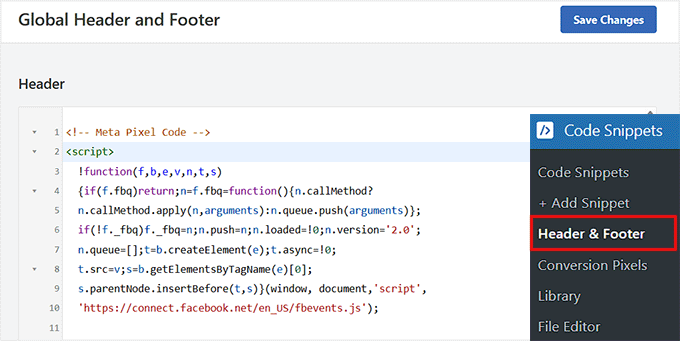
📌Note: The free version of WPCode lets you add the Pixel to the header and track simple events, like page views. However, tracking eCommerce actions (purchases, add-to-cart, checkout events) requires the Conversion Pixels addon.
Once you’ve added the code, click the ‘Save Changes’ button to store your settings. That’s it — your Pixel is now live on your site.
If you don’t have an eCommerce store, then you don’t need to follow the rest of the steps.
Step 3: Add Conversion API Token for eCommerce
If you just have a simple WordPress blog, you can skip the rest of these steps. But if you run a MemberPress, EDD, or WooCommerce store, enabling eCommerce tracking with your Facebook Pixel is a bit different.
First, you’ll need to install and activate the Pro WPCode plugin to unlock the Conversion Pixels addon.
Once activated, head to the Code Snippets » Settings page and enter your license key. You can get this information from your account on the WPCode website.

Next, go to your Meta Business Suite » Events Manager » Datasets page.
Here, choose the dataset you just created and copy its ID from the ‘Settings’ page.
Then scroll down to the ‘Set up direct integration’ section on the same page.
Here, click the ‘Generate Access Token’ button.
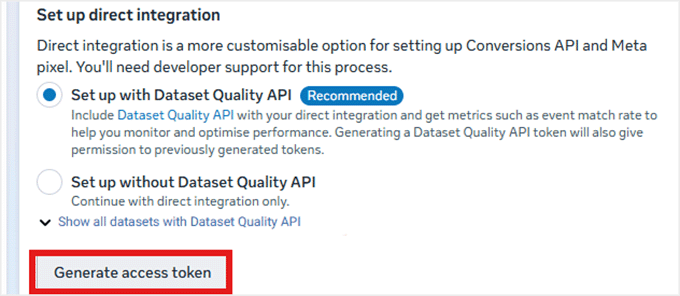
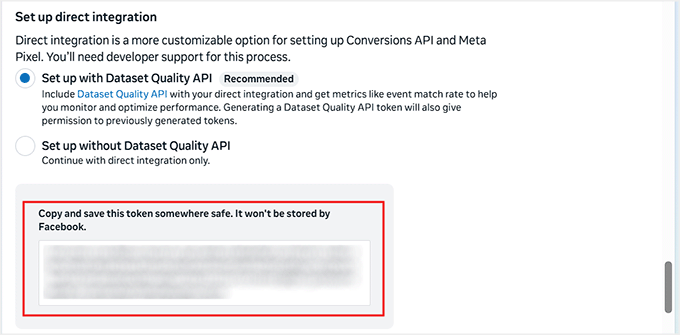
Facebook will now create a Conversion API (CAPI) token. This is a secure key that lets your website send eCommerce events, like purchases, add-to-cart actions, and checkout events, directly to Facebook’s servers.
Unlike the standard Pixel, which tracks actions through the visitor’s browser, CAPI works server-side, making your tracking more reliable even if users have ad blockers or disable cookies.
Make sure to copy it and store it somewhere safe.
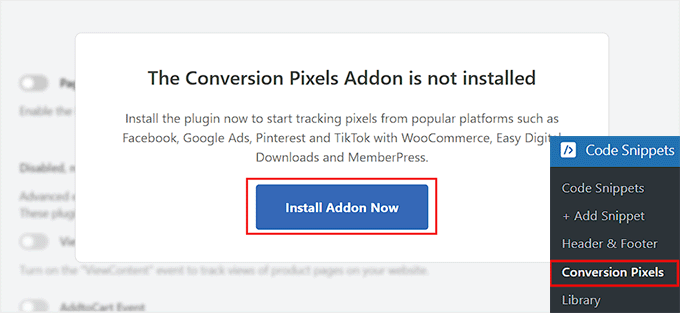
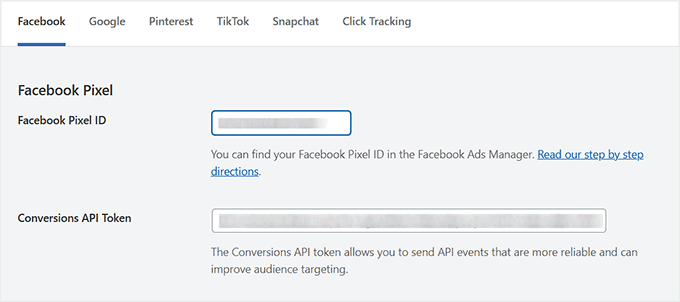
Back in your WordPress dashboard, go to the Code Snippets » Conversion Pixels page.
You’ll now see a popup saying the Conversion Pixels addon is not yet activated. Just click the ‘Install Addon Now’ button.
Upon addon activation, paste your Facebook Pixel (dataset) ID and the Conversion API token into their respective fields.
Then, click the ‘Save Changes’ button to store your settings.
Step 4: Enable eCommerce Events
Now that your WooCommerce store is connected to the Facebook Pixel Dataset, it’s time to choose which events to track.
For this, scroll down to the ‘eCommerce Event Tracking’ section on the Conversion Pixels page.
WPCode automatically detects popular eCommerce plugins like WooCommerce, Easy Digital Downloads, and MemberPress, so you don’t need to worry about connecting your platform manually.
Here are the key events you can toggle on:
- ViewContent Event – Track when visitors view product pages.
- AddToCart Event – Track when items are added to a shopping cart.
- InitiateCheckout Event – Track when users reach the checkout page.
- Purchase Event – Track successful purchases. I absolutely recommend turning this on, since it’s the most important event for seeing which ads lead to actual sales.
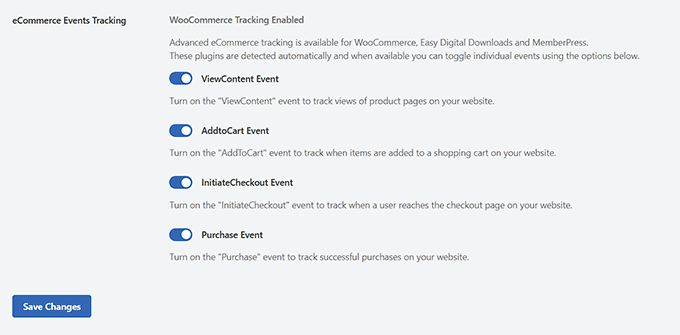
Once you’ve selected the events you want, click ‘Save Changes.’
Your Facebook Pixel is now tracking the most important actions on your store, giving you clear insights into conversions and ad performance.
Step 5: Verify Your Pixel is Working
You’ve set up your Facebook Pixel and eCommerce events — now it’s time to make sure everything is actually working. This step is crucial because it confirms your site is sending the right data to Facebook, so you can see which ads are driving real results.
Since WPCode doesn’t have built-in reporting like MonsterInsights, I recommend using the Meta Pixel Helper browser extension.
It runs in the background and shows a small number on the icon indicating how many Pixel events are firing on a page. You can then click the icon to open a panel with all events, including warnings, errors, and successes.
Don’t worry if it doesn’t detect your Pixel right away—try refreshing the page, clearing your browser cache, or opening the site in an Incognito window. This usually fixes the issue and lets you confirm that your Pixel is tracking correctly.
Alternatively, you can check your Pixel in Meta Events Manager to see if it’s receiving data.
Verifying your Pixel ensures that all your tracking is set up correctly, so you can confidently optimize your Facebook ads and measure conversions.
Where to See Your Facebook Pixel Conversion Data
Now that your Pixel (Dataset) is set up and tracking events, you can easily check what’s being recorded in the MonsterInsights dashboard or the Meta Pixel Helper extension, as I suggested earlier.
However, if you want to see all your conversion data in one place — including detailed event activity, top URLs, real-time tracking, and custom conversions — then Meta Business Suite is the best place to review everything.
To view your data, open Meta Business Suite, go to the Events Manager page, and select the dataset (pixel) you connected to your site. Once you do, you’ll land in the ‘Overview’ tab.
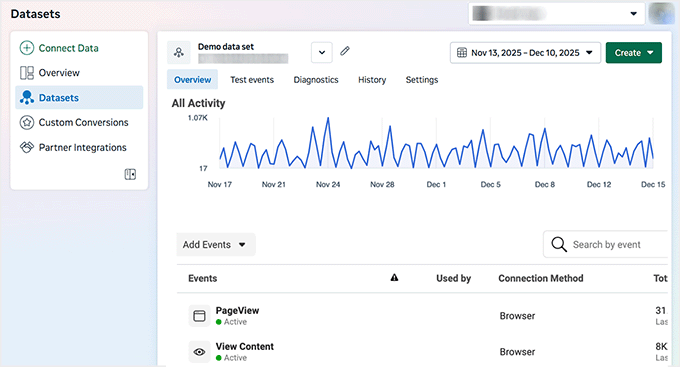
Here, you can quickly see:
- Tracked events like PageView, AddToCart, InitiateCheckout, and Purchase
- Real-time activity to verify your setup
- Top URLs where events are firing
- Trends over time to spot what’s working
- Custom conversions if you’ve set up specific goals
Everything is laid out in a clear, beginner-friendly dashboard, so you can confidently understand your data and make better decisions for your website or online store.
❌ Common Facebook Pixel Mistakes to Avoid
I’ve seen many beginners get frustrated when their Facebook Pixel doesn’t work as expected. But don’t worry! Most problems happen because of a few simple mistakes that are easy to avoid.
Here are some common mistakes to avoid when setting up a Facebook Pixel for your WordPress site:
- Skipping Verification: Always check with Meta Pixel Helper or Meta Events Manager to make sure your Pixel is firing correctly.
- Forgetting Key Events: Make sure that important actions like Purchase, AddToCart, and ViewContent are enabled, especially for eCommerce sites.
- Ignoring Privacy and Consent Rules: Pixel tracking can be blocked if you don’t handle cookie consent properly.
- Installing Duplicate Pixels: Adding more than one Pixel to your site can mess up your tracking data.
- Not Linking to the Correct Ad Account: Double-check that your Pixel is connected to the right Meta Business account to see accurate conversions.
- Not Updating Pixel When Changing Your Website: If you change themes, plugins, or URLs, make sure your Pixel code or ID is still correctly installed.
- Assuming All Events Track Automatically – Even with tools like MonsterInsights or WPCode, double-check that the events you care about are being tracked as expected.
Following these tips will help you avoid the most common beginner pitfalls and keep your Facebook Pixel running smoothly.
Frequently Asked Questions About Facebook Pixel and WordPress
I’ve set up Facebook Pixels for many WordPress sites, and I know it can feel a bit confusing at first. Below are the most common questions I hear, along with clear, actionable answers.
1. Do I need a Facebook Business account to use Facebook Pixel?
Yes. You must have a Facebook Business account to create and manage Pixels. Personal Facebook profiles cannot create Pixels.
2. Can I use Facebook Pixel without a plugin?
Yes. You can manually add the Pixel code using a plugin like WPCode. While you can paste it directly into your theme’s header files, I don’t recommend this method. If you update or change your theme, the tracking code will be overwritten and lost.
That said, tools like MonsterInsights handle the setup automatically and track eCommerce events without touching any code.
3. Does Facebook Pixel slow down my WordPress site?
No. The base Pixel code is very lightweight (about 5–7 KB) and loads asynchronously, so it won’t noticeably affect site speed. Only excessive custom events or multiple third-party tracking scripts could slightly impact performance.
4. How do I track eCommerce sales with Facebook Pixel?
Tracking eCommerce sales with Facebook Pixel is easier than it seems, using these plugins:
- MonsterInsights: Automatically tracks key events for WooCommerce or Easy Digital Downloads (EDD), including Add to Cart, Checkout, and Purchase.
- WPCode Pro: Lets you select which eCommerce events to track using the Conversion Pixels addon and integrates with WooCommerce or EDD for precise tracking.
5. Can I use both Google Analytics and Facebook Pixel together?
Absolutely, and MonsterInsights can manage both at the same time. Google Analytics tracks overall website traffic, while Facebook Pixel focuses on ad conversions, retargeting, and eCommerce events.
6. How do I know if my Facebook Pixel is working?
Use the Meta Pixel Helper Chrome extension to verify your Pixel is firing correctly. If you’re using MonsterInsights, you can also see real-time Pixel events directly inside your WordPress dashboard.
7. How long does Facebook Pixel data last?
Facebook stores Pixel event data for 180 days. Custom Audiences built from Pixel events are refreshed for 180 days from the user’s last qualifying action.
8. Can I track multiple ad accounts with one Pixel?
Yes. A single Pixel can be shared across multiple ad accounts in your Facebook Business settings, so each account can access relevant event data.
9. Do I need a developer to install Facebook Pixel?
No. MonsterInsights makes it beginner-friendly with automatic eCommerce tracking. WPCode also makes manual setup simple, and WPCode Pro handles eCommerce events with one-click integration.
I hope this article helped you install Facebook remarketing/retargeting Pixel in WordPress. You may also want to see our guide on how to install and set up Facebook comments in WordPress and our expert picks for the best WordPress Facebook plugins to grow your blog.
If you liked this article, then please subscribe to our YouTube Channel for WordPress video tutorials. You can also find us on Twitter and Facebook.


crystal
Can you make an updated version of this? Now FB has a partners integration option. I have tried this version of doing (downloading a plugin) and I’ve tried their partners way of doing it and neither way is working for me.
WPBeginner Support
We will be sure to take a look
Admin
Jeff Cope
Thank you for the post and even though it does need updating since Facebook has changed the links and process, I finally added the pixel to my website. Note with the improvement in the WordPress Customizer, a plugin is no longer needed to add the pixel code above the /head.
WPBeginner Support
Thank you for your feedback and we still recommend the plugin to ensure it is included on every page on the site
Admin
Joseph Abokhai
I was using the Facebook for woocommerce plugin that automatically sets up a Facebook pixel on a particular website.
I started a new hosting account and redirected my domain name servers to point to the new hosting account.
My question is, since I changed my hosting account and started building the site from scratch, will the pixel still be attatched to my domain?
WPBeginner Support
Sadly, for that plugin, you would need to check with the plugin’s support for how they handle a change like that
Admin
Andrew Wilkerson
Well I think it’s done right, thanks WpBeginner! Still not sure what I should be doing with the second bit of code from Facebook in order to track people who have gone to one particular page. I clicked around for over 2 hours on FB then my wp site, then gave up as usual.
I’m not even sure how this works, where does the headers and footers plugin put the code, in to every page? Do I just add the second bit of FB code beneath this? it needs to go after the . Does it go in the page template? Posts template? I’m lost as usual, until FB make this easier I’m not going to bother. Selecting your audiences, demographics, countries, Events? and all that, it’s just too overwhelming for most business owners. Those who have money will survive online, they can pay someone else to do it, one-man businesses like mine will eventually disappear. I can’t make any money wasting time on things like this so it just gets worse. Already slipped off the first page of Google after 14 years on there, all down hill from here I’m afraid, time to do something else.
Angie Sherbondy
Thank you! I followed the instructions. I already had headers and footers installed and there was already code in the header section so I put this above it. Is that OK?
Thanks,
Angie
Shivam Bhateja
Yes, it is okay. I used the analytics code and pixel code both in the headers section.
Shodkk
Ya, there is no Problem in doing So. It is Completely Fine this only a Code.
This Code load each time when your site page run. there is no problem in that OK. Both Code run and send the Respected data back to FB and Google by their Respective code.
Andre
Hi there. There is one question that I have on the FB pixel I just can’t seem to find an answer for anywhere. Shopify has an app called Trackify that allows you to segment the events, per product for example, and in doing so allows you to super target people who have purchased a particular product without setting up custom events. Is there a similar plugin for Wordpress. Please if you could help that would be great! I am at my wits end with searching for a solution.
Maryann
I am so glad I came across your site. Very helpful and informative.
Thank you
vinton samms
Thank you most kindly for this tutorial. I really did not how how to use the FB pixel. Thanks again.
Vinton
Nathan
I’ve installed the pixel using the plugin.
Will the pixel automatically be place on every page?
Thanks
Claudio
It seems like Facebook has changed some of the details for doing this since this post was written. They now have a new pixel which also includes having to copy event code. How/where do we do this within the context of this article and plugin?
Matthew
How do you install the pixel to fire on page load given the plugin constraint?
I’ll clarify- Facebook states that if you want an event to fire on page load the code for that specific event has to be pasted BELOW the head tag.
The plugin in you recommend, as well as all the others I’ve seen available for WP, don’t address this issue.
Recommendations?
John Henry Gaspay
Is it also possible to add the code on the footer instead in the header portion? usually if it’s for tracking purposes better implementation would be on the footer part, your know for SEO purposes.
Pat
I went ahead and installed the pixel because i wanted more visits to my music site. I started filling in the remarketing stuff in FB, then I came to the part about paying! I didn’t realise I had to pay so I’ve uninstalled the remarketing pixel in WP and delete everything in FB that I’d filled out. I hope I don’t start getting demands for money. Maybe you could add a note to your article that there will be payment involved in FB marketing. I guess I should have realised.
Jim
You didn’t think you had to pay for marketing or advertising? Where have you been for the past one thousand years?
Michael
Is there any way to use a Facebook pixel if I am at wordpress.com?
WPBeginner Support
Please see our guide on the difference between self hosted WordPress.org vs free WordPress.com blog.
Admin
Alex
Great article! Thanks
I use wordpress on mys ite – I’ve managed to install the facebook pixel using the “insert headers and footers app” and facebook says it is successfully installed
in wordpress, what’s the best way to install a standard event code? I have a “thank you” page that I would like to use as my conversion referecence – the thank you page appears after the viewer has submitted a form
Thanks!
Karl
I have also successfully installed the facebook pixel code through insert headers and footers by wpbeginner, now I want to know how to add standard event codes. Can anyone teach us how to? Big thanks to WPBeginner for this
Terry Green
I added the FB retargeting pixel about a month or so ago to my WP site, and the Facebook Pixel Helper showed it was installed and working. Now I “hear” there is a new Facebook Pixel, AND my Facebook Pixel Helper shows “there are no Facebook pixels” on my site.
The article I read goes all over the world and back about everything I don’t want to know about. All I want to know is how to replace the pixel. You are a trusted source so I thought I would ask … is there a new pixel out? And can I add it (or replace the old one) as easily as it was to add it the first time (with a plugin), or will it require manually adding code to each page?
Nina
How do we add other rules, like these Search fbq(‘track’, ‘Search’);
Add to cart fbq(‘track’, ‘AddToCart’);
Add to wishlist fbq(‘track’, ‘AddToWishlist’);
do we simply add it to the code?
Yev
I need to re-copy the Facebook pixel if I add standard/custom events for Conversion Tracking, to paste the new one into the website.
Does that mean I only have PageView data up until I update the code on the website, or does any type of data backtrack and becomes available as long as I had the original/basic Pixel installed?
Darren
Hi,
I have done this and the Facebook pixel is tracking. However I am using the sign up form as well with the mailchimp API and I added the Lead and Complete registration aspects to the pixel in the header. They are firing as the chrome addon shows that however the sign up form isnt triggering as a sign up or registration complete. I am not sure if I am explain my problem well. So in business manage and the pixel I can see people visiting my site. But when they sign up the value for lead or complete registration is still 0. Any ideas why this occurs? I used the old FB conversion pixel and that was fine just this new one is so annoying!
Cheers
Ron Hudson
Wow! Thank you very much for writing this post and recording a video to help your audience implement this important tool.
WPBeginner Support
Glad you found it helpful.
Admin
Prakash Thakur
hi wp beginner
Great job by making this article..
one question only…
can i uninstall that plugin after uploading script in the header section???
Brendon Osborne
Great video, super simple and helpful!!
moon
Hi,
I need to add ” Facebook Pixel Code ” in my wordpress site.
May I know if this plugin suitable for it.
Thanks
Elle Van Buren
Dear author, I have a question on the “Add conversion tracking” feature. Like you instructed, if we place the Facebook pixel into the header section of the plugin, that piece of code will be on every page. But if I have a conversion page, how do I single out that particular page and add in a custom event such as fbq(‘track’, ‘Lead’); to the middle of the Facebook pixel?
Usually with Wordpress or other CMS, once something is in the header, it is on every page. How do we then put up something different for a particular page?
Thanks!
I Have The Same Exact Question!
I have the same question! How do you I single out a particular page (Thank You Page) and add in a custom event?
Marvin
I too have this question.
Stephen
Has anyone gotten a solution for this?
Adrien
Still have this question remaining… any solution ?
Cheers
Luke
THANK YOU!
So much easier to understand than the official FB instructions.
Hammad Afzal
Great article, Can I use this feature right away or first I have to buy facebook ad campaign. I means paid Facebook advertising.
Thanks alot syed balkhi for a cool post.
WPBeginner Support
You can see information about your visitors right away. You can run a paid campaign later on.
Admin
Hammad Afzal
Thank you so much
fajar siagian
hello
i want to ask about this
is this using facebook ads first. become subscriber user facebook ads
thank you,
Kingsley
Great, thanks for this tutorial
Angelica Costa
This is perfect. I am starting to experiment on Facebook Ads.
On other note, is there a way to tell where are facebook visitors coming from? Sometimes I get a load of new user and have no idea who shared a link to my website.