


Managing a large WooCommerce product catalog can get overwhelming fast — especially when you’re dealing with frequent updates, bulk changes, or new product launches.
That’s where WooCommerce’s built-in import and export tools come in. With the right workflow, you can save hours of manual work and keep your store running smoothly as it grows.
At WPBeginner, we’ve used these tools to help launch high-volume stores and streamline product management for clients with thousands of SKUs. Over time, we’ve refined the process into a simple, reliable system anyone can use.
In this guide, we’ll walk you through how to import and export products in WooCommerce using both the native tools and a powerful plugin for added flexibility.
💡Key Takeaways: Importing & Exporting WooCommerce Products
If you are looking for the best method for your specific needs, here is a quick summary of the options we cover below:
- Built-in Tools: Use the native WooCommerce CSV importer/exporter. This is best for simple product transfers and basic data backups.
- Import Export Plugin: Use the Product Import Export plugin. This is the better choice for complex catalogs that include product reviews, specific custom attributes, or batch processing.
Why Import & Export WooCommerce Products?
Many users need to import and export WooCommerce products for a variety of reasons. Here are some common scenarios:
- You want to move products from one WooCommerce store to another.
- You are starting an online store on a new website but want to keep the same WooCommerce products.
- You are moving your website to a new server and need a better way to transfer product data.
- You want a faster way to add your products to multiple stores that you manage.
- You need to update product information in bulk, such as pricing, images, or descriptions.
- You need to synchronize your online store with external inventory systems.
- You want to export product data to serve as a backup mechanism in case of data loss.
Normally, if you are moving your website to a new server, you can duplicate your entire website and set it up on your new host.
We have a complete step-by-step guide for that. See our guide on how to easily move WordPress to a new host or server.
On the other hand, if you only want to move products, then this tutorial will help you learn how to properly export and import WooCommerce products with images and other product data.
We’ll show you two methods; you can choose one that works best for you.
Method 1. Import & Export WooCommerce Products Without a Plugin
WooCommerce comes with built-in functionality to easily import and export products with images without using any additional plugins.
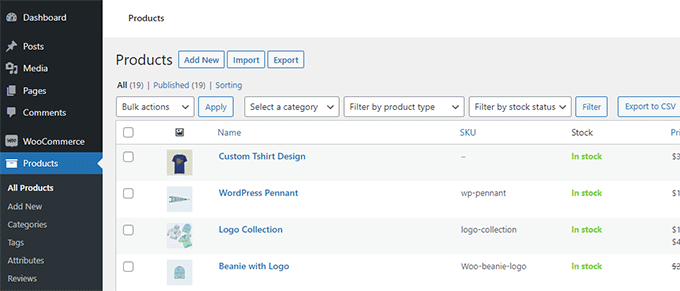
First, you need to visit the Products » All Products page in your WordPress dashboard. There, you will see two buttons at the top to ‘Import’ or ‘Export’ products.
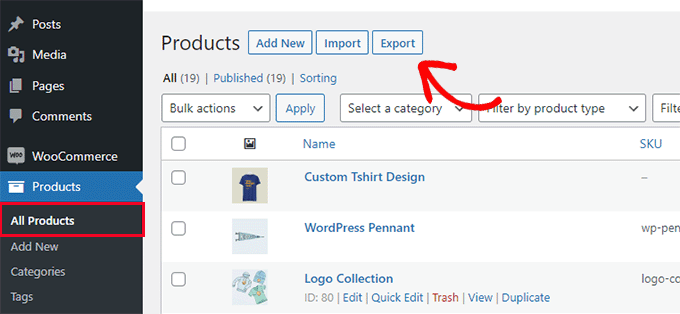
Let’s first check out how the export feature works.
Exporting WooCommerce Products without Using a Plugin
Simply click on the ‘Export’ button at the top to continue.
On the next screen, you’ll see several options for choosing what data you want to export.
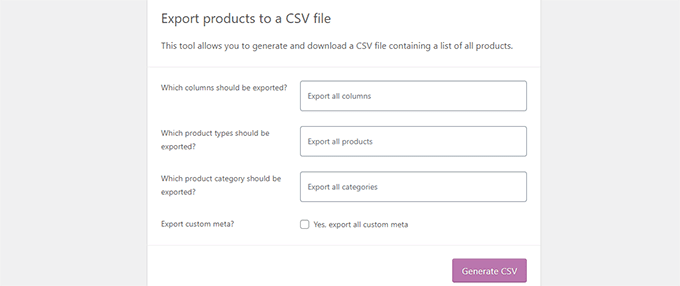
For instance, you can choose to only export certain columns from product data. You can also choose to export specific product types or products in specific categories.
To export all variable products with images and all other data, you can leave these options unchecked.
Optionally, you can check the ‘Export custom meta.’ If you are unsure, then it’s better to check it so that you have the data.
Go ahead and click on the ‘Generate CSV’ button to continue.
WooCommerce will now prepare a CSV file and download it to your computer.
What is a CSV File?
CSV is short for Comma Separated Values, and it is a file type of plain text that separates different columns or fields of data with a comma.CSV stands for Comma Separated Values.
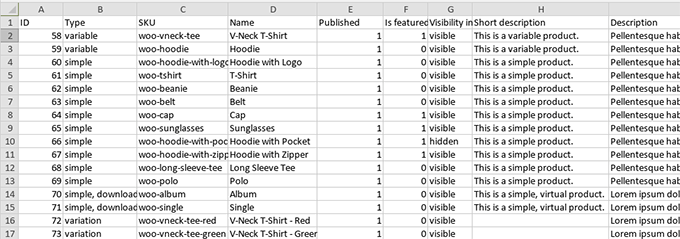
It is a simple file format that allows different applications, like Microsoft Excel, Google Sheets, and WooCommerce, to read and understand the same data. Here is how it would look:
Importing WooCommerce Products without Using a Plugin
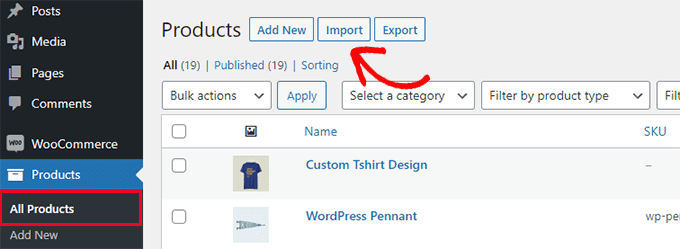
Simply go to the Products » All Products page.
Then, click on the Import button at the top.
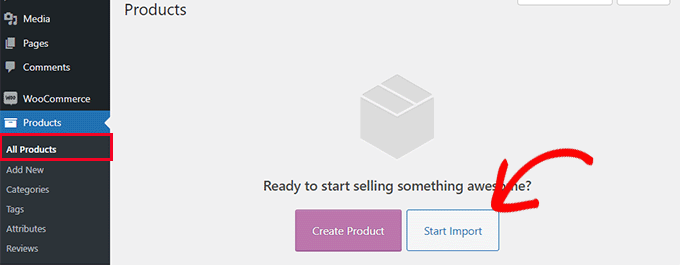
If your WooCommerce store is empty, you will see buttons at the center of the page instead of the ones at the top.
Click on the ‘Start Import’ button to begin the import.
This will bring up the import wizard.
First, you need to click on the ‘Choose File’ button to select the WooCommerce export CSV file you downloaded earlier.
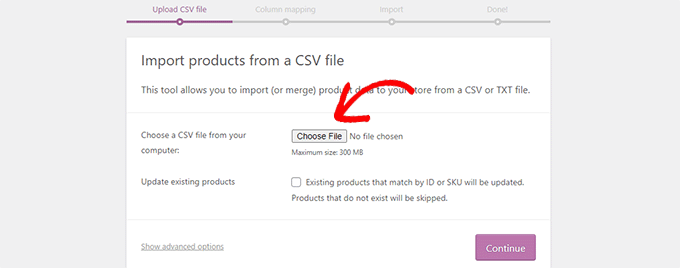
Click on the continue button to upload the CSV file.
WooCommerce will now check to see if your CSV file is in a compatible format. After that, it will ask you to map that data to existing WooCommerce product data.
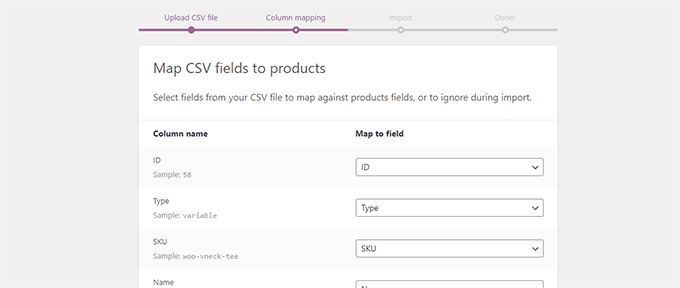
The default settings here will work for most WooCommerce stores.
However, you still need to review whether a column is missing, click on the drop-down menu next to it, and select a matching field if one is available.
Particularly, if you are using variations attribute for products, then make sure to scroll down to the attributes columns and match fields.
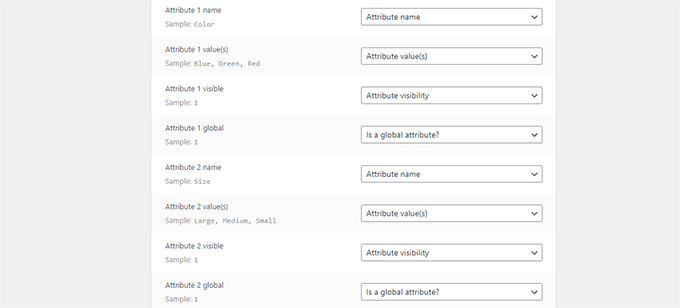
This will allow you to ensure that the fields in your CSV file match the corresponding WooCommerce fields.
Click on the ‘Run’ Importer button to begin.
WooCommerce will now start importing data from CSV files and downloading any product images attached to your items.
📍Note: For WooCommerce to import images, the image URLs in your CSV file must be publicly accessible on the internet.
If the images are stored on a local computer or a password-protected site, the importer cannot download them.
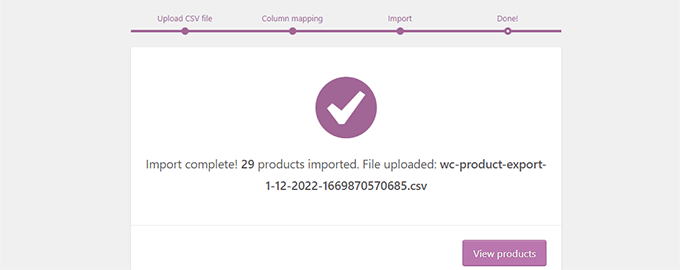
Once finished, you can visit the Products » All Products page to see the imported products.
Make sure to visit your shop and product pages to check that everything is working as expected.
Method 2. Import & Export WooCommerce Products with a Plugin
For this method, we’ll be using a plugin to import and export WooCommerce products.
The advantage of this method is that it offers more flexible options and also allows you to export / import product reviews.
Plus, it allows you to import/export WooCommerce products in batches, which comes in handy if you have a large store with many products and images.
Exporting WooCommerce Products with a Plugin
First, you need to install and activate the Product Import Export for WooCommerce plugin. For more details, see our step-by-step guide on how to install a WordPress plugin.
The plugin comes as three separate add-ons. You’ll need to download and install all of them.
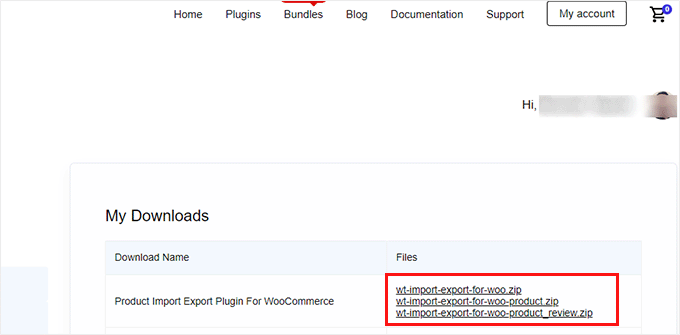
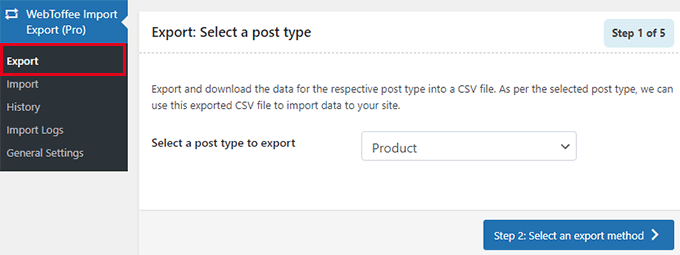
Upon activation, you need to visit the WebToffee Import Export (Pro) » Export page.
Then, select ‘Product’ as the post type you want to export.
On the next screen, you need to select an export method.
The default Quick Export method automatically selects all your products for export.
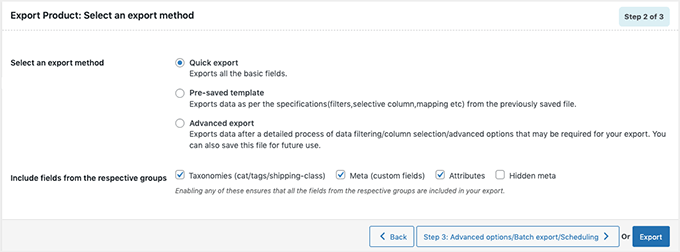
Optionally, you can also choose ‘Advanced Export,’ which allows you to filter products by category, tag, and status.
You can also exclude individual products manually.
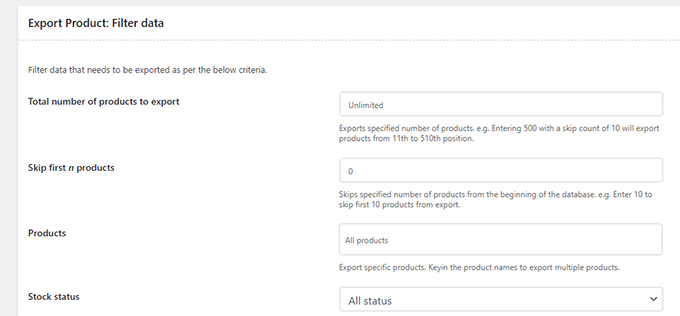
If you wish, you can filter the data and select which products you want to export. For example, the ‘Total number of products to export’ tells you the actual number of products you want to export.
The ‘Skip first n products’ is where you can specify the number of products to be skipped.
For example, enter 10 to skip the first 10 products from export. The Products category lets you filter by the specific names of the products you want to export, and the ‘Stock Status’ lets you choose based on the inventory status.
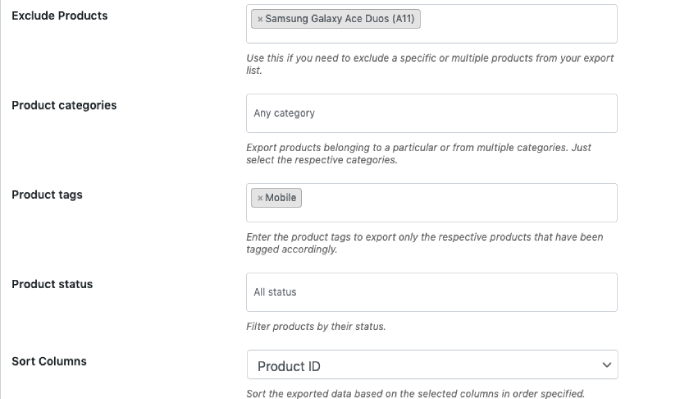
If you scroll down the page, you’ll have other options, such as:
- The products you wish to exclude
- Products in certain categories
- Products with specific tags
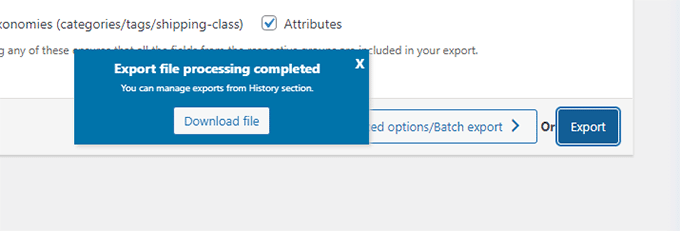
Click on the ‘Export’ button to continue, and the plugin will start preparing your product data.
Once finished, you’ll be prompted to download the export file to your computer.
Importing WooCommerce Products with a Plugin
Now that you have your export file ready, you can import products from another WooCommerce store.
Install and activate the Product Import Export for WooCommerce plugin on the store where you need to import the products.
After that, go to the WebToffee Import Export (Pro) » Import page and select ‘Product’ as the post type you want to import.
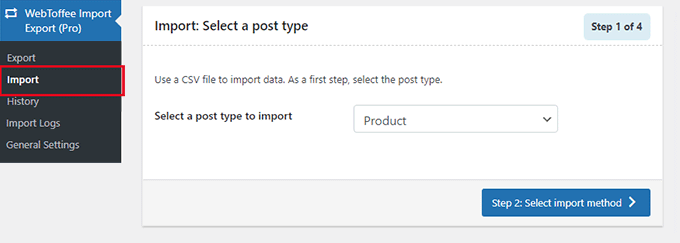
Click on the ‘Step 2: Select import method’ button to continue.
Next, you need to select an import method and upload the exported file you downloaded earlier to your computer.
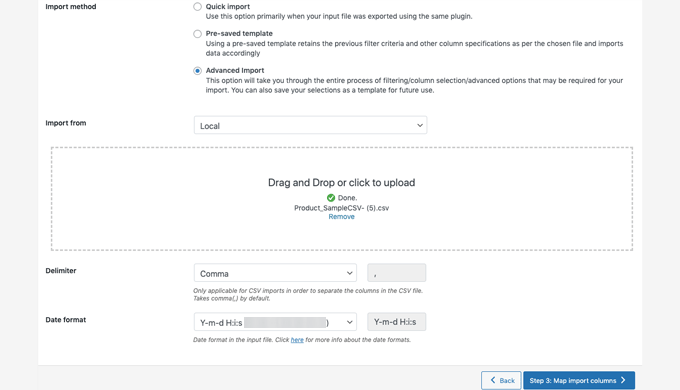
Click on the ‘Step 3: Map and Import Columns’ button to continue.
On the next screen, you’ll see a list of fields and the matching fields from your import file. If you see an empty field, you can choose a matching field for it in the next column.
If you are using product variations like sizes and colors, then make sure to click on the Attributes tab to match attribute fields.
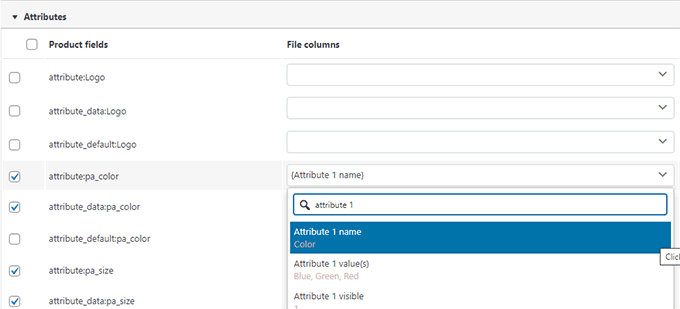
However, if you are not using any products with variations or custom attributes, then you can use the default settings.
Click on the ‘Step 4: Advanced Options / Batch Import’ button to continue.
On the final screen, you’ll see advanced options. For instance, you can choose to match products by ID or SKU, choose what to do if a product already exists, and more.
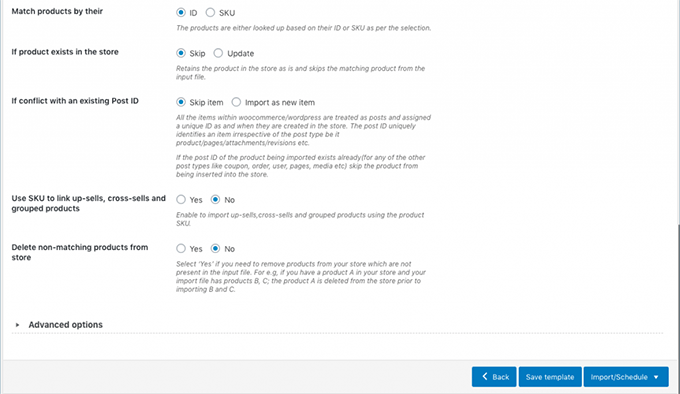
If you are importing products into an empty WooCommere store, then you can use the default settings.
Finally, click on the ‘Import’ button to run the product import process.
You’ll see the progress of the import on screen. Once finished, you can click on ‘View Products’ to check if everything has been imported correctly.
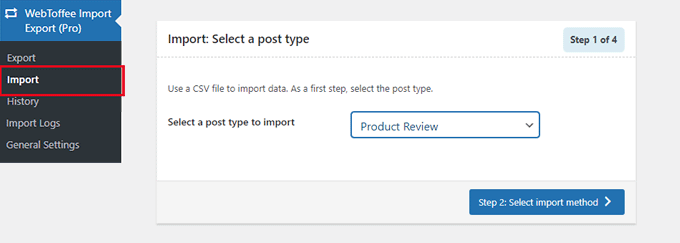
The plugin also allows you to import and export Product Reviews.
If you want to import or export the product reviews, too, then choose the ‘Product Reviews’ post type on the import or export page.
Related: To learn more about this plugin, see our detailed Product Import Export for WooCommerce review.
Improve Your WooCommerce Store with Automations
If you find yourself doing a lot of manual work around your eCommerce store and want to save time, then we recommend using Uncanny Automator for workflow automation.
It helps you connect over 185+ plugins and apps with a simple no-code visual builder. You can use it to create automated workflows for things that you normally do without writing any code.

We have thoroughly tested this tool and found it to be beginner-friendly and reliable. To learn more about our experience, see our Uncanny Automator review.
Aside from workflow automation, if you’re looking for a marketing automation tool for WooCommerce, then we recommend using FunnelKit Automations. It will help you grow your sales and improve conversions without the high costs.
For detailed instructions, see the best WooCommerce automations to increase sales.
Frequently Asked Questions About Importing/Exporting WooCommerce Products
Here are some questions that our readers have frequently asked about importing and exporting WooCommerce products in WordPress:
How to bulk upload products in WooCommerce?
To bulk upload products, use the built-in WooCommerce Product Importer found under Products » All Products. Click the ‘Import’ button to upload a CSV file containing your product data, and the tool will add them to your store automatically.
How to export WooCommerce product categories?
You can export product categories by ensuring the ‘Categories’ column is included when you run a standard product export. If you need to export categories separately without the products, you will need a third-party plugin like Product Import Export for WooCommerce.
How to migrate WooCommerce products with images?
The best way to migrate products with images is by using a CSV file with the native WooCommerce importer. For this to work, the image URLs inside your CSV file must be publicly accessible on the web so the new site can download them.
How do I export products from WooCommerce to CSV?
To export products to CSV, go to Products » All Products in your WordPress dashboard and click the ‘Export’ button. You can choose to export all columns or filter for specific data before clicking ‘Generate CSV’ to save the file.
What is the plugin to export products in WooCommerce?
We recommend the Product Import Export for WooCommerce plugin by WebToffee for advanced needs. It allows you to export complex data like product reviews, tags, and custom attributes that the default tool may not support.
How do I export specific products from WooCommerce?
You can export specific products by using the filters available on the default Export screen. Before generating your CSV, simply select the specific product category or product type you want to include in the file.
We hope this article helped you learn how to easily import and export WooCommerce products with images in WordPress. You may also want to see our pick of the essential WooCommerce plugins or see these practical tips on recovering abandoned cart sales in WooCommerce.
If you liked this article, then please subscribe to our YouTube Channel for WordPress video tutorials. You can also find us on Twitter and Facebook.


kzain
This is a super helpful guide for managing products in my WooCommerce store!
Understanding how to import and export products with images is incredibly valuable. The breakdown of the process using the built-in WooCommerce tools is clear and easy to follow
you guys are ROCK!