


Think about the last time you searched for something on a site. You probably scanned the results looking for your keywords, right? 🔍
That’s exactly what your website visitors are doing when they search your site. Except WordPress doesn’t highlight those terms by default.
Setting up highlighted search terms is one of those simple improvements that immediately makes your site feel more polished.
When visitors can quickly see why each result matches their search, they’re more likely to click through and engage with your content.
Over the years of building and managing WordPress sites, I’ve found that these small user experience tweaks can have a big impact. 📝
That’s why I will be walking you through 2 easy ways to get search term highlighting on your WordPress site.

💡Quick Answer: How to Highlight Search Terms in WordPress
If you are in a hurry, here is a quick summary of the two methods we cover in this guide:
- Method 1: SearchWP (Recommended): Use SearchWP if you want a no-code solution that automatically highlights search terms in blog posts, WooCommerce products, and custom fields with a single toggle.
- Method 2: WPCode (Free): Use WPCode if you prefer a free solution and are comfortable pasting a PHP code snippet to highlight terms in standard blog posts.
Why Should I Highlight Search Terms on My Website?
Highlighting search terms helps visitors quickly spot the content they are looking for.
When users type a keyword into your site’s search bar, they scan the results for those exact words. If nothing stands out, they might skip over useful content without realizing it.
By emphasizing their search terms, you make results easier to read and instantly show which articles are most relevant.
This improves the user experience, helps visitors find information faster, and reassures them they’re in the right place. It can even encourage users to stay on your site longer.
At WPBeginner, we make the matching keywords bold in our search results — it works just like highlighting. It’s a small touch, but it really helps people find what they’re looking for faster.

Having said that, let’s show you how to easily highlight search terms in WordPress. I will be discussing 2 methods. You can use the links below to jump to the method of your choice.
Method 1: Highlight Search Terms Using SearchWP – Recommended
If you’re looking for a quick, hassle-free way to highlight search terms in your WordPress results, then using SearchWP is your best bet.
SearchWP the best tool for improving your site’s search experience.
It gives you way more relevant results than the default WordPress search, and the best part? It makes highlighting search terms incredibly easy. You just toggle a switch, and it’s done.
I’ve thoroughly tested SearchWP on our demo site, and the results were impressive. It works seamlessly, and the built-in highlighting feature saves a ton of time compared to manual setup.
We also have a full review of SearchWP if you want to see all of its features and how it works.
First, you need to install and activate the SearchWP plugin. For step by step instructions, see our tutorial on how to install a WordPress plugin.
🚨Note: Just a heads up — SearchWP does have a free plan, but you’ll need the Pro version to unlock the search term highlighting feature.
The Pro plan also indexes everything — posts, pages, custom post types, and WooCommerce products (including SKUs). It also lets you control how results are ranked, making search smarter and more relevant for your visitors.
Once you’ve activated the plugin, head over to the SearchWP » Settings page in your WordPress dashboard.
Here, you’ll need to enter your license key.
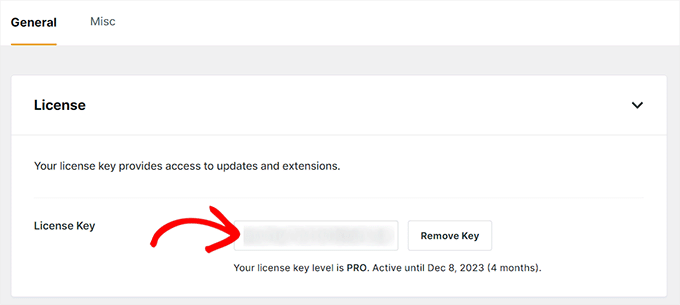
You can find this license key under your account on the SearchWP website. Simply copy and paste it in.
After that, scroll down to ‘General Settings’ and toggle the ‘Highlight Terms’ switch to ‘On.’
As soon as it’s enabled, any keywords your visitors use will automatically be highlighted in the search results, making it super easy to spot relevant content.
In this section, you’ll also find additional settings that can improve your search results.

Features like Fuzzy Search and Quoted Search are especially helpful for WordPress blogs, with lots of content.
This feature allows visitors to find the right content even if they make a small typo. This can prevent them from landing on a frustrating “no results found” page.
On the other hand, Quoted Search allows users to search for an exact phrase by putting it in quotes, just like on Google.
Keep in mind that all your settings will be saved automatically.
Once you’re happy with your General Settings, it’s a good idea to explore the rest of SearchWP’s customization options.
You can go to the SearchWP » Algorithm page in your dashboard to fine-tune how search results are ranked.
This section is really helpful because it lets you control the weight (importance) of different parts of your content — think of it like a scoring system for your search results.
Giving more weight to titles, for example, means matches in the post title will appear higher than matches in the body content. This way, the most relevant content shows up first.
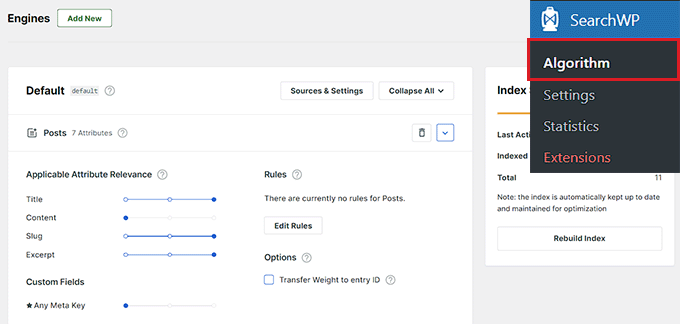
When you click the ‘Sources & Settings’ button you can also decide what to include in your search index.
Instead of just posts and pages, you can add comments, custom post types, WooCommerce products, SKUs, and more.
If you run a blog or an online store, this makes your search far more useful.
For example, it can help a customer find a product by its SKU, like ‘TSHIRT-BLUE-LG’, which the default WordPress search wouldn’t be able to do.
We’ve also put together a full guide on how to improve WordPress search with SearchWP if you want to take a deeper dive.
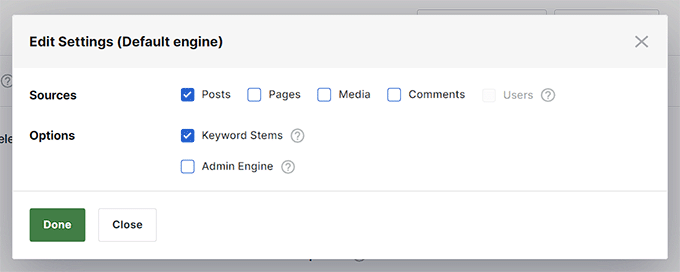
Once you’ve saved your settings, SearchWP automatically takes over your existing search form. No extra steps required.
Just head to your site and run a quick search. You’ll see the highlighted keywords right away.
If you haven’t added a search form to your site yet, don’t worry. You can follow our step-by-step tutorial on how to add a search form in WordPress.
Once that’s set up, you’re all done, and your visitors will enjoy a much better search experience from the start.

Method 2: Highlight Search Terms Using Custom Code – Free
If you are on a budget, then you can use custom code to highlight search terms. Typically, this involves editing your theme files directly.
However, even a small mistake can crash your site and cause the ‘White Screen of Death‘.
That’s why I recommend using WPCode instead. It’s the best WordPress code snippet plugin and the safest way to add custom code without touching your theme files.
I’ve thoroughly tested WPCode in different setups, and it works reliably every time. If you’re curious about everything it offers, we also have a detailed WPCode review you can check out later.
But for now, let’s walk through how to use it to highlight search terms on your site.
First, you need to install and activate the WPCode plugin. For detailed instructions, you can view our guide on installing a WordPress plugin.
🚨 Note: WPCode has a free plan that works great for this.
However, I’d recommend upgrading to the pro version if you want to unlock powerful features, like access to a cloud library of code snippets, smart conditional logic, and more.
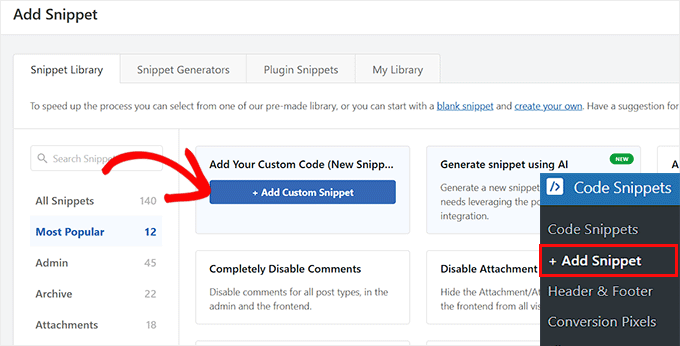
After you’ve activated the pligin, visit the Code Snippets » + Add Snippet page from the dashboard.
Here, click the ‘+ Add Custom Snippet’ button under the ‘Add Your Custom Code (New Snippet)’ option.
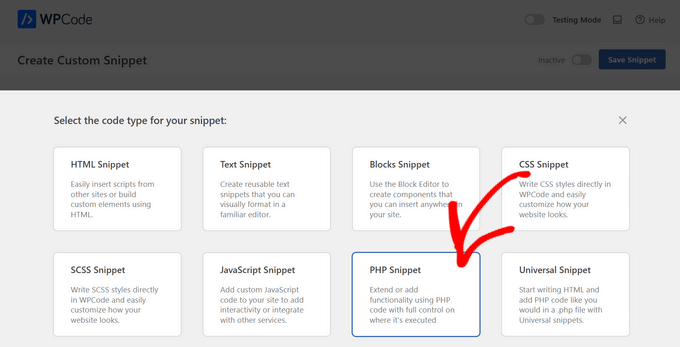
You’ll now be taken to a new screen where you have to select ‘PHP Snippet’ as the code type. Once that’s done, go ahead and give your code snippet a name.
This name won’t be visible to your visitors — it’s just for your own reference. That’s why I recommend using something descriptive like Highlight Search Terms or something else that makes it easy to recognize.
It’ll help you quickly find and manage the snippet later if you ever want to edit or disable it.
After that, copy and paste the following custom code into the ‘Code Preview’ box.
This code works by finding the keywords your visitor searched for. Then, it wraps those keywords in a special tag that adds a colored background.
// Highlight terms in titles
add_filter('the_title', 'highlight_search_terms_in_title', 10, 2);

// Highlight terms in excerpts
add_filter('the_excerpt', 'highlight_search_terms_in_excerpt');

// Optional: Highlight terms in content (if you're using the_content() in search results)
add_filter('the_content', 'highlight_search_terms_in_excerpt');

// Common highlight logic
function highlight_search_terms($text) {
    if (!is_admin() && is_search() && is_main_query()) {
        $search_query = get_search_query();

        // Output the CSS only once
        if (!defined('HIGHLIGHT_SEARCH_TERM_CSS')) {
            define('HIGHLIGHT_SEARCH_TERM_CSS', true);
            add_action('wp_head', function () {
                echo '<style>
                    strong.search-excerpt {
                        background-color: yellow;
                        color: black;
                        font-weight: bold;
                        padding: 0 2px;
                        border-radius: 2px;
                    }
                </style>';
            });
        }

        if (!empty($search_query)) {
            $keys = preg_split('/\s+/', $search_query);
            foreach ($keys as $key) {
                if (!empty($key)) {
                    $text = preg_replace('/(' . preg_quote($key, '/') . ')/iu', '<strong class="search-excerpt">$1</strong>', $text);
                }
            }
        }
    }

    return $text;
}

// Apply highlight logic to title and excerpt/content
function highlight_search_terms_in_title($title, $post_id) {
    return highlight_search_terms($title);
}

function highlight_search_terms_in_excerpt($excerpt) {
    return highlight_search_terms($excerpt);
}
After pasting the code, scroll down within the snippet to find the styling section. You’ll see it inside the echo '<style> ... </style>'; block. The specific line you’ll want to change is:
background-color: yellow;
By default, the plugin sets the background color of the highlighted term to yellow with black text. But you can easily customize this by editing that line.
Just replace yellow with the hex code for any color you prefer. For example, to change the highlight to a light blue, you could use #aeeffc. Make sure to keep the semicolon at the end!
I recommend choosing a background and text color that fits your brand’s style so it blends in nicely with the rest of your site.
💡Expert Tip: When choosing colors, it’s important to make sure there is enough contrast between the background and the text. This helps people with visual impairments read your content easily.
You can use a free tool like the WebAIM Contrast Checker to make sure your color choices are accessible.

You can also adjust the font weight, border radius, and padding in this section to fine-tune the look of the highlight box.
Once you’re happy with the styling, scroll back to the top, toggle the switch from ‘Inactive’ to ‘Active’, and click the ‘Save Snippet’ button to store your settings.

If your site already has a search form, the snippet will start working right away and highlight search terms automatically.
If you haven’t added a search form yet, you can follow our tutorial on how to add a search form in WordPress.

Finally, visit your website, run a quick search, and you’ll see your newly highlighted terms in action.
Bonus: Make Your Search Even Faster with Live Ajax Search 🚀
Once you’ve added search term highlighting, you might want to take things a step further by showing results as visitors type.
This is called live Ajax search, and it works just like Google’s autocomplete. It delivers instant suggestions without needing a page reload.
It’s a great way to make your site faster and more interactive. Visitors can find what they’re looking for almost instantly, which will likely boost engagement.

To set this up, I recommend the SearchWP Live Ajax Lite Search plugin, which works great with the premium SearchWP tool.
It’s free, works seamlessly with most WordPress themes, and handles everything automatically. I’ve tested it thoroughly, and it always delivers a better, faster search experience.
Just install the plugin like any other WordPress plugin, activate it, and then enable live search in the SearchWP settings.
You can easily add the search form to any post, page, sidebar, or widget area.

Want help getting started? Check out our full tutorial on how to add live Ajax search to your WordPress site.
Frequently Asked Questions About Highlighting Search Terms in WordPress
Here are some questions I frequently get asked about highlighting search terms in WordPress:
Can I highlight terms in AJAX or live search results?
Yes. If you use SearchWP combined with the SearchWP Live Ajax Search plugin, highlighted terms will automatically appear in the live dropdown results. No page reload is required.
If you are using a different live search plugin or a custom AJAX setup, you may need to manually add CSS classes to your search results template to enable highlighting.
Do these highlighting features affect performance or site speed?
No, highlighting search terms has a negligible impact on site performance. Both the SearchWP method and the custom code method run on the front end (client-side) and are very lightweight.
They do not increase server load or database query times. However, I always recommend testing new features on a staging site first to ensure they display correctly with your specific theme.
Will search term highlighting work with custom post types or WooCommerce?
Yes. SearchWP allows you to enable highlighting for custom post types, WooCommerce products, and even product SKUs. It provides full control over which content types are indexed and highlighted.
The custom code method (Method 2) also works for custom post types, provided your theme uses standard WordPress functions like the_title() and the_excerpt() to display results.
I hope this article helped you learn how to easily highlight the search terms in results in WordPress. You may also want to see our ultimate guide on how to make a smart WooCommerce product search and our tutorial on adding voice search capability to your WordPress site.
If you liked this article, then please subscribe to our YouTube Channel for WordPress video tutorials. You can also find us on Twitter and Facebook.




Rachelle
This works great but how do you highlight the search term in the excerpt and not just the title?
Imme
Hej, thank you very much for this very helpful piece of code. Is there a way to exclude links? The code as is breaks many of the “more”-links on my site.
Vernon Fowler
Any chance you can update this neat tutorial for modern themes such as Twenty Seventeen where instead of title() in the loop, the loop goes through:
1-click Use in WordPress
I’m comfortable with replacing
1-click Use in WordPress
with HTML5
1-click Use in WordPress
and the relevant CSS.
Or will we need a different approach in themes using get_template_part ?
WPBeginner Support
Hey Vernon,
Thanks for the suggestion. We will try to update the article with more detailed instructions.
Meanwhile, you will need to edit the /template-parts/content-search.php template. If your theme does not have it, then you can create it and then reference it in your search.php template.
Admin
Vernon Fowler
That’s working. Thank you.
Can we do the same for the_content as for the the_title or do we need a different approach?
Wayan Cenik
Thanks a lot for the code, is work perfectly
I just the code at function, and done, is work
Marlene
Hi
I can´t find on my site. I have this:
How can I change someting in that?
Thanks
Marlene
Steph
There is no “” in my search.php file..
—————————–
Mine looks like this:
“”
WPBeginner Support
Seems like you wanted to paste code and it stripped out. Please wrap your code around [php] [/php] tags
Admin
Mahesh
Thanks @michael
Steve
This doesn’t even come close to working. All it does is display the title of the page the search term is found on. The terms themselves aren’t wrapped in any tags whatsoever.
nate
Actually, it works perfectly. I don’t think you know what you are doing.
Jason
Thanks! Works like a charm!
Chris
You should add a little example image on every tutorial, that would be more understandable (:
DauAnunturi
Nice tutorial. And for those wo want to make some highlight with colors they must define their css class as div.highlight
and replace the code with
And that`s alll. Thanks and have fun.
Nina
Very helpful tutorial, will use it later on
Thanks for sharing!