


There’s nothing quite as frustrating as clicking on a post you know exists—only to land on a 404 error page. We’ve run into this issue more than once, and it can feel confusing when nothing seems obviously broken.
The good news? In most cases, you can fix it in under a minute. Just go to Settings » Permalinks and click ‘Save Changes’—that simple step resolves the issue for the majority of WordPress sites.
If that doesn’t work, don’t worry. We’ve put together a step-by-step guide covering every common cause… from plugin conflicts to .htaccess issues so you can get your posts back online fast.
Why Are My WordPress Posts Returning a 404 Error?
A 404 error means the server couldn’t find the page you requested—even though it may exist in your WordPress dashboard. This disconnect usually happens because something has broken the link between your post’s URL and its actual content.
Here are the most common reasons your posts might show a 404 “Page Not Found” error:
- Plugin or theme conflicts: Some plugins or themes can interfere with how WordPress handles permalinks. This can lead to broken links and 404 errors on posts that were working fine before.
- Custom code issues: If you’ve added custom code to your site, even a small error can affect permalinks or cause conflicts that result in 404 errors.
- Problems with your .htaccess file: The .htaccess file controls how WordPress structures URLs. If this file is corrupted, missing, or misconfigured, your posts and pages may return 404 errors.
How to Find All WordPress Posts With 404 Errors
Before jumping into fixes, it helps to know if this error affects just one post or many. Understanding the scope makes it easier to choose the right solution.
We recommend using Google Search Console. If you haven’t set it up yet, see our guide on how to add your WordPress site to Google Search Console.
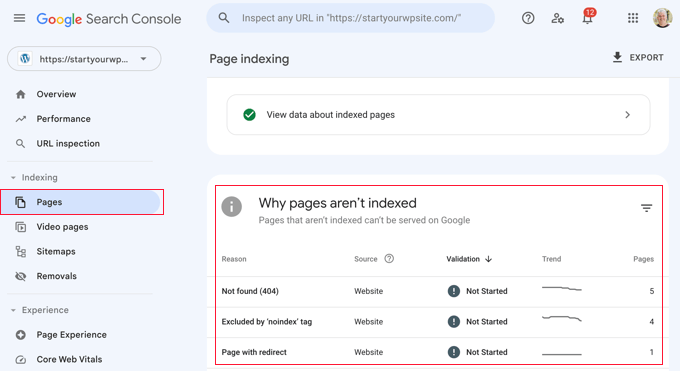
Once the Google bot has crawled your site, Search Console will show you detailed reports—including any 404 errors it finds.
To see which posts are returning errors, log in to your Search Console dashboard. Navigate to the ‘Pages’ report, and you’ll find a list of all flagged URLs.
For more help, check out our tips for using Google Search Console to grow website traffic, which includes advice on fixing 404 errors.
Now, let’s look at how to fix WordPress posts returning 404 errors. You can use the links below to jump to a specific method:
- Method 1: Check for Plugin or Theme Conflicts and Custom Code Issues
- Method 2: Fix Your Permalink Settings
- Method 3: Update the WordPress .htaccess File
- Method 4: Contact Your Hosting Provider
- Method 5: Enable mod-rewrite (Local WordPress Installation)
- Frequently Asked Questions About WordPress 404 Errors
- 🎁 Bonus: Additional Guide on Handing 404 Errors
Method 1: Check for Plugin or Theme Conflicts and Custom Code Issues
Plugins, themes, or custom code can sometimes interfere with permalinks and cause 404 errors. We’ve run into this ourselves when testing tools on our demo sites.
When we troubleshoot, we use a staging environment to safely deactivate plugins one by one. This helps us isolate the problem without affecting the live site.
To try this yourself, start by temporarily deactivating all your plugins. Then reactivate them one at a time, checking after each one to see if the 404 error returns.
If the error appears after activating a specific plugin, that’s likely the cause. You can search for solutions related to that plugin or contact the developer for support.
Your WordPress theme could also be the issue.
To check, temporarily switch to a default WordPress theme like Twenty Twenty-Three or Twenty Twenty-Four. Go to Appearance » Themes and click ‘Activate’ on a default theme.
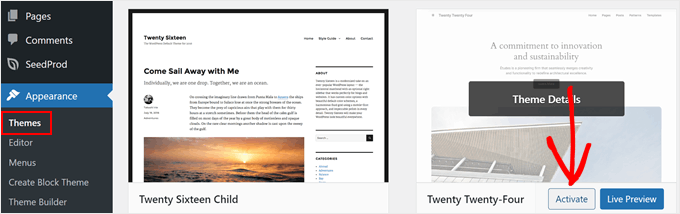
If the 404 error goes away with a default theme, your original theme is probably causing the conflict. You can troubleshoot it further or consider switching to a different theme.
For recommendations, check out our expert pick of the most popular WordPress themes.
If you’ve recently added code snippets to your website, review them carefully. Even small mistakes can cause 404 errors.
We recommend using the WPCode plugin for adding custom code. It lets you insert snippets without editing theme files directly, which reduces the risk of breaking your site.
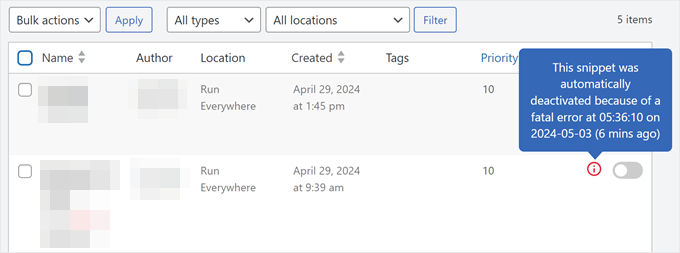
WPCode also detects errors automatically. If something goes wrong, it deactivates the snippet and alerts you. You can even use testing mode to check your code before pushing it live.
If none of these steps fix the issue, move on to the next method where we’ll troubleshoot your permalink settings.
Method 2: Fix Your Permalink Settings
WordPress posts often return 404 errors because of problems with rewrite rules in your .htaccess file. In most cases, you can fix this by simply resaving your permalink settings.
Go to Settings » Permalinks in your WordPress admin and click the ‘Save Changes’ button.
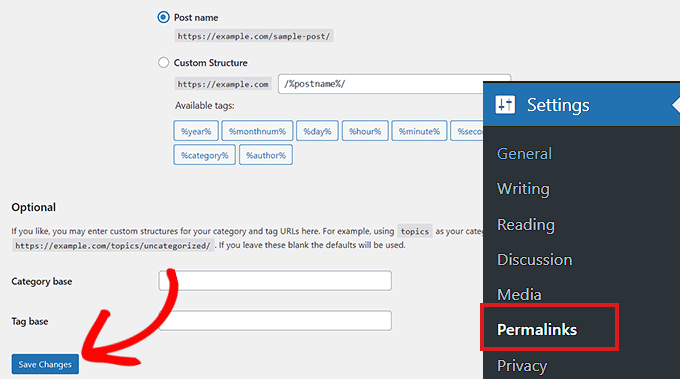
You don’t need to change anything. Just clicking ‘Save Changes’ flushes the rewrite rules (meaning WordPress regenerates the URL routing instructions that tell your server where each post lives).
This simple step fixes the 404 error for most WordPress sites. If it doesn’t work for you, you may need to update your .htaccess file manually.
Method 3: Update the WordPress .htaccess File
Before making any changes, we recommend backing up your WordPress site and your .htaccess file. If something goes wrong, you can easily restore the original.
You’ll need to connect to your server using an FTP client like FileZilla, or use the File Manager in your hosting control panel.
Next, find the .htaccess file (a hidden configuration file that controls how your server handles URLs) in your site’s root folder. This is the same directory that contains folders like /wp-content/ and /wp-includes/.
Right-click on the file and select ‘File permissions’ or ‘Change permissions’ from your FTP client.
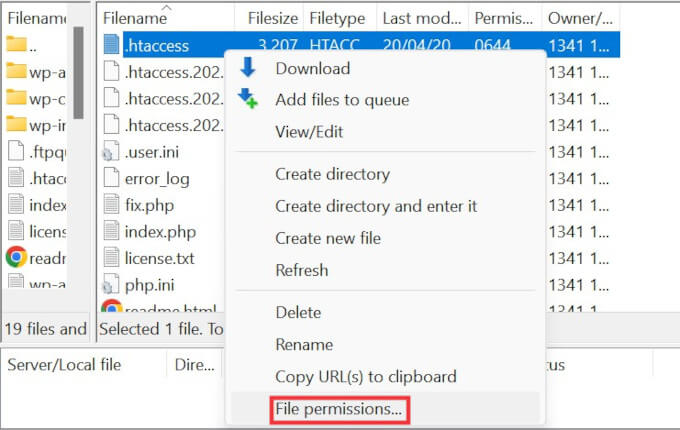
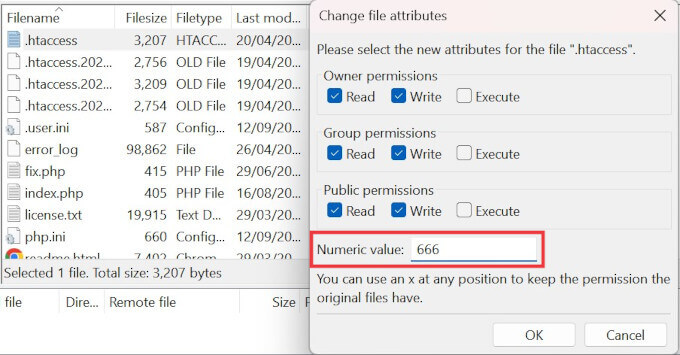
If WordPress couldn’t write to the file before, try changing the permissions temporarily to 666 to make it writable.
Important: Permission 666 means anyone can read and write to the file, which is a security risk. Only use this setting temporarily and change it back immediately after you’re done.
Now, return to your WordPress admin and resave your permalink settings (Settings » Permalinks » Save Changes). This lets WordPress regenerate a proper .htaccess file.
Once that’s done, go back to your FTP client and change the file permissions to 644. This setting allows WordPress to read the file while protecting it from unauthorized changes.
Alternatively, you can edit the .htaccess file manually.
Right-click on the .htaccess file and select the View/Edit option.
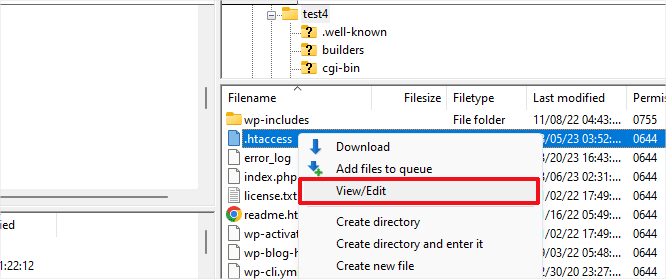
The file will open in a plain text editor like Notepad or TextEdit.
Add the following default WordPress rewrite rules:
# BEGIN WordPress
<IfModule mod_rewrite.c>
RewriteEngine On
RewriteBase /
RewriteRule ^index\.php$ - [L]
RewriteCond %{REQUEST_FILENAME} !-f
RewriteCond %{REQUEST_FILENAME} !-d
RewriteRule . /index.php [L]
</IfModule>
# END WordPress
Save the file and upload it back to your server. Then check if your posts are loading correctly.
Method 4: Contact Your Hosting Provider
If none of the solutions above have fixed the 404 error, we recommend contacting your WordPress hosting provider.
There may be a server-side issue on their end, or they can help you troubleshoot the problem further. In our experience, good hosting support teams can often spot configuration issues that are easy to miss.
For tips on getting help, see our guide on how to properly ask for WordPress support and get it.
Method 5: Enable mod-rewrite (Local WordPress Installation)
If you’re running WordPress on a local server for testing, you’ll need to enable mod_rewrite in your Apache configuration. This applies to MAMP, WAMP, or XAMPP setups.
Enabling mod_rewrite allows WordPress to generate clean URLs and prevents 404 errors on your local posts and pages.
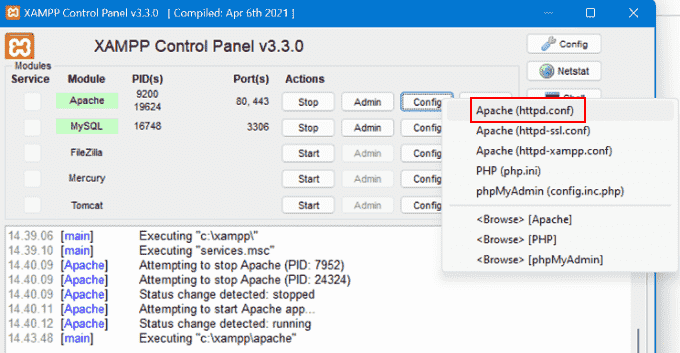
The steps vary by platform. If you’re using XAMPP, open the control panel and click the ‘Config’ button in the Actions column. Then select ‘Apache (httpd.conf)’.
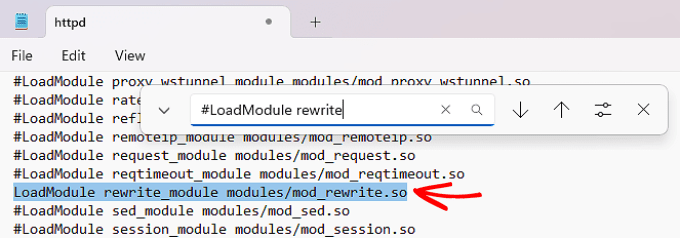
Find this line: #LoadModule rewrite_module modules/mod_rewrite.so
Remove the ‘#’ at the beginning to uncomment it. This enables the mod_rewrite module.
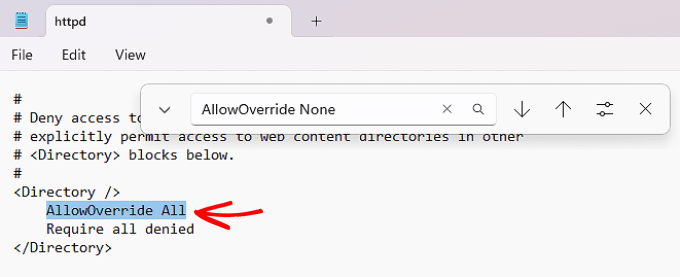
Next, look for lines that say AllowOverride None and change them to AllowOverride All. This tells Apache to allow .htaccess files to control URL routing.
You’ll typically find these inside <Directory> blocks, especially the one pointing to your site’s folder (like htdocs in XAMPP). For local testing, it’s usually safe to apply this change wherever you see it.
Save the httpd.conf file and close it. In the XAMPP control panel, click ‘Stop’ on the Apache module, then click ‘Start’ again to restart it.
Now go back to your WordPress admin dashboard and check if your permalinks are working.
Video Tutorial
If you prefer visual instructions, watch the video below.
Frequently Asked Questions About WordPress 404 Errors
Running into 404 errors on your WordPress site can be confusing. Here are answers to common questions that can help you troubleshoot more effectively.
Why am I getting a 404 error on my WordPress posts?
A 404 error on WordPress posts usually means the server can’t find the page at the requested URL. This can happen due to broken permalinks, a corrupted .htaccess file, deleted posts, or a plugin/theme conflict that changes how URLs are handled.
How do I fix a 404 error in WordPress?
The fastest way to fix a WordPress 404 error is to resave your permalink settings. Go to Settings » Permalinks and click ‘Save Changes’. If that doesn’t work, check your .htaccess file, disable plugins, or switch to a default theme to rule out conflicts.
How can I find all 404 errors on my WordPress site?
Google Search Console is the best way to find 404 errors on your WordPress site. It shows you a list of all 404 errors that Googlebot encounters. You can also use plugins like Broken Link Checker to spot broken links and missing pages.
What does the .htaccess file do in WordPress?
The .htaccess file in WordPress is a configuration file that controls how URLs are processed. WordPress uses it to manage permalink structure and route URLs to the correct content. If this file is missing or corrupted, your URLs may stop working correctly.
How do I safely edit the .htaccess file?
You can safely edit the .htaccess file using an FTP client or your hosting file manager. Always create a backup first. After editing, make sure the permissions are set to 644 so it stays readable and secure.
Why do my WordPress category or tag pages show 404 errors?
WordPress category or tag pages may show 404 errors if your theme doesn’t support archive templates or if permalink settings are misconfigured. Resaving permalinks and checking your theme’s archive support can usually fix this issue.
How do I fix 404 errors for custom post types?
To fix 404 errors for custom post types, go to Settings » Permalinks and click ‘Save Changes’ to refresh rewrite rules. Also check that your custom post type is registered with the correct rewrite settings and has archive support if needed.
Can I redirect 404 pages to my homepage or another page?
Yes, you can redirect WordPress 404 pages using plugins like Redirection. This lets you create 301 redirects from old or broken URLs to new ones. You can also create a custom 404 page to guide users back to useful content.
🎁 Bonus: Additional Guide on Handing 404 Errors
Here are more resources we’ve put together to help you manage 404 errors and other common WordPress issues:
- How to Improve Your 404 Page Template in WordPress (2 Ways)
- Best WordPress 404 Error Page Design Examples
- Best Free 404 Redirect Plugins for WordPress
- How to Get Email Alerts for 404 Errors in WordPress
We hope this article helped you fix WordPress posts returning 404 errors. You may also want to see our guide to the most common WordPress errors and how to fix them, along with our expert picks for the best WordPress plugins to grow your site.
If you liked this article, then please subscribe to our YouTube Channel for WordPress video tutorials. You can also find us on Twitter and Facebook.


Laxmi Prasanna
thank you very much. you saved my day. god bless you
chandan
you save my day
Alessandro Morotti
Thxs a lot man.
Your save my job!!!
congratulations by your time
Niketa
Many many Thanks.. I was worried first but your blog fixed my 404…as I was having exactly same issue.
Abhishek Sharma
Sir i dont know how to thank you.. But today you saved my life.. I was so scared. I just published a post and then when i checked that in my browser it showed 404 error then i check another post and then all . i was surrounded by 404 errors except my homepage was working. Now before posting to wordpress forums i just googled it and found solution on your website.,..
Mannn Thanks for saving my life.
WPBeginner Support
Hi Abhishek,
We are glad you found this article helpful. Don’t forget to follow us on Facebook for more WordPress tips and tutorials.
Admin
Richard
Hi !
I doesn’t work for me.
i added ” . ” for prefix category but i fall in a 404 page when i try to access to my subcategory :s
CR
Awesome! It helped.
Paola
I LOVE YOU! I didn’t knew how to fix this I’m a complete novice. Thank you thank you! !
Marlena
I’m so pleased to have found this article first. I’m a complete novice and I fixed my own 404 issue.
YAY!
Thanks so much!
Saud Razzak
Very informative and useful article for WordPress beginners!
Eri
Please can you help me for this, because I tryied but i cant fix it :/
Tom C
Great guide! Totally solved my issue.
Anil
I have created a subdirectory. And I have two wordpress installed, one in root and the other in subdirectory. Both of them contains posts and pages. I want to access both and it’s happening. But when I am hiding the subdirectory slug from the post URL by modifying the .htaccess file, the sub directory name got hidden as per the requirement but the posts of my main domain is inaccessible and getting 404 error. I want to access the post from both root as well as subdirectory. Please suggest.
Jawad
Thank you very very much for your help
Farukh Hussain
Thanks alot for sharing. Your tutorials always helps me.
Karen
Thank you so much for this!
Grant Turner
Fixed. My problem was since I’m running on a windows server then I don’t have a .htaccess file. I need to create a web.config file.
Cindy Martin
This fix DID NOT work for me! I still have a 404 error on my blog page only. I am using Gridalicious and have had nothing but trouble! (Not with Gridalicious but other stuff too).
I removed everything from the to start over. loaded the theme and get the error.
Blog posts are not showing up on the blog page except in the widget and the main page is the 404 error message. Saving permalinks does nothing at all. Host is GoDaddy. HELP! I’m really tired of all this and frustrated.
WPBeginner Support
Hey Cindy,
This seems like an issue with your WordPress theme. Please follow the step by step instructions in our WordPress troubleshooting guide. It will help you figure out what’s causing the issue.
Admin
Maranna
Thanks! I moved website from one server to another and had the problem with posts returning 404. Main page and admin were working fine. Re-saving permalinks worked to fix this problem. Seems that this setting is not carried over correctly in all cases.
Aondongu Tivzenda
The permalinks fix worked perfectly. Thank you for this website. Awesome!
alvin
My problem is funny. I have a couple of WP websites I am currently running each logged into one browser with different portals and logging user names. After I noticed the 404 error checking the redirect area i see my author names have been mixed up from all the different websites. Can someone please assist
niranjan
It worked! Thanks!!
Vishwa
It worked! Thanks!!
Yours is a great website!
Charley Gordon
Thanks for sharing your knowledge.
Al
Thanks, worked for me
Mayapur Voice
This post saved my day today! In an attempt to fix a long standing problem today our host changed the .htaccess file. The issue got resolved but it broke all my links. By the grace of God, I found this post in an instant and it was exactly what I needed. Thanks tons!
marcela bonadio
exactly what i needed. thanks for sharing your knowledge.
Casey
Hello, thanks for this article and all the other awesome articles I have found on wpbeginner. I am running into some problems with my front page giving me an “oops! That page can’t be found” error. I am wondering if you have any advice on how to fix it.
I am running:
LAMP with Debian 3.2.84-1 x86_64 (Wheezy) on a VPS, Apache 2.2.22, php5
Wordpress: 4.7.1
Theme: YS Magazine
The original issue occurred when I switched the permalink structure to use “post type” instead of the default. At that point I could no longer view any of my pages and just got a 404 error. So, I did some research and edited my .htaccess file to allow overwrite. This fixed the problem of the 404 errors on all my pages, except on whatever page is set to my home page. To be clear, there was no problem with any of the pages before I changed permalinks. It also does not matter if I set the front page to static or posts. If I change my front page to another page I can then see the page which was set previously as the front page, but the new front page then gives me the error.
I have tried:
disabling all my plugins and enabling them one by one
changing themes
changing the .htaccess file back
changing permalink settings
I have been searching for an answer to this for hours now and seem to have ran into a brick wall. Any help would be super appreciated. Thank you so much.
Bart Dority
Thank you so much for this post!
I knew my 404 errors had something to do with the permalink structure – and I even tried changing the permalink structure and saving it – and otherwise updating and refreshing it — but it still wasn’t working. But then I read this post which said — instead of changing the permalink style and saving it, — just leave it where it is, and click Save anyway. That worked for me. A huge relief. Thank you!
Angelica
Thank you so much!! It worked!!
MarcB
Thank you so much for this help. Really a lifesaver.
Elyes Gherib
Thank you very much, this did it for me!
Z
Thanks for the post. I’ve had to deal with other problems after switching hosting providers, but this was a new one.
I did the method provided and my site was back to normal within seconds.
Kristine
Hello, I am hoping you can help me- I am super nervous about my wp site right now. When I type the address into the search engine it is a completely barebones site that says it is “set up through Wix” that no longer looks like our site we have been operating through wordpress. This just happened out of the blue and I am so nervous about our posts.
WPBeginner Support
Hi Kristine,
It seems like your WordPress site’s domain is hosted by Wix. If you have login details for a wix account, then you can login and point the domain to your current WordPress hosting provider. If you are unsure, then please try contacting Wix support and your WordPress hosting provider support for more help.
Admin
Jolene
Thank you! My blog has been down and I couldn’t figure out how to fix. In a last ditch effort before I call customer support…I googled. You saved the day!
Bruno Almond
Great blog here! Additionally your site rather a lot up very fast! What host are you the usage of? Can I am getting your affiliate link in your host? I desire my web site loaded up as fast as yours lol
WPBeginner Support
Hi Bruno,
WPBeginner is hosted on a HostGator dedicated server.
Admin
AJ
great job mate, you did a better job than the tech support at bluehost
Lorene
No, this worked for the one post that was showing Error 404, but then ALL the others that worked before, now show Error 404. So I had to change it back. Hope most of them work now.
Gabe DeFrates
Excellent tip for fixing the permalink! I was getting the “File not found” error, and I went right into the WP Control Panel Settings, Saved Changes and she’s working again. You saved the day! Thank you for your time in posting this.
Samnang Thorng
Thanks I can deal with site now. Great helps
jhonny
Recently I have changed my site permalinks and now i am getting lots of 404 errors i have redirected them some of them to new url and others to homepage but still my site users were going down and down what to do now help me please should i change them back to old permalinks? or something else to do please tell me
Exxagon
Thanks a lot for your post.
Since many weeks, I was stucked with a 404 error each time I tried to change my permalinks structure.
I found the solutions in your post :
1. Modify /etc/apache2/apache2.conf, and set “AllowOverride All” everywhere instead of ” AllowOverride None”
2. Empty /var/www/html/.htaccess completely, change it to www-data:www-data & set it temporary to 777.
3. And the main one : “sudo a2enmod rewrite”, and “service apache2 restart”
Thanks again !!
Xavier
Asif
thanks bro it help me and my server version is working fine now
Suraj
Thanks a lot… It’s working for me.
Erwin
Hey, where can I find “/etc/apache2/apache2.conf”??? I don´t even know where to search? Do I need a special Application or something? Sorry, i´ve no idea : I
Abel
Hi, “/etc/apache2/apache2.conf” is a Ubuntu system folder. If you want to access it, you should have access to your server (like ssh).
Abel
Thanks a lot!
Vinita
Recently I am getting lots of 404 page errors in google webmaster. While revamping my wordpress website, instead of redirecting old urls to new, I just edited existing urls to new ones. e.g. website.com/url1 was edited to website.com/url2. Now webmaster if giving 404 error for old urls i.e. website.com/url1. How am I supposed to solve this error? (there are almost 155 urls with 404 errors so cant ignore)
WPBeginner Support
See our guide on how to setup redirects in WordPress.
Admin
Sandy
Is there a plugin that can find 404 errors and redirect them safely with best SEO tactics? Or should i do a edit find and replace in my xml file and remove the urls?
appreciate your ideas…
Michael
changing the right to 660 made my site unavailable. i had to set .htaccess to 644 (which was the original setting). regards Michael
Swadesh
Thanks a lot
Its working for me.
Kieron Atkinson
I’m running wordpress on a client’s in-house server and even though the htaccess file is there with the rewrite module sequence, permalinks are still not working. In fact all the URLs are coming up as example.com/index.php/permalink.
How do I check if the module rewrite is enabled on the server? My client says that they have that enabled but it still doesn’t work.
Many thanks for your help.
Kieron
Renee
Mahalo nui loa (thank you very much)!
Reassigning the Permalinks is exactly what was needed after moving 10 sites to a new hosting company.
Abundant blessings to you and your team.
WPBeginner Support
Hi Renee,
Glad you found it helpful and thanks for the kind words. You may also want to join us on Twitter for more WordPress tips and tutorials.
Admin
Steve
Thank you for your well written article. I have logged in to both /wp-content and /wp-includes/ and I havent found my .htaccess file.
Is it possible that I dont have one as I also get the 404 error if i try and redirect a page usin Redirection in WP.
Thanks in advance.
Steve
WPBeginner Support
Please see our guide on why you can’t find .htaccess file on your WordPress site.
Admin
Paras
hello
i am facing this same problem
i tried your method but still its showing error
Margarita
Today I was about to launch my web after 5 months working very hard in localhost. I was very happy but exhausted. While doing all the migration process, my site was gone. I had made a backup of course, but after trying a hundred times nothing worked. All seemed lost… until I found your post and it was solved in less than 30 min.
My day has been awful, a waste of many hours and energies. But now I go to bed with a smile in my face. Happy again. Infinite thanks.
Marga Rubio Soto
WPBeginner Support
You are welcome. We are glad you found the article helpful. Don’t forget to join us on Twitter for more WordPress tips and tutorials.
Admin