


It’s incredibly frustrating when you try to upload a new theme or plugin, only to be stopped by the error: ‘The link you followed has expired.’ The message gives no clue what went wrong, leaving you completely stuck.
This error happens because your server’s PHP upload limits are too low for the file you’re uploading. The fix is to increase settings like upload_max_filesize and post_max_size in your server configuration.
In this guide, I will walk you through several easy methods to solve this problem for good. I’ve used these exact steps to help many readers get back to uploading their files in just a few minutes.
Quick Summary: The ‘Link you followed has expired’ error is usually caused by low server PHP upload limits. The easiest way to fix it is by using the WPCode plugin to increase your site’s upload_max_filesize and post_max_size settings.
What Causes ‘The Link You Have Followed Has Expired’ Error?
This error usually happens when you try to upload a theme or plugin file that’s larger than WordPress is allowed to handle. Your WordPress hosting company sets these limits to prevent the server from timing out or running out of memory during large uploads.
Three PHP settings control these limits:
upload_max_filesize– The maximum size of a single file you can upload.post_max_size– The maximum size of all data submitted in a single request. This must be equal to or larger thanupload_max_filesize.max_execution_time– The maximum time in seconds a script is allowed to run before the server stops it.
When any of these limits are too low for the file you’re uploading, WordPress can run out of resources and display the error. Here’s what the error message typically looks like on your screen.

You can sometimes see your site’s current upload limit on the Media » Add New page. However, a better way to see all the relevant server settings is by using the built-in Site Health tool.
Just go to Tools » Site Health, click on the ‘Info’ tab, and open the ‘Server’ section. Here you can see the exact values for upload_max_filesize, post_max_size, and other limits. This helps you confirm if the server limits are the cause of the problem.
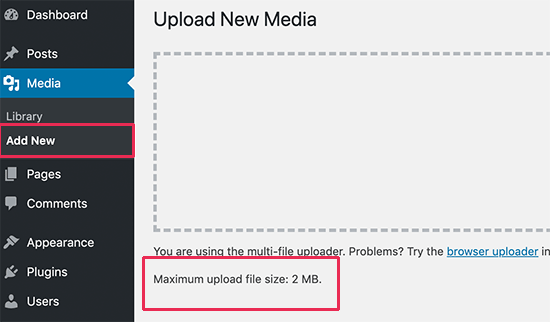
When these limits are too low for the file you’re uploading, WordPress can run out of resources. This can also trigger other issues, like the memory exhausted error or the maximum execution time exceeded error.
Now, let’s look at how to easily fix this problem.
How to Fix ‘The Link You Have Followed Has Expired’ Error
To fix ‘The link you followed has expired,’ the main solution is to increase your site’s file upload size and execution time limits. We’ll also cover increasing the PHP memory limit, which is a separate step that can solve related errors.
The first few methods we’ll cover are different ways to resolve the main issue with server limits. If those don’t solve the problem, the later methods will help you check for other possible causes, like plugin conflicts.
Keep in mind that some web hosts may restrict your ability to change these settings. If one method doesn’t work, don’t get discouraged. Just move on to the next one in the list.
- Method 1: Increase Limits Using WPCode (Recommended)
- Method 2: Increase Limits in the .htaccess File
- Method 3: Increase Limits in the php.ini File
- Method 4: Check for Plugin Conflicts
- Method 5: Update Your PHP Version
- Method 6: Increase PHP Memory Limit in wp-config.php
- Method 7: Contact Your Hosting Provider
- Frequently Asked Questions (FAQ)
Method 1: Increase Limits Using WPCode (Recommended)
This method lets you try to increase PHP limits directly from your WordPress dashboard using a code snippet. It’s the easiest approach to try first, though some hosting providers may restrict these settings from being changed this way.
I recommend using the free WPCode (formerly Insert Headers and Footers by WPBeginner). It is the most popular code snippets plugin for WordPress, used by over 2 million websites, and it lets you add custom code without editing your theme’s files. This protects your changes from being erased when you update your theme.
I use WPCode across my own websites to manage important code snippets safely.
First, you need to install and activate WPCode. For details, see our step-by-step guide on how to install a WordPress plugin.
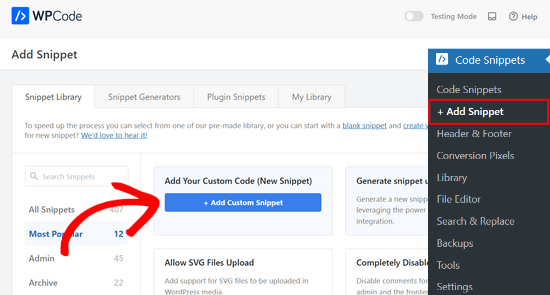
Once activated, go to Code Snippets » Add Snippet from your WordPress admin panel. Then, find the ‘Add Your Custom Code (New Snippet)’ option and click the ‘Use snippet’ button.
On the next screen, give your snippet a title so you can easily identify it later.
From the ‘Code Type’ dropdown menu, make sure to select ‘PHP Snippet’.
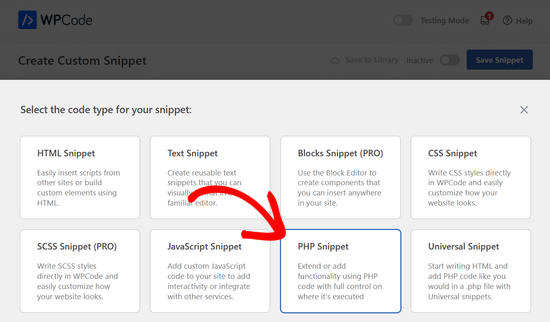
Now, copy and paste the following code into the ‘Code Preview’ box:
@ini_set( 'upload_max_filesize' , '128M' );
@ini_set( 'post_max_size', '128M');
@ini_set( 'memory_limit', '256M' );
@ini_set( 'max_execution_time', '300' );
☝ A quick note: This code uses the ini_set function to request higher limits from your server. However, some hosting providers don’t allow these particular settings to be changed this way. If this method doesn’t work for you, then try Method 2 or Method 3 below.
We add the @ symbol at the beginning of each line to prevent any errors from showing on your site if your host has disabled this function.
This code increases the file upload size to 128 megabytes and the execution time to 300 seconds. The post_max_size value should always be the same as or larger than the upload_max_filesize. Think of it as a box (post_max_size) that needs to be big enough to hold your file (upload_max_filesize).
Finally, toggle the switch at the top to ‘Active’ and click the ‘Save Snippet’ button.
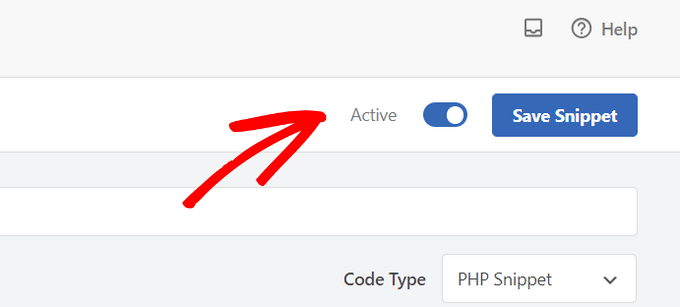
Now, go back to Tools » Site Health » Info » Server to check if the limits have changed. If not, move on to the next method.
For more details, you can see our complete review of WPCode and how it helps you safely add custom code in WordPress.
Method 2: Increase Limits in the .htaccess File
🚨 Heads Up: This is an advanced method that involves editing a core server file. I strongly recommend creating a full backup of your site first. For a safer way to manage code snippets without editing files manually, I recommend using Method 1 with the WPCode plugin.
This method increases PHP limits by adding directives to your site’s .htaccess file. It works on web servers running Apache, and LiteSpeed also fully supports these .htaccess rules.
You can find the .htaccess file in your site’s root folder using FTP or a file manager. Open the file to edit it.
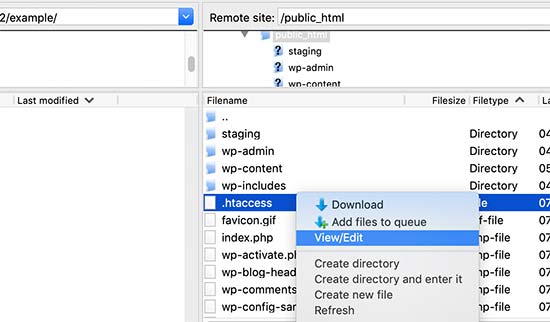
Now, add the following lines of code at the very bottom of your .htaccess file:
php_value upload_max_filesize 128M
php_value post_max_size 128M
php_value max_execution_time 300
php_value max_input_time 300
Don’t forget to save your changes and upload the file back to your server.
Users on Nginx servers will need to contact their hosting provider for help, as Nginx does not use .htaccess files.
Method 3: Increase Limits in the php.ini File
🚨 Heads Up: This is another advanced method that involves server configuration files. Please back up your website before making any changes to prevent potential issues.
This method increases PHP limits by editing the php.ini configuration file. This approach works on most hosting environments, including those where the .htaccess method doesn’t work.
First, look for an existing php.ini file in your site’s root directory using an FTP (File Transfer Protocol) client or your hosting’s file manager.
If you are on a shared hosting plan, you likely won’t find this file because most shared hosts don’t include one by default. In that case, you can create a new blank file named php.ini using a text editor, and then upload it to your site’s root folder.
Now, edit the php.ini file and add the following code inside it:
upload_max_filesize = 128M
post_max_size = 128M
max_execution_time = 300
Save your changes and upload the file back to your website. You can now try uploading your theme or plugin file again. The error should be gone.
Method 4: Check for Plugin Conflicts
Sometimes the ‘The link you followed has expired’ error isn’t caused by server limits at all. A conflict between your WordPress plugins can interfere with the file upload process and trigger this error.
To check if this is the problem, you can temporarily deactivate all your plugins and then reactivate them one by one.
First, go to the Plugins page in your WordPress dashboard. Select all plugins, choose ‘Deactivate’ from the bulk actions dropdown menu, and then click ‘Apply.’
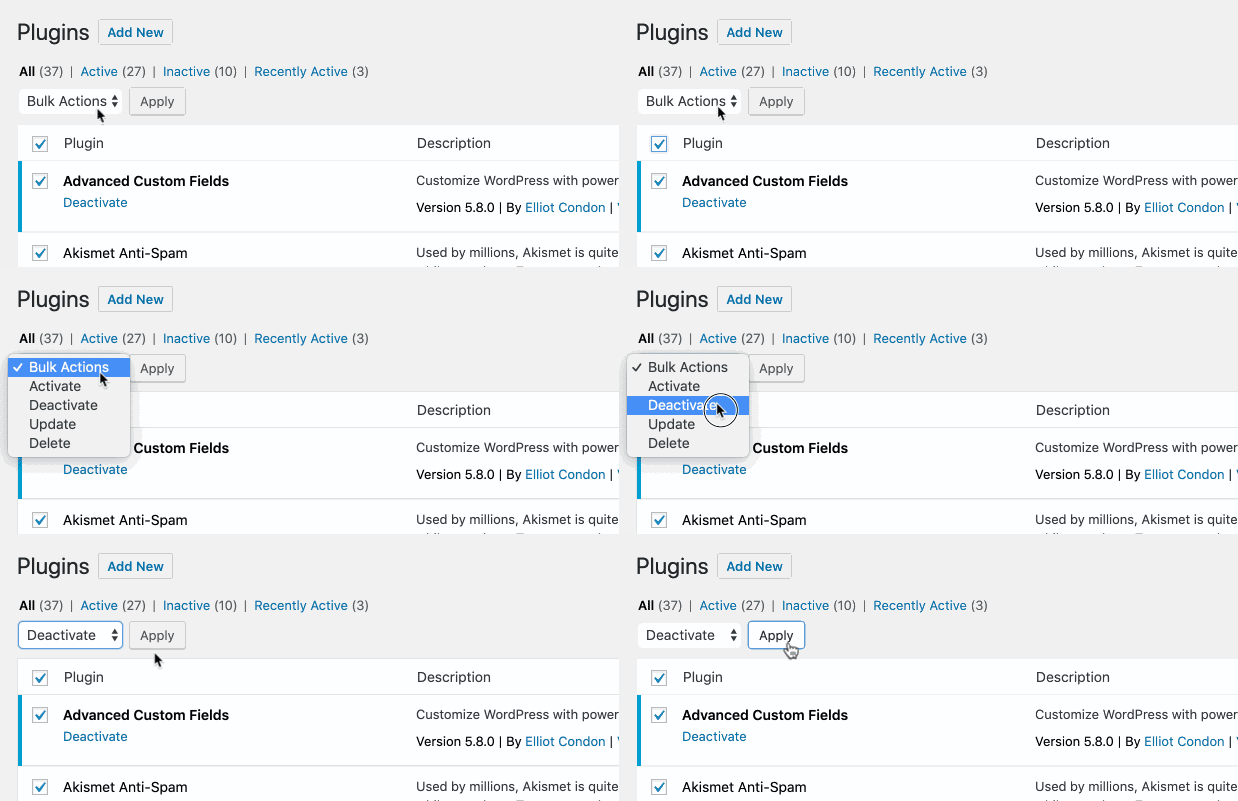
Next, try uploading the file again.
If the error is gone, then you know a plugin was causing the conflict. Now, reactivate each plugin one at a time, trying the upload after each one, until the error comes back. This will help you identify the problematic plugin.
Method 5: Update Your PHP Version
An outdated PHP version can cause compatibility issues that lead to upload errors. Updating your site to a newer version of PHP can often resolve the problem and also improve your site’s performance and security.
To do this safely, you can follow our complete guide on how to update your PHP version in WordPress.
Method 6: Increase PHP Memory Limit in wp-config.php
🚨 Heads Up: This method involves editing a core WordPress file. I strongly recommend creating a full backup of your site before you proceed. One small mistake could break your website.
This method increases the PHP memory available to WordPress. While it doesn’t directly fix the file size limit, it can solve related memory errors that sometimes happen during large uploads.
You will need to edit your wp-config.php file. You can access it using an FTP client or the File Manager app in your hosting control panel (cPanel).
For detailed instructions, check our guide on how to find and edit the wp-config.php file.
Once you have the file open, add the following line of code just before the line that says, /* That's all, stop editing! Happy publishing. */.
define( 'WP_MEMORY_LIMIT', '256M' );
This code increases the memory available to WordPress to 256MB. After saving the file, try your upload again to see if the error is resolved.
Method 7: Contact Your Hosting Provider
If you’ve tried all of the methods above and the error still won’t go away, it might be time to contact your WordPress hosting provider. The problem could be a server-side restriction that only they can change.
When you reach out, be sure to clearly explain the error and the steps you’ve already taken to fix it. If you’re not sure how to ask for help, then our guide on how to properly ask for WordPress support has some great tips.
Frequently Asked Questions (FAQ)
Why does WordPress say ‘The link you followed has expired’?
This error almost always means the theme or plugin file you’re trying to upload is larger than the maximum upload size allowed by your server’s PHP settings. The default limit on many shared hosting plans is just 2MB or 8MB, which isn’t enough for most modern themes and plugins.
What is the recommended file upload size for WordPress?
There’s no single recommended size, but 64MB or 128MB is usually enough for most themes and plugins. You can check your current limit under Media » Add New or in Tools » Site Health » Info » Server.
Is it safe to edit wp-config.php or .htaccess files?
Editing these files can be risky for beginners. A small mistake can take your site offline. That’s why we recommend using a plugin like WPCode first, or making a complete backup of your site before attempting to edit these files directly.
What if increasing limits doesn’t fix the error?
If increasing the limits doesn’t work, then try checking for a plugin conflict or updating your PHP version. If the problem persists, contact your hosting provider as they may have additional server-side restrictions in place.
How can I check my current PHP limits?
The easiest way is to go to Tools » Site Health in your WordPress dashboard, click on the ‘Info’ tab, and open the ‘Server’ dropdown. This will show you key limits like upload_max_filesize, post_max_size, and memory_limit.
I hope this article helped you easily fix ‘The link you followed has expired’ in WordPress. You may also want to bookmark our ultimate guide on how to fix the most common WordPress errors and check out our list of solutions for common block editor problems.
If you liked this article, then please subscribe to our YouTube Channel for WordPress video tutorials. You can also find us on Twitter and Facebook.




Mohammed Sathik
For me Method 3 worked… Thank you mate
WPBeginner Support
Glad our guide was helpful
Admin
Syed Shan Shah
Nothing worked for me.
WPBeginner Support
If none of the methods from our guide were able to assist then we would recommend reaching out to your hosting provider to ensure they don’t have a setting on their end that is overriding your attempts.
Admin
Kevin
What worked for me was to create a .user.ini file in the public_html folder and put the code mentioned above for php.ini
WPBeginner Support
It would depend on how your server is set up as not all servers allow user.ini but that is good to know for servers that do
Admin
Jiří Vaněk
Editing limits using the .user.ini file also works on Linux. The directives are very similar. Some providers also prefer the user.ini file to the .htacess file. Thanks for the great video. In the end, it helped me to raise the limits only through the mentioned .user.ini.
WPBeginner Support
You’re welcome
Admin
Steve
Doesn’t work. I’ve run into this before and got it to work but it was awhile back. searched Google and found these instructions but they don’t work for my site.
WPBeginner Support
If none of the methods in our guide were able to help you, please reach out to your hosting provider and they should be able to assist.
Admin
Shane O'Sullivan
I am running Wordpress on my iMac at localhost:8888 but changing the sizes in wpcode made no difference. After editing the htaccess file, I was able to upload the theme, so cheers
WPBeginner Support
Glad to hear you were able to solve the issue!
Admin
Himesh
I followed every single step as mentioned to work around the problem of uploading a theme to wordpress when upload limit was too low. Used the WP Code Snippet to increase the limits and still the same message: “link expired”
WPBeginner Support
If our recommendations do not work for you, please reach out to your hosting provider and they should be able to assist with this issue.
Admin
Gabriel
I am using GCP.
It works only after modifying php.ini under fpm, and restart php-fpm
Modifying .htaccess would lead to internal server error.
WPBeginner Support
Thank you for sharing what worked for you!
Admin
Gary
I tried 3 methods all. But the limit value was not changed.
On the ‘Add New’ page from ‘Media’, the Maximum upload file size is still 2MB.
Do I need to restart service or something?
Please help me.
WPBeginner Support
Your hosting provider may be overriding the max file size, if you check with your host they should be able to assist!
Admin
Michael Douglas
Thanks for the help. This took care of the issue for me.
WPBeginner Support
Glad our guide was helpful!
Admin
Bernard
Very helpful thank you.
WPBeginner Support
You’re welcome!
Admin
Ry
Thank you!
Used .htaccess method.
WPBeginner Support
You’re welcome, glad that our recommendations were able to assist!
Admin
Syed Nauman Sajid
Brilliant and perfectly worked for me.
WPBeginner Support
Glad our guide could help!
Admin
Bob
People should check their settings. I left the M off from 128M. Really stupid but that was my issue.
WPBeginner Support
Everyone can make a typo like that but we’re glad you were able to find and solve the issue for you
Admin
Art Bejarano
I’m having an issue: I’ve added the htaccess text at the end and it did not work. I removed any formating on the text and it still did not work. I need help.
Ann
I tried all the steps but I still have the issue. I have the issue every time I click on save/submit. For example, update WordPress version. Enable debug mode in Elementor. Disable all plugins.
Please help to let me know how can I fix it, please.
Anurodh Keshari
In my dashboard Maximum upload file size is 512 MB. but still, I’m facing this issue but I’m facing this issue while deactivating the plugin… can you help me…
WPBeginner Support
You would want to check with your hosting provider to ensure they are not overriding any of your changes.
Admin
Cesar Puente
This guide helped me a lot. I had this problem with local WordPress. I couldn’t upload my customize theme to test it.
Thank you so much.
WPBeginner Support
Glad our recommendations were able to help
Admin
Akin
Method 2 worked for me like charm. Thank so much for this.
WPBeginner Support
Glad our recommendation helped you
Admin
Carly
Worked perfectly – thanks so much!
WPBeginner Support
Glad our guide was helpful
Admin
Tasmim
Really good suggestion. works really fine now
WPBeginner Support
Glad our recommendation helped
Admin
elijah
which location should i post the method one which line
WPBeginner Support
We would recommend taking a look at our guide below for understanding how to paste snippets:
https://www.wpbeginner.com/beginners-guide/beginners-guide-to-pasting-snippets-from-the-web-into-wordpress/
Admin
Tudor
It worked, thank you!
WPBeginner Support
Glad our guide was helpful
Admin
Andri
Thanks very much Method 3 worked.
But, Server error when I edit the .htaccess file and Adding to functions.php doesnt work.
WPBeginner Support
Glad our guide was helpful, if any of the methods don’t work then we would recommend checking with your host as those are settings that may be getting ignored due to server settings.
Admin
Rush
Thanks for help!
WPBeginner Support
You’re welcome
Admin
Khan
METHOD 2 worked perfectly.
I was trying to install the elegant theme
Thanks Brother!
WPBeginner Support
Glad our guide could help
Admin
Theo
Thank you, that was most helpful. I modified .htaccess.
WPBeginner Support
Glad our guide was able to help
Admin
Nathan
I get a 500 Internal Server error when I edit the .htaccess file. How do I add the code without getting this error. Adding to functions.php doesnt work for me
WPBeginner Support
Some workarounds for that specific error message can be found in our article below:
https://www.wpbeginner.com/wp-tutorials/how-to-fix-the-internal-server-error-in-wordpress/
Admin
Ravi
Many thanks, your method 2 worked for me on 04-JULY-2020. I have added following code before the tag:
php_value upload_max_filesize 128M
php_value post_max_size 128M
php_value max_execution_time 300
php_value max_input_time 300
WPBeginner Support
Glad our recommendation was helpful
Admin
James Voufo Safor
Thank you so much. This really worked!
I followed the second method and now I have the theme installed.
Keep doing what you do.
WPBeginner Support
Glad our guide could help
Admin
kwaku Vesper
thanks very much it worked
WPBeginner Support
You’re welcome, glad our guide could help
Admin
Waqar
Did all these methods but still getting the error
Don’t know what else to do
WPBeginner Support
You may want to reach out to your hosting provider to ensure they’re not overriding the changed you’re making and that they don’t see any errors from their end.
Admin
Steve
Sadly this explanation does not indicate in which folder the php.ini should be located/placed
WPBeginner Support
Apologies if our explanation was not clear, the php.ini should be in your site’s root folder.
Admin
Mark Ferguson
I have a client having this issue but only on the woocommerce login form. If you click link to try again it works. Any ideas?
WPBeginner Support
If the methods in this article and resaving your permalinks does not fix the issue, you would want to reach out to WooCommerce for assistance.
Admin