


You spend hours editing a photo only to have it look dull and washed out once uploaded to WordPress. We have faced this exact frustration many times with our own featured images.
This problem usually happens because of a simple mismatch between color profiles. Luckily, you can fix it in just a few seconds by converting the file before you upload it.
In this guide, we will show you how to fix image color and saturation loss in WordPress.
Here is a quick overview of the topics we will cover in this post:
Why Do Some Images Lose Color and Saturation in WordPress?
One of the main reasons for the loss of color and saturation in images is color space.
A ‘color space’ is a specific range of colors that a camera or screen can display. You can think of it like a specific box of crayons. Some boxes have more shades than others.
Different forms of RGB (Red, Green, Blue) color space are used across the internet. The two most common forms are Adobe RGB and sRGB.
Many professional photographers capture photographs using Adobe’s RGB color space, which has more colors and offers much better results.
However, most content management systems (CMS), like WordPress, rely on the sRGB color space. When you upload an image, WordPress compresses it and often strips out the embedded ‘ICC profile’ metadata (the label that tells screens which colors to use).
Without this label, browsers treat the image as sRGB, causing the colors to look washed out.
Images captured with Adobe RGB color space are more vibrant and accurately display colors in high tones. When converted by WordPress, those vibrant colors are replaced with slightly muted tones.
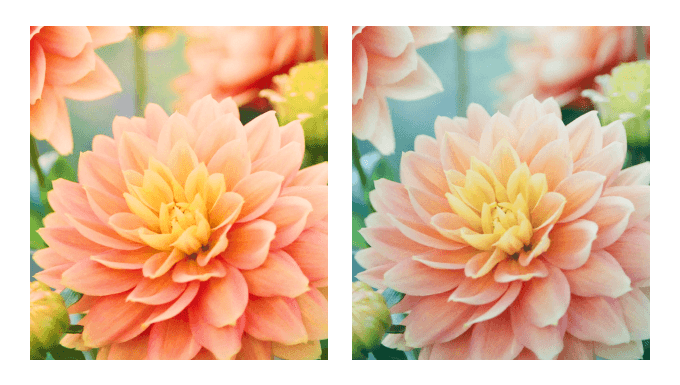
For example, here’s a comparison of an image with different image qualities. The picture on the left is taken using the Adobe RGB color space. However, when uploaded to WordPress, the image loses its vibrancy and looks dull.
WordPress also compresses the resized images, which may contribute to slight quality loss. For more details, read our guide on how to increase or decrease WordPress JPEG image compression.
With that in mind, let’s look at how to easily prevent image color and saturation loss in WordPress.
How to Fix Color and Saturation Loss for Images in WordPress Using Photoshop
The easiest way to fix this issue is by converting your images to sRGB color space before uploading them to WordPress. This can be easily done using an image editing tool like Adobe Photoshop.
This is the exact method our own design team uses here at WPBeginner. It ensures all the screenshots and feature graphics you see in our tutorials are crisp and color-accurate every single time.
Method 1: Convert Images to sRGB
First, you will need to open your image in Adobe Photoshop.
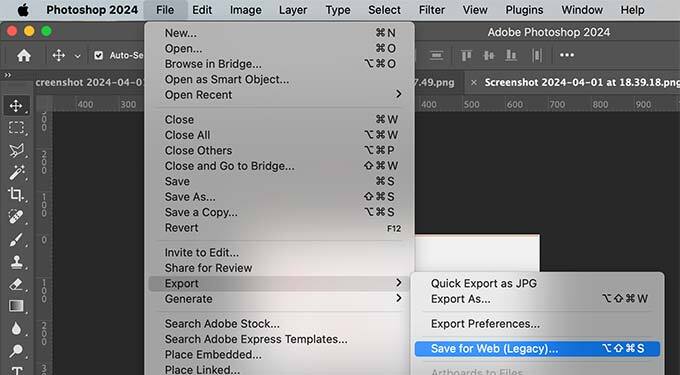
From here, simply head to File » Export » Save for Web (Legacy) from the menu at the top.
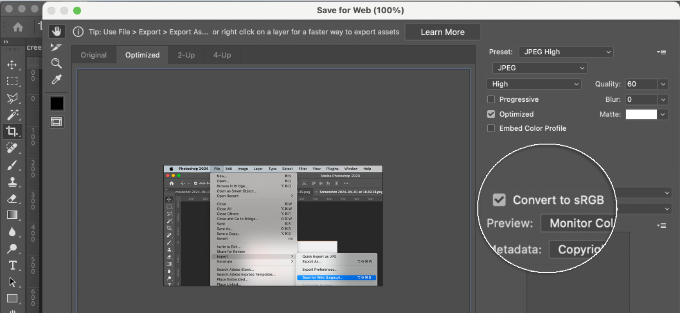
This will bring up the Save for Web dialog box. Here, it is critical that you check the box labeled ‘Convert to sRGB’.
This makes sure the image will look the same on WordPress as it does in Photoshop.
Method 2: Edit Color Settings in Photoshop
On the other hand, you can use this method if you are not satisfied with the result of the first method.
In Adobe Photoshop, go to Edit » Color Settings. This will bring up the color settings dialog box.
You need to select ‘North America Web/Internet’ from the settings dropdown menu.
Next, under the Color Management Policies section, select the RGB settings to Convert to Working RGB. Then, click the ‘OK’ button to save your settings.
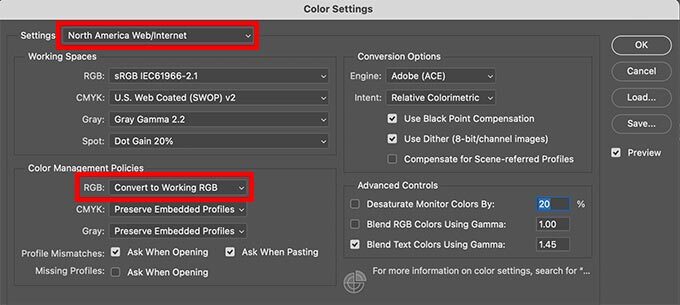
Now, you need to open the original photograph or image that you wanted to upload.
If the working space profile mismatches, then Photoshop will show a warning and ask you what to do.
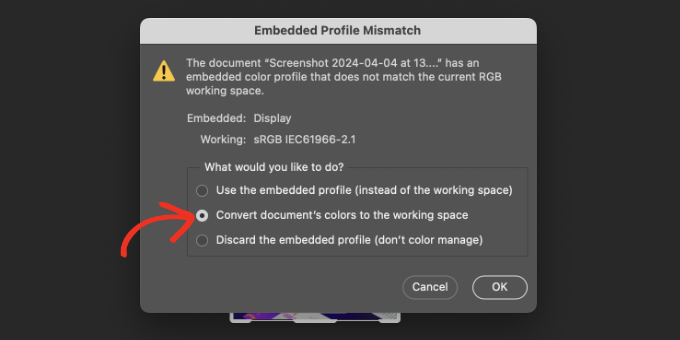
You should select ‘Convert document’s color to working space’ and then click ‘OK’. Your photo’s color profile is now more accurately converted. You can now save the image to preserve your changes.
Repeat the process for all the images that you want to upload. Now, you can safely upload these converted images without any color or saturation loss in WordPress.
How to Fix Color and Saturation Loss in WordPress With GIMP
GIMP is a powerful free alternative to Adobe Photoshop. You can use it to convert the color space for your WordPress uploads.
GIMP basically detects each image you try to open to see if it has a color profile embedded. If your image is in Adobe RGB color space, then GIMP will automatically show you a dialog box to convert it.
Sometimes an image may not have an embedded color profile, or GIMP may fail to read it correctly. In that case, you will need to manually change the color space.
First, you need to know what color space your photograph may be using. Usually, it is Adobe RGB, but it could be different. If you are unsure, then you can check your camera device to figure this out.
Simply open your image in GIMP. Then, go to Image » Color Management » Convert to Color Profile.
Once you have applied the color profile, GIMP can now safely convert it to sRGB without losing colors.
Simply go to Image » Color Management and then select the ‘Convert to Color Profile’ option.
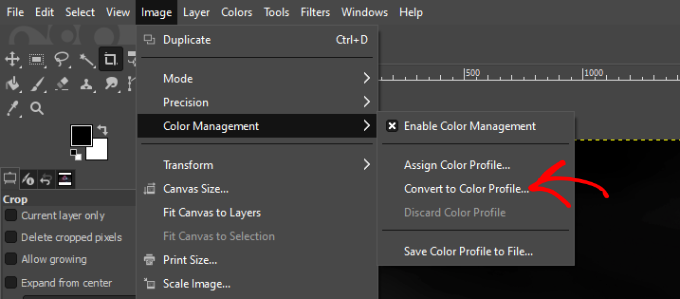
A new dialogue box will now open.
A new dialog box will open. Set the ‘Convert to’ option to ‘sRGB built-in’ (or sometimes labeled just ‘Built-in RGB’) and click the ‘Convert’ button.
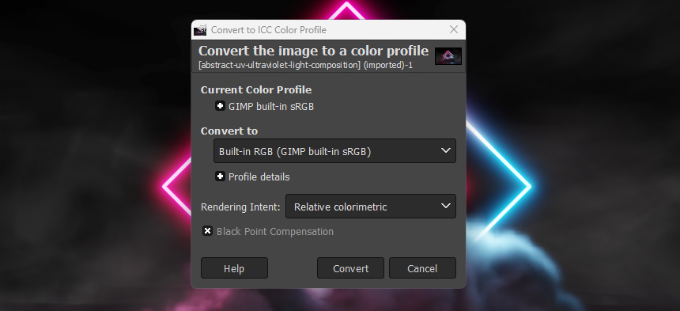
GIMP will now convert the color profile to sRGB, and you can save your image. Simply repeat the process for other images you want to upload to WordPress.
Frequently Asked Questions About Image Color in WordPress
Over the years of helping thousands of users, we’ve noticed a few questions about WordPress images pop up again and again. Here are answers to the most common ones we receive.
Does WordPress always reduce image quality?
By default, WordPress compresses images to help your website load faster. This can sometimes cause slight pixelation, but the color loss is usually caused by the missing sRGB profile we discussed earlier.
Can I fix the color of images already uploaded to my Media Library?
Currently, WordPress cannot automatically fix the color profile of images that are already uploaded. You will need to convert the original image to sRGB on your computer and then re-upload it to your media library.
Is sRGB the best color space for all web images?
Yes, sRGB is the standard color space for the web. Almost all web browsers and devices are designed to display it correctly. Converting your images to sRGB ensures the colors look consistent for all your visitors.
Additional Resources for Image Optimization
Here are some guides you can go through to ensure your images are properly optimized:
- How to Properly Add Images in WordPress (Step by Step)
- WebP vs. PNG vs. JPEG: The Best Image Format for WordPress
- Beginner’s Guide to Image SEO – Optimize Images for Search Engines
- How to Bulk Edit Featured Images in WordPress
- How to Choose the Best Web Design Software (Compared)
- Beginner’s Guide to WordPress Image Sizes (+ Best Practices)
- Best WordPress Image Compression Plugins Compared
We hope this article helped you fix image color and saturation loss in WordPress. You may also want to see our guide on ways to prevent image theft in WordPress and how to clean up your WordPress media library.
If you liked this article, then please subscribe to our YouTube Channel for WordPress video tutorials. You can also find us on Twitter and Facebook.





Gen
I tried this, and while there is improvement in image quality, it is still not the same quality image that I see in the program. What else can I do?
WPBeginner Support
There will be a drop in quality mainly if you are not using web safe colors but by using this method the quality drop should be minimized compared to other methods.
Admin
Shanon Sinn
I just wanted to express my gratitude! Frustrated after making a graphic by hand illustrations/illustrator/photoshop that I could not get to right on WordPress. It has only a few colours (at first glance) but needs to be balanced, otherwise it just looks kindergarten. Thank you.
WPBeginner Support
Glad our guide could help
Admin
Joe Webmaster
This is fantastic! I just noticed how faded my images are and just fixed the problem. I’ve been doing this for years and thought it was the compression. Gimp worked perfectly. Thank you !!! Can’t believe I have not come across this solution before.
WPBeginner Support
Glad our recommendation was able to help
Admin
Hagen
Hi there,
just wanted to thank you for this great tutorial!
We just got our great, pricy pictures from our photographer and wanted to add them to our shop.
We werde so sad to see how they looked.
With converting to sRGB color, all pictures are displayed correctly.
Thanks!
WPBeginner Support
You’re welcome, glad our recommendations could help
Admin
Richard Silverbeet
Good tips dude but images don’t “loose” colors, they “lose” colors. Loose is the opposite of tight.
WPBeginner Support
Thank you for letting us know about that typo, we’ll be sure to fix it
Admin
Kris Byers
If it’s still not working after following the above, try removing custom css to see if its a stylesheet clash, this solved it for me!!
WPBeginner Support
Thanks for sharing what fixed it for you
Admin
Ash
tried all the adjustments (even to an extreme change of saturation and contrast) and every time it strips it back to a muddy dull pic.
this is very frustrating for an artists website!!!
some other solution options would be appreciated if anyone knows other alternatives to this problem plz
Paul
This is confusing, because you keep referring to RGB as a colorspace. RGB is a color model, not a color space. You can’t contrast RGB with sRGB, because sRGB is a color space that is in fact RGB.
Are you using RGB as shorthand for Adobe RGB? All of these color spaces … sRGB, Adobe RGB, ProPhoto RGB, etc., are RGB spaces. I literally don’t know how to interpret what you’re saying.
The real question that needs to be answered: is WordPress stripping the ICC profiles from the images? Modern browsers are starting to use the profiles for color management, but they can’t do it if WP is jacking everything up.
This is mostly a problem for people who have graphic arts monitors … ones that show a wider color gamut than the sRGB space. Untagged images look terrible on these.
Julie
What if your photos are already inside of wordpress and you don’t have them on your computer?
Rosa Bosma
This is an awesome trick, not just for WordPress, but many other platforms as well! E.g., it allows you to upload a profile picture with much more vivid colours.
francisco cuellar
NOPE didnt work, colors still dull
Daisy
I have been struggling with the color loss a lot now and it is driving my slightly insane. I have been exporting my images as RGB, both sRGB and the web one in all possible combinations and Wordpress is still stripping the color from my images. I don’t know what to do at this point.
Sandra Collins
Thank you for this! It solved a problem I was having with a logo image where WP changed the color from purple to blue.
jmdaix
May be an easy way to do this is to enable “Convert to sRGB” from the Photoshop “Save For Web” menu. You will keep your psd or original file with your working space and just export a good version for Wordpress.
Paddy
Is there a similar process when using GIMP? Thanks.
WPBeginner Support
We have updated the article with section on how to do this in GIMP. Hope this helps.
Admin
Jaime
Will this work for Gimp, or only PS?
WPBeginner Support
We have updated the article with instructions on how to do this with GIMP.
Admin
Jon Brown
You interchanged terms several times. The color space names are sRGB and Adobe RGB. For example there is no such thing as “Adobe sRGB”.