


Managing a WordPress site with lots of documents often leads to unexpected display issues.
Recently, I helped a user whose specialized PDF plugin was fighting with the default thumbnail generator. It made their media library look cluttered and broke their front-end gallery layout.
Fortunately, we found a quick code snippet that resolves this conflict immediately.
In this article, I will show you how to disable PDF thumbnail previews in WordPress.
Here’s a quick look at what we’ll cover in this guide.
Why Disable PDF Thumbnail Previews in WordPress?
By default, WordPress generates thumbnail previews of PDF files uploaded to the Media Library.
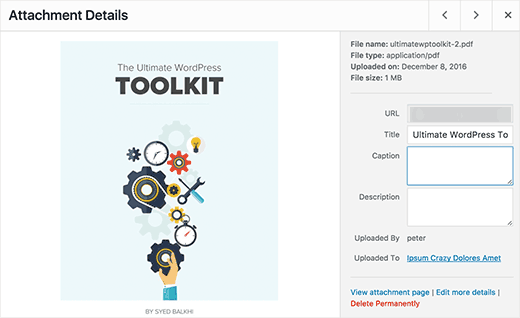
This is a very useful feature for most WordPress sites.
However, some site owners may already be using PDF plugins that handle thumbnail previews and the overall display of the PDF downloads on their website.
If this feature conflicts with your PDF plugin, or if large PDF uploads are causing HTTP errors and timeouts on your server, then you should disable these previews.
Having said that, let’s take a look at how to easily disable PDF thumbnail previews in WordPress.
Expert Tip: At WPBeginner and our sister companies, we rely on WPCode every day. It allows our team to safely add and organize all the custom code snippets needed to run our sites without ever touching the core theme files.
It’s the same tool we use for our development workflow, and it’s why we confidently recommend it to all WordPress users.
Disable PDF Thumbnail Previews in WordPress
This tutorial requires you to add a simple code snippet to your WordPress site. If you haven’t done this before, then you may want to see our guide on pasting code snippets from the web into WordPress.
Many tutorials will tell you to add this code directly to your theme’s functions.php file. However, we don’t recommend this because a small error can break your WordPress website and cause any number of WordPress errors.
Instead, we recommend using the free WPCode plugin. It’s the best code snippets plugin that allows you to add custom code in WordPress without breaking your WordPress site.
Note: There is also a premium WPCode plugin. Although you don’t need it for this tutorial, it will give you access to a cloud-based snippets library, conditional logic, and more. For more details, see our complete WPCode review.
First, you need to install and activate the free WPCode plugin. For more details, just see our guide on how to install a WordPress plugin.
Next, you need to go to Code Snippets » + Add Snippet. Here, you can hover your mouse over ‘Add Your Custom Code (New Snippet)’ and click on ‘Use snippet’.
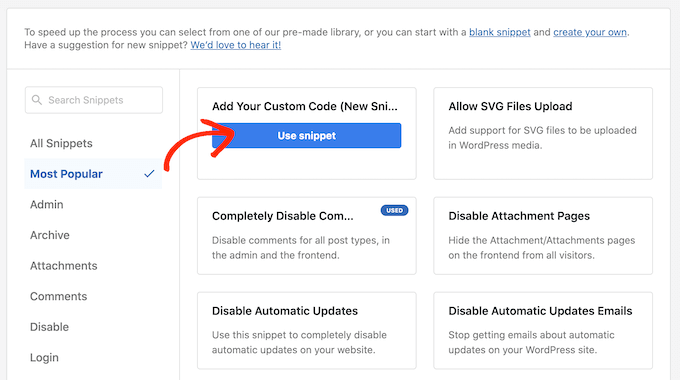
You can enter a name for your code snippet into the box at the top. In our example, we are using ‘Disable Thumbnail Previews’.
Then, you need to copy the following code:
function wpb_disable_pdf_previews() {
$fallbacksizes = array();
return $fallbacksizes;
}
add_filter('fallback_intermediate_image_sizes', 'wpb_disable_pdf_previews');
Paste this code into the ‘Code Preview’ box.
You then need to click on the ‘Code Type’ dropdown and choose ‘PHP Snippet’.
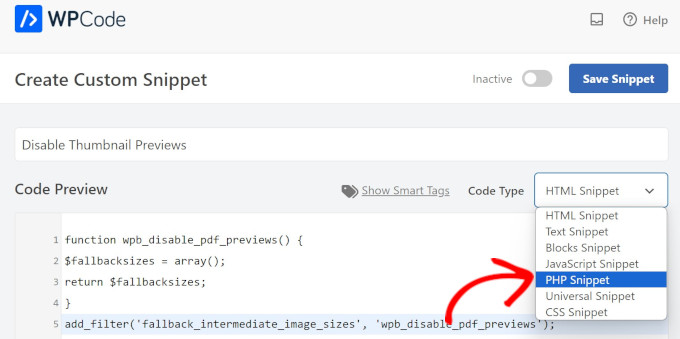
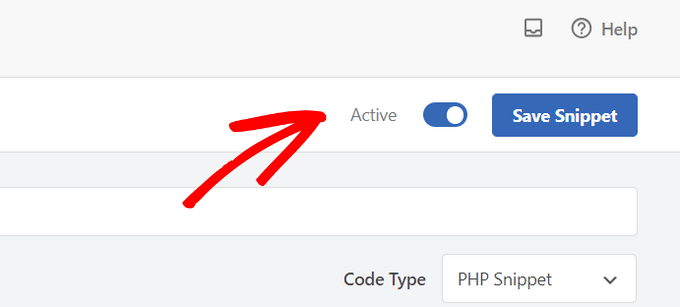
Then, simply click on the toggle on the top to make the snippet ‘Active’ and then select ‘Save Snippet’.
WPCode will now execute the code snippet on your WordPress website.
This code tells WordPress to stop creating extra image sizes for PDF files, which prevents the thumbnail generation process.
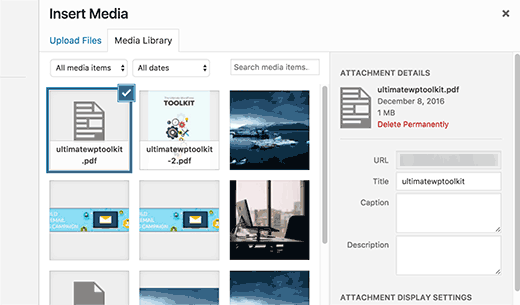
You will notice that instead of a thumbnail preview, WordPress will now display the default PDF document icon for your file.
Frequently Asked Questions About Disabling PDF Thumbnails
Here are answers to some common questions we receive about managing PDF previews in WordPress.
Will disabling thumbnail previews affect my existing PDF files?
No, this code does not affect any of your previously uploaded PDF files or their existing thumbnails. It only stops WordPress from creating thumbnails for new PDFs you upload after adding the snippet.
Can I re-enable the PDF thumbnail previews later?
Yes, it’s very easy to revert the change. All you need to do is go back to the code snippet in the WPCode plugin and toggle the switch to ‘Inactive.’ This will immediately restore the default WordPress functionality.
Why would I want to keep this feature enabled?
Generally, PDF thumbnail previews are helpful for identifying files in the media library. You should only consider disabling it if you notice a direct conflict with another plugin that handles your PDF documents.
Additional Resources
We hope this tutorial helped you learn how to disable PDF thumbnail previews in WordPress. You may also want to see these additional resources:
- How to Upload PDF Files to Your WordPress Site
- How to Add a PDF Viewer in WordPress (Step by Step)
- How to Regenerate PDF Thumbnails in WordPress
- Beginner’s Guide to WordPress Image Sizes (+ Best Practices)
- How to Fix Common Image Issues in WordPress (Ultimate Guide)
If you liked this article, then please subscribe to our YouTube Channel for WordPress video tutorials. You can also find us on Twitter and Facebook.





dkelly
Works! Thanks for posting this. This will save storage on my server. I’ve been asking myself why wordpress is generating images from my pdf files. I use woocommerce and couldn’t figure this out until your post. I tried to disable a few plugins before I began to suspect that this was a wordpress update. The PDF preview images don’t work on woocommerce anyhow since the images are placed in a protected directory. Thanks.