


By default, WordPress shows error messages on the login page when someone enters the wrong username or password. While these messages are meant to help users, they can also give clues to hackers trying to break into your site.
Disabling these login hints is a simple way to strengthen your site’s security.
By hiding these details, you make it harder for hackers to guess your credentials. We always disable them on our sites for an extra layer of protection.
In this article, we’ll walk you through how to disable login hints in WordPress to help you make your website more secure.
💡 Quick Answer: How to Disable Login Hints in WordPress
Here’s how to disable login hints in WordPress, step by step:
- Install and activate WPCode.
- Create a new custom snippet.
- Paste the provided code snippet.
- Set code type to PHP.
- Activate and save the snippet.
- Test your new error message.
What Are Login Hints in WordPress Login Error Messages?
Login hints are messages that WordPress shows when someone enters the wrong username or password. While they can help genuine users, they also give clues to hackers trying to access your site.
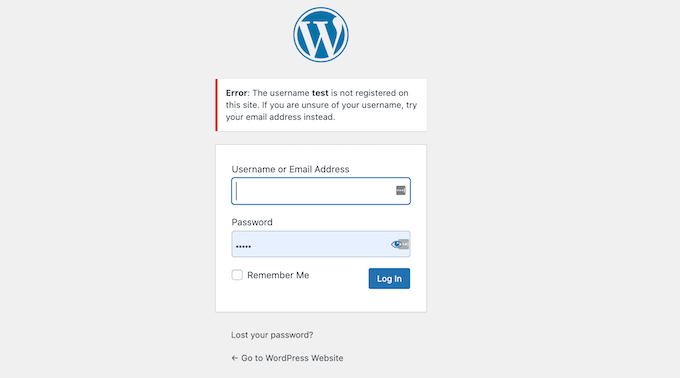
For example, if someone enters a wrong username or email , WordPress displays: “The username is not registered on this site. If you are unsure of your username, try your email address instead.”
This lets attackers know the username they tried doesn’t exist.
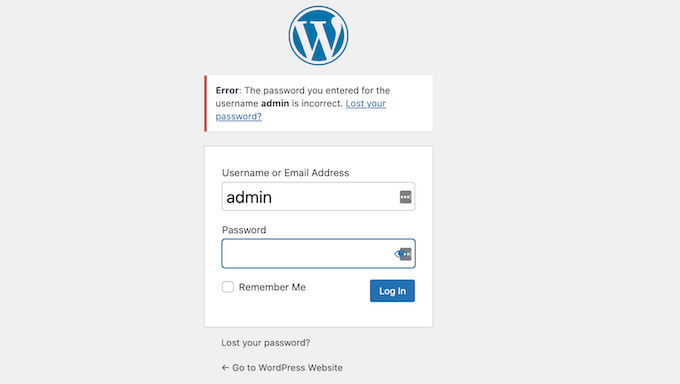
If a correct username is entered but the password is wrong, WordPress shows: “The password you entered for the username is incorrect. Lost your password?”
This confirms the username is valid, leaving only the password to guess.
Since WordPress also allows login using an email address, hackers can try different emails to see which ones are valid.
Once they find a correct email, the error message changes to indicate only the password is wrong, giving them a hint that they are on the right track.
To stay safe, always use a unique username and a strong, hard-to-guess password. You may also want to use a plugin to enforce strong passwords for all users on your site.
Even with these steps, login hints can still help hackers, so next we’ll show how to hide them in WordPress error messages for better security.
Hiding Login Hints in WordPress
The easiest way to disable login hints in WordPress login error messages is by pasting some code into WordPress. While we normally don’t suggest this for beginners, WPCode makes it easy for anyone to add code to their WordPress website.
You can add the following code snippet to the bottom of your site’s functions.php file, but doing so could cause your site to break.
In our experience, WPCode is super beginner-friendly and ensures that even if you make a mistake while adding custom code, your site remains accessible. To learn more, see our detailed WPCode review.
Step 1: Install and Activate WPCode Plugin
First, you need to install and activate the free WPCode plugin. For detailed instructions, you can see our guide on how to install a WordPress plugin.
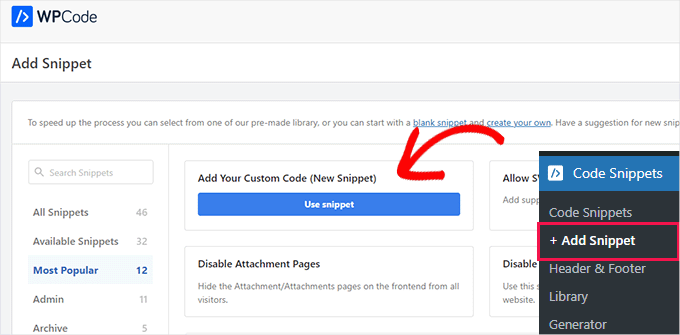
Upon activation, all you have to do is go to Code Snippets » +Add Snippet from your WordPress admin dashboard. Then, you’ll want to hover your mouse over ‘Add Your Custom Code’ and click ‘Use Snippet.’
Step 2: Paste the Code Snippet to Disable Login Hints
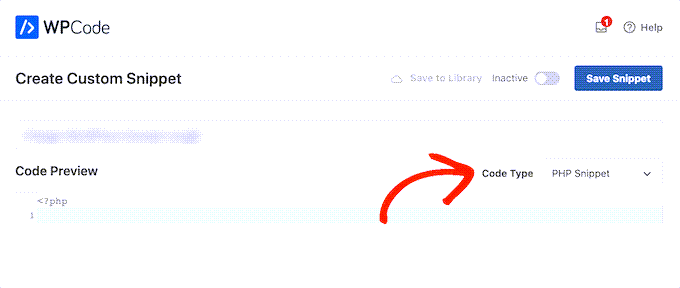
After that, you simply need to name your new snippet and paste the following code into the ‘Code Preview’ area:
function no_wordpress_errors(){
  return 'Something is wrong!';
}
add_filter( 'login_errors', 'no_wordpress_errors' );
This code tells WordPress to show a custom message instead of the default error, such as ‘Something is wrong!’.
You can change the text ‘Something is wrong!’ in the code to display any custom message you want.
return 'Something is wrong!';
Be sure to select PHP from the ‘Code Type’ dropdown, and then you can toggle the switch from ‘Inactive’ to ‘Active’ and click on ‘Save Snippet.’
Step 3: Test the New Login Error Message
Once you’ve done that, it’s a good idea to test your new error message.
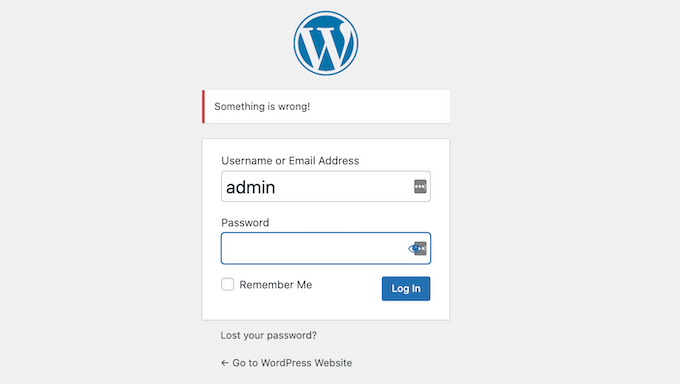
To do this test, simply head over to your website’s login page and type in the wrong username, password, or email. Then, go ahead and click on the ‘Log In’ button.
WordPress will now show your new error message without giving you any hints about what could be wrong.
Now, do note that while this code will disable login hints in WordPress, it won’t protect you from more advanced attempts or brute-force attacks.
The easiest way to prevent hackers from accessing your site is to use a dedicated WordPress security plugin like Sucuri, or a service like Cloudflare that provides a Web Application Firewall (WAF).
For more information, you can read our ultimate guide on how to secure your WordPress website.
Video Tutorial
To make it easy, we have also created a video tutorial on how to disable login hints in WordPress login error messages.
Bonus Tip: Improving Your WordPress Login Security
Now that you know the importance of a strong username and password, let’s explore some additional ways to boost your login security. It’s important not only for you but also for anyone contributing to your blog, especially if multiple authors run it.
Here are some bonus tips to help keep your accounts even safer:
- Enable Two-Factor Authentication (2FA): This adds an extra layer of security by requiring a second form of verification, like a text message code or a security question.
- Use a Password Manager: These tools help you create and store complex passwords securely, so you don’t have to remember them all.
- Update Your Password Regularly: Change your passwords every few months to minimize the risk of unauthorized access. It’s even better if you can force password updates for users.
- Avoid Using Public Wi-Fi for Sensitive Logins: If possible, use a secure, private connection when logging into important accounts.
- Keep Your Software Updated: Regular updates can protect you from security vulnerabilities that attackers may exploit.
Plus, you might want to limit login attempts on your WordPress site.
During a brute-force attack, hackers use automated software to repeatedly guess passwords due to the platform’s default allowance for unlimited login attempts.
Limiting failed login attempts, such as temporarily locking out users after 5 unsuccessful tries, significantly reduces the risk of unauthorized access from brute force attacks.
Frequently Asked Questions About Hiding Login Hints in WordPress
Here are some questions that our readers have frequently asked about hiding login hints from WordPress login error messages:
How to fix WordPress login error at WP admin?
To fix a WordPress login error at WP admin, first check that your username and password are correct. If the problem continues, try clearing browser cookies, disabling plugins via FTP, or resetting your password through phpMyAdmin.
How do I remove the login option in WordPress?
You can remove the login option in WordPress by redirecting the default login page to another page or by using a plugin like WPS Hide Login. This is useful for membership sites or sites that want to limit access to registered users only.
What are common WordPress login errors?
Common WordPress login errors include “Incorrect password,” “Unknown username,” “Too many failed login attempts,” and “Cookies are blocked or not supported.” These usually happen due to wrong credentials, plugin conflicts, or caching issues.
How to clear WordPress error log?
You can clear the WordPress error log by accessing the wp-content folder on your server, locating the debug.log file, and deleting its contents. Alternatively, you can disable logging in your wp-config.php file to prevent new errors from being recorded.
We hope this article helped you learn how to hide login hints from WordPress login error messages. Next up, you may also want to see our guide on how to create a client portal with private logins and pages or how to add a social login to WordPress.
If you liked this article, then please subscribe to our YouTube Channel for WordPress video tutorials. You can also find us on Twitter and Facebook.




Dennis Muthomi
I’d suggest taking this a step further by implementing two-factor authentication for an extra layer of security. I have disabled log in hints and implemented 2FA just to be safe(I have been hacked before).
Thomas Maier
Hello how can i translate the code above in different languages? I need it for the woocommerce login for the customers.
WPBeginner Support
You would want to change the ‘Something is wrong!’ text to the text you want but if you want the text to change into multiple languages, that would require a bit more coding than we would have for a beginner article. In that case you would want to take a look at multilingual plugins.
Admin
Vahn
Thank you loads! I spent hours looking for the place to change this.
WPBeginner Support
Glad our guide was helpful
Admin
Izzy
When I add this to my WpTouch plugin, it shows a part of the code in my header…
WPBeginner Support
As long as the code is working on the desktop version you would want to reach out to WPTouch to let them know about that issue to take a look.
Admin
Anand
Well it is easy to know the username if it is right, as when entered correct username and the wrong password, the username field does not get blank even after getting the ‘something is wrong’ warning. Which clearly is a hint the yes this is the correct username. Is there any way to make the username field blank in this scenario. Please help.
Shane
Is there a way to change the text of the error message on the lostpassword page that says by default, “Please enter your username or email address. You will receive a link to create a new password via email.”?
I can’t seem to find any material on the subject
Nick
I was wondering the same thing. Why can’t we just change the wording of the error message instead of adding a function that might be overwritten with the next update?
Paco
The only thing is that when you enter a correct username and an incorrect password, it gives a message “something is wrong” but you can see the username, which confirms it in case you have guessed it. I don´t know if this happens in WordPress 4.5. Is there any way of leaving the username field blank even though it´s correct? Thank you
maudenicholson2
I am curious to find out what blog system you’re using? I’m having some small security issues with my latest website and I would like to find something more safeguarded. Do you have any solutions?
WPBeginner Support
We are using WordPress with Sucuri.
Admin
freyaewu73605919
I am truly thankful to the owner of this web page who has shared this enormous article at at this time.
deneengranger
Do you have any video of that? I’d like to find out some additional information.
WPBeginner Support
Video will be available soon. Please subscribe to our YouTube Channel.
Admin
Bob
WP Simple Firewall or Shield gives you the ability to hide the login menu, lock down the Dashboard and it comes with Sucuri and Brute Attack prevention. It is a free plugin, use it in conjunction with a password manager, so you don’t forget or misplace your passwords. I use Lastpass, which is also free. Shield replaced six security plugins and sped up my website.
Phillip George
Is there a help line in Australia as I have forgotten my user name for logon being a little old it is a problem
Bob
G’day Phillip, sorry mate no help line. Try going through whoever hosts your website, they should be able to help you out. Once reset use a password manager like Lastpass, you only have to remember one password. WRITE IT DOWN; did I say write it down because if you don’t, WRITE IT DOWN you’ll really will be up the creek, without a paddle.