


When I managed other blog writers, I had a list of guidelines they were supposed to follow, but it worried me that these guidelines, like forbidden words, would be missed.
Even with clear instructions, writers would sometimes use titles that didn’t match our brand voice or contained terms we wanted to avoid.
That’s when I discovered how to create a forbidden words list for WordPress titles. This simple feature gave me peace of mind knowing that certain words or phrases would be automatically blocked before publication.
I regularly share this tip with site owners who need better editorial control over their content. It might sound like a niche feature, but it’s incredibly useful for anyone managing a multi-author blog or wanting to maintain consistent brand messaging.
In this tutorial, I’ll show you how to create a list of forbidden words for WordPress titles. You’ll gain complete control over what gets published, ensuring your content always meets your standards.
Why Create a List of Forbidden Words for Post Titles in WordPress?
It is not easy to keep all authors informed about your editorial style and policy on a multi-author site. You can use a WordPress plugin to leave editorial comments, add notes, and custom statuses, but it will not monitor your post titles.
If an author has publishing rights, then the unwanted words can go live on your website. You can prevent this by taking away publishing privileges from users, but this means more work for you as you will have to review and publish posts yourself.
Having said that, I’ll show you how you can easily add a list of banned words for WordPress post titles.
Adding a List of Banned Words for WordPress Post Titles
You can add this functionality by manually inserting code into your WordPress site. This method works if you are comfortable pasting code snippets into WordPress, but it requires caution.
Editing your theme’s functions.php file directly can break your site if something goes wrong. Always backup your WordPress site before making changes.
If you prefer a safer approach, I’ll also show an easier method using WPCode, which lets you add the same functionality without touching your theme files.
Here’s the code you need to add, either in your theme’s functions.php file, in a site-specific plugin, or in a code snippets plugin.
function wpb_forbidden_title($title){
global $post;
$title = $post->post_title;

// Add restricted words or phrases separated by a semicolon

$restricted_words = "word1;word2;word3";

$restricted_words = explode(";", $restricted_words);
foreach($restricted_words as $restricted_word){
if (stristr( $title, $restricted_word))
wp_die( __('Error: You have used a forbidden word "'. $restricted_word .'" in post title') );
}
}
add_action('publish_post', 'wpb_forbidden_title', 10, 1);
Note: Don’t forget to add the words you want to ban in $restricted_words variable. You need to use a semicolon to separate different words and phrases.
As I mentioned, the safer way to add this code snippet is by using WPCode, the best WordPress code snippets plugin. This lets you add the code from your WordPress dashboard without touching your theme files.
You’ll also get access to a library of popular code snippets, automatic code checks, conditional logic options, and additional tools to make coding easier.
First, you need to install and activate the free WPCode plugin. For instructions, see this guide on how to install a WordPress plugin.
Note: The free WPCode plugin includes everything you need to safely add custom code in WordPress. If you want extra features, such as an AI snippet generator, conversion pixels, and more, you can upgrade to WPCode Pro.
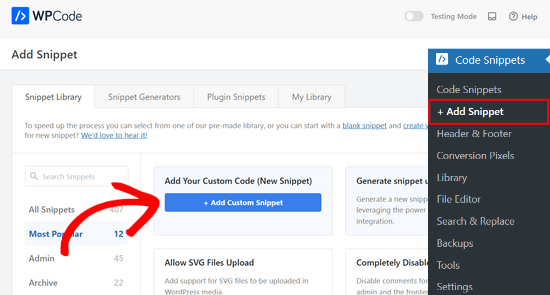
Once the plugin is activated, head to the Code Snippets » + Add Snippet page from the WordPress dashboard.
From there, click the ‘+ Add Custom Snippet’ button under the ‘Add Your Custom Code (New Snippet)’ option.
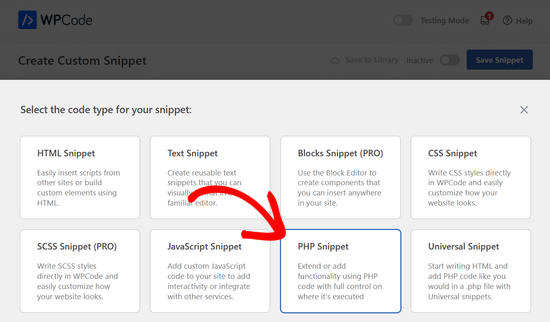
Then, you need to select ‘PHP Snippet’ as the code type from the list of options that appear on the screen.
Next, enter a title for your snippet, which can be anything to help you remember what the code is for.
After that, paste the code from above into the ‘Code Preview’ box.
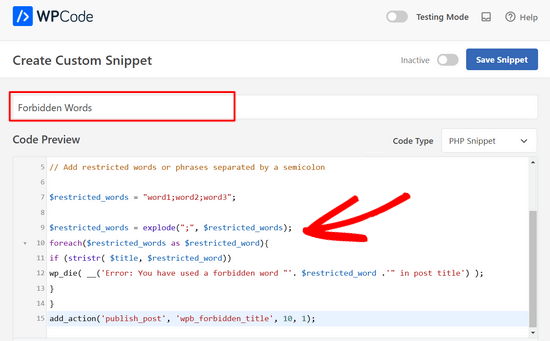
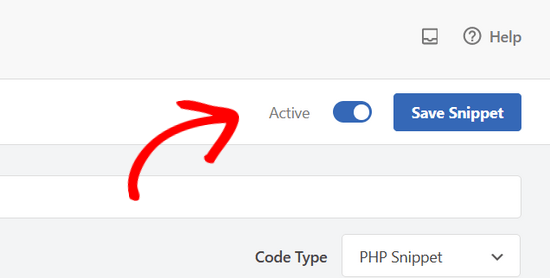
For the final step, simply toggle the switch from ‘Inactive’ to ‘Active’ and click the ‘Save Snippet’ button.
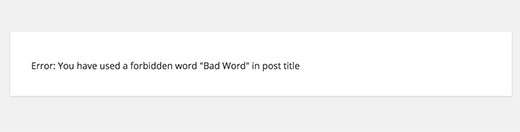
Now the code will trigger a function when a user tries to publish a post which checks the post title for restricted words. If it finds a restricted word in the post title, then it will show the user an error like this:
That’s all, I hope this article helped you learn how to add a list of forbidden words for WordPress post titles. You may also want to see our guide on how to require featured images for posts in WordPress or our expert picks of the best popular posts plugins for WordPress.
If you liked this article, then please subscribe to our YouTube Channel for WordPress video tutorials. You can also find us on Twitter and Facebook.




Dennis Muthomi
I’ve implemented this and it’s been a lifesaver. One more tip: consider creating a shared doc with your authors explaining why the words are forbidden. That way everyone will understand and you won’t have to do as many post edits after the fact. Thanks for sharing!
petri
Excellent, simple example. How should I modify this if I would want to make same for post content. More better if I could define post type
charles langat
Is possible to modify the code above use it to show censored words in the wordpress posts in the text area?
venkat
Hi ..in my wordpress site..i uploaded .sql files through ftp
when i open that .sql file in separate page,files are forbidden…getting an error like 403 forbideen error…how can i access those files…
pls help me out