


Did you know that Yandex is one of the world’s largest search engines? If you only optimize for Google, you might be missing out on a huge audience in Russia, Turkey, and Central Asia.
At WPBeginner, we track our search performance across all major platforms to ensure we never miss a traffic opportunity. Adding your site to Yandex is a simple way to expand your reach.
In this guide, we will show you how to add your WordPress site to Yandex Webmaster Tools step-by-step.
What Is Yandex?
Yandex is Russia’s leading search engine and the fourth-largest search engine globally. While it started in Russia, Yandex now serves millions of users across Europe, Asia, and other regions.
Think of it as the Russian equivalent of Google. It offers web search, images, videos, maps, email, and dozens of other services.
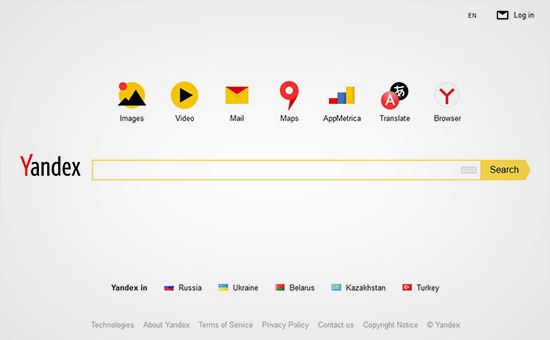
Here’s why Yandex matters for your WordPress site: it processes over 3 billion search queries every month and has a dominant market share in Russia (over 60%) and a significant presence in countries like Turkey, Belarus, and Kazakhstan.
If you have visitors from these regions or want to expand your reach, Yandex can be a valuable traffic source.
Just like Google Search Console and Bing Webmaster Tools, Yandex Webmaster Tools gives you insights into how your site performs in their search results. You can monitor your traffic stats, see which keywords bring visitors, identify technical issues, and optimize your site for SEO.
The best part? You can easily connect your WordPress site using the All in One SEO plugin.
How to Add Your WordPress Site in Yandex Webmaster Tools
Before we start, you need to create a Yandex Webmaster tools account to connect your site.
Once you have created your account, you can log in to your WordPress site to configure Yandex Webmaster tools using the All in One SEO plugin. You can learn how to install and configure the plugin in our guide on how to set up All in One SEO for WordPress.
The free version of All in One SEO includes the webmaster tool verification feature. Their pro version comes with more powerful SEO features.
Let’s take a look at how you can add your site in Yandex Webmaster tools and start optimizing it right away. Here are the steps we will cover:
Step 1: Create an Account on Yandex
The first thing you need to do is log in to your Yandex Webmaster Tools account. If you don’t have a Yandex account, then you can create an account on the Yandex website.
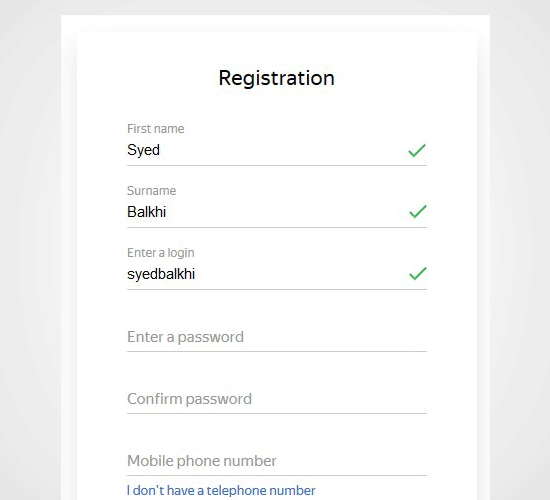
After creating the account, you will see the Yandex Webmaster page.
On this page, you need to click on the ‘+’ button in the top bar to add your site to Yandex.
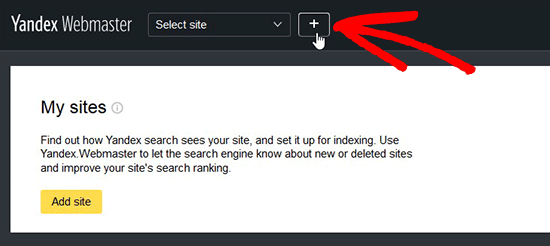
In the site address field, you need to add your website’s full domain name and click on the ‘Add’ button.
Note: If your main domain uses www in the URL, then you need to add it before the domain (such as www.wpbeginner.com).

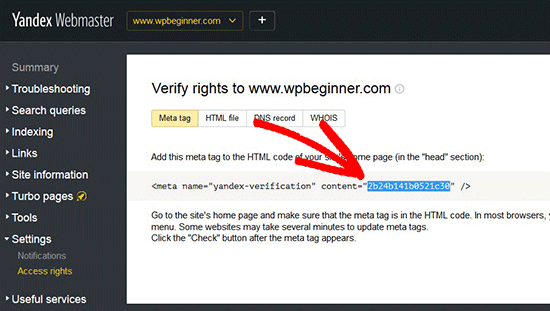
On the next page, you will be asked to verify website ownership by adding meta content to your WordPress site.
Go ahead and copy the content code from this page because you will need it in Step 2.
Step 2: Log In to WordPress Admin Area and Add the Code
Now, you need to log in to your WordPress admin area and add the verification code in the All in One SEO webmaster settings.
Simply head over to All in One SEO » General Settings and click on the ‘Webmaster Tools’ menu item.
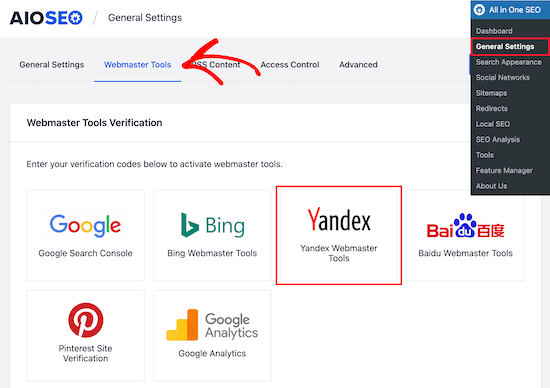
Next, select the ‘Yandex Webmaster Tools’ block.
Then, you need to paste the code in the Yandex verification code field and click on the ‘Save Changes’ button.
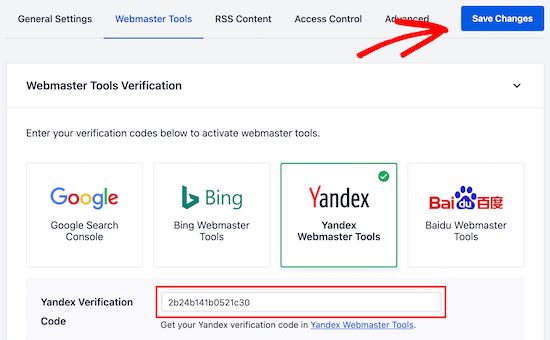
Note: If you are using a caching plugin, don’t forget to clear your cache after saving the settings. This ensures Yandex can recognize the verification code immediately.
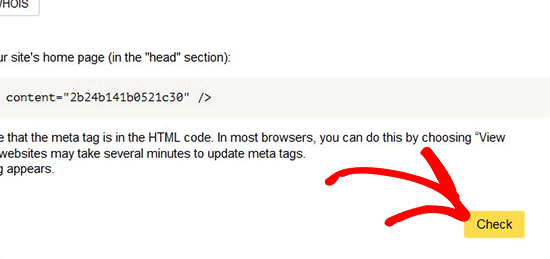
After adding the code to your WordPress site, you need to go back to the Yandex Webmaster tools page where you copied the code from.
Now, you should click on the ‘Check’ button to verify ownership.
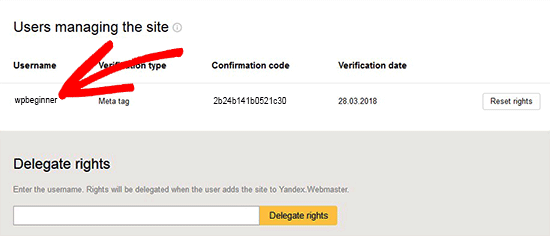
After successful verification, it will show your username that has the right to manage your site in Yandex Webmaster Tools.
You can also delegate the rights to other users by adding their usernames and clicking on the ‘Delegate rights’ button.
Now that your site is verified and added to Yandex Webmaster tools, you can see traffic stats, search errors, search queries, internal and external links, site information, robots.txt analysis, audit pages for mobile, and more in the Yandex dashboard.
You can use the menu on the left side of the screen to find any information that you need.
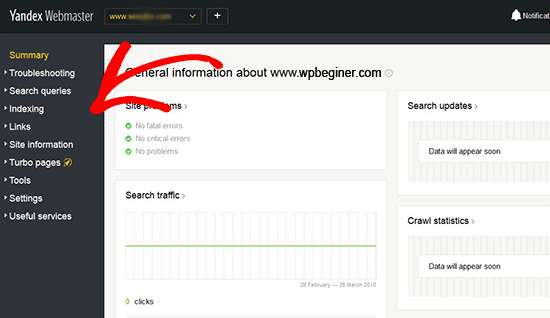
Yandex Webmaster has options for site optimization that are filtered from troubleshooting to important settings like robots.txt and .htaccess. You can further optimize your robots.txt for SEO separately and regularly perform WordPress maintenance tasks to keep your site up to date.
Frequently Asked Questions About Yandex Webmaster Tools
Our readers often ask us about the benefits of submitting their sites to different search engines. Here are the answers to some of the most common questions about Yandex Webmaster Tools.
1. Is Yandex Webmaster Tools free to use?
Yes, Yandex Webmaster Tools is a completely free service provided by Yandex. You do not need to pay any fees to create an account, submit your WordPress website, or access the analytics and diagnostic reports provided in the dashboard.
2. Do I need to add my site to Yandex if my content is only in English?
Even if your content is in English, adding your site to Yandex Webmaster Tools can still be beneficial. Yandex is a global search engine that indexes content in many languages, not just Russian. Submitting your site ensures that Yandex crawls your pages correctly, which can bring you extra traffic from users in Europe and Asia.
3. Will adding Yandex verification code slow down my website?
No, adding the Yandex verification meta tag to your site header will not slow down your WordPress website. The verification code is a tiny piece of text that has no impact on your page load speed or performance.
4. Can I use All in One SEO to verify my site with other search engines?
Yes, the All in One SEO plugin allows you to verify your WordPress site with multiple search engines easily. In addition to Yandex, you can use the All in One SEO Webmaster Tools settings to connect your site to Google Search Console, Bing Webmaster Tools, Pinterest, and more.
5. Why is my data not showing up in Yandex immediately after verification?
After you verify your site with Yandex Webmaster Tools, it may take some time for the search engine to crawl your website and gather data. While the verification of ownership is usually instant, you might need to wait a few days before you see traffic statistics, search queries, or error reports in your Yandex dashboard.
Additional Resources on Submitting Your Website to Search Engines
We hope this article helped you learn how to add your WordPress site to Yandex Webmaster Tools. You may also want to see some other articles related to submitting your WordPress website to search engines:
- How to Submit Your Website to Search Engines (Beginner’s Guide)
- How Do I Get My WordPress Site Listed on Google? (Beginner’s Guide)
- How to Submit Your WordPress Site to Google News (Step by Step)
- How to Ask Google to Recrawl URLs of Your WordPress Site
- How to Recover a WordPress Site from a Google Search Penalty
- Why Did My WordPress Site Get De-Indexed From Google?
- How to Add Your WordPress Site to Google Search Console
- How to Add Your Website to Bing Webmaster Tools
- What Is an XML Sitemap? How to Create a Sitemap in WordPress
If you liked this article, then please subscribe to our YouTube Channel for WordPress video tutorials. You can also find us on Twitter and Facebook.





Jiří Vaněk
Thank you for the information. I added my blog to the Yandex search engine following your instructions a few weeks ago and I can confirm that it works great and Yandex is already indexing my content.
Fabian George
thanks for the information and guide. I was able to verify my site in yandex with the help of this guide
WPBeginner Support
Glad our guide was helpful
Admin
Courtney B
Thanks for this post! Was really helpful, and I appreciate it. One note: it took Yoast a little while (a few hours) before the verification registered on Yandex’s page. Could be a good point to note for folks who are trying to verify for the first time. Thank you!
WPBeginner Support
Thanks for sharing your experience doing this
Admin
Kiky
Hi, I have a problem. I’ve copied yandex code for verification on Yoast, but it doesn’t work. It said that no record with a verification key.
WPBeginner Support
If you reach out to the support for the Yoast plugin they can normally help you resolve this issue. You may also want to clear any caching on your site if you had not already.
Admin
prabhat rat
hi nancy
i want to know that is it necessary for site to submit To Google Search Engines to approve ad sense account?
please must answer?
johnson
this is what i’m looking for. thanks for the tutorial!
Dilfgem
Once i have set up one robot.txt before will i need to set another one again
WPBeginner Support
Nope, you wouldn’t need to set up another one.
Admin
Dilfgem
I hope it will not affect the one i have already added to google
NANCY
Are you kidding me? “…based in Russia?” Now, why on earth – with all the problems we have with Russia – would anyone want to use this?
WPBeginner Support
Hey Nancy,
Yandex has a large Russian user base and this can be useful for websites targeting Russian audiences. It is the largest search engine in Russia used by 52% people who speak Russian language. It is also the fifth largest search engine after Google, Baidu, Bing, and Yahoo.
Admin