


Have you ever seen that scary “Not Secure” warning in your browser and worried what it means for your website? It’s a common concern, and the technical terms like SSL and HTTPS can make finding a solution feel overwhelming.
We’ve guided thousands of users through this exact process, and the good news is that securing your site is easier than you think. It’s a simple change that builds visitor trust and even gives you a small boost in search rankings.
In this guide, we’ll walk you through moving your WordPress site from HTTP to HTTPS, step by step. We’ll explain everything in plain English, so you can get that secure padlock icon next to your domain name.
Quick Summary: How to Move WordPress to HTTPS in 4 Steps
- Get an SSL certificate.
- Install and activate an SSL plugin like Really Simple SSL.
- Update your site settings to use HTTPS.
- Set up redirects and fix any mixed content errors.
Here is a quick overview of the topics we will cover in this article:
- What Is HTTPS?
- Why Do You Need HTTPS and SSL?
- Requirements for Using HTTPS/SSL on a WordPress Site
- Setting Up WordPress to Use SSL and HTTPS
- Method 1: Set Up SSL/HTTPS in WordPress Using a Plugin
- Method 2: Set Up SSL/HTTPS in WordPress Manually
- Submit Your HTTPS Site to Google Search Console
- Frequently Asked Questions About Moving to HTTPS
- Additional Resources for WordPress Security
What Is HTTPS?
HTTPS (Hypertext Transfer Protocol Secure) is an encryption method that secures the connection between a user’s browser and your website’s server. This added security makes it much more difficult for hackers to intercept the data being transferred.
To create this secure connection, you need an SSL (Secure Sockets Layer) certificate. While “SSL” is the common term people use, the modern, more secure technology sites use today is called TLS (Transport Layer Security).
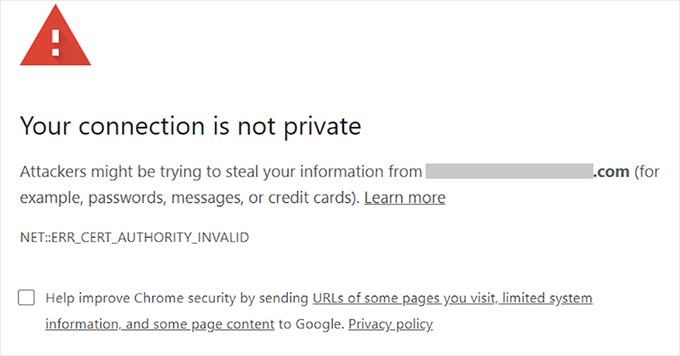
Each website receives a unique SSL certificate for identification. If a server tries to use HTTPS without a valid certificate or if the certificate doesn’t match, most modern browsers will alert users and advise them not to proceed.
Why Do You Need HTTPS and SSL?
Back in 2018, Google announced an initiative to boost web security by urging site owners to switch from HTTP to HTTPS. To support this move, their Chrome browser started marking all websites without an SSL certificate as “Not Secure.”
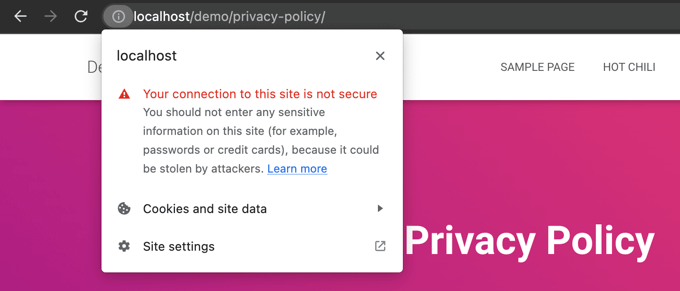
This “Not Secure” warning is especially prominent when someone tries to enter information, like filling out a contact form. Seeing this warning can leave a negative impression and damage trust in your business.
This is why all websites need to transition to HTTPS and install SSL. Here are the main benefits:
- Improved Security: It encrypts data exchanged between your visitors and your server, protecting sensitive information like login credentials and personal details.
- Better SEO Rankings: Google gives a slight ranking advantage to secure HTTPS websites.
- Builds User Trust: The secure padlock icon in the browser’s address bar instantly signals to visitors that your site is authentic and safe, which can improve conversion rates.
- Required for Online Payments: If you want to accept online payments on your eCommerce site, then SSL is required by payment providers like Stripe, PayPal Pro, and Authorize.net.
We ensure all our own sites use SSL, including WPBeginner and our partner companies.
Requirements for Using HTTPS/SSL on a WordPress Site
The requirements for using SSL in WordPress are not very high. All you need to do is purchase an SSL certificate, and you might already have it for free.
The best WordPress hosting companies are offering free SSL certificates for all their users:
For more details, see our guide on how to get a free SSL certificate for your WordPress website.
If your hosting company does not offer a free SSL certificate, you’ll need to purchase one.
We recommend Namecheap because it offers the best SSL deal for regular and wildcard SSL certificates.
Once you have purchased an SSL certificate, you’ll need to ask your hosting provider to install it for you.
Setting Up WordPress to Use SSL and HTTPS
After your host enables an SSL certificate for your domain name, you will need to set up WordPress to use the SSL and HTTPS protocols on your website.
We will show you two methods for doing that, and you can choose the one that best suits your needs.
Method 1: Set Up SSL/HTTPS in WordPress Using a Plugin
This method is easier and is recommended for beginners.
First, you need to install and activate the Really Simple SSL plugin. For more details, see our step-by-step guide on how to install a WordPress plugin.
Upon activation, you need to visit the Security page. The plugin will automatically detect your SSL certificate and show you the ‘Activate SSL’ option.

Once activated, the plugin will take care of everything, including the mixed content errors.
Here’s what the plugin does behind the scenes:
- Checks for a valid SSL certificate
- Sets WordPress to use https in all URLs
- Sets up redirects from HTTP to HTTPS
- Looks for URLs in your content that are still loading from insecure HTTP sources and attempts to fix them.
Note: The plugin attempts to fix mixed content errors by using an output buffering technique. This can have a negative performance impact because it replaces content on the site as the page is loaded. This impact is only seen on the first page load, and it should be minimal if you are using a caching plugin.
While the plugin says you can keep SSL and safely deactivate the plugin, it’s not 100% true. You will have to leave the plugin active at all times because deactivating the plugin will bring back mixed content errors. See our Really Simple SSL review for more details.
Method 2: Set Up SSL/HTTPS in WordPress Manually
This method requires you to troubleshoot issues manually and edit WordPress files. However, it is a permanent, performance-optimized solution, and it’s the method we’re using on WPBeginner.
If you find this method difficult, you should hire a WordPress developer or use the first method instead.
As part of this method, I may need to edit theme and code files. If you haven’t done this before, see our guide on copying and pasting code snippets in WordPress.
First, you should visit the Settings » General page. From here, update the WordPress Address and Site URL fields by replacing http with https.
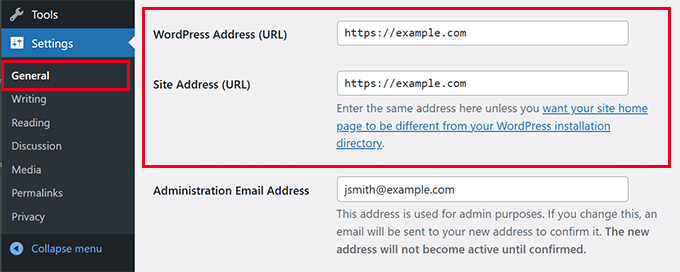
Then, click the ‘Save Changes’ button to store the new settings.
Once the settings are saved, WordPress will log you out, and you will be asked to re-login.
Next, set up WordPress redirects from HTTP to HTTPS by adding the following code to the .htaccess file. This code is for Apache servers:
If you’re on an NGINX server, then you’ll add the following code to redirect from HTTP to HTTPS in the configuration file:
Don’t forget to replace example.com with your domain name.
By following these steps, you will avoid the WordPress HTTPS not working error because WordPress will now load the entire website using HTTPS.
To force SSL and HTTPS on the WordPress admin area or login pages, you need to configure SSL in the wp-config.php file.
Add the following code above the “That’s all, stop editing!” line in the wp-config.php file:
define('FORCE_SSL_ADMIN', true);
This constant acts as a fail-safe. It ensures your WordPress login page and dashboard are always encrypted, adding an extra layer of security for the site administrator. It also works on WordPress multisite networks.
Once this is done, the website is fully set up to use SSL / HTTPS, but you might still encounter mixed content errors.
Fixing Mixed Content Errors
Mixed content errors are caused when some content (like images, scripts, or stylesheets) is still loading over the insecure HTTP protocol instead of HTTPS.
Think of it like having a secure, armored front door (HTTPS) but leaving a window unlocked (an HTTP resource). That single unlocked window makes the whole house vulnerable.
When this happens, you won’t see a secure padlock icon in your website’s address bar.
You can find out which content is served through an insecure protocol by using your browser’s Inspect tool.
The mixed content error will be displayed as a warning in the console, with details for each item.
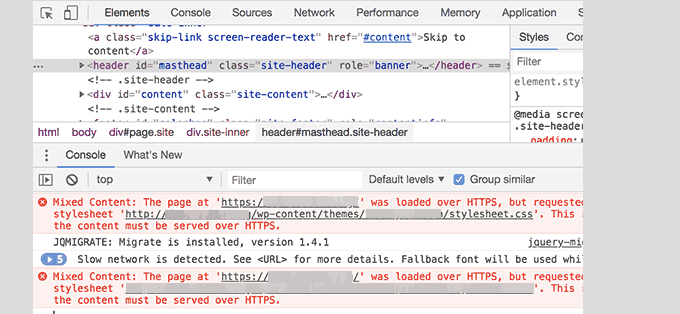
You will notice that most URLs are images, iframes, and image galleries, while some are scripts and stylesheets loaded by WordPress plugins and themes.
Fixing Mixed Content in WordPress Database
Most of the incorrect URLs will be for images, files, embeds, and other data stored in the WordPress database. Let’s fix them first.
You need to find all mentions of your old website URL in the database that start with HTTP and replace them with your new website URL that starts with HTTPS.
You can easily do this by installing and activating the Search & Replace Everything plugin.
Upon activation, visit the Tools » WP Search & Replace page. You need to add your website URL with http in the ‘Search’ field and your URL with https in the ‘Replace’ field.
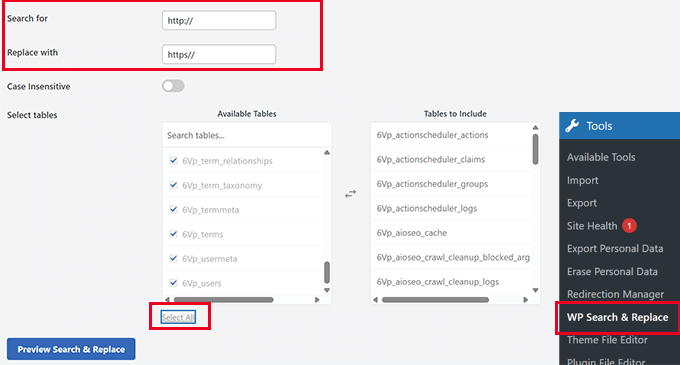
Then, select all database tables to run a thorough check and click the ‘Replace All’ button. The plugin will now update all old URLs in the database.
Fixing Mixed Content Errors Caused by WordPress Theme
Any decent WordPress theme following WordPress coding standards will not cause this issue. However, some may still hard-code insecure URLs.
First, you will need to use the browser’s Inspect tool to find the resources and where they are loading from. After that, you will need to find them in your WordPress theme and replace http with https.
This will be a little difficult for most beginners, as you may not be able to see which theme files contain these URLs.
Fixing Mixed Content Errors Caused by Plugins
Some mixed content resources will be loaded by WordPress plugins. Any WordPress plugin following WordPress coding standards will not cause mixed content errors.
I don’t recommend editing WordPress plugin files. Instead, I would contact the plugin author and let them know. If they do not respond or are unable to fix it, then I would find a suitable alternative.
Note: If, for some reason, you’re still encountering a mixed content error, we recommend temporarily using the Really Simple SSL plugin so your users are not impacted while you fix the issue on a staging website or hire a developer.
Submit Your HTTPS Site to Google Search Console
Search engines like Google treat https and http as two different websites. To avoid any SEO issues, you will need to let Google know that your website has moved.
To do that, you just need to go to your Google Search Console account and click on the ‘Add property’ button.
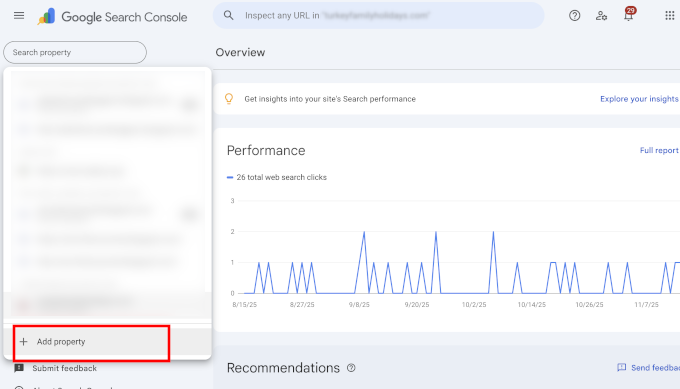
This will bring up a popup where you need to add your website’s new HTTPS address.
Google offers several ways to verify your site, but we recommend the URL prefix method because it is more flexible.
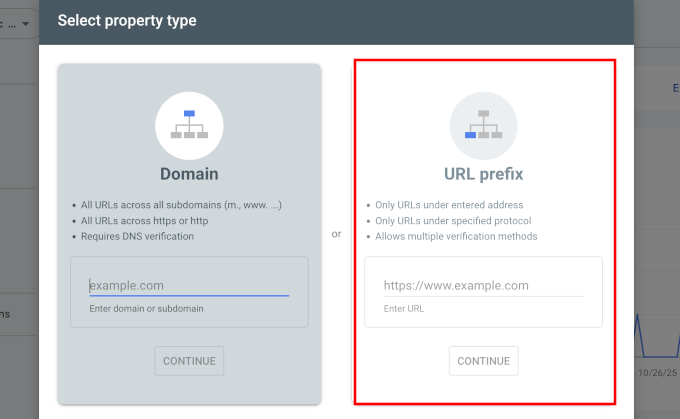
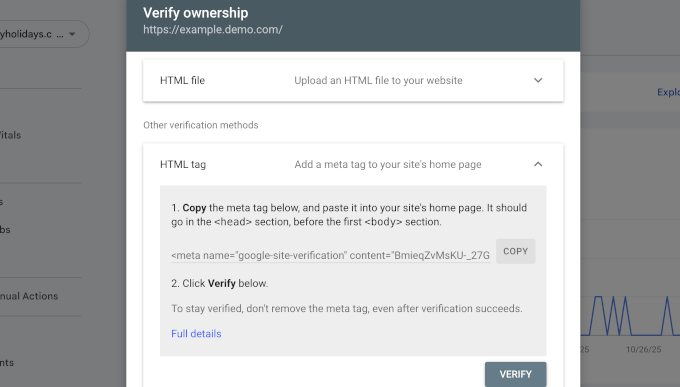
After that, Google will ask you to verify ownership of your website.
There are several ways to do this, but we recommend using the HTML tag method. You will get an HTML code snippet to add to your WordPress site.
Add Search Console Verification Code using All in One SEO
First, install and activate the All in One SEO for WordPress plugin. For more details, see our tutorial on how to install a WordPress plugin.
Expert Tip: At WPBeginner, we use All in One SEO on all our websites. The Webmaster Tools verification feature saves us a lot of time, as we can just paste the code and AIOSEO automatically adds it to the correct place in our site’s header.
Upon activation, go to the All in One SEO » General Settings page and click on the Webmaster Tools tab. From there, click on Google Search Console.
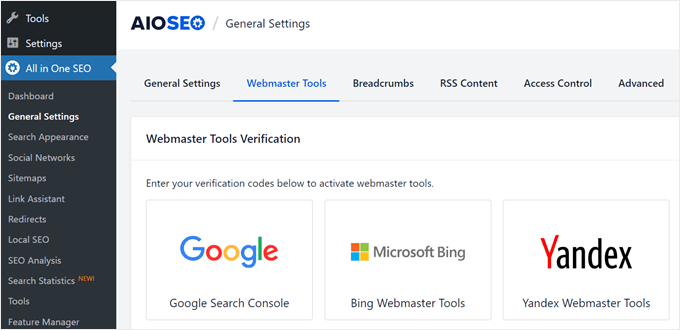
Here, you need to add the verification code you copied earlier from the Google Search Console website. Don’t forget to click on the ‘Save Changes’ button to store your settings.
Next, switch back to the Google Search Console tab and click the ‘Verify’ button. Once your site is verified, Google will start showing your Search Console reports.
You also need to ensure that both the https and http versions are added to your Search Console.
This tells Google that you want the https version of your website to be treated as the primary version. Combined with the 301 redirects you set up earlier, Google will transfer your search rankings to the https version of your website.
Frequently Asked Questions About Moving to HTTPS
How much does an SSL certificate cost?
An SSL certificate can be free. Most top WordPress hosting companies offer free SSL certificates to all their customers through Let’s Encrypt. If your host does not offer a free one, you can buy one from a provider like Namecheap for a low annual fee.
What is the difference between SSL and HTTPS?
SSL (Secure Sockets Layer) is the technology that encrypts the data. HTTPS (Hypertext Transfer Protocol Secure) is the result of using that SSL technology. When a website has a valid SSL certificate, its URL begins with https://, and a padlock icon appears in the browser, showing the connection is secure.
What happens if I don’t use HTTPS?
If you don’t use HTTPS, modern browsers like Google Chrome will display a “Not Secure” warning to your visitors. This can erode trust, hurt your brand reputation, and cause you to lose potential customers. Additionally, not having HTTPS can negatively impact your search engine rankings.
Additional Resources for WordPress Security
The following are a few additional resources that can help you fix common WordPress problems and learn more about website security:
- How to Fix Common SSL Issues in WordPress (Beginner’s Guide)
- Most Common WordPress Errors and How to Fix Them
- How to Fix Secure Connection Error in WordPress
We hope this article helped you add HTTPS and SSL in WordPress. You may also want to see our ultimate WordPress security guide with step-by-step instructions to keep your WordPress site secure or our guide on how to renew your SSL certificate.
If you liked this article, then please subscribe to our YouTube Channel for WordPress video tutorials. You can also find us on Twitter and Facebook.




Kevin Bollhorst
Thank you for this informative article. I am looking into switching my blog to SSL. The web host provider is Bluehost and I am using the free Cloudflare CDN Service. I have one question. Will Cloudflare’s free service support Bluehost’s Free SSL certificate?
WPBeginner Support
Hi Kevin,
Please contact Bluehost or Cloudflare support, you may need additional configuration for SSL to work with your free Cloudflare CDN.
Admin
Moritz Steiger
I followed these instructions and now it has screwed my site, nothing works. I now get the ‘White screen of death’ my host won’t help as they say it is a coding error and I am left in limbo.
WPBeginner Support
Hi Moritz,
We are sorry to hear that. Please undo the steps you took while following the tutorial one by one and that should fix your site to normal.
Admin
Chandra
Hi,
Thank for you for such an detailed article on a very hot topic.
I followed manual steps but got mixed content error. And seems because of this I’m not able to see WP login page. I tried clearing cache on dreamhost but message displayed is “Unable to connect to CloudFlare”.
I’m using Dreamhost and Cloudflare is enabled.
Could you please help or need more details to fix the issue? Do you also offer paid service to secure another site of my mine?
Thank You.
WPBeginner Support
Hi Chandra,
Please review your Cloudflare settings.
Admin
Richard
Hi,
Just followed through the manual procedure without problems – Thanks!
However, I’ve noticed that If I type the old http:// address into the browser for any page except for the homepage then the old http:// page loads.
Then when I click a link to another page it goes to a https:// page is this normal?
Does it indicate a problem with the redirect?
WPBeginner Support
Hi Richard,
No it is not. Most likely the redirects in your .htaccess file are not working. Try copying the code and adding it to your .htaccess file again and see if this resolves the issue.
Admin
Richard
Hi,
Fixed It thanks. I’d originally inserted the Code at the end of the htaccess file. Moved It Up to before the WP section and everthing now works correctly.
Thanks for your help and for the concise guide. I’d been putting this off for a while.
Daniel
With regard to the last step in Google Console, on the “Change of Address” page, I am getting a “no available sites” message, but I have double-checked that my http and https versions are verified. When I click on “add it now” I’m just getting verification information. What do I do?
Emily Randall
I just installed a LetsEncrypt cert on my website, and I’m getting a bunch of insecure content errors that shouldn’t be happening. Although the theme is using get_template_directory_uri() to load its styles and scripts, those styles and scripts are still being loaded via http, not https. Even if I hard-code the https url in the function to load the styles/scripts, they’re loaded via http.
Do you have any idea what’s happening here? As far as I can tell, everything is set up properly, but it’s not working.
WPBeginner Support
Hi Emily,
Try clearing WordPress cache.
Admin
skaur
Hi,
I have purchase SSL and configured by my hosting. It shows https in url. when I do https under General settings in wordpress admin area, my website goes down, only homepage and after it I am not able to login the admin area too. I added the code in htaccess file too with https under settings.
Could you help me with this?
Thanks
stan
https://support.google.com/webmasters/answer/83106 says that
Note: The tool does not currently support the following kinds of site moves: subdomain name changes, protocol changes (from HTTP to HTTPS), or path-only changes.
WPBeginner Support
Hi Stan,
Yes, we are aware of that. However, we still recommend taking this step. It is safe and will not have any negative impact on your site.
Admin
Lindsey Bell
I use Bluehost for web hosting and just set up my wordpress site with their free SSL certificate through the Bluehost page. There was a page on the Bluehost site to activate it for my Wordpress site. Now, it appears that my site is already set up with the https. Do I still need to install the plug in, or is mine already taken care of? Thanks so much for the help!
WPBeginner Support
Hi Lindsey,
You still need to install the plugin.
Admin
Farukh hussain
Hi,
I was founding this issue and you just uploaded this article. Thanks alot.
Can you please help? I did not change my primary site on search console. I added a new property with https and then created a set for all of them. Will it work fine for ranking or I need to follow your instructions only???
WPBeginner Support
Hi Farukh,
Adding HTTPS property and then redirecting users from HTTP to HTTPs will work fine.
Admin
Paula Jones
So I have to purchase a dedicated IP address to use the free SSL certificate?
WPBeginner Support
Hi Paula,
No, you don’t need a dedicated IP address to use free SSL certificate.
Admin
Chris
I don’t understand why a redirect is still necessary once the hosting service installs the certificate for the site. I’m assuming that a Wordpress site initially configured with the HTTPS protocol does not require a redirect. Is it a matter of registering a domain with or without the proper protocol?
James Katt
The problem of buying an SSL certificate and having it installed is that you will need to also purchase a fixed IP address from your Web Host. This is an additional yearly cost on top of the yearly cost of the SSL Certificate. For each website you create you have to buy an SSL certificate and a fixed IP address. This will add up tremendously the more websites you have.
Because of this, I prefer creating websites on hosts that Automatically give you a Free SSL certificate. These days, the ones that don’t simply want to gouge you for money.
Rupam krishna Bharali
Can the internal configuration of SSL and HTTPS help to reduce the SSL loading time during a request? When I tested my website with SSL enabled and it took about 455 ms to load “the SSL separately”, but when I disabled the SSL total loading time decreased to 1.3s. So two question I want to ask you guys,
1. Can I go without an SSL just because I have a Simple blog, no commercial stuff, and web payments?
2. Can the configuration of SSL internally with the help of .htaccess file reduce the loading time of SSL?
WPBeginner Support
Hi Rupam,
1. You can but soon Google will start warning users about websites not using HTTPs, this would affect your website’s traffic.
2. Yes, it can. You can also try to avoid plugins to fix mixed content issues. We have noticed that often such plugins increase page load time significantly.
Admin
Adeshewa
Could someone help please, I followed the direction of the first one all my pages are secure except for one on the menu. Whenever I clicked on it as a customer it says your connection to this website isn’t encrypted.
Troy
Not sure if you got this fixed yet, but I was having the same issue. I found that using the SSL Insecure Content Fixer plugin corrected it. Worth a shot!
Shyam
Hi wpbeginner,
My website did not have ssl certificate. I changed the http to https now it is showing ssl not enabled. What do I do?
Zohaib Sadique
If you are working in WordPress then install the plugin named “really simple SSL” to force up your SSL. I hope you will get the idea. Thanks for reading.
Erin
Thank you!! Finally I have my SSL certificate recognised by wordpress and I couldn’t have done it without the info provided here. So a BIG thanks for helping me out!
Farrukh Ghafoor
I have added the code into the .htaccess file but when I refresh my page in WordPress it comes up with a “Your connection is not private” message. I have to click on “Back to safety” and the icon does not appear in the website url. Please help me to fix this. Thanks
Marco
Where do you install Wordpress? public_html or private_html ?
WPBeginner Support
Hi Marco,
You need to install WordPress in public_html folder.
Admin
Cecilia W
I followed the first step, adding the https: to the website name and immediately the webpage redirected me to a sit not secure error prompt and now I can’t access my dashboard at all to finish the process or do any bug fixes. How do I reverse the first step?
Mark Lewis
Thank you for this helpful article
Tammy
I have used your site for a resource for a long time. Therefore, I was confident when I followed the directions in this article–to the letter. I used it on a client’s site. Which seemed to work perfectly. Then my own site. However, now I am locked out of both sites. I have a backup of them using the WP all-in-one migration plugin, but no way to access the dashboard.
One site says too many redirects. Even when going to an incognito window or a browser where I’ve recently deleted all history, it still says delete all cookies. The other site says can’t connect to server.
Any suggestions for me? I am pretty screwed at this point.
Thanks,
Tammy
WPBeginner Support
Hi Tammy,
Please see our article on how to fix too many redirects issue in WordPress.
Admin
Sukka
Does my backlinks gets lost after change. Kindly some one clears it to me.
As when I checked my website through semrush https is showing 0 backlinks but I actually have 1000+ backlinks.
Please someone guide.
Thanks.
dan
Why doesn’t the .htaccess stuff for Apache contain the 301 redirect information?
Divine
This was really helpful. Though after doing it, it showed 404 in most pages but when I updated the paramalink…it was solved
Pipy
Please, I am looking for some ways that I can do to secure the Wordpress website from hackers and becoming a secure site. Suggest please
WPBeginner Support
Please see our ultimate WordPress security guide.
Admin
Ravi
Hey wpbeginner team why you guys are not using ssl certificate.?
Waiting for your answer.
Reo
Let me answer that. WPBeginner no need to use SSL because they don’t have a login/signup page and ecommerce.
SaifZiya
But, hasn’t Google now announced that having an SSL certificate can boost your rankings in SERPS?
Cristi Adam
Thank you for info man, great article, it really fixed my issue
Amar Patel
after adding ‘s’ to the WordPress URL and site URL redirection is working properly…I removed the ‘s’ and put redirection code in my .htaccess then browser saying error too much redirection.
If i go for first option that will be fine or not ?….how can in know my redirection working properly ?
Nalin
Hi,
Is it necessary to include the code in htaccess? I am using wordpress and checked with whynopadluck and manually changed the link of the images with non https link. After that, it shows all items are secure. Do I still need to update htaccess? Doesn’t Wordpress redirect http to https by itself?
Mottaqi
If I install a new WordPress installation for a new site should I do all of these???
Abiola Oyeniyi
Cloudflare SSL or Let’s Encrypt which one is the best. I had to switch to Cloudflare SSL
Mukesh Patel
If you are using cloudflare than you can easily switch your site to HTTPS. If you are using free plan then their are no option available for use custom SSL. If you install Let’s Encrypt SSL on origin server, Even after that browser will show Cloudflare SSL.
Richard
Very helpful article. However, I am wondering if I would still be required to update the .htaccess file (per your example) if I am using the plugin: “Really Simple SSL” that you recommended in a newer article. (Also, would this plugin take care of changing the WP General Settings?)
Thanks!
James
We completed step 1 and now we cannot login to our wordpress to do step 2 or 3. And the only page that works on our site it the home page. All other pages try to pull up as https and gives an error. We have to manually take the s out so it’s http before the page will show.
We’ve undone the first step and still cannot login. We are dead in the water here.
Jerome Williams
Worked great. For people with self-signed certs yeah, you will get an error. But if you get that warning, that means you followed this tutorial correctly! All you have to do now is resolve your SSL signing issue and you’re set.
Bhupesh Pant
Hi After making the above changes I am not able to open my site, I am not even able to login to my wp- admin page to revert https to http please help.
Enyel Cuadro
(GoDaddy)
define(‘FORCE_SSL_ADMIN’, true);
after adding this line then reload the website, I got error that “your connection is not private”. I am using self-signed certificate. Please help how to setup https using self-signed certificate.
Kimball
Do a view source on your page. See anything that starts with http:// like css, js, or image files? Those will have to be changed in your content or template.
Mukesh Patel
Do not use self-signed-certificate. You can choose Let’s Encrypt SSL, Free Comodo Certificate or Cloudflare SSL. These all are free of cost.
Ali O
I know that WPBeginner is great, but you exceeded my expectations and totally saved my week today with this how-to guide! Love you guys!
Red Strivens
Remember to change the Port as well !!!!
Mari-Lyn
Thank you for the simple explanation of making a site ssl compliant.
Bala krishna reddy mogiligundla
Sir i have stuck in a problem i hope you could help , i have a hosting which is worth $300 in godaddy i have added one website and bought an ssl for that …again after some days i have added secondary site avantsolutions.ca to same hosting . i have been told that i cannot buy additional ssl to this hosting and suggested me to buy one unified ssl which costs around 350$ .Please dont mind me saying this but i have already spent alot and cant afford that ..what other options do i have
WPBeginner Support
Hello Bala Krishna,
Please try to resolve it with your hosting provider through live chat or phone support. If you have purchased a hosting plan that doesn’t meet your needs, then you can ask them for a refund. Most hosting companies have some sort of refund policy which is usually valid during the first 30 days of signup.
Admin
Lydia
Hi, my host offers the Let’s encrypt so I have gone that route, as this is all new I have created a new site to practice on which i set up the lets encrypt shared ssl. Now I am trying to move it from http to https I did install the simple ssl plugin but it did not find my ssl certificate, not sure if it is set to work with shared lets encrypt so, i found another plugin called wp encrypt which is designed specifically for the shared lets encrypt but i am not able to get it to connect the way it instructs. I have checked my outgoing connections and they are clear. Would appreciate any help in working this process out, so I can get started on the shift. Thanks
Max
Followed the instructions and basically bricked my website.
between 404 errors, database connection errors and more and more errors… that 301 redirect causes way too many problems.
Brian Luff
Thanks for the article, which is interesting and informative. There’s one problem it doesn’t mention, and no-one else has commented so I wonder if I’m missing something.
I bought a third-party SSL certificate from the hosting company and switched to HTTPS. After making the .htaccess changes, everything worked fine, except…
None of the pages get a green padlock. Instead, there’s an info link that says the pages are ‘partially secure’.
I checked with the hosting company, and they said I had to change every internal link to HTTPS, and the URL of every image likewise. If I don’t do that, then no green padlock.
Manually making all those changes would take me months even if I worked 8 days per week, 25 hours per day. If I’d known that at the outset, I would not have made the change to SSL/HTTPS in the first place.
Is what I’m being told correct? If so, is there any (even semi-)automated way of updating all the links in the site?
WPBeginner Support
Hi Brian,
You can install Really Simple SSL plugin and it will take care of partially insecure links on your website.
Admin
Brian Luff
Many thanks for that, I’ll remember it for next time (I have a personal blog I’m thinking about moving from .com to .org). In this case I already bit the bullet. It turns out I was exaggerating but it did take me several hours to go through 200 posts and 70 pages manually changing all the internal links and the image references. At the end of all that, there was still no green padlock, but I found the last few instances using a useful (free) tool (which may or may not be a useful adjunct to your plugin). I now have another question, but I’ll post it separately for clarity. Thanks again for responding.
WPBeginner Support
Hi Brian,
Glad to know that you fixed it
Felix
Hi Brian,
There is another ultimate solution for that problem. Try to make Backup of MySQL database of your site manually by the procedure:
https://www.wpbeginner.com/beginners-guide/how-to-make-a-wordpress-database-backup-manually/
OR.
Almost any hosting provider has an option such as “download MySQL database” or “dump MySQL database”. You will download .sql file. After that open that .sql file in text editor such notepad++ and try the find-replace function to find “http” and replace it by “https”. It will take a second.
hiren
hii,
I does the changes as above in my site but now it is getting problem ” Error establishing a database connection”
so i’ve no idea where to do changes .
pls help. thanks in advance.
Lisbeth
What to do if I want to revert back from https to http?
There aren’t many guides on this one. Please help.
Tom W
A quick update – there is a free plugin called Really Simple SSL that you can download, activate, and it works great!
Many thanks to the author.
Jason
I tried this and had a problem. I switched from a basic html/htm site to wordpress so my .htaccess has a lot of 301 redirects. No I’ve bought an SSL In the current setup if I add RewriteRule ^(.*)$ to the .htaccess file then if anybody attempts to browse the site they get “the webpage has a redirect loop” error. So I’ve had to take out that line of code. Anything I can do?
Avinash Kumar
I am using cloudflare for https and want to know how to display “secure lock sign” before the https:// and I also want to know why you are not using https ?
hiren
Just install a Really simple SSL plugin and active it. and change in the yor site general setting it is Setting >> General >> https://example.com
Mukesh Patel
Hello Avinash Kumar.
wpbeginner don’t use HTTPS because they don’t have any login, signup page and also don’t sale anything.
WPBeginner Support
Hi Avinash and Mukesh,
Actually, we have moved to HTTPS recently.
Admin
Bart Nash
When configuring the SSL certificate, is it better to add the www to https:// or leave off the www when setting up a new wp site.
WPBeginner Support
Hi Bart,
See our guide on www vs non-www.
Admin
tim
Reason when I complete all the steps. Thank you for your article! I was wondering though, my website recently has suffered some problems with.