


Want to boost engagement on your WordPress blog?
Adding a search form inside your posts might seem unusual, but it’s surprisingly effective, especially for content-heavy sites like online magazines.
Instead of relying solely on a header or sidebar search bar, placing one within your content encourages readers to keep exploring. It’s a small change that can lead to longer sessions and more page views.
In this guide, we’ll show you step-by-step how to add a search form to your WordPress post, no matter which theme you’re using. Let’s dive in!

Why Add a Search Form to Your WordPress Posts?
If visitors enjoy a post on your WordPress site, they’ll probably want to read more. Adding a search form directly in your posts makes it easy for them to find other content they’re interested in.
This simple addition can have a big impact, including:
- Help readers find what they need faster: A search form inside your post lets visitors instantly look up related topics without scrolling back to the header or sidebar.
- Increase time on site and page views: When users can easily search for more content, they’re more likely to click around instead of leaving after reading one post.
- Improve user experience on long posts: For tutorials, guides, or resource-heavy articles, an in-post search acts like a shortcut—especially helpful for mobile users.
- Reduce bounce rate without redesigning your site: You can guide visitors to more relevant content without changing your theme layout or adding extra menus.
Having said that, we’ll share three methods for how to add a search form to a WordPress post. Just use the quick links below to jump straight to the method you want to use:
Let’s get started.
Method 1. Add a Search Form in a WordPress Post (Works With Any Theme)
The simplest way to add a search form to your posts is by using the built-in Search block.

In this guide, we’ll show you how to add the block to a post, but you can also add it to any page or widget-ready area of your site.
We also recommend adding this at the bottom of your post to avoid disrupting the reading experience.
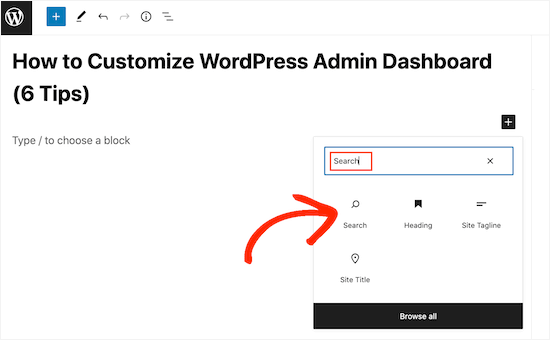
To get started, simply open the page where you want to add a search form. In the WordPress block editor, click on the + icon.
In the popup, type in ‘Search.’ When the right block appears, click to add it to the page.
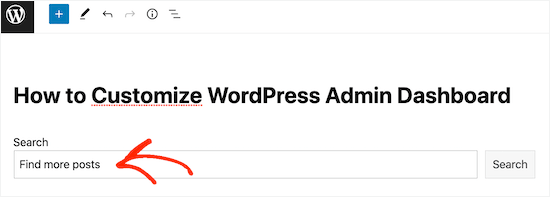
By default, the block uses ‘Search’ for both its label and the button text. This text will be visible to visitors, so you may want to replace it with something more descriptive.
For example, if you’re adding the search bar to a WordPress blog, then you might want to use ‘Search recent blog posts’ or similar.

You can even use the label and button text to motivate your visitors.
For example, if you’ve created an online store, then you might use something like ‘Find more great deals’ or ‘Search for similar offers’ for your product search form.
You can also add some placeholder text. This text will disappear automatically when the visitor starts typing.
To add a placeholder, simply click on ‘Optional placeholder…’ and then start typing.
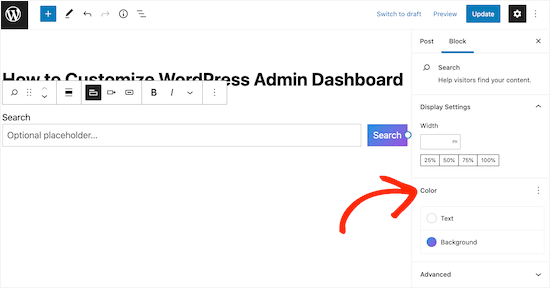
By default, WordPress will use your theme to style the search bar.
However, you can change the button’s background and text color using the ‘Color’ settings in the right-hand menu. This can help your search bar stand out from the rest of your site.
When you’re happy with how the Search block looks, you can go ahead and either publish or update the post. If you visit your site, you’ll now see the search bar within the post’s content.
You can add a search form to more WordPress posts and pages following the same process above. For detailed instructions on how to add the Search bar to a sidebar or similar section, please see our guide on how to add and use widgets in WordPress.
Method 2. Add a Search Form to All WordPress Posts (Block-Based Themes)
If you’re using a block-based theme such as ThemeIsle Hestia Pro, then you can add a search bar to the template that WordPress uses for all your blog posts.
In this way, you can quickly and easily add a search bar to every single blog post across your entire WordPress website.
To open the full-site editor, go to Themes » Editor in the WordPress dashboard.

By default, the full site editor shows your theme’s home template.
To see all the available options, select ‘Templates’ from the left-hand menu.

This shows a list of all the templates that make up your WordPress theme.
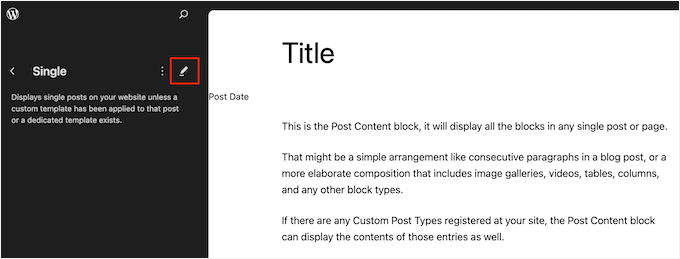
To customize the blog template, go ahead and click on ‘Single.’

WordPress will now show a preview of the blog layout.
To go ahead and edit this template, click on the small pencil icon.
You will now see this template in the full-site editor.
To go ahead and add a search bar, click on the blue ‘+’ icon.
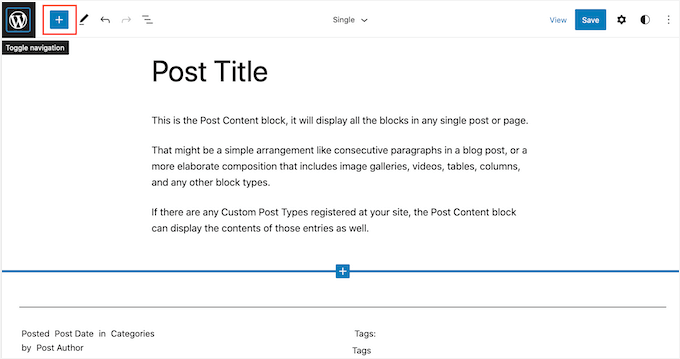
In the popup that appears, type in ‘Search’ to find the right block.
You can now drag the block to the location where you want to show the search bar.
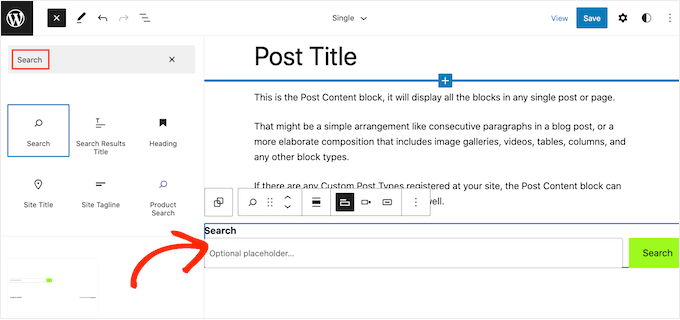
To customize the block title or placeholder text, simply type the new messaging into the search block.
When you’re happy with how the block looks, click on ‘Save’ to make the search bar live.
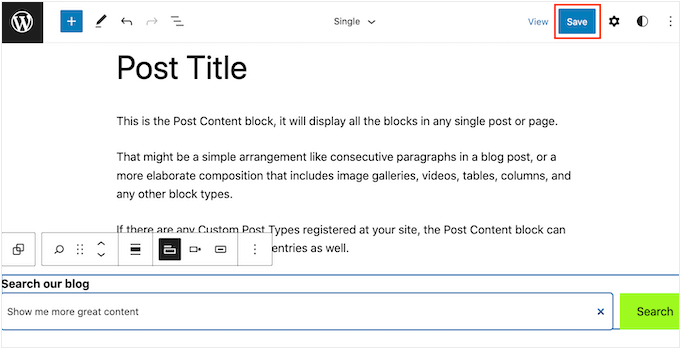
Now, if you visit any blog post on your site, you’ll see the search bar.
Method 3. Add a Search Bar to All WordPress Posts With Code (Works With Any Theme)
If you don’t use a block theme but still want the search bar to appear in all of your posts, then you will need to use code.
To do this, we recommend using WPCode. This code snippet plugin makes it safe and easy to insert custom code into your theme files without directly editing them. This way, you can add various code snippets without breaking your website.
Some of our partner brands actually use WPCode to add and manage custom code snippets. We’ve also tested it extensively, and you can see our findings in our detailed WPCode review.
What you want to do is install the WPCode plugin in WordPress. You can read our step-by-step guide on how to install a WordPress plugin for more information.
Then, go to Code Snippets » + Add Snippet. Select ‘Add Your Custom Code (New Snippet)’ and click the ‘Use snippet’ button.
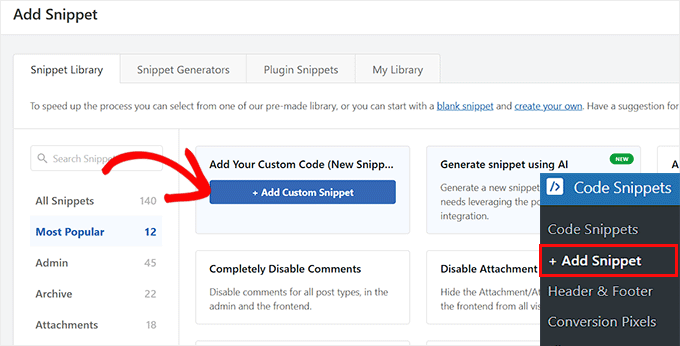
Now, give your new custom code a name. It can be something simple like ‘Search Bar on Blog Posts.’
After that, change the Code Type to ‘PHP Snippet.’
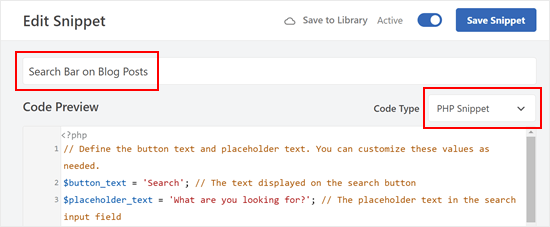
Then, in the Code Preview box, copy and paste the following code snippet:
// Define the button text and placeholder text. You can customize these values as needed.
$button_text = 'Search'; // The text displayed on the search button
$placeholder_text = 'What are you looking for?'; // The placeholder text in the search input field

// Construct the search form HTML using the defined button text and placeholder text.
$search_form = '<form role="search" method="get" action="' . esc_url(home_url('/')) . '" class="wp-block-search__button-outside wp-block-search__text-button wp-block-search">
                    <label class="wp-block-search__label" for="wp-block-search__input-2">' . esc_html($button_text) . '</label>
                    <div class="wp-block-search__inside-wrapper ">
                        <input class="wp-block-search__input" id="wp-block-search__input-2" placeholder="' . esc_attr($placeholder_text) . '" value="" type="search" name="s" required="">
                        <button aria-label="' . esc_attr($button_text) . '" class="wp-block-search__button wp-element-button" type="submit">' . esc_html($button_text) . '</button>
                    </div>
                </form>';

// Output the search form HTML.
echo $search_form;
This code will add a basic search bar similar to the search block. You can customize the button and placeholder text as needed.
Once done, scroll down and make sure ‘Auto Insert’ is selected for the Insert Method.
For the Location, navigate to the ‘Page-Specific’ tab and choose the one that best suits your criteria. For the sake of example, we’ve chosen ‘Insert After Content.’
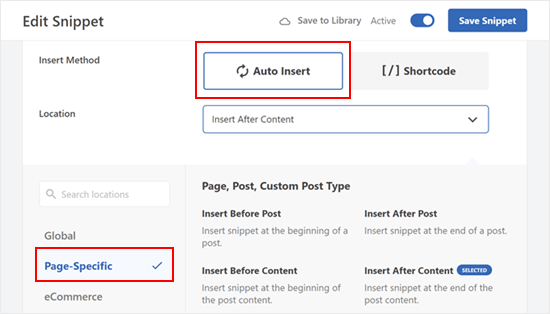
When you are done, just make the code ‘Active’ and click ‘Save Snippet.’
You should now see something like this:

Bonus Tips: Discover Tips and Tricks to Improve WordPress Search
The Search block uses WordPress’ built-in search feature. However, this is quite limited and not very good at showing accurate results.
In some cases, you may want your WordPress search feature to be more advanced. Perhaps you want to add a search-by-category function or make your blog post comments searchable.
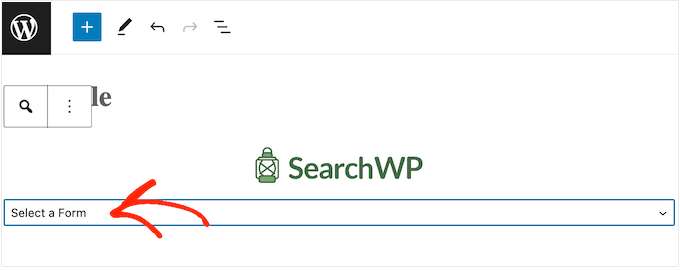
That’s where SearchWP comes in. This custom search plugin gives you complete control over the WordPress site search so you can deliver more accurate results to your visitors.
SearchWP also makes all parts of your site searchable, including PDF files, ACF files, text files, WordPress custom fields, and more. You can check out our full SearchWP review to learn all its features.
After creating a custom search form, you can add it to any part of your website using either a block or a shortcode.
To learn more, please see our guide on how to improve WordPress search with SearchWP.
FAQs About Adding a Search Form in WordPress
After understanding the benefits and various methods of adding a search form to your WordPress posts, you might have some lingering questions. Below, we address some common inquiries to help you get the most out of this strategy.
Why would I want to add a search form inside a blog post?
Adding a search form directly in your posts makes it super easy for readers to discover more of your content, right when they’re most engaged. It’s a smart way to increase page views and keep people on your site longer.
Can I make the search form match my site’s style?
Absolutely! Most WordPress plugins let you tweak things like colors, placeholder text, and labels so the form blends in perfectly with your design.
What if I’m not using the block editor?
No worries. If your theme doesn’t support block-based editing, you can still add a search form using custom code. A plugin like WPCode makes it easy and safe to drop those snippets into your site.
How can I tell if my search form is actually working?
You can track performance using tools like Google Analytics. Keep an eye on metrics like time on site and page views per session. If they go up, your in-post search form is doing its job!
We hope this tutorial helped you learn how to add a search form in a WordPress post. You may also want to learn how to create a contact form in WordPress or check out our expert picks of the best conditional logic plugins for WordPress.
If you liked this article, then please subscribe to our YouTube Channel for WordPress video tutorials. You can also find us on Twitter and Facebook.


Jiří Vaněk
Thank you for the great tip. I have a search bar in the header, but the downside is that when reading an article and scrolling down, the header is no longer visible because it’s not fixed. As a result, most users had to scroll back up to see the search form. Following your advice, I’ve now added the search form to the end of each article and will be measuring whether this increases the number of pages viewed per session. I think this is a really simple yet effective trick. Great idea!
Hasse Dahlriksson
But what happends after update of theme?
WPBeginner Support
If you created a site-specific plugin then the changes will remain
Admin
Holly
Thank you, but I’m seeing only {wpbsearch] on the page I want the search form to be. I’m not sure if I’m placing the add_shortcode(‘wpbsearch’, ‘get_search_form’); code in the correct place in the theme functions.php file. I placed the following code in a perceived function location: between /** and * is_it woocommerce_page- Returns true if on a page which uses WooCommerce…) in the actual page I want to search, as I want it to be a page-only search, (and is this the correct code to do that?)
The Page Code:
function wpbsearchform( $form ) {
$form = ‘
‘ .
_(‘Search Timeline For:’) . ‘
‘;
return $form;
}
add_shortcode(‘wpbsearch’, ‘wpbsearchform’);
Sonji
thank you so much for this. It was so easy. I have been searching for how to do this for months but was looking in the wrong places.
Ryan
I want to add a general google search bar -not custom search just a general google search box so users will not have to leave the page to conduct a google search.
Yao Daniel
Hi there!
You guys are really the best (y)
Great post once again.
I’ve been able to add the search form with visual composer as well. So, maybe someone will give it a try
Finaly, I’m trying to add a search form in a slideshow like this site:
I’ll be more than glad if someone here do have a trick for this.
Thanks again and stay blessed
Carissa
Just what I was looking for, thank you! What would an example be of CSS if we wanted to change the colors and text of the search bar? (i.e. what would we add to CSS to change the colors/text/etc.)?
Luke MEL
Wow! That was the easiest add a search box reply – ever!!!!!
Robin
Awesome! Had to use this on my webpage:
It was super easy to implement and looks awesome
Jarod Thornton
This was stupid easy to implement. I wrote it as a plugin so I can use on MultiSite Thank you for the write-up.
sakthidasan
Hello,
Is it possible to make this search form to search only a particular category?
Example. I have 5 Categories – Cat 1, Cat 2, Cat 3, Cat 4 and Cat 5.
I want the search from only on page 4 and the search form should search only from Cat 3?
Thanks
Sakthi
daniela
Hi,
really love your tutorials!
Is it possible to define the search for comments within each post I put the shortcode? So that it’s not a global search, but a search of the comments just of the post I’m searching at via the shortcode. Would be amazing for helping me out, don’t find anything.
Thanks!!
WPBeginner Support
You can do that with SearchWP plugin.
Admin
João Leitão
amazing, 1, 2, 3 steps… and I got what I needed. simple & quick. thanks.
sandeep kumar dan
Hi, I have just used this script on my theme. Thanks for the help. And its working. But i have one problem, I want to edit the title of that search form how to do. Please help me out.
Thanks
Sandeep Kumar Dan
Carol Dunlop
Awesome tip! Thanks for posting, it is just what I was looking for. I wanted something simple so that people can search through exercise videos and this fit the bill.
Greg Maldewin
Great article! I created a short code and then tweaked the CSS to position and size it the way I wanted.
add_shortcode(‘prodSearch’, function($atts) {
global $woocommerce;
echo ”;
get_product_search_form();
echo ”;
});
Nick Lewis
Greg… what was your custom form code for your woocommerce search form you mention here?
I am trying to get two search boxes into a top navigation one for standard wordpress site search the other for woocommerce products..
Justin Young
Hi Greg!
Thank you for this tip!.. Do you know how to change the search box text and css for this shortcode??
Any help would be greatly appreciated..
-Justin
Arc
Just used it in my WP site. Was able to add search box anywhere I like.
Thank you! This one’s simpler and easy to use compared to the plugins out there.
Brian
Great fix for what I need. However, is there any way to make the search box shorter?
Thanks,
Brian
Editorial Staff
Yes, you can do that by editing the CSS file.
Admin
Jerome Van Gils
I also want to max the search box shorter. What exactly should I edit in the CSS file?
David Schmeikal
Great little tutorial. I tried to embed this shortcode within a column shortcode, but it just appears at the top of the page, instead of within the column. Is there something I need to add?
Editorial Staff
Probably has a conflict with the columns shortcode styling and the search shortcode formatting.
Admin
Ionut Alexandru
i read your site everytime when you put something new. I want to know if is posible to put search form for my site..like google search..Now i used search default from wordpress but i dont like very good the results and i want to know if is posible to put “google search” just for my content. i hope you understand, i try to write correct english but i’m not so good. i wait your answer if is posible. i appreciate your site and your work.
Editorial Staff
Yes it is possible.
https://www.wpbeginner.com/wp-tutorials/how-to-add-google-search-in-a-wordpress-site/
Admin
Keith Davis
Thanks for the tut.
Always learn something when I come over.
Appreciate you taking the time.
Abel Suing
Thanks a lot! very informative! nice!
Geoffrey
Hi,
Thank you for the tip .
Don’t forget to use different IDs to avoid duplication of FOR and ID’s values.
Here you use exactly the same as default WordPress’ search form.
Thank you,
Regards,
G.
Editorial Staff
Good tip. Yeah, we just copied the code from the core for the sake of demonstration.
Admin
Eugenio
Useful technique, thanks for sharing
Gretchen Louise
Thank you so much! Really appreciate the way you guys answer our questions.
And this code worked like a charm!