


We often hear from users who feel overwhelmed by WordPress shortcodes.
These little snippets of code might look confusing at first, but they’re actually one of the most powerful features in WordPress when used correctly.
Whether you want to add contact forms, galleries, or custom layouts, shortcodes provide an easy way to insert complex features without touching any code.
In this beginner-friendly guide, we’ll show you exactly how to add shortcodes in WordPress, where to place them, and the best ways to use them.
We’ve broken everything down into simple, easy-to-follow steps that anyone can understand, even if you’re completely new to WordPress.
💡 Quick Answer: How to Add a Shortcode in WordPress
To add a shortcode in WordPress, just edit the post or page where you want it to appear.
Click the block inserter (+), search for the ‘Shortcode’ block, and add it to your content. Then, simply paste your shortcode into the block and save your changes.
What Are Shortcodes?
Shortcodes in WordPress are code shortcuts that help you add dynamic content to WordPress posts, pages, and sidebar widgets. They are displayed inside square brackets like this:
[myshortcode]
To better understand shortcodes, let’s take a look at the background of why they were added in the first place.
WordPress filters all content to make sure that no one uses posts and page content to insert malicious code into the database. This means that you can write basic HTML in your posts, but you cannot write PHP code.
But what if you wanted to run some custom code inside your posts to display related posts, banner ads, contact forms, galleries, or something else?
This is where the Shortcode API comes in.
Basically, it allows developers to add their code inside a function and then register that function with WordPress as a shortcode, so users can easily use it without having any coding knowledge.
When WordPress finds the shortcode, it will automatically run the code associated with it.
Let’s see how to easily add shortcodes to your WordPress posts and pages.
You can use the links below to jump to your preferred method:
- Adding a Shortcode in WordPress Posts and Pages
- Adding a Shortcode in WordPress Sidebar Widgets
- Adding a Shortcode in the Old WordPress Classic Editor
- Adding a Shortcode in WordPress Theme Files
- Adding a Shortcode in Block Theme Files With the Full-Site Editor
- Creating Your Own Custom Shortcode in WordPress
- Shortcodes vs. Gutenberg Blocks
- Frequently Asked Questions About Shortcodes
Adding a Shortcode in WordPress Posts and Pages
First, you need to edit the post and page where you want to add the shortcode.
After that, you need to click on the add block button ‘+’ to insert a Shortcode block.
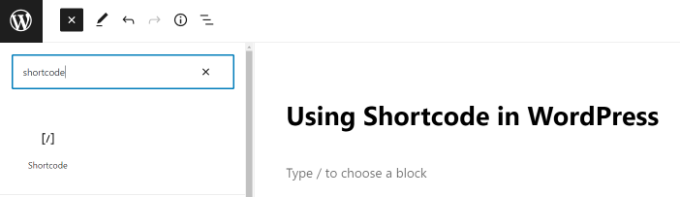
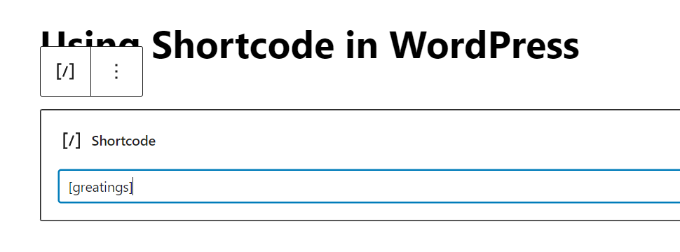
After adding the Shortcode block, you can simply enter your shortcode in the block settings.
The shortcode will be provided by various WordPress plugins that you might be using, such as WPForms for contact forms.
To learn more about using blocks, see our Gutenberg block editor tutorial for more details.
You can now save your post or page and preview your changes to see the shortcode in action.
Adding a Shortcode in WordPress Sidebar Widgets
You can also use shortcodes in WordPress sidebar widgets.
Simply visit the Appearance » Widgets page and add a ‘Shortcode’ widget block to a sidebar.
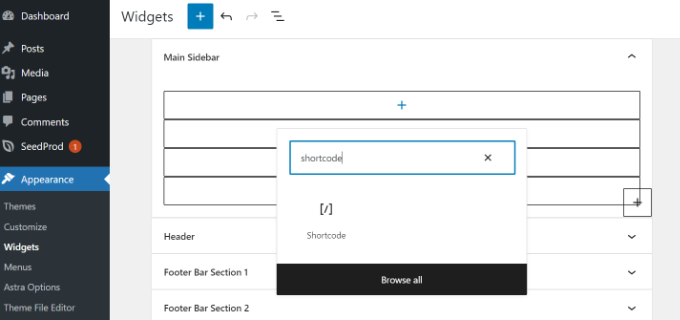
Now, you can paste your shortcode inside the text area of the widget.
Don’t forget to click on the ‘Update’ button to store your widget settings.
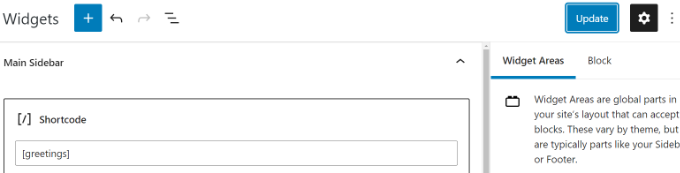
After that, you can visit your WordPress website to see the live preview of the shortcode in the sidebar widget.
Adding a Shortcode in the Old WordPress Classic Editor
If you are still using the old classic editor, you can add shortcodes directly into the content area.
Simply edit the post or page and paste the shortcode where you want the feature to appear.
For best results, we recommend placing it on its own line, especially for shortcodes that add large elements like forms or galleries. This helps prevent any formatting issues.
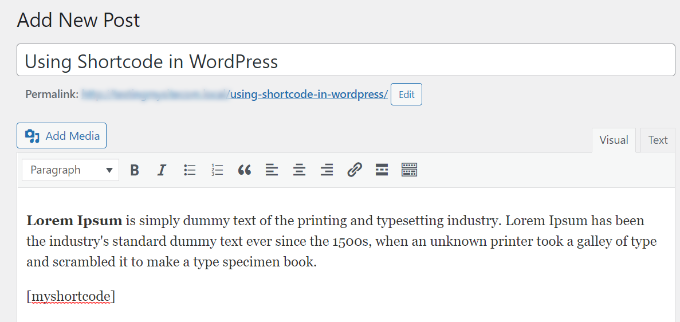
Don’t forget to save your changes. You can then preview your post to see the shortcode in action.
Adding a Shortcode in WordPress Theme Files
Shortcodes are meant to be used inside WordPress posts, pages, and widgets. However, sometimes, you may want to use a shortcode inside a WordPress theme file.
WordPress makes it easy to do that, but you will need to edit your WordPress theme files. If you haven’t done this before, then see our guide on how to copy and paste code in WordPress.
Basically, you can add a shortcode to any WordPress theme template by simply adding the following code:
<?php echo do_shortcode('[your_shortcode]'); ?>
WordPress will now look for the shortcode and display its output in your theme template.
Adding a Shortcode in Block Theme Files With the Full-Site Editor
If you are using a block theme, then you’ll find it easier to add shortcodes in your WordPress theme files using the full site editor.
You can access this tool by selecting Appearance » Editor from the WordPress dashboard.
You will be shown your theme’s home template by default, and you can switch to other templates by selecting the ‘Templates’ option.
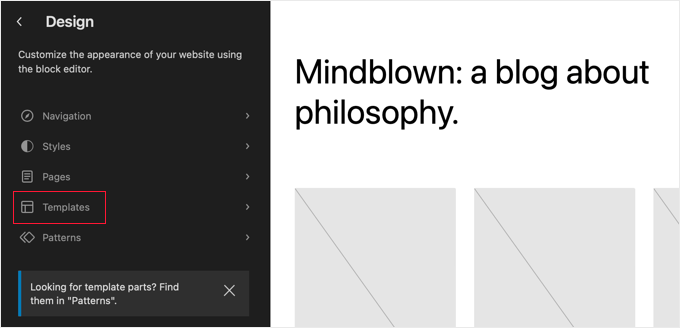
Once you have chosen a template, you can begin to edit it by clicking in the right pane of the editor. The editor will now fill the screen.
Now you can click the ‘+’ block inserter icon and search for the shortcode block. After that, simply drag it onto the template and type the shortcode you wish to use.
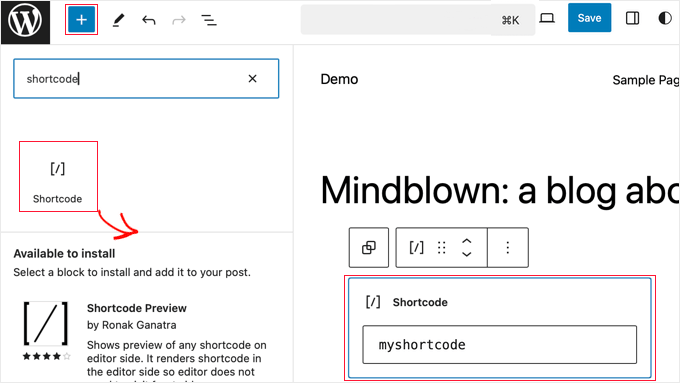
Don’t forget to click the ‘Save’ button at the top of the screen to store your changes.
Creating Your Own Custom Shortcode in WordPress
Shortcodes can be really useful when you want to add dynamic content or custom code inside WordPress posts and pages. However, if you want to create a custom shortcode, then it requires some coding experience.
If you are comfortable with writing PHP code, then here is a sample code that you can use as a template:
// function that runs when shortcode is called
function wpb_demo_shortcode() {

// Things that you want to do.
$message = 'Hello world!';

// Output needs to be return
return $message;
}
// register shortcode
add_shortcode('greeting', 'wpb_demo_shortcode');
In this code, we first created a function that runs some code and returns the output. After that, we created a new shortcode called ‘greeting’ and told WordPress to run the function we created.
You can add this code to your theme’s functions.php file manually or use a code snippet plugin like WPCode (recommended).
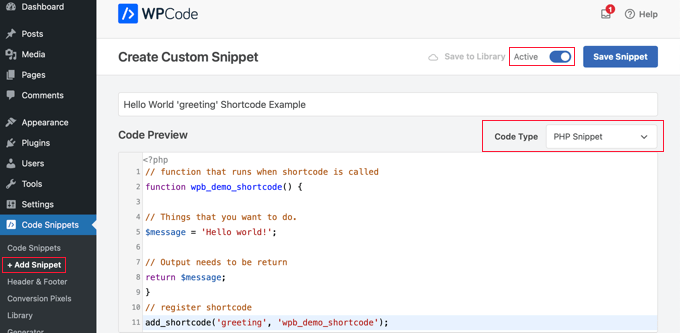
We recommend the latter because WPCode is the safest and easiest way to add code to your site. To learn more, see our WPCode review.
For more details, you can see our guide to adding custom code in WordPress without breaking anything.
Once you have done that, you can add this shortcode to your posts, pages, and widgets using the following code:
[greeting]
It will run the function you created and show the desired output.
While this example is simple, the real power of shortcodes is for reusing complex code.
By wrapping a long script in a shortcode, you keep your content editor clean and make site-wide updates much easier. You only have to edit the code in one place.
Practical Example: Google AdSense Shortcode
Now, let’s look at a more practical example.
You can use a shortcode to easily display a Google AdSense banner anywhere on your site.
// The shortcode function
function wpb_demo_shortcode_2() {

// Advertisement code pasted inside a variable
$string .= '<script async src="//pagead2.googlesyndication.com/pagead/js/adsbygoogle.js"></script>
<ins class="adsbygoogle"
     style="display:block; text-align:center;"
     data-ad-format="fluid"
     data-ad-layout="in-article"
     data-ad-client="ca-pub-0123456789101112"
     data-ad-slot="9876543210"></ins>
<script>
     (adsbygoogle = window.adsbygoogle || []).push({});
</script>';

// Ad code returned
return $string;

}
// Register shortcode
add_shortcode('my_ad_code', 'wpb_demo_shortcode_2');
Be sure to replace the placeholder ad code with your own. You can now use the [my_ad_code] shortcode to display the ad in any post, page, or widget area.
Shortcodes vs. Gutenberg Blocks
Gutenberg blocks and shortcodes both allow you to add dynamic content to your WordPress site. The main difference is that blocks offer a visual interface, while shortcodes are text-based snippets you paste into a specific block.
Many popular WordPress plugins have started using blocks instead of shortcodes. This is because blocks are often more beginner-friendly and let you see a preview of the final result directly in the editor.
We have put together a list of the most useful Gutenberg block plugins for WordPress that you may want to try.
If you want to create your own custom Gutenberg blocks, you can follow our step-by-step tutorial on how to create custom Gutenberg blocks in WordPress.
Frequently Asked Questions About Shortcodes
Here at WPBeginner, we often get questions about how shortcodes work. Below are answers to some of the most common ones.
Are shortcodes still relevant with the block editor?
Yes, absolutely. While many newer plugins use dedicated blocks, thousands of other plugins still use shortcodes to let you add features to your content. You will still find them useful for a long time, which is why WordPress includes a dedicated Shortcode block.
Can shortcodes slow down my website?
A shortcode is only as fast as the code it runs. A well-coded shortcode from a reputable plugin will have a minimal impact on your site’s performance.
However, using too many shortcodes that load a lot of scripts on a single page can sometimes cause a slowdown.
How do I find the shortcode for a plugin?
Most plugins will display their shortcode in their settings page, documentation, or right in the editor interface. For example, WPForms makes it easy to copy a form’s shortcode as soon as you save it.
Can I use shortcodes in page builders like SeedProd?
Yes, all major page builders like SeedProd have a dedicated ‘Shortcode’ block or widget. You can simply drag the block onto your layout and paste the shortcode you want to display.
We hope this article helped you learn how to add a shortcode in WordPress. You may also want to see our guide on how to show and hide text in WordPress posts with the toggle effect and our tutorial on how to copy and paste in WordPress without formatting issues.
If you liked this article, then please subscribe to our YouTube Channel for WordPress video tutorials. You can also find us on Twitter and Facebook.




Michael
but how can I create a shortcode for posts.
WPBeginner Support
It would depend on what you want to do with your posts, if you wanted to display your posts on a page then there is a built in block to list recent or specific posts.
Admin
Mrteesurez
Thanks, the guide you share helped to create my own shortcode using the format you shared in the post. That means I can add any code to the part where you said “things you want to do”. Is it compulsory I add only PHP code, can I add a working HTML code there ?
WPBeginner Support
With how the code is currently set up you would need to add PHP and if you wanted a different language like HTML you would need to make some tweaks.
Admin
Andrew Wilson
Hi Guys,
Is it possible with this plugin to create a unique QR Code for users that sign up to your website?
i.e. a person registers on the website, and as part of that process the back-end creates a unique QR Code for that user which if scanned by a third party takes them to their profile on the website?
WPBeginner Comments
You can create QR codes using this guide:
https://www.wpbeginner.com/plugins/how-to-generate-and-add-qr-codes-in-wordpress/
To create it automatically in the way you mentioned may require custom code.
Moinuddin Waheed
This is very helpful for making our own custom short codes.
I have been using short codes for a while and have thought of making my own short codes to use but was not aware about the process.
I have a bit of coding knowledge and can easily make shortcodes through php functions.
Thanks for the guide.
WPBeginner Support
You’re welcome, glad our guide was helpful
Admin
Jiří Vaněk
Thank you for the detailed instructions. I was able to add the shortcode to Gutenberg but could not use it as a php code. At the same time, it is evidently that simple. A bit smarter again thanks to wpbeginner.
Mohammed
In Example2 How did you define this shortcode ‘my_ad_code’ thought you didn’t define it as a function?
WPBeginner Support
That is added with the code add_shortcode at the bottom of the example
Admin
Mohammed
❤️❤️
Appreciate for the best Article
Josh
One picture says “greatings” instead of “greetings”
WPBeginner Support
Thank you for pointing that out, it works as a good reminder to make sure you spell your shortcodes correctly
Admin
Maya
Thanks for sharing such a detailed article keep up the good work!
WPBeginner Support
You’re welcome, glad you found our guide helpful!
Admin
abuzar
your guidence is very easy to learn. thanks you
WPBeginner Support
You’re welcome!
Admin
Hugh
Thanks for the great article. Works like a charm. However, although it is explained on the page link provided in the article, it may have been helpful to many readers if you had reiterated that to create shortcodes yourself (‘How to Create Your Own Custom Shortcode’ section of the article), you simply add the example code provided or your own code to the theme’s (or child theme’s) ‘functions.php’ file. Thanks again!
WPBeginner Support
Thank you for that feedback!
Admin
Hafed benchellali
Thank you for this great article!
WPBeginner Support
You’re welcome!
Admin
Susan Benfatto
Thank you for your tutorial, it was very useful
WPBeginner Support
Glad it was helpful
Admin
Rohmah Azim
Hi
Can you tell me how I can add shortcode to my header?
WPBeginner Support
You would need to use the method for the theme files from this article and add it to your theme’s header file.
Admin