


When we first learned about SEPA payments, we realized how much European businesses could save compared to traditional credit card processing.
SEPA (Single Euro Payments Area) payments typically cost a fraction of what credit card processors charge. This can save businesses hundreds or even thousands of euros per year.
The good news is that adding SEPA payment acceptance to WordPress is easier than you might think. We have tested different approaches to find solutions that work reliably for European businesses.
In this guide, we will show you two methods to accept SEPA payments on your WordPress site.
Both are easy to set up and secure. They will help you offer European customers their preferred payment method while saving money on fees.

💡Quick Answer: How to Accept SEPA Payments
If you want to accept SEPA payments in WordPress, here are the two best methods:
- Method 1: WP Simple Pay (Recommended). This is the best option for accepting payments on a standard site. It is perfect for service forms, donations, or simple product sales.
- Method 2: FunnelKit Stripe for WooCommerce. Use this free plugin if you have a full online store running WooCommerce. It adds SEPA support to your checkout page.
Why Use SEPA Payments in WordPress?
The Single Euro Payments Area (SEPA) is a European Union initiative. It simplifies payments across 36 member countries.
It creates a single market for Euro payments. This allows you to accept payments directly from a customer’s bank account.
The biggest advantage of SEPA is the cost savings. Credit card fees can eat into your profits, especially on high-ticket items. SEPA fees are significantly lower.
Here is a quick look at the cost difference between standard credit card processing and SEPA:
| Feature | Credit Card Payments | SEPA Direct Debit |
|---|---|---|
| Transaction Fees | 1.4% – 2.9% + €0.25 | 0.8% + €0.25 (Capped at €5) |
| Payment Speed | Instant | 3-14 Days |
| Failure Rate | Higher (expired cards, limits) | Lower (direct bank connection) |
As you can see, the savings are substantial. If you run a membership site or online store, these lower fees can save you thousands of euros per year.
Plus, integrating SEPA allows you to tap into a massive customer base across Europe. Many European customers prefer bank transfers over credit cards.
Having said that, let’s see how to easily accept SEPA payments in WordPress, step by step. We will cover different methods, and you can use the quick links below to jump to the one you want to use:
Method 1: Accept SEPA Payments in WordPress Using WP Simple Pay (Recommended)
This method is recommended if you have a membership site or accept donations since you can receive money through a simple payment form. It is also a good option if you have a small online store.
For this method, we will be using WP Simple Pay. It is the best WordPress Stripe plugin on the market that allows you to accept online payments without needing to set up a shopping cart.
During our testing, we discovered that it has an intuitive payment form builder, premade templates, secure payment processing, and lets you accept SEPA payments. For more insights about our experience, see our WP Simple Pay review.
Step 1: Install and Activate WP Simple Pay
First, you need to install and activate the WP Simple Pay plugin. For detailed instructions, see our step-by-step guide on how to install a WordPress plugin.
Note: WP Simple Pay has a free plan. However, you will need the pro version of the plugin to unlock the SEPA payments template.
Step 2: Configure the Setup Wizard
Upon activation, a setup wizard will be launched on your screen. Here, simply click the ‘Let’s Get Started’ button.

You will now be taken to the next step, where you must provide your license key and click the ‘Activate and Continue’ button.
You can find this information in your account on the WP Simple Pay website.

Once you do that, you will have to connect the plugin to your Stripe account. Stripe is one of the best payment gateways that lets you accept online payments easily.
To do this, click the ‘Connect with Stripe’ button.
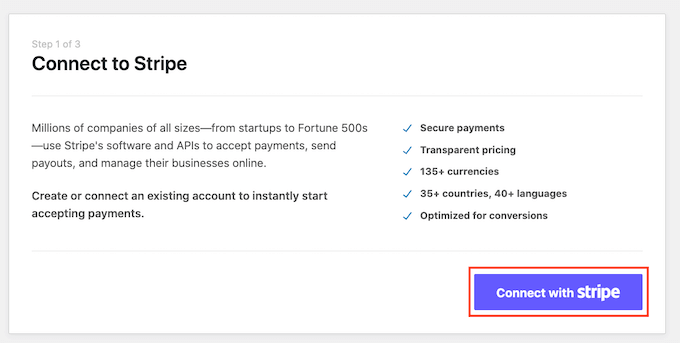
After that, you must log in to your Stripe account to connect it with WP Simple Pay.
If you don’t have an account yet, then you must create one to accept SEPA payments in WordPress. For more information, see our tutorial on how to accept payments with Stripe in WordPress.
Once you connect your account with the plugin, the setup wizard will ask you to configure your emails.
You can toggle different switches to receive email notifications for payment receipts, upcoming invoices, and payment notifications. Next, type the email address where you want to receive these notifications.
Finally, click the ‘Save and Continue’ button.
Note: If you have trouble sending or receiving email notifications, then you can go through our guide on how to properly configure your email settings.

You can now exit the setup wizard to create a payment form for SEPA payments.
Step 3: Create a SEPA Direct Debit Payment Form
For this, you must visit the WP Simple Pay » Add New page from the WordPress admin sidebar.
This will take you to the ‘Select a template’ screen, where you will see numerous premade templates that you can use on your website.
From here, locate the SEPA Direct Debit Form template and click the ‘Use Template’ button under it.
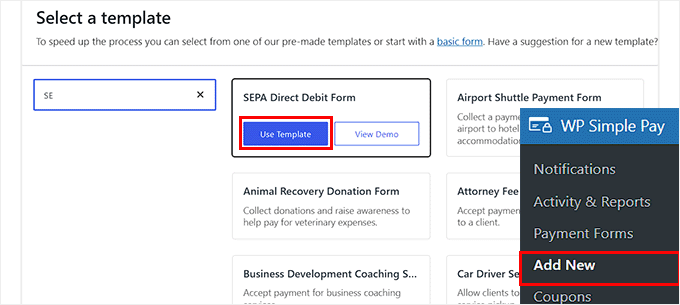
You will now be directed to the ‘Add New Payment Form’ page, where you can start by adding a title and description for your form.
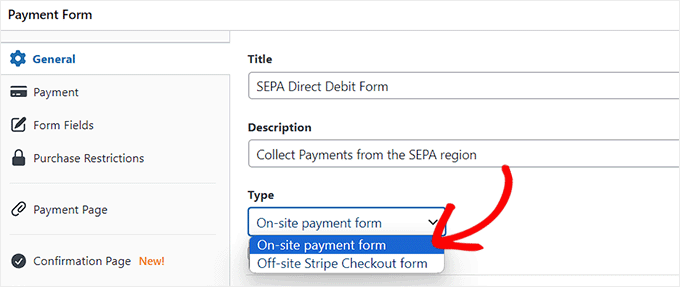
After that, you must select your form payment type as ‘On-site payment form’.
Step 4: Select SEPA as a Payment Option
Next, switch to the ‘Payment’ tab from the left column. From here, you can choose your preferred tax collection rates. This is optional and depends on your business needs.
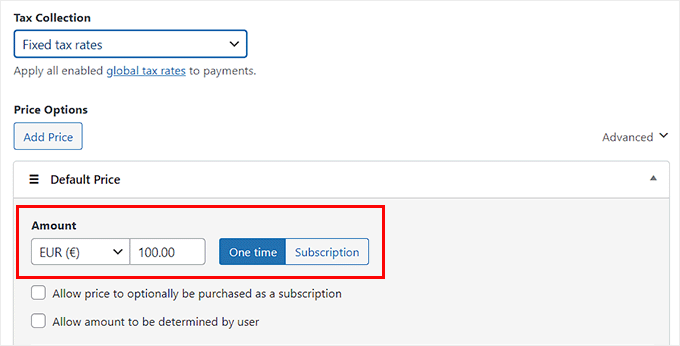
Once you do that, add the price for the product or service under the ‘Amount’ option.
📍Note: You must ensure the currency is set to Euro (EUR). SEPA Direct Debit only works with Euros, so the option will not appear if you use US Dollars.
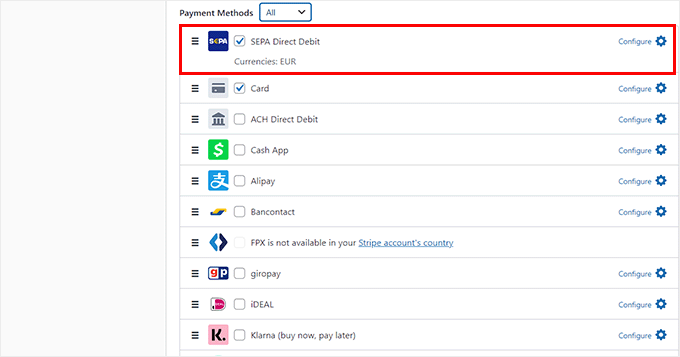
Now scroll down to the ‘Payment Methods’ section, where you will notice that the ‘SEPA Direct Debit’ method has already been selected.
However, if you also want to add other payment gateways like Klarna, Alipay, Affirm, or iDeal, then you can check the boxes next to these options.
Step 5: Add, Edit, or Remove Form Fields
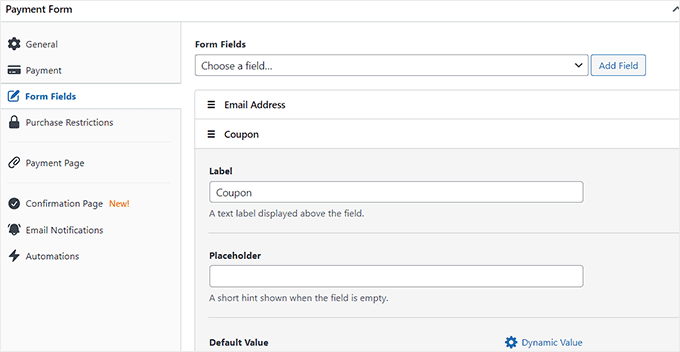
Then, switch to the ‘Form Fields’ tab from the sidebar on the left. Once you are there, you can add different form fields to your payment form and configure their settings by expanding the tab.
For example, you can add a coupon field to your payment form if you regularly offer discounts and coupons on your website.
You can also rearrange the order of the form fields by dragging and dropping them.
Step 6: Add Confirmation Message
Once you do that, switch to the ‘Confirmation Page’ tab from the left column.
Here, you can type a message to show users after they submit a payment.
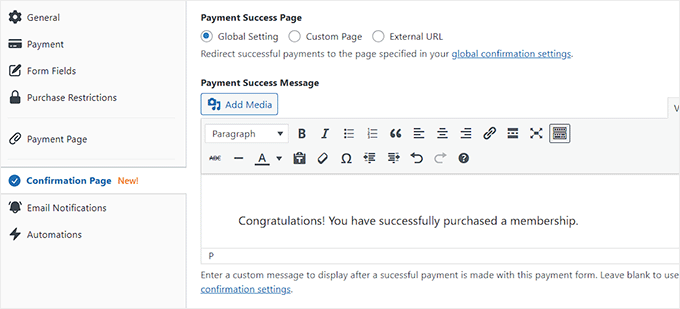
Please note that SEPA payments are not instant. It can take a few days for the funds to clear. We recommend mentioning this in your message so customers know their payment is processing.
Step 7: Configure Email Notifications
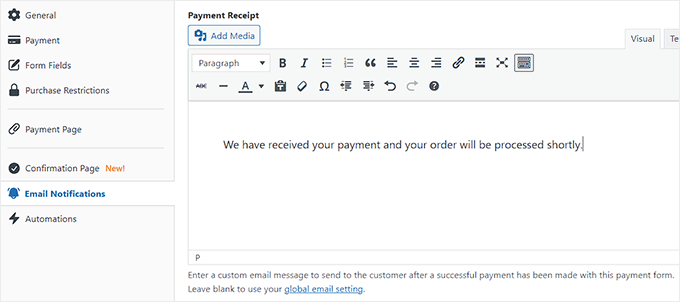
If you also want to send an email to users upon successfully making a purchase, then switch to the ‘Email Notifications’ tab.
Here, type the custom email that will be sent to users upon making a purchase using the SEPA payment form.
Step 8: Publish the Payment Form
Next, switch to the ‘Payment Page’ tab and check the ‘Enable a dedicated payment page’ option.
WP Simple Pay will now allow you to create a custom page for your SEPA payment form without making a new page on your website.
Some new settings will now appear on the page where you can add a permalink, color scheme, image, and footer text for your form.
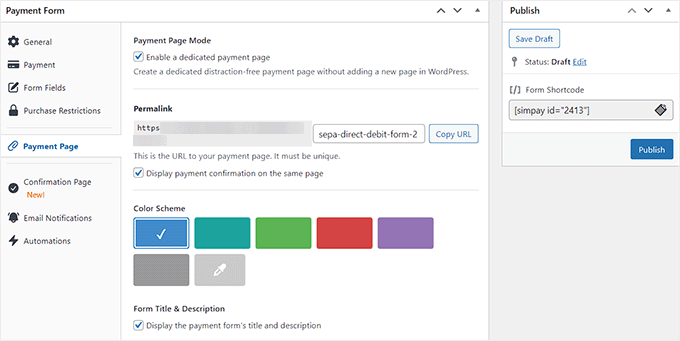
Once you are done customizing, click the ‘Publish’ button on the right to store your settings.
Now, go ahead and visit your WordPress site to view the payment form page.
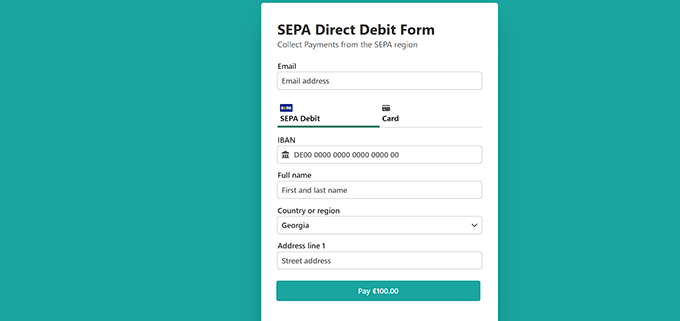
Alternatively, if you want to add the SEPA payment form to an existing page, then you must click the ‘Publish’ button once you add the form fields and configure confirmation messages.
After that, open a page of your liking in the WordPress block editor and click the add block ‘+’ button.
Next, you need to find and add the WP Simple Pay block to the page and select the SEPA payment form from the dropdown menu within the block.
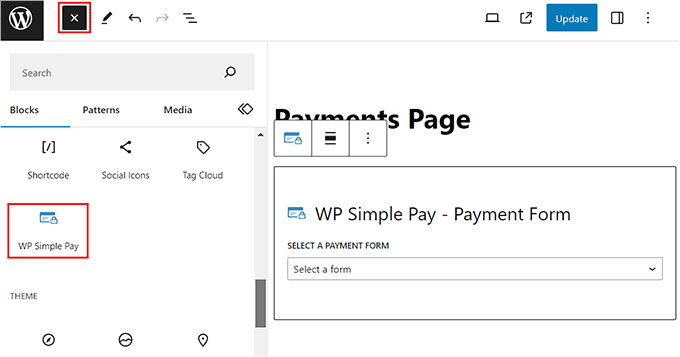
Finally, click the ‘Update’ or ‘Publish’ button to store your settings.
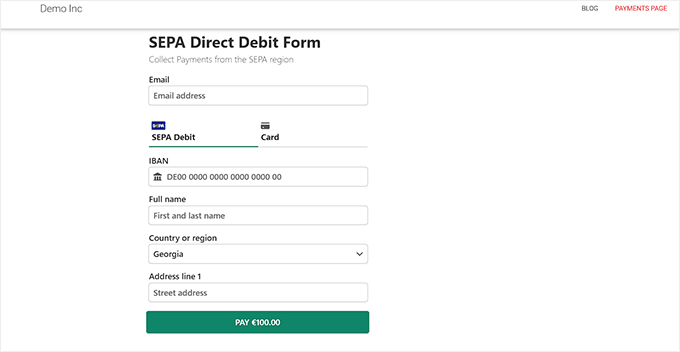
Now, you can visit your WordPress site to view the SEPA payment form in action.
Method 2: Accept SEPA Payments in WooCommerce Using FunnelKit Stripe Payment Gateway Plugin (Free)
If you have a WooCommerce store and want a free way to accept SEPA payments, then this method is for you.
Important: Your WooCommerce store currency must be set to Euro (EUR) for this to work. You can change this in the WooCommerce » Settings page.
Step 1: Install and Activate Stripe Payment Gateway for WooCommerce
First, you need to install and activate Stripe Payment Gateway for WooCommerce. For detailed instructions, see our beginner’s guide on how to install a WordPress plugin.
It is a free plugin by FunnelKit that lets you easily add different payment gateways.
Step 2: Connect Stripe to Your WooCommerce Store
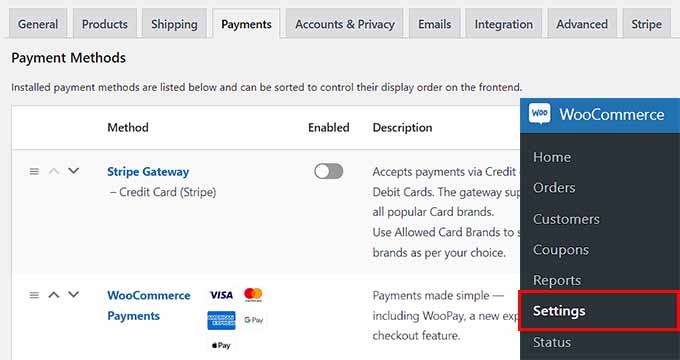
Upon activation, visit the WooCommerce » Settings page from the WordPress dashboard and switch to the ‘Payments’ tab.
Here, click the ‘Stripe Gateway’ option to open further settings.
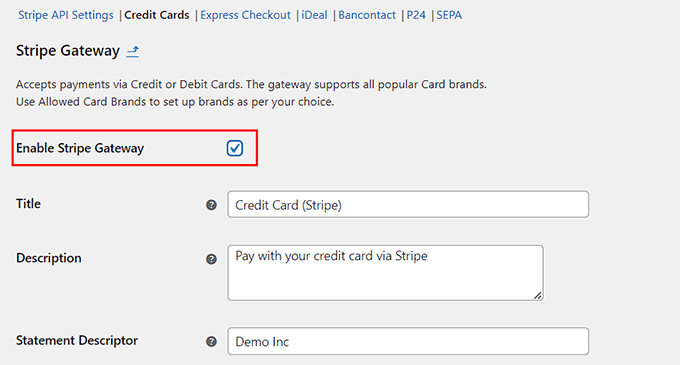
On the new page, check the ‘Enable Stripe Gateway’ box. This connects the main Stripe gateway to your site so you can accept credit cards.
Next, click the ‘Save Changes’ button to store your settings. After saving, look for the Stripe API Settings link at the very top of the screen and click it.
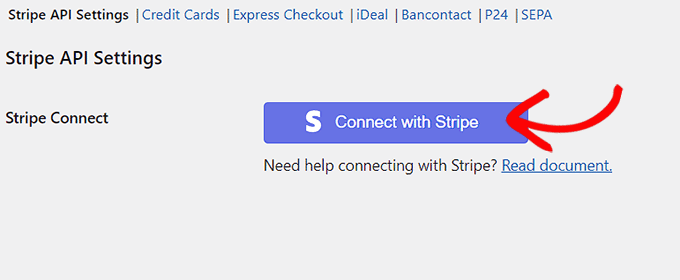
This will take you to a new page where you must click on the ‘Connect to Stripe’ button to connect the payment gateway with your online store.
You will then be taken to a new screen where you must enter your Stripe username and password. If you don’t have an account, then you can create one from here.
For more details on how to do this, see our tutorial on how to accept payments with Stripe in WordPress.
Step 3: Enable SEPA as a Payment Option
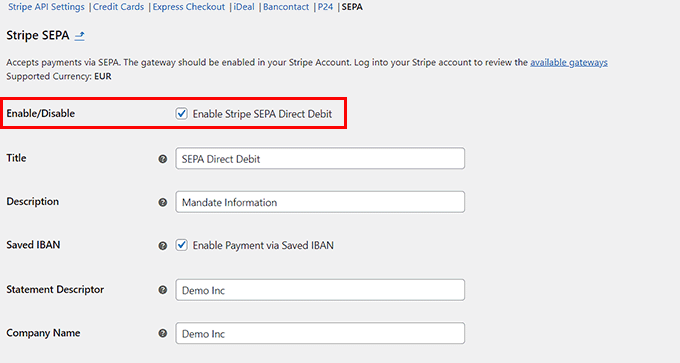
Once you connect your WooCommerce store with your account, click on the ‘SEPA’ link at the top. Here, check the ‘Enable Stripe SEPA Direct Debit’ option.
After that, you can also add a title, description, company name, and selling locations where this payment method can be displayed.
Step 4: Preview Your Changes
Finally, click the ‘Save Changes’ button to store your settings.
You have now activated the SEPA payment method on your WooCommerce store. You can see it on the checkout page of your store.
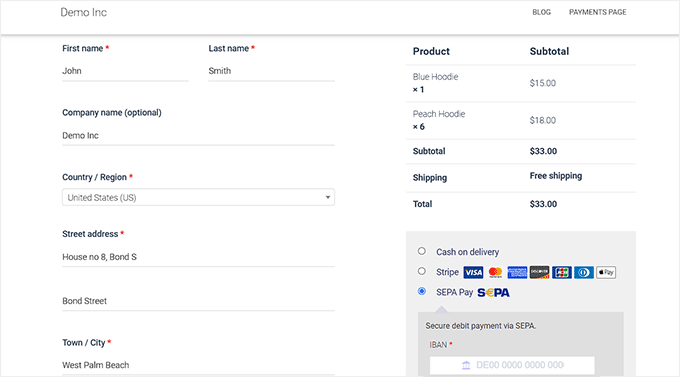
💡Pro Tip: SEPA payments can take anywhere from 3 to 14 days to clear. We recommend waiting until the order status changes to ‘Completed’ before shipping any physical goods.
Bonus: Add PayPal in WordPress and WooCommerce
Apart from Stripe and SEPA, you can also use PayPal to accept payments all across Europe.
PayPal is one of the pioneers in the payment industry and offers a variety of services suitable for personal, business, and eCommerce. It also has a large user base in Europe, with over 400 million active accounts.
With built-in fraud protection, recurring payment support, and easy cross-border transactions, PayPal is a reliable and flexible option for online stores.
You can easily add it to your site using WPForms. It is the best WordPress PayPal plugin on the market that offers a drag-and-drop builder, premade templates, and complete spam protection.
The PayPal addon makes it simple to accept payments, donations, and online orders right from your website.
At WPBeginner, we regularly use WPForms for our contact forms and run our annual surveys with it, thanks to how easy it is to create custom forms and analyze responses.
To learn more about its features and how it compares to other options, check out our full WPForms review.
Frequently Asked Questions About SEPA Payments
Here are some common questions our readers ask about using SEPA for online transactions.
How do I do a SEPA transaction?
To perform a SEPA transaction, you simply need the recipient’s full name and their International Bank Account Number (IBAN). Log in to your online banking, select “Euro Transfer” or “SEPA Transfer,” enter these details, and confirm the amount. It works exactly like a standard domestic bank transfer.
How do I receive a SEPA payment?
To receive a SEPA payment, you must provide your IBAN and account name to the payer. If you are running a business website, you can use a tool like WP Simple Pay or Stripe to collect these payments automatically during checkout.
Is SEPA better than SWIFT?
Yes, SEPA is generally faster and cheaper than SWIFT for payments made in Euros within the European zone. SWIFT is necessary for global transfers outside of Europe, but it typically involves higher fees and longer processing times.
Is SEPA for the EU only?
No, SEPA extends beyond just the European Union. While it covers all EU member states, it also includes countries like the United Kingdom, Switzerland, Norway, and Iceland.
Is an IBAN mandatory for SEPA?
Yes, an International Bank Account Number (IBAN) is required for all SEPA transfers. This number uniquely identifies your bank account across borders to ensure the funds reach the correct destination.
Is a SEPA transfer free?
SEPA transfers are often free for consumers, usually costing the same as a local bank transfer. However, businesses accepting payments via processors like Stripe will pay a small transaction fee, though it is usually much lower than credit card fees.
What are the disadvantages of SEPA?
The main disadvantage is speed, as SEPA payments can take 1 to 3 business days to clear rather than being instant. Additionally, SEPA is strictly for Euro transactions, so you cannot use it to send or receive US Dollars.
Is SEPA similar to ACH?
Yes, SEPA is very similar to the ACH (Automated Clearing House) system used in the United States. Both allow for direct bank-to-bank transfers that are secure and low-cost, but they are not instant like card payments.
We hope this article helped you learn how to easily accept SEPA payments in WordPress. You may also want to see our article on how to connect WordPress to PayPal commerce and our top picks for the most popular digital products you can sell online.
If you liked this article, then please subscribe to our YouTube Channel for WordPress video tutorials. You can also find us on Twitter and Facebook.



Have a question or suggestion? Please leave a comment to start the discussion.