


Pre-orders are an incredibly powerful way for online stores to launch new products, assess demand, and secure sales even before items are in stock. This strategy can bring in revenue earlier and help you manage inventory more effectively.
However, finding the right way to set up pre-orders in WooCommerce can get tricky. With various plugins and settings to consider, it’s easy to feel overwhelmed trying to pick a solution that truly fits your store’s needs.
I’ve helped many store owners navigate these options, and I understand how important it is to choose a reliable method that won’t complicate your checkout or fulfillment. That’s why I’ve thoroughly tested the best ways to get pre-orders working for you.
In this guide, I walk you through exactly how to set up pre-orders on your WooCommerce store. All approaches are beginner-friendly, tested on live stores, and designed so you can start accepting pre-orders confidently.
💡Quick Answer: How to Set Up Pre-Orders in WooCommerce
Here’s how to set up pre-orders for WooCommerce products:
- Method 1 – Merchant by aThemes: Ideal for WooCommerce store owners who want an all-in-one toolkit. Best for pre-orders plus conversion-boosting features like live sale notifications, product bundles, and more.
- Method 2 – YITH Pre-Order for WooCommerce: Perfect for stores launching new products, seasonal items, or limited-stock products. Great for creating urgency, offering pre-order discounts, and letting customers pay later.
What Is a WooCommerce Pre-Order?
A WooCommerce pre-order lets customers buy a product before it’s officially available. This is useful when you’re launching a new item or waiting for stock to arrive.
You can either charge customers right away or collect payment later when the product is released, depending on how you want to handle orders.
For example, imagine you’re launching a limited-edition t-shirt. Customers can pre-order it today, pay now or later, and be guaranteed one as soon as it’s in stock.
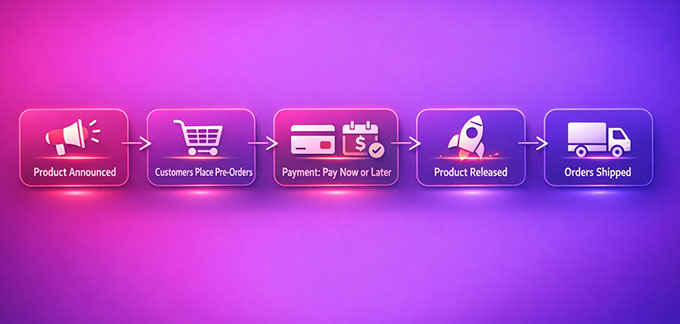
This helps you plan inventory while keeping customers excited and engaged.
Why Use Pre-Orders in WooCommerce?
Pre-orders aren’t just for big brands—they’re a way for any online store to sell smarter, reduce risk, and get customers excited before a product even hits your shelves.
Here’s why pre-orders can make a big difference for your store:
- Better Cash Flow (More Money Upfront): Pre-orders let you accept payments before products are in stock. If you’re launching a new gadget, this can help you fund production or cover shipping costs without dipping into your own savings.
- Demand Validation: Instead of guessing whether a product will sell, pre-orders show you real interest from customers. For instance, if you offer pre-orders for a new t-shirt design and only a few people buy, you’ll know to rethink production before ordering a large batch.
- Launch Buzz: Pre-orders create anticipation and excitement. You can offer early-bird discounts, create a waitlist, or offer limited editions to encourage customers to sign up.
Using pre-orders makes your product launches more predictable, less risky, and more profitable, while keeping your customers engaged and excited from day one.
Which Plugin Should You Use to Accept WooCommerce Pre-Orders?
Before setting up pre-orders, it’s important to pick the plugin that fits your store’s needs.
Both free and premium options have their strengths, and the right choice depends on whether you want a simple, beginner-friendly solution or a more advanced, automated pre-order system.
Here’s a quick comparison to help you decide:
| Plugin | Best For | Cost | Ease of Setup |
|---|---|---|---|
| Merchant by aThemes (Free & Premium) | Beginners or small stores who want a straightforward pre-order solution | Free + $79/year | Very easy; beginner-friendly |
| YITH Pre-Order for WooCommerce (Premium) | Stores that want advanced features, automation, and better control over pre-orders | $139.99/year | Slightly more advanced, but guided and customizable |
👉 Recommendation: If you’re just starting and want a simple solution with other growth tools, Merchant by aThemes is a great pick. For advanced automation, flexible payment options, and in-depth control, YITH Pre-Order for WooCommerce is worth the investment.
Expert Note: If you haven’t fully set up your WooCommerce store yet, I recommend checking out these guides first:
Once you’ve made your choice, you’re ready to move on to the step-by-step setup, so you can start accepting pre-orders:
Method 1: Accept Pre-Orders in WooCommerce with Merchant (Free Option)
🥇Best for: Small to medium WooCommerce stores looking for an all-in-one toolkit to boost sales and manage pre-orders easily.
I recommend Merchant by aThemes for stores that want a simple yet powerful way to start accepting pre-orders. It’s perfect for small to medium WooCommerce shops that want an all-in-one toolkit without juggling multiple plugins.
Merchant comes with a dedicated Pre-Orders module, which lets you create rules for products, categories, or tags, set shipping dates, offer discounts, and customize the pre-order button.
Payment is taken at the time of order, and orders are tracked directly in WooCommerce with a ‘Pre-Ordered’ status.
I’ve tested this tool multiple times on live stores, and it’s consistently reliable, easy to set up, and beginner-friendly.
Beyond pre-orders, Merchant has a full suite of modules, helping you maximize revenue without adding extra plugins. Some of them are:
- Product Bundles & Frequently Bought Together
- Countdown Timers & Stock Scarcity Alerts
- Side Cart & Sticky Add-to-Cart
- Advanced Reviews & Trust Badges
- Buy X, Get Y & Bulk Discounts & Live Sales Notifications
This makes Merchant more than just a pre-orders plugin—it’s a complete toolkit for growing a WooCommerce store.
Step 1: Install and Activate Merchant in WordPress
The first step is to get the free Merchant by aThemes plugin installed and activated on your WooCommerce store.
If you’re not sure how to install a WordPress plugin, don’t worry—I’ve got you covered. Just follow our step-by-step guide on installing WordPress plugins and you’ll be ready in minutes.
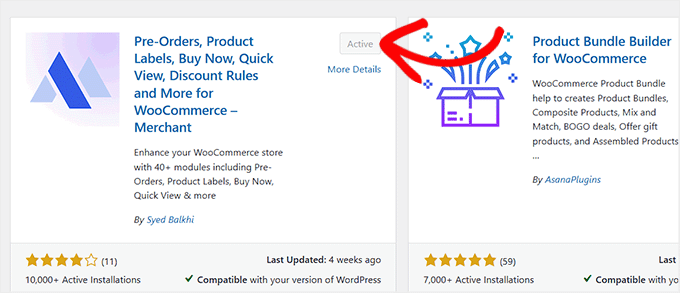
📍Note: Merchant’s free version works perfectly for most stores and is enough to set up pre-orders. However, to unlock advanced modules like Live Sales Notifications, Product Bundles, Stock Scarcity Alerts, and more, you will need the premium plan.
Step 2: Open the Pre-Orders Module and Create Your First Rule
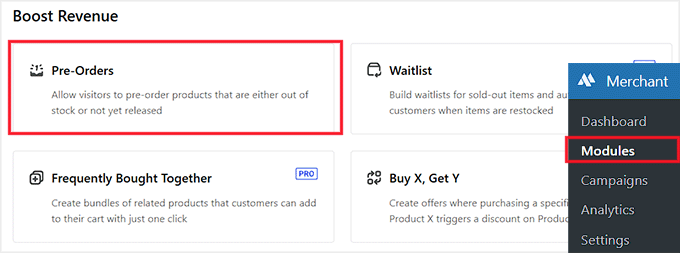
Upon activation, head over to the Merchant » Modules page from your WordPress dashboard.
In the ‘Boost Revenue’ section, you’ll see the ‘Pre-Orders’ module. Simply click on it to open the module settings page.
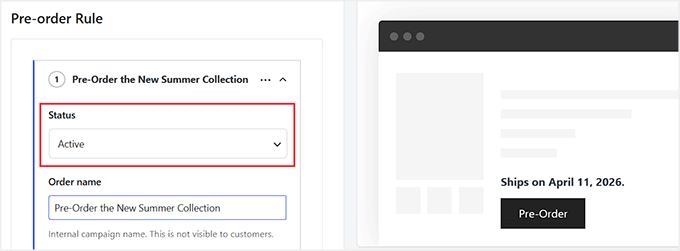
This makes sure the rule you’re creating is live and ready to accept pre-orders.
Next, give your pre-order an ‘Order Name.’ This is an internal campaign name that only you will see that helps you organize and keep track of different pre-orders on your store.
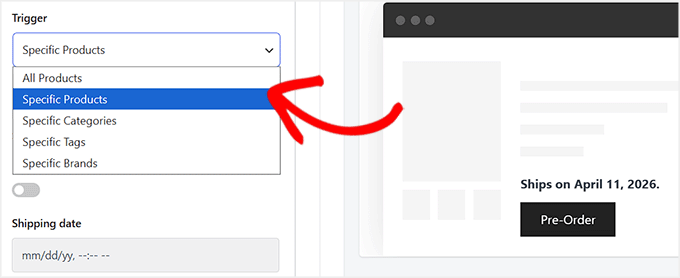
After that, you need to set a trigger for your pre-order. A trigger defines which products the pre-order rule will apply to.
Merchant gives you a few options:
| Trigger Type | What It Does | Example |
|---|---|---|
| Specific Products | Apply the pre-order rule to individual products you select | A new limited-edition t-shirt |
| Specific Categories | Apply the rule to all products in one or more product categories | “Summer Collection” category |
| Specific Tags | Apply the rule to products with specific tags | “Eco-Friendly” tagged products |
| Specific Brands | Apply the rule to all products from certain brands | “Brand X” products only |
For this tutorial, I recommend choosing the ‘Specific Products’ trigger. This is the easiest option for beginners because it gives you precise control over which items are available for pre-order.
Instead of applying the rule to entire categories or tags—which can get complicated if you have many products—you can focus on the exact products you want to launch.
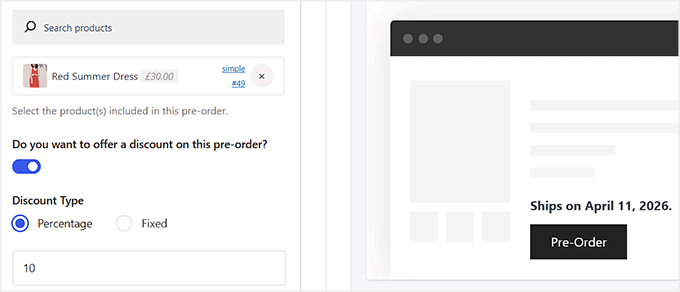
Once you choose this trigger, you can search for the products you want to include in this pre-order.
You can select one or multiple products at a time, which makes it easy if you’re launching several items together.
You can also choose to offer a discount on this pre-order. Merchant lets you set either a percentage or fixed amount discount for your early buyers.
For example, you might enter 10 as the discount type to give 10% off the regular price. This is a great way to encourage customers to pre-order and reward them for being early supporters.
Step 3: Set Shipping Dates, Pre-Order Timing, and User Conditions
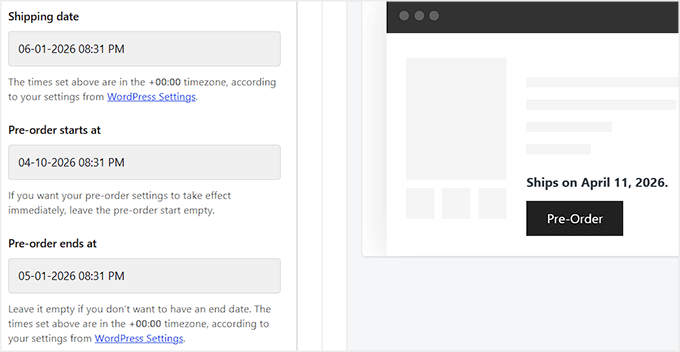
Next, you’ll configure the shipping date for your pre-order. This tells Merchant when the product will be available to ship.
Enter the date in the format mm/dd/yy and, if needed, set a time. Keep in mind that this time is based on your WordPress timezone settings.
I recommend going to Settings » General in your dashboard to make sure your site’s timezone matches your local time before scheduling.
Then, set the pre-order start date. If you want the pre-order to start immediately, you can leave this field empty. The pre-order end date is optional as well, so leave it blank if you don’t want to limit the pre-order period.
Merchant also lets you define ‘User Conditions’ to control who can access this pre-order. By default, it applies to all users, but you can select specific users or roles if you want to restrict access.
There’s also an ‘Exclusion List’ where you can exclude certain users or roles.
For example, you might want to exclude administrators, editors, or specific customers from seeing the pre-order offer.
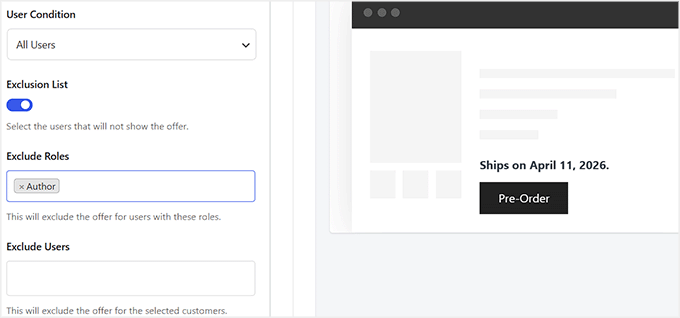
I suggest keeping it simple at first and applying the pre-order to all users, so you can test the setup and make sure everything works before adding restrictions. This gives you complete flexibility to control who can pre-order your products.
Step 4: Customize the Pre-Order Button and Pre-Order Modes
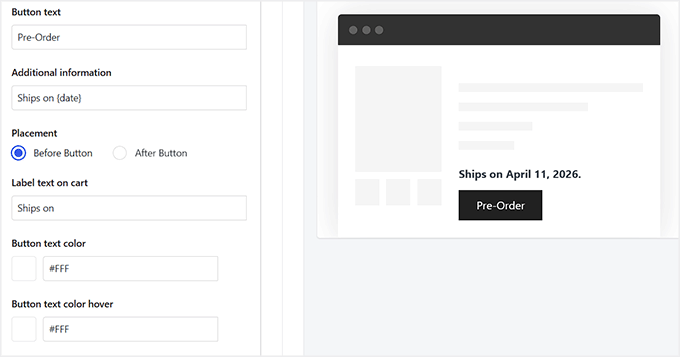
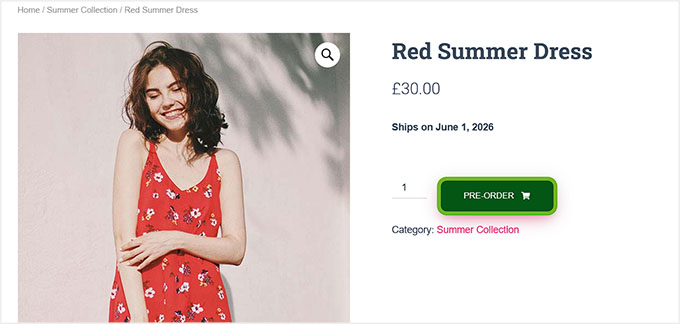
Now it’s time to make your pre-order offer clear and appealing to customers. First, you can customize the button text. I suggest keeping it simple with ‘Pre-Order’ so there’s no confusion.
You can also add a small note under the button, like ‘Ships on {date}’, which will automatically display the shipping date you set earlier.
Merchant also lets you adjust the button style to match your store’s branding. You can change colors for the text, hover effects, border, and background.
If you want to create more pre-order campaigns—for different products, categories, or special discounts—you can use the ‘Add New Pre-Order’ button to set up additional rules.
This gives you the flexibility to manage multiple pre-orders on your store, each with its own shipping date, product selection, and pricing strategy.
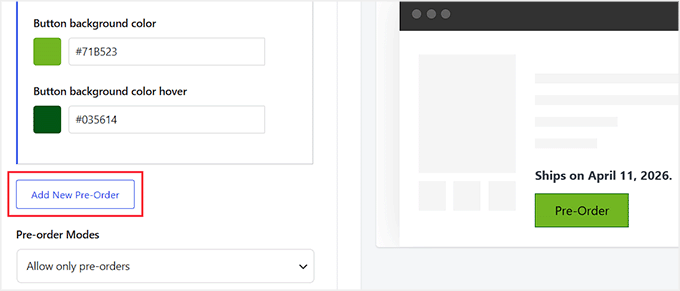
After that, choose the ‘Pre-order Modes’. If you select ‘Treat the whole order as pre-order’, then even a single pre-order item in the cart will delay the entire order.
For example, if a customer buys an in-stock hat and a pre-order shirt, they won’t get the hat until the shirt is ready to ship. This is useful if you want to simplify fulfillment and avoid splitting shipments.
Alternatively, ‘Allow only pre-orders’ forces customers to choose either pre-order products or in-stock items, so they can’t mix both in a single order. This option helps avoid confusion if you’re shipping pre-orders at different times than your regular stock.
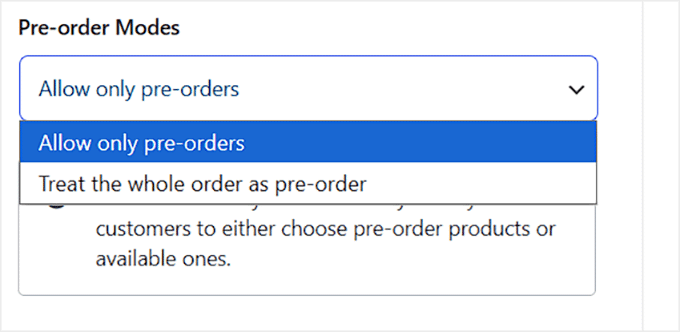
Keep in mind that this rule applies to all pre-order rules you create in Merchant. So no matter how many campaigns or products you have, the same restriction will keep your checkout process simple and easy to manage.
Step 5: Save, Enable, and Check Your Pre-Orders
Once you’ve customized all your settings, including the button text, design, pre-order modes, triggers, and shipping dates, scroll back to the top of the page and hit ‘Save’.
This makes sure all your changes are safely stored. Then, click the ‘Enable’ button to activate the Pre-Orders module.
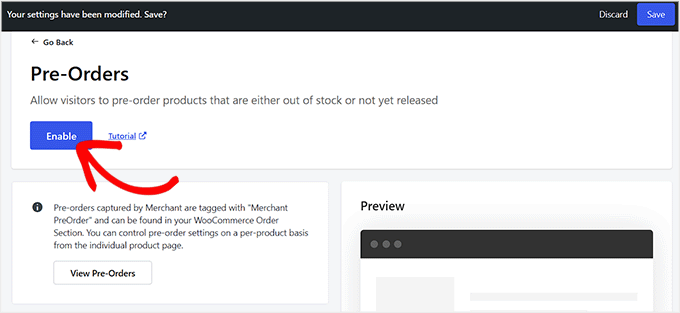
Now, head over to your WooCommerce store and you’ll see the pre-order button live on all the products you selected.
Customers can start placing pre-orders immediately, and everything you set up—from discounts to shipping dates—will display correctly.
Checking and managing your pre-orders is just as easy.
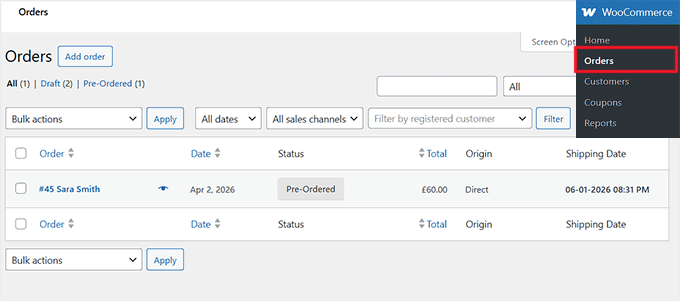
From your WordPress dashboard, go to WooCommerce » Orders. You’ll see a new ‘Pre-Ordered’ status alongside the usual order statuses like Draft or Completed.
Each pre-order entry shows the customer name, order total, and the scheduled shipping date.
This makes it simple to track all your pre-orders in one place, monitor upcoming fulfillment dates, and stay organized.
💡Expert Tip: After enabling your pre-orders, I highly recommend checking your product page on both a desktop computer and a mobile phone.
This makes sure your new pre-order button looks great and doesn’t overlap with other elements in your WooCommerce theme.
Method 2: Accept Pre-Orders in WooCommerce with YITH Pre-Order for WooCommerce (Premium)
🥈Best for: WooCommerce stores selling limited-edition or high-demand products. Store owners who want full control over pre-order pricing, scheduling, and automated payment collection.
I recommend YITH Pre-Order for WooCommerce for store owners who want to run pre-orders like the big brands (think Amazon or Apple).
You can create urgency, offer early-bird discounts, and let customers pay now or later.
This plugin works especially well for new product launches, seasonal items, or limited-stock products. It handles pre-order scheduling, pricing, and payments automatically.
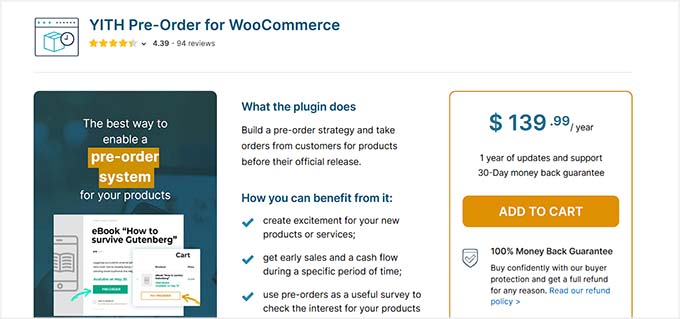
I’ve tested YITH thoroughly, and it’s reliable for both small and large campaigns. It also comes with useful tools like automated notifications, email reminders, and table views.
This makes it easy to manage all your pre-order products and orders in one place.
Step 1: Install and Activate YITH Pre-Order for WooCommerce
First, visit the YITH Pre-Order for WooCommerce website and purchase the premium version of the plugin. Once you have it, install and activate the plugin on your WordPress site.
If you’re unsure how to do this, just follow our step-by-step guide on how to install a WordPress plugin.
📍Note: YITH Pre-Order for WooCommerce offers a free version, but I strongly recommend using the premium plan.
The premium version gives you full control over pre-order pricing, scheduling, and payment options. You can charge upfront, let customers pay later, or automatically charge their card when the product becomes available.
Plus, it unlocks advanced features like email notifications, table views for managing orders, and the ability to set pre-orders for specific categories or products.
Step 2: Configure YITH Pre-Order General Options
Once the plugin is activated, head over to the YITH » Pre-Order » General Options page in your WordPress dashboard. This is where you can configure the plugin’s overall behavior for your store.
Start by enabling all pre-order features for your visitors. This makes sure that every option related to pre-orders is available on the frontend.
Next, decide how you want to handle out-of-stock products. You can automatically enable pre-order mode for all out-of-stock products or select specific products or categories.
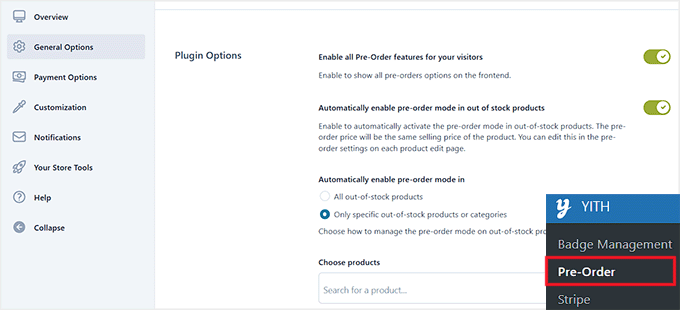
The pre-order price will default to the regular product price, but you can customize this for each product individually.
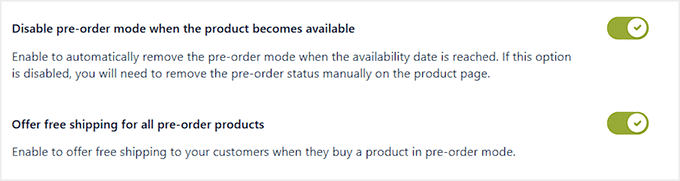
You can also choose to disable pre-order mode automatically when the product becomes available. If this option is turned off, you will need to remove the pre-order status manually from each product page.
Another useful option is to offer free shipping for all pre-order products. This can encourage more early purchases.
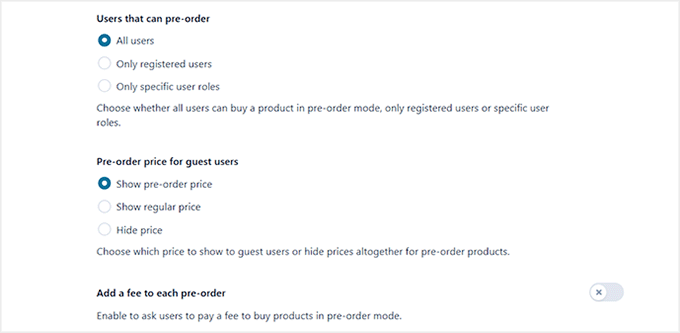
Next, set who can pre-order. You can allow all users, only registered users, or specific user roles to participate.
You can also control what pre-order price is visible to guest users: show the pre-order price, the regular price, or hide prices entirely.
If you want, you can add a fee to each pre-order to cover handling or other costs.
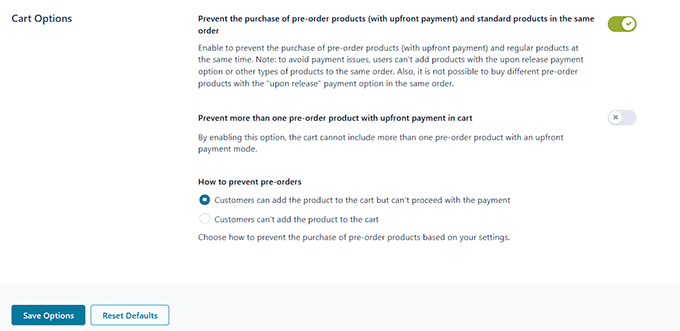
In the ‘Cart Options’ section, you can control how pre-order products behave in the shopping cart.
For example, you can stop customers from mixing pre-order items with regular products in the same order.
You can also limit the cart to only one pre-order product when using upfront payments.
Plus, you’re able to decide how strict you want to be. You can either let customers add restricted items to the cart but block them from checking out, or stop them from adding those products to the cart entirely.
Once you’ve adjusted all these settings, make sure to click ‘Save Options.’
Step 3: Configure Pre-Order Payment Options
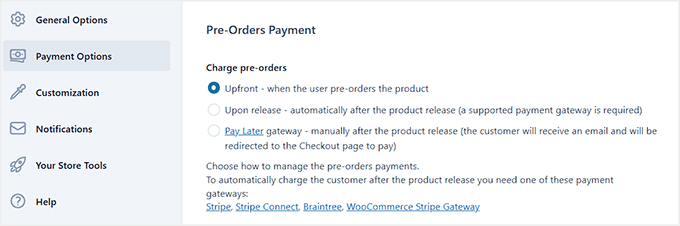
After that, switch to the ‘Payment Options’ tab in the left column. This is where you configure how your store handles payments for pre-orders.
Under ‘Charge Pre-Orders,’ you have three options. You can charge customers upfront when they place the pre-order, which guarantees payment immediately.
Alternatively, you can charge them upon release, meaning the payment is automatically collected once the product becomes available.
This requires a supported payment gateway like Stripe, because the gateway needs to save the customer’s credit card details so it can automatically charge them later.
The third option is the Pay Later gateway, which allows customers to pay manually after the product release. With this option, customers receive an email with a link to complete their payment at checkout.
I recommend using the upfront or automatic upon release option whenever possible. This helps reduce the risk of unpaid pre-orders.
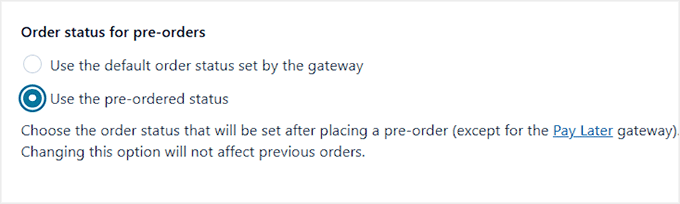
Next, you can choose the order status for pre-orders. By default, the plugin uses the status set by your payment gateway, but you also have the option to use a ‘Pre-Ordered’ status. This is helpful if you want to easily track pre-orders separately from regular orders.
After that, click ‘Save Options’ to store your settings.
Step 4: Customize the Pre-Order Appearance
Next, switch to the ‘Customization’ tab. This section lets you control how pre-orders appear to your customers on your store.
First, you can choose whether to show the date according to the user’s format. This automatically displays the availability date and time based on the visitor’s location, which is helpful if you sell internationally.
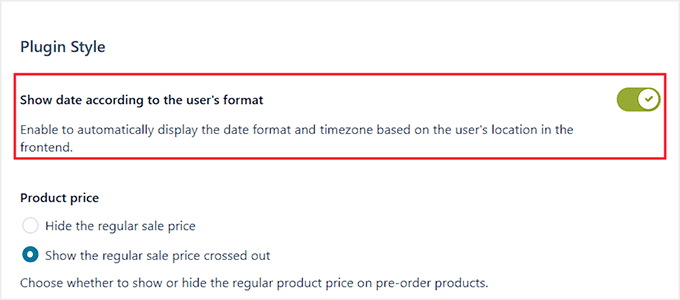
You can also control the product price display. For example, you might want to show the regular price crossed out to highlight the pre-order price, or hide it entirely.
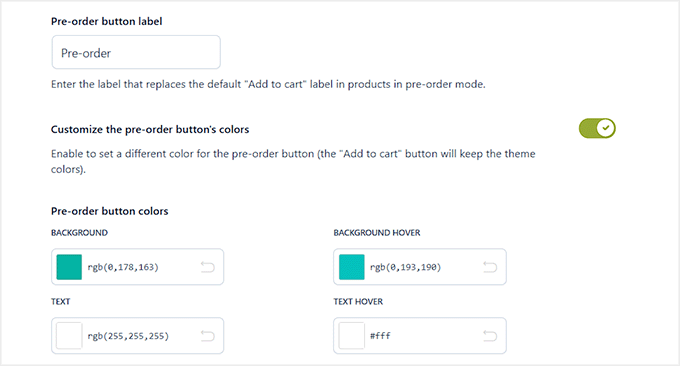
The pre-order button label and colors are also customizable. You can change the button text from the default ‘Add to Cart’ to something like ‘Pre-Order’ and adjust the background and text colors for both normal and hover states.
This helps the button stand out and match your store’s branding.
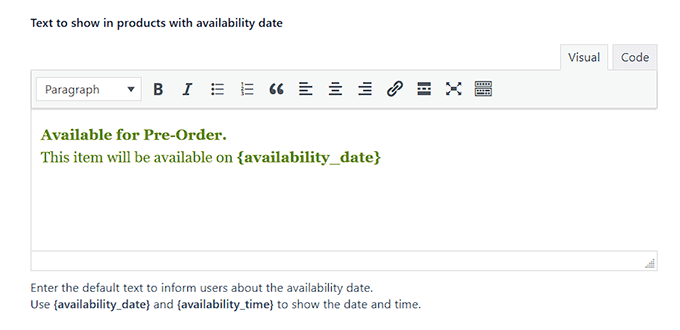
Other than that, I suggest customizing the availability text for products with or without a set release date.
For example, you might show ‘Ships on {availability_date}’ for scheduled products or a generic message for items without a set date.
You can choose to display this text on Shop pages, in the cart, and even for variable products where all variations are in pre-order mode.
Then, take a look at all the other settings and customize them to your liking. Once you are satisfied, click ‘Save Options.’
Step 5: Configure Notifications For Your Pre-Orders
Now it’s time to set up the notifications for your pre-orders. Switch to the ‘Notifications’ tab to control both admin and customer emails.
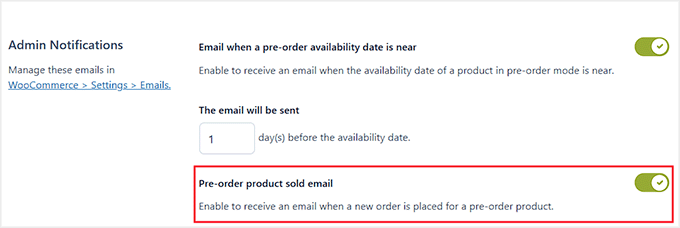
For admins, I suggest enabling emails to alert you when a pre-order product is sold or when the availability date is approaching.
For example, you can get a reminder 1 day before a product becomes available. These notifications help you stay on top of pre-order activity without constantly checking your dashboard.
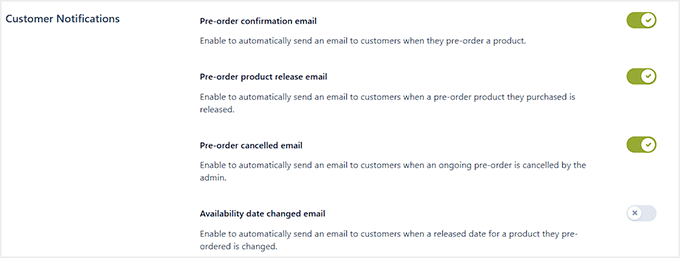
For customers, there are several important emails you can enable by toggling the switches.
These include a pre-order confirmation email, which automatically lets customers know their pre-order was successfully placed, and a pre-order release email. This informs them when the product is available to ship.
You can also enable notifications for canceled pre-orders or when the availability date changes. This keeps customers informed and avoids confusion.
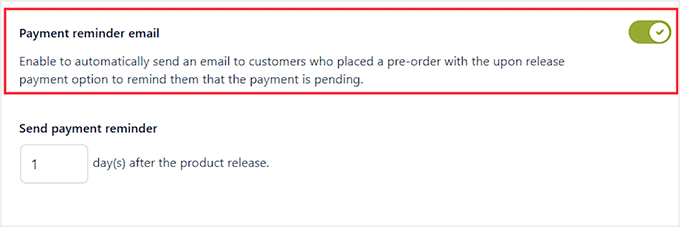
If you’re using the ‘upon release’ payment option, I also suggest enabling the payment reminder email. I usually set it to go out 1 day after the product release, which gives customers enough time to complete their payment without feeling rushed.
Once you’ve configured all the emails, don’t forget to save your changes.
Step 6: Enable YITH Stripe for Pre-Orders (Optional)
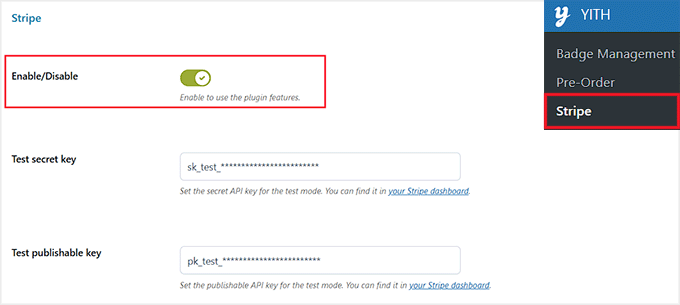
To automatically charge customers for pre-orders when the product becomes available, go to the YITH » Stripe page in your WordPress dashboard.
Here, you can enable the plugin features using the toggle. I always suggest turning this on to make sure the Stripe payments are processed smoothly for pre-orders.
After that, enter your Stripe API keys:
- Test Secret Key – For test mode; find it in your Stripe dashboard.
- Test Publishable Key – For test mode; also from Stripe.
- Live Secret Key – For live transactions.
- Live Publishable Key – For live transactions.
Enabling Stripe ensures payments are handled automatically and securely, which saves you from manually collecting them later.
📍Note: This step isn’t necessary if you’re using the ‘Pay Later’ option for pre-orders or if you plan to manually charge customers. In those cases, pre-orders will still work, but payments won’t be processed automatically.
Once you’re done, click the ‘Save Options’ button.
Step 7: Set Up a Product for Pre-Ordering
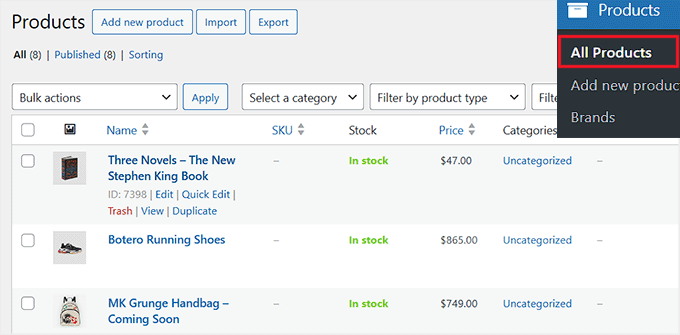
Now it’s time to set up a product for pre-ordering in WooCommerce. Start by going to the Products » All Products page in your WordPress dashboard.
You can either create a new product or open an existing one in the product editor.
Once there, add the product name, description, images, and select the appropriate categories. (If you are pre-selling a digital item, make sure to also check the “Virtual” and “Downloadable” boxes so WooCommerce doesn’t try to charge for shipping!)
Next, scroll down to the ‘Product Data’ section and switch to the ‘Pre-Order’ tab. Then, toggle on the ‘Manage pre-order options for this product’ switch.
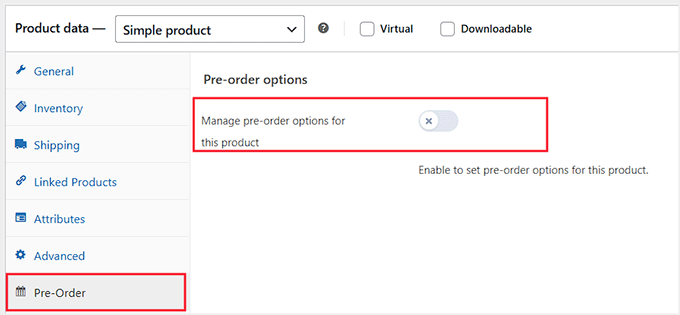
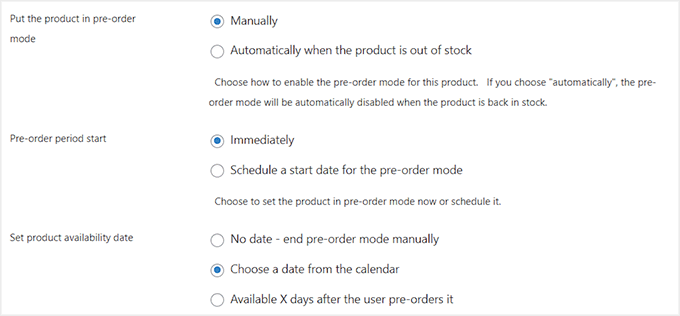
This will open the pre-order settings for this specific product. You can now choose to put the product in pre-order mode manually or automatically when the product is out of stock.
If you select ‘automatically,’ the pre-order mode will turn off once the product is back in stock.
After that, decide when the pre-order period should start: either immediately or schedule a future start date.
You can also set when the product will be available. You can choose a specific date from the calendar or leave it open and end the pre-order manually.
There’s even the option for it to become available a certain number of days after a customer places their pre-order.
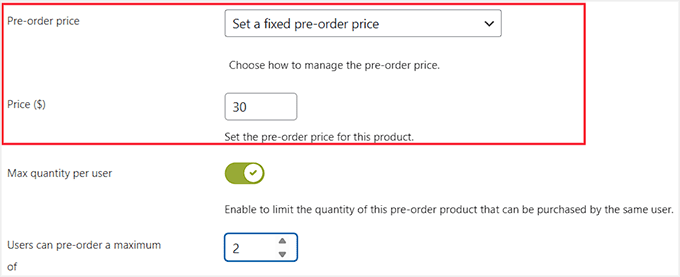
Next, choose how you want to price your pre-order. You can keep the regular product price or offer a special discounted price to encourage early purchases.
Then, limit the maximum quantity per user to prevent overselling.
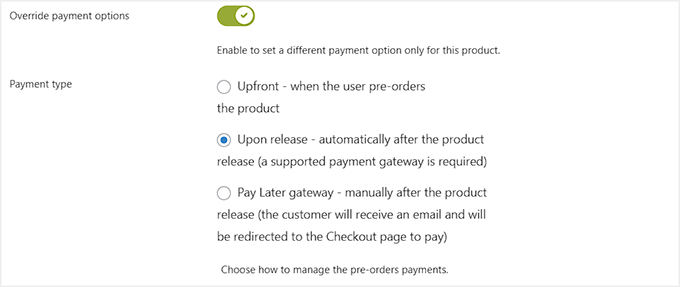
For the payment type, choose how pre-orders will be handled: Upfront (charge when the user pre-orders), Upon Release (charge automatically after the product release, requiring a supported gateway), or Pay Later (customers pay manually after release).
Once everything is set, click ‘Update’ or ‘Publish’ to make your product live in pre-order mode.
Step 8: Check Your Pre-Order Product in Action
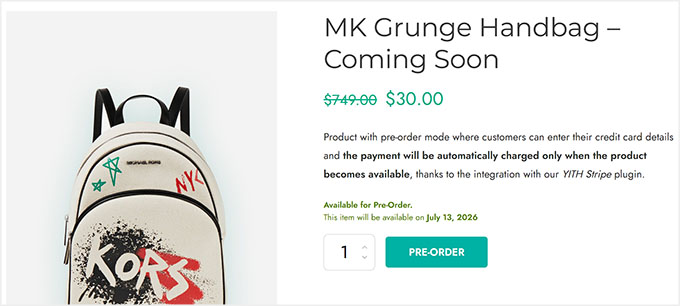
Once you’ve set up your pre-order product, visit your WooCommerce store.
The product page will clearly display the pre-order button along with the availability date so customers know when the item will be released.
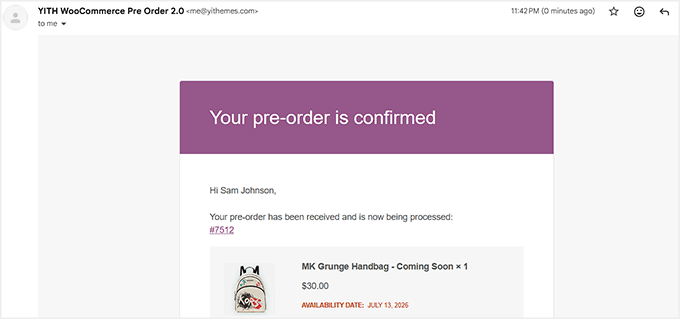
When a customer places a pre-order, they will automatically receive an email with all the details, including the product name, availability date, and payment information if applicable.
I always recommend testing this by placing a test pre-order yourself to ensure everything is working correctly.
💡Expert Tip: Some WooCommerce stores experience issues with pre-order emails not being delivered. This is usually related to your WordPress site’s email settings.
To fix this, I recommend using a plugin like WP Mail SMTP to ensure all emails—especially pre-order confirmations—are reliably sent to your customers.
To get started, take a look at our guide on fixing the WordPress not sending email issue.
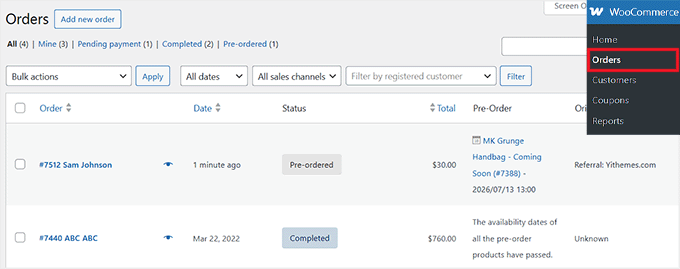
You can also monitor all pre-orders from the WooCommerce » Orders page in your WordPress dashboard.
Each pre-order will show up with its status marked as ‘Pre-Ordered,’ along with the customer details, total amount, product information, and the expected release date.
This makes it easy to manage pre-orders and track which products are pending release.
Common Pre-Order Mistakes and How to Avoid Them
Pre-orders are a powerful way to boost sales, but there are a few common mistakes that can create problems for both you and your customers.
Here’s what to watch out for:
- Unrealistic Availability Dates: Avoid promising a delivery date you can’t meet. Factor in production, shipping, and potential delays to prevent frustrating customers.
- Mixing Pre-Orders with Regular Orders: WooCommerce does not support split shipping. If a customer buys an in-stock item and a pre-order item together, the whole order is stuck until the pre-order arrives. Use Merchant or YITH to either block mixed carts or clearly warn customers that their entire order will be delayed.
- Missing Customer Notifications: Always test your email notifications and consider using an SMTP plugin like WP Mail SMTP to make sure they reach customers.
- Ignoring Quantity Limits: Not setting limits can lead to overselling. Use YITH Pre-Order for WooCommerce’s maximum quantity feature to avoid overselling limited-stock items.
- Lacking a Clear Refund Policy: Customers might change their minds during a long wait. Make sure your store’s refund policy clearly states how pre-order cancellations and refunds are handled before you launch the campaign.
Frequently Asked Questions About WooCommerce Pre-Orders
I know pre-orders can feel a bit tricky when you’re setting them up, and even experienced store owners have questions about timing, pricing, and notifications.
I’ve put together answers to the most common questions I get about pre-orders, so you can run your campaigns smoothly.
Can I offer a discount on pre-orders?
Yes, you can offer discounts on pre-orders to encourage early purchases. Merchant by aThemes lets you apply discounts directly within the Pre-Order module, so customers see the special price on selected products.
Similarly, YITH Pre-Order for WooCommerce allows you to set a fixed or percentage discount on pre-order items. This creates urgency and boosts early sales.
Does WooCommerce support pre-orders for digital/downloadable products?
Yes, WooCommerce pre-orders work for digital or downloadable products as well. With Merchant, you can create pre-orders for digital items and manage availability dates easily.
YITH Pre-Order for WooCommerce also supports digital products. Customers can reserve them ahead of release and receive download access once the product becomes available.
Which payment gateways work with WooCommerce pre-orders?
Merchant integrates seamlessly with WooCommerce’s standard gateways like Stripe and PayPal. You can allow upfront payments or delayed charges.
YITH Pre-Order for WooCommerce supports Stripe, Stripe Connect, Braintree, and WooCommerce Stripe Gateway, and can automatically charge customers when the product becomes available.
Can I limit pre-order units?
Yes, YITH Pre-Order for WooCommerce lets you set a maximum quantity per user. This makes sure there’s fair access for limited-stock products and helps avoid fulfillment issues.
What if I need to change the release date?
If a product’s availability changes, both tools make updates easy. Merchant allows you to adjust the pre-order shipping date, and customers are shown the updated availability on the product page.
YITH Pre-Order for WooCommerce not only lets you change the release date but can automatically notify customers via email.
Do I need a special email service for pre-order notifications?
I highly recommend using a dedicated SMTP service like WP Mail SMTP. WordPress’s default email system often sends transactional emails (like pre-order confirmations and updates) to spam folders. An SMTP service ensures reliable delivery, so your customers always receive important notifications.
How do pre-orders affect my inventory management?
Pre-orders are great for inventory planning because they give you a clear signal of demand before products are in stock. When you set up a pre-order, you can allocate upcoming inventory to those sales. Some plugins also let you limit the number of pre-orders to prevent overselling, ensuring you can fulfill all early commitments without issues.
I hope this article helped you learn how to set up pre-orders for WooCommerce products. You may also want to see our guide on creating an order bump for WooCommerce and our article on making a rewards program for your online store.
If you liked this article, then please subscribe to our YouTube Channel for WordPress video tutorials. You can also find us on Twitter and Facebook.


Have a question or suggestion? Please leave a comment to start the discussion.