


We’ve been using shortcodes in WordPress themes for years, and they have become a standard part of how we build sites.
They solve a straightforward problem: how to add the same functionality in multiple places without duplicating code or making your theme files harder to manage.
Shortcodes let you create simple, reusable code snippets that work anywhere on your site.
Whether you need to display custom content, add forms, or create interactive elements, shortcodes provide a clean way to add that functionality and use it wherever needed.
In this guide, we’ll show you how to use shortcodes in your themes using different methods.
💡Quick Answer: How to Add Shortcodes to Theme Files
If you are looking for the fastest way to add functionality to your theme, here is a quick overview of the methods we will cover:
- Method 1: Full-Site Editor. Best for users with modern block-based themes (like Twenty Twenty-Four). No coding required.
- Method 2: Editing Theme Files. Best for developers or advanced users using Classic themes. Requires editing PHP files.
- Method 3: SeedProd Theme Builder. Best for beginners who want a custom design without writing code.
Why Use Shortcodes in Your WordPress Themes?
Shortcodes allow you to add many different features to your website without writing complex code. Here are some of the most common ways to use them:
- Image Galleries: Displaying photos in a grid or slider.
- Forms: Adding contact forms, payment forms, or surveys.
- Social Feeds: Showing your latest posts from Instagram, Facebook, or Twitter.
- Call-to-Action Buttons: Creating buttons to link to other pages.
WordPress comes with a few built-in shortcodes. Plus, popular WordPress plugins provide their own shortcodes to help you display content.
However, sometimes, you may want to use a shortcode inside your WordPress theme files.
This allows you to add dynamic elements to areas you can’t edit using the standard WordPress post editor, such as your archive page. It’s also an easy way to use the same shortcode on multiple pages.
For example, you might add a shortcode to your theme’s Page or Post template.
With that in mind, let’s see how you can use shortcodes in your WordPress theme. Simply use the quick links below to jump straight to the method you want to use:
Method 1: Using the Full-Site Editor (Block Themes Only)
The easiest way to add a shortcode to your theme is by using the full site editor. This allows you to add a Shortcode block to any part of your site layout.
However, this method only works with block-based themes like Twenty Twenty-Five.
If you do not see the Appearance » Editor menu in your dashboard, then you are likely using a Classic theme. Please skip to Method 2 below.
To get started, head over to Appearance » Editor in the WordPress dashboard.

By default, the full site editor shows your theme’s home template, but you can add shortcodes to any template.
To see all the available options, select ‘Templates.’
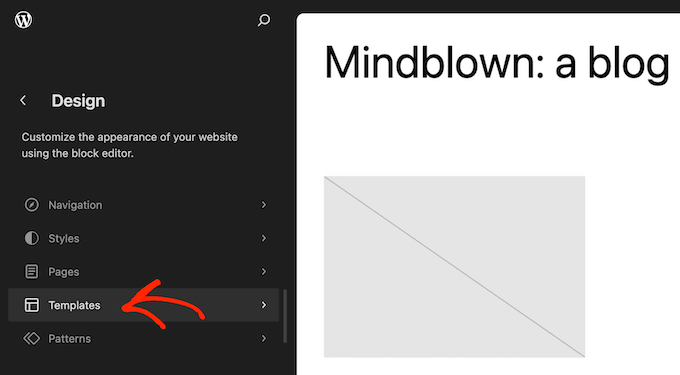
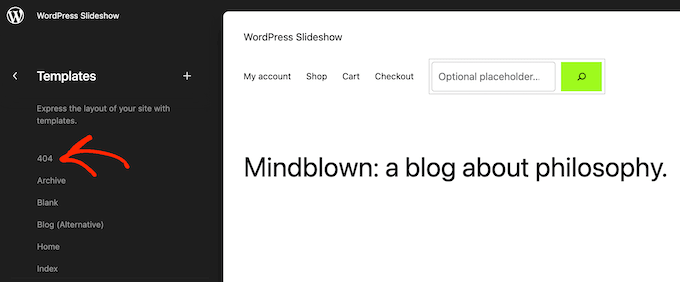
You can now click on the custom page template you want to edit.
As an example, we will add a shortcode to the 404 page template, but the steps will be exactly the same no matter which template you select.
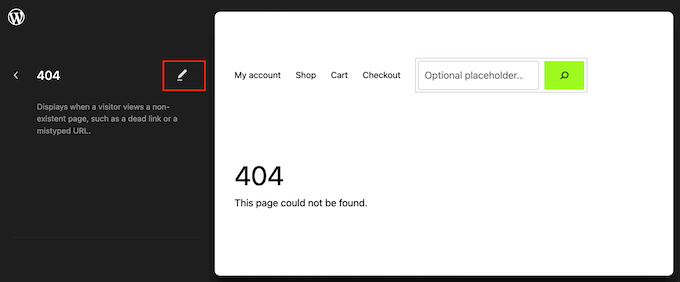
WordPress will now show a preview of the template.
To add a shortcode, click the small pencil icon.
With that done, click on the blue ‘+’ icon in the top left corner of the block editor.
In the search bar, you need to type in ‘Shortcode’.
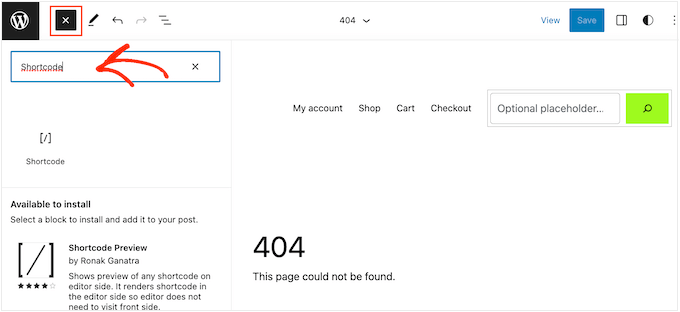
When the right block appears, drag and drop it onto the theme template.
You can now either paste or type the shortcode that you want to use.
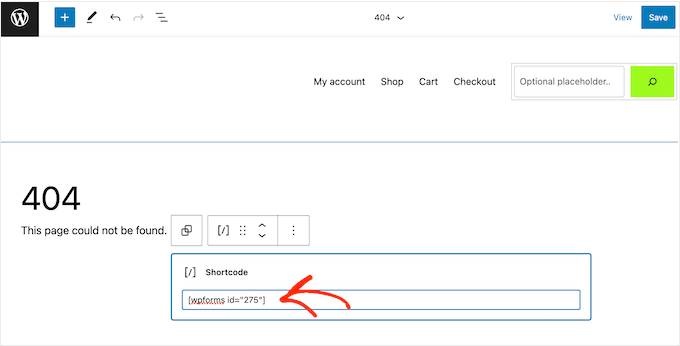
After that, go ahead and click on the ‘Save’ button.
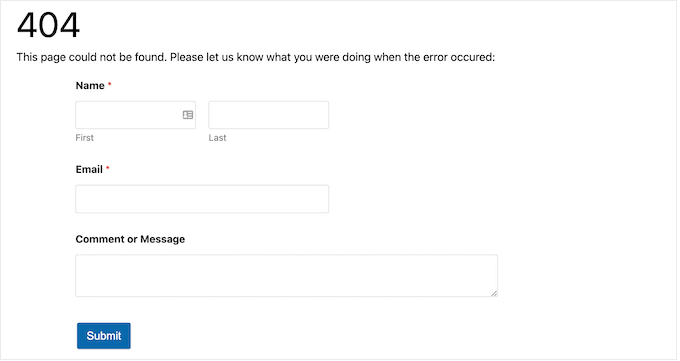
Now, simply visit your WordPress blog to see the shortcode in action.
Method 2: Editing Your WordPress Theme Files (Works With Any WordPress Theme)
You can also add shortcodes by editing your theme files directly. This works for both classic and block themes, but it is more advanced.
Because you are modifying code, we strongly recommend creating a child theme first. This prevents your changes from being lost when you update your theme.
WordPress does not automatically run shortcodes inside PHP template files. Instead, you must explicitly tell WordPress to run the code using the do_shortcode function. For more information, please see our guide on how to easily add custom code.
Important: You must place this code inside PHP tags (<?php ?>) within your template file.
Here is an example of the code you would add:
echo do_shortcode('[gallery]');
Simply replace ‘gallery’ with the shortcode you want to use.
If you are adding a shortcode with extra parameters, like a specific form ID, the code looks slightly different.
For example, if you are using WPForms, you would use this snippet:
echo do_shortcode("[wpforms id='92']");
Troubleshooting: What to Do When do_shortcode Isn’t Working
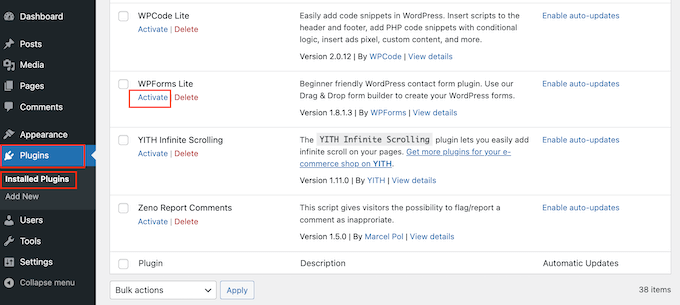
If the output doesn’t appear, make sure the plugin providing the shortcode is actually active by going to the Plugins » Installed Plugins page.
You can also use the shortcode_exists() function to check if the shortcode is available before running it. This prevents errors if the plugin is accidentally deactivated.
if ( shortcode_exists( 'wpforms' ) ) {
  echo do_shortcode("[wpforms id='147']");
}
If you still don’t see the shortcode output on your website, then try clearing the WordPress cache, as you may be seeing an outdated version of your site.
Method 3: Adding Shortcode With a Page Builder (Custom Themes)
Another option is to create a completely custom WordPress theme layout.
This gives you full control over exactly where your shortcodes appear without editing PHP files.
The best way to do this is with SeedProd. It is the best WordPress page builder that allows you to design your own theme visually, replacing the need for your existing theme files.

Several of our partner brands have designed their entire websites with it, and their teams loved how beginner-friendly and straightforward it is to use.
For step-by-step instructions, please see our guide on how to create a custom WordPress theme (without any code).
After creating a theme, you can add shortcodes to any part of your WordPress website by going to SeedProd » Theme Builder.
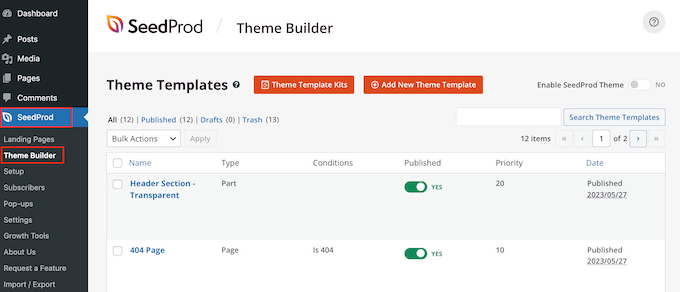
Here, find the template where you want to use the shortcode.
Then, just hover your mouse over that template and click on ‘Edit Design’ when it appears.
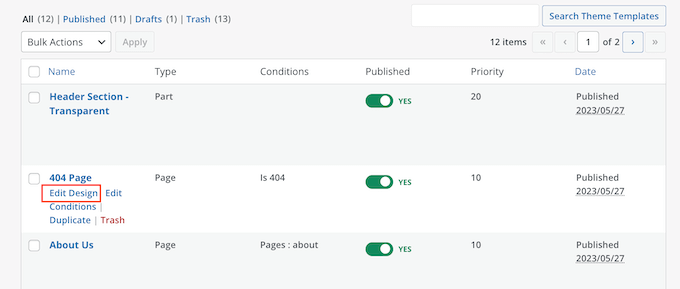
This will open the template in SeedProd’s theme builder.
In the left-hand menu, scroll to the ‘Advanced’ section. Here, find the Shortcode block and drag it onto your layout.
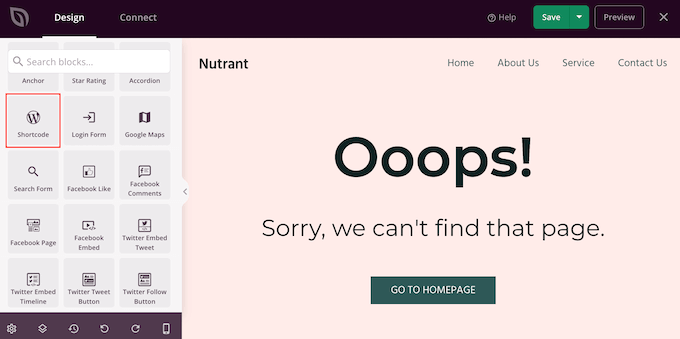
In the live preview, simply click to select the Shortcode block.
You can now add your shortcode to the ‘Shortcode’ box.
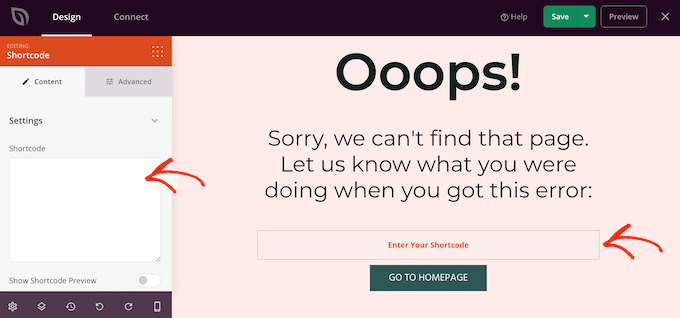
By default, SeedProd doesn’t show the shortcode output in the live preview.
To see your shortcode in action, click on the ‘Show Shortcode Option’ toggle.
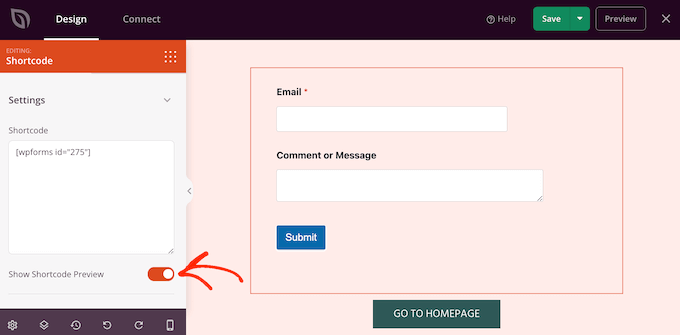
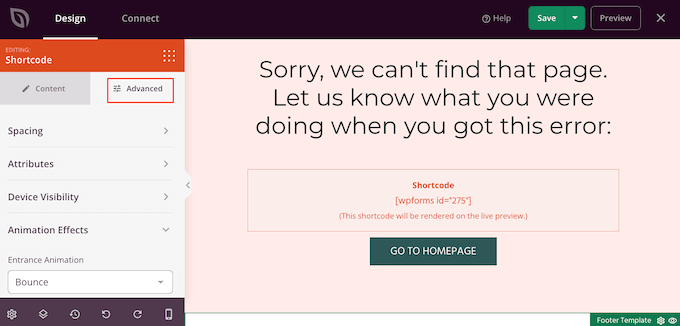
After that, you may want to add some styling to the shortcode output by selecting the ‘Advanced’ tab.
Here, you can change the spacing, add custom CSS, and even add CSS animation effects.
When you are happy with how the page looks, just click the ‘Save’ button.
After that, select ‘Publish’ to make the shortcode live.
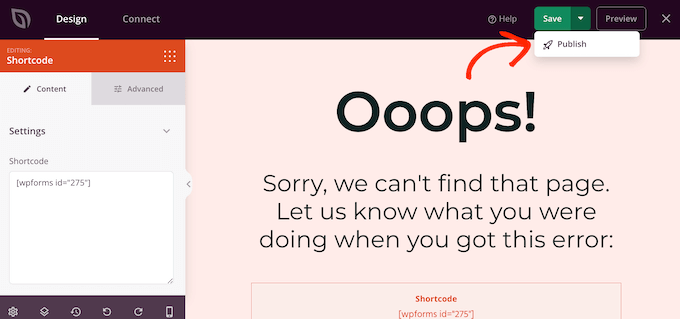
You can now visit your website to see the custom shortcode in action.
Frequently Asked Questions About WordPress Shortcodes
Here are some questions that our readers have frequently asked about shortcodes:
What is the purpose of a WordPress shortcode?
The main purpose of a shortcode is to let you add dynamic features to your site without writing code. They act as placeholders that WordPress replaces with content like forms, galleries, or buttons when the page loads.
How does a shortcode work?
When a visitor views a page, WordPress searches the content for registered shortcodes inside square brackets, like . It then automatically runs the PHP code associated with that tag to display the correct feature on the screen.
How do I use a shortcode in a WordPress menu?
By default, WordPress does not execute shortcodes inside navigation menus. To enable this, you must add a specific filter to your theme’s functions.php file or use a plugin like WPCode that adds shortcode support to menus.
How do I create a shortcode in WordPress without plugins?
You can create a custom shortcode by adding code directly to your theme’s functions.php file or using WPCode. You will need to use the built-in add_shortcode() function to define the name of your shortcode and the content it should output.
What are the common problems with shortcodes?
The most common issue is the shortcode text appearing on the page instead of the actual feature. This usually happens because the plugin that powers the shortcode is deactivated or there is a typo in the shortcode tag.
We hope this tutorial helped you learn how to use WordPress shortcodes in your themes. You may also want to check out our guide on how to create a landing page in WordPress and our ultimate guide to the most effective WordPress design elements.
If you liked this article, then please subscribe to our YouTube Channel for WordPress video tutorials. You can also find us on Twitter and Facebook.





Oyatogun Oluwaseun Samuel
I like the 3rd method of adding shortcode because it works with all type of themes. I also prefer creating my shortcodes in child theme to guard against any issues that may arise if there update on the theme.
Jiří Vaněk
Is there a way to create a shortcode myself, rather than just inserting one that’s already created by a plugin? Let me give an example. I create a piece of code that I don’t necessarily want to insert everywhere as PHP code. Can I turn that code into a shortcode, which I then simply insert in the desired location, and the entire PHP code hidden within that shortcode gets executed there?
WPBeginner Support
We have a guide on creating your own shortcode that you would want to take a look at below:
https://www.wpbeginner.com/wp-tutorials/how-to-add-a-shortcode-in-wordpress/
Admin
Jiří Vaněk
Thank you very much for the link; I’ll go check out the article. I have several codes that I would like to turn into shortcodes to make my work easier. Thank you for the link to the article, and also for your work and assistance.
pankaj
I deleted contact form 7 and it is giving error like this [contact-form-7 404 “Not Found”] I don’t want to use the form again but want to remove this error I don’t know where to find that code or shortcode in template file
Sonik
hi,
I have written a shortcode of a gallery plugin in wordpress visual editor, but it is not executing the shortcode, instead it displays the shortcode as it is written.
like if I write [test attr=’hello’], it echoes the same on webpage, not executing.
Thanks.
Michael
This is a fantastic post, thank you, I am just exploring shortcuts now for a website I am doing
Art
It doesn’t work in customizr theme. Anyone facing this issue?
Art
Ok. managed to fix. Turned out the parentheses were breaking it.
Original:
Changed to:
DavidA
Hello, I have two wordpress blogs on multisite.
Do you know, how to use the shortcode on the website 1 from the website 2 ?
Thx
WPBeginner Support
You can create a Network Wide Plugin and then both blogs can use the shortcode.
Admin
Riaz Kahn
Thanks, Its Working Well.
Dean
Sorry here is the code:
CODE: ——————————————————————————————
echo do_shortcode(“[tabset tab1=”tab 1 title” tab2=”tab 2 title”]
[tab]tab 1 content[/tab]
[tab]tab 2 content[/tab]
[/tabset]”);
—————————————————————————————————-
Michael Atkins
It may be more efficient to use the method outlined by Konstantin Kovshenin at http://kovshenin.com/2013/dont-do_shortcode/
Nate Rouch
That’s good information. I’ve been searching for a way to simply add these, I appreciate it.
Tim
Great info. Thanks! However, it’s not working for me in Wordpress 3.5.1 using the Avada theme.
Do you need to add anything to functions.php for the code above to work? Could this be a theme-specific issue? Thanks, just learning wordpress templating.
Editorial Staff
Sounds like a theme specific issue. do_shortcode works just fine.
http://codex.wordpress.org/Function_Reference/do_shortcode
Admin
Anthony
thanks loads man! this saved me hours of internet searching
Tyron
This is a great little tip. How would this work if your content needs to be wrapped in a shortcode?
Like [shortcode-name]Content here[/shortcode-name].
Jonathon Harris
Tyron,
This a late answer as I’m just seeing it, but to include wrapped content, you could do the following:
echo do_shortcode(‘[example_shortcode]’.$text_to_be_wrapped_in_shortcode.'[/example_shortcode]’);
Cheers,
J
pratik.chourdia
Wow.. worked thanks
Homepage Kasugai
sfg
Homepage Kasugai
This is exactly what I was looking for. Helpful. Thank you.
krushna
yes..i am also interested to know ..where to write the code. if there will be example that wud be great.
Editorial Staff
You add it anywhere you want to display the shortcode in your theme files. It can be in your sidebar, footer, or wherever you want.
Admin
aminraisy
can we add it after product description in the page of a product in woocommerce ?
WPBeginner Support
Yes sure
Keith Davis
Hi boys
Where do you add the code…
What file do you add it to and where abouts in the file?
My theme already uses shortcodes but it would still be interesting to know.
Jim
I came across the need for this just the other day – to add a shortcode outside of the loop. Thanks!