


Ever clicked on a great blog post, only to struggle to find it again later? Your readers might be having the same experience on your WordPress site.
When visitors browse a site, they often jump between multiple posts. They browse, skim, and sometimes leave before they’re done.
If they can’t easily return to content they found useful or interesting, you might lose them for good.
That’s why showing a list of recently viewed posts can make a big difference. It helps readers pick up where they left off, explore more of what they enjoy, and stay engaged longer on your site.
The best part? It’s easy to set up.
In this guide, we’ll show you how to show the last visited posts on your WordPress site and boost your site’s experience.
Why Display Last Visited Posts in WordPress?
Displaying last visited posts in WordPress helps your visitors pick up where they left off, which makes browsing easier and keeps them engaged with your site longer. It can also highlight related content they might have missed and encourage return visits by creating a more personalized experience.
Ever noticed how sites like Amazon show you items you recently viewed? Even when you’re not logged in, those suggestions are still there, thanks to browser cookies.
That’s not just a convenience. It’s a smart way to keep users engaged and guide them back to content they’ve already shown interest in.
And you can bring that same experience to your WordPress blog.
Visitors often land on multiple pages during a single session, skimming blog posts, scanning tutorials, or checking out product reviews. But when they come back later, it’s easy for them to forget where they left off or which posts caught their attention.
By displaying recently viewed posts, you make it easier for readers to return to content they found useful or enjoyable. 🙌

This improves the user experience and encourages visitors to stay longer or take action (like subscribing or buying something).
All in all, it’s a small detail that can make a big impact, especially for content-heavy sites like niche blogs or eCommerce stores.
That being said, we’ll show you how to display a personalized list of the last posts a user visited in WordPress.
Here’s a quick overview of all the topics we’ll cover:
How to Display Last Visited Posts in WordPress
In this method, we’ll be using a free plugin that’s easy to set up. It’s designed for if you’re using a classic theme with widget support.
The first thing you need to do is install and activate the Last Viewed Posts plugin. If you need help, you can see our step-by-step guide on how to install a WordPress plugin.
After activating the plugin, you’ll want to go to Appearance » Widgets. Then, click the plus ‘+’ icon at the top of the screen to add a new widget and search the list for ‘Last Viewed Posts Redo.’
Once you do that, simply drag the ‘Last Viewed Posts Redo’ widget to the sidebar or any available widget-ready area.
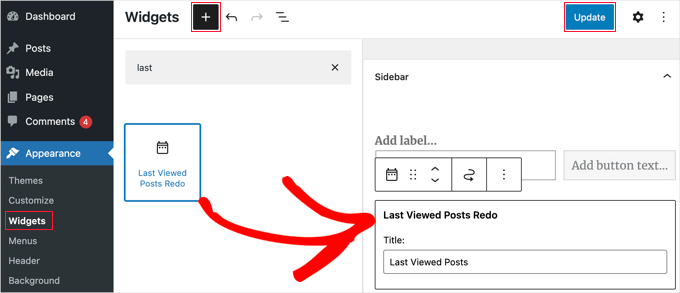
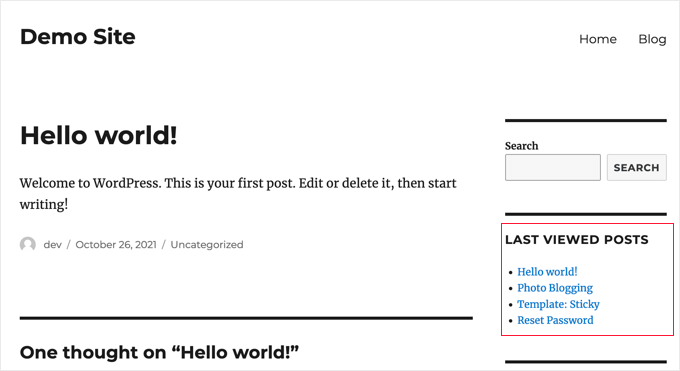
And that’s it! After clicking the ‘Update’ button at the top of the screen, you can visit your website to see the list of posts you last visited.
Please note that the ‘Last Viewed Posts’ list will only be visible if you have viewed posts on your blog after installing the plugin. This is because the plugin uses cookies to track visited pages.
How to Show Last Visited Posts Using a Custom Code Snippet
If you are using a modern block theme, then the widget method won’t work. A better way is to add a custom code snippet that creates a shortcode, which you can then place anywhere on your site.
The easiest and safest way to do this is by using the WPCode plugin, the best code snippet WordPress plugin. It allows you to add snippets without ever having to edit your theme’s functions.php file, which can be risky.
Some of our partner brands use WPCode to add and manage their custom code snippets. It’s been working really well, and you can see our full WPCode review to explore its features.
First, you’ll need to install and activate the free WPCode plugin. For more details, see our guide on how to install a WordPress plugin.
📝 Note: You can use the free version of WPCode to add this custom snippet without touching your theme files. That said, WPCode Pro gives you access to advanced features like code revision history, conditional logic, and the ability to schedule when your code runs.
Once activated, go to Code Snippets » + Add Snippet from your WordPress dashboard.
Then, select ‘Add Your Custom Code (New Snippet)’.
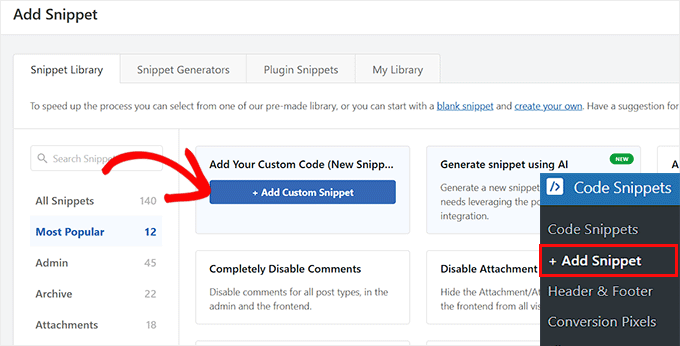
In the popup that appears, you’ll need to choose the code type.
Make sure to set it to ‘PHP Snippet’.
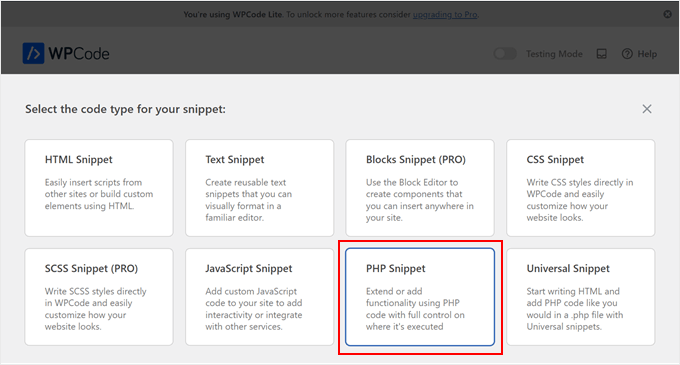
This will take you to the WPCode editor.
From here, you can give your snippet a title, like “Last Visited Posts Shortcode”.
Now, you can copy and paste the following code into the ‘Code Preview’ box:
// Function to track recently viewed posts and store them in a cookie
function wpb_track_last_viewed_posts() {
    if ( ! is_single() ) {
        return;
    }

    $post_id     = get_the_ID();
    $cookie_name  = 'wpb_last_viewed_posts';
    $viewed_posts = [];

    if ( isset( $_COOKIE[ $cookie_name ] ) ) {
        $decoded_posts = json_decode( stripslashes( $_COOKIE[ $cookie_name ] ), true );
        if ( is_array( $decoded_posts ) ) {
            $viewed_posts = $decoded_posts;
        }
    }

    array_unshift( $viewed_posts, $post_id );
    $viewed_posts = array_unique( $viewed_posts );
    $viewed_posts = array_slice( $viewed_posts, 0, 5 );

    setcookie(
        $cookie_name,
        wp_json_encode( $viewed_posts ),
        [
            'expires'  => time() + ( 30 * DAY_IN_SECONDS ),
            'path'     => COOKIEPATH,
            'domain'   => COOKIE_DOMAIN,
            'secure'   => is_ssl(),
            'httponly' => false,
            'samesite' => 'Lax',
        ]
    );
}
add_action( 'wp', 'wpb_track_last_viewed_posts' );

// Shortcode to display last viewed posts
function wpb_display_last_viewed_posts_shortcode( $atts ) {
    $cookie_name = 'wpb_last_viewed_posts';

    if ( ! isset( $_COOKIE[ $cookie_name ] ) ) {
        return '';
    }

    $viewed_posts_ids = json_decode( stripslashes( $_COOKIE[ $cookie_name ] ), true );

    if ( empty( $viewed_posts_ids ) || ! is_array( $viewed_posts_ids ) ) {
        return '';
    }

    $args = [
        'post_type'      => 'post',
        'post__in'       => $viewed_posts_ids,
        'posts_per_page' => 5,
        'orderby'        => 'post__in',
    ];

    $query = new WP_Query( $args );

    ob_start();

    if ( $query->have_posts() ) {
        echo '<h4 class="wp-block-heading">Recently Viewed Posts</h4>';
        echo '<ul class="wpb-last-viewed-posts">';
        while ( $query->have_posts() ) {
            $query->the_post();
            echo '<li><a href="' . esc_url( get_permalink() ) . '">' . esc_html( get_the_title() ) . '</a></li>';
        }
        echo '</ul>';
    }

    wp_reset_postdata();
    return ob_get_clean();
}
add_shortcode( 'last_viewed_posts', 'wpb_display_last_viewed_posts_shortcode' );
With that done, go ahead and toggle the switch at the top to ‘Active’.
Now, click the ‘Save Snippet’ button.
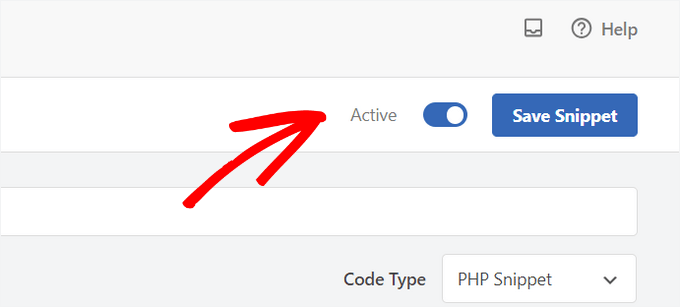
You can now display your list anywhere you like.
Simply go to the Full Site Editor by navigating to Appearance » Editor.
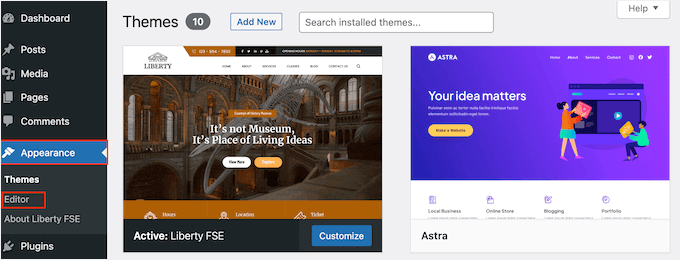
On the next screen, you can add a ‘Shortcode’ block where you want the list to appear.
For example, here, we’ll add it to our homepage.
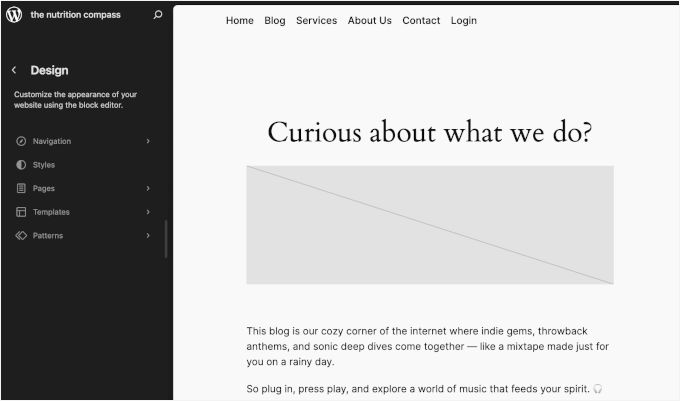
On the content editor, you can just click on the ‘+’ button, choose the shortcode blog, and type the following shortcode into the block:
[last_viewed_posts]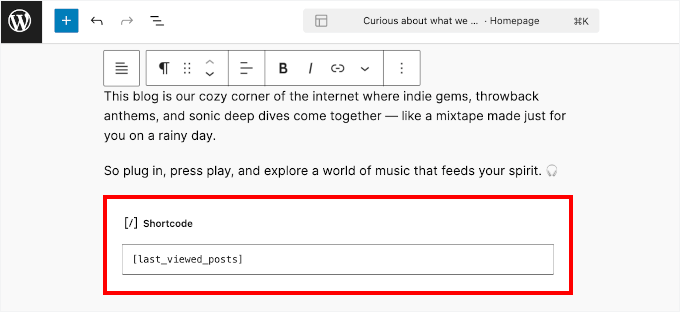
Remember to click ‘Save’ to update your theme template.
Now, when visitors browse your site, their recently viewed posts will appear in that spot.
🧑💻 Pro Tip: Visitors to a WordPress blog might also look for the latest or most popular posts to stay updated or find recommended content. Making this content easy to find can improve the user experience, encouraging them to stick around longer and explore more pages.
For more details on this topic, you can see our guide on displaying recent posts or the most popular posts.
Bonus Tip: Disclose That Your WordPress Site Uses Cookies
The Last Viewed Posts plugin does not store the list of recently viewed posts for each user on your website.
Instead, the list of posts is saved in each visitor’s web browser, so it won’t affect your website’s performance.
But, because the plugin uses cookies, you may need to obtain user consent to comply with the GDPR and other privacy regulations.
We recommend using the WPConsent plugin to easily display a custom cookie consent popup on your WordPress site, like we do on WPBeginner.
WPConsent automatically blocks all tracking scripts and cookies from collecting data until visitors give their permission.
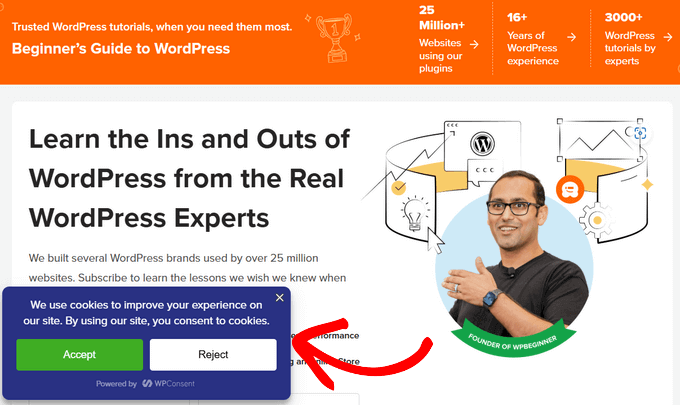
If a user decides not to allow cookies from your blog, then the list of last visited posts will not be displayed. For more information about it, see our complete WPConsent review.
📝 Note: There’s a free version of WPConsent that you can get started with. However, the pro version comes with more advanced features.
For step-by-step instructions, you can follow our guide on how to add a cookies popup in WordPress for GDPR/CCPA.
FAQs: Show the Last Visited Posts in WordPress
Over the years, many readers have asked us questions about adding a “last visited posts” feature. Here are the answers to some of the most common ones.
How many posts are displayed in the “last visited” list?
By default, the plugin shows the 5 most recently visited articles. You can easily change this number in the widget’s settings to show more or fewer posts.
Does this feature work for users who are not logged in?
Yes, it works for all visitors, whether they are logged in or not. Since the information is stored in the browser’s cookies, it tracks any visitor’s recent history on your site.
Will showing the last visited posts slow down my website?
No, it will not. The plugin stores the viewing history in the user’s browser using cookies, not in your WordPress database. This means it doesn’t add any extra load to your WordPress hosting server.
What happens if a user clears their browser cookies?
If a visitor clears their browser cookies, their viewing history on your site will be erased. The “last visited posts” list will be empty for them until they start browsing your articles again.
More Guides on WordPress Post Management to Improve UX
We hope this tutorial helped you learn how to display the last visited posts to a user in WordPress.
Next, you may also want to learn:
- How to Add Featured Posts in the WordPress Sidebar
- How to Write a Great Blog Post (Structure + Examples)
- How to Add Affiliate Disclosure for Each Blog Post Automatically
- How to Add Multiple Post Thumbnails / Featured Images in WordPress
- How to Delay Posts from Appearing in WordPress RSS Feed
- Best Related Posts Plugins for WordPress
If you liked this article, then please subscribe to our YouTube Channel for WordPress video tutorials. You can also find us on Twitter and Facebook.



kzain
One idea I’d like to add is combining this with a “Related Posts” widget. By showing users their last visited post along with similar content, it could encourage them to stay on the site longer and explore more.
Paolo
Hi, just to be sure, by using cookies that means that if a user will change browser , he/she won’t be able to find the list of previously read posts, is that correct?
WPBeginner Support
For the moment that is correct.
Admin
Suyash Ekhande
Any new plugins to show recently viewed post in a carousel format?.
Jordan Smith
Is this plugin still maintained? I’m looking for this exact functionality. Thanks!
Matthew Dalli
Is there a way to do this to have it highlighted next to the post title rather than in a widget?
kalico
This is a fantastic little gem. Is there a way to make this display other (custom) post types, or history across a multisite network?
Brian
Is there a way to show the whole post (i.e. get_post) instead of just the title? Would you be able to provide the code and the location or where to place it in the plugin code? Thanks!
tony roberts
I have installed the plugin but have trouble installing the widget. Go to Appearance > Widgets > Click on Last Viewed Posts> Click Primary Sidebar>Add Widget, nothing happens. If I drag and drop the Last Viewed Posts still nothing happens.
Any idea what I’m doing wrong?
Tony
RA
Is there a shortcode for this plug in? I would like to insert this within a post.
WPBeginner Support
No currently it does not have a shortcode. However, you can try our tutorial on how to add WordPress widgets in posts or page content.
Admin
frebro
This works nicely on my localhost but throws a “Cannot modify header information – headers already sent” error on the production server. Seems like content has already begun to output when you set the cookie.
I’m using Roots theme and Wordpress 3.6. Any suggestions on how to solve this?
musa garip
Hi this plugin is great i have a questions
can you add a image ( featured image )
thanks
Editorial Staff
Yes, but you would have to edit the plugin file.
Admin
David Rwell
Thank you for this lovely little plug-in. It greatly adds to the personalization experience on a site.
David.
Jacopo Tarantino
Is the plugin on github? I’d love to contribute.
Editorial Staff
No it is not on Github yet. Please get in touch via the contact form, so we can communicate further
Admin
Jacopo Tarantino
Wouldn’t it be better to use some kind of override in your own theme or plugin to change the value of those variables? If you edit the plugin directly, when you update the plugin(which you should always do!) you’ll lose those changes. It shouldn’t be too hard to hook in right after the plugin is activated and assign new values to what I’m assuming are global variables.
Editorial Staff
Agreed. That is in the list of things to add to that plugin when we create a settings page
Admin