


When we first set up our video membership site with MemberPress, we often wondered what really drove someone to sign up. Was it a certain blog post, a tutorial, or maybe a page they kept coming back to?
Without clear data, it’s easy to feel like you’re just guessing what content works best. That guesswork can make it harder to know where your efforts are paying off and where you might be missing opportunities.
That’s why we started tracking the customer journey. By connecting MemberPress with MonsterInsights, we can see the steps people take before they subscribe, which makes it easier to understand what’s working and adjust our strategy.
In this guide, we’ll walk you through how to set up the same tracking system so you can get valuable insights, improve your site, and bring in more signups. ✅
✏️ TL;DR: You can easily track the MemberPress customer journey by installing the MonsterInsights Pro plugin. Using its eCommerce and User Journey addons, you can see exactly which pages visitors view before they purchase a membership.
Why Track Customer Journey Using MemberPress?
Tracking the customer journey in MemberPress is important because it shows you exactly which content on your site convinces visitors to become paying members.
A customer journey is the complete path a person takes when interacting with your brand. When you run a WordPress membership site, it includes every step they take, from their first visit to the moment they access exclusive content, online courses, or digital downloads.
Now, MemberPress is a popular membership plugin that comes with advanced features. For example, it allows you to accept payments, add membership levels, create gated content, restrict access based on different membership levels, make members-only forums, and more.
However, MemberPress doesn’t have customer journey tracking built-in.
The good news is that by connecting MemberPress with MonsterInsights, you can see which pages customers first land on, follow their path as they browse your website, and even see how long they spend on each page before signing up.
This information can give you insights into your customers’ behavior, which you can use to offer a better user experience on your WordPress website and boost your sign-ups.
With that in mind, we will show you how to easily track MemberPress customer journeys. Here are quick links that you can use to jump ahead to any section:
- Tracking MemberPress Customer Journeys Using MonsterInsights
- Installing the eCommerce Addon in MonsterInsights
- Installing the User Journey Addon in MonsterInsights
- Viewing MemberPress Customer Journeys
- Using Customer Journey Tracking in MemberPress
- FAQs: Tracking MemberPress Customer Journeys
- Expert Guides on WordPress Membership Sites
Ready? Let’s jump right in!
1. Tracking MemberPress Customer Journeys Using MonsterInsights
The fastest and simplest way to set up MemberPress customer tracking is with MonsterInsights, the best Google Analytics plugin for WordPress. It lets you view your Google Analytics traffic and visitor statistics right from the WordPress dashboard.
MonsterInsights also has an eCommerce addon. This feature automatically detects MemberPress and other eCommerce plugins. Then, it starts tracking customer behavior in Google Analytics.
It also comes with a ‘Customer Journey’ addon that allows you to see users’ behavior before they sign up.
At WPBeginner, we use MonsterInsights ourselves. With this software, we track conversions, monitor referral links, and analyze key site stats like visitor demographics and top pages.
For a deeper look into the platform, check out our detailed MonsterInsights review.
To start, click ‘Get MonsterInsights Now’ on the MonsterInsights website, select a plan, and complete the checkout process. You will need the MonsterInsights Pro plan to access the eCommerce and User Journey addons and follow the steps in this tutorial.

After that, you can install and activate the plugin on your WordPress site by uploading your MonsterInsights Pro zip file.
For more details, see our step-by-step guide on how to install a WordPress plugin.
Upon activation, you will see the welcome screen and the setup wizard. Simply click the ‘Launch the Wizard’ button and follow the on-screen instructions.

For detailed instructions, you can see our article on how to install Google Analytics in WordPress.
2. Installing the eCommerce Addon in MonsterInsights
To use the eCommerce addon, you must first have Google Analytics configured on your WordPress site via MonsterInsights, which is easily done by following the setup wizard mentioned above.
The addon will automatically detect MemberPress and other eCommerce plugins on your site. It will track them in Google Analytics, and you won’t have to edit any code or hire a developer.
To do that, you will need to head over to Insights » Addons and navigate to the ‘eCommerce’ addon. Simply click the ‘Install’ button, and the addon will automatically activate.
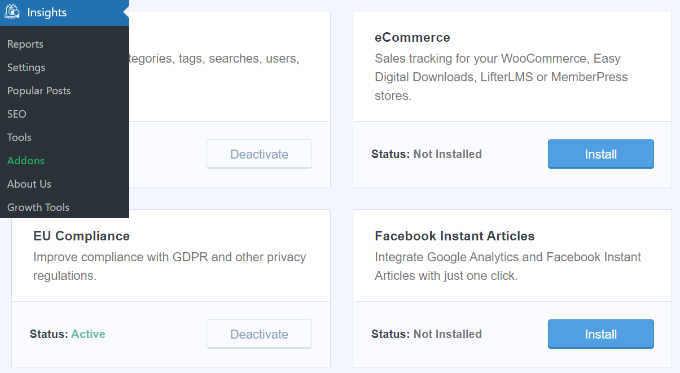
As soon as it is activated, the add-on will begin gathering data.
You can then head to Insights » Settings from your WordPress dashboard and click on the ‘eCommerce’ tab.
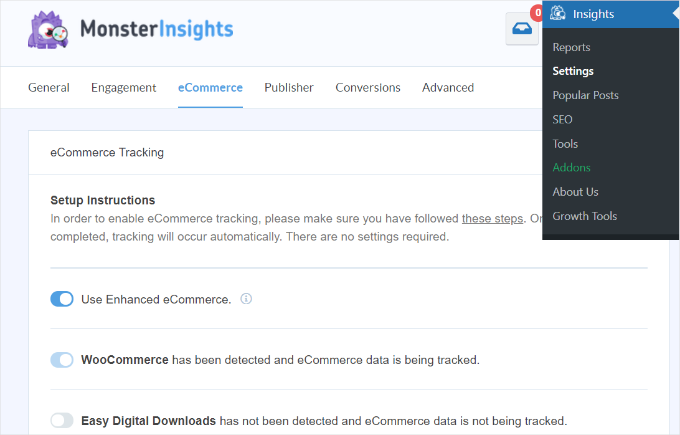
Here, you will see that MonsterInsights will automatically detect MemberPress and start to track its data.
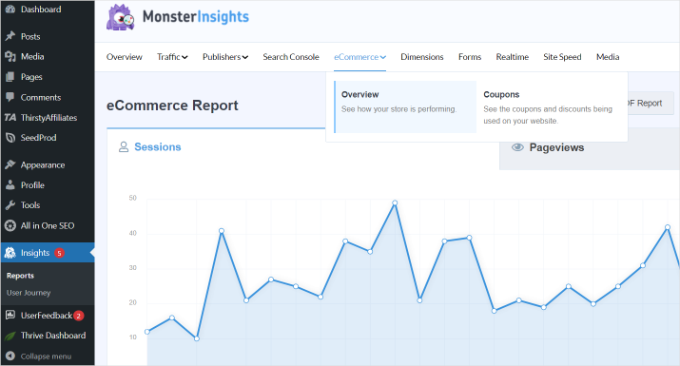
You will find this data in MonsterInsights’ ‘eCommerce Report.’
You can access the report by navigating to Insights » Reports and then clicking on the ‘eCommerce’ tab.
💡 Note: You may need to wait up to 24 hours to see any metrics, which is completely normal and is the standard time required for Google Analytics to process and display new data.
In the report, you will see how your MemberPress site is performing.
You can see your site’s conversion rate, number of transactions, revenue, and average order value.
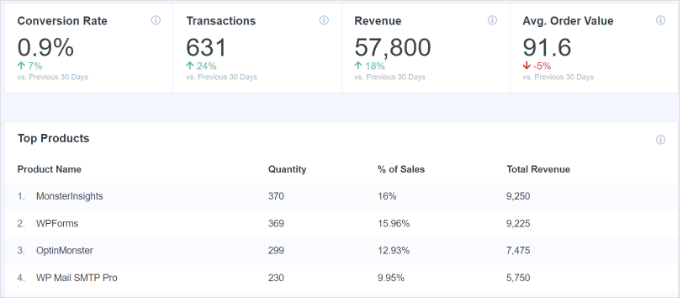
For more details, please see our guide on how to set up eCommerce tracking in WordPress.
3. Installing the User Journey Addon in MonsterInsights
To view the exact path a user takes before purchasing a MemberPress subscription, you must install the MonsterInsights ‘User Journey’ addon.
While the eCommerce addon tracks your overall revenue and conversion rates, the User Journey addon focuses on the exact, step-by-step path an individual took to get there.
This addon will allow you to see each customer’s steps before making a purchase in MemberPress, such as the pages they visit, the time spent on each page, and more.
First, you need to go to Insights » Addons from your WordPress admin area. Next, navigate to the ‘User Journey’ addon and click the ‘Install’ button.
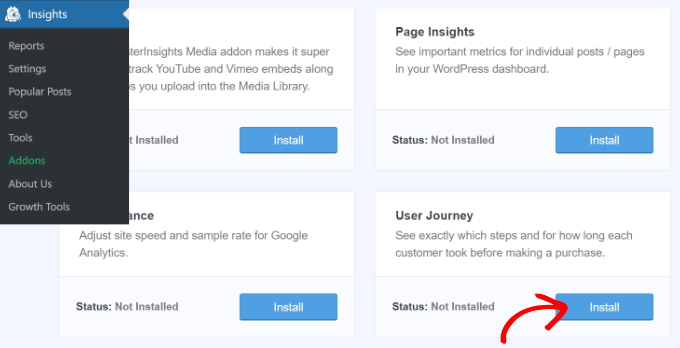
The addon will automatically activate and start tracking your customers’ journeys.
4. Viewing MemberPress Customer Journeys
The User Journey addon is now active. Once a visitor purchases a membership on your WordPress site, their customer journey will be automatically recorded and saved.
You might be wondering where to find that information.
Simply navigate to MemberPress » Transactions to see a list of your MemberPress orders.
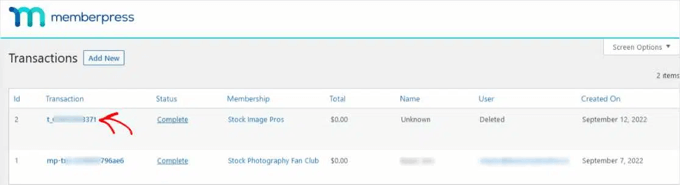
You can see the details of a transaction by clicking its transaction number in the first column.
Now, you can scroll to the bottom of the transaction details to find the ‘User Journey by MonsterInsights’ section.
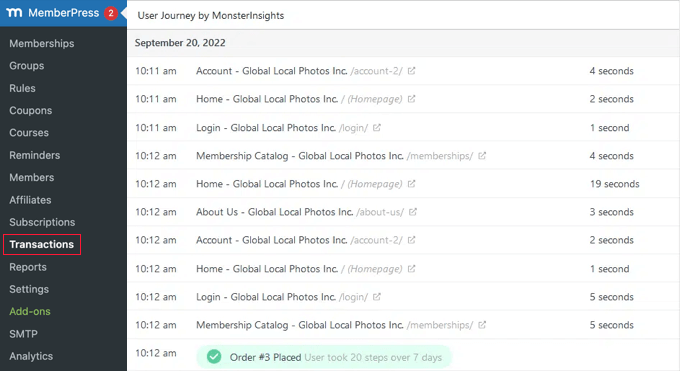
You can see each step the user took along the way to purchasing a membership.
This shows the title and link of every page they visited, plus how long they stayed on each one. You will also see the total time and number of steps it took for them to finally become a paying member.
This is incredibly helpful because you can see if, for example, a user found a blog post, left your site, and came back three days later to finally complete their purchase!
5. Using Customer Journey Tracking in MemberPress
Now that you are tracking MemberPress customer journeys, you can use that data to improve your website and increase conversions.
For example, imagine you look at several customer journeys and notice a pattern. Many visitors read your blog post, “10 Best Stretches for Back Pain,” right before purchasing a membership to your yoga video library.
This tells you that the post is a high-converting page. To boost your sales and conversion rates even more, you could then:
- display a more prominent signup form on that post
- add more internal links to that post or page from other posts on your website
- create a special discount for its readers
- build a dedicated landing page that tells them everything they need to know
You should also look for users who purchased a membership very quickly or in just a few steps. These are your high-intent buyers.
See if they have anything in common, like a specific referral source or location. This helps you know exactly where to focus your marketing efforts to target similar users.
For instance, maybe they are from a similar location or age group. Or, maybe they come from the same referral source.
As you take time to study customer journeys in MemberPress, you will learn more about your online sign-up process and sales funnel. You can use that knowledge to improve customer experience and increase sales.
FAQs: Tracking MemberPress Customer Journeys
Here are some of the most common questions our readers ask about tracking customer journeys in MemberPress.
Do I need the pro version of MonsterInsights to follow this tutorial?
Yes, you will need the MonsterInsights Pro plan. This is because the eCommerce and User Journey addons are premium features.
How long does it take to see my data?
Typically, it can take up to 24 hours for data to start appearing in your reports. This is the normal processing time for Google Analytics.
Can I use the method in this blog post for other eCommerce plugins?
Absolutely. The MonsterInsights eCommerce addon also works great with other plugins like WooCommerce and Easy Digital Downloads. It will automatically detect them once installed.
Is the setup in this blog post difficult if I’m not a developer?
Not at all. The beauty of using MonsterInsights is that it simplifies everything. You won’t have to touch a single line of code to get everything working correctly.
Expert Guides on WordPress Membership Sites
We hope this tutorial helped you learn how to track customer journeys using MemberPress.
If you want to grow your website even further, check out our other expert guides related to WordPress membership sites:
- Ultimate Guide to Creating a WordPress Membership Site
- How to Allow User Registration on Your WordPress Site
- How to Stop Spam Registrations on your WordPress Membership Site
- Automation Tricks to Reduce Churn on Your Membership Site
- Best WordPress Membership Plugins
If you liked this article, then please subscribe to our YouTube Channel for WordPress video tutorials. You can also find us on Twitter and Facebook.



Jiří Vaněk
Great guide. Fortunately, I now have both plugins, MonsterInsights and MemberPress, and I can finally start “playing” with them on a professional level to track where potential problems arise on the website and why and where people are leaving. Without this guide, I probably wouldn’t have been able to get it to a functional state. Thank you once again.
Dennis Muthomi
Great tutorial on an important topic!
Understanding how visitors navigate and what steps they take before signing up is key for boosting membership conversions. The customer journey tracking with MonsterInsights seems really insightful.
One question – is there any way to also track dropoffs, i.e. where users exited the funnel without converting?
That could provide helpful insights into potential friction points to address. Thanks for sharing these valuable tips!
WPBeginner Support
Monsterinsights also tracks abandonment rate for your funnels and lets you know the step that most users abandon.
Admin
Dennis Muthomi
thanks for that info!
seeing the abandonment rate and where users are dropping off will be super handy.
knowing those friction points will really help optimize the sign-up process.
Ralph
This article is a game-changer for anyone looking to enhance their membership site’s performance! Understanding the customer journey is crucial for improving engagement and increasing conversions, and this seems to be great tool for accomplishing just that.
I also appreciate how the article doesn’t just explain the “how” but also delves into the “why”.
WPBeginner Support
Glad we could share this content
Admin