


By default, WordPress shows error messages on the login page when someone enters the wrong username or password. While these messages are meant to help users, they can also give clues to hackers trying to break into your site.
Disabling these login hints is a simple way to strengthen your site’s security.
By hiding these details, you make it harder for hackers to guess your credentials. We always disable them on our sites for an extra layer of protection.
In this article, we’ll walk you through how to disable login hints in WordPress to help you make your website more secure.
What Are Login Hints in WordPress Login Error Messages?
Whenever someone tries to log into your site using the wrong username or password, WordPress will show an error message on the login screen.
If this person typed in the wrong username or email address, then WordPress will show the following error: ‘The username is not registered on this site. If you are unsure of your username, try your email address instead.’
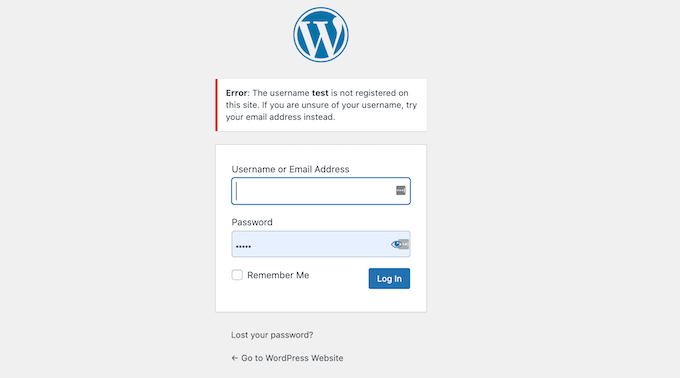
This may be helpful for genuine users, but it also lets any hackers know that they are typing in the wrong username.
Entering the correct username but an incorrect password triggers the error: ‘The password you entered for the username is incorrect. Lost your password?’
This confirms a correct username guess to potential attackers.
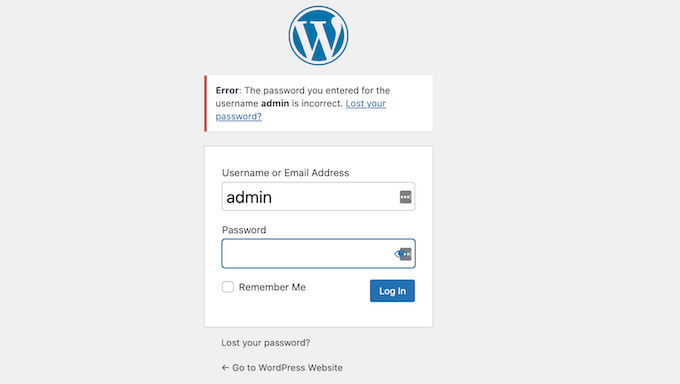
If someone manages to guess your username or email address, the ‘The password you entered for the username is incorrect’ error message will let them know they’re on the right track.
This means only your password stands in the way of them getting into your account.
This is why we recommend using multiple layers of security. Hiding login hints makes a hacker’s job much harder, but it’s most effective when you combine it with other security practices.
With that in mind, let’s look at how you can hide the login hints in WordPress login error messages.
Hiding Login Hints in WordPress
The easiest way to disable login hints in WordPress login error messages is by pasting some code into WordPress. WPCode makes it easy for anyone to add code to their WordPress website.
You can add the following code snippet to the bottom of your site’s functions.php file, but doing so could cause your site to break.
In our experience, WPCode is super beginner-friendly and ensures that even if you make a mistake while adding custom code, your site remains accessible. To learn more, see our detailed WPCode review.
First, you need to install and activate the free WPCode plugin. For detailed instructions, you can see our guide on how to install a WordPress plugin.
Upon activation, all you have to do is go to Code Snippets » +Add Snippet from your WordPress admin dashboard. Then, you’ll want to hover your mouse over ‘Add Your Custom Code’ and click ‘Use Snippet.’
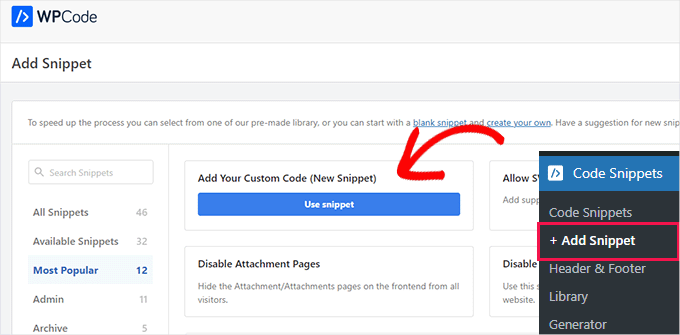
After that, you simply need to name your new snippet and paste the following code into the ‘Code Preview’ area:
function no_wordpress_errors(){
  return 'Something is wrong!';
}
add_filter( 'login_errors', 'no_wordpress_errors' );
This code changes the default login page error to a custom message, such as ‘Something is wrong!’.
This code works by using a WordPress ‘filter hook’ called ‘login_errors’. Think of a hook as a way for our code to change how WordPress works by default.
In this case, it intercepts the standard error message and replaces it with our custom one.
You can change this line to show any message that you want. For example, here we’re using ‘Something is wrong!’ as our error message:
return 'Something is wrong!';
Be sure to select PHP from the ‘Code Type’ dropdown, and then you can toggle the switch from ‘Inactive’ to ‘Active’ and click on ‘Save Snippet.’
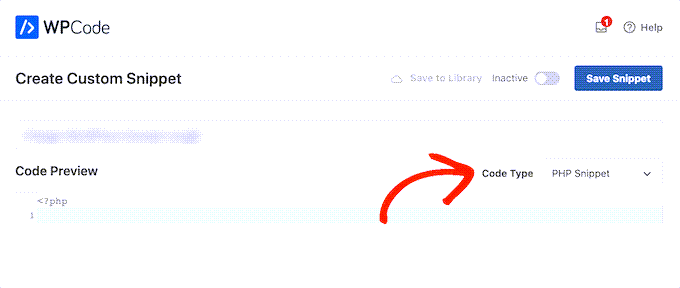
Once you’ve done that, it’s a good idea to test your new error message.
To do this test, simply head over to your website’s login page and type in the wrong username, password, or email. Then, go ahead and click on the ‘Log In’ button.
WordPress will now show your new error message without giving you any hints about what could be wrong.
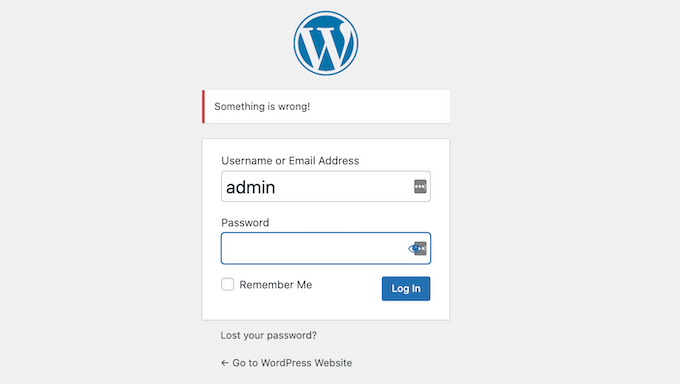
Now, do note that while this code will disable login hints in WordPress, it won’t protect you from more advanced attempts or brute-force attacks.
The best way to protect your site from hackers is to use a WordPress security plugin like WordFence or a web application firewall (WAF) like Cloudflare.
For more information, you can read our ultimate guide on how to secure your WordPress website.
Video Tutorial
To make it easy, we have also created a video tutorial on how to disable login hints in WordPress login error messages.
Bonus Tip: Improving Your WordPress Login Security
Now that you know the importance of a strong username and password, let’s explore some additional ways to boost your login security. It’s important not only for you but also for anyone contributing to your blog, especially if multiple authors run it.
Here are some bonus tips to help keep your accounts even safer:
🔐 Enable Two-Factor Authentication (2FA): This adds an extra layer of security by requiring a second form of verification, like a text message code or a security question.
🔑 Use a Password Manager: These tools help you create and store complex passwords securely, so you don’t have to remember them all.
🔄 Update Your Password Regularly: Change your passwords every few months to minimize the risk of unauthorized access. It’s even better if you can force password updates for users.
🚫 Avoid Using Public Wi-Fi for Sensitive Logins: If possible, use a secure, private connection when logging into important accounts.
🛠️ Keep Your Software Updated: Regular updates can protect you from security vulnerabilities that attackers may exploit.
On top of everything, you might want to limit login attempts on your WordPress site.
During a brute-force attack, hackers use automated software to repeatedly guess passwords due to the platform’s default allowance for unlimited login attempts.
Limiting failed login attempts, such as temporarily locking out users after 5 unsuccessful tries, significantly reduces the risk of unauthorized access from brute force attacks.
Protect Your Site with Easy Backups

Duplicator makes it easy to create a complete backup of your WordPress site. Before making any security tweaks or updates, having a recent backup gives you total peace of mind in case anything goes wrong. It’s the ultimate safety net for your website.
Frequently Asked Questions About WordPress Login Security
Here are some questions frequently asked by our readers about WordPress login security:
Is disabling login hints enough to fully secure my site?
No, disabling login hints is just one layer of security. It’s an important step in a broader strategy to make your website a harder target for attackers.
For complete protection, you should always use a comprehensive WordPress security plugin, enforce strong passwords for all users, and enable two-factor authentication.
Will I get locked out if I forget my password after disabling hints?
Not at all. Disabling these hints does not affect the ‘Lost your password?’ link or the password reset process.
You will still be able to safely recover your account by following the standard password reset steps sent to your email address.
Can I disable login hints without using a plugin?
Yes, you can add the code snippet directly to your theme’s functions.php file. However, we strongly advise against this method for most users.
Editing this file directly can break your site if there’s a mistake, and your changes will be lost when you update your theme. A plugin like WPCode is the safest way to add custom code.
What is the single most effective way to protect my login page?
The most effective way to secure your WordPress login is by enabling Two-Factor Authentication (2FA). This requires a second code, usually from your phone, in addition to your password.
Even if a hacker manages to steal your password, they won’t be able to log in without physical access to your verification device.
We hope this article helped you learn how to hide login hints from WordPress login error messages. Next up, you may also want to see our guide on how to create a client portal with private logins and pages or how to add a social login to WordPress.
If you liked this article, then please subscribe to our YouTube Channel for WordPress video tutorials. You can also find us on Twitter and Facebook.




Dennis Muthomi
Thrive Comments has been my go-to for managing comments across my websites. I used to spend ages opening separate tabs just to see what people were replying to, but now I can see everything right there. It’s literally cut my moderation time in half! Here’s what’s working great for me: I check comments twice a day at scheduled times. It keeps conversations flowing nicely and helps me stay on top of things without getting overwhelmed.
The best part? Since I can instantly see what each comment is responding to, I’m making way fewer mistakes in moderation, especially on my busier sites. It’s made such a difference!