


Running a multi-author WordPress site is exciting until the media library becomes a free-for-all. We’ve been there, and we know how frustrating it is when one author accidentally deletes another’s images, causing chaos right before a big launch.
Preventing this is easier than you think. You can restrict which authors see which media files, bringing order back to your library.
While WordPress doesn’t have a built-in setting for this, we’re going to share the simple method we use on our own projects. It will help you keep your media files organized and secure.
Why Restrict Author Access to Media Uploads?
If you have a multi-author WordPress blog, then your authors might upload lots of different images. This can make it difficult for an author to find the right image, or they might delete or edit another person’s media file by accident.
This can cause all sorts of problems, including poor productivity, lots of extra work for site admins and editors, and a complicated editorial workflow.
This unlimited access can also be a privacy concern. For example, if you are working on a new product or blog post idea, then other authors might see confidential images in the media library before you make a public announcement.
If you have a WordPress membership site, then contributors may even be able to access premium media files via the media library.
That being said, let’s take a look at how to restrict who can see media uploads inside your WordPress admin area.
How to Organize Media Uploads by Users With WPCode
While some plugins have offered this feature in the past, the most reliable and lightweight way to organize user uploads is by adding a simple code snippet. Don’t worry, this is easier than it sounds!
We are going to use the free WPCode plugin to do this. It’s the safest and easiest way to add custom code to your WordPress site without editing your theme files.
We’ll show you two code snippets you can use. The first snippet restricts media library access for all non-admin users, and the second one restricts access for specific user roles like Authors and Contributors.
Often, guides will ask you to add custom code to your WordPress theme. However, this isn’t recommended, as simple mistakes or typos in your code can cause common WordPress errors or even break your site completely.
That’s why we recommend WPCode.
WPCode is the best code snippets plugin used by over 1 million WordPress websites. It makes it easy to add custom code in WordPress without having to edit the functions.php file.
Expert Tip: Here at WPBeginner, we use WPCode to manage all the custom functions on our portfolio of websites. It allows our development team to add and troubleshoot code safely without ever touching the core theme files, which is a huge time-saver and prevents costly errors.
The first thing you need to do is install and activate the free WPCode plugin. For more details, see our step-by-step guide on how to install a WordPress plugin.
Upon activation, head over to Code Snippets » Add Snippet.
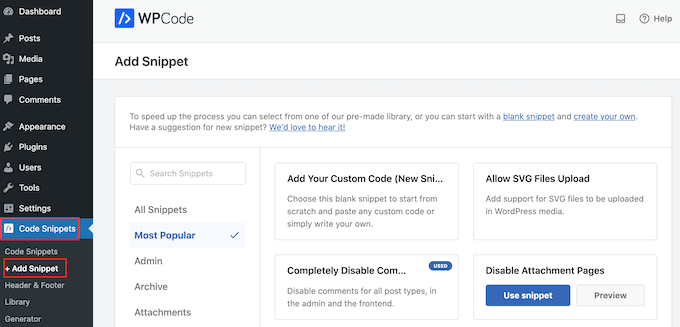
Here, you will see all the ready-made snippets you can add to your website. These include snippets that allow you to completely disable WordPress comments, deactivate image attachment pages, and more.
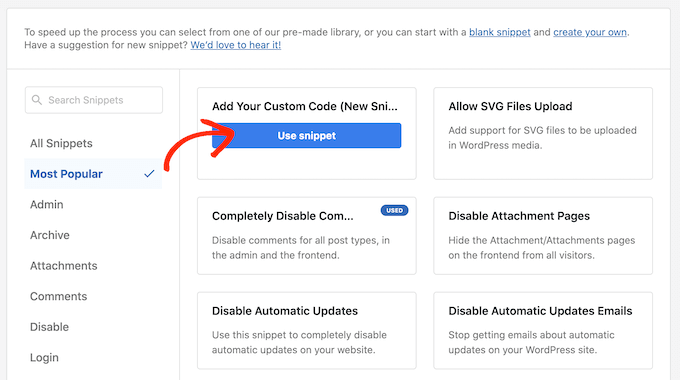
Simply hover your mouse over ‘Add Your Custom Code’ and then select ‘Use snippet.’
To start, type in a title for the custom code snippet. This can be anything that helps you identify the snippet in the WordPress dashboard.
After that, open the ‘Code Type’ dropdown and select ‘PHP Snippet.’
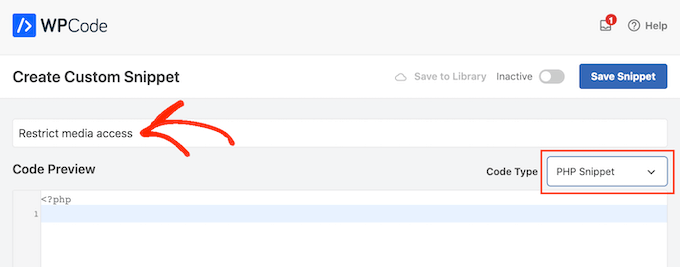
In the ‘Code Preview’ area, you can paste one of the following code snippets:
Option 1: Restricting Media File Access for Non-Admin WordPress Users
This code checks if the current user is not an administrator. If they’re not an admin, it filters the media library to show only the files that the user has uploaded themselves.
add_filter( 'ajax_query_attachments_args', 'user_show_attachments' );

function user_show_attachments( $query ) {
    $user_id = get_current_user_id();
    // Check if the current user is not an administrator
    if ( $user_id && !current_user_can('administrator') ) {
        $query['author'] = $user_id;
    }
    return $query;
}
This means regular users can only see and manage their own media files, while administrators can still see and manage all files.
Option 2: Restricting Media File Access for WordPress Users Without Post Editing Permissions
This code is perfect if you want Editors and Administrators to manage all media files while restricting Authors and Contributors to only their own uploads.
add_filter( 'ajax_query_attachments_args', 'user_show_attachments' );

function user_show_attachments( $query ) {
    $user_id = get_current_user_id();
    // Checks if the current user is logged in (i.e., $user_id is not 0) and does not have the capabilities to activate plugins or edit others' posts.
    if ( $user_id && !current_user_can('activate_plugins') && !current_user_can('edit_others_posts
') ) {
        $query['author'] = $user_id;
    }
    return $query;
}
It works by checking if a user has the edit_others_posts permission, which is a capability that Editors have by default, but Authors do not.
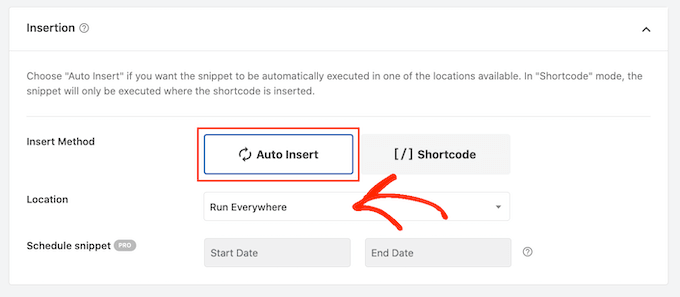
Next, just scroll to the ‘Insertion’ section. WPCode can add your code to different locations, such as after every post, on the front end only, or admin only.
To use the custom PHP code across your entire WordPress website, click ‘Auto Insert’ if it isn’t already selected. Then, open the ‘Location’ dropdown menu and choose ‘Run Everywhere.’
After that, you are ready to scroll to the top of the screen and click on the ‘Inactive’ toggle so it changes to ‘Active.’
Finally, click on ‘Save Snippet’ to make the PHP snippet live.
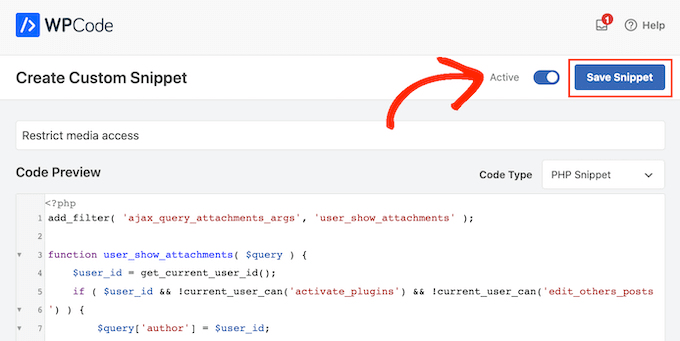
Now, users will only have access to the files they upload to the WordPress media library.
Frequently Asked Questions
Here are some of the most common questions we get asked about organizing media uploads in WordPress.
Is it safe to add custom code to my WordPress site?
Adding code directly to your theme’s functions.php file can be risky. A small typo or error could cause issues or even make your site inaccessible.
This is why we strongly recommend using the WPCode plugin. It creates a safe layer for adding snippets, so you don’t have to worry about breaking anything.
Will this affect my website’s performance?
Not at all. The code snippet we provided is very lightweight and runs efficiently.
It only adds a simple check when a user accesses the media library, so it won’t slow down your website for your visitors.
Can I restrict media access for specific user roles?
Yes, absolutely! The code can be easily customized to target a specific user role. For example, if you wanted this restriction to apply only to users with the ‘Author’ role, you could use this snippet instead:
add_filter( 'ajax_query_attachments_args', 'author_only_show_attachments' );

function author_only_show_attachments( $query ) {
    $user = wp_get_current_user();
    // Check if the current user has the 'author' role
    if ( in_array( 'author', (array) $user->roles ) ) {
        $query['author'] = $user->ID;
    }
    return $query;
}
Learn More Ways to Manage WordPress Files
Besides restricting media uploads in WordPress, you may also want to check out the guides below to better manage your files:
- How to Rename Images and Media Files in WordPress
- Best Dropbox Plugins for WordPress (Expert Picks)
- How to Create Additional Image Sizes in WordPress
- How to Enforce Clean Image Filenames in WordPress (Easy Method)
- How to Clean Up Your WordPress Media Library
- How to Change the Default Media Upload Location in WordPress
We hope this article helped you better organize media uploads by users on your WordPress site. Next, you can check out our expert picks of the best WordPress slider plugins and our guide on how to easily lazy load images in WordPress.
If you liked this article, then please subscribe to our YouTube Channel for WordPress video tutorials. You can also find us on Twitter and Facebook.





Joshua Owolabi
I really enjoy all your tutorials kudos to you.
Although I am unable to use to build something due to lack of resources but you are WELDONE
WPBeginner Support
Glad our tutorials are helpful
Admin
Teddu
I would like users to be able to upload content, and once its approved go onto a new page. the user could then edit it once it is there.
Think, similar how airbnb let users upload photos and descriptions of their holiday homes, and it appears in a page.
do you know a plug in for this functionality?
WPBeginner Staff
It is certainly possible but can potentially open up your site to spam, malicious hack attempts. Please see out article on how to allow users to submit posts in WordPress. You can allow users to upload media without registration.
fredtgorski
The one thing I would really(!) love to see on media library would be the ability to search media per post and/or date of upload. Every time I need to reuse an image I uploaded for a very old post, it is painfull to find it again. Sometimes I simply give up and reupload it…
agsm
sir , i want to design a wordpress page where user will upload some documents with following feilds (name,e-mail,title,summary and file upload) after submit , it should appear in dashboard and when admin approve it should be show on page (all listing of upload details which has been approved by admin ) , its possible,
thanks in advance!!!
Michel
https://wordpress.org/plugins/wp-user-frontend/
Jan
Do you also have a solution to enable visitors (non-logged-in users) to upload content?
Tony Franco
Very nice! Thank you!!