


We run several WordPress websites that don’t need blogging features. If you’re in a similar situation, you’ll be glad to know there’s an easy way to hide posts, comments, and categories from your dashboard.
While WordPress started as a blogging platform, it’s now used for all kinds of websites. Business sites, portfolios, and online stores often don’t need blog-related features cluttering up the admin area.
Turning off these features helps declutter your dashboard and makes WordPress easier to use. It’s especially helpful when working with clients or team members who are new to WordPress.
In this guide, we’ll show you how to disable blog features in WordPress without writing any code.
Why Disable Blog Features in WordPress?
We’ve helped many WordPress users who don’t need blogging features on their websites. While WordPress is the best platform for blogs, it’s also a powerful tool for building all kinds of non-blogging websites.
Not every website needs a blog. Online stores, membership websites, and portfolios often don’t require blog posts, categories, or comments.
Even when you’re not using these features, they still appear in the admin area by default. This can make the dashboard feel cluttered and harder to navigate.
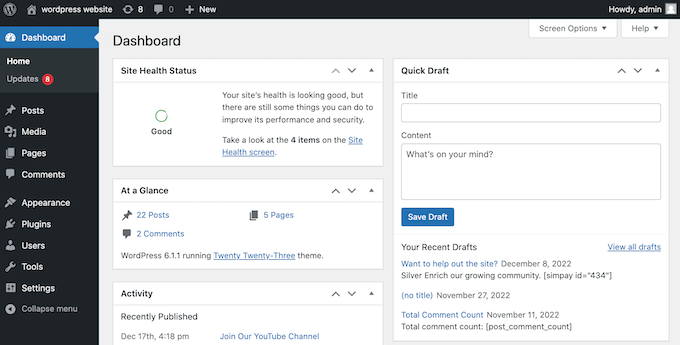
By hiding unnecessary blogging features, you can simplify the admin area for yourself and anyone else managing the site. This makes it easier to focus on the features you actually need.
This is especially useful when working with clients or team members who are new to WordPress. For example, if you’re creating a membership site, removing unused features can reduce confusion and improve usability.
Now, let’s look at how you can easily disable blog features in WordPress.
How to Change the WordPress Homepage
By default, WordPress displays your latest blog posts on the homepage. While this works well for blogs, many non-blogging sites need a customized homepage instead.
In our experience, setting up a static homepage is one of the first steps when creating a non-blogging website. For instance, if you’re building a small business website, you might design a homepage that highlights your most popular products.
To create the perfect homepage, check out our guide on how to edit a WordPress homepage effectively. Once your homepage design is ready, you can set it as the static homepage.
To do this, go to Settings » Reading in your WordPress admin area. From here, select the option for ‘A static page.’
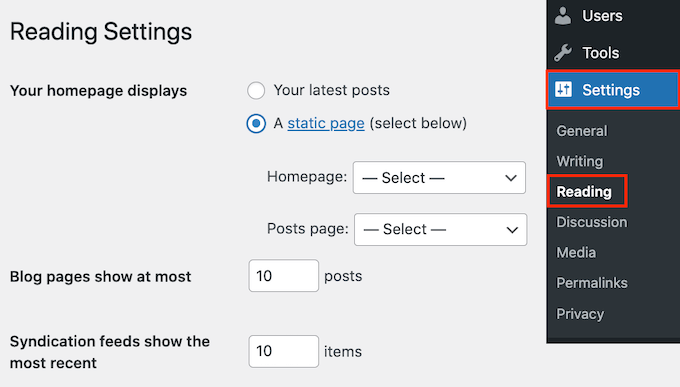
Note: If you have a brand-new website with no pages, you may not see this option. To enable this, create a page you want to use as the homepage.
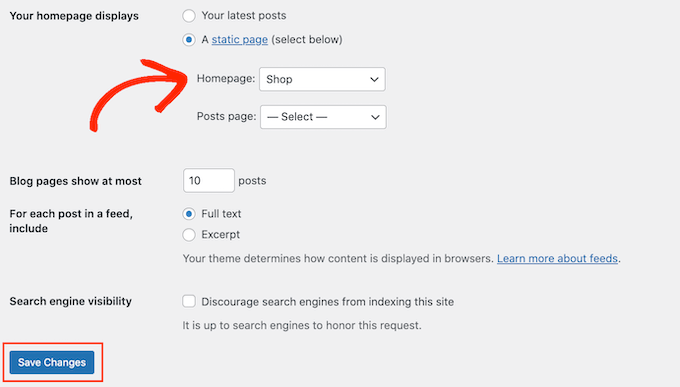
Next, open the ‘Homepage’ dropdown and choose the page you want to use as your homepage.
Finally, click the ‘Save changes’ button to update your settings and apply the changes.
Disabling Blog Features in WordPress
The easiest way to hide blogging features in WordPress is by using a free plugin called Disable Blog. This plugin hides the ‘Posts’ menu item, along with all blog-related admin pages and settings.
Note: The plugin page may show that it has not been tested with recent versions of WordPress. However, we tested the plugin, and you can safely install it. Please read our article on installing plugins not tested with your WordPress version.
If you’ve already written some posts, created categories and tags, or received comments from readers, the plugin will hide this content without deleting it.
If you change your mind later, you can restore all of this content by simply deactivating or deleting the Disable Blog plugin.
Once you activate the plugin, it automatically removes the ‘Posts’ settings from the left-hand menu and your admin toolbar. Any post-related widgets will also be removed from the WordPress admin dashboard.
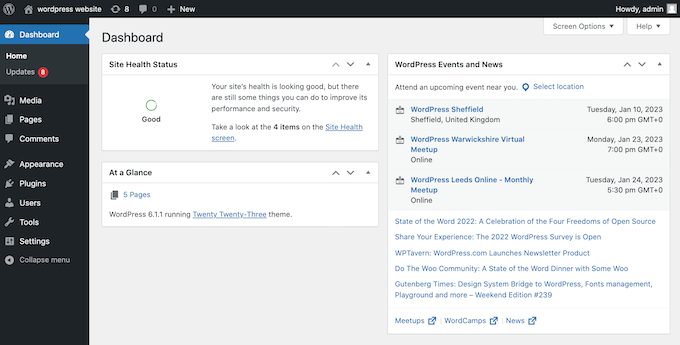
The plugin also hides all categories and tags, as long as they’re not being used by a custom post type.
If you’re displaying the comment count in WordPress, the plugin will also update the count to exclude any comments left on your blog posts.
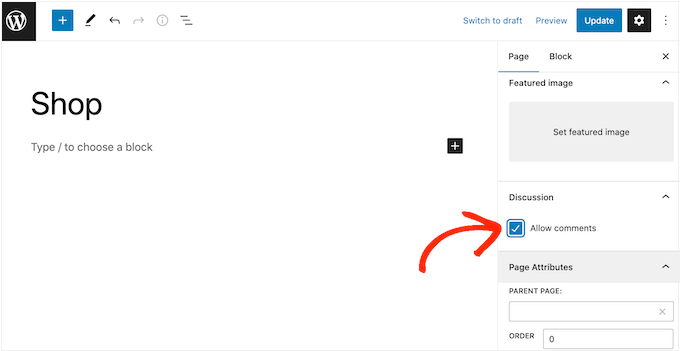
You may notice that the plugin doesn’t hide the ‘Comments’ settings. This is because you can still allow visitors to comment on individual pages.
To enable page comments, open any page and find the ‘Discussion’ settings in the right-hand menu. Then, simply check the box next to ‘Allow comments.’
If you want to disable comments completely, then please see our guide on how to completely disable comments in WordPress.
Should You Consider Adding a Blog Later?
We understand you’re reading this article to disable blogging features. However, based on our years of experience with WordPress and online marketing, we’ve seen how beneficial a blog can be for almost any website.
If you ever decide to add a blog in the future, here are some reasons why it might be worth considering:
- Improved SEO: Regularly updated blog content can improve your website’s search engine rankings. Search engines favor websites that consistently publish fresh, relevant content.
- Increased Traffic: A blog can attract more visitors to your site through organic search, social media shares, and backlinks from other websites.
- Establish Authority: A blog allows you to showcase your expertise in your field by sharing insights, tips, and industry news.
- Support Marketing Efforts: Content marketing is a powerful tool, and blog posts can support your marketing campaigns by providing additional content to share and promote.
- Lead Generation: Blogs can be used to generate leads by including calls to action within your posts.
- Showcase Products and Services: A blog gives you the opportunity to highlight your products or services through new releases, case studies, or customer testimonials.
The good news is that re-enabling blog features is easy. Simply deactivate the Disable Blog plugin, and all your settings will return to normal.
Frequently Asked Questions About Disabling Blog Features
Here are some common questions we get about disabling blog features in WordPress.
Will disabling blog features delete my posts?
No. The Disable Blog plugin only hides your posts, categories, and tags from the admin area. It doesn’t delete any content. If you deactivate the plugin, all your content will reappear exactly as you left it.
Can I re-enable blog features later?
Yes. You can restore all blog features at any time by deactivating or deleting the Disable Blog plugin. Your posts, categories, tags, and comments will all be restored.
Does this plugin work with custom post types?
Yes. The Disable Blog plugin only hides the default ‘Posts’ post type. Any custom post types you’ve created will continue to work normally. Categories and tags will also remain visible if they’re being used by a custom post type.
Why can I still see the Comments menu?
The plugin keeps the Comments menu visible because WordPress allows comments on pages, not just posts. If you want to disable comments entirely, see our guide on how to completely disable comments in WordPress.
We hope this article helped you learn how to disable blog features in WordPress. You may also want to see our list of the must-have WordPress plugins for business websites or our guide on how to write a great blog post.
If you liked this article, then please subscribe to our YouTube Channel for WordPress video tutorials. You can also find us on Twitter and Facebook.





Annie
Nice post
WPBeginner Support
Thank you
Admin
Gaurav Khurana
Never knew such a thing exist. That’s great but what are the possible use cases where people may need this
Ethan Jinks O'Sullivan
WordPress is much more than just a blogging platform nowadays. Many websites built off of WordPress don’t use posts, comments, feeds, or other blog-related features. As a result, these features become cumbersome.
At its core, WordPress doesn’t offer an option to turn any of these features off. That’s where our plugin adds these settings to simplify your website for non-blogging use.
Mustaasam Saleem
Great!
Will it also affect the performance of a site? As we are disabling the stuff that is not required if we do not want to use WordPress as a blog.
Ethan Jinks O'Sullivan
Hi Mustaasam,
Ethan from Fact Maven, the developers of Disable Blogging.
To answer your question, yes. On the back-end, it removes menu items from the Dashboard’s sidebar and toolbar, removes blog-related meta boxes on the Dashboard page, and removes blog-related widgets. On the front-end, feeds, pingbacks, trackbacks, XML-RPC, Windows Live Writer, and emoji support are removed from the header.
These are just some examples. You can see the complete list of features that are removed from the front and back end on our plugin page.
As a result, since there less functions running, the page size is reduced, less requests are made, and the load-time is decreased. Also, since all feed related links are removed, it prevent bots from crawling your unused links.
Ron Piper
Nice work – there are several other techniques i’ve tried over the years but it’s really cumbersome to resolve all the SEO loose ends that come up when getting rid of blogging from WP. Like having Archives indexed in google and so forth.
Ethan Jinks O'Sullivan
Thank you. If there’s any techniques that you use and our plugin doesn’t cover, please let us know on our GitHub page:
The same goes for any suggestions to help improve our plugin.